Page 142 of 719
141
uuGauges and Driver Information Interface uDriver Information Interface
Continued
Instrument Panel
*1:Default Setting Setup Group Customizable Features
Description Selectable Settings
Power tailgate
setup*
Keyless open modeChanges the keyless setting for when the power tailgate
opens.Anytime*1/When
Unlocked
Power open by outer
handleChanges the setting to open power tailgate by tailgate
outer handle.OFF (Manual only) /ON
(Power/Manual)*1
Maintenance
reset —Resets the Maintenance MinderTM display when you
have performed the maintenance service. (Selects Reset Items)
Default all—Cancels customized changes you have made or restores
them to their default setting.Cancel
/Set
* Not available on all models
Page 144 of 719
143
uuGauges and Driver Information Interface uDriver Information Interface
Continued
Instrument Panel
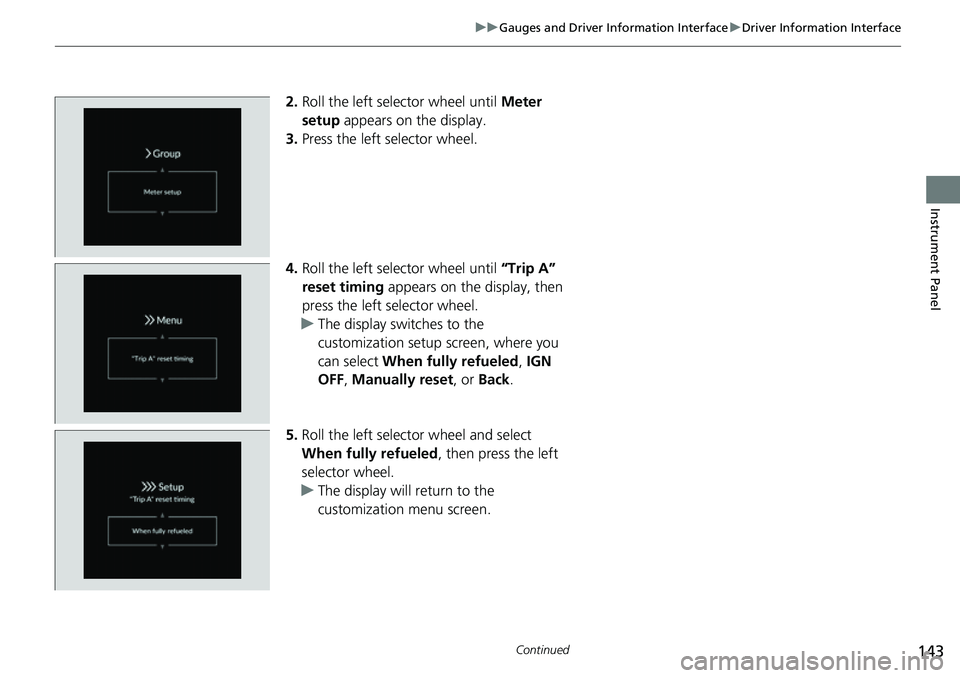
2. Roll the left selector wheel until Meter
setup appears on the display.
3. Press the left selector wheel.
4. Roll the left selector wheel until “Trip A”
reset timing appears on the display, then
press the left selector wheel.
u The display swit ches to the
customization setup screen, where you
can select When fully refueled , IGN
OFF , Manually reset , or Back .
5. Roll the left selector wheel and select
When fully refueled , then press the left
selector wheel.
u The display will return to the
customization menu screen.
Page 145 of 719
144
uuGauges and Driver Information Interface uDriver Information Interface
Instrument Panel
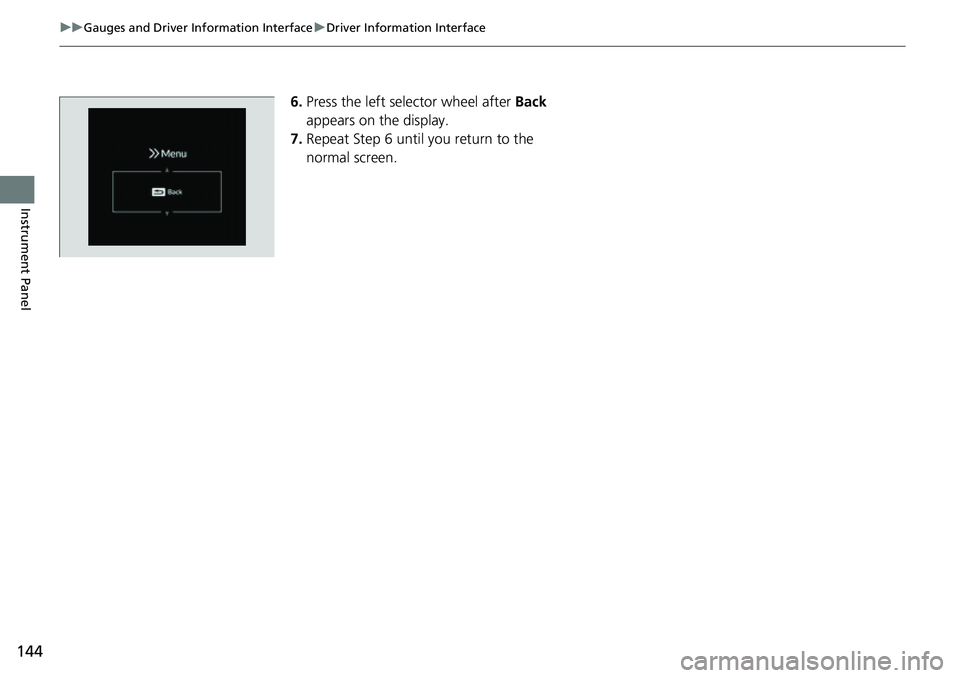
6. Press the left selector wheel after Back
appears on the display.
7. Repeat Step 6 until you return to the
normal screen.
Page 147 of 719
146
Controls
Clock
Adjusting the Clock
You can adjust the time in the clock display with the power mode in ON.
1. Press the MENU button.
2. Select Clock Settings .
3. Select Automatic Time , then select OFF.
4. Select Set Time.
5. Select 12H/24H to change 12 or 24 hour
clock.
6. Select or .
7. Select Set to set the time.
■Adjusting the Time
1Adjusting the Clock
The clock is automatically updated through the audio
system.
You can also select and enter with the LIST / SELECT
(List / Selector) knob in stead of the touch panel.
Models with 7-in. Color Touchscreen
MENU Button
Models with 7-in. Color Touchscreen
34
Page 148 of 719

147
uuClock uAdjusting the Clock
Controls
1. Press the button.
2. Select General Settings .
3. Select System.
4. Select Date & Time .
5. Select Set Date & Time .
6. Select Automatic Date & Time , then
select OFF.
To adjust date:
7. Select Set Date.
8. Select or .
9. Select Save to set the date.
To adjust time:
7. Select Set Time.
8. Select or .
9. Select Save to set the time.
1Adjusting the Clock
You can also adjust the clock by touching the clock
displayed in the header ar ea of the audio/information
screen, Clock displayed on the home screen, or
All Apps.
1. Touch the clock on the screen.
The clock screen of the face-type appears.
2. Select Settings .
3. Select Date & Time .
4. Select Set Date & Time .
5. Select Automatic Date & Time , then select OFF.
6. Select Set Date or Set Time.
7. Adjusting the dates, hours and minutes by selecting or .
8. Select Save to set the time.
You can customize the clock display to show the 12
hour clock or 24 hour clock. 2 Customized Features P. 376
You can customize the date display to MM/DD/
YYYY , DD/MM/YYYY or YYYY/MM/DD .
2 Customized Features P. 376
Models with 9-in. Color Touchscreen
34
Models with 9-in. Color Touchscreen
34
34
Page 233 of 719
232
Controls
Climate Control System
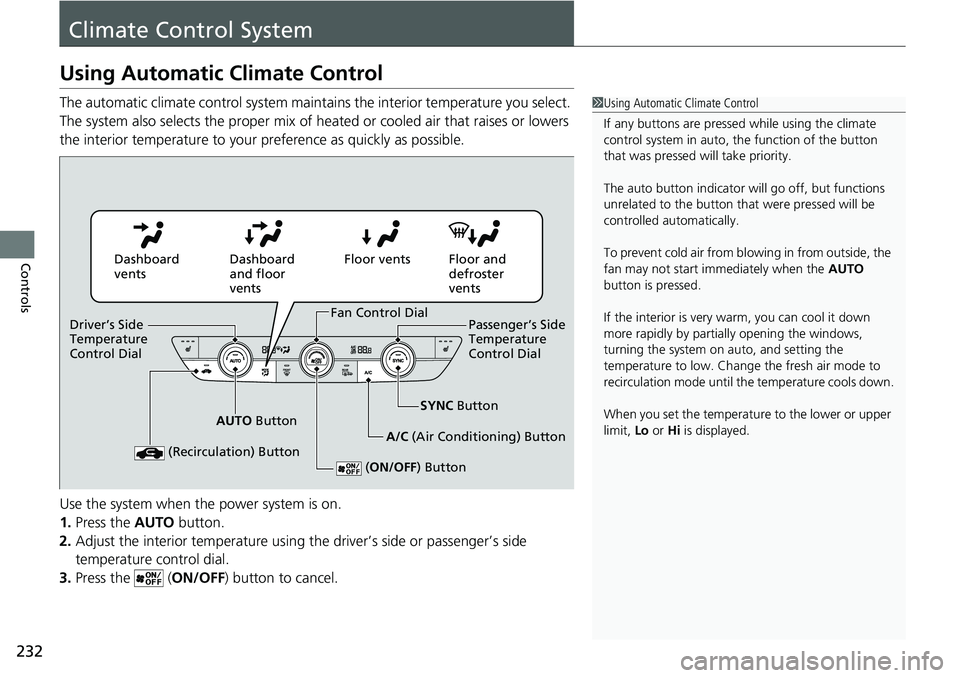
Using Automatic Climate Control
The automatic climate control system maintains the interior temperature you select.
The system also selects the proper mix of heated or cooled air that raises or lowers
the interior temperature to your preference as quickly as possible.
Use the system when the power system is on.
1. Press the AUTO button.
2. Adjust the interior temperature using the driver’s side or passenger’s side
temperature control dial.
3. Press the ( ON/OFF) button to cancel.1Using Automatic Climate Control
If any buttons are presse d while using the climate
control system in auto, the function of the button
that was pressed will take priority.
The auto button indicator will go off, but functions
unrelated to the button that were pressed will be
controlled automatically.
To prevent cold air from bl owing in from outside, the
fan may not start i mmediately when the AUTO
button is pressed.
If the interior is very warm, you can cool it down
more rapidly by partial ly opening the windows,
turning the system on auto, and setting the
temperature to low. Change the fresh air mode to
recirculation mode until the temperature cools down.
When you set the temperat ure to the lower or upper
limit, Lo or Hi is displayed.
Dashboard
vents Dashboard
and floor
ventsFloor vents Floor and
defroster
vents
AUTO Button SYNC
Button
A/C (Air Conditioning) Button
(Recirculation) Button
( ON/OFF ) Button
Fan Control Dial
Driver’s Side
Temperature
Control Dial Passenger’s Side
Temperature
Control Dial
Page 238 of 719

237
Features
This chapter describes how to operate technology features.
Audio SystemAbout Your Audio System ................ 238
USB Ports ......................................... 239
Audio System Theft Protection ......... 241
Audio Remote Controls .................... 242
Audio System Basic Operation ........ 246
Adjusting the Sound ........................ 247
Display Setup ................................... 248
Playing AM/FM Radio ....................... 249
Playing an iPod ................................ 251
Playing a USB Flash Drive ................. 254
Playing Bluetooth ® Audio ................. 257
Siri Eyes Free .................................... 261
Models with 7-in. Color Touchscreen
Smartphone Voice Recognition ........ 262
Apple CarPlay .................................. 263
Android Auto
TM................................ 267
Audio System Basic Operation ........ 271
Start Up ........................................... 272
Audio/Information Screen ................ 273
System Updates ............................... 284
Adjusting the Sound ........................ 290
Display Setup ................................... 291
Voice Control Operation .................. 293
Playing AM/FM Radio ....................... 296
Playing SiriusXM ® Radio ................... 300
Playing an iPod ................................ 311Models with 9-in. Color Touchscreen
Playing a USB Flash Drive ................. 314
Playing Bluetooth ® Audio ................ 317
HondaLink ®..................................... 320
Smart Shortcuts ............................... 324
Wi-Fi Connection ............................. 327
AT&T Hotspot
*................................ 328
Apple CarPlay .................................. 329
Android Auto
TM............................... 336
Power Flow...................................... 342
Audio Error Messages ...................... 345
General Information on the Audio System ............................................. 347
Customized Features ................ 368, 376
Bluetooth® HandsFreeLink® ..... 400, 420
Refuel Recommend .......................... 439
* Not available on all models
Page 240 of 719

239
uuAudio System uUSB Ports
Continued
Features
USB Ports
■On the front panel ( )
The USB port (2.5A) is for charging devices,
playing audio files and connecting compatible
phones with Apple CarPlay or Android Auto. u To prevent any potenti al issues, be sure
to use an Apple MFi Certified Lightning
Connector for Apple CarPlay, and for
Android Auto, the USB cables should be
certified by USB-IF to be compliant with
USB 2.0 Standard.
■On the front panel ( )
The USB port (3.0A) is only for charging
devices. u You cannot play music even if you have
connected music players to it.
1USB Ports
•Do not leave the iPod or USB flash drive in the
vehicle. Direct sunlight and high temperatures may
damage it.
•We recommend that you us e a USB cable if you are
attaching a USB flash drive to the USB port.
•Do not connect the iPod or USB flash drive using a
hub.
•Do not use a device such as a card reader or hard
disk drive, as the device or your files may be
damaged.
•We recommend backing up yo ur data before using
the device in your vehicle.
•Displayed messages may vary depending on the
device model and software version.
The USB port can supply up to 2.5A/3.0A of power. It
does not output 2.5A/3.0A unless requested by the
device.
For amperage details, read the operating manual of
the device that ne eds to be charged.
Under certain condi tions, a device connected to the
port may generate noise to the radio station you are
listening to.
USB charge
On the front panel