2023 FORD F150 change time
[x] Cancel search: change timePage 629 of 786
Changing the Wi-Fi HotspotFrequency
Note:The vehicle hotspot frequency bandis selectable depending upon your devicecapabilities. You will not be able to connectyour device to the vehicle hotspot if it doesnot support the selected frequency band.
Select the settings option on thefeature bar.
1.Press Vehicle Hotspot.
2.Press Settings.
3.Press Edit.
4.Select a frequency.
VEHICLE WI-FI HOTSPOT –
TROUBLESHOOTING
VEHICLE WI-FI HOTSPOT –FREQUENTLY ASKED QUESTIONS
Why can I not see the Wi-Fi hotspotname when I search for Wi-Finetworks on my cell phone or otherdevice?
•Make sure Wi-Fi hotspot visibility is on.
•The system does not provide a Wi-Fihotspot at this time.
•Check what frequency the hotspot istransmitting in the vehicle hotspotsettings menu. If the frequency is 5 GHzand your device cannot see thenetwork, change the frequency to 2.4GHz.
625
2023 F-150 (TFD) Canada/United States of America, enUSA, Edition date: 202206, DOMVehicle Wi-Fi HotspotE280315
Page 630 of 786
AUDIO SYSTEM
PRECAUTIONS
WARNING: Driving while distractedcan result in loss of vehicle control, crashand injury. We strongly recommend thatyou use extreme caution when using anydevice that may take your focus off theroad. Your primary responsibility is thesafe operation of your vehicle. Werecommend against the use of anyhand-held device while driving andencourage the use of voice-operatedsystems when possible. Make sure youare aware of all applicable local lawsthat may affect the use of electronicdevices while driving.
Listening to loud audio for long periods oftime could damage your hearing.
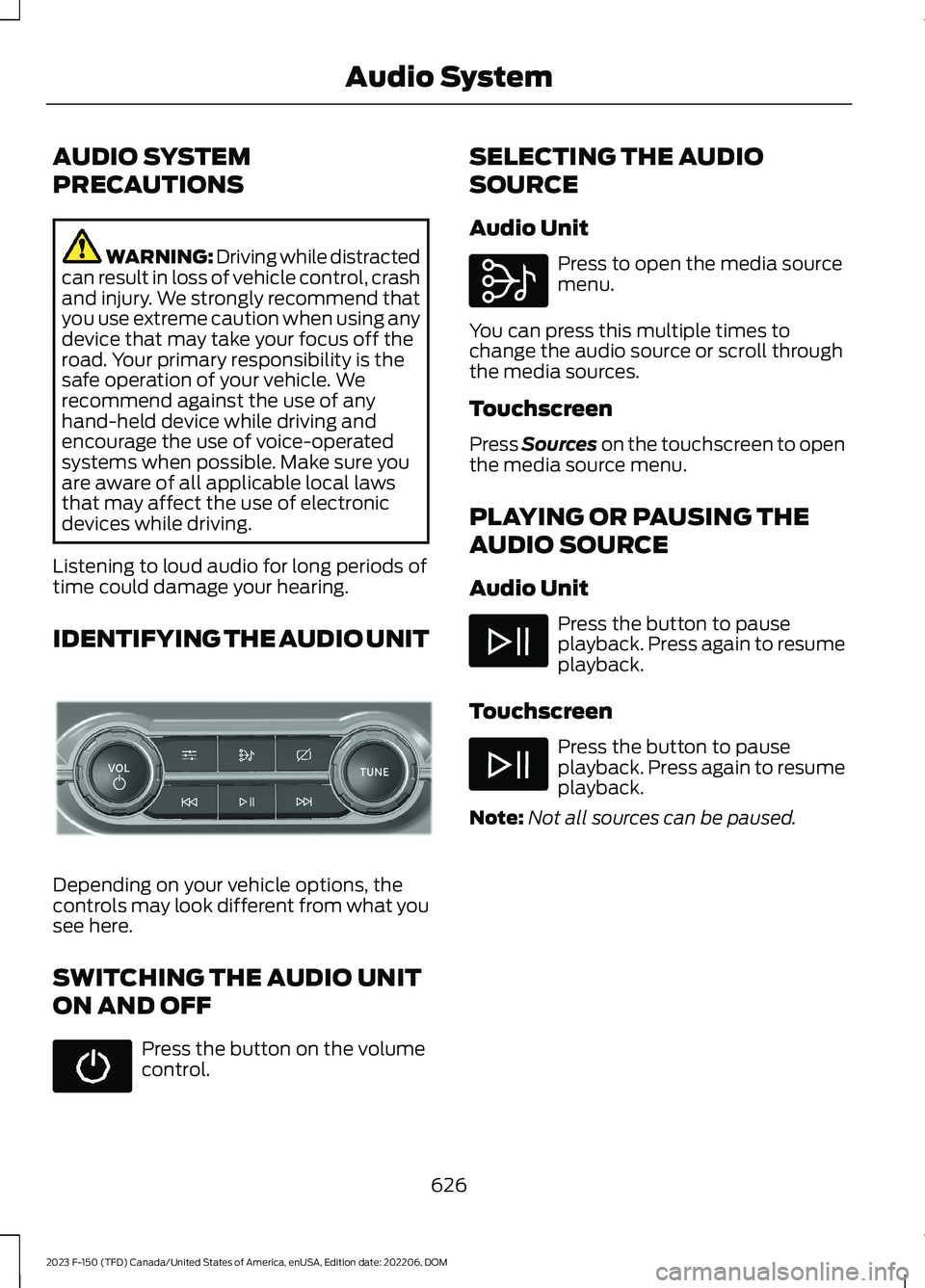
IDENTIFYING THE AUDIO UNIT
Depending on your vehicle options, thecontrols may look different from what yousee here.
SWITCHING THE AUDIO UNIT
ON AND OFF
Press the button on the volumecontrol.
SELECTING THE AUDIO
SOURCE
Audio Unit
Press to open the media sourcemenu.
You can press this multiple times tochange the audio source or scroll throughthe media sources.
Touchscreen
Press Sources on the touchscreen to openthe media source menu.
PLAYING OR PAUSING THE
AUDIO SOURCE
Audio Unit
Press the button to pauseplayback. Press again to resumeplayback.
Touchscreen
Press the button to pauseplayback. Press again to resumeplayback.
Note:Not all sources can be paused.
626
2023 F-150 (TFD) Canada/United States of America, enUSA, Edition date: 202206, DOMAudio SystemE308144 E308143
Page 633 of 786
Using the Station List
1.Press Browse.
Note:Available on FM radio only.
2.Press a station.
SWITCHING THE DISPLAY ON
AND OFF
Audio Unit
Press the button.
Touchscreen
To switch the display off:
1.Press Settings on the touchscreen.
2.Press Display Settings.
3.Press Display Off.
Note:The display defaults to on each timeyou switch your vehicle on.
To switch the display on, press anywhereon the touchscreen.
DIGITAL RADIO (IF EQUIPPED)
WHAT IS DIGITAL RADIO
HD Radio™ technology is the digitalevolution of analog AM/FM radio.
For additional information, visitwww.HDRadio.com.
HD Radio Technology is manufacturedunder license from iBiquity DigitalCorporation and foreign patents. HD Radioand the HD and HD Radio logos areproprietary trademarks of DTS. The vehiclemanufacturer and DTS are not responsiblefor the content sent using HD Radiotechnology. Content may be changed,added or deleted at any time at the stationowner's discretion.
HOW DOES DIGITAL RADIO WORK
Your system has a special receiver thatallows it to receive digital broadcasts inaddition to analog broadcasts.
HD1 signifies the main programming statusand is available in both analog and digitalbroadcasts. Other multicast stations areonly available digitally and could containnew or different content.
Note:When the system first receives anHD1 station, it plays the station in the analogversion until it verifies the station is an HDRadio station. Then it shifts to the digitalversion.
Note:There is an audio mute delay whenswitching to an HD2 or HD3 station becausethe system has to reacquire and decode thedigital signal.
DIGITAL RADIO LIMITATIONS
If you are outside the reception area, thesystem could not work.
If you are on the fringe of the receptionarea, the station could mute due to weaksignal strength.
Note:If you are listening to HD1, the systemchanges back to the analog broadcast untilthe digital broadcast is available again. Ifyou are listening to any other multicastchannels, the station mutes and staysmuted unless it is able to connect to thedigital signal again.
629
2023 F-150 (TFD) Canada/United States of America, enUSA, Edition date: 202206, DOMAudio SystemE272035
Page 634 of 786
Depending on the station quality, you couldhear a slight sound change when thestation changes between analog anddigital audio.
You cannot access a saved HD station ifyour vehicle is outside the station’sreception area.
SWITCHING DIGITAL RADIORECEPTION ON AND OFF
1.Press Settings on the touchscreen.
2.Press Radio Settings.
3.Switch AM HD Radio or FM HD Radioon or off.
DIGITAL RADIO INDICATORS
HD Radio Indicator
The indicator appears when HD Radio ison and you tune to a station broadcastingHD Radio technology.
The color of the indicator changes toindicate the system status.
Gray indicates the system is acquiring adigital station.
Orange indicates digital audio is playing.
Multicast Indicator
The multicast indicator appears if thecurrent station is broadcasting multipledigital broadcasts. The highlightednumbers indicate additional digitalchannels available.
Note:For stations that have more than oneHD multicast, the HD indicator and radiotext appears as a button. Press the buttonto cycle through all of the HD stations onthat specific frequency.
SATELLITE RADIO (IF EQUIPPED)
WHAT IS SATELLITE RADIO
Your factory-installed SiriusXM radiosystem includes a limited subscriptionterm, which begins on the date of sale orlease of your vehicle. See an authorizeddealer for availability.
For additional information about extendedsubscription terms, visit www.SiriusXM.comin the United States,www.SiriusXM.ca inCanada, or call SiriusXM at1-888-539-7474.
Note:SiriusXM reserves the unrestrictedright to change, rearrange, add or deleteprogramming including canceling, movingor adding particular channels, and its prices,at any time, with or without notice to you.Neither SiriusXM and its affiliates nor FordMotor Company and its affiliates will beliable to you or any third party for any suchmodification, suspension or termination.
SATELLITE RADIO LIMITATIONS
For optimal reception performance, keepthe antenna clear of snow and ice build-upand keep luggage and other material asfar away from the antenna as possible.Placing luggage over the antenna mayreduce performance. Factory-installed andaftermarket vehicle structures including,but not limited to, roof racks and soft toproofs in a partially open position couldreduce reception performance.
630
2023 F-150 (TFD) Canada/United States of America, enUSA, Edition date: 202206, DOMAudio SystemE142616
Page 648 of 786

PHONE PRECAUTIONS
WARNING: Driving while distractedcan result in loss of vehicle control, crashand injury. We strongly recommend thatyou use extreme caution when using anydevice that may take your focus off theroad. Your primary responsibility is thesafe operation of your vehicle. Werecommend against the use of anyhand-held device while driving andencourage the use of voice-operatedsystems when possible. Make sure youare aware of all applicable local lawsthat may affect the use of electronicdevices while driving.
CONNECTING YOUR PHONE
Go to the settings menu on your device andswitch Bluetooth® on.
Press the phone option on thefeature bar.
1.Press Add Phone.
Note:A prompt alerts you to search for yourvehicle on your cell phone.
2.Select your vehicle on your cell phone.
Note:A number appears on your cell phoneand on the touchscreen.
3.Confirm the number on your cell phonematches the number on thetouchscreen.
Note:The touchscreen indicates that youhave successfully paired your cell phone.
4.Download the phonebook from yourcell phone when you are prompted.
Note:If you pair more than one cell phone,use the phone settings on the center displayto specify the primary phone. You canchange this setting at any time.
PHONE MENU
This menu becomes available after pairinga phone.
Recent Call List
Display and select an entry from a list ofprevious calls.
Contacts
Display a smart search form to look up yourcontacts. Use the List button toalphabetically sort your contacts.
Favorites
Display the list of favorite contacts thatare set up on your phone.
Messaging
Displays the list of text messages to read,listen to, or respond to.
Email
Displays the list of emails to read, listen to,or respond to.
Phone List
Display the list of paired or connecteddevices that you can select.
Note:Up to 12 devices can be stored.
Do Not Disturb
Reject incoming calls and switch ring tonesand alerts off.
Phone Keypad
Directly dial a number.
644
2023 F-150 (TFD) Canada/United States of America, enUSA, Edition date: 202206, DOMPhone
Page 654 of 786

APP PRECAUTIONS
WARNING: Driving while distractedcan result in loss of vehicle control, crashand injury. We strongly recommend thatyou use extreme caution when using anydevice that may take your focus off theroad. Your primary responsibility is thesafe operation of your vehicle. Werecommend against the use of anyhand-held device while driving andencourage the use of voice-operatedsystems when possible. Make sure youare aware of all applicable local lawsthat may affect the use of electronicdevices while driving.
APP REQUIREMENTS
When you start an app through the systemfor the first time, you could be asked togrant certain permissions. You can reviewand change the permissions that you havegranted at any time when your vehicle isnot moving. We recommend that youcheck your data plan before using yourapps through the system. Using themcould result in additional charges. We alsorecommend that you check the appprovider's terms and conditions andprivacy policy before using their app. Makesure that you have an active account forapps that you want to use through thesystem. Some apps will work with nosetup. Others require you to configuresome personal settings before you can usethem.
ACCESSING APPS
Select the apps option on thefeature bar.
ENABLING APPS ON AN IOS
DEVICE
Select the apps option on thefeature bar.
1.Select Mobile Apps Help.
2.Follow the instructions to pair andconnect your device via Bluetooth® orwith a USB cable.
3.Start the apps on your device that youwant to use.
4.Select the app that you want to use onthe touchscreen.
Note:Some apps may run through AppleCarPlay if it is enabled.
Note:Closing an app on your device willclose it on the touchscreen.
Note:For troubleshooting assistance selectMobile Apps List under Mobile Apps Help.
ENABLING APPS ON AN
ANDROID DEVICE
Select the apps option on thefeature bar.
1.Select Mobile Apps Help.
2.Follow the instructions to pair andconnect your device via Bluetooth® orwith a USB cable.
3.Start the apps on your device that youwant to use.
4.Select Find Mobile Apps.
5.Select the app that you want to use onthe touchscreen.
Note:Some devices may lose the ability toplay music over USB when Mobile Apps areenabled.
Note:Some apps may run through AndroidAuto if it is enabled.
650
2023 F-150 (TFD) Canada/United States of America, enUSA, Edition date: 202206, DOMApps
Page 662 of 786
Switching Automatic Updates Onand Off
Your vehicle may come with AutomaticUpdates switched on. To make sure yourvehicle always has the latest software,which could include security or otherenhancements, we do not recommendswitching Automatic Updates off.
Note:Software updates require approvalto download or install with AutomaticUpdates switched off.
Scheduling and InstallingSoftware Updates
Scheduling Software Updates
From the Software Updates menu:
1.Press Schedule Updates.
2.Select the days and time for updates.
3.Press Save.
The more days that updates arescheduled, the more frequently yourvehicle installs new updates. Werecommend selecting a time you normallydo not need your vehicle, such as overnight.
Some updates require your vehicle to beswitched off.
Note:The schedule you set is recurring. IfAutomatic Updates is on, every time anon-drivable update is available, it installson this schedule unless you change it. Youare notified on your touchscreen andconnected device prior to a non-drivableupdate, with an option to reschedule it.
Installing Software Updates
Using the Status Bar
1.Press a Software Update indicator onyour touchscreen when it appears.
2.Follow the instructions on thetouchscreen.
Using the Touchscreen
From the Software Updates menu:
1.Press Update Details.
2.Press Update Now.
Viewing Software Update Details
From the Software Updates menu:
1.Press Update Details.
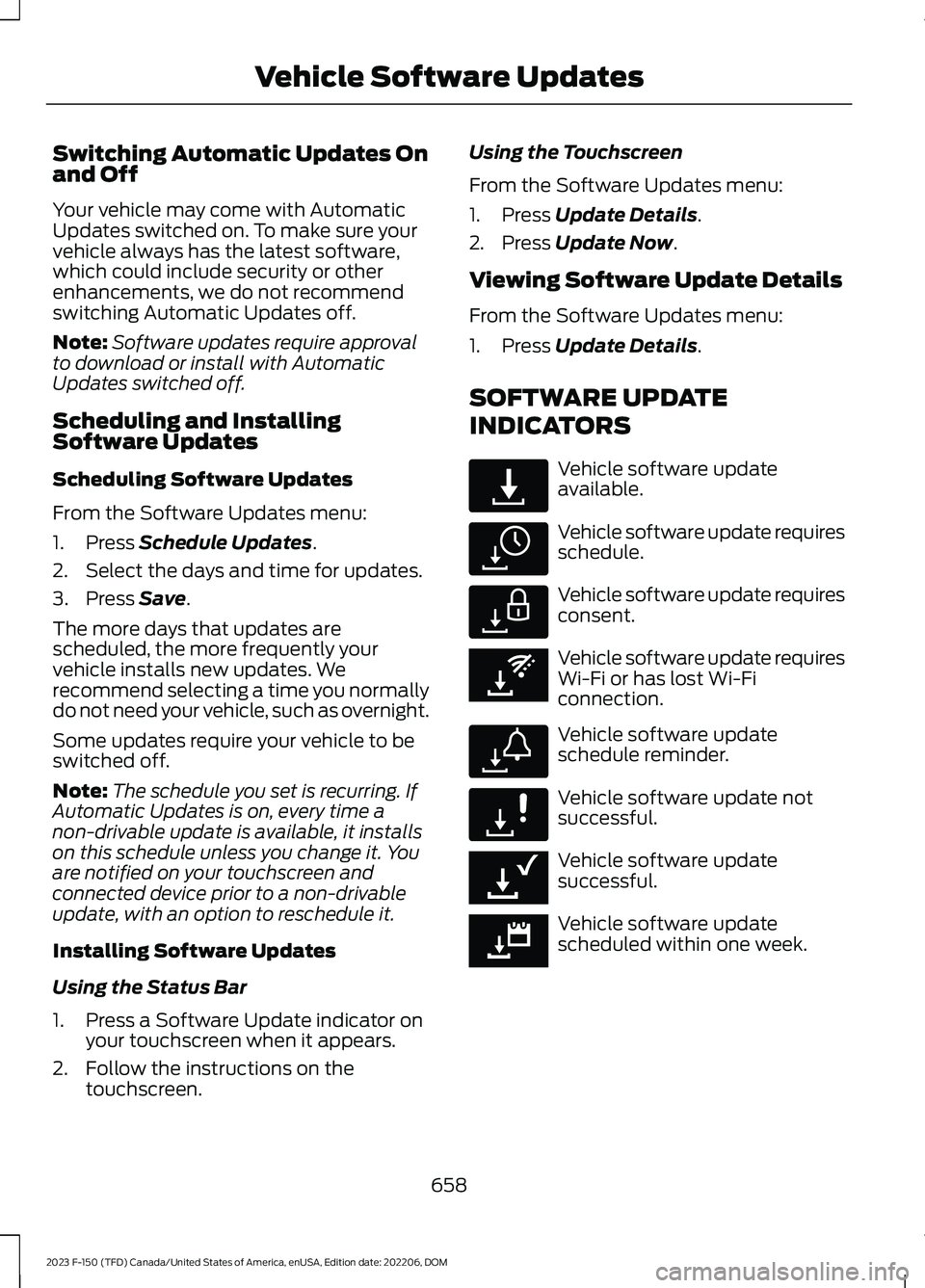
SOFTWARE UPDATE
INDICATORS
Vehicle software updateavailable.
Vehicle software update requiresschedule.
Vehicle software update requiresconsent.
Vehicle software update requiresWi-Fi or has lost Wi-Ficonnection.
Vehicle software updateschedule reminder.
Vehicle software update notsuccessful.
Vehicle software updatesuccessful.
Vehicle software updatescheduled within one week.
658
2023 F-150 (TFD) Canada/United States of America, enUSA, Edition date: 202206, DOMVehicle Software UpdatesE327789 E327785 E327786 E353217 E327787 E327788 E353218 E383433
Page 670 of 786

Less Cost to Properly Maintain YourVehicle
The Ford Protect extended service planalso offers a Premium Maintenance Planthat covers all scheduled maintenance,and selected wear items. The coverage isprepaid, so you never have to worry aboutthe cost of your vehicle’s maintenance.
Covered maintenance includes:
•Windshield wiper blades.
•Spark plugs.
•The clutch disc (if equipped).
•Brake pads and linings.
•Shock absorbers.
•Struts.
•Engine belts.
•Engine coolant hoses, clamps ando-rings.
•Diesel exhaust fluid replenishment (ifequipped).
•Cabin air filter replacement every20,000 mi (32,000 km) for electricvehicles only.
Interest Free Finance Options
Just a 5% down payment provides youwith an affordable, no interest, no feepayment program allowing you all thesecurity and benefits Ford Protectextended service plan has to offer whilepaying over time. You are pre-approvedwith no credit check or hassles. To learnmore, call our Ford Protect extendedservice plan specialists at 800-367-3377.
Ford Protect Extended Service PlanP.O. Box 321067Detroit, MI 48232
Ford Protect Extended ServicePlan (Canada Only)
You can get more protection for yourvehicle by purchasing a Ford Protectextended service plan. Ford Protectextended service plan is the only servicecontract backed by Ford Motor Companyof Canada, Limited. Depending on the planyou purchase, Ford Protect extendedservice plan provides benefits such as:
•Rental reimbursement.
•Coverage for certain maintenance andwear items.
•Protection against repair costs afteryour New Vehicle Limited WarrantyCoverage expires.
•Roadside Assistance benefits.
There are several Ford Protect extendedservice plans available in various time,distance and deductible combinations.Each plan is tailored to fit your own drivingneeds, including reimbursement for towingand rental. When you purchase FordProtect extended service plan, you receiveadded peace-of-mind protectionthroughout Canada, the United States andMexico, provided by a network ofparticipating authorized Ford MotorCompany dealers.
Note:Repairs performed outside of Canadaand the United States are not eligible forFord Protect extended service plancoverage.
This information is subject to change. Visityour local Ford of Canada dealer orwww.ford.ca to find the Ford Protectextended service plan that is right for you.
666
2023 F-150 (TFD) Canada/United States of America, enUSA, Edition date: 202206, DOMFord Protect