2023 FORD EXPLORER navigation
[x] Cancel search: navigationPage 254 of 573

SWITCHING INTELLIGENT
MODE ON AND OFF
WARNING: You are responsible forcontrolling your vehicle at all times. Thesystem is designed to be an aid and doesnot relieve you of your responsibility todrive with due care and attention. Failureto follow this instruction could result inthe loss of control of your vehicle,personal injury or death.
1.Press Settings on the touchscreen.
2.Press Driver Assistance.
3.Press Cruise Control.
4.Press Intelligent.
Changing the Set Speed withIntelligent Adaptive Cruise Control
When intelligent mode is on, the systemadjusts the set speed to the speed limitdetected by the camera and the speedlimit information provided by thenavigation system.
Note:The set speed adjusts when thesystem detects a different maximum speedlimit.
Note:The speed limit information providedby the navigation map data may beinaccurate or out of date. See Navigation(page 449).
Note:The system alerts you if the set speedincreases beyond the speed limit. SeeAdaptive Cruise Control Indicators (page248).
If the system does not detect a speed limit,the vehicle speed remains at the currentset speed.
You can override the set speed at any time.You may need to override or cancel thesystem in certain situations such asinclement weather or if an incorrect speedis set.
Note:The system may not detect and readspeed limit signs with conditionalinformation, for example, when a sign isflashing, during specific time ranges, orwhen children are present.
Note:Under certain conditions, the systemmay not adjust the vehicle speed until afteryour vehicle passes the speed limit sign.
ADJUSTING THE SET SPEED
TOLERANCE
You can set a permanent speed tolerancethat is above or below the detected speedlimit.
1.Press Settings on the touchscreen.
2.Press Driver Assistance.
3.Press Cruise Control.
4.Press Intelligent.
5.Press Tolerance.
6.Use + and - to set the tolerance.
Note:You cannot set the tolerance morethan 20 mph (30 km/h) above or below therecognized speed.
ADAPTIVE CRUISE CONTROL
– TROUBLESHOOTING
ADAPTIVE CRUISE CONTROL –INFORMATION MESSAGES -VEHICLES WITH: LANECENTERING
Note:Depending on your vehicle optionsand instrument cluster type, not allmessages display or are available.
250
2023 Explorer (CTW) Canada/United States of America, enUSA, Edition date: 202209, First-PrintingAdaptive Cruise Control (If Equipped)
Page 271 of 573

Note:Speed sign data provided by thenavigation system contains informationintegrated to the data carrier release.
Note:The system may not detect orcorrectly read all speed signs.
Note:If your vehicle has a suspension kitnot approved by us, the system may notcorrectly function.
Note:Always replace headlamp bulbs withthose specifically designed for your vehicle.Other bulbs could reduce systemperformance.
The system turns on when you switch theignition on, and you cannot switch thesystem off.
Using Speed Sign Recognition
Setting the System Speed Warning
You can set the system speed warning toalert you when the vehicle speed exceedsthe speed limit recognized by the systemby a certain speed tolerance.
Note:The system remembers the lastsetting when you start your vehicle.
System Display
When the system detects a speed limitsign, the speed limit appears in theinformation display.
Note:If your vehicle has a navigationsystem, stored speed sign data couldinfluence the indicated speed limit value.
To switch the system off or to adjust thesettings, use the touchscreen:
1.Press Settings on the touchscreen.
2.Press Driver Assistance.
3.Press Speed Sign Recognition.
4.Press Speed Warning.
5.Press Tolerance.
6.Use + and - to set the tolerance.
Information Messages
ActionMessage
The traffic sign data provided by the navig-ation system is unavailable due to a weaksignal, or no signal. Wait for a short periodof time for the signal to improve. If themessage continues to appear, have yourvehicle checked as soon as possible.
Traffic Sign Reduced Performance SeeManual
267
2023 Explorer (CTW) Canada/United States of America, enUSA, Edition date: 202209, First-PrintingDriving AidsE317824
Page 335 of 573

•Climate control.
•Heated steering wheel.
•Audio unit.
•Navigation system.
A message may appear in the informationdisplay to alert you that battery protectionactions are active. This message is only fornotification that an action is taking place,and not intended to indicate an electricalproblem or that the battery requiresreplacement.
After battery replacement, or in somecases after charging the battery with anexternal charger, the battery managementsystem requires eight hours of vehicle sleeptime to relearn the battery state of charge.During this time, your vehicle must remainfully locked with the ignition switched off.
Note:Prior to relearning the battery stateof charge, the battery management systemmay temporarily disable some electricalsystems.
Electrical Accessory Installation
To make sure the battery managementsystem works correctly, do not connect anelectrical device ground connectiondirectly to the battery negative post. Thiscan cause inaccurate measurements ofthe battery condition and potentialincorrect system operation.
Note:If you add electrical accessories orcomponents to the vehicle, it may adverselyaffect battery performance and durability.This may also affect the performance ofother electrical systems in the vehicle.
Remove and Reinstall the Battery
Install a battery approved for use by ourspecifications. See Capacities andSpecifications (page 378).
To disconnect or remove the battery, dothe following:
1.Apply the parking brake and switch theignition off.
2.Switch all electrical equipment off, forexample lights and radio.
3.Wait a minimum of two minutes beforedisconnecting the battery.
Note:The engine management system hasa power hold function and remains poweredfor a period of time after you switch theignition off. This is to allow the system tostore diagnostic and adaptive tables.Disconnecting the battery without waitingcan cause damage not covered by thevehicle warranty.
4.Disconnect the negative battery cableterminal.
5.Disconnect the positive battery cableterminal.
6.Remove the battery securing clamp.
7.Remove the battery.
8.To install, reverse the removalprocedure.
Note:Before reconnecting the battery,make sure the ignition remains switched off.
Note:Make sure to fully tighten the batterycables.
If you disconnect or replace the vehiclebattery, you must reset the followingfeatures:
•Window bounce-back. See PowerWindows (page 94).
•Clock Settings.
•Pre-set radio stations.
Battery Disposal
Make sure that you dispose ofold batteries in anenvironmentally friendly way.Seek advice from your local authorityabout recycling old batteries.
331
2023 Explorer (CTW) Canada/United States of America, enUSA, Edition date: 202209, First-PrintingMaintenanceE107998
Page 338 of 573

•Climate control.
•Heated steering wheel.
•Audio unit.
•Navigation system.
A message may appear in the informationdisplay to alert you that battery protectionactions are active. This message is only fornotification that an action is taking place,and not intended to indicate an electricalproblem or that the battery requiresreplacement.
After battery replacement, or in somecases after charging the battery with anexternal charger, the battery managementsystem requires eight hours of vehicle sleeptime to relearn the battery state of charge.During this time, your vehicle must remainfully locked with the ignition switched off.
Note:Prior to relearning the battery stateof charge, the battery management systemmay temporarily disable some electricalsystems.
Electrical Accessory Installation
To make sure the battery managementsystem works correctly, do not connect anelectrical device ground connectiondirectly to the battery negative post. Thiscan cause inaccurate measurements ofthe battery condition and potentialincorrect system operation.
Note:If you add electrical accessories orcomponents to the vehicle, it may adverselyaffect battery performance and durability.This may also affect the performance ofother electrical systems in the vehicle.
Remove and Reinstall the Battery
Install a battery approved for use by ourspecifications. See Capacities andSpecifications (page 378).
To disconnect or remove the battery, dothe following:
1.Apply the parking brake and switch theignition off.
2.Switch all electrical equipment off, forexample lights and radio.
3.Wait a minimum of two minutes beforedisconnecting the battery.
Note:The engine management system hasa power hold function and remains poweredfor a period of time after you switch theignition off. This is to allow the system tostore diagnostic and adaptive tables.Disconnecting the battery without waitingcan cause damage not covered by thevehicle warranty.
4.Disconnect the negative battery cableterminal.
5.Disconnect the positive battery cableterminal.
6.Remove the battery securing clamp.
7.Remove the battery.
8.To install, reverse the removalprocedure.
Note:Before reconnecting the battery,make sure the ignition remains switched off.
Note:Make sure to fully tighten the batterycables.
If you disconnect or replace the vehiclebattery, you must reset the followingfeatures:
•Window bounce-back. See PowerWindows (page 94).
•Clock Settings.
•Pre-set radio stations.
Battery Disposal
Make sure that you dispose ofold batteries in anenvironmentally friendly way.Seek advice from your local authorityabout recycling old batteries.
334
2023 Explorer (CTW) Canada/United States of America, enUSA, Edition date: 202209, First-PrintingMaintenanceE107998
Page 431 of 573

GENERAL INFORMATION
WARNING: Driving while distractedcan result in loss of vehicle control, crashand injury. We strongly recommend thatyou use extreme caution when using anydevice that may take your focus off theroad. Your primary responsibility is thesafe operation of your vehicle. Werecommend against the use of anyhand-held device while driving andencourage the use of voice-operatedsystems when possible. Make sure youare aware of all applicable local lawsthat may affect the use of electronicdevices while driving.
About SYNC
The system allows you to interact with theentertainment, information andcommunication systems on your vehicleusing voice commands and a touchscreen.The system provides easy interaction withaudio, phone, navigation, mobile apps andsettings.
Note:You can switch the system on anduse it for up to an hour without switchingthe ignition on.
Note:You can use the system after youswitch the ignition off for up to 10 minutesor until you open a door.
Note:For your safety, some features arespeed-dependent. Their use is limited towhen your vehicle speed is less than 3 mph(5 km/h).
Using the Touchscreen
Status bar.A
Home screen.B
Clock. See Settings (page 458).C
Outside air temperature.D
Feature bar.E
Status Bar
Cell phone microphone muted.
Audio system muted.
Software update installed.
Wi-Fi connected.
Cell phone roaming.
Text message received.
427
2023 Explorer (CTW) Canada/United States of America, enUSA, Edition date: 202209, First-PrintingSYNC™ 3E293823
Page 432 of 573

Automatic crash notificationsystem off.
Cell phone network signalstrength.
Vehicle data sharing on.
Vehicle location sharing on.
Vehicle data and vehicle locationsharing on.
Wireless charger active.
Feature Bar
Select to use the radio, a USB, amedia player or a Bluetooth®device. See Entertainment(page 435).
Select to adjust climate settingsSee Climate (page 445).
Select to make calls and accessthe phonebook on your cellphone. See Phone (page 447).
Select to use the navigationsystem. See Navigation (page449).
Select to search for and usecompatible apps on your iOS orAndroid device. See Apps (page455).
Select to adjust system settings.See Settings (page 458).
Cleaning the Touchscreen
See Cleaning the Interior (page 342).
Updating the System
Updating the System Using a USB Drive
Downloading an Update
1.Go to the SYNC update page on thelocal Ford website.
2.Download the update.
Note:The website notifies you if an updateis available.
3.Insert a USB drive into your computer.
Note:The USB drive needs to be empty andmeet the minimum requirements detailedon the website.
4.Follow the instructions provided todownload the update to the USB drive.
Installing an Update
Note:You can use the system when aninstallation is in progress.
1.Disconnect all other USB devices fromthe USB ports.
2.Connect the USB drive with the updateto a USB port.
Note:Installation starts automaticallywithin 10 minutes.
Updating the System Using a Wi-FiNetwork Connection
Connecting to a Wi-Fi Network
Select the settings option on thefeature bar.
1.Select Automatic Updates.
2.Select System Wi-Fi.
3.Switch System Wi-Fi on.
4.Select Available Wi-Fi Networks.
5.Select an available Wi-Fi network.
Note:Enter the network password toconnect to a secure network.
428
2023 Explorer (CTW) Canada/United States of America, enUSA, Edition date: 202209, First-PrintingSYNC™ 3 E263583 E100027 E283811 E280315 E280315
Page 437 of 573
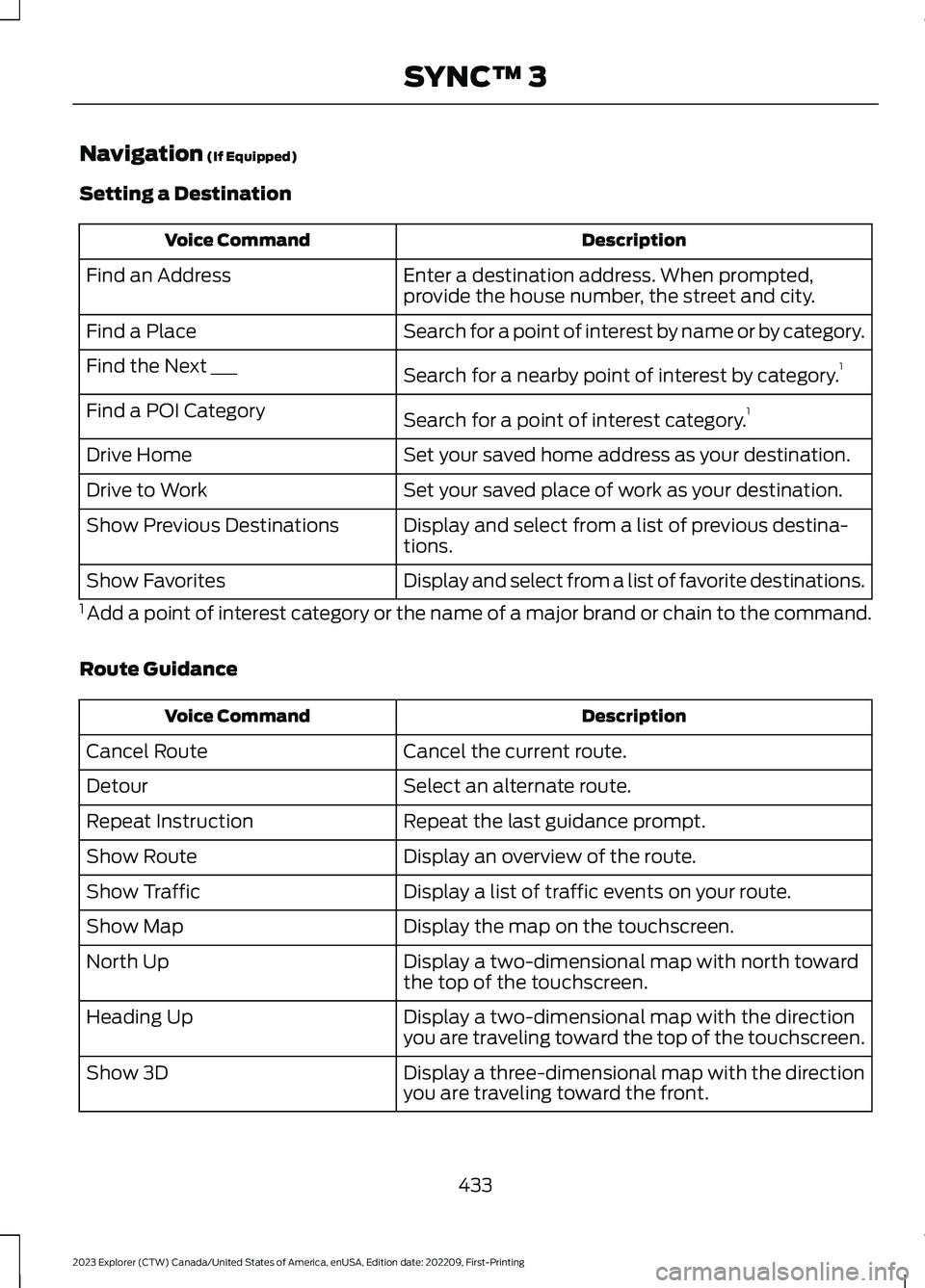
Navigation (If Equipped)
Setting a Destination
DescriptionVoice Command
Enter a destination address. When prompted,provide the house number, the street and city.Find an Address
Search for a point of interest by name or by category.Find a Place
Search for a nearby point of interest by category.1Find the Next ___
Search for a point of interest category.1Find a POI Category
Set your saved home address as your destination.Drive Home
Set your saved place of work as your destination.Drive to Work
Display and select from a list of previous destina-tions.Show Previous Destinations
Display and select from a list of favorite destinations.Show Favorites
1 Add a point of interest category or the name of a major brand or chain to the command.
Route Guidance
DescriptionVoice Command
Cancel the current route.Cancel Route
Select an alternate route.Detour
Repeat the last guidance prompt.Repeat Instruction
Display an overview of the route.Show Route
Display a list of traffic events on your route.Show Traffic
Display the map on the touchscreen.Show Map
Display a two-dimensional map with north towardthe top of the touchscreen.North Up
Display a two-dimensional map with the directionyou are traveling toward the top of the touchscreen.Heading Up
Display a three-dimensional map with the directionyou are traveling toward the front.Show 3D
433
2023 Explorer (CTW) Canada/United States of America, enUSA, Edition date: 202209, First-PrintingSYNC™ 3
Page 453 of 573

Apple CarPlay (If Equipped)
1.Connect your device to a USB port.
2.Follow the instructions on thetouchscreen.
Note:Certain features of the system arenot available when you are using AppleCarPlay.
Switching Apple CarPlay Off
Select the settings option on thefeature bar.
1.Select Apple CarPlay Preferences.
2.Switch Apple CarPlay off.
Android Auto (If Equipped)
1.Connect your device to a USB port.
2.Follow the instructions on thetouchscreen.
Note:You might need to enable AndroidAuto from the settings menu.
Note:Certain features of the system arenot available when you are using AndroidAuto.
Switching Android Auto Off
Select the settings option on thefeature bar.
1.Select Android Auto.
2.Switch Android Auto off.
NAVIGATION (IF EQUIPPED)
Note:For more information, refer to ourwebsite.
Select the navigation option onthe feature bar.
Map view menu.A
Zoom out.B
Zoom in.C
Route guidance menu.D
Destination entry menu.E
449
2023 Explorer (CTW) Canada/United States of America, enUSA, Edition date: 202209, First-PrintingSYNC™ 3 E297557