2023 FORD EXPEDITION radio
[x] Cancel search: radioPage 494 of 658
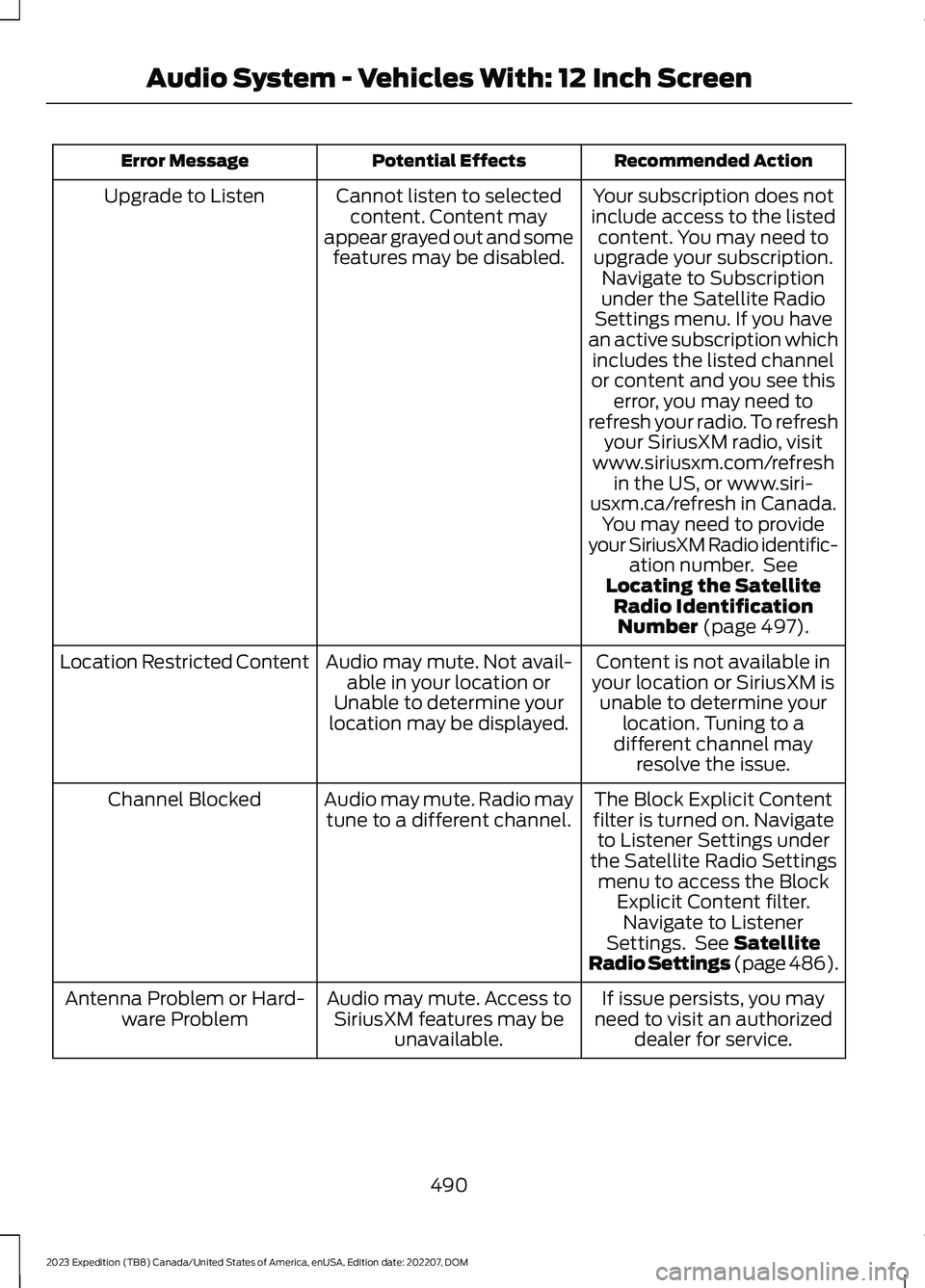
Recommended ActionPotential EffectsError Message
Your subscription does notinclude access to the listedcontent. You may need toupgrade your subscription.Navigate to Subscriptionunder the Satellite RadioSettings menu. If you havean active subscription whichincludes the listed channelor content and you see thiserror, you may need torefresh your radio. To refreshyour SiriusXM radio, visitwww.siriusxm.com/refreshin the US, or www.siri-usxm.ca/refresh in Canada.You may need to provideyour SiriusXM Radio identific-ation number. SeeLocating the SatelliteRadio IdentificationNumber (page 497).
Cannot listen to selectedcontent. Content mayappear grayed out and somefeatures may be disabled.
Upgrade to Listen
Content is not available inyour location or SiriusXM isunable to determine yourlocation. Tuning to adifferent channel mayresolve the issue.
Audio may mute. Not avail-able in your location orUnable to determine yourlocation may be displayed.
Location Restricted Content
The Block Explicit Contentfilter is turned on. Navigateto Listener Settings underthe Satellite Radio Settingsmenu to access the BlockExplicit Content filter.Navigate to ListenerSettings. See SatelliteRadio Settings (page 486).
Audio may mute. Radio maytune to a different channel.Channel Blocked
If issue persists, you mayneed to visit an authorizeddealer for service.
Audio may mute. Access toSiriusXM features may beunavailable.
Antenna Problem or Hard-ware Problem
490
2023 Expedition (TB8) Canada/United States of America, enUSA, Edition date: 202207, DOMAudio System - Vehicles With: 12 Inch Screen
Page 495 of 658
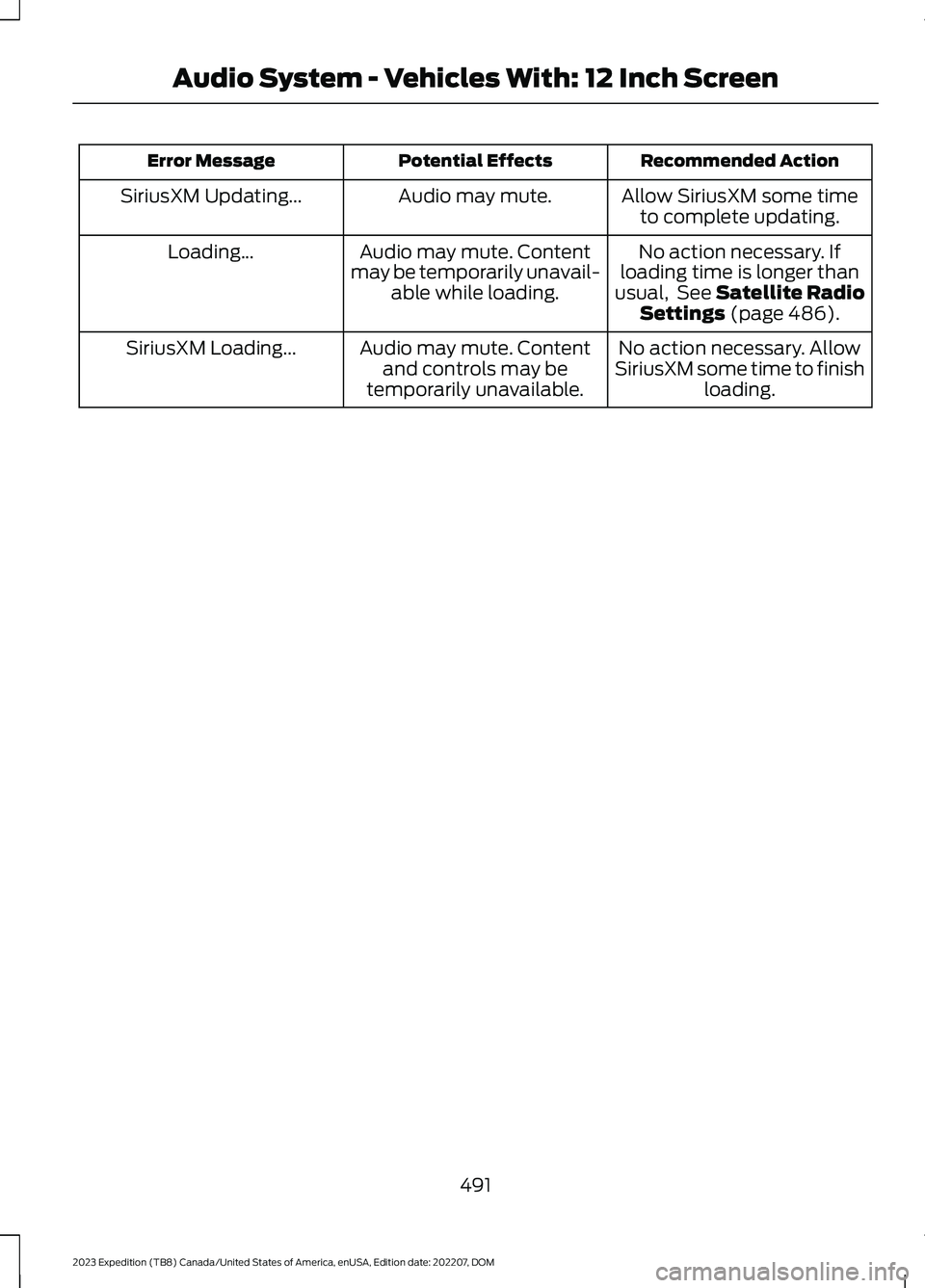
Recommended ActionPotential EffectsError Message
Allow SiriusXM some timeto complete updating.Audio may mute.SiriusXM Updating...
No action necessary. Ifloading time is longer thanusual, See Satellite RadioSettings (page 486).
Audio may mute. Contentmay be temporarily unavail-able while loading.
Loading...
No action necessary. AllowSiriusXM some time to finishloading.
Audio may mute. Contentand controls may betemporarily unavailable.
SiriusXM Loading...
491
2023 Expedition (TB8) Canada/United States of America, enUSA, Edition date: 202207, DOMAudio System - Vehicles With: 12 Inch Screen
Page 498 of 658
2.Press SETTINGS.
3.Press Sound.
4.Press Sound Mode.
5.Press a setting.
SETTING THE CLOCK AND
DATE
1.Access the vehicle drawer on thetouchscreen.
2.Press SETTINGS.
3.Press Clock.
4.Set the time.
Note:The AM and PM options are notavailable if 24-hour mode is on.
5.Press the arrows to adjust the settings.
Switching Automatic TimeUpdates On and Off
1.Access the vehicle drawer on thetouchscreen.
2.Press SETTINGS.
3.Press Clock.
4.Switch Automatic time zone updateon or off.
AM/FM RADIO
AM/FM RADIO LIMITATIONS
The further you travel from an AM or FMstation, the weaker the signal and theweaker the reception.
Hills, mountains, tall buildings, bridges,tunnels, freeway overpasses, parkinggarages, dense tree foliage andthunderstorms can interfere with thereception.
When you pass a ground-based broadcastrepeating tower, a stronger signal mayovertake a weaker one and result in theaudio system muting.
SELECTING A RADIO STATION
Manually Selecting a RadioStation
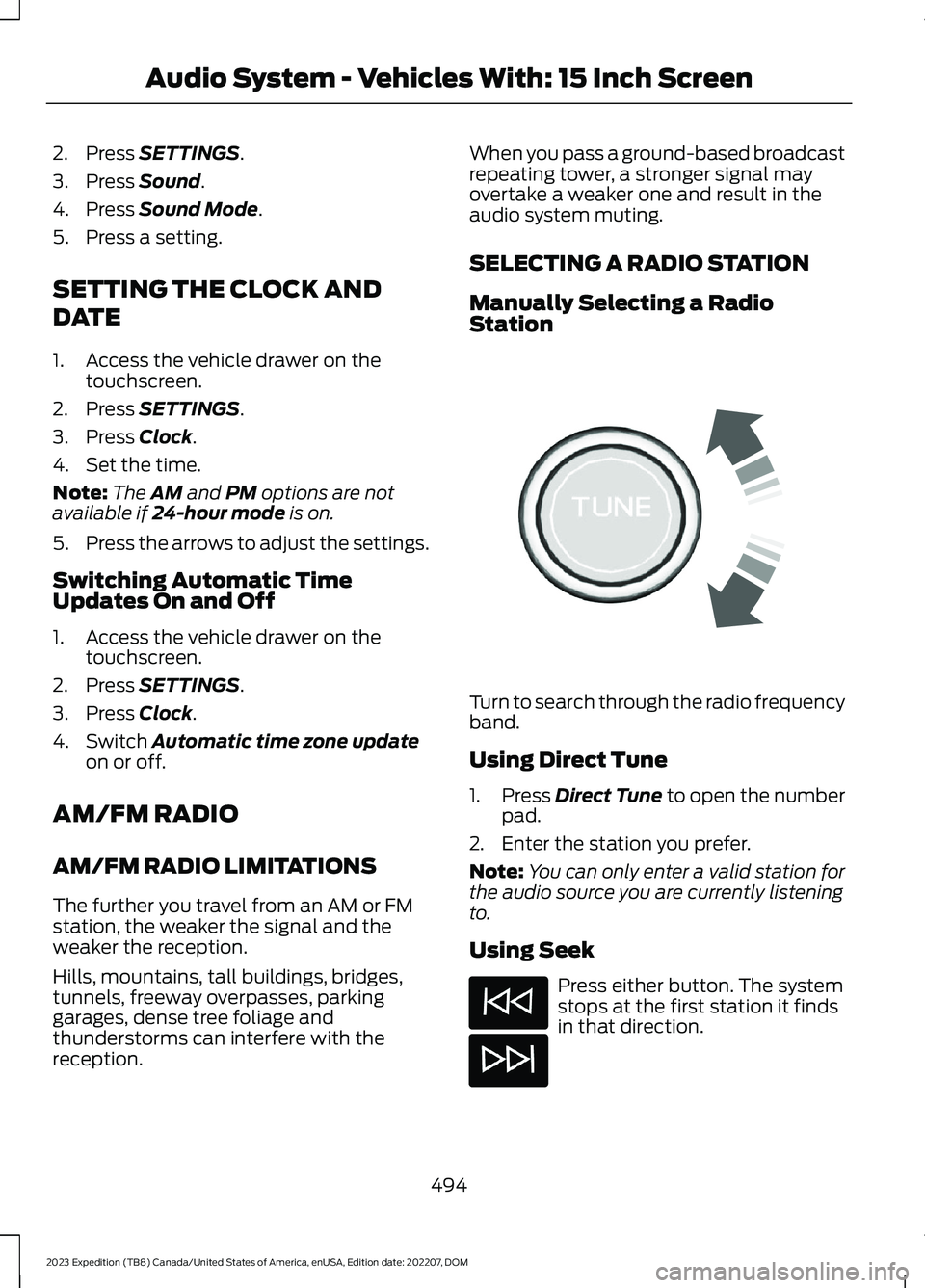
Turn to search through the radio frequencyband.
Using Direct Tune
1.Press Direct Tune to open the numberpad.
2.Enter the station you prefer.
Note:You can only enter a valid station forthe audio source you are currently listeningto.
Using Seek
Press either button. The systemstops at the first station it findsin that direction.
494
2023 Expedition (TB8) Canada/United States of America, enUSA, Edition date: 202207, DOMAudio System - Vehicles With: 15 Inch ScreenE270235
Page 499 of 658
Using the Station List
1.Press Browse.
Note:Available on FM radio only.
2.Press a station.
SWITCHING THE DISPLAY ON
AND OFF
Audio Unit
Press the button.
Touchscreen
To switch the display off:
1.Press Settings on the touchscreen.
2.Press Display Settings.
3.Press Display Off.
Note:The display defaults to on each timeyou switch your vehicle on.
To switch the display on, press anywhereon the touchscreen.
DIGITAL RADIO
WHAT IS DIGITAL RADIO
HD Radio™ technology is the digitalevolution of analog AM/FM radio.
For additional information, visitwww.HDRadio.com.
HD Radio Technology is manufacturedunder license from iBiquity DigitalCorporation and foreign patents. HD Radioand the HD and HD Radio logos areproprietary trademarks of XPERI. Thevehicle manufacturer and XPERI are notresponsible for the content sent using HDRadio technology. Content may bechanged, added or deleted at any time atthe station owner's discretion.
HOW DOES DIGITAL RADIO WORK
Your system has a special receiver thatallows it to receive digital broadcasts inaddition to analog broadcasts.
HD1 signifies the main programming statusand is available in both analog and digitalbroadcasts. Other multicast stations areonly available digitally and could containnew or different content.
Note:When the system first receives anHD1 station, it plays the station in the analogversion until it verifies the station is an HDRadio station. Then it shifts to the digitalversion.
Note:There is an audio mute delay whenswitching to an HD2 or HD3 station becausethe system has to reacquire and decode thedigital signal.
DIGITAL RADIO LIMITATIONS
If you are outside the reception area, thesystem could not work.
If you are on the fringe of the receptionarea, the station could mute due to weaksignal strength.
Note:If you are listening to HD1, the systemchanges back to the analog broadcast untilthe digital broadcast is available again. Ifyou are listening to any other multicastchannels, the station mutes and staysmuted unless it is able to connect to thedigital signal again.
495
2023 Expedition (TB8) Canada/United States of America, enUSA, Edition date: 202207, DOMAudio System - Vehicles With: 15 Inch ScreenE272035
Page 500 of 658
Depending on the station quality, you couldhear a slight sound change when thestation changes between analog anddigital audio.
You cannot access a saved HD station ifyour vehicle is outside the station’sreception area.
SWITCHING DIGITAL RADIORECEPTION ON AND OFF
1.Press Settings on the touchscreen.
2.Press Radio Settings.
3.Switch AM HD Radio or FM HD Radioon or off.
DIGITAL RADIO INDICATORS
HD Radio Indicator
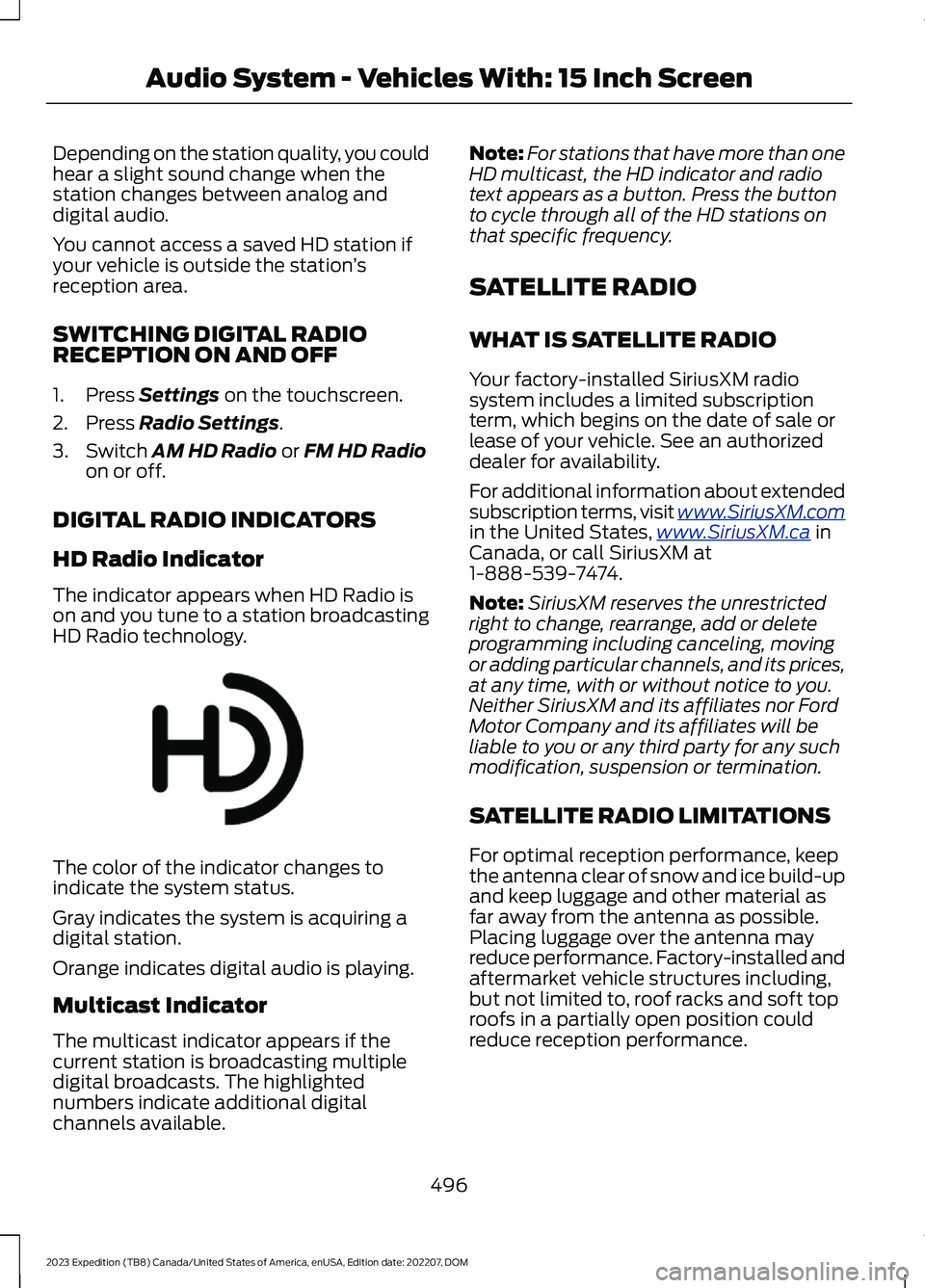
The indicator appears when HD Radio ison and you tune to a station broadcastingHD Radio technology.
The color of the indicator changes toindicate the system status.
Gray indicates the system is acquiring adigital station.
Orange indicates digital audio is playing.
Multicast Indicator
The multicast indicator appears if thecurrent station is broadcasting multipledigital broadcasts. The highlightednumbers indicate additional digitalchannels available.
Note:For stations that have more than oneHD multicast, the HD indicator and radiotext appears as a button. Press the buttonto cycle through all of the HD stations onthat specific frequency.
SATELLITE RADIO
WHAT IS SATELLITE RADIO
Your factory-installed SiriusXM radiosystem includes a limited subscriptionterm, which begins on the date of sale orlease of your vehicle. See an authorizeddealer for availability.
For additional information about extendedsubscription terms, visit www.SiriusXM.comin the United States,www.SiriusXM.ca inCanada, or call SiriusXM at1-888-539-7474.
Note:SiriusXM reserves the unrestrictedright to change, rearrange, add or deleteprogramming including canceling, movingor adding particular channels, and its prices,at any time, with or without notice to you.Neither SiriusXM and its affiliates nor FordMotor Company and its affiliates will beliable to you or any third party for any suchmodification, suspension or termination.
SATELLITE RADIO LIMITATIONS
For optimal reception performance, keepthe antenna clear of snow and ice build-upand keep luggage and other material asfar away from the antenna as possible.Placing luggage over the antenna mayreduce performance. Factory-installed andaftermarket vehicle structures including,but not limited to, roof racks and soft toproofs in a partially open position couldreduce reception performance.
496
2023 Expedition (TB8) Canada/United States of America, enUSA, Edition date: 202207, DOMAudio System - Vehicles With: 15 Inch ScreenE142616
Page 501 of 658
Hills, mountains, tall buildings, bridges,tunnels, freeway overpasses, parkinggarages, dense tree foliage andthunderstorms can interfere with yourreception.
When you pass a ground-basedbroadcast-repeating tower, a strongersignal may overtake a weaker one andcould result in the audio system muting.Your display could show an error messageto indicate the interference.
LOCATING THE SATELLITE RADIOIDENTIFICATION NUMBER
1.Select SiriusXM as the audio source.
2.Tune to channel 0.
SELECTING A CHANNEL
Manually Selecting a Channel
Press the button to find theprevious or next available radiochannel.
Linear Tuner
The linear tuner is displayed whenmanually selecting a channel. You canswipe left or right on the linear tunercarousel to navigate through the channellist. Tap on a channel title to listen to it.
Using Direct Tune
1.Press the channel up or down buttonto open the linear tuner screen.
2.Press Direct Tune to open the numberpad.
3.Enter the channel you prefer.
Using Browse
1.Press Browse.
2.Select a channel.
SATELLITE RADIO SETTINGS
Subscription
Your subscription status is displayed. Youcan subscribe or manage your subscriptiondirectly from the touchscreen.
SiriusXM Favorites
While you are listening to SiriusXM, you cansave favorites by:
•Tapping the currently tuned channelor show logo on the SiriusXM audioscreen.
•Tuning to a channel or show you wantto save as a favorite. Navigate to theSiriusXM Favorites screen and pressthe Add Current button. The currentlytuned channel or show is saved as afavorite.
•Saving a radio preset. This saves thecurrently tuned SiriusXM channel orshow as a favorite
Note:Requires a trial or active subscriptionto use.
Listening History
Listening history is a list of recently listenedto SiriusXM content. You can view, manageand reset the listening history using thecontrols on the touchscreen.
Note:Requires a trial or active subscriptionto use.
Help and Support
You can contact SiriusXM Customer Caredirectly from SYNC and view informationrequired to manage your SiriusXM account.
497
2023 Expedition (TB8) Canada/United States of America, enUSA, Edition date: 202207, DOMAudio System - Vehicles With: 15 Inch ScreenE328569 E328570
Page 502 of 658
SETTING AN ALERT
Sets a notification for the current song,artist, or sports team. The system alertsyou when it plays again on any channel.Selecting this button allows you to enableand edit alerts.
Note:You can switch alerts on or off andedit them in the satellite radio settings.
498
2023 Expedition (TB8) Canada/United States of America, enUSA, Edition date: 202207, DOMAudio System - Vehicles With: 15 Inch Screen
Page 504 of 658

Vehicle data sharing on.
Vehicle data sharing off.
Vehicle location sharing on.
Vehicle data and vehicle locationsharing on.
Vehicle Software Update
Vehicle software updateavailable.
Vehicle software update requiresschedule.
Vehicle software update requiresconsent.
Vehicle software update requiresWi-Fi.
Vehicle software updateschedule reminder.
Vehicle software update notsuccessful.
Vehicle software updatesuccessful.
Wireless Accessory Charger
Wireless accessory chargeractive.
FEATURE BAR
The feature bar is located on the bottomof the display and allows you to accessvehicle features.
Press to use the radio, a USB, amedia player or a Bluetooth®device.
Press to make calls and accessthe phonebook on your cellphone.
Press to use the navigationsystem.
Press to replace this button witha shortcut to a feature or setting.
Press to search for and usecompatible apps on your iOS orAndroid device.
Press to adjust system settings.
Press to view features.
Note:The icon may be different dependingon your vehicle.
INFORMATION ON DEMAND
SCREEN
The information on demand screendisplays cards on the side of the displayand allows you to see information fromdifferent features.
Press the button to view the nextcard.
500
2023 Expedition (TB8) Canada/United States of America, enUSA, Edition date: 202207, DOMCenter Display Overview - Vehicles With: 12 Inch Screen E335292 E327789 E327785 E327786 E353217 E327787 E327788 E353218 E353214 E100027 E358432 E353220 E280315 E353210 E335299 E335300 E347104 E353212