2023 FORD EXPEDITION steering
[x] Cancel search: steeringPage 509 of 658

Press the button next to a menuoption for more information.
FORD ASSISTANT SETTINGS -VEHICLES WITH: 15 INCH SCREEN
To access the settings menu:
1.Access the vehicle drawer on thetouchscreen.
2.Press SETTINGS.
3.Press Ford Assistant.
From the settings menu you can do thefollowing:
•Switch listen for wake word on or off.
•Set the preferred wake word.
•Switch advance mode on or off.
•Switch phone confirmation on or off.
•Switch the commands list on or off.
•View the commands help menu.
Press the button next to a menuoption for more information.
FORD ASSISTANT – FREQUENTLYASKED QUESTIONS
Why does the system notunderstand what I am saying?
•You are speaking too soon. When usingthe button of the steering wheel, waitfor the tone before you speak.
Why does the system notunderstand the name of a track orartist?
•Bluetooth® does not support voicecommands.Connect your device to aUSB port.
•You are not saying the name exactlyas it appears on your device. Say thename of the track or artist exactly as itappears on your device. Spell out anyabbreviations in the name.
•The system does not recognize somespecial characters contained in thename of a song or artist, for example*, - or +. Rename the files on yourdevice or use the touchscreen to selectand play the track.
Why does the system notunderstand the name of a contactin the phonebook on my device andcalls the wrong contact?
•You are not saying the name exactlyas it appears on your device. Say thefirst and last name of the contactexactly as it appears on your device.Spell out any abbreviations in thename.
•The name contains special characters,for example *, - or +. Rename thecontact on your device or use thetouchscreen to select and call thecontact.
505
2023 Expedition (TB8) Canada/United States of America, enUSA, Edition date: 202207, DOMVoice InteractionE366956 E366956
Page 511 of 658
WHAT IS ALEXA BUILT-IN
Allows you to use Alexa in your vehicle forauto specific use cases on the road andgives you access to an ever evolvingnumber of skills that help to make your lifemore productive, entertaining, andconnected while using your vehicle.
ALEXA BUILT-IN
REQUIREMENTS
To use Alexa, all of the following mustoccur:
•Your vehicle modem is enabled.
•You are logged into an existing Amazonaccount.
•Vehicle location services are enabled.
•Vehicle connectivity and vehicle datasharing is enabled.
SIGNING INTO YOUR
ACCOUNT
Press the button in the statusbar and follow the on-screenprompts.
To sign in using the settings menu:
1.Press Settings on the touchscreen.
2.Press Amazon Alexa.
3.Press Get Started.
4.Sign into your account by eitherscanning the QR code or entering theon-screen code into the Amazonwebsite.
5.Once logged in, follow the on-screenprompts.
6.When complete, the vehicle informsyou that Alexa is ready to be used inthe vehicle.
Signing Out of Your Account
1.Press Settings on the touchscreen.
2.Press Amazon Alexa.
3.Press Sign Out.
USING ALEXA BUILT-IN
To use Alexa, say “Alexa” or press the voiceinteraction button on the steering wheeland then say “Alexa” to invoke Alexa tostart listening.
Note:If the wake word is not enabled, youcan only use the voice interaction button.
You can use Alexa for the following andmore:
•Entertainment.
•Hands-free calling.
•Traffic and navigation.
•Vehicle controls.
•Smart home device control.
•Weather and news information.
ALEXA BUILT-IN SETTINGS
Enabling the Wake Word
1.Press Settings on the touchscreen.
2.Press Amazon Alexa.
3.Switch Listen for Wake Word on or off.
Note:If the wake word is not enabled, youcan only use the voice interaction button.
Contact List
Displays a list of connected phones andcontact sharing status for each phone.
To change the contact sharing status:
1.Press Settings on the touchscreen.
2.Press Amazon Alexa.
3.Press Contact List.
507
2023 Expedition (TB8) Canada/United States of America, enUSA, Edition date: 202207, DOMAlexa Built-In - Vehicles With: 12 Inch ScreenE368039
Page 513 of 658
WHAT IS ALEXA BUILT-IN
Allows you to use Alexa in your vehicle forauto specific use cases on the road andgives you access to an ever evolvingnumber of skills that help to make your lifemore productive, entertaining, andconnected while using your vehicle.
ALEXA BUILT-IN
REQUIREMENTS
To use Alexa, all of the following mustoccur:
•Your vehicle modem is enabled.
•You are logged into an existing Amazonaccount.
•Vehicle location services are enabled.
•Vehicle connectivity and vehicle datasharing is enabled.
SIGNING INTO YOUR
ACCOUNT
Press the button in the statusbar and follow the on-screenprompts.
To sign in using the settings menu:
1.Access the vehicle drawer.
2.Press SETTINGS.
3.Press Amazon Alexa.
4.Press Get Started.
5.Sign into the Amazon account by eitherscanning the QR code or entering theon-screen code into the Amazonwebsite.
6.Once logged in, follow the on-screenprompts.
7.When complete, the vehicle informsyou that Alexa is ready to be used inthe vehicle.
Signing Out of Your Account
1.Access the vehicle drawer.
2.Press SETTINGS.
3.Press Amazon Alexa.
4.Press Sign Out.
USING ALEXA BUILT-IN
To use Alexa, say “Alexa” or press the voiceinteraction button on the steering wheeland then say “Alexa” to invoke Alexa tostart listening.
Note:If the wake word is not enabled, youcan only use the voice interaction button.
You can use Alexa for the following andmore:
•Entertainment.
•Hands-free calling.
•Traffic and navigation.
•Vehicle controls.
•Smart home device control.
•Weather and news information.
ALEXA BUILT-IN SETTINGS
Enabling the Wake Word
1.Access the vehicle drawer.
2.Press SETTINGS.
3.Press Amazon Alexa.
4.Switch Listen for Wake Word on or off.
Note:If the wake word is not enabled, youcan only use the voice interaction button.
Contact List
Displays a list of connected phones andcontact sharing status for each phone.
To change the contact sharing status:
1.Access the vehicle drawer.
509
2023 Expedition (TB8) Canada/United States of America, enUSA, Edition date: 202207, DOMAlexa Built-In - Vehicles With: 15 Inch ScreenE368039
Page 517 of 658
MAKING AND RECEIVING A
PHONE CALL
Making Calls
To call a number in your contacts,select:
Action and DescriptionMenu Item
You can then select thename of the contact youwant to call. Any numbersstored for that contactdisplay along with anystored contact photos. Youcan then select thenumber that you want tocall. The system begins thecall.
Contacts
To call a number from your recent calls,select:
Action and DescriptionMenu Item
You can then select anentry that you want to call.The system begins the call.
Recent CallList
To call a number from your favorites,select:
Action and DescriptionMenu Item
You can then select anentry that you want to call.The system begins the call.
Favorites
To call a number that is not stored inyour phone, select:
Action and DescriptionMenu Item
Select the digits of thenumber you wish to call.PhoneKeypad
The system begins the call.Call
Pressing the backspace button deletes thelast digit you typed.
Receiving Calls
During an incoming call, an audible tonesounds. Caller information appears in thedisplay if it is available.
To accept the call, select:
Menu Item
Accept
Note:You can also accept the call bypressing the phone button on the steeringwheel.
To reject the call, select:
Menu Item
Reject
Ignore the call by doing nothing. Thesystem logs it as a missed call.
During a Phone Call
During a phone call, the contacts nameand number display on the screen alongwith the call duration.
The phone status items are also visible:
•Signal Strength.
•Battery.
You can select any of the following duringan active phone call:
513
2023 Expedition (TB8) Canada/United States of America, enUSA, Edition date: 202207, DOMPhone - Vehicles With: 12 Inch Screen
Page 518 of 658
Item
Immediately end aphone call. You canalso press thebutton on thesteering wheel.
End Call
Press this to accessthe phone keypad.Keypad
Item
MuteYou can switch themicrophone off sothe caller does nothear you.
Transfer the phonecall audio to thecell phone or backto the touchscreen.
Privacy
SENDING AND RECEIVING A TEXT MESSAGE
DescriptionMenu Item
Hear the text message.Hear It
View the text message.View
Call the sender.Call
Reply to the text message with a standard text message.Reply
514
2023 Expedition (TB8) Canada/United States of America, enUSA, Edition date: 202207, DOMPhone - Vehicles With: 12 Inch Screen
Page 521 of 658
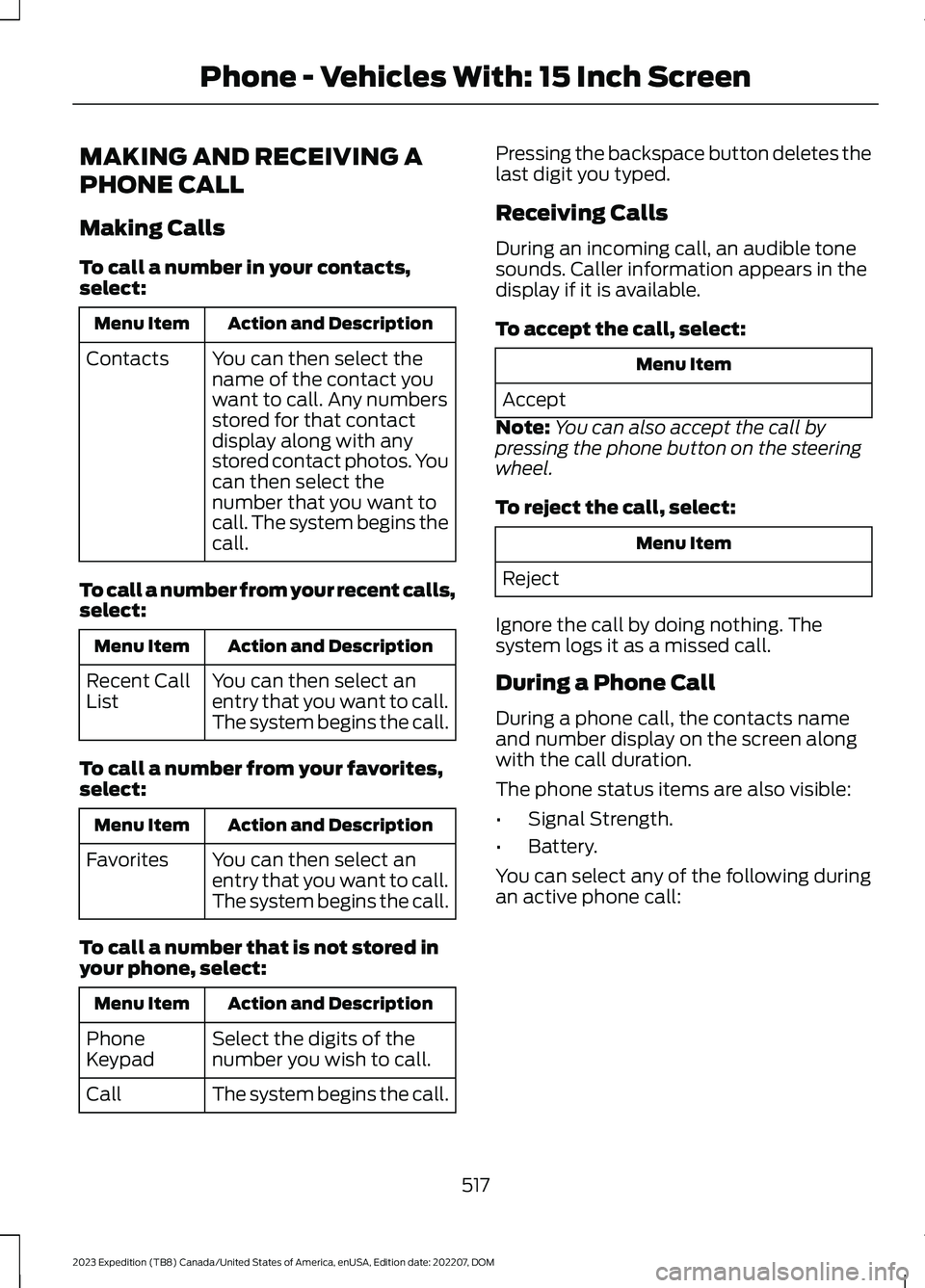
MAKING AND RECEIVING A
PHONE CALL
Making Calls
To call a number in your contacts,select:
Action and DescriptionMenu Item
You can then select thename of the contact youwant to call. Any numbersstored for that contactdisplay along with anystored contact photos. Youcan then select thenumber that you want tocall. The system begins thecall.
Contacts
To call a number from your recent calls,select:
Action and DescriptionMenu Item
You can then select anentry that you want to call.The system begins the call.
Recent CallList
To call a number from your favorites,select:
Action and DescriptionMenu Item
You can then select anentry that you want to call.The system begins the call.
Favorites
To call a number that is not stored inyour phone, select:
Action and DescriptionMenu Item
Select the digits of thenumber you wish to call.PhoneKeypad
The system begins the call.Call
Pressing the backspace button deletes thelast digit you typed.
Receiving Calls
During an incoming call, an audible tonesounds. Caller information appears in thedisplay if it is available.
To accept the call, select:
Menu Item
Accept
Note:You can also accept the call bypressing the phone button on the steeringwheel.
To reject the call, select:
Menu Item
Reject
Ignore the call by doing nothing. Thesystem logs it as a missed call.
During a Phone Call
During a phone call, the contacts nameand number display on the screen alongwith the call duration.
The phone status items are also visible:
•Signal Strength.
•Battery.
You can select any of the following duringan active phone call:
517
2023 Expedition (TB8) Canada/United States of America, enUSA, Edition date: 202207, DOMPhone - Vehicles With: 15 Inch Screen
Page 522 of 658
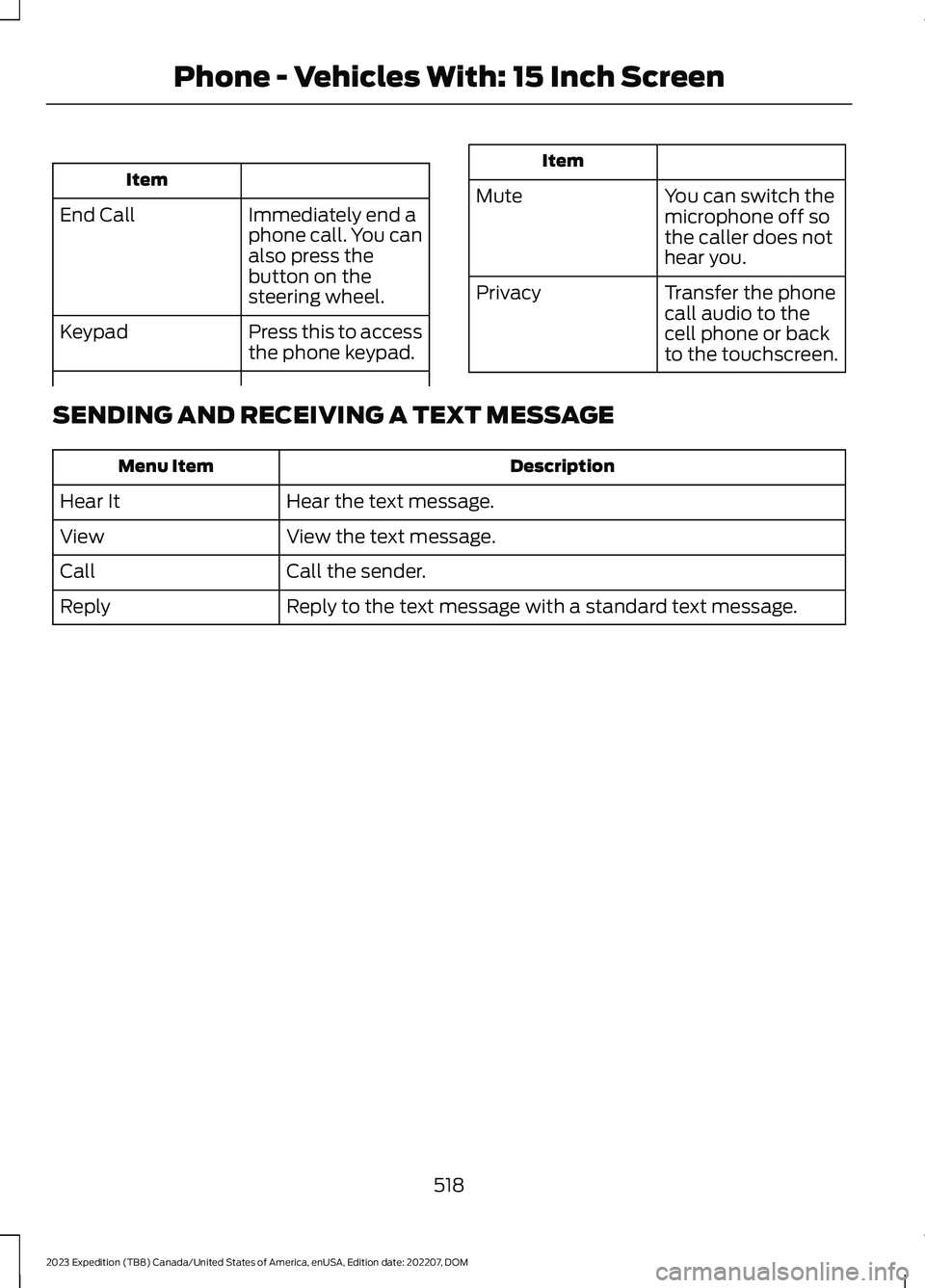
Item
Immediately end aphone call. You canalso press thebutton on thesteering wheel.
End Call
Press this to accessthe phone keypad.Keypad
Item
MuteYou can switch themicrophone off sothe caller does nothear you.
Transfer the phonecall audio to thecell phone or backto the touchscreen.
Privacy
SENDING AND RECEIVING A TEXT MESSAGE
DescriptionMenu Item
Hear the text message.Hear It
View the text message.View
Call the sender.Call
Reply to the text message with a standard text message.Reply
518
2023 Expedition (TB8) Canada/United States of America, enUSA, Edition date: 202207, DOMPhone - Vehicles With: 15 Inch Screen
Page 545 of 658
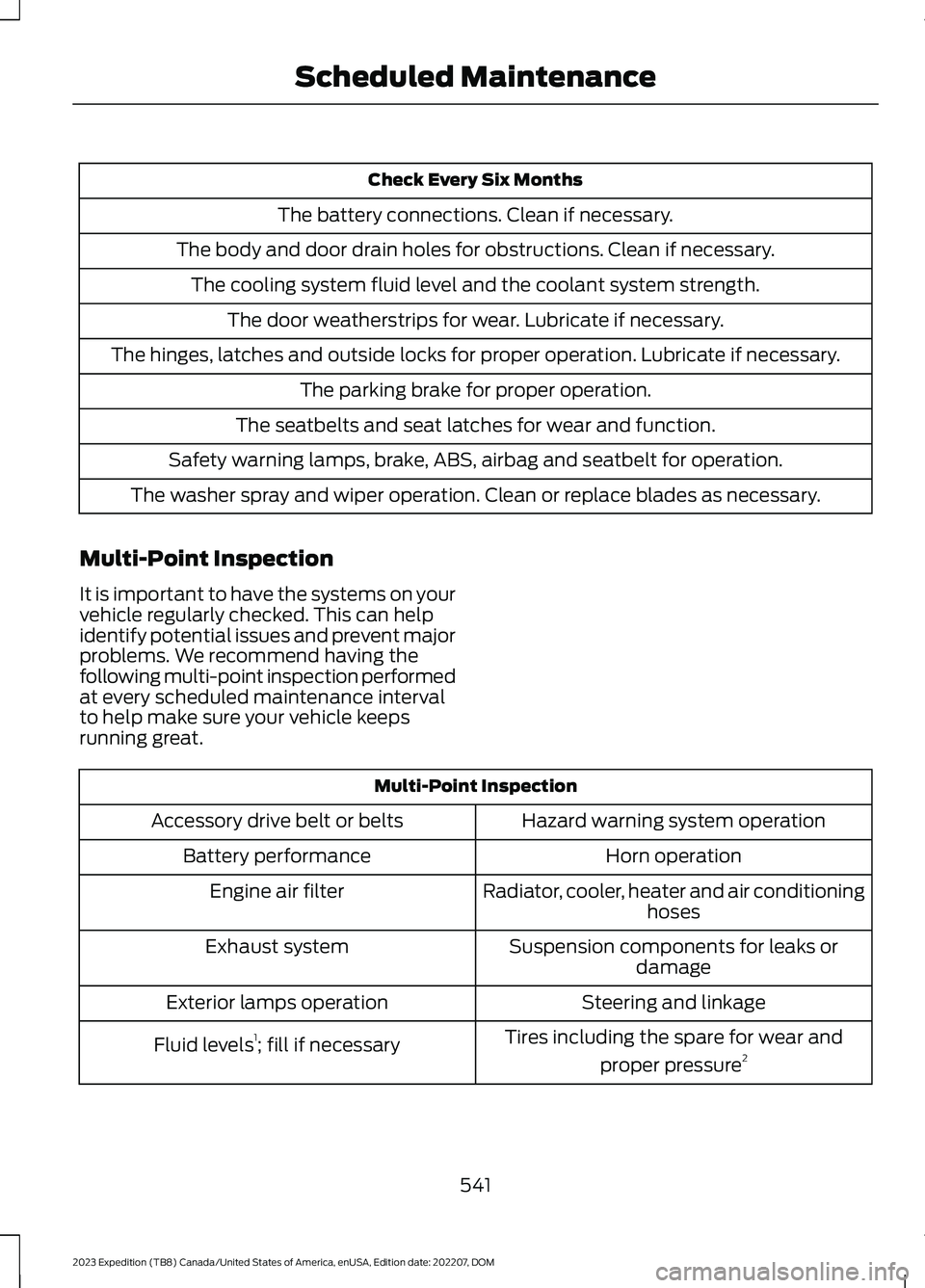
Check Every Six Months
The battery connections. Clean if necessary.
The body and door drain holes for obstructions. Clean if necessary.
The cooling system fluid level and the coolant system strength.
The door weatherstrips for wear. Lubricate if necessary.
The hinges, latches and outside locks for proper operation. Lubricate if necessary.
The parking brake for proper operation.
The seatbelts and seat latches for wear and function.
Safety warning lamps, brake, ABS, airbag and seatbelt for operation.
The washer spray and wiper operation. Clean or replace blades as necessary.
Multi-Point Inspection
It is important to have the systems on yourvehicle regularly checked. This can helpidentify potential issues and prevent majorproblems. We recommend having thefollowing multi-point inspection performedat every scheduled maintenance intervalto help make sure your vehicle keepsrunning great.
Multi-Point Inspection
Hazard warning system operationAccessory drive belt or belts
Horn operationBattery performance
Radiator, cooler, heater and air conditioninghosesEngine air filter
Suspension components for leaks ordamageExhaust system
Steering and linkageExterior lamps operation
Tires including the spare for wear and
proper pressure2Fluid levels1; fill if necessary
541
2023 Expedition (TB8) Canada/United States of America, enUSA, Edition date: 202207, DOMScheduled Maintenance