2023 FORD BRONCO SPORT USB
[x] Cancel search: USBPage 379 of 516
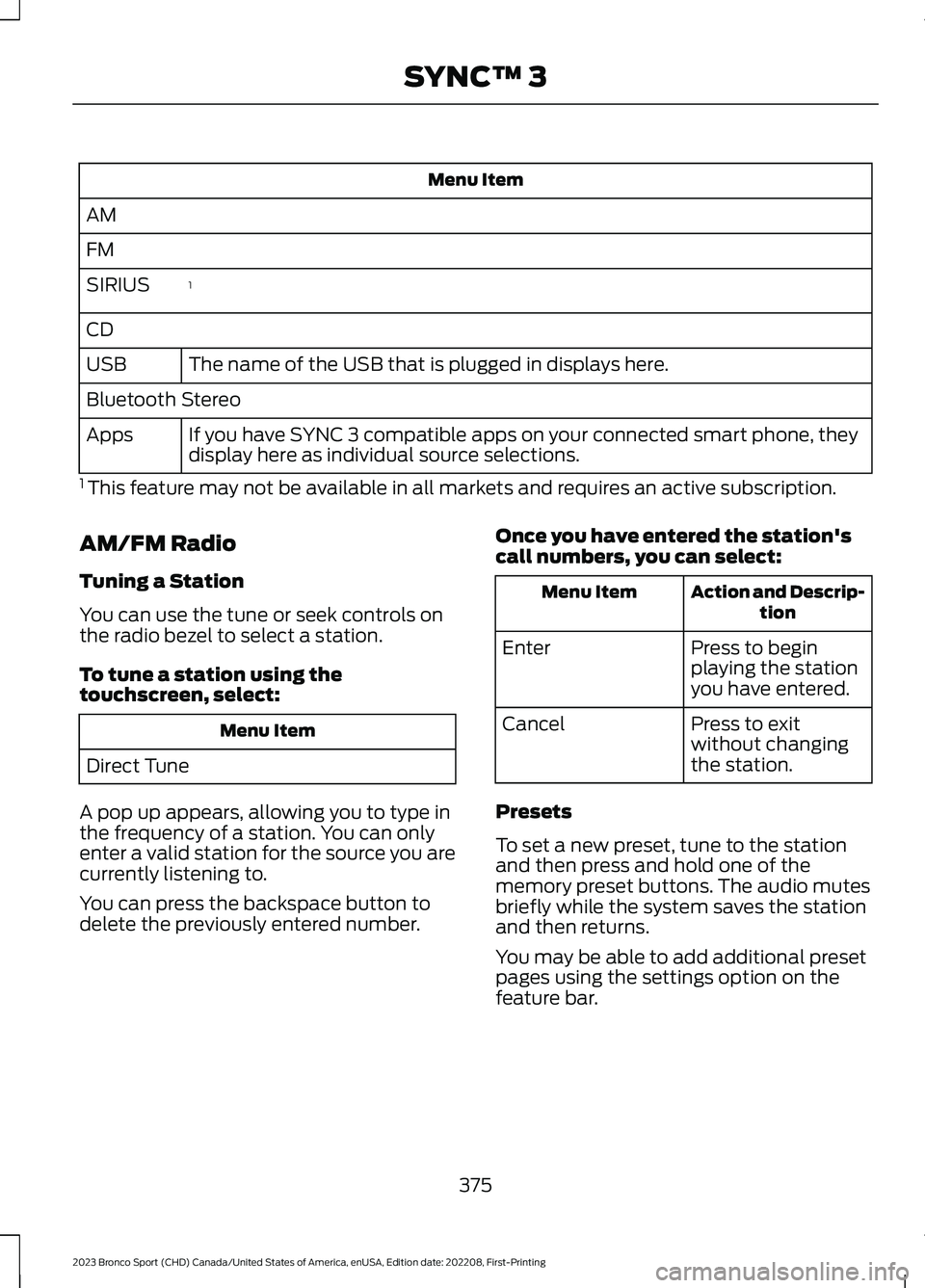
Menu Item
AM
FM
1SIRIUS
CD
The name of the USB that is plugged in displays here.USB
Bluetooth Stereo
If you have SYNC 3 compatible apps on your connected smart phone, theydisplay here as individual source selections.Apps
1 This feature may not be available in all markets and requires an active subscription.
AM/FM Radio
Tuning a Station
You can use the tune or seek controls onthe radio bezel to select a station.
To tune a station using thetouchscreen, select:
Menu Item
Direct Tune
A pop up appears, allowing you to type inthe frequency of a station. You can onlyenter a valid station for the source you arecurrently listening to.
You can press the backspace button todelete the previously entered number.
Once you have entered the station'scall numbers, you can select:
Action and Descrip-tionMenu Item
Press to beginplaying the stationyou have entered.
Enter
Press to exitwithout changingthe station.
Cancel
Presets
To set a new preset, tune to the stationand then press and hold one of thememory preset buttons. The audio mutesbriefly while the system saves the stationand then returns.
You may be able to add additional presetpages using the settings option on thefeature bar.
375
2023 Bronco Sport (CHD) Canada/United States of America, enUSA, Edition date: 202208, First-PrintingSYNC™ 3
Page 386 of 516
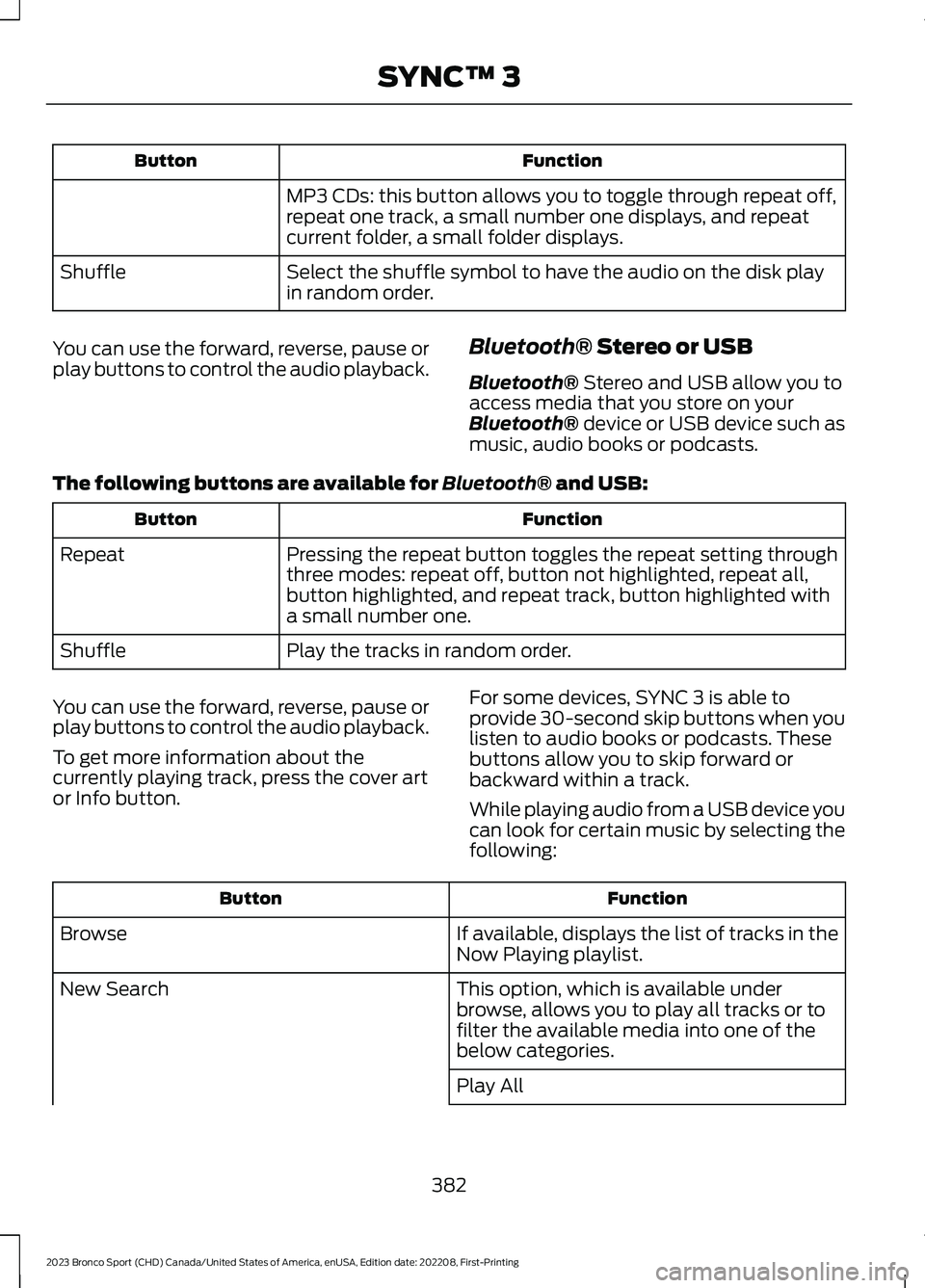
FunctionButton
MP3 CDs: this button allows you to toggle through repeat off,repeat one track, a small number one displays, and repeatcurrent folder, a small folder displays.
Select the shuffle symbol to have the audio on the disk playin random order.Shuffle
You can use the forward, reverse, pause orplay buttons to control the audio playback.Bluetooth® Stereo or USB
Bluetooth® Stereo and USB allow you toaccess media that you store on yourBluetooth® device or USB device such asmusic, audio books or podcasts.
The following buttons are available for Bluetooth® and USB:
FunctionButton
Pressing the repeat button toggles the repeat setting throughthree modes: repeat off, button not highlighted, repeat all,button highlighted, and repeat track, button highlighted witha small number one.
Repeat
Play the tracks in random order.Shuffle
You can use the forward, reverse, pause orplay buttons to control the audio playback.
To get more information about thecurrently playing track, press the cover artor Info button.
For some devices, SYNC 3 is able toprovide 30-second skip buttons when youlisten to audio books or podcasts. Thesebuttons allow you to skip forward orbackward within a track.
While playing audio from a USB device youcan look for certain music by selecting thefollowing:
FunctionButton
If available, displays the list of tracks in theNow Playing playlist.Browse
This option, which is available underbrowse, allows you to play all tracks or tofilter the available media into one of thebelow categories.
New Search
Play All
382
2023 Bronco Sport (CHD) Canada/United States of America, enUSA, Edition date: 202208, First-PrintingSYNC™ 3
Page 387 of 516
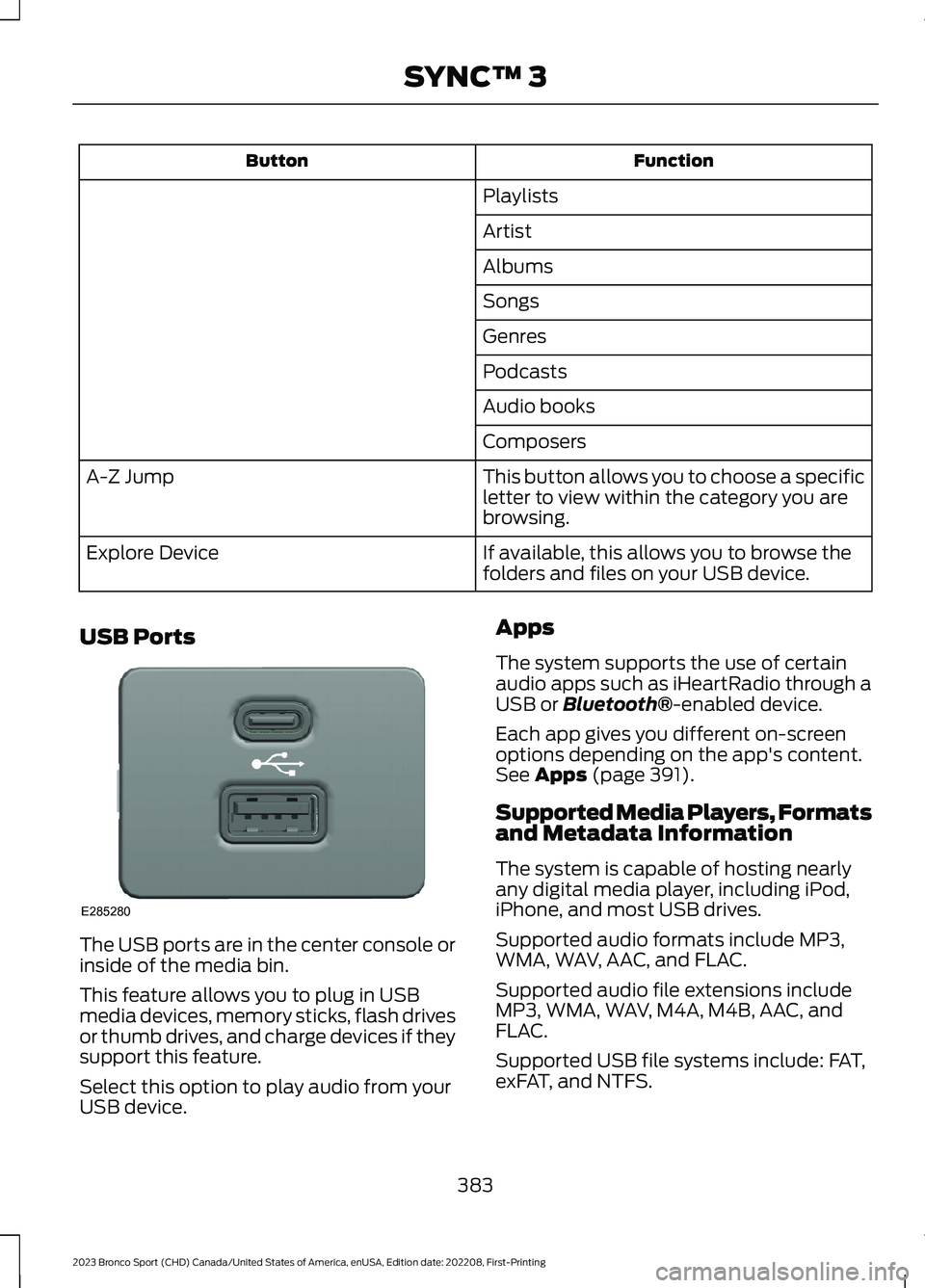
FunctionButton
Playlists
Artist
Albums
Songs
Genres
Podcasts
Audio books
Composers
This button allows you to choose a specificletter to view within the category you arebrowsing.
A-Z Jump
If available, this allows you to browse thefolders and files on your USB device.Explore Device
USB Ports
The USB ports are in the center console orinside of the media bin.
This feature allows you to plug in USBmedia devices, memory sticks, flash drivesor thumb drives, and charge devices if theysupport this feature.
Select this option to play audio from yourUSB device.
Apps
The system supports the use of certainaudio apps such as iHeartRadio through aUSB or Bluetooth®-enabled device.
Each app gives you different on-screenoptions depending on the app's content.See Apps (page 391).
Supported Media Players, Formatsand Metadata Information
The system is capable of hosting nearlyany digital media player, including iPod,iPhone, and most USB drives.
Supported audio formats include MP3,WMA, WAV, AAC, and FLAC.
Supported audio file extensions includeMP3, WMA, WAV, M4A, M4B, AAC, andFLAC.
Supported USB file systems include: FAT,exFAT, and NTFS.
383
2023 Bronco Sport (CHD) Canada/United States of America, enUSA, Edition date: 202208, First-PrintingSYNC™ 3E285280
Page 388 of 516
SYNC 3 is also able to organize the mediafrom your USB device by metadata tags.Metadata tags, which are descriptivesoftware identifiers embedded in themedia files, provide information about thefile.
If your indexed media files contain noinformation embedded in these metadatatags, SYNC 3 may classify the emptymetadata tags as unknown.
SYNC 3 is capable of indexing up to50,000 songs per USB device, for up to 10devices.
PHONE
WARNING: Driving while distractedcan result in loss of vehicle control, crashand injury. We strongly recommend thatyou use extreme caution when using anydevice that may take your focus off theroad. Your primary responsibility is thesafe operation of your vehicle. Werecommend against the use of anyhand-held device while driving andencourage the use of voice-operatedsystems when possible. Make sure youare aware of all applicable local lawsthat may affect the use of electronicdevices while driving.
Check the compatibility of your device onthe regional website.
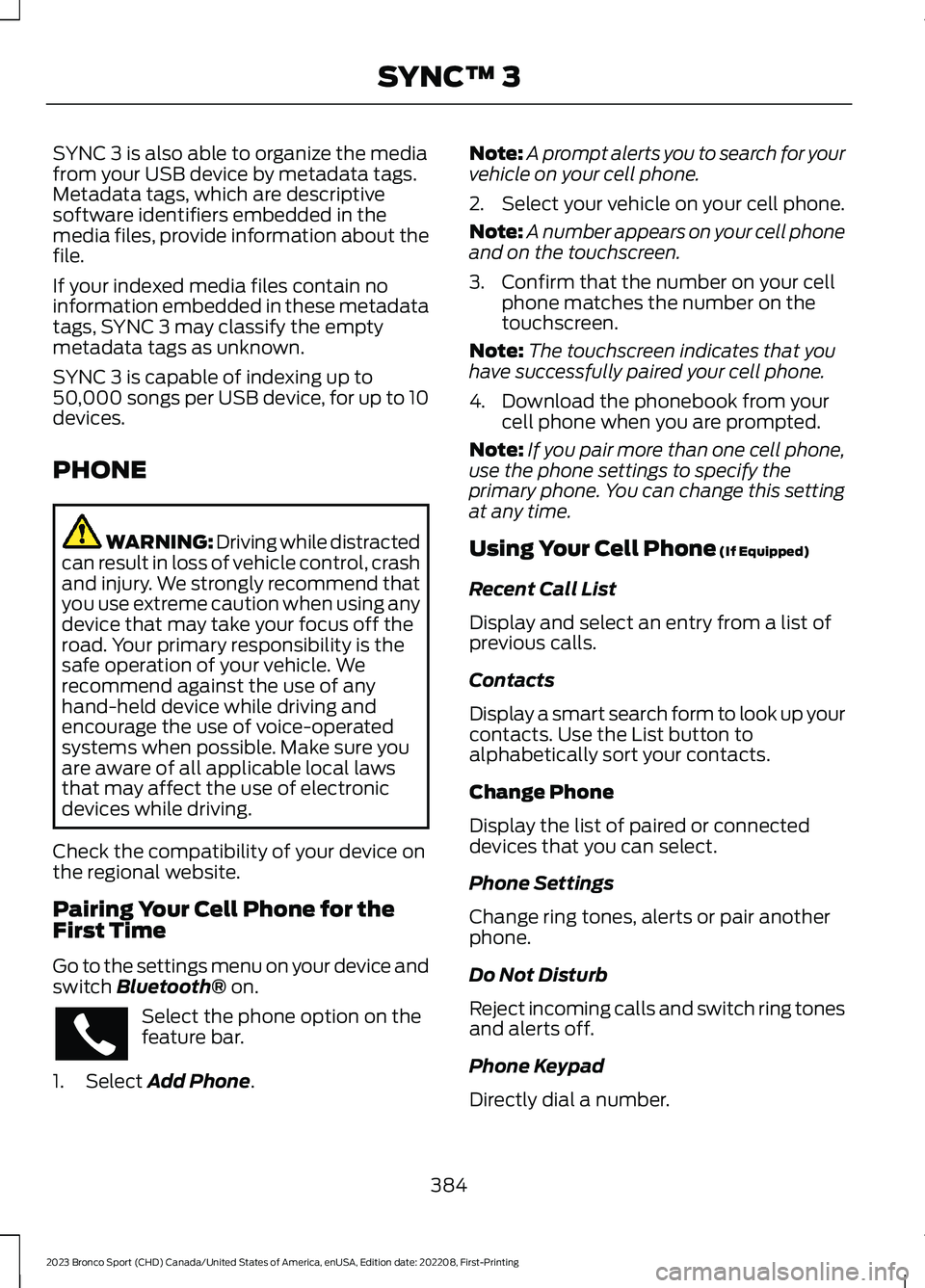
Pairing Your Cell Phone for theFirst Time
Go to the settings menu on your device andswitch Bluetooth® on.
Select the phone option on thefeature bar.
1.Select Add Phone.
Note:A prompt alerts you to search for yourvehicle on your cell phone.
2.Select your vehicle on your cell phone.
Note:A number appears on your cell phoneand on the touchscreen.
3.Confirm that the number on your cellphone matches the number on thetouchscreen.
Note:The touchscreen indicates that youhave successfully paired your cell phone.
4.Download the phonebook from yourcell phone when you are prompted.
Note:If you pair more than one cell phone,use the phone settings to specify theprimary phone. You can change this settingat any time.
Using Your Cell Phone (If Equipped)
Recent Call List
Display and select an entry from a list ofprevious calls.
Contacts
Display a smart search form to look up yourcontacts. Use the List button toalphabetically sort your contacts.
Change Phone
Display the list of paired or connecteddevices that you can select.
Phone Settings
Change ring tones, alerts or pair anotherphone.
Do Not Disturb
Reject incoming calls and switch ring tonesand alerts off.
Phone Keypad
Directly dial a number.
384
2023 Bronco Sport (CHD) Canada/United States of America, enUSA, Edition date: 202208, First-PrintingSYNC™ 3
Page 389 of 516
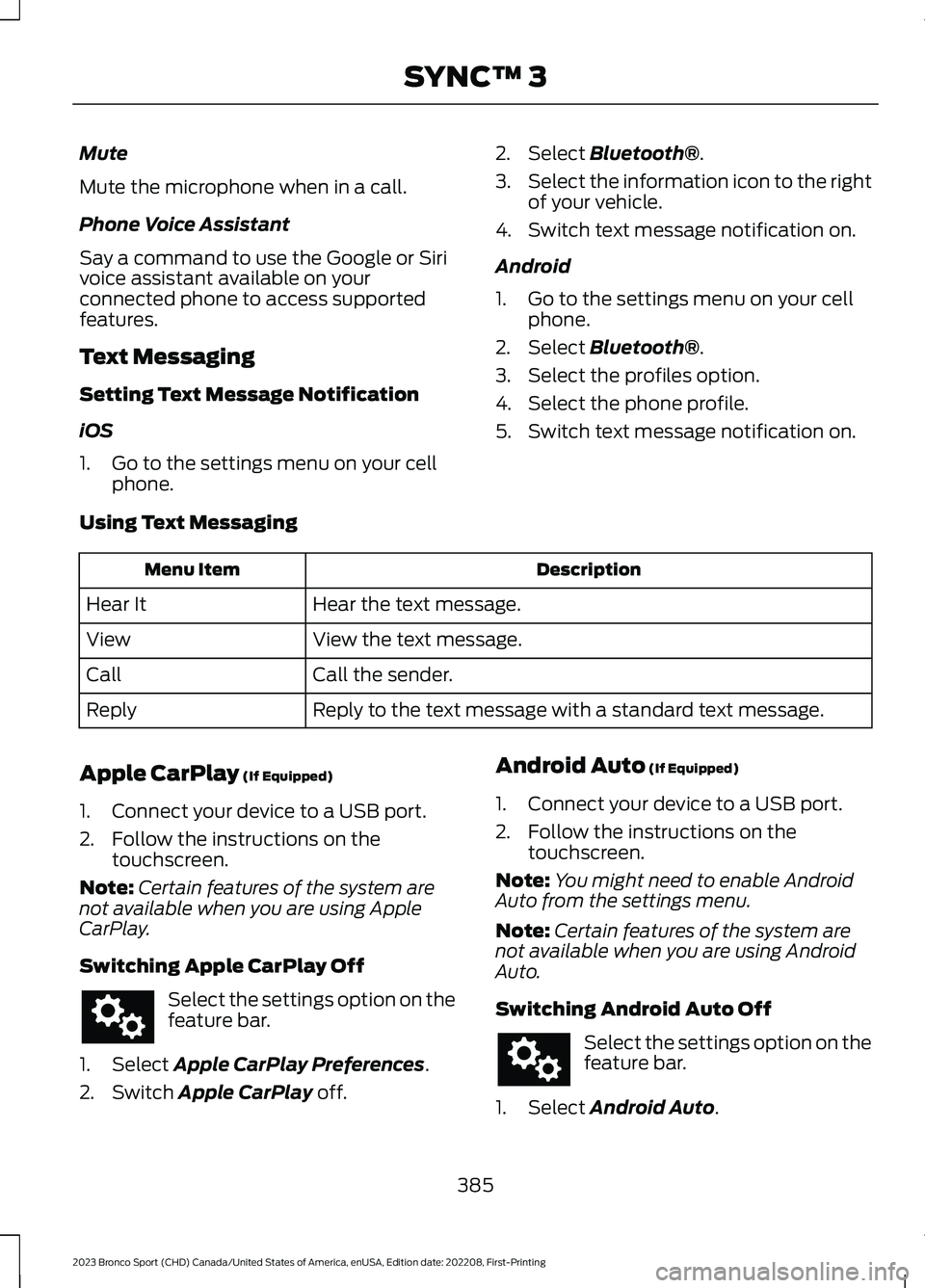
Mute
Mute the microphone when in a call.
Phone Voice Assistant
Say a command to use the Google or Sirivoice assistant available on yourconnected phone to access supportedfeatures.
Text Messaging
Setting Text Message Notification
iOS
1.Go to the settings menu on your cellphone.
2.Select Bluetooth®.
3.Select the information icon to the rightof your vehicle.
4.Switch text message notification on.
Android
1.Go to the settings menu on your cellphone.
2.Select Bluetooth®.
3.Select the profiles option.
4.Select the phone profile.
5.Switch text message notification on.
Using Text Messaging
DescriptionMenu Item
Hear the text message.Hear It
View the text message.View
Call the sender.Call
Reply to the text message with a standard text message.Reply
Apple CarPlay (If Equipped)
1.Connect your device to a USB port.
2.Follow the instructions on thetouchscreen.
Note:Certain features of the system arenot available when you are using AppleCarPlay.
Switching Apple CarPlay Off
Select the settings option on thefeature bar.
1.Select Apple CarPlay Preferences.
2.Switch Apple CarPlay off.
Android Auto (If Equipped)
1.Connect your device to a USB port.
2.Follow the instructions on thetouchscreen.
Note:You might need to enable AndroidAuto from the settings menu.
Note:Certain features of the system arenot available when you are using AndroidAuto.
Switching Android Auto Off
Select the settings option on thefeature bar.
1.Select Android Auto.
385
2023 Bronco Sport (CHD) Canada/United States of America, enUSA, Edition date: 202208, First-PrintingSYNC™ 3
Page 395 of 516
Navigation Map Accuracy andUpdates
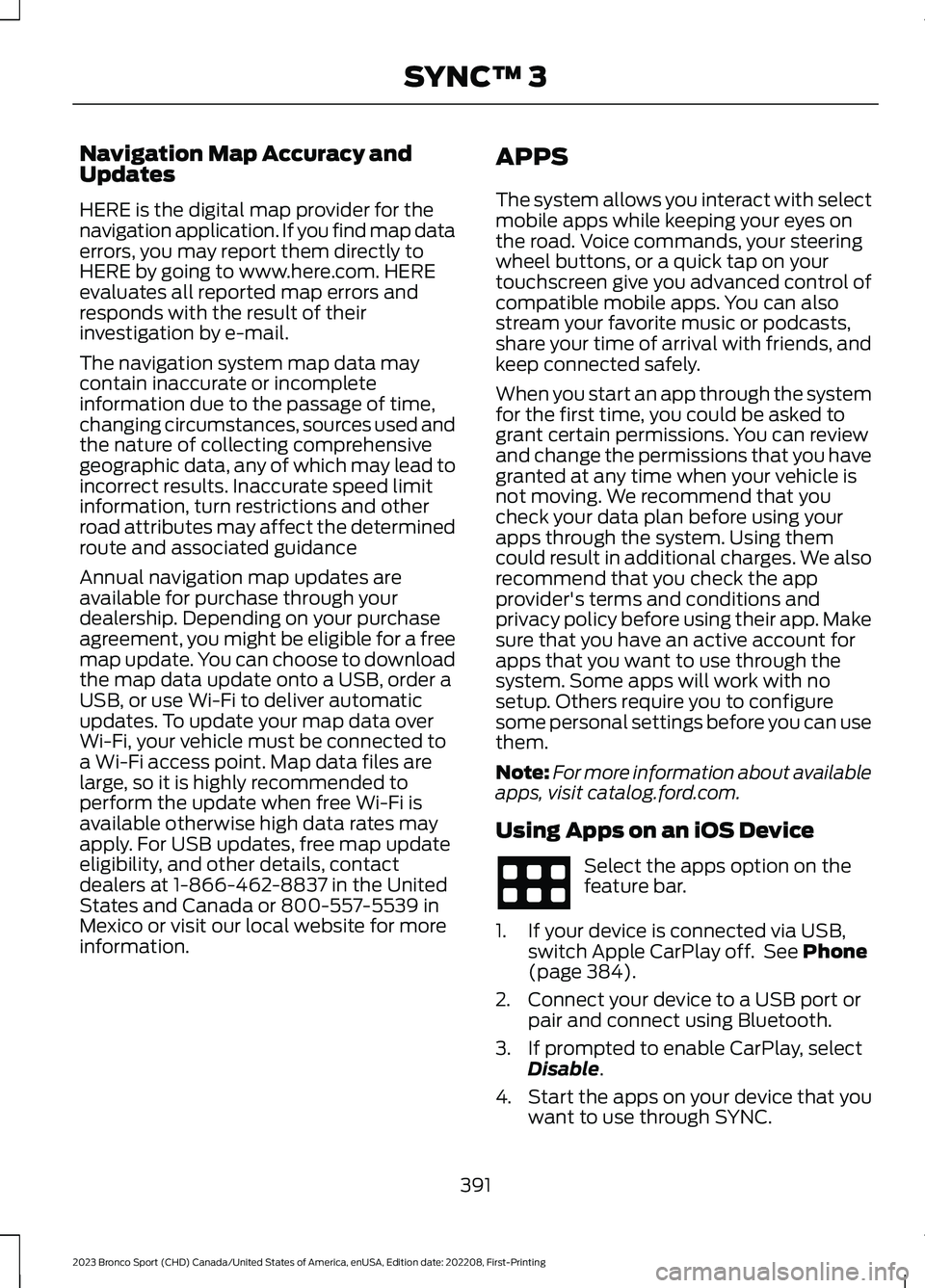
HERE is the digital map provider for thenavigation application. If you find map dataerrors, you may report them directly toHERE by going to www.here.com. HEREevaluates all reported map errors andresponds with the result of theirinvestigation by e-mail.
The navigation system map data maycontain inaccurate or incompleteinformation due to the passage of time,changing circumstances, sources used andthe nature of collecting comprehensivegeographic data, any of which may lead toincorrect results. Inaccurate speed limitinformation, turn restrictions and otherroad attributes may affect the determinedroute and associated guidance
Annual navigation map updates areavailable for purchase through yourdealership. Depending on your purchaseagreement, you might be eligible for a freemap update. You can choose to downloadthe map data update onto a USB, order aUSB, or use Wi-Fi to deliver automaticupdates. To update your map data overWi-Fi, your vehicle must be connected toa Wi-Fi access point. Map data files arelarge, so it is highly recommended toperform the update when free Wi-Fi isavailable otherwise high data rates mayapply. For USB updates, free map updateeligibility, and other details, contactdealers at 1-866-462-8837 in the UnitedStates and Canada or 800-557-5539 inMexico or visit our local website for moreinformation.
APPS
The system allows you interact with selectmobile apps while keeping your eyes onthe road. Voice commands, your steeringwheel buttons, or a quick tap on yourtouchscreen give you advanced control ofcompatible mobile apps. You can alsostream your favorite music or podcasts,share your time of arrival with friends, andkeep connected safely.
When you start an app through the systemfor the first time, you could be asked togrant certain permissions. You can reviewand change the permissions that you havegranted at any time when your vehicle isnot moving. We recommend that youcheck your data plan before using yourapps through the system. Using themcould result in additional charges. We alsorecommend that you check the appprovider's terms and conditions andprivacy policy before using their app. Makesure that you have an active account forapps that you want to use through thesystem. Some apps will work with nosetup. Others require you to configuresome personal settings before you can usethem.
Note:For more information about availableapps, visit catalog.ford.com.
Using Apps on an iOS Device
Select the apps option on thefeature bar.
1.If your device is connected via USB,switch Apple CarPlay off. See Phone(page 384).
2.Connect your device to a USB port orpair and connect using Bluetooth.
3.If prompted to enable CarPlay, selectDisable.
4.Start the apps on your device that youwant to use through SYNC.
391
2023 Bronco Sport (CHD) Canada/United States of America, enUSA, Edition date: 202208, First-PrintingSYNC™ 3
Page 396 of 516
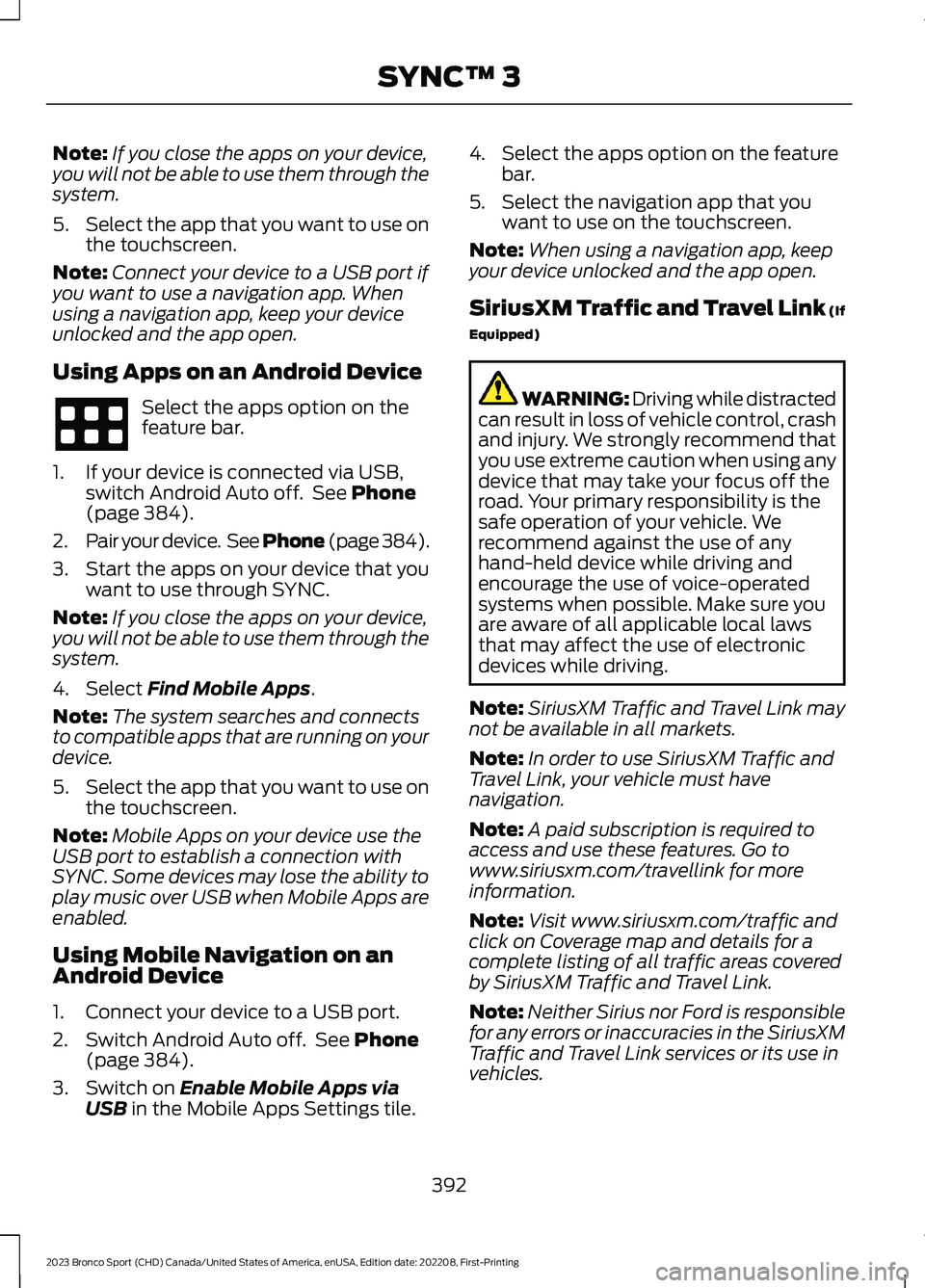
Note:If you close the apps on your device,you will not be able to use them through thesystem.
5.Select the app that you want to use onthe touchscreen.
Note:Connect your device to a USB port ifyou want to use a navigation app. Whenusing a navigation app, keep your deviceunlocked and the app open.
Using Apps on an Android Device
Select the apps option on thefeature bar.
1.If your device is connected via USB,switch Android Auto off. See Phone(page 384).
2.Pair your device. See Phone (page 384).
3.Start the apps on your device that youwant to use through SYNC.
Note:If you close the apps on your device,you will not be able to use them through thesystem.
4.Select Find Mobile Apps.
Note:The system searches and connectsto compatible apps that are running on yourdevice.
5.Select the app that you want to use onthe touchscreen.
Note:Mobile Apps on your device use theUSB port to establish a connection withSYNC. Some devices may lose the ability toplay music over USB when Mobile Apps areenabled.
Using Mobile Navigation on anAndroid Device
1.Connect your device to a USB port.
2.Switch Android Auto off. See Phone(page 384).
3.Switch on Enable Mobile Apps viaUSB in the Mobile Apps Settings tile.
4.Select the apps option on the featurebar.
5.Select the navigation app that youwant to use on the touchscreen.
Note:When using a navigation app, keepyour device unlocked and the app open.
SiriusXM Traffic and Travel Link (If
Equipped)
WARNING: Driving while distractedcan result in loss of vehicle control, crashand injury. We strongly recommend thatyou use extreme caution when using anydevice that may take your focus off theroad. Your primary responsibility is thesafe operation of your vehicle. Werecommend against the use of anyhand-held device while driving andencourage the use of voice-operatedsystems when possible. Make sure youare aware of all applicable local lawsthat may affect the use of electronicdevices while driving.
Note:SiriusXM Traffic and Travel Link maynot be available in all markets.
Note:In order to use SiriusXM Traffic andTravel Link, your vehicle must havenavigation.
Note:A paid subscription is required toaccess and use these features. Go towww.siriusxm.com/travellink for moreinformation.
Note:Visit www.siriusxm.com/traffic andclick on Coverage map and details for acomplete listing of all traffic areas coveredby SiriusXM Traffic and Travel Link.
Note:Neither Sirius nor Ford is responsiblefor any errors or inaccuracies in the SiriusXMTraffic and Travel Link services or its use invehicles.
392
2023 Bronco Sport (CHD) Canada/United States of America, enUSA, Edition date: 202208, First-PrintingSYNC™ 3
Page 399 of 516
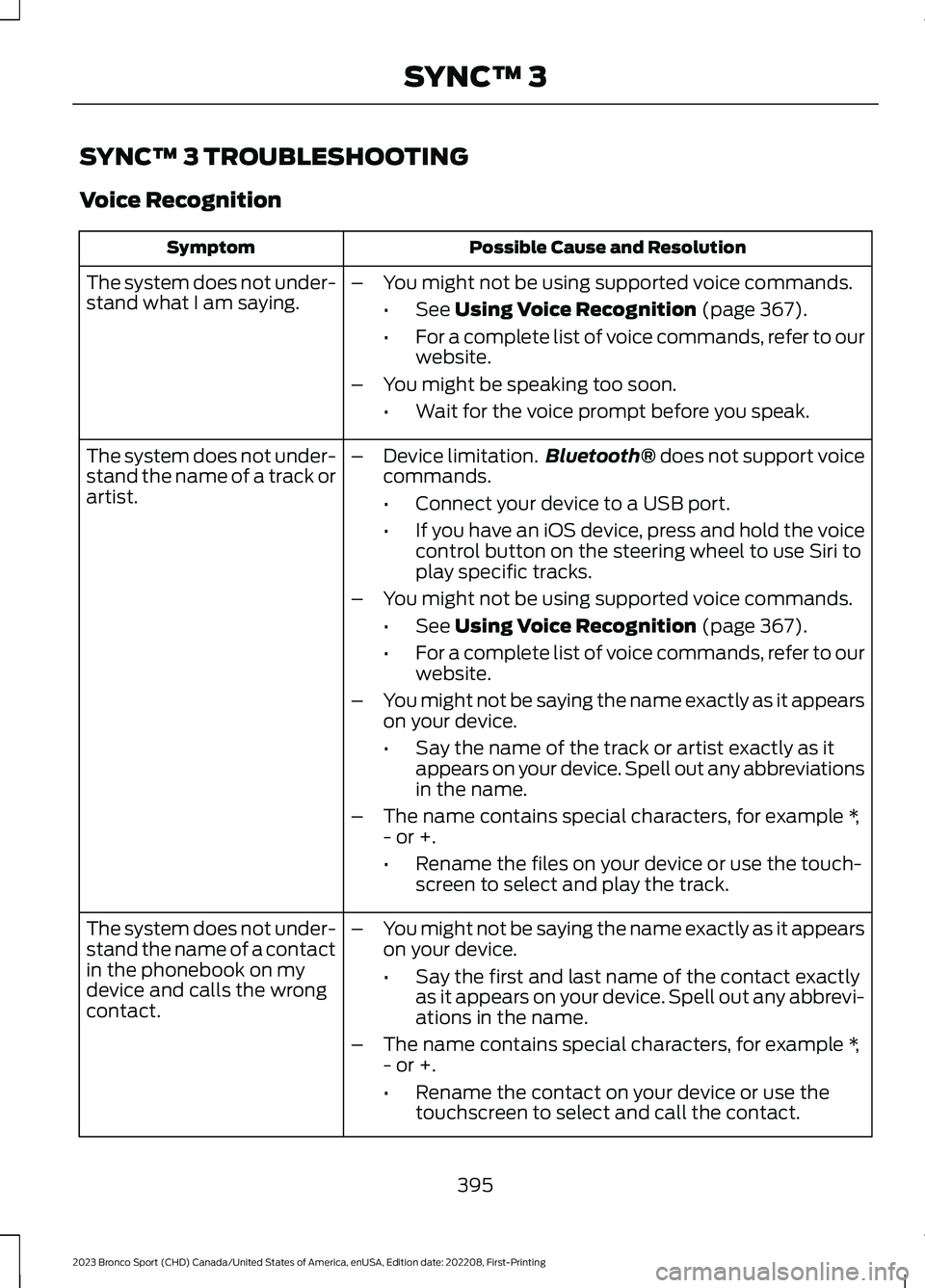
SYNC™ 3 TROUBLESHOOTING
Voice Recognition
Possible Cause and ResolutionSymptom
The system does not under-stand what I am saying.–You might not be using supported voice commands.
•See Using Voice Recognition (page 367).
•For a complete list of voice commands, refer to ourwebsite.
–You might be speaking too soon.
•Wait for the voice prompt before you speak.
The system does not under-stand the name of a track orartist.
–Device limitation.Bluetooth® does not support voicecommands.
•Connect your device to a USB port.
•If you have an iOS device, press and hold the voicecontrol button on the steering wheel to use Siri toplay specific tracks.
–You might not be using supported voice commands.
•See Using Voice Recognition (page 367).
•For a complete list of voice commands, refer to ourwebsite.
–You might not be saying the name exactly as it appearson your device.
•Say the name of the track or artist exactly as itappears on your device. Spell out any abbreviationsin the name.
–The name contains special characters, for example *,- or +.
•Rename the files on your device or use the touch-screen to select and play the track.
The system does not under-stand the name of a contactin the phonebook on mydevice and calls the wrongcontact.
–You might not be saying the name exactly as it appearson your device.
•Say the first and last name of the contact exactlyas it appears on your device. Spell out any abbrevi-ations in the name.
–The name contains special characters, for example *,- or +.
•Rename the contact on your device or use thetouchscreen to select and call the contact.
395
2023 Bronco Sport (CHD) Canada/United States of America, enUSA, Edition date: 202208, First-PrintingSYNC™ 3