2023 DODGE HORNET esc
[x] Cancel search: escPage 149 of 288
MULTIMEDIA147
SiriusXM® Setup
Geolocation
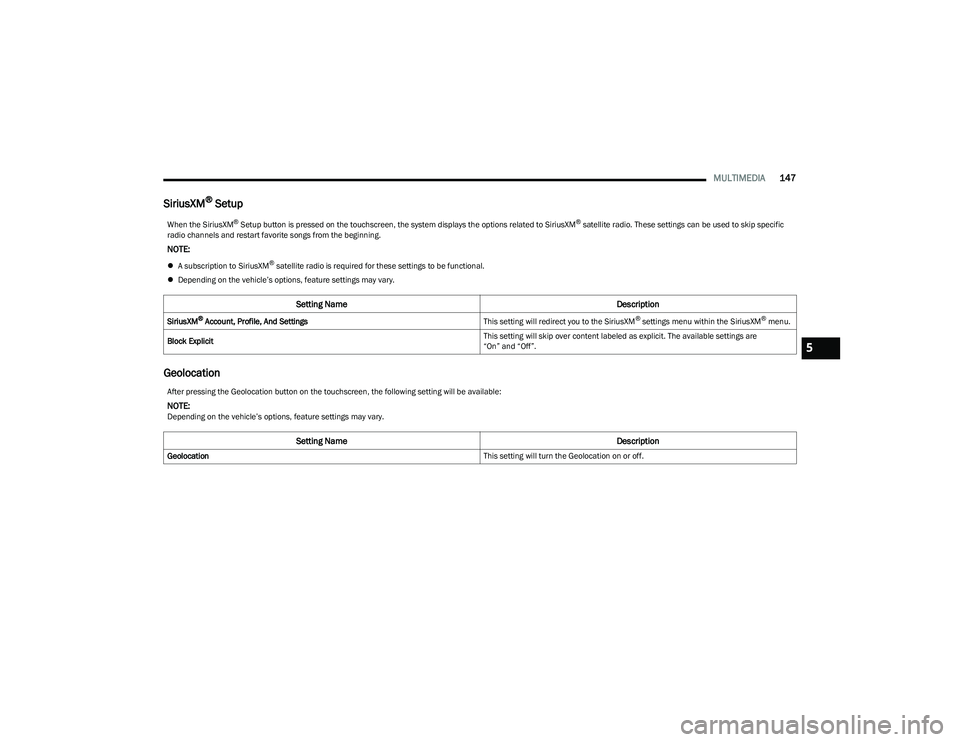
When the SiriusXM® Setup button is pressed on the touchscreen, the system displays the options related to SiriusXM® satellite radio. These settings can be used to skip specific
radio channels and restart favorite songs from the beginning.
NOTE:
A subscription to SiriusXM® satellite radio is required for these settings to be functional.
Depending on the vehicle’s options, feature settings may vary.
Setting Name Description
SiriusXM® Account, Profile, And SettingsThis setting will redirect you to the SiriusXM® settings menu within the SiriusXM® menu.
Block Explicit This setting will skip over content labeled as explicit. The available settings are
“On” and “Off”.
After pressing the Geolocation button on the touchscreen, the following setting will be available:
NOTE:Depending on the vehicle’s options, feature settings may vary.
Setting Name
Description
Geolocation This setting will turn the Geolocation on or off.
5
23_GG_OM_EN_USC_t.book Page 147
Page 150 of 288
148MULTIMEDIA
Software Updates
System Information
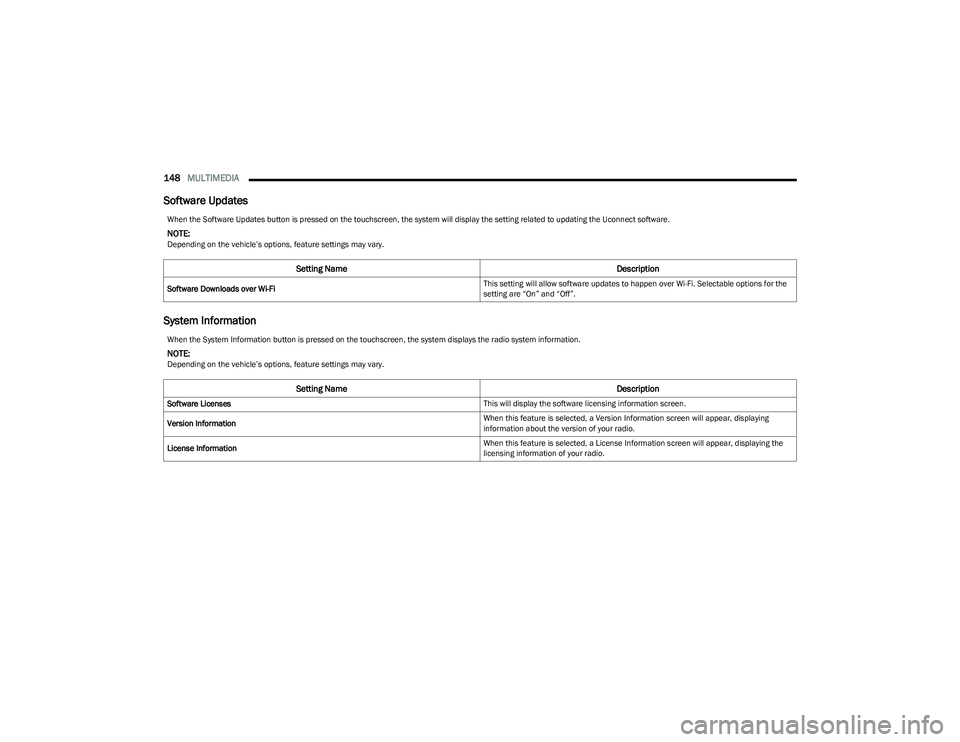
When the Software Updates button is pressed on the touchscreen, the system will display the setting related to updating the Uconnect software.
NOTE:Depending on the vehicle’s options, feature settings may vary.
Setting Name Description
Software Downloads over Wi-Fi This setting will allow software updates to happen over Wi-Fi. Selectable options for the
setting are “On” and “Off”.
When the System Information button is pressed on the touchscreen, the system displays the radio system information.
NOTE:Depending on the vehicle’s options, feature settings may vary.
Setting Name
Description
Software Licenses This will display the software licensing information screen.
Version Information When this feature is selected, a Version Information screen will appear, displaying
information about the version of your radio.
License Information When this feature is selected, a License Information screen will appear, displaying the
licensing information of your radio.
23_GG_OM_EN_USC_t.book Page 148
Page 151 of 288
MULTIMEDIA149
Reset
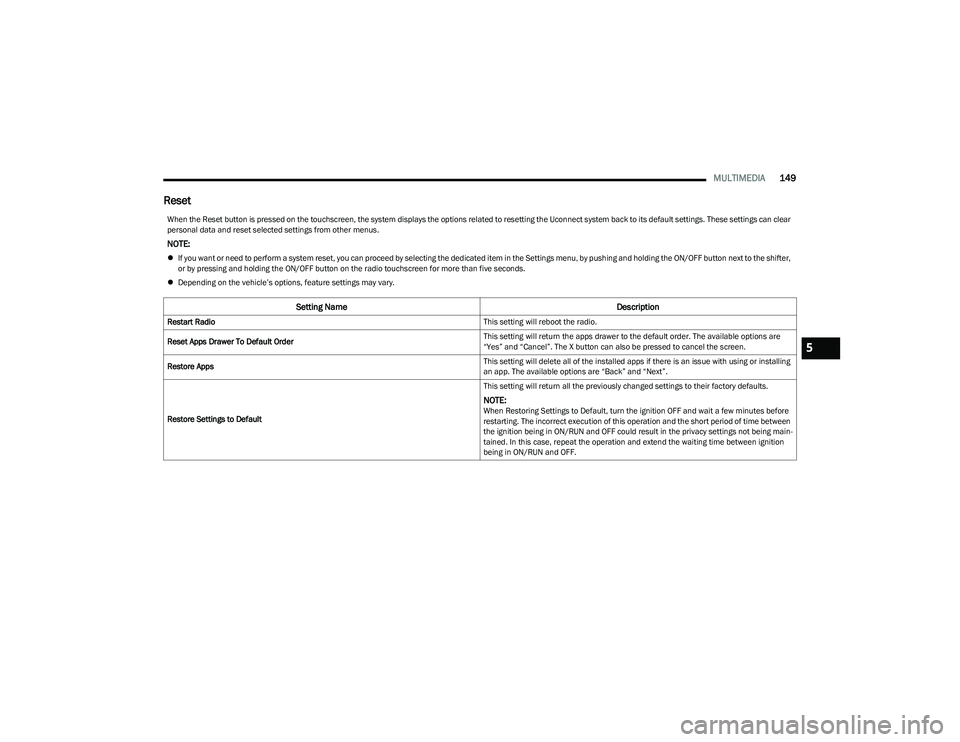
When the Reset button is pressed on the touchscreen, the system displays the options related to resetting the Uconnect system back to its default settings. These settings can clear
personal data and reset selected settings from other menus.
NOTE:
If you want or need to perform a system reset, you can proceed by selecting the dedicated item in the Settings menu, by pushing and holding the ON/OFF button next to the shifter,
or by pressing and holding the ON/OFF button on the radio touchscreen for more than five seconds.
Depending on the vehicle’s options, feature settings may vary.
Setting Name Description
Restart Radio This setting will reboot the radio.
Reset Apps Drawer To Default Order This setting will return the apps drawer to the default order. The available options are
“Yes” and “Cancel”. The X button can also be pressed to cancel the screen.
Restore Apps This setting will delete all of the installed apps if there is an issue with using or installing
an app. The available options are “Back” and “Next”.
Restore Settings to Default This setting will return all the previously changed settings to their factory defaults.
NOTE:When Restoring Settings to Default, turn the ignition OFF and wait a few minutes before
restarting. The incorrect execution of this operation and the short period of time between
the ignition being in ON/RUN and OFF could result in the privacy settings not being main
-
tained. In this case, repeat the operation and extend the waiting time between ignition
being in ON/RUN and OFF.
5
23_GG_OM_EN_USC_t.book Page 149
Page 152 of 288
150MULTIMEDIA
STEERING WHEEL AUDIO CONTROLS —
IF EQUIPPED
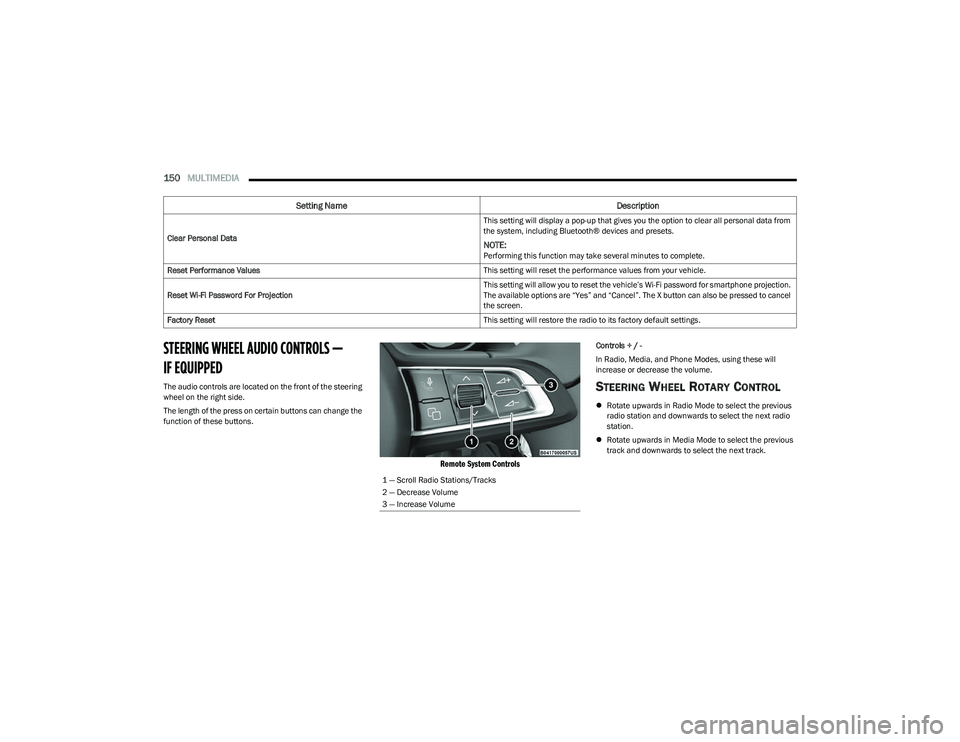
The audio controls are located on the front of the steering
wheel on the right side.
The length of the press on certain buttons can change the
function of these buttons.
Remote System Controls
Controls + / -
In Radio, Media, and Phone Modes, using these will
increase or decrease the volume.
STEERING WHEEL ROTARY CONTROL
Rotate upwards in Radio Mode to select the previous
radio station and downwards to select the next radio
station.
Rotate upwards in Media Mode to select the previous
track and downwards to select the next track.
Clear Personal Data
This setting will display a pop-up that gives you the option to clear all personal data from
the system, including Bluetooth® devices and presets.
NOTE:Performing this function may take several minutes to complete.
Reset Performance Values This setting will reset the performance values from your vehicle.
Reset Wi-Fi Password For Projection This setting will allow you to reset the vehicle’s Wi-Fi password for smartphone projection.
The available options are “Yes” and “Cancel”. The X button can also be pressed to cancel
the screen.
Factory Reset This setting will restore the radio to its factory default settings.
Setting NameDescription
1 — Scroll Radio Stations/Tracks
2 — Decrease Volume
3 — Increase Volume
23_GG_OM_EN_USC_t.book Page 150
Page 153 of 288

MULTIMEDIA151
CON TR O LS O N CEN TR AL TUN NEL
A rotary control is present on the central tunnel to the right
side of the gear shifter and has different functionality
depending on the kind of pressing and/or rotating.
Rotary Control Central Tunnel
Short Press
This will activate or deactivate the Mute function for
playback of audio tracks, radio stations, App streaming
and incoming calls.
Long Press
This will turn on or off the Uconnect system.
Rotate
This will increase or decrease the volume.
MY CAR
My Car is an application that provides indicators that will
help you gain familiarity with the capabilities of your
vehicle in real time.
To access My Car options, select “My Car” on the
touchscreen within the Vehicle tab.
My Car includes:
Overview
Drive Mode Explorer
Press the desired My Car item on the touchscreen to view
the content related to it.
The following describes each feature and its operation:
Overview
The main features of this page are showing when your
vehicle is due for service and the status of your tires.
My Car Overview
Drive Mode Explorer
This page will show content related to the additional drive
mode features. Selectable options on the bottom of the
touchscreen are “Auto” and “Sport”. The following is some
of the information that will be displayed on the
touchscreen:
Engine Torque
Gas Pedal
Shifting
Steering
AWD
My Car Drive Mode Explorer
5
23_GG_OM_EN_USC_t.book Page 151
Page 154 of 288

152MULTIMEDIA
PERFORMANCE PAGES
The Performance Pages is an application that provides
performance indicators that will help you gain familiarity
with the capabilities of your vehicle in real time.
To access Performance options, select “Performance”
from the top page headers within the Vehicle tab.
The Performance Pages includes:
Technical Gauges
Consumption History
Accessory Gauges
Viewing Content
Press the desired Performance item on the touchscreen to
view the content related to it. The following describes each feature and its operation:TE
C H N IC A L GAUG ES
Selecting “Technical Gauges” will display the following
items:
Pressure (Turbo)
Engine Torque Value (Torque)
Technical Gauges
NOTE:
The graphic displayed may change depending on the
different versions and engines.
CO N SU M PTIO N HIS TO RY
Selecting “Consumption History” will relay information
regarding the fuel consumption of the vehicle. This
information can be relayed in 60 graphic notches per
minute.
Consumption History
Fuel Consumption Chart
Each column shown in the graph displays the average
“Instantaneous Consumption” recorded during the last
minute of travel.
The fuel consumption graphic bar is shown on the display
with “n examples” in which the last column represents the
last recorded consumption values. This column will be
displayed in a lighter color than the other columns for the
oldest fuel consumption.
Consumption Reset
Press the Reset icon on the display to reset the
consumption values. A message will appear on the screen.
Select “Yes” to reset the values.
23_GG_OM_EN_USC_t.book Page 152
Page 157 of 288

SAFETY155
ELECTRONIC BRAKE CONTROL (EBC)
S
YSTEM
Your vehicle is equipped with an advanced Electronic
Brake Control (EBC) system. This system includes
Anti-Lock Brake System (ABS), Brake Assist System (BAS),
Electronic Brake Force Distribution (EBD), Electronic Roll
Mitigation (ERM), Electronic Stability Control (ESC), Hill
Start Assist (HSA), and Traction Control System (TCS).
These systems work together to enhance both vehicle
stability and control in various driving conditions.
Your vehicle may also be equipped with Dynamic Steering
Torque (DST), Hill Descent Control (HDC), Rain Brake
Support (RBS), Ready Alert Braking (RAB), and Trailer
Sway Control (TSC).
Brake Assist System (BAS)
The BAS is designed to optimize the vehicle’s braking
capability during emergency braking maneuvers. The
system detects an emergency braking situation by sensing
the rate and amount of brake application and then applies
optimum pressure to the brakes. This can help reduce
braking distances. The BAS complements the Anti-Lock
Brake System (ABS). Applying the brakes very quickly
results in the best BAS assistance. To receive the benefit
of the system, you must apply continuous braking
pressure during the stopping sequence (do not “pump”
the brakes). Do not reduce brake pedal pressure unless
braking is no longer desired. Once the brake pedal is
released, the BAS is deactivated.
Brake System Warning Light
The red Brake System Warning Light will turn on when the
ignition is placed in the ON/RUN mode and may stay on for
as long as four seconds.
If the Brake System Warning Light remains on or comes on
while driving, it indicates that the brake system is not
functioning properly and that immediate service is
required. If the Brake System Warning Light does not
come on when the ignition is placed in the ON/RUN mode,
have the light repaired as soon as possible.
Dynamic Steering Torque (DST)
DST is a feature of the Electronic Stability Control (ESC)
and Electric Power Steering (EPS) modules that provides
torque at the steering wheel for certain driving conditions
in which the ESC module is detecting vehicle instability.
The torque that the steering wheel receives is only meant
to help the driver realize optimal steering behavior in order to reach/maintain vehicle stability. The only notification
the driver receives that the feature is active is the torque
applied to the steering wheel.
NOTE:The DST feature is only meant to help the driver realize the
correct course of action through small torques on the
steering wheel, which means the effectiveness of the DST
feature is highly dependent on the driver’s sensitivity and
overall reaction to the applied torque. It is very important
to realize that this feature will not steer the vehicle,
meaning the driver is still responsible for steering the
vehicle.
Electronic Brake Force Distribution (EBD)
EBD manages the distribution of the braking torque
between the front and rear axles by limiting braking
pressure to the rear axle. This is done to prevent overslip
of the rear wheels to avoid vehicle instability, and to
prevent the rear axle from entering ABS before the
front axle.
Electronic Roll Mitigation (ERM)
ERM anticipates the potential for wheel lift by monitoring
the driver’s steering wheel input and the speed of the
vehicle. When ERM determines that the rate of change of
the steering wheel angle and vehicle’s speed are
sufficient to potentially cause wheel lift, it then applies the
appropriate brake and may also reduce engine power to
lessen the chance that wheel lift will occur. ERM can only
reduce the chance of wheel lift occurring during severe or
evasive driving maneuvers; it cannot prevent wheel lift
due to other factors, such as road conditions, leaving the
roadway, or striking objects or other vehicles.
WARNING!
The Brake Assist System (BAS) cannot prevent the
natural laws of physics from acting on the vehicle, nor
can it increase the traction afforded by prevailing road
conditions. BAS cannot prevent collisions, including
those resulting from excessive speed in turns, driving
on very slippery surfaces, or hydroplaning. The
capabilities of a BAS-equipped vehicle must never be
exploited in a reckless or dangerous manner, which
could jeopardize the user's safety or the safety of
others.
6
23_GG_OM_EN_USC_t.book Page 155
Page 158 of 288

156SAFETY
(Continued)
Electronic Stability Control (ESC)
ESC enhances directional control and stability of the
vehicle under various driving conditions. ESC corrects for
oversteering or understeering of the vehicle by applying
the brake of the appropriate wheel(s) to counteract these
conditions. Engine power may also be reduced to help the
vehicle maintain the desired path.
Oversteer — when the vehicle is turning more than
appropriate for the steering wheel position.
Understeer — when the vehicle is turning less than
appropriate for the steering wheel position.
ESC uses sensors in the vehicle to determine the vehicle
path intended by the driver and compares it to the actual
path of the vehicle. When the actual path does not match
the intended path, ESC applies the brake of the
appropriate wheel to assist in counteracting the oversteer
or understeer condition. The ESC Activation/Malfunction Indicator Light located in
the instrument cluster will start to flash as soon as the ESC
system becomes active. The ESC Activation/Malfunction
Indicator Light also flashes when the TCS is active. If the
ESC Activation/Malfunction Indicator Light begins to flash
during acceleration, ease up on the accelerator and apply
as little throttle as possible. Be sure to adapt your speed
and driving to the prevailing road conditions.
ESC Operating Modes
Depending upon model and mode of operation, the
ESC system may have multiple operating modes.
ESC On
This is the normal operating mode for the ESC. Whenever
the vehicle is started, the ESC system will be in this mode.
This mode should be used for most driving conditions.
Alternate ESC modes should only be used for specific
reasons as noted in the following paragraphs.
WARNING!
Many factors, such as vehicle loading, road conditions
and driving conditions, influence the chance that wheel
lift or rollover may occur. ERM cannot prevent all wheel
lift or rollovers, especially those that involve leaving the
roadway or striking objects or other vehicles. The
capabilities of an ERM-equipped vehicle must never be
exploited in a reckless or dangerous manner which could
jeopardize the user's safety or the safety of others.
WARNING!
Electronic Stability Control (ESC) cannot prevent the
natural laws of physics from acting on the vehicle,
nor can it increase the traction afforded by prevailing
road conditions. ESC cannot prevent accidents,
including those resulting from excessive speed in
turns, driving on very slippery surfaces, or hydro -
planing. ESC also cannot prevent accidents resulting
from loss of vehicle control due to inappropriate
driver input for the conditions. Only a safe, attentive,
and skillful driver can prevent accidents. The capabil -
ities of an ESC equipped vehicle must never be
exploited in a reckless or dangerous manner which
could jeopardize the user’s safety or the safety of
others.
Vehicle modifications, or failure to properly maintain
your vehicle, may change the handling characteris -
tics of your vehicle, and may negatively affect the
performance of the ESC system. Changes to the
steering system, suspension, braking system, tire
type and size or wheel size may adversely affect ESC
performance. Improperly inflated and unevenly worn
tires may also degrade ESC performance. Any vehicle
modification or poor vehicle maintenance that
reduces the effectiveness of the ESC system can
increase the risk of loss of vehicle control, vehicle
rollover, personal injury and death.
WARNING!
23_GG_OM_EN_USC_t.book Page 156