2023 DODGE CHARGER ESP
[x] Cancel search: ESPPage 103 of 292
STARTING AND OPERATING101
NOTE:If snow, ice, mud, or any foreign substance builds up on
the camera lens, clean the lens, rinse with water, and dry
with a soft cloth. Do not cover the lens.
REFUELING THE VEHICLE
1. Put the vehicle in PARK and switch the ignition off.
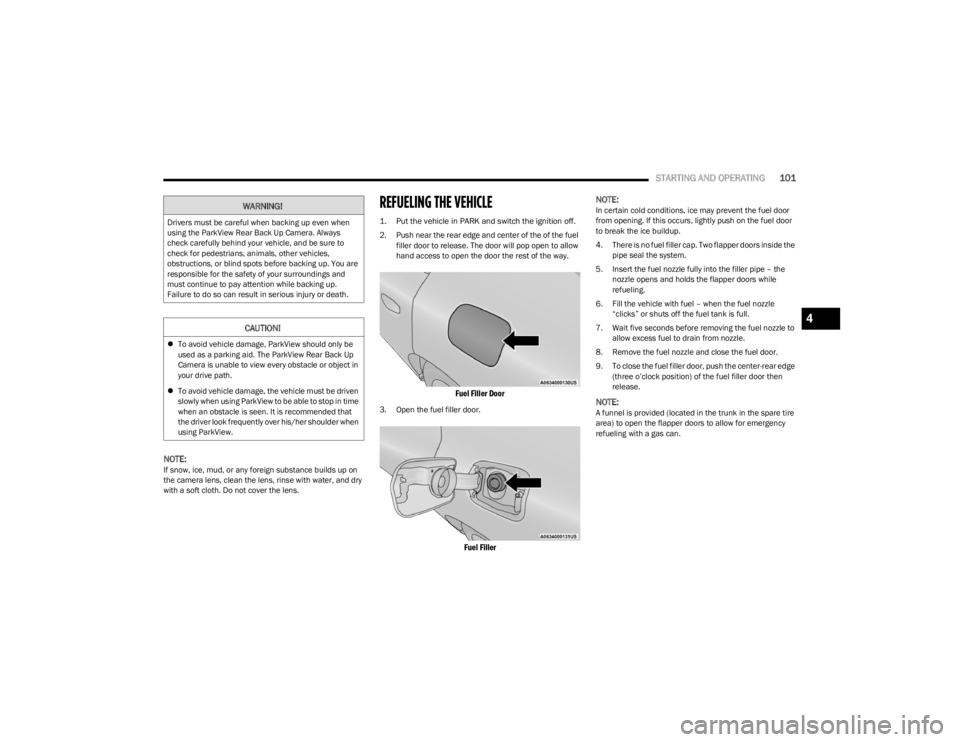
2. Push near the rear edge and center of the of the fuel
filler door to release. The door will pop open to allow
hand access to open the door the rest of the way.
Fuel Filler Door
3. Open the fuel filler door.
Fuel Filler
NOTE:
In certain cold conditions, ice may prevent the fuel door
from opening. If this occurs, lightly push on the fuel door
to break the ice buildup.
4. There is no fuel filler cap. Two flapper doors inside the
pipe seal the system.
5. Insert the fuel nozzle fully into the filler pipe – the nozzle opens and holds the flapper doors while
refueling.
6. Fill the vehicle with fuel – when the fuel nozzle “clicks” or shuts off the fuel tank is full.
7. Wait five seconds before removing the fuel nozzle to allow excess fuel to drain from nozzle.
8. Remove the fuel nozzle and close the fuel door.
9. To close the fuel filler door, push the center-rear edge (three o’clock position) of the fuel filler door then
release.
NOTE:A funnel is provided (located in the trunk in the spare tire
area) to open the flapper doors to allow for emergency
refueling with a gas can.
WARNING!
Drivers must be careful when backing up even when
using the ParkView Rear Back Up Camera. Always
check carefully behind your vehicle, and be sure to
check for pedestrians, animals, other vehicles,
obstructions, or blind spots before backing up. You are
responsible for the safety of your surroundings and
must continue to pay attention while backing up.
Failure to do so can result in serious injury or death.
CAUTION!
To avoid vehicle damage, ParkView should only be
used as a parking aid. The ParkView Rear Back Up
Camera is unable to view every obstacle or object in
your drive path.
To avoid vehicle damage, the vehicle must be driven
slowly when using ParkView to be able to stop in time
when an obstacle is seen. It is recommended that
the driver look frequently over his/her shoulder when
using ParkView.
4
23_LD_OM_EN_USC_t.book Page 101
Page 115 of 292

MULTIMEDIA113
Language
Display
When the Language button is pressed on the touchscreen, the system displays the different language options. Once an option is selected, the system will display in the chosen
language.
NOTE:Depending on the vehicle’s options, feature settings may vary.
Setting Name Description
LanguageThis setting will change the language of the Uconnect system and Instrument Cluster
Display. The available languages are English, Français, and Español.
When the Display button is pressed on the touchscreen, the system will display the options related to the theme (if equipped), brightness, and color of the touchscreen. The available
settings are:
NOTE:Depending on the vehicle’s options, feature settings may vary.
Setting Name Description
Display ModeThis setting will allow you to set the brightness manually or have the system
set it automatically. The “Auto” setting has the system automatically adjust the
display brightness. The “Manual” setting will allow the user to adjust the brightness of the display.
Display Brightness With Headlights ON This setting will allow you to set the brightness when the headlights are on. To access this
setting, Display Mode must be set to “Manual”. The “+” setting will increase the brightness; the “-” will decrease the brightness.
Display Brightness With Headlights OFF This setting will allow you to set the brightness when the headlights are off. To access this
setting, Display Mode must be set to “Manual”. The “+” setting will increase the brightness; the “-” will decrease the brightness.
5
23_LD_OM_EN_USC_t.book Page 113
Page 117 of 292

MULTIMEDIA115
Voice
Clock
When the Voice button is pressed on the touchscreen, the system displays the options related to the vehicle’s Voice Recognition feature.
NOTE:Depending on the vehicle’s options, feature settings may vary.
Setting Name Description
Voice Response LengthThis setting will change the response length for the Voice Recognition system. The “Brief”
setting provides a shortened audio description from the system. The “Detailed” setting provides the full audio description from the system.
Show Command List This setting will allow you to turn the Command List on or off. The “Always” setting will
always show the Command List. The “With Help” setting will show the Command List and provide a brief description of what the command does. The “Never” setting will turn the Command List off.
When the Clock button is pressed on the touchscreen, the system displays the different options related to the vehicle’s internal clock.
NOTE:Depending on the vehicle’s options, feature settings may vary.
Setting Name Description
Sync Time With GPSThis setting will sync the time to the GPS receiver in the system. The system will control
the time via the GPS location.
Time Format This setting will allow you set the time format (AM/PM). Sync Time With GPS must be off
for this setting to be available. The “12 hrs” setting will set the time to a 12-hour format. The “24 hrs” setting will set the time to a 24-hour format.
5
23_LD_OM_EN_USC_t.book Page 115
Page 132 of 292

130MULTIMEDIA
RADIO MODE
Radio Controls
Uconnect 4 With 7-inch Display
The radio is equipped with the following modes:
AM
FM
SiriusXM® Satellite Radio (If Equipped)
Press the Radio button on the touchscreen to enter the
Radio Mode. The different tuner modes, AM, FM, and SXM,
can then be selected by pressing the corresponding
button in Radio Mode.
Volume & On/Off Control
Push the VOLUME & On/Off control knob to turn on and off
the Uconnect system.
The electronic volume control turns continuously
(360 degrees) in either direction, without stopping.
Turning the VOLUME & On/Off control knob clockwise
increases the volume, and counterclockwise decreases it.
When the audio system is turned on, the sound will be set
at the same volume level as last played.
Mute Button
Push the MUTE button to mute or unmute the system.
Tune/Scroll Control
Turn the rotary TUNE/SCROLL control knob clockwise to
increase or counterclockwise to decrease the radio station
frequency. Push the ENTER/BROWSE button to choose a
selection. Seek
The Seek Up and Down functions are activated by pressing
the double arrow buttons on the touchscreen to the right
and left of the radio station display or by pushing the left
steering wheel audio control button up or down.
Seek Up
and Seek Down
Press and release the Seek Up or Seek
Down button to tune the radio to the next available
station or channel. During a Seek Up/Down function, if the
radio reaches the starting station after passing through
the entire band two times, the radio will stop at the station
where it began.
Fast Seek Up and Fast Seek Down
Press and hold, and then release the Seek Up or
Seek Down button to advance the radio through the
available stations or channels at a faster rate. The radio
stops at the next available station or channel when the
button on the touchscreen is released.
NOTE:
Pressing and holding either the Seek Up or Seek
Down button will scan the different frequency bands at
a slower rate.
Direct Tune
Press the Tune button located at the bottom of the radio
screen to directly tune to a desired radio station or
channel.
1 — Radio Bands
2 — Preset Radio Stations
3 — View Next Preset Radio Stations
4 — Status Bar
5 — Browse
6 — Seek Down
7 — Tune
8 — Seek Up
9 — Audio Settings
10 — Bottom Menu Bar
23_LD_OM_EN_USC_t.book Page 130
Page 137 of 292
MULTIMEDIA135
Deleting A Preset
A preset can be deleted in the Presets Browse screen by
pressing the Trash Can icon for the corresponding preset.
Favorites
Press the Favorites button on the Browse screen.
The Favorites menu provides a means to edit the Favorites
list and to configure the Alert Settings, along with
providing a list of Channels currently airing any of the
items in the Favorites list.
You can scroll the Favorites list by pressing the Up and
Down arrows located at the right side of the screen.
Scrolling can also be done by operating the TUNE/SCROLL
knob as well.
Remove Favorites
Press the Remove Favorites tab at the top of the screen.
Press the Delete All button on the touchscreen to delete
all of the Favorites or press the Trash Can icon next to the
Favorite to be deleted.
Alert Settings
Press the Alert Settings tab at the top of the Favorites
screen. The Alert Settings menu allows you to choose from
a visual alert or audible and visual alert when one of your
favorites is airing on any of the SiriusXM® channels. Game Zone
Press the Game Zone button, located at the left of the
Browse screen. This feature provides you with the ability to
select teams, edit the selection, and set alerts.
On-Air
Press the On-Air tab at the top of the screen. The On-Air list
provides a list of Channels currently airing any of the items
in the Selections list, and pressing any of the items in the
list tunes the radio to that channel.
Select Team — If Equipped
Press the Select Team button on the touchscreen to
activate the League Scroll list. Press the chosen league
and a scroll list of all teams within the league will appear,
then you can select a team by pressing the corresponding
box. A check mark appears for all teams that are chosen.
Remove Selection/Trash Can Icon
Press the Remove Selection tab at the top of the screen.
Press the Delete All button on the touchscreen to delete
all of the selections or press the Trash Can icon next to the
selection to be deleted. Alert Settings
Press the Alert Setting tab at the top of the screen. The
Alert Settings menu allows you to choose from “Alert me to
on-air games upon start” or “Alert upon score update” or
both when one or more of your selections is airing on any
of the SiriusXM® channels.
Tune Start
Tune Start begins playing the current song from the
beginning when you tune to a music channel using one of
the 12 presets. This feature occurs the first time the
preset is selected during that current song.
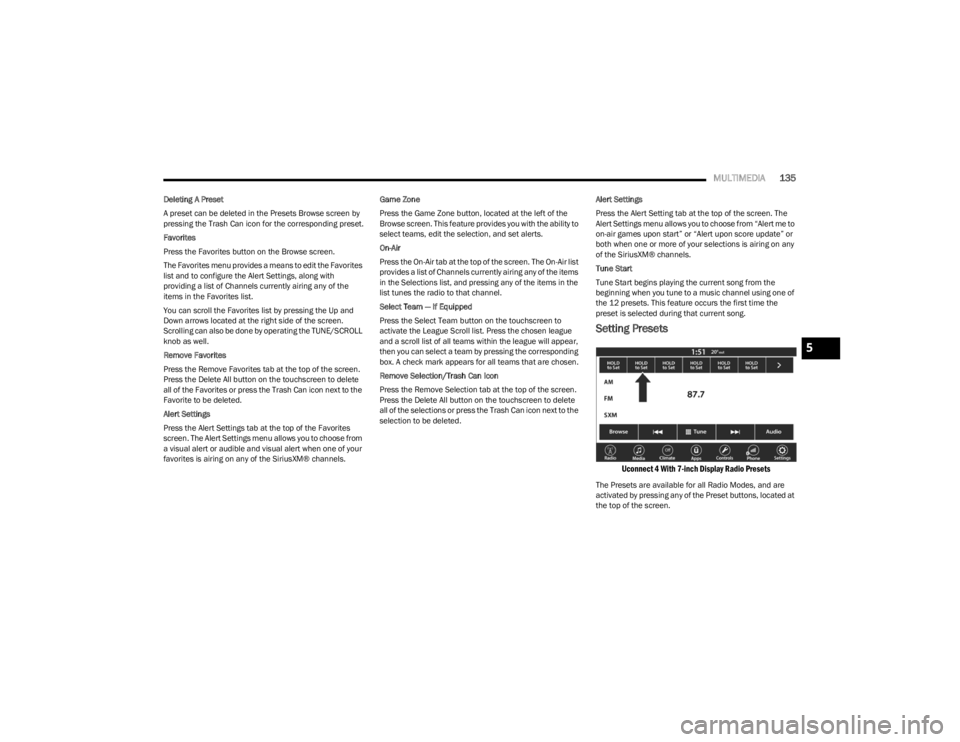
Setting Presets
Uconnect 4 With 7-inch Display Radio Presets
The Presets are available for all Radio Modes, and are
activated by pressing any of the Preset buttons, located at
the top of the screen.
5
23_LD_OM_EN_USC_t.book Page 135
Page 138 of 292
136MULTIMEDIA
When you are on a station that you wish to save as a
preset, press and hold the numbered button on the
touchscreen for more than two seconds.
The Radio stores up to 12 presets in each of the
Radio Modes.
A total of six presets will appear on the screen. You can
switch between the radio presets list by pressing the Arrow
button located in the upper right of the radio touchscreen.
PRESET FEATURES — IF EQUIPPED
Browse In AM/FM
When in either AM or FM, the Browse Screen provides a
means to edit the Presets List and is entered by pushing
the ENTER/BROWSE button.
Scrolling Preset List
Once in the Browse Presets screen, you can scroll the
preset list by rotation of the TUNE/SCROLL knob or by
pressing the Up or Down Arrow key, located on the right of
the screen. Preset Selection From List
A preset can be selected by pressing any of the listed
Presets, or by pushing the ENTER/BROWSE button or the
TUNE/SCROLL knob to select the currently highlighted
Preset.
When selected, the radio tunes to the station stored in the
Presets.
Deleting Presets
A preset can be deleted in the Presets Browse screen by
pressing the Trash Can icon for the corresponding preset.
Return To Main Radio Screen
You can return to the Main Radio Screen by pressing
the X button or the Back Arrow button when in the
Browse Presets screen.
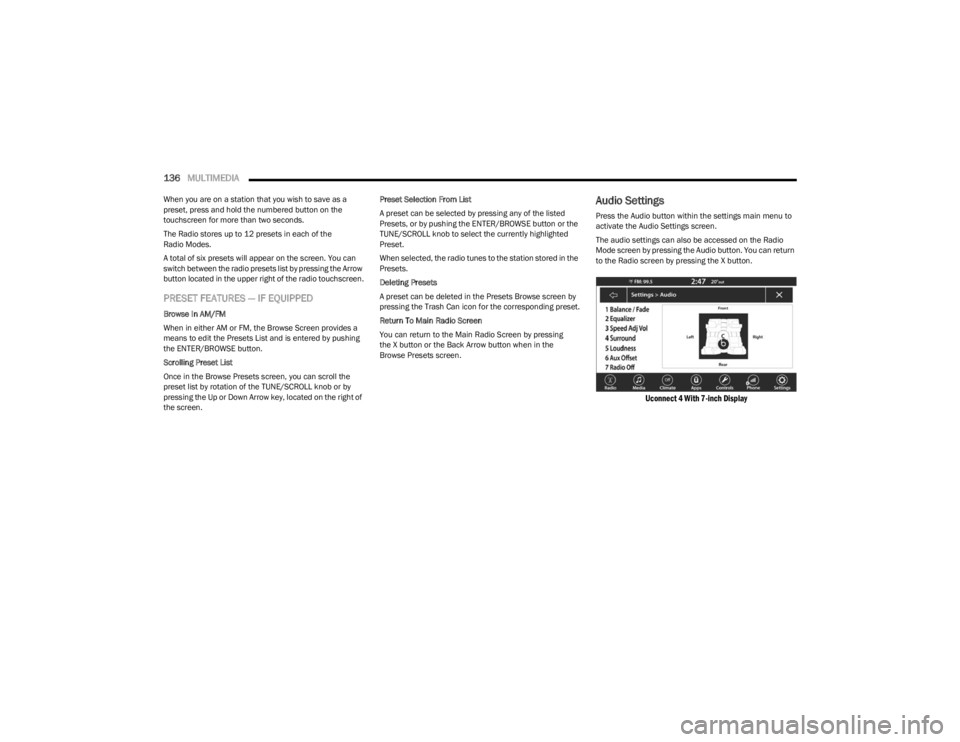
Audio Settings
Press the Audio button within the settings main menu to
activate the Audio Settings screen.
The audio settings can also be accessed on the Radio
Mode screen by pressing the Audio button. You can return
to the Radio screen by pressing the X button.
Uconnect 4 With 7-inch Display
23_LD_OM_EN_USC_t.book Page 136
Page 143 of 292

MULTIMEDIA141
The Phone feature is driven through your Bluetooth®
“Hands-Free Profile” mobile phone. Uconnect features
Bluetooth® technology — the global standard that enables
different electronic devices to connect to each other
without wires or a docking station. Ensure you phone is
turned on with Bluetooth® active and has been paired to
the Uconnect system. Up to 10 mobile phones or audio
devices are allowed to be linked to the system. Only one
linked (or paired) mobile phone and one audio device can
be used with the system at a time.
Phone Button
The Phone button on your steering wheel is
used to get into the Phone Mode and make
calls, show recent, incoming or outgoing calls,
view phonebook, etc. When you push the
button you will hear a BEEP. The BEEP is your signal to give
a command.
Voice Command Button
The Voice Command button on your steering
wheel is only used for “barge in” and when you
are already in a call or want to make another
call. The button on your steering wheel is also used to access
the Voice Commands for the Uconnect Voice Command
features if your vehicle is equipped.
Phone Operation
OPERATION
Voice commands can be used to operate the Uconnect
Phone and to navigate its menu structure. Voice
commands are required after most Uconnect Phone
prompts. There are two general methods for how Voice
Command works:
1. Say compound commands like
“Call John Smith mobile”.
2. Say the individual commands and allow the system to guide you to complete the task.
You will be prompted for a specific command and then
guided through the available options.
Prior to giving a voice command, one must wait for the
beep, which follows the “Listen” prompt or another
prompt.
For certain operations, compound commands can be
used. For example, instead of saying “Call” and then
“John Smith” and then “mobile”, the following
compound command can be said:
“Call John Smith mobile.”
For each feature explanation in this section, only the
compound command form of the voice command is
given. You can also break the commands into parts and
say each part of the command when you are asked for
it. For example, you can use the compound command
form voice command “Search for John Smith,” or you
can break the compound command form into two voice
commands: “Search Contacts” and when asked, “John
Smith.” Please remember, the Uconnect Phone works
best when you talk in a normal conversational tone, as
if speaking to someone sitting a few feet/meters away
from you.
NATURAL SPEECH
Your Uconnect Phone Voice system uses a Natural
Language Voice Recognition (VR) engine.
Natural speech allows the user to speak commands in
phrases or complete sentences. The system filters out
certain non-word utterances and sounds such as “ah”
and “eh.” The system handles fill-in words such as
“I would like to”.
The system handles multiple inputs in the same phrase or
sentence such as “make a phone call” and “to Kelly
Smith”. For multiple inputs in the same phrase or
sentence, the system identifies the topic or context and
provides the associated follow-up prompt such as “Who
do you want to call?” in the case where a phone call was
requested but the specific name was not recognized.
The system utilizes continuous dialog. When the system
requires more information from the user, it will ask a
question to which the user can respond without pushing
the Voice Command button on the steering wheel.
WARNING!
ALWAYS drive safely with your hands on the steering
wheel. You have full responsibility and assume all risks
related to the use of the Uconnect features and
applications in this vehicle. Only use Uconnect when it
is safe to do so. Failure to do so may result in an
accident involving serious injury or death.
5
23_LD_OM_EN_USC_t.book Page 141
Page 149 of 292
MULTIMEDIA147
MAKING A SECOND CALL WHILE CURRENT
CALL IS IN PROGRESS
You can place a call on hold by pressing the Hold button
on the Phone main screen, then dial a number from the
keypad (if supported by your mobile phone), recent calls,
SMS Inbox or from the phonebooks.
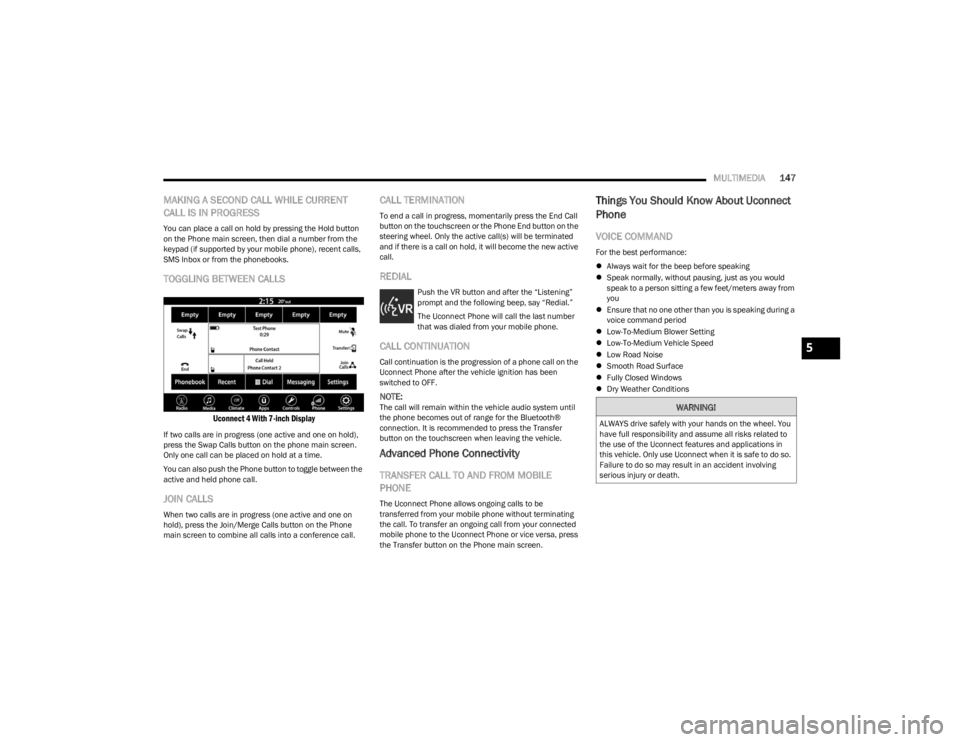
TOGGLING BETWEEN CALLS
Uconnect 4 With 7-inch Display
If two calls are in progress (one active and one on hold),
press the Swap Calls button on the phone main screen.
Only one call can be placed on hold at a time.
You can also push the Phone button to toggle between the
active and held phone call.
JOIN CALLS
When two calls are in progress (one active and one on
hold), press the Join/Merge Calls button on the Phone
main screen to combine all calls into a conference call.
CALL TERMINATION
To end a call in progress, momentarily press the End Call
button on the touchscreen or the Phone End button on the
steering wheel. Only the active call(s) will be terminated
and if there is a call on hold, it will become the new active
call.
REDIAL
Push the VR button and after the “Listening”
prompt and the following beep, say “Redial.”
The Uconnect Phone will call the last number
that was dialed from your mobile phone.
CALL CONTINUATION
Call continuation is the progression of a phone call on the
Uconnect Phone after the vehicle ignition has been
switched to OFF.
NOTE:The call will remain within the vehicle audio system until
the phone becomes out of range for the Bluetooth®
connection. It is recommended to press the Transfer
button on the touchscreen when leaving the vehicle.
Advanced Phone Connectivity
TRANSFER CALL TO AND FROM MOBILE
PHONE
The Uconnect Phone allows ongoing calls to be
transferred from your mobile phone without terminating
the call. To transfer an ongoing call from your connected
mobile phone to the Uconnect Phone or vice versa, press
the Transfer button on the Phone main screen.
Things You Should Know About Uconnect
Phone
VOICE COMMAND
For the best performance:
Always wait for the beep before speaking
Speak normally, without pausing, just as you would
speak to a person sitting a few feet/meters away from
you
Ensure that no one other than you is speaking during a
voice command period
Low-To-Medium Blower Setting
Low-To-Medium Vehicle Speed
Low Road Noise
Smooth Road Surface
Fully Closed Windows
Dry Weather Conditions
WARNING!
ALWAYS drive safely with your hands on the wheel. You
have full responsibility and assume all risks related to
the use of the Uconnect features and applications in
this vehicle. Only use Uconnect when it is safe to do so.
Failure to do so may result in an accident involving
serious injury or death.
5
23_LD_OM_EN_USC_t.book Page 147