2023 DODGE CHALLENGER key
[x] Cancel search: keyPage 27 of 300
GETTING TO KNOW YOUR VEHICLE25
POWER TILT/TELESCOPING STEERING
C
OLUMN — IF EQUIPPED
This feature allows you to tilt the steering column upward
or downward. It also allows you to lengthen or shorten the
steering column. The power tilt/telescoping steering
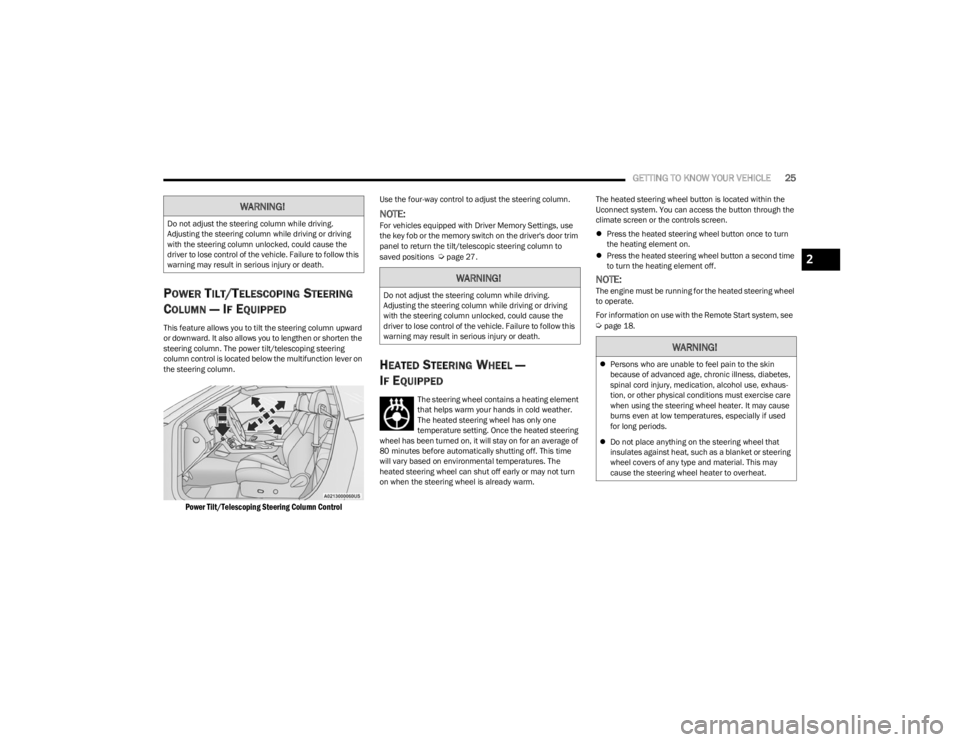
column control is located below the multifunction lever on
the steering column.
Power Tilt/Telescoping Steering Column Control
Use the four-way control to adjust the steering column.
NOTE:For vehicles equipped with Driver Memory Settings, use
the key fob or the memory switch on the driver's door trim
panel to return the tilt/telescopic steering column to
saved positions
Úpage 27.
HEATED STEERING WHEEL —
I
F EQUIPPED
The steering wheel contains a heating element
that helps warm your hands in cold weather.
The heated steering wheel has only one
temperature setting. Once the heated steering
wheel has been turned on, it will stay on for an average of
80 minutes before automatically shutting off. This time
will vary based on environmental temperatures. The
heated steering wheel can shut off early or may not turn
on when the steering wheel is already warm. The heated steering wheel button is located within the
Uconnect system. You can access the button through the
climate screen or the controls screen.
Press the heated steering wheel button once to turn
the heating element on.
Press the heated steering wheel button a second time
to turn the heating element off.
NOTE:The engine must be running for the heated steering wheel
to operate.
For information on use with the Remote Start system, see
Úpage 18.
WARNING!
Do not adjust the steering column while driving.
Adjusting the steering column while driving or driving
with the steering column unlocked, could cause the
driver to lose control of the vehicle. Failure to follow this
warning may result in serious injury or death.
WARNING!
Do not adjust the steering column while driving.
Adjusting the steering column while driving or driving
with the steering column unlocked, could cause the
driver to lose control of the vehicle. Failure to follow this
warning may result in serious injury or death.
WARNING!
Persons who are unable to feel pain to the skin
because of advanced age, chronic illness, diabetes,
spinal cord injury, medication, alcohol use, exhaus -
tion, or other physical conditions must exercise care
when using the steering wheel heater. It may cause
burns even at low temperatures, especially if used
for long periods.
Do not place anything on the steering wheel that
insulates against heat, such as a blanket or steering
wheel covers of any type and material. This may
cause the steering wheel heater to overheat.
2
23_LA_OM_EN_USC_t.book Page 25
Page 28 of 300

26GETTING TO KNOW YOUR VEHICLE
UCONNECT VOICE RECOGNITION
INTRODUCING VOICE RECOGNITION
Start using Uconnect Voice Recognition with these helpful
quick tips. It provides the key Voice Commands and tips
you need to know to control your vehicle’s Voice
Recognition (VR) system.
Uconnect 4 With 7-inch Display Uconnect 4C NAV With 8.4-inch Display
If you see the NAV icon on the bottom bar or in the Apps
menus of your 8.4-inch touchscreen, you have the
Uconnect 4C NAV system. If not, you have a Uconnect 4C
with 8.4-inch display system.
BASIC VOICE COMMANDS
The following Voice Commands can be given at any point
while using your Uconnect system. Push the VR button . After the beep, say:
“Cancel ” to stop a current voice session
“Help ” to hear a list of suggested Voice Commands
“Repeat ” to listen to the system prompts again
Notice the visual cues that inform you of your VR system’s
status. Cues appear on the touchscreen.
GET STARTED
The Voice Recognition (VR) button is used to activate/
deactivate your Voice Recognition system.
Helpful hints for using Voice Recognition:
Reduce background noise. Wind and passenger
conversations are examples of noise that may impact
recognition.
Speak clearly at a normal pace and volume while facing
straight ahead.
23_LA_OM_EN_USC_t.book Page 26
Page 29 of 300

GETTING TO KNOW YOUR VEHICLE27
Each time you give a Voice Command, you must first
push the Voice Recognition (VR) button, wait until after
the beep, then say your Voice Command.
You can interrupt the help message or system prompts
by pushing the VR button and saying a Voice Command
from the current category.
Uconnect Voice Command Buttons
ADDITIONAL INFORMATION
© 2022 FCA US LLC. All rights reserved. Mopar and
Uconnect are registered trademarks and Mopar Owner
Connect is a trademark of FCA US LLC. SiriusXM® and all
related marks and logos are trademarks of SiriusXM®
Radio Inc.
Úpage 284. Uconnect System Support:
US residents visit www.DriveUconnect.com or call:
1-877-855-8400 (24 hours a day 7 days a week)
Canadian residents visit www.DriveUconnect.ca or call:
1-800-465-2001 (English) or 1-800-387-9983
(French)
SiriusXM Guardian™ services support:
US residents visit www.driveuconnect.com/
sirius-xm-guardian or call: 1-844-796-4827
Canadian residents visit https://www.driveucon -
nect.ca/en/sirius-xm-guardian or call:
1-877-324-9091
DRIVER MEMORY SETTINGS — IF EQUIPPED
This feature allows the driver to save up to two different
memory profiles for easy recall through a memory switch.
Each memory profile saves desired position settings for
the following features:
Driver seat cushion
Easy Entry/Exit seat operation (if equipped)
Side mirrors
Power tilt/telescoping steering column (if equipped)
A set of desired radio station presets
NOTE:
Your vehicle is equipped with two key fobs, each can be
linked to either memory position 1 or 2.
Be sure to program the radio presets prior to program -
ming the memory settings.
The memory settings switch is located on the driver’s door
trim panel. The switch consists of three buttons:
The set (S) button, which is used to activate the
memory save function.
The (1) and (2) buttons which are used to recall either
of two saved memory profiles.
Memory Settings Switch
1 — Push To Start Or Answer A Phone Call And Send Or
Receive A Text
2 — Push The Voice Recognition Button To Begin Radio,
Media, Navigation, And Climate Functions
2
23_LA_OM_EN_USC_t.book Page 27
Page 30 of 300

28GETTING TO KNOW YOUR VEHICLE
PROGRAMMING THE MEMORY FEATURE
To create a new memory profile, perform the following:
NOTE:Saving a new memory profile will erase the selected profile
from memory.
1. Place the vehicle’s ignition in the ON/RUN position
(do not start the engine).
2. Adjust all memory profile settings to desired preferences (i.e., seat, side mirror, power tilt and
telescopic steering column [if equipped], and radio
station presets).
3. Push and release the set (S) button on the memory switch, and then push the desired memory button
(1 or 2) within five seconds. The instrument cluster
display will display which memory position has been
set.
NOTE:Memory profiles can be set without the vehicle in PARK,
but the vehicle must be in PARK to recall a memory profile.
LINKING AND UNLINKING THE KEY FOB
T
O MEMORY
Your key fobs can be programmed to recall one of two
saved memory profiles.
NOTE:Before programming your key fobs you must select the
“Personal Settings Linked To Key Fob” feature through the
Uconnect system
Úpage 107. To program your key fobs, perform the following:
1. Place the vehicle’s ignition in the OFF position.
2. Select a desired memory profile, 1 or 2.
3. Once the profile has been recalled, push and release
the set (S) button on the memory switch.
4. Within five seconds, push and release button (1) or (2) accordingly. “Memory Profile Set” (1 or 2) will
display in the instrument cluster.
5. Push and release the lock button on the key fob within 10 seconds.
NOTE:Your key fob can be unlinked from your memory settings
by pushing the set (S) button, followed by pushing the
unlock button on the key fob within 10 seconds.
MEMORY POSITION RECALL
NOTE:If a recall is attempted when the vehicle is not in PARK, a
message will be displayed in the instrument cluster
display.
To recall the memory settings for driver one or two, push
the desired memory button number (1 or 2) or the unlock
button on the key fob linked to the desired memory
position.
A recall can be canceled by pushing any of the memory
buttons (S, 1, or 2) during a recall. When a recall is
canceled, the driver seat will stop moving. A delay of one
second will occur before another recall can be selected.
NOTE:If the vehicle is equipped with Passive Entry, the memory
settings are recalled when using Passive Entry to unlock
the driver's door with a linked key fob.
SEATS
Seats are a part of the Occupant Restraint system of the
vehicle.
WARNING!
It is dangerous to ride in a cargo area, inside or
outside of a vehicle. In a collision, people riding in
these areas are more likely to be seriously injured or
killed.
Do not allow people to ride in any area of your vehicle
that is not equipped with seats and seat belts. In a
collision, people riding in these areas are more likely
to be seriously injured or killed.
Be sure everyone in your vehicle is in a seat and
using a seat belt properly.
23_LA_OM_EN_USC_t.book Page 28
Page 40 of 300
38GETTING TO KNOW YOUR VEHICLE
Non-Rolling Code Garage Door Opener Final Steps
1. Push and hold the programmed HomeLink® button
and observe the HomeLink® indicator light. If the
HomeLink® indicator light stays on constantly,
programming is complete.
2. Push the programmed HomeLink® button to confirm that the garage door opener motor operates. If the
garage door opener motor does not operate, repeat
the steps from the beginning.
PROGRAMMING HOMELINK® TO A
M
ISCELLANEOUS DEVICE
The procedure on how to program HomeLink® to a
miscellaneous device follows the same procedure as
programming to a garage door opener
Úpage 37. Be sure
to determine if the device has a rolling code, or non-rolling
code before beginning the programming process.
NOTE:Canadian Radio Frequency (RF) laws require transmitter
signals to time-out (or quit) after several seconds of trans -
mission, which may not be long enough for HomeLink® to
pick up the signal during programming. Similar to this
Canadian law, some U.S. gate operators are designed to
time-out in the same manner. The procedure may need to
be performed multiple times to successfully pair the
device to your HomeLink® buttons.
REPROGRAMMING A SINGLE
H
OMELINK® BUTTON
To reprogram a single HomeLink® button that has been
previously trained, without erasing all the channels,
proceed as follows. Be sure to determine whether the new
device you want to program the HomeLink® button to has
a rolling code, or non-rolling code.
1. Place the ignition in the ON/RUN position, without
starting the engine.
2. Push and hold the desired HomeLink® button until the HomeLink® indicator light begins to flash after
20 seconds. Do not release the button.
3. Without releasing the button , proceed with Step 2 in
“Programming HomeLink® To A Garage Door
Opener” and follow all remaining steps.
CANADIAN/GATE OPERATOR
P
ROGRAMMING
For programming transmitters in Canada/United States
that require the transmitter signals to “time-out” after
several seconds of transmission: Canadian Radio Frequency (RF) laws require transmitter
signals to time-out (or quit) after several seconds of
transmission, which may not be long enough for
HomeLink® to pick up the signal during programming.
Similar to this Canadian law, some U.S. gate operators are
designed to time-out in the same manner.
It may be helpful to unplug the device during the cycling
process to prevent possible overheating of the garage
door or gate motor.
1. Place the ignition in the ON/RUN position.
NOTE:For vehicles equipped with Keyless Enter ‘n Go™, place
the ignition in the RUN position. Make sure while
programming HomeLink® with the engine on that your
vehicle is outside of your garage, or that the garage door
remains open at all times.
2. Place the hand-held transmitter 1 to 3 inches (3 to 8
cm) away from the HomeLink® button you wish to
program while keeping the HomeLink® indicator light
in view.
3. Continue to push and hold the HomeLink® button while you push and release (cycle) your hand-held
transmitter every two seconds until HomeLink® has
successfully accepted the frequency signal. The
indicator light will flash slowly and then rapidly when
fully trained.
4. Watch for the HomeLink® indicator to change flash rates. When it changes, it is programmed. It may take
up to 30 seconds or longer in rare cases. The garage
door may open and close while you are programming.
5. Push and hold the programmed HomeLink® button and observe the indicator light.
WARNING!
Your motorized door or gate will open and close while
you are programming the universal transmitter. Do
not program the transmitter if people or pets are in
the path of the door or gate.
Do not run your vehicle in a closed garage or
confined area while programming the transmitter.
Exhaust gas from your vehicle contains carbon
monoxide (CO) which is odorless and colorless.
Carbon monoxide is poisonous when inhaled and
can cause you and others to be severely injured or
killed.
23_LA_OM_EN_USC_t.book Page 38
Page 44 of 300

42GETTING TO KNOW YOUR VEHICLE
FOG LIGHTS — IF EQUIPPED
To activate the front fog lights, turn on the parking lights or
the low beam headlights, and push the fog light button on
the headlight switch.
Fog Light Switch
Fog Light Switch (Vehicles Sold In Canada Only)
The fog lights will operate only when the parking lights are
on or when the vehicle headlights are on low beam. An
indicator light located in the instrument cluster will
illuminate when the fog lights are on. The fog lights will
turn off when the switch is pushed a second time, when
the headlight switch is rotated to the off position, or the
high beam is selected.
TURN SIGNALS
Move the multifunction lever up or down to activate the
turn signals. The arrows on each side of the instrument
cluster flash to show proper operation.
NOTE:
If either light remains on and does not flash, or there is
a very fast flash rate, check for a defective outside light
bulb.
A “Turn Signal On” message will appear in the instru -
ment cluster display and a continuous chime will sound
if the vehicle is driven more than 1 mile (1.6 km) with
either turn signal on.
LANE CHANGE ASSIST — IF EQUIPPED
Lightly push the multifunction lever up or down, without
moving beyond the detent, and the turn signal will flash
three times then automatically turn off.
INTERIOR LIGHTS
The interior lights come on when a door is opened.
To protect the battery, the interior lights will turn off
automatically 10 minutes after the ignition is placed in the
OFF position. This will occur if the interior lights were
turned on manually, or are on because a door is open. The battery protection also includes the glove
compartment light and the trunk light (if equipped).
To restore interior light operation after automatic battery
protection is enabled (lights off), either place the ignition
in the ON/RUN position or cycle the light switch.
FRONT MAP/READING LIGHTS
These lights are mounted between the sun visors on the
overhead console. Each light is turned on by pushing the
lens. Push the lens a second time to turn off the light.
These lights also turn on when a door is opened, when the
unlock button on the remote keyless entry key fob is
pushed, or when the dimmer control is turned fully
upward, to the second detent.
Map/Reading Lights
AMBIENT LIGHT — IF EQUIPPED
The overhead console is equipped with an ambient light
feature. This light casts illumination for improved visibility
of the floor and center console area.
23_LA_OM_EN_USC_t.book Page 42
Page 45 of 300
GETTING TO KNOW YOUR VEHICLE43
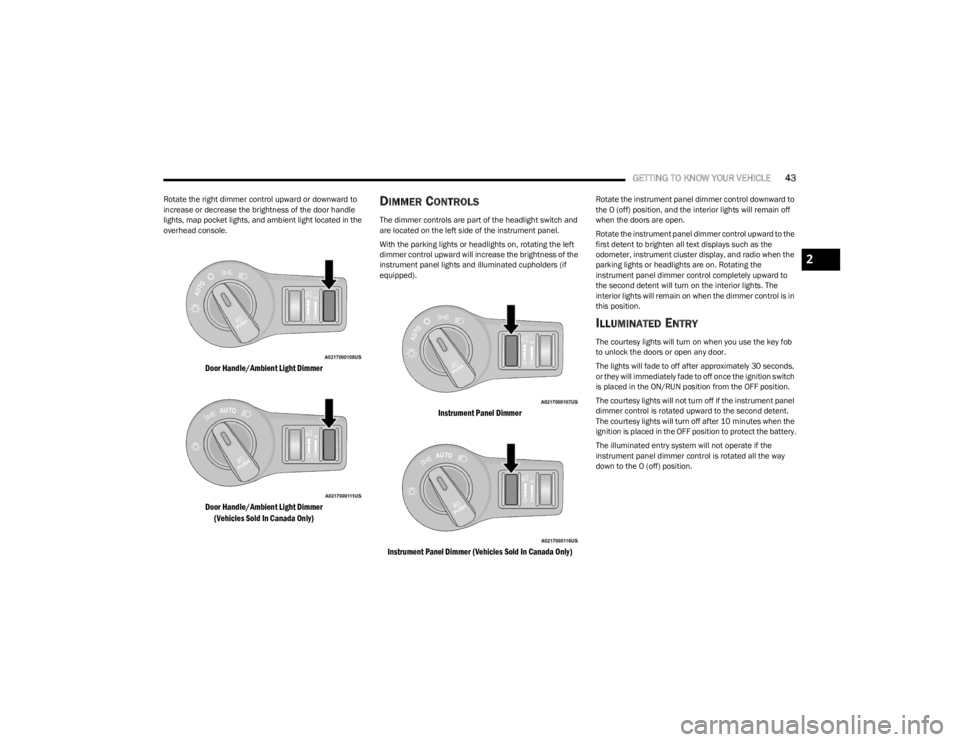
Rotate the right dimmer control upward or downward to
increase or decrease the brightness of the door handle
lights, map pocket lights, and ambient light located in the
overhead console.
Door Handle/Ambient Light Dimmer
Door Handle/Ambient Light Dimmer
(Vehicles Sold In Canada Only)
DIMMER CONTROLS
The dimmer controls are part of the headlight switch and
are located on the left side of the instrument panel.
With the parking lights or headlights on, rotating the left
dimmer control upward will increase the brightness of the
instrument panel lights and illuminated cupholders (if
equipped).
Instrument Panel Dimmer
Instrument Panel Dimmer (Vehicles Sold In Canada Only)
Rotate the instrument panel dimmer control downward to
the O (off) position, and the interior lights will remain off
when the doors are open.
Rotate the instrument panel dimmer control upward to the
first detent to brighten all text displays such as the
odometer, instrument cluster display, and radio when the
parking lights or headlights are on. Rotating the
instrument panel dimmer control completely upward to
the second detent will turn on the interior lights. The
interior lights will remain on when the dimmer control is in
this position.
ILLUMINATED ENTRY
The courtesy lights will turn on when you use the key fob
to unlock the doors or open any door.
The lights will fade to off after approximately 30 seconds,
or they will immediately fade to off once the ignition switch
is placed in the ON/RUN position from the OFF position.
The courtesy lights will not turn off if the instrument panel
dimmer control is rotated upward to the second detent.
The courtesy lights will turn off after 10 minutes when the
ignition is placed in the OFF position to protect the battery.
The illuminated entry system will not operate if the
instrument panel dimmer control is rotated all the way
down to the O (off) position.
2
23_LA_OM_EN_USC_t.book Page 43
Page 52 of 300
50GETTING TO KNOW YOUR VEHICLE
ILLUMINATED CUPHOLDERS —
I
F EQUIPPED
The front cupholders are equipped with a light ring that
illuminates the cupholders for the front passengers. The
light ring is controlled by the dimmer control
Úpage 43.
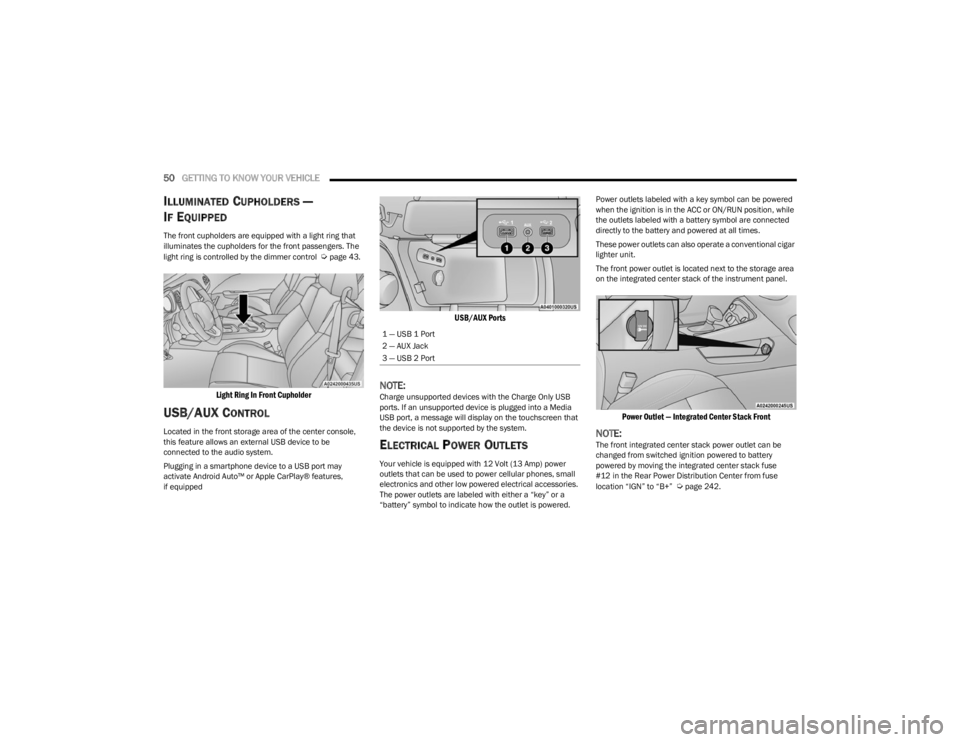
Light Ring In Front Cupholder
USB/AUX CONTROL
Located in the front storage area of the center console,
this feature allows an external USB device to be
connected to the audio system.
Plugging in a smartphone device to a USB port may
activate Android Auto™ or Apple CarPlay® features,
if equipped
USB/AUX Ports
NOTE:Charge unsupported devices with the Charge Only USB
ports. If an unsupported device is plugged into a Media
USB port, a message will display on the touchscreen that
the device is not supported by the system.
ELECTRICAL POWER OUTLETS
Your vehicle is equipped with 12 Volt (13 Amp) power
outlets that can be used to power cellular phones, small
electronics and other low powered electrical accessories.
The power outlets are labeled with either a “key” or a
“battery” symbol to indicate how the outlet is powered. Power outlets labeled with a key symbol can be powered
when the ignition is in the ACC or ON/RUN position, while
the outlets labeled with a battery symbol are connected
directly to the battery and powered at all times.
These power outlets can also operate a conventional cigar
lighter unit.
The front power outlet is located next to the storage area
on the integrated center stack of the instrument panel.
Power Outlet — Integrated Center Stack Front
NOTE:The front integrated center stack power outlet can be
changed from switched ignition powered to battery
powered by moving the integrated center stack fuse
#12 in the Rear Power Distribution Center from fuse
location “IGN” to “B+”
Úpage 242.
1 — USB 1 Port
2 — AUX Jack
3 — USB 2 Port
23_LA_OM_EN_USC_t.book Page 50