2023 CITROEN C4 CACTUS mirror
[x] Cancel search: mirrorPage 91 of 196

89
Driving
6The following situations may interfere with the operation of the system or
prevent it from working:
–
lane markings absent, worn, hidden (snow
,
mud) or multiple (roadworks);
–
close to the vehicle ahead (lane markings
not detected);
–
roads that are narrow
, winding, etc.
Lane Departure Warning
System
Refer to the General recommendations on the
use of driving and manoeuvring aids .
This system, using a camera which recognises
solid or broken lines, detects the involuntary
crossing of longitudinal traffic lane markings on
the ground.
If the driver's attention drops and the speed
is higher than 37 mph (60
km/h), the system
triggers a warning if there is an unexpected
change of direction.
This system is particularly useful on motorways
and main roads.
Activation / Deactivation
It is set via the Driving / Vehicle touch
screen menu.
Detection
If an unexpected change of direction is
detected, this warning lamp flashes in the
instrument panel accompanied by an audible
signal.
No warning is transmitted while the direction
indicator is activated and for approximately 20
seconds after the direction indicator is switched
off.
Malfunction
In the event of a malfunction, these
warning lamps come on on the
instrument panel, accompanied by the display of
a message and an audible signal.
Contact a CITROËN dealer or a qualified
workshop.
Blind Spot Monitoring
System
Refer to the General recommendations on the
use of driving and manoeuvring aids .
This system includes sensors, placed on the
sides of the bumpers, and warns the driver of
the potentially dangerous presence of another
vehicle (car, truck, motorcycle) in the blind spot
areas of their vehicle (areas hidden
from the
driver's field of vision).
The warning is given by a fixed warning lamp
that appears in the door mirror on the side in
question:
–
immediately
, when being overtaken;
–
after a delay of about one second, when
overtaking a vehicle slowly
.
Activation / Deactivation
It is set via the Driving / Vehicle touch
screen menu.
Page 92 of 196

90
Driving
or other objects; they may hamper correct
operation of the system.
Parking sensors
Refer to the General recommendations on the
use of driving and manoeuvring aids.
Using sensors located in the bumper, this
system signals the proximity of obstacles
(e.g. pedestrian, vehicle, tree, barrier) present in
their field of detection.
Rear parking sensors
The system is switched on by engaging reverse
gear, which is confirmed by an audible signal.
The system is switched off when disengaging
reverse gear.
The state of the system stays in the memory
when switching off the ignition.
The system is automatically deactivated
when towing with a towing device
approved by CITROËN.
Conditions for operation
– All vehicles are moving in the same direction
and in adjacent lanes.
–
The speed of your vehicle must be between 7
and 87 mph (12 and 140
km/h).
–
When overtaking a vehicle, the speed
difference is less than 6
mph (10 km/h).
–
When overtaken by a vehicle, the speed
difference is less than 16
mph (25 km/h).
–
T
raffic is flowing normally.
–
Overtaking a vehicle over a certain period of
time and the vehicle being overtaken remains in
the blind spot.
–
Y
ou are driving on a straight or slightly curved
road.
–
Y
our vehicle is not pulling a trailer, a caravan,
etc.
Operating limits
No alert is triggered in the following conditions:
– In the presence of non-moving objects (parked
vehicles, barriers, street lamps, road signs, etc.).
–
Oncoming traffic.
–
Driving on a winding road or a sharp corner
.
–
When overtaking or being overtaken by a very
long vehicle (lorry
, bus, etc.) that is detected
in the rear blind spot but is also present in the
driver’s front field of vision.
–
When overtaking quickly
.
–
In very heavy traffic: vehicles detected in
front and behind are confused with a lorry or a
stationary object.
Malfunction
In the event of a malfunction, you are warned by
the display of a message.
Contact a CITROËN dealer or a qualified
workshop to have the system checked.
The system may suffer temporary interference in certain weather conditions
(rain, hail, etc.).
In particular, driving on a wet surface or
moving from a dry area to a wet area can
cause false alerts (for example, the presence
of a fog of water droplets in the blind spot
angle is interpreted as a vehicle).
In bad or wintry weather, ensure that the
sensors are not covered by mud, ice or snow.
Take care not to cover the warning zone in
the door mirrors or the detection zones on the
front and rear bumpers with adhesive labels
Page 94 of 196

92
Driving
The front parking sensors are interrupted if the
vehicle stops for more than three seconds in
forward gear, if an obstacle is no longer detected
or when the speed of the vehicle exceeds 6 mph
(10
km/h).
The sound emitted by the speaker (front or rear) locates the obstacle in relation to
the vehicle, in the vehicle trajectory, in front or
behind.
Deactivation / Activation
It is set via the Driving / Vehicle touch
screen menu.
The state of the system stays in the memory
when the ignition is switched off.
The rear parking sensors system will be deactivated automatically if a trailer or
bicycle carrier is connected to a towing device
installed in accordance with the
manufacturer's recommendations.
Operating limits
If the boot is heavily loaded, the vehicle may tilt,
affecting distance measurements.
Malfunction
In the event of a malfunction when
changing into reverse, this warning lamp
comes on on the instrument panel, accompanied
by an onscreen message and an audible signal
(short beep).
Contact a CITROËN dealer or a qualified
workshop to have the system checked.
Reversing Camera
Refer to the General recommendations on the
use of driving and manoeuvring aids .
The reversing camera is automatically activated
when reverse gear is engaged.
The image is displayed on the touch screen.
The reversing camera function may be
supplemented with parking sensors.
The representation with overlaid lines helps with
the manoeuvre.
They are represented as lines marked "on the ground" and do not indicate the
position of the vehicle in relation to tall
obstacles (e.g. other vehicles).
Some distortion of the image is normal.
It is normal to have a part of the number plate
showing at the bottom of the screen.
The blue lines 1 represent the general direction
of the vehicle (the gap represents the width of
your vehicle without the mirrors).
The red line 2 represents a distance of about
30
cm beyond the edge of your vehicle's rear
bumper.
The green lines 3 represent distances of about 1
and 2 metres beyond the edge of your vehicle's
rear bumper.
The turquoise blue curves 4 represent the
maximum turning circle.
Opening the tailgate causes the display
to disappear.
Page 122 of 196

120
In the event of a breakdown
Fuses in the dashboard
The fuseboxes are located in the lower
dashboard (left-hand side).
To access the fuses, follow the same procedure
as that described for accessing the tools for
changing fuses.
For more information on Accessing the tools,
please refer to the corresponding section.
Left-hand fusebox
Fuse N° Rating (Amps) Functions
F1 10Door mirrors
(electric
adjustment).
F4 15 Horn.
F6 20Front and rear
screenwash.
F8 20Rear wiper.
Fuse N° Rating
(Amps) Functions
F10 30Locks.
F27 5Alarm
(preparation).
F29 20Touch screen.
F31 15Radio.
F32 1512 volt socket.
F35 5Headlamp
height
adjustment.
F36 5Courtesy lamp,
map reading lamp.
Right-hand fusebox
Fuse N° Rating (Amps) Functions
F30 30Heated rear
screen.
F31 10Heated door
mirrors.
Fuse N° Rating (Amps) Functions
F34 25Trailer interface
unit.
F35 20Trailer interface
unit.
F36 30Front one-
touch electric windows.
F37 30Front heated
seats.
Fuses in the engine
compartment
The fusebox is located in the engine
compartment near the battery.
Page 134 of 196

132
CITROËN Connect Radio
CITROËN Connect Radio
Multimedia audio system -
Applications - Bluetooth
®
telephone
The functions and settings described
vary according to the vehicle version and
configuration.
For safety reasons and because they
require sustained attention by the driver,
the following operations must be carried out
with the vehicle stationary and the ignition
on:
–
Pairing the smartphone with the system in
Bluetooth mode.
–
Using the smartphone.
–
Connection to the CarPlay®, MirrorLinkTM
or Android Auto applications (certain
applications interrupt their display while the
vehicle is moving).
–
Changing the system settings and
configuration.
The system is protected in such a way that it will only operate in the vehicle.
The Energy Economy Mode message is
displayed when the system is about to enter
the corresponding mode.
The system’s Open Source Software (OSS) source codes are available at the
following addresses:
https://www.groupe-psa.com/fr/oss/
https://www.groupe-psa.com/en/oss/
First steps
With the engine running, a press mutes
the sound.
With the ignition off, a press turns the system on.
Increase or decrease the volume using
the wheel or the "plus" or "minus" buttons
(depending on the equipment).
Use the buttons on either side of or below the
touch screen for access to the menus, then
press the virtual buttons in the touch screen.
Depending on the model, use the "Source" or
"Menu" buttons on the left of the touch screen
for access to the menus, then press the virtual
buttons in the touch screen.
At all times it is possible to display the rolling
menus by pressing the screen briefly with three
fingers.
All of the touch areas of the screen are white.
For pages with multiple tabs at the bottom of the
screen, it is possible to switch between pages
either by tapping the tab for the desired page, or
by using a finger, sliding the pages to the left or
to the right.
Press in the grey zone to go back up a level or
to confirm.
Press the back arrow to go back a level or
confirm.
The touch screen is of the "capacitive" type.
To clean the screen, use a soft, non-abrasive
cloth (e.g. spectacles cloth) with no additional
product.
Do not use sharp objects on the screen.
Do not touch the screen with wet hands.
Certain information is displayed permanently in
the upper bar of the touch screen:
–
Air conditioning status information (depending
on version), and direct access to the
corresponding menu.
–
Radio Media and
Telephone menu status
information.
–
Privacy status information.
–
Access to the touch screen and digital
instrument panel settings.
Audio source selection (depending on
equipment):
Page 136 of 196
134
CITROËN Connect Radio
Short press: confirm a selection; if nothing
selected, access to presets.
Radio: display the list of stations.
Media: display the list of tracks.
Radio (press and hold): update the list of
stations received.
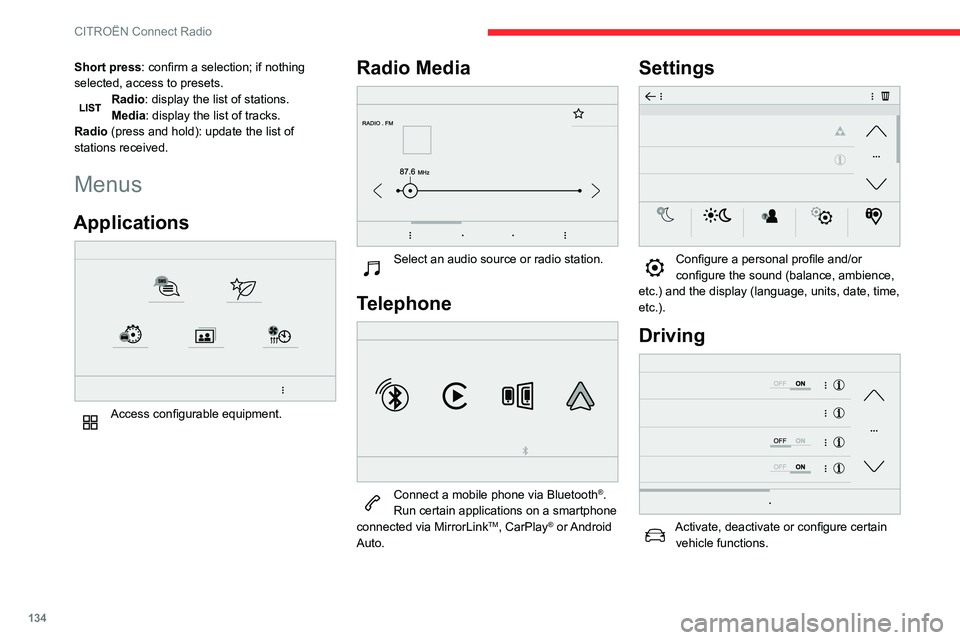
Menus
Applications
Access configurable equipment.
Radio Media
Select an audio source or radio station.
Telephone
Connect a mobile phone via Bluetooth®.
Run certain applications on a smartphone
connected via MirrorLink
TM, CarPlay® or Android
Auto.
Settings
Configure a personal profile and/or
configure the sound (balance, ambience,
etc.) and the display (language, units, date, time,
etc.).
Driving
Activate, deactivate or configure certain vehicle functions.
Navigation
Configure the navigation and select your
destination via MirrorLinkTM, CarPlay® or
Android Auto.
Air conditioning
21,518,5
Manage various temperature and air flow
settings.
Page 137 of 196

135
CITROËN Connect Radio
10Navigation
Configure the navigation and select your
destination via MirrorLinkTM, CarPlay® or
Android Auto.
Air conditioning
21,518,5
Manage various temperature and air flow
settings.
Applications
Viewing photos
Insert a USB memory stick in the USB port.
To protect the system, do not use a USB hub.
The system can read folders and image files in
the formats: .tiff; .gif; .jpg/jpeg; .bmp and .png.
Press Applications to display the main
page.
Press "Photos".
Select a folder.
Select an image to view.
Press this button to display the details of
the photo.
Press the back arrow to go back a level.
Managing messages
Press Applications to display the main
page.
Press "SMS".
Select the "SMS” tab.
Press this button to select the display
settings for messages.
Press this button to search and select a
recipient.
Select the "Quick messages” tab.
Press this button to select the display
settings for messages.
Press this button to write a new message.
Press the bin alongside the selected
message to delete it.
Press this button alongside the selected
message to display the secondary page.
Press this button to edit and modify the
existing text.
Press this button to write a new message.
Press the bin to delete the message.
Radio
Selecting a station
Press Radio Media to display the main
page.
Press one of the buttons to perform an
automatic search for radio stations.
Or
Move the slider to manually search for
frequencies up or down.
Or
Press the frequency.
Page 140 of 196

138
CITROËN Connect Radio
Playlists are updated whenever the ignition
is switched off or a USB memory stick is
connected. The audio system memorises these
lists, which will subsequently load faster if they
have not been changed.
Auxiliary (AUX) jack socket
Depending on equipmentConnect a portable device (MP3 player,
etc.) to the auxiliary jack socket using an
audio cable (not supplied).
This source is only available if "Auxiliary input"
has been selected in the audio settings.
First adjust the volume on the portable device
(to a high level). Then adjust the volume of the
audio system.
Controls are managed via the portable device.
Selecting the source
Press Radio Media to display the main
page.
Press the "SOURCES" button.
Select the source.
BluetoothStreaming®
Streaming allows you to listen to the audio feed
from your smartphone.
The Bluetooth profile must be activated.
First adjust the volume on the portable device
(to a high level). Then adjust the volume of the
system.
If play does not start automatically, it may be
necessary to start the audio playback from the
smartphone.
Control is from the portable device or by using
the system's touch buttons.
Once connected in Streaming mode, the
smartphone is considered to be a media
source.
Connecting Apple® players
Connect the Apple® player to the USB socket
using a suitable cable (not supplied).
Play starts automatically.
Control is via the audio system.
The classifications available are those of the portable device connected (artists/
albums/genres/playlists/audio books/
podcasts). It is also possible to use a
classification structured in the form of a
library.
The default classification used is by artist. To
modify the classification used, return to the
first level of the menu then select the desired
classification (playlists for example) and
confirm to go down through the menu to the
desired track.
The version of software in the audio system may
not be compatible with the generation of the
Apple
® player.
Information and advice
The system supports USB mass storage
devices, BlackBerry® devices or Apple® players
via the USB ports. The adapter cable is not
supplied.
Devices are managed using the audio system
controls.
Other devices, not recognised on connection,
must be connected to the auxiliary socket using
a jack cable (not supplied) or via Bluetooth
streaming, if compatible.
To protect the system, do not use a USB hub.
The audio system will only play audio files with
".wav", ".wma", ".aac", ".ogg" and ".mp3" file
extensions, at bit rates between 32 Kbps and
320 Kbps.
It also supports VBR (Variable Bit Rate) mode.
No other file types (".mp4", etc.) can be read.
All ".wma" files must be standard WMA 9 files.
The supported sampling rates are 11, 22, 44 and
48 KHz.
To avoid reading and display problems, we
recommend choosing file names less than 20
characters long that do not contain any special
characters (e.g. “ ? .
; ù).
Use only USB memory sticks in FAT32 format
(File Allocation Table).
We recommend using the original USB
cable for the portable device.
Telephone
USB sockets
Depending on equipment, for more information
on the USB sockets compatible with the
CarPlay
®, MirrorLinkTM or Android Auto
applications, refer to the "Ease of use and
comfort" section.
The synchronisation of a smartphone allows users to display applications
adapted to the CarPlay
®, MirrorLinkTM or
Android Auto technology of the smartphone
on the vehicle screen. For the CarPlay
®
technology, the CarPlay® function must be
activated on the smartphone beforehand.
For the communication process between
the smartphone and the system to work, it is
essential in all cases that the smartphone is
unlocked.
As the principles and standards are
constantly changing, it is recommended
that you keep the smartphone's operating
system up-to-date, as well as the date and
time of the smartphone and of the system .
For the list of eligible smartphones, go to the
Brand's national website.