2023 CITROEN C4 CACTUS mirror
[x] Cancel search: mirrorPage 141 of 196

139
CITROËN Connect Radio
10Telephone
USB sockets
Depending on equipment, for more information
on the USB sockets compatible with the
CarPlay
®, MirrorLinkTM or Android Auto
applications, refer to the "Ease of use and
comfort" section.
The synchronisation of a smartphone allows users to display applications
adapted to the CarPlay
®, MirrorLinkTM or
Android Auto
technology of the smartphone
on the vehicle screen. For the CarPlay
®
technology, the CarPlay® function must be
activated on the smartphone beforehand.
For the communication process between
the smartphone and the system to work, it is
essential in all cases that the smartphone is
unlocked.
As the principles and standards are
constantly changing, it is recommended
that you keep the smartphone's operating
system up-to-date, as well as the date and
time of the smartphone and of the system .
For the list of eligible smartphones, go to the
Brand's national website.
MirrorLinkTM smartphone
connection
The "MirrorLinkTM" function requires a
compatible smartphone and applications.
Telephone not connected by
Bluetooth®
When connecting a smartphone to the
system, we recommend enabling
Bluetooth
® on the smartphone.Connect a USB cable. The smartphone
charges when connected by a USB cable.
From the system, press "Telephone" to
display the main page.
Press "MirrorLinkTM" to start the
application in the system.
Depending on the smartphone, it may be
necessary to activate the "MirrorLink
TM"
function.
During the procedure, several screen
pages relating to certain features are
displayed.
Accept to start and complete the connection.
Telephone connected by Bluetooth®
Connect a USB cable. The smartphone
charges when connected by a USB cable.
From the system, press "Telephone" to
display the main page.
Press the "PHONE" button to display the
secondary page.
Press "MirrorLinkTM" to start the
application in the system.
Once the connection is established, a page is
displayed, showing the applications already
downloaded to the smartphone that are
compatible with MirrorLink
TM technology.
Access to the different audio sources remains
available in the margin of the MirrorLink
TM
display, using the touch buttons located in the
upper bar.
Access to the menus for the system is possible
at any time using the dedicated buttons.
There may be a pause before applications become available,
depending on the quality of the network.
CarPlay® smartphone
connection
Connect a USB cable. The smartphone
charges when connected by a USB cable.
From the system, press Telephone to
display the CarPlay® interface.
Or
If the smartphone has already connected
by Bluetooth®.Connect a USB cable. The smartphone
charges when connected by a USB cable.
From the system, press "Telephone" to
display the main page.
Press the "PHONE" button to access the
secondary page.
Page 148 of 196

146
CITROËN Connect Nav
CITROËN Connect Nav
GPS navigation -
Applications - Multimedia
audio system - Bluetooth
®
telephone
The functions and settings described
vary according to the vehicle version and
configuration.
For safety reasons and because they
require sustained attention by the driver,
the following operations must be carried out
with the vehicle stationary and the ignition
on:
–
Pairing the smartphone with the system in
Bluetooth mode.
–
Using the smartphone.
–
Connection to the CarPlay®, MirrorLinkTM
or Android Auto applications (certain
applications interrupt their display while the
vehicle is moving).
–
W
atching a video (the video stops when the
vehicle starts to move again).
–
Changing the system settings and
configuration.
The system is protected in such a way that it will only operate in the vehicle.
The Energy Economy Mode message is
displayed when the system is about to enter
the corresponding mode.
System and map updates can be
downloaded from the Brand’s website.
The update procedure is also available on the
website.
The system’s Open Source Software (OSS) source codes are available at the
following addresses:
https://www.groupe-psa.com/fr/oss/
https://www.groupe-psa.com/en/oss/
First steps
With the engine running, a press mutes
the sound.
With the ignition off, a press turns the system on.
Increase or decrease the volume using
the wheel or the "plus" or "minus" buttons
(depending on the equipment).
Use the menu buttons on either side of or below
the touch screen for access to the menus, then
press the virtual buttons in the touch screen.
Depending on the model, use the "Source" or
"Menu" buttons to access the rolling menus, then
press the virtual buttons in the touch screen.
Display the rolling menus at any time by pressing
the screen briefly with three fingers.
All of the touch areas of the screen are white.
Press the back arrow to go back a level.
Press "OK" to confirm.
The touch screen is of the "capacitive" type.
To clean the screen, use a soft, non-abrasive
cloth (e.g. spectacles cloth) with no additional
product.
Do not use sharp objects on the screen.
Do not touch the screen with wet hands.
Certain information is displayed permanently
in the side bars or in the upper bar of the touch
screen (depending on equipment):
–
Reminder of the air conditioning information
(depending on version), and direct access to the
corresponding menu.
–
Go directly to the selection of the audio
source, to the list of radio stations (or list of titles
depending on the source).
–
Go to the "Notifications" of messages, emails,
map updates and, depending on the services,
the navigation notifications.
–
Go to the settings for the touch screen and the
digital instrument panel.
Page 150 of 196
148
CITROËN Connect Nav
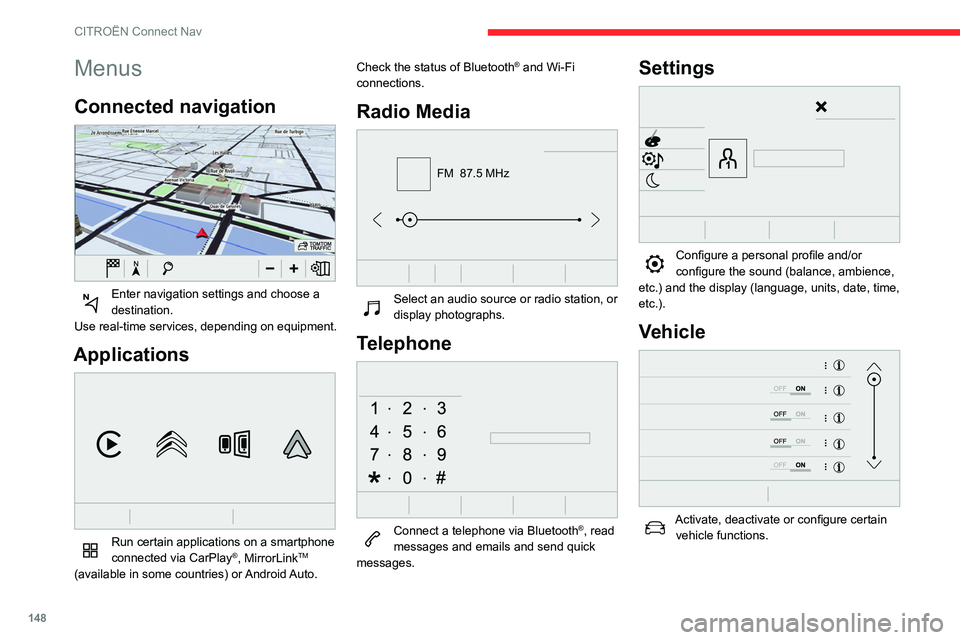
Menus
Connected navigation
Enter navigation settings and choose a
destination.
Use real-time services, depending on equipment.
Applications
Run certain applications on a smartphone
connected via CarPlay®, MirrorLinkTM
(available in some countries) or Android Auto. Check the status of Bluetooth
® and Wi-Fi
connections.
Radio Media
FM 87.5 MHz
Select an audio source or radio station, or
display photographs.
Telephone
Connect a telephone via Bluetooth®, read
messages and emails and send quick
messages.
Settings
Configure a personal profile and/or
configure the sound (balance, ambience,
etc.) and the display (language, units, date, time,
etc.).
Vehicle
Activate, deactivate or configure certain vehicle functions.
Air conditioning
21,518,5
Manage various temperature and air flow
settings.
Voice commands
Steering wheel-mounted
controls
Voice commands:
Voice commands can be issued from any
screen page after a short press on the "Voice
commands" button located on the steering
wheel or at the end of the lighting control stalk
(depending on equipment), as long as there is no
telephone call in progress.
Page 157 of 196

155
CITROËN Connect Nav
11Connected navigation
connection
Network connection provided by the
vehicle
The system is automatically connected to the internet, to the connected services,
and does not require a connection provided by
the user via their smartphone.
Network connection provided by the
user
Activate and enter settings for sharing
the smartphone connection.
USB connection
Connect a USB cable.
The smartphone charges when connected
by the USB cable.
Bluetooth connection
Activate the Bluetooth function on the telephone and ensure that it is visible to
all (see the "Applications" section).
Wi-Fi connection
Select a Wi-Fi network found by the
system and connect.
This function is only available if it has been activated either via the
"Notifications" or via the "Applications" menu.
Press "Notifications".
Select Wi-Fi to activate it.
OR
Press Applications to display the primary
page.
Press the "OPTIONS " button to go to the
secondary page.
Select "Wi-Fi network connection ".
Select the "Secured" or "Not secured" or
"Stored" tab.
Select a network.
Using the virtual keypad, enter the " Key"
for the Wi-Fi network and the
"Password".
Press "OK" to start the connection.
Usage restrictions:
– With CarPlay®, connection sharing is
only with a Wi-Fi connection.
–
With MirrorLinkTM, connection sharing is
only with a USB connection.
The quality of services depends on the quality
of the network connection.
With the arrival of "TOMTOM TRAFFIC",
the services will be available.
The services offered with connected navigation are as follows.
A Connected Services pack:
–
Weather,
–
Filling stations,
–
Car park,
–
T
raffic,
–
POI local search.
A
Danger zone pack (as an option).
Processes and standards are constantly
changing; for the communication process
between the smartphone and the system to
work correctly, it is recommended to update
the operating system of the smartphone
as well as the date and time of the
smartphone and of the system.
Settings specific to
connected navigation
Press Navigation to display the primary
page.
Press the "MENU" button to go to the secondary
page.
Select "Settings".
Select "Map".
Activate or deactivate: – "Allow declaration of danger zones ".
–
"Guidance to final destination on foot "
–
"Display recommended speed”
Page 158 of 196

156
CITROËN Connect Nav
These settings must be made according to each
profile.
Select "Alerts".
Activate or deactivate:
–
"Advise of car park nearby ", "Filling station
alert", "Risk areas alert ", "Accident black spot
alert" then select the alert symbol, "Give an
audible warning ", "Advise proximity of POI 1 ",
"Advise proximity of POI 2 ".
To have access to connected navigation,
select the option: "Authorise sending
information" in "Settings".
It is possible to access the "Notifications"
at any time in the upper bar.
The display of danger zones depends on the legislation in force and subscription
to the service.
Notification of "Danger
zones"
To issue notification of danger zones, select the option: "Allow notification of
danger zones".
Press Navigation to display the primary
page.
Press the "Report a new danger zone "
button located in the side bars or the upper bar of the touch screen (depending on
equipment).
Select the option "Type" to choose the
type of "Danger zone".
Select the "Speed" option and enter it
using the virtual keypad.
Press "OK" to save and distribute the
information.
Authorising sending
information
Press Settings to display the primary
page.
Press the "OPTIONS " button to go to the
secondary page.
Select "System settings".
Select the "Privacy mode" tab.
Activate or deactivate:
–
"No sharing (data, vehicle position) ".
–
"Data sharing only"
–
"Sharing data and the vehicle position "
"Danger zones" pack
updates
Press Settings to display the primary
page.
Press the "OPTIONS " button to go to the
secondary page.
Select "System settings".
Select the "System info" tab.
Select "View" to display the versions of
the different modules installed in the
system.
Select "Update(s) due".
It is possible to download system and
map updates from the Brand’s website.
The update procedure is also available there.
After the updates have downloaded, installation on the vehicle must be done
with the engine running and vehicle
stationary.
Displaying the weather
Press Navigation to display the primary
page.
Press this button to display the list of
services.
Select "View map".
Select "Weather".
Press this button to display primary
information.
Press this button to display the detailed
weather information.
The temperature displayed at 6 a.m. will be the maximum temperature for the day.
The temperature displayed at 6 p.m. will be
the minimum temperature for the night.
Applications
USB sockets
Depending on equipment, for more information
on the USB sockets compatible with the
CarPlay
®, MirrorLinkTM or Android Auto
applications, refer to the "Ease of use and
comfort" section.
The synchronisation of a smartphone allows users to display applications
adapted to the CarPlay
®, MirrorLinkTM or
Android Auto technology of the smartphone
on the vehicle screen. For the CarPlay
®
technology, the CarPlay® function must be
activated on the smartphone beforehand.
For the communication process between
the smartphone and the system to work, it is
essential in all cases that the smartphone is
unlocked.
As the principles and standards are
constantly changing, it is recommended
that you keep the smartphone's operating
system up-to-date, as well as the date and
time of the smartphone and of the system .
For the list of eligible smartphones, go to the
Brand's national website.
Page 159 of 196

157
CITROËN Connect Nav
11The temperature displayed at 6 a.m. will be the maximum temperature for the day.
The temperature displayed at 6 p.m. will be
the minimum temperature for the night.
Applications
USB sockets
Depending on equipment, for more information
on the USB sockets compatible with the
CarPlay
®, MirrorLinkTM or Android Auto
applications, refer to the "Ease of use and
comfort" section.
The synchronisation of a smartphone allows users to display applications
adapted to the CarPlay
®, MirrorLinkTM or
Android Auto
technology of the smartphone
on the vehicle screen. For the CarPlay
®
technology, the CarPlay® function must be
activated on the smartphone beforehand.
For the communication process between
the smartphone and the system to work, it is
essential in all cases that the smartphone is
unlocked.
As the principles and standards are
constantly changing, it is recommended
that you keep the smartphone's operating
system up-to-date, as well as the date and
time of the smartphone and of the system .
For the list of eligible smartphones, go to the
Brand's national website.
Connectivity
Press Applications to display the primary
page.
Press "Connectivity" to go to the CarPlay
®,
MirrorLinkTM or Android Auto functions.
CarPlay® smartphone
connection
Connect a USB cable. The smartphone
charges when connected by the USB
cable.
Press "Telephone" to display the
CarPlay® interface.
Or
Connect a USB cable. The smartphone
charges when connected by the USB
cable.
From the system, press "Applications " to
display the primary page.
Press "Connectivity" to go to the CarPlay
®
function.
Press "CarPlay " to display the CarPlay®
interface.
On connecting the USB cable, the
CarPlay® function deactivates the
system's Bluetooth® mode.
When the USB cable is disconnected
and the ignition is switched off then back
on, the system will not automatically switch to
Radio Media mode, a change of source will
have to be done manually.
MirrorLinkTM smartphone
connection
The "MirrorLinkTM" function requires the
use of a compatible smartphone and
compatible applications.
When connecting a smartphone to the
system, it is recommended that
Bluetooth
® be started on the smartphone.Connect a USB cable. The smartphone
charges when connected by the USB
cable.
From the system, press "Applications " to
display the primary page.
Press "Connectivity" to go to the MirrorLink
TM
function.
Press "MirrorLinkTM" to start the
application in the system.
Depending on the smartphone, it may be
necessary to activate the "MirrorLink
TM"
function.
During the procedure, several screen
pages relating to certain functions are
displayed.
Accept to start and complete the connection.
Once the connection is established, a page
is displayed with the applications already
Page 160 of 196

158
CITROËN Connect Nav
downloaded to the smartphone and compatible
with the MirrorLinkTM technology.
Access to the different audio sources remains
available in the margin of the MirrorLink
TM
display, using the touch buttons located in the
upper bar.
Access to the menus for the system is possible
at any time using the dedicated buttons.
There may be a wait for the availability of applications, depending on the quality of
the network.
Android Auto smartphone connection
The "Android Auto" function requires
the use of a compatible smartphone and
applications.
Connect a USB cable. The smartphone
charges when connected by the USB
cable.
From the system, press "Applications " to
display the primary page.
Press "Connectivity" to go to the "Android Auto"
function.
Press "Android Auto" to start the
application in the system.
During the procedure, several screen
pages relating to certain functions are
displayed.
Accept to start and complete the connection.
Different audio sources remain accessible in the
margin of the Android Auto display, using touch
buttons in the upper bar.
Access to the menus for the system is possible
at any time using the dedicated buttons.
In Android Auto mode, the function to
display the menus by pressing the
screen briefly with three fingers is
deactivated.
There may be a wait for the availability of applications, depending on the quality of
the network.
Vehicle apps
Press Applications to display the primary
page.
Press "Vehicle apps" to display the applications
home page.
Internet browser
Press Applications to display the primary
page.
Press "Connectivity" to go to the "Internet
browser" function.
Press "Internet browser" to display the browser
home page.
Select the country of residence.
Press "OK" to save and start the browser.
Connection to the internet is via one of
the network connections provided by the
vehicle or the user.
Bluetooth connection®
Activate the Bluetooth function on the telephone and ensure that it is "visible to
all" (telephone configuration).
Procedure from the telephone
Select the system name in the list of
devices detected.
In the system, accept the connection request
from the telephone.
To complete the pairing, whichever procedure used (from the telephone or
from the system), ensure that the code is the
same in the system and in the telephone.
Procedure from the system
Press Applications to display the primary
page.
Press the "OPTIONS " button to go to the
secondary page.
Press "Bluetooth connection ".
Select "Search".
The list of telephones detected is
displayed.
If the pairing procedure fails, it is
recommended that you deactivate and
then reactivate the Bluetooth function on the
telephone.
Select the name of the chosen telephone
in the list.
Depending on the type of telephone, the
option is given to accept or not accept
the transfer of contacts and messages.
Connection sharing
The system offers to connect the telephone with
3 profiles:
– "Telephone" (hands-free kit, telephone only),
– "Streaming" (streaming: wireless playing of
the audio files on the telephone),
– "Mobile internet data ".
The "Mobile internet data " profile must
be activated for connected navigation
(where the vehicle does not have "Emergency
and assistance call" services), having first
activated sharing of this connection on the
smartphone.
Select one or more profiles.
Press "OK" to confirm.
Wi-Fi connection
Network connection by the smartphone's Wi-Fi.
Page 174 of 196

172
Alphabetical index
Collision Risk Alert 85–86
Configuration, vehicle
13–14
Connection,
Bluetooth
140–141, 158–159, 163–164
Connection, MirrorLink
139–140, 157
Connection, Wi-Fi network
159
Container, AdBlue®
105
Control, electric windows
25
Control, emergency boot release
24
Control, emergency door
21–22
Control, heated seats
28
Control stalk, lighting
42–43
Control stalk, wipers
45–46, 48
Courtesy lamp
36, 118
Courtesy lamps
36
Cover, load space
41
Cruise control
81, 83–85
Cruise control by speed limit recognition
81
Cruise control, dynamic with Stop function
81
Cup holder
37
D
DAB (Digital Audio Broadcasting) -
Digital radio
137, 161
Date (setting)
143, 167
Daytime running lamps
44
Daytime running lamps, LED
11 6
Deactivating the passenger airbag
56, 59–60
Deadlocking
18, 20
Defrosting
35–36
Defrosting, front 35
Demisting
35
Demisting, front
35
Dimensions
130
Dipstick
11–12, 101
Direction indicators
43, 116–117
Doors
23
Driver’s attention warning
88
Driving
67
Driving aids camera (warnings)
79
Driving aids (recommendations)
78
Driving economically
6
Dynamic stability control (DSC)
52
E
EBFD 52
Eco-driving (advice)
6
Economy mode
97–98
Electric windows
25
Electronic brake force distribution (EBFD)
52
Emergency braking assistance (EBA)
52
Emergency call
50
Emergency switching off
71
Emergency warning lamps
49, 108
Emissions control system, SCR
13, 104
Energy economy mode
97–98
Engine compartment
100
Engine, Diesel
94, 100, 108, 129
Engine, petrol
100, 128
Engines
127–129
Environment 6, 22
ESC (electronic stability control)
52
F
Fatigue detection 88
Filling the AdBlue® tank
102, 105
Filling the fuel tank
94–95
Filter, air
103
Filter, oil
103
Filter, particle
102–103
Filter, passenger compartment
32, 102
Fitting a wheel
113–114
Fitting roof bars
98–99
Fittings, boot
40–41
Fittings, interior
37–38
Flap, fuel filler
94–95
Flashing indicators
43, 116–117
Fluid, brake
101
Fluid, engine coolant
101
Foglamp, rear
42, 117
Foglamps, front
42, 45, 116–117
Foglamps, rear
42
Frequency (radio)
160
Fuel
6, 94
Fuel consumption
6
Fuel tank
94–95
Fusebox, dashboard
119
Fusebox, engine compartment
119, 121
Fuses
119–121