2023 CHEVROLET SILVERADO 1500 USB
[x] Cancel search: USBPage 7 of 463
Chevrolet Silverado 1500 Owner Manual (GMNA-Localizing-U.S./Canada/
Mexico/Paraguay-16515119) - 2023 - CRC - 6/2/22
6 Introduction
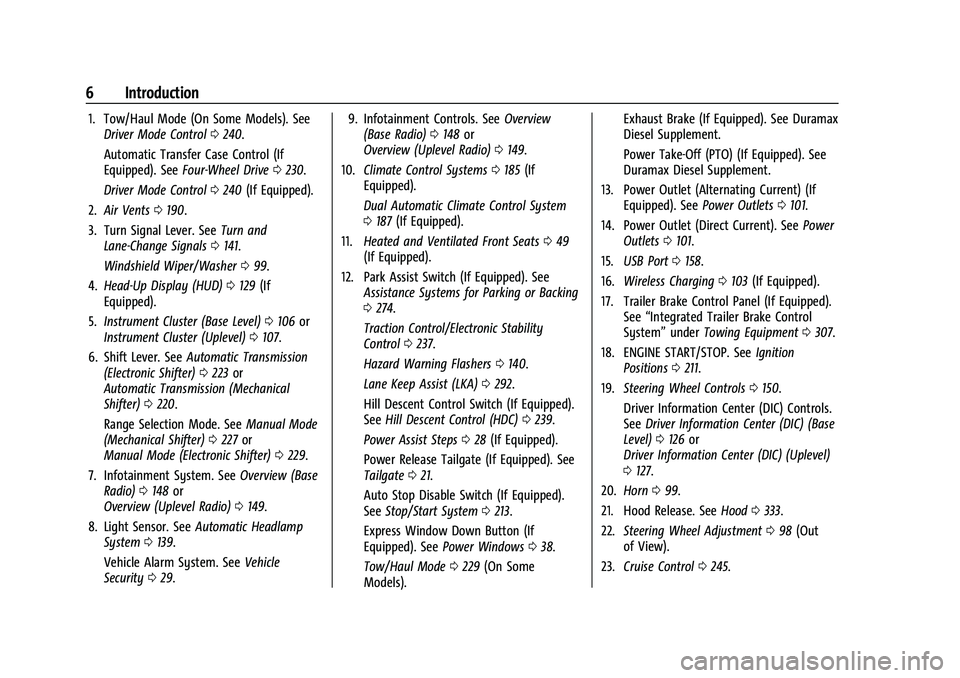
1. Tow/Haul Mode (On Some Models). SeeDriver Mode Control 0240.
Automatic Transfer Case Control (If
Equipped). See Four-Wheel Drive 0230.
Driver Mode Control 0240 (If Equipped).
2. Air Vents 0190.
3. Turn Signal Lever. See Turn and
Lane-Change Signals 0141.
Windshield Wiper/Washer 099.
4. Head-Up Display (HUD) 0129 (If
Equipped).
5. Instrument Cluster (Base Level) 0106 or
Instrument Cluster (Uplevel) 0107.
6. Shift Lever. See Automatic Transmission
(Electronic Shifter) 0223 or
Automatic Transmission (Mechanical
Shifter) 0220.
Range Selection Mode. See Manual Mode
(Mechanical Shifter) 0227 or
Manual Mode (Electronic Shifter) 0229.
7. Infotainment System. See Overview (Base
Radio) 0148 or
Overview (Uplevel Radio) 0149.
8. Light Sensor. See Automatic Headlamp
System 0139.
Vehicle Alarm System. See Vehicle
Security 029. 9. Infotainment Controls. See
Overview
(Base Radio) 0148 or
Overview (Uplevel Radio) 0149.
10. Climate Control Systems 0185 (If
Equipped).
Dual Automatic Climate Control System
0 187 (If Equipped).
11. Heated and Ventilated Front Seats 049
(If Equipped).
12. Park Assist Switch (If Equipped). See Assistance Systems for Parking or Backing
0274.
Traction Control/Electronic Stability
Control 0237.
Hazard Warning Flashers 0140.
Lane Keep Assist (LKA) 0292.
Hill Descent Control Switch (If Equipped).
See Hill Descent Control (HDC) 0239.
Power Assist Steps 028 (If Equipped).
Power Release Tailgate (If Equipped). See
Tailgate 021.
Auto Stop Disable Switch (If Equipped).
See Stop/Start System 0213.
Express Window Down Button (If
Equipped). See Power Windows 038.
Tow/Haul Mode 0229 (On Some
Models). Exhaust Brake (If Equipped). See Duramax
Diesel Supplement.
Power Take-Off (PTO) (If Equipped). See
Duramax Diesel Supplement.
13. Power Outlet (Alternating Current) (If Equipped). See Power Outlets0101.
14. Power Outlet (Direct Current). See Power
Outlets 0101.
15. USB Port 0158.
16. Wireless Charging 0103 (If Equipped).
17. Trailer Brake Control Panel (If Equipped). See“Integrated Trailer Brake Control
System” underTowing Equipment 0307.
18. ENGINE START/STOP. See Ignition
Positions 0211.
19. Steering Wheel Controls 0150.
Driver Information Center (DIC) Controls.
See Driver Information Center (DIC) (Base
Level) 0126 or
Driver Information Center (DIC) (Uplevel)
0 127.
20. Horn 099.
21. Hood Release. See Hood0333.
22. Steering Wheel Adjustment 098 (Out
of View).
23. Cruise Control 0245.
Page 10 of 463
Chevrolet Silverado 1500 Owner Manual (GMNA-Localizing-U.S./Canada/
Mexico/Paraguay-16515119) - 2023 - CRC - 6/2/22
Introduction 9
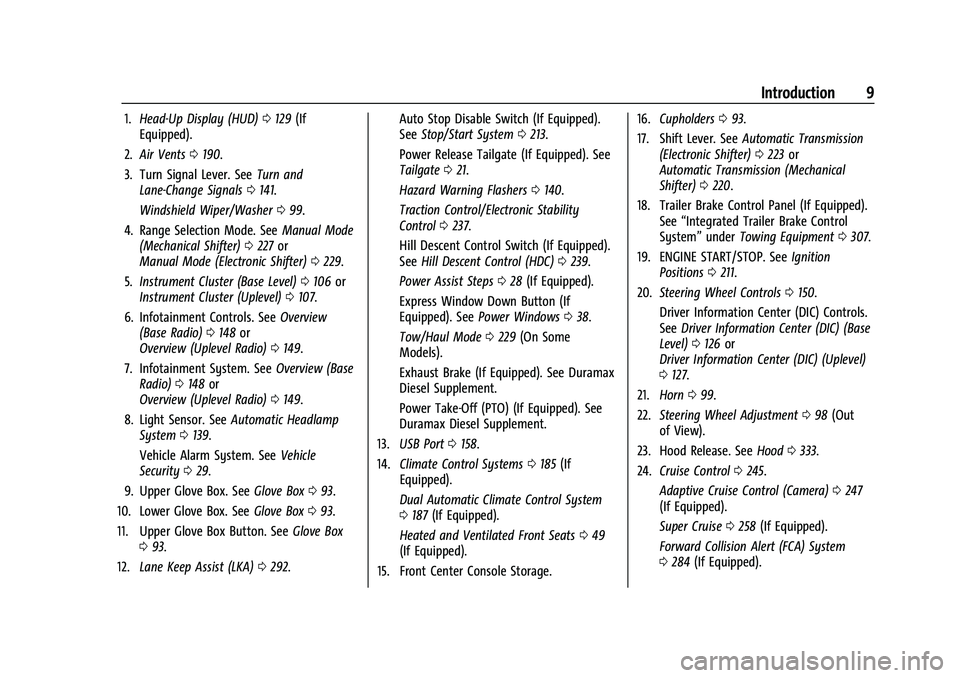
1.Head-Up Display (HUD) 0129 (If
Equipped).
2. Air Vents 0190.
3. Turn Signal Lever. See Turn and
Lane-Change Signals 0141.
Windshield Wiper/Washer 099.
4. Range Selection Mode. See Manual Mode
(Mechanical Shifter) 0227 or
Manual Mode (Electronic Shifter) 0229.
5. Instrument Cluster (Base Level) 0106 or
Instrument Cluster (Uplevel) 0107.
6. Infotainment Controls. See Overview
(Base Radio) 0148 or
Overview (Uplevel Radio) 0149.
7. Infotainment System. See Overview (Base
Radio) 0148 or
Overview (Uplevel Radio) 0149.
8. Light Sensor. See Automatic Headlamp
System 0139.
Vehicle Alarm System. See Vehicle
Security 029.
9. Upper Glove Box. See Glove Box093.
10. Lower Glove Box. See Glove Box093.
11. Upper Glove Box Button. See Glove Box
0 93.
12. Lane Keep Assist (LKA) 0292. Auto Stop Disable Switch (If Equipped).
See
Stop/Start System 0213.
Power Release Tailgate (If Equipped). See
Tailgate 021.
Hazard Warning Flashers 0140.
Traction Control/Electronic Stability
Control 0237.
Hill Descent Control Switch (If Equipped).
See Hill Descent Control (HDC) 0239.
Power Assist Steps 028 (If Equipped).
Express Window Down Button (If
Equipped). See Power Windows 038.
Tow/Haul Mode 0229 (On Some
Models).
Exhaust Brake (If Equipped). See Duramax
Diesel Supplement.
Power Take-Off (PTO) (If Equipped). See
Duramax Diesel Supplement.
13. USB Port 0158.
14. Climate Control Systems 0185 (If
Equipped).
Dual Automatic Climate Control System
0 187 (If Equipped).
Heated and Ventilated Front Seats 049
(If Equipped).
15. Front Center Console Storage. 16.
Cupholders 093.
17. Shift Lever. See Automatic Transmission
(Electronic Shifter) 0223 or
Automatic Transmission (Mechanical
Shifter) 0220.
18. Trailer Brake Control Panel (If Equipped). See“Integrated Trailer Brake Control
System” underTowing Equipment 0307.
19. ENGINE START/STOP. See Ignition
Positions 0211.
20. Steering Wheel Controls 0150.
Driver Information Center (DIC) Controls.
See Driver Information Center (DIC) (Base
Level) 0126 or
Driver Information Center (DIC) (Uplevel)
0 127.
21. Horn 099.
22. Steering Wheel Adjustment 098 (Out
of View).
23. Hood Release. See Hood0333.
24. Cruise Control 0245.
Adaptive Cruise Control (Camera) 0247
(If Equipped).
Super Cruise 0258 (If Equipped).
Forward Collision Alert (FCA) System
0 284 (If Equipped).
Page 102 of 463
Chevrolet Silverado 1500 Owner Manual (GMNA-Localizing-U.S./Canada/
Mexico/Paraguay-16515119) - 2023 - CRC - 6/2/22
Instruments and Controls 101
Power Outlets
12-Volt Power Outlet
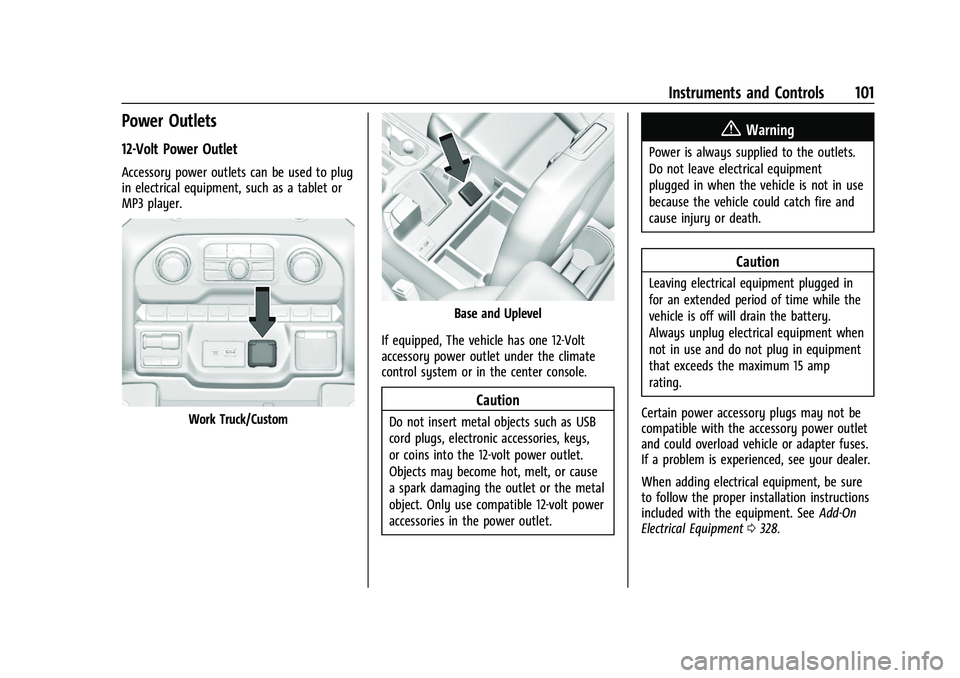
Accessory power outlets can be used to plug
in electrical equipment, such as a tablet or
MP3 player.
Work Truck/Custom
Base and Uplevel
If equipped, The vehicle has one 12-Volt
accessory power outlet under the climate
control system or in the center console.
Caution
Do not insert metal objects such as USB
cord plugs, electronic accessories, keys,
or coins into the 12-volt power outlet.
Objects may become hot, melt, or cause
a spark damaging the outlet or the metal
object. Only use compatible 12-volt power
accessories in the power outlet.
{Warning
Power is always supplied to the outlets.
Do not leave electrical equipment
plugged in when the vehicle is not in use
because the vehicle could catch fire and
cause injury or death.
Caution
Leaving electrical equipment plugged in
for an extended period of time while the
vehicle is off will drain the battery.
Always unplug electrical equipment when
not in use and do not plug in equipment
that exceeds the maximum 15 amp
rating.
Certain power accessory plugs may not be
compatible with the accessory power outlet
and could overload vehicle or adapter fuses.
If a problem is experienced, see your dealer.
When adding electrical equipment, be sure
to follow the proper installation instructions
included with the equipment. See Add-On
Electrical Equipment 0328.
Page 148 of 463
Chevrolet Silverado 1500 Owner Manual (GMNA-Localizing-U.S./Canada/
Mexico/Paraguay-16515119) - 2023 - CRC - 6/2/22
Infotainment System 147
Infotainment System
Introduction
Introduction . . . . . . . . . . . . . . . . . . . . . . . . . . . 147
Overview (Base Radio) . . . . . . . . . . . . . . . . . 148
Overview (Uplevel Radio) . . . . . . . . . . . . . . 149
Steering Wheel Controls . . . . . . . . . . . . . . . 150
Using the System . . . . . . . . . . . . . . . . . . . . . . 151
Software Updates . . . . . . . . . . . . . . . . . . . . . . 153
Radio
AM-FM Radio (Base Radio) . . . . . . . . . . . . . 153
AM-FM Radio (Uplevel Radio) . . . . . . . . . . 155
Radio Data System (RDS) (BaseRadio) . . . . . . . . . . . . . . . . . . . . . . . . . . . . . . . 156
Satellite Radio . . . . . . . . . . . . . . . . . . . . . . . . . 156
Radio Reception . . . . . . . . . . . . . . . . . . . . . . . . 157
Multi-Band Antenna . . . . . . . . . . . . . . . . . . . 157
Audio Players
Avoiding Untrusted Media Devices . . . . . 157
USB Port . . . . . . . . . . . . . . . . . . . . . . . . . . . . . . . 158
Bluetooth Audio (Base Radio) . . . . . . . . . . 158
Bluetooth Audio (Uplevel Radio) . . . . . . . 159
Navigation
Using the Navigation System . . . . . . . . . . 159
Maps . . . . . . . . . . . . . . . . . . . . . . . . . . . . . . . . . . 160
Navigation Symbols . . . . . . . . . . . . . . . . . . . 160
Destination . . . . . . . . . . . . . . . . . . . . . . . . . . . . 160
Global Positioning System (GPS) . . . . . . . 161 Vehicle Positioning . . . . . . . . . . . . . . . . . . . . 162
Problems with Route Guidance . . . . . . . . 162
Voice Recognition
Voice Recognition . . . . . . . . . . . . . . . . . . . . . . 162
Phone
Bluetooth (Overview) . . . . . . . . . . . . . . . . . . 164
Bluetooth (Pairing and Using a Phone
for Uplevel Radio) . . . . . . . . . . . . . . . . . . . 165
Bluetooth (Pairing and Using a Phone for Base Radio) . . . . . . . . . . . . . . . . . . . . . . 168
Apple CarPlay and Android Auto (Base Radio) . . . . . . . . . . . . . . . . . . . . . . . . . . . . . . . . 172
Apple CarPlay and Android Auto (Uplevel Radio) . . . . . . . . . . . . . . . . . . . . . . . 173
Settings
Settings (Base Radio) . . . . . . . . . . . . . . . . . . 175
Settings (Uplevel Radio) . . . . . . . . . . . . . . . . 177
Teen Driver . . . . . . . . . . . . . . . . . . . . . . . . . . . . 179
Trademarks and License Agreements
Trademarks and LicenseAgreements . . . . . . . . . . . . . . . . . . . . . . . . . . 182
Introduction
Read the following pages to become familiar
with the features.
{Warning
Taking your eyes off the road for too
long or too often while using any
infotainment feature can cause a crash.
You or others could be injured or killed.
Do not give extended attention to
infotainment tasks while driving. Limit
your glances at the vehicle displays and
focus your attention on driving. Use voice
commands whenever possible.
The infotainment system has built-in
features intended to help avoid distraction
by disabling some features when driving.
These features may gray out when they are
unavailable. Many infotainment features are
also available through the instrument cluster
and steering wheel controls.
Before driving:
.Become familiar with the operation,
center stack controls, steering wheel
controls, and infotainment display.
Page 149 of 463
Chevrolet Silverado 1500 Owner Manual (GMNA-Localizing-U.S./Canada/
Mexico/Paraguay-16515119) - 2023 - CRC - 6/2/22
148 Infotainment System
.Set up the audio by presetting favorite
stations, setting the tone, and adjusting
the speakers.
.Set up phone numbers in advance so they
can be called easily by pressing a single
control or by using a single voice
command.
See Distracted Driving 0195.
Active Noise Cancellation (ANC)
If equipped, ANC reduces engine noise in the
vehicle’s interior. ANC requires the
factory-installed audio system, radio,
speakers, amplifier (if equipped), induction
system, and exhaust system to work
properly. Deactivation is required by your
dealer if related aftermarket equipment is
installed.
Overview (Base Radio)
Infotainment System
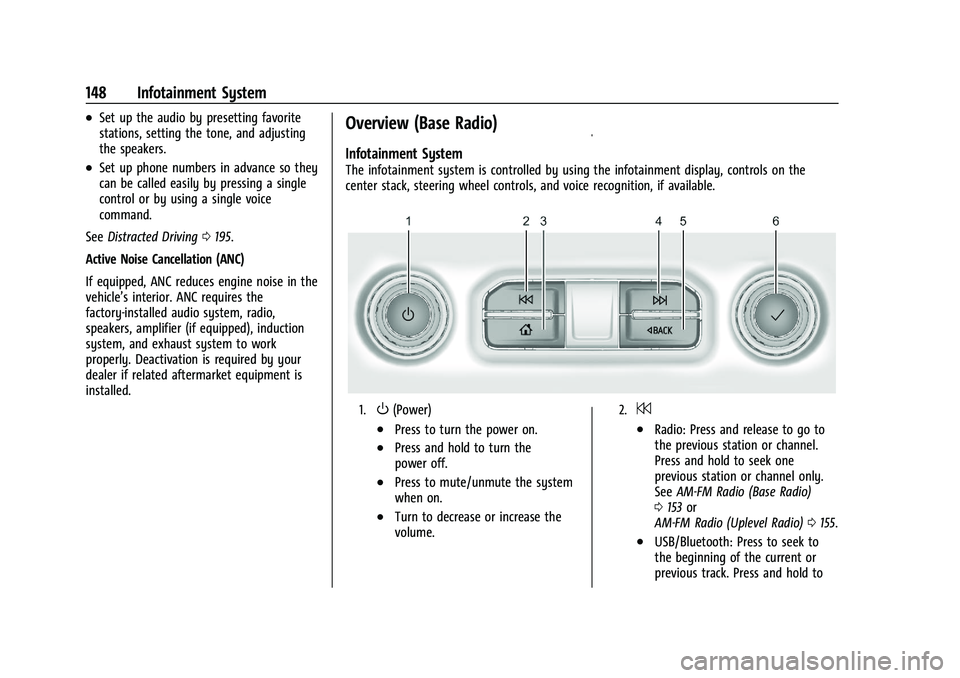
The infotainment system is controlled by using the infotainment display, controls on the
center stack, steering wheel controls, and voice recognition, if available.
1.O(Power)
.Press to turn the power on.
.Press and hold to turn the
power off.
.Press to mute/unmute the system
when on.
.Turn to decrease or increase the
volume.
2.7
.Radio: Press and release to go to
the previous station or channel.
Press and hold to seek one
previous station or channel only.
See AM-FM Radio (Base Radio)
0 153 or
AM-FM Radio (Uplevel Radio) 0155.
.USB/Bluetooth: Press to seek to
the beginning of the current or
previous track. Press and hold to
Page 150 of 463
Chevrolet Silverado 1500 Owner Manual (GMNA-Localizing-U.S./Canada/
Mexico/Paraguay-16515119) - 2023 - CRC - 6/2/22
Infotainment System 149
seek to one previous track only.
Release to return to playing speed.
SeeUSB Port 0158 orBluetooth
Audio (Base Radio) 0158 or
Bluetooth Audio (Uplevel Radio)
0 159.
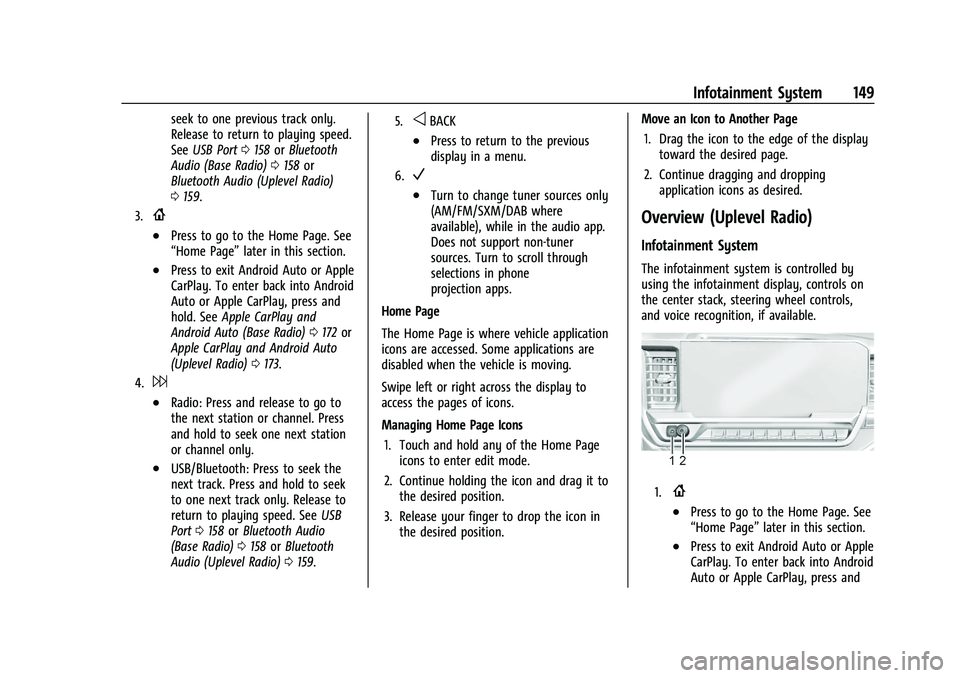
3.{
.Press to go to the Home Page. See
“Home Page” later in this section.
.Press to exit Android Auto or Apple
CarPlay. To enter back into Android
Auto or Apple CarPlay, press and
hold. SeeApple CarPlay and
Android Auto (Base Radio) 0172 or
Apple CarPlay and Android Auto
(Uplevel Radio) 0173.
4.6
.Radio: Press and release to go to
the next station or channel. Press
and hold to seek one next station
or channel only.
.USB/Bluetooth: Press to seek the
next track. Press and hold to seek
to one next track only. Release to
return to playing speed. See USB
Port 0158 orBluetooth Audio
(Base Radio) 0158 orBluetooth
Audio (Uplevel Radio) 0159.
5.oBACK
.Press to return to the previous
display in a menu.
6.V
.Turn to change tuner sources only
(AM/FM/SXM/DAB where
available), while in the audio app.
Does not support non-tuner
sources. Turn to scroll through
selections in phone
projection apps.
Home Page
The Home Page is where vehicle application
icons are accessed. Some applications are
disabled when the vehicle is moving.
Swipe left or right across the display to
access the pages of icons.
Managing Home Page Icons 1. Touch and hold any of the Home Page icons to enter edit mode.
2. Continue holding the icon and drag it to the desired position.
3. Release your finger to drop the icon in the desired position. Move an Icon to Another Page
1. Drag the icon to the edge of the display toward the desired page.
2. Continue dragging and dropping application icons as desired.
Overview (Uplevel Radio)
Infotainment System
The infotainment system is controlled by
using the infotainment display, controls on
the center stack, steering wheel controls,
and voice recognition, if available.
1.{
.Press to go to the Home Page. See
“Home Page” later in this section.
.Press to exit Android Auto or Apple
CarPlay. To enter back into Android
Auto or Apple CarPlay, press and
Page 152 of 463
Chevrolet Silverado 1500 Owner Manual (GMNA-Localizing-U.S./Canada/
Mexico/Paraguay-16515119) - 2023 - CRC - 6/2/22
Infotainment System 151
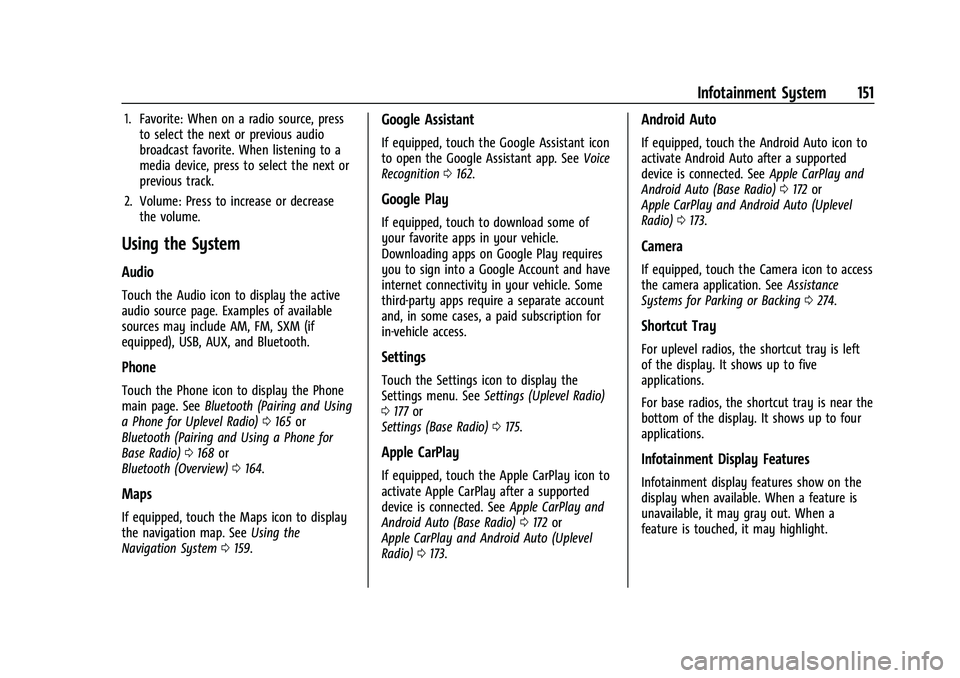
1. Favorite: When on a radio source, pressto select the next or previous audio
broadcast favorite. When listening to a
media device, press to select the next or
previous track.
2. Volume: Press to increase or decrease the volume.
Using the System
Audio
Touch the Audio icon to display the active
audio source page. Examples of available
sources may include AM, FM, SXM (if
equipped), USB, AUX, and Bluetooth.
Phone
Touch the Phone icon to display the Phone
main page. See Bluetooth (Pairing and Using
a Phone for Uplevel Radio) 0165 or
Bluetooth (Pairing and Using a Phone for
Base Radio) 0168 or
Bluetooth (Overview) 0164.
Maps
If equipped, touch the Maps icon to display
the navigation map. See Using the
Navigation System 0159.
Google Assistant
If equipped, touch the Google Assistant icon
to open the Google Assistant app. See Voice
Recognition 0162.
Google Play
If equipped, touch to download some of
your favorite apps in your vehicle.
Downloading apps on Google Play requires
you to sign into a Google Account and have
internet connectivity in your vehicle. Some
third-party apps require a separate account
and, in some cases, a paid subscription for
in-vehicle access.
Settings
Touch the Settings icon to display the
Settings menu. See Settings (Uplevel Radio)
0 177 or
Settings (Base Radio) 0175.
Apple CarPlay
If equipped, touch the Apple CarPlay icon to
activate Apple CarPlay after a supported
device is connected. See Apple CarPlay and
Android Auto (Base Radio) 0172 or
Apple CarPlay and Android Auto (Uplevel
Radio) 0173.
Android Auto
If equipped, touch the Android Auto icon to
activate Android Auto after a supported
device is connected. See Apple CarPlay and
Android Auto (Base Radio) 0172 or
Apple CarPlay and Android Auto (Uplevel
Radio) 0173.
Camera
If equipped, touch the Camera icon to access
the camera application. See Assistance
Systems for Parking or Backing 0274.
Shortcut Tray
For uplevel radios, the shortcut tray is left
of the display. It shows up to five
applications.
For base radios, the shortcut tray is near the
bottom of the display. It shows up to four
applications.
Infotainment Display Features
Infotainment display features show on the
display when available. When a feature is
unavailable, it may gray out. When a
feature is touched, it may highlight.
Page 154 of 463
Chevrolet Silverado 1500 Owner Manual (GMNA-Localizing-U.S./Canada/
Mexico/Paraguay-16515119) - 2023 - CRC - 6/2/22
Infotainment System 153
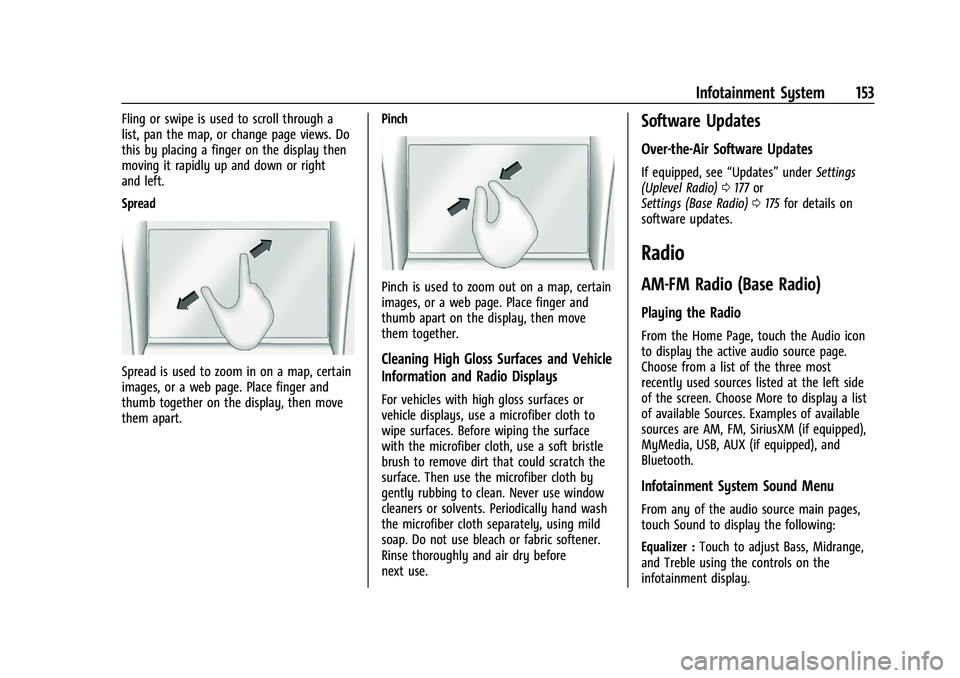
Fling or swipe is used to scroll through a
list, pan the map, or change page views. Do
this by placing a finger on the display then
moving it rapidly up and down or right
and left.
Spread
Spread is used to zoom in on a map, certain
images, or a web page. Place finger and
thumb together on the display, then move
them apart.Pinch
Pinch is used to zoom out on a map, certain
images, or a web page. Place finger and
thumb apart on the display, then move
them together.
Cleaning High Gloss Surfaces and Vehicle
Information and Radio Displays
For vehicles with high gloss surfaces or
vehicle displays, use a microfiber cloth to
wipe surfaces. Before wiping the surface
with the microfiber cloth, use a soft bristle
brush to remove dirt that could scratch the
surface. Then use the microfiber cloth by
gently rubbing to clean. Never use window
cleaners or solvents. Periodically hand wash
the microfiber cloth separately, using mild
soap. Do not use bleach or fabric softener.
Rinse thoroughly and air dry before
next use.
Software Updates
Over-the-Air Software Updates
If equipped, see
“Updates”underSettings
(Uplevel Radio) 0177 or
Settings (Base Radio) 0175 for details on
software updates.
Radio
AM-FM Radio (Base Radio)
Playing the Radio
From the Home Page, touch the Audio icon
to display the active audio source page.
Choose from a list of the three most
recently used sources listed at the left side
of the screen. Choose More to display a list
of available Sources. Examples of available
sources are AM, FM, SiriusXM (if equipped),
MyMedia, USB, AUX (if equipped), and
Bluetooth.
Infotainment System Sound Menu
From any of the audio source main pages,
touch Sound to display the following:
Equalizer : Touch to adjust Bass, Midrange,
and Treble using the controls on the
infotainment display.