2023 CHEVROLET SILVERADO 1500 USB
[x] Cancel search: USBPage 158 of 463
Chevrolet Silverado 1500 Owner Manual (GMNA-Localizing-U.S./Canada/
Mexico/Paraguay-16515119) - 2023 - CRC - 6/2/22
Infotainment System 157
To directly tune to a channel, touch the
Tune icon to enter a channel number using
the keypad.
Browsing Content
Touch(to view different browsing
content.
Browse will include Channels, Music, On
Demand shows and episodes, Sports and
News content.
SiriusXM Settings
From the SiriusXM now playing screen,
touch the user settings icon in the upper
right to display the SiriusXM settings
The settings include subscription
information, help and support, and listener
preferences.
Radio Reception
Unplug electronic devices from the accessory
power outlets if there is interference or
static in the radio.
FM
FM signals only reach about 16 to 65 km (10
to 40 mi). Although the radio has a built-in
electronic circuit that automatically works to reduce interference, some static can occur,
especially around tall buildings or hills,
causing the sound to fade in and out.
AM
The range for most AM stations is greater
than for FM, especially at night. The longer
range can cause station frequencies to
interfere with each other. Static can also
occur when things like storms and power
lines interfere with radio reception. When
this happens, try reducing the treble on the
radio.
SiriusXM Satellite Radio Service
If equipped, SiriusXM Satellite Radio Service
provides digital radio reception. Tall
buildings or hills can interfere with satellite
radio signals, causing the sound to fade in
and out. In addition, traveling or standing
under heavy foliage, bridges, garages,
or tunnels may cause loss of the SiriusXM
signal for a period of time. Some cellular
services may interfere with SXM reception
causing loss of signal.
Mobile Device Usage
Mobile device usage, such as making or
receiving calls, charging, or just having the
mobile device on may cause static
interference in the radio. Unplug the mobile
device or turn it off if this happens.
Multi-Band Antenna
The multi-band roof antenna may be used
for radio, navigation, and other
communication systems, depending on the
equipped options. To ensure clear reception,
keep the antenna clear of obstructions, such
as snow and ice. If the vehicle has a
sunroof, and it is open, or a roof loaded
with cargo, reception may be affected.
Audio Players
Avoiding Untrusted Media Devices
When using media devices such as USB and
mobile devices, consider the source.
Untrusted media devices could contain files
that affect system operation or performance
and should be avoided.
Page 159 of 463
Chevrolet Silverado 1500 Owner Manual (GMNA-Localizing-U.S./Canada/
Mexico/Paraguay-16515119) - 2023 - CRC - 6/2/22
158 Infotainment System
USB Port
The vehicle may be equipped with multiple
USB ports. Ports may also be used for
charging. Music may be played from a
connected USB device.
Caution
To avoid vehicle damage, unplug all
accessories and disconnect all accessory
cables from the vehicle when not in use.
Accessory cables left plugged into the
vehicle, unconnected to a device, could be
damaged or cause an electrical short if
the unconnected end comes in contact
with liquids or another power source such
as the accessory power outlet.
USB Audio
To play music via USB:1. On the audio now playing page, touch source and select USB.
2. If there is no device connected, follow the screen prompts to connect the
device.
3. Supported media content will appear on the display.
Bluetooth Audio (Base Radio)
Music may be played from a paired
Bluetooth device. See Bluetooth (Pairing and
Using a Phone for Uplevel Radio) 0165 or
Bluetooth (Pairing and Using a Phone for
Base Radio) 0168 or
Bluetooth (Overview) 0164 for help pairing
a device.
Volume and song selection may be
controlled by using the infotainment
controls or the mobile device. If Bluetooth is
selected and no volume is present, check the
volume setting on the infotainment system.
Music can be launched by touching
Bluetooth from the recent sources list on
the left of the display or by touching the
More option and then touching the
Bluetooth device.
To play music via Bluetooth:
1. Power on the device, and pair to connect the device.
2. Once paired, touch Audio from the Home Page, then touch Bluetooth from the
recent sources list on the left of the
display. Bluetooth Sound Menu
See
“Infotainment System Sound Menu”
under AM-FM Radio (Base Radio) 0153 or
AM-FM Radio (Uplevel Radio) 0155.
Manage Bluetooth Devices
From the Home Page: 1. Touch Audio.
2. Touch Devices to add or delete devices.
When touching Bluetooth, the radio may
not be able to launch the audio player on
the connected device to start playing. When
the vehicle is not moving, use the mobile
device to begin playback.
All devices launch audio differently. When
selecting Bluetooth as a source, the radio
may show as paused on the display. Press
play on the device or touch
pon the
vehicle display to begin playback.
Browse functionality will be provided where
supported by the Bluetooth device. This
media content will not be part of the
MyMedia source mode.
Some smartphones support sending
Bluetooth music information to display on
the radio. When the radio receives this
information, it will check to see if any is
Page 173 of 463
Chevrolet Silverado 1500 Owner Manual (GMNA-Localizing-U.S./Canada/
Mexico/Paraguay-16515119) - 2023 - CRC - 6/2/22
172 Infotainment System
Three-Way Calling
Three-way calling must be supported on the
Bluetooth phone and enabled by the
wireless service carrier to work.
To start a three-way call while in a
current call:1. In the Call View, select Add Call to add another call.
2. Initiate the second call by selecting from Recents, Contacts, or Keypad.
3. When the second call is active, press the merge icon to conference the three-way
call together.
Ending a Call
.Pression the steering wheel controls.
.Touchbnext to a call to end only
that call.
.Select End on the instrument cluster using
the select control.
Dual Tone Multi-Frequency (DTMF) Tones
The in-vehicle Bluetooth system can send
numbers during a call. This is used when
calling a menu-driven phone system. Use the
Keypad to enter the number.
Apple CarPlay and Android Auto
(Base Radio)
If equipped, Android Auto and/or Apple
CarPlay capability may be available through
a compatible smartphone. If available, the
Android Auto and Apple CarPlay icons will
change from gray to color on the Home
Page of the infotainment display.
To use Android Auto and/or Apple CarPlay:
For Wired Phone Projection
1. Download the Android Auto app to your smartphone from the Google Play store.
There is no app required for Apple
CarPlay.
2. Connect your Android phone or Apple iPhone by using the factory-provided
phone USB cable and plugging into a
USB data port. For best performance, it is
highly recommended to use the device’s
factory-provided USB cable, which should
be replaced after significant wear to
maintain connection quality. Aftermarket
or third-party cables may not work.
3. When the phone is first connected to activate Apple CarPlay or Android Auto,
accept the terms and conditions on both
the infotainment system and the phone. 4. Follow the instructions on the phone.
The Android Auto and Apple CarPlay icons
on the Home Page will illuminate depending
on the smartphone. Android Auto and/or
Apple CarPlay may automatically launch
upon USB connection. If not, touch the
Android Auto or Apple CarPlay icon on the
Home Page to launch.
Press
{on the center stack to return to the
Home Page.
For Wireless Phone Projection
If equipped, verify your phone is wireless
compatible by visiting the Google Android
Auto or Apple CarPlay support page.
1. Download the Android Auto app to your smartphone from the Google Play store.
There is no app required for Apple
CarPlay.
2. For first time connection, there are two ways to set up wireless projection:
.Connect your Android phone or Apple
iPhone by using the factory-provided
phone USB cable and plugging into a
USB data port. For best performance,
it is highly recommended to use the
device’s factory-provided USB cable,
which should be replaced after
Page 175 of 463
Chevrolet Silverado 1500 Owner Manual (GMNA-Localizing-U.S./Canada/
Mexico/Paraguay-16515119) - 2023 - CRC - 6/2/22
174 Infotainment System
To use Android Auto and/or Apple CarPlay:
For Wired Phone Projection1. Download the Android Auto app to your smartphone from Google Play for phones
running Android 9 and below. There is
no app required for Apple CarPlay or
newer versions of Android.
2. Connect your Android phone or Apple iPhone by using the factory-provided
phone USB cable and plugging into a
USB data port. For best performance, it is
highly recommended to use the device’s
factory-provided USB cable, which should
be replaced after significant wear to
maintain connection quality. Aftermarket
or third-party cables may not work.
3. When the phone is first connected to activate Apple CarPlay or Android Auto,
accept the terms and conditions on both
the infotainment system and the phone.
4. Follow the instructions on the phone.
The Android Auto and Apple CarPlay icons
on the Home Page will illuminate depending
on the smartphone. Android Auto and/or
Apple CarPlay may automatically launch the
next time the USB is connected. If not,
touch the Android Auto or Apple CarPlay
icon on the Home Page to launch. Press{on the center stack to return to the
Home Page.
For Wireless Phone Projection
Verify your phone is wireless compatible by
visiting the Android Auto or Apple CarPlay
support page.
1. Download the Android Auto app to your smartphone from Google Play for phones
running Android 9 and below. There is
no app required for Apple CarPlay or
newer versions of Android.
2. For first time connection, there are two ways to set up wireless projection:
.Connect your Android phone or Apple
iPhone by using the factory-provided
phone USB cable and plugging into a
USB data port. For best performance,
it is highly recommended to use the
device’s factory-provided USB cable,
which should be replaced after
significant wear to maintain
connection quality. Aftermarket or
third-party cables may not work.
.Connecting the phone over Bluetooth.
See Bluetooth (Pairing and Using a
Phone for Uplevel Radio) 0165 or Bluetooth (Pairing and Using a Phone
for Base Radio)
0168 or
Bluetooth (Overview) 0164.
3. Make sure Wi-Fi and Bluetooth is turned on the phone for wireless projection
to work.
4. When the phone is first connected to activate Apple CarPlay or Android Auto,
agree to the terms and conditions on
both the infotainment system and the
phone.
5. Follow the instructions on the phone.
The Android Auto and Apple CarPlay icons
on the Home Page will illuminate depending
on the smartphone. Android Auto and/or
Apple CarPlay may automatically launch
upon wireless connection. If not, touch the
Android Auto or Apple CarPlay icon on the
Home Page to launch.
Wireless CarPlay and/or Wireless Android
Auto may experience occasional service
disruption due to outside Wi-Fi interference.
To disconnect the phones wireless
projection: 1. Select the Settings icon from the Home Page or the Settings icon on the shortcut
tray near the left of the display.
2. Select Connections.
Page 369 of 463
Chevrolet Silverado 1500 Owner Manual (GMNA-Localizing-U.S./Canada/
Mexico/Paraguay-16515119) - 2023 - CRC - 6/2/22
368 Vehicle Care
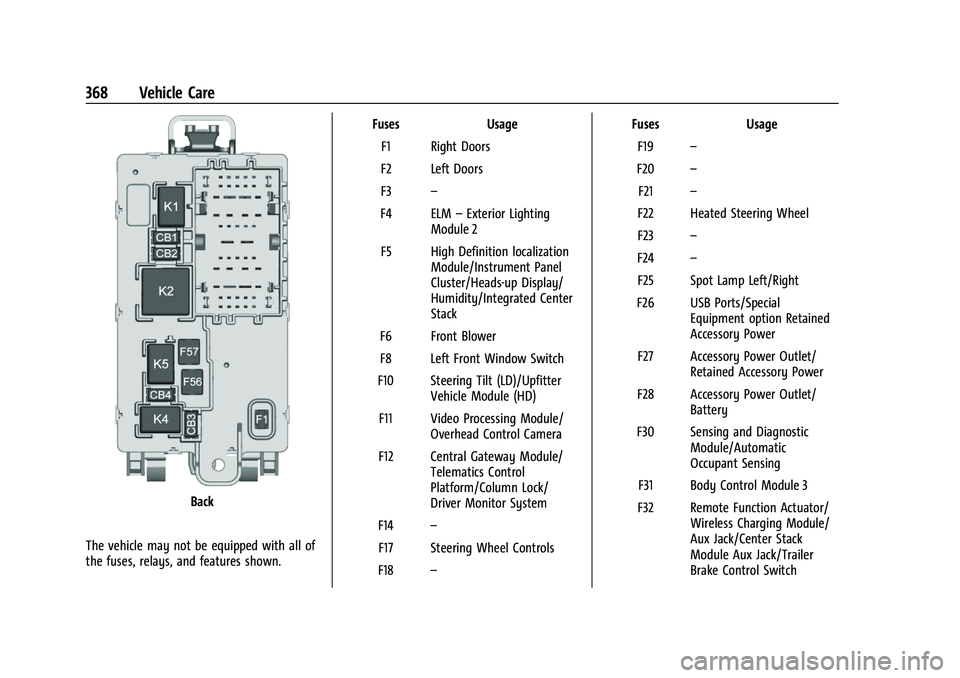
Back
The vehicle may not be equipped with all of
the fuses, relays, and features shown. Fuses Usage
F1 Right Doors
F2 Left Doors
F3 –
F4 ELM –Exterior Lighting
Module 2
F5 High Definition localization Module/Instrument Panel
Cluster/Heads-up Display/
Humidity/Integrated Center
Stack
F6 Front Blower
F8 Left Front Window Switch
F10 Steering Tilt (LD)/Upfitter Vehicle Module (HD)
F11 Video Processing Module/ Overhead Control Camera
F12 Central Gateway Module/ Telematics Control
Platform/Column Lock/
Driver Monitor System
F14 –
F17 Steering Wheel Controls
F18 – Fuses Usage
F19 –
F20 –
F21 –
F22 Heated Steering Wheel
F23 –
F24 –
F25 Spot Lamp Left/Right
F26 USB Ports/Special Equipment option Retained
Accessory Power
F27 Accessory Power Outlet/ Retained Accessory Power
F28 Accessory Power Outlet/ Battery
F30 Sensing and Diagnostic Module/Automatic
Occupant Sensing
F31 Body Control Module 3
F32 Remote Function Actuator/ Wireless Charging Module/
Aux Jack/Center Stack
Module Aux Jack/Trailer
Brake Control Switch
Page 458 of 463
Chevrolet Silverado 1500 Owner Manual (GMNA-Localizing-U.S./Canada/-
Mexico/Paraguay-16515119) - 2023 - CRC - 6/2/22
Index 457
Phone (cont'd)Bluetooth . . . . . . . . . . . . . . . . . . . . . 164, 165, 168
Pickup Conversion to Chassis Cab . . . . . . . . 330
Port USB . . . . . . . . . . . . . . . . . . . . . . . . . . . . . . . . . . . . 158
Positioning Vehicle . . . . . . . . . . . . . . . . . . . . . . . . . . . . . . . . 162
Power Assist Steps . . . . . . . . . . . . . . . . . . . . . . . . . . . . . 28
Door Locks . . . . . . . . . . . . . . . . . . . . . . . . . . . . . . 20
Mirrors . . . . . . . . . . . . . . . . . . . . . . . . . . . . . . . . . 33
Outlets . . . . . . . . . . . . . . . . . . . . . . . . . . . . . . . . 101
Protection, Battery . . . . . . . . . . . . . . . . . . . . . 146
Retained Accessory (RAP) . . . . . . . . . . . . . . 216
Seat Adjustment . . . . . . . . . . . . . . . . . . . . . . . . 45
Windows . . . . . . . . . . . . . . . . . . . . . . . . . . . . . . . 38
Pregnancy, Using Seat Belts . . . . . . . . . . . . . . 58
Privacy Vehicle Data Recording . . . . . . . . . . . . . . . . 439
Problems with Route Guidance . . . . . . . . . . 162
Program Courtesy Transportation . . . . . . . . . . . . . . . 435
Prohibited Fuels . . . . . . . . . . . . . . . . . . . . . . . . . 295
Proposition 65 Warning California . . . . . . . . . . . . . . . . . . . . . . . . . . . . . . . . . 1
Proposition 65 Warning, California . . . . . . . 399
Publication Ordering Information . . . . . . . . 437R
Radiator . . . . . . . . . . . . . . . . . . . . . . . . . . . . . . . . . 343
Radio
AM-FM Radio . . . . . . . . . . . . . . . . . . . . . . 153, 155
Data System (RDS) . . . . . . . . . . . . . . . . . . . . . 156
Frequency Statement . . . . . . . . . . . . . . . . . . 438
Reception . . . . . . . . . . . . . . . . . . . . . . . . . . . . . . . 157
Satellite . . . . . . . . . . . . . . . . . . . . . . . . . . . . . . . . 156
Reading Lamps . . . . . . . . . . . . . . . . . . . . . . . . . . 144
Rear Axle . . . . . . . . . . . . . . . . . . . . . . . . . . . . . . . . . . . 354
Camera Mirror . . . . . . . . . . . . . . . . . . . . . . . . . . 35
Cross Traffic Alert (RCTA) System . . . . . . 284
Heated Seats . . . . . . . . . . . . . . . . . . . . . . . . . . . . 51
Locking Axle . . . . . . . . . . . . . . . . . . . . . . . . . . . 244
Pedestrian Alert . . . . . . . . . . . . . . . . . . . . . . . 283
Seats . . . . . . . . . . . . . . . . . . . . . . . . . . . . . . . . . . . 50
Storage . . . . . . . . . . . . . . . . . . . . . . . . . . . . . . . . . 94
Vision Camera (RVC) . . . . . . . . . . . . . . . . . . . 274
Windows . . . . . . . . . . . . . . . . . . . . . . . . . . . . . . . 40
Rearview Mirrors . . . . . . . . . . . . . . . . . . . . . . . . . .35 Automatic Dimming . . . . . . . . . . . . . . . . . . . . 35
Reclining Seatbacks . . . . . . . . . . . . . . . . . . . . . . . 45
Recognition Voice . . . . . . . . . . . . . . . . . . . . . . . . . . . . . . . . . . 162
Recommended Fuel . . . . . . . . . . . . . . . . . . . . . . . . . . . . . . . . . . . . 294
Recommended Fluids and Lubricants . . . . . .421 Records
Maintenance . . . . . . . . . . . . . . . . . . . . . . . . . . . 424
Recreational Vehicle Towing . . . . . . . . . . . . . 403
Reimbursement Program, GM Mobility . . . . . . . . . . . . . . . . . . . . . . . . . . . . . . . 433
Remote Key . . . . . . . . . . . . . . . . . . . . . . . . . . . . . . . . . . . . . . 12
Key Operation . . . . . . . . . . . . . . . . . . . . . . . . . . . 12
Vehicle Start . . . . . . . . . . . . . . . . . . . . . . . . . . . . 18
Replacement Glass . . . . . . . . . . . . . . . . . . . . . . . . . . . . . . . . . . 355
Replacement Parts Airbags . . . . . . . . . . . . . . . . . . . . . . . . . . . . . . . . . 69
Maintenance . . . . . . . . . . . . . . . . . . . . . . . . . . . 422
Replacing Airbag System . . . . . . . . . . . . . . . . . . . . . . . . . . 69
LATCH System Parts After a Crash . . . . . . 86
Seat Belt System Parts after a Crash . . . . 59
Reporting Safety Defects Canadian Government . . . . . . . . . . . . . . . . . 438
General Motors . . . . . . . . . . . . . . . . . . . . . . . . 439
U.S. Government . . . . . . . . . . . . . . . . . . . . . . . 438
Restraints Where to Put . . . . . . . . . . . . . . . . . . . . . . . . . . . 75
Retained Accessory Power (RAP) . . . . . . . . . 216
Reverse Tilt Mirrors . . . . . . . . . . . . . . . . . . . . . . . .35
Ride Control Systems
Enhanced Traction System (ETS) . . . . . . . 243
Page 461 of 463
Chevrolet Silverado 1500 Owner Manual (GMNA-Localizing-U.S./Canada/-
Mexico/Paraguay-16515119) - 2023 - CRC - 6/2/22
460 Index
Traction (cont'd)Limited-Slip Differential . . . . . . . . . . . . . . . . 243
Off Light . . . . . . . . . . . . . . . . . . . . . . . . . . . . . . . . 121
Trademarks and License Agreements . . . . . .182
Trailer Sway Control (TSC) . . . . . . . . . . . . . . . . . . . . 316
Tow Mirrors . . . . . . . . . . . . . . . . . . . . . . . . . . . . 32
Towing . . . . . . . . . . . . . . . . . . . . . . . . . . . . . . . . 302
Towing App . . . . . . . . . . . . . . . . . . . . . . . . . . . . 318
Transfer Case Four-Wheel Drive . . . . . . . . . . . . . . . . . . . . . . 230
Transmission
Automatic . . . . . . . . . . . . . . . . . . . . . . . . 220, 223
Fluid, Automatic . . . . . . . . . . . . . . . . . . . . . . . 340
Temperature Gauge . . . . . . . . . . . . . . . . . . . . . 113
Transportation Program, Courtesy . . . . . . . 435
Transporting
a Disabled Vehicle . . . . . . . . . . . . . . . . . . . . . 402
Items That Can Catch Fire . . . . . . . . . . . . . . 28
Trip Odometer . . . . . . . . . . . . . . . . . . . . . . . . . . . .110
Truck-Camper Loading Information . . . . . . . 209
TTY Users Customer Assistance . . . . . . . . . . . . . . . . . . . 432
Turn and Lane-Change Signals . . . . . . . . . . . . 141
Turn Signal Bulb Replacement . . . . . . . . . . . . . . . . . . . . . . 358U
Uniform Tire Quality Grading . . . . . . . . . . . . 385
Universal Remote System . . . . . . . . . . . . . . . . .134
Operation . . . . . . . . . . . . . . . . . . . . . . . . . . . . . . 136
Programming . . . . . . . . . . . . . . . . . . . . . . . . . . 134
Updates Software . . . . . . . . . . . . . . . . . . . . . . . . . . . . . . . 153
USB Port . . . . . . . . . . . . . . . . . . . . . . . . . . . . . . . . . .158
Using Infotainment System . . . . . . . . . . . . . . . . . . . 151
Navigation System . . . . . . . . . . . . . . . . . . . . . 159
This Manual . . . . . . . . . . . . . . . . . . . . . . . . . . . . . 2
V
Vehicle
Ahead Indicator . . . . . . . . . . . . . . . . . . . . . . . . . 121
Alarm System . . . . . . . . . . . . . . . . . . . . . . . . . . 29
Canadian Owners . . . . . . . . . . . . . . . . . . . . . . . . 2
Control . . . . . . . . . . . . . . . . . . . . . . . . . . . . . . . . 196
Data Recording and Privacy . . . . . . . . . . . . 439
Identification Number (VIN) . . . . . . . . . . . . 425
Load Limits . . . . . . . . . . . . . . . . . . . . . . . . . . . . 204
Messages . . . . . . . . . . . . . . . . . . . . . . . . . . . . . . 133
Positioning . . . . . . . . . . . . . . . . . . . . . . . . . . . . 162
Remote Start . . . . . . . . . . . . . . . . . . . . . . . . . . . 18
Security . . . . . . . . . . . . . . . . . . . . . . . . . . . . . . . . . 29
Speed Messages . . . . . . . . . . . . . . . . . . . . . . . 134
Symbols . . . . . . . . . . . . . . . . . . . . . . . . . . . . . . . . . 3 Vehicle Care
Tire Pressure . . . . . . . . . . . . . . . . . . . . . . . . . . . 375
Vehicle Security Steering Column Lock . . . . . . . . . . . . . . . . . . . 30
Ventilation, Air . . . . . . . . . . . . . . . . . . . . . . . . . . 190
Visors . . . . . . . . . . . . . . . . . . . . . . . . . . . . . . . . . . . . . 40
Voice Recognition . . . . . . . . . . . . . . . . . . . . . . . . 162
Voltmeter Gauge . . . . . . . . . . . . . . . . . . . . . . . . . 113
W
Warning Brake System Light . . . . . . . . . . . . . . . . . . . . . 118
Caution and Danger . . . . . . . . . . . . . . . . . . . . . 2
Hazard Flashers . . . . . . . . . . . . . . . . . . . . . . . . 140
Lights, Gauges, and Indicators . . . . . . . . . 105
Washer Fluid . . . . . . . . . . . . . . . . . . . . . . . . . . . . 348
Wheels Alignment and Tire Balance . . . . . . . . . . . . 386
Different Size . . . . . . . . . . . . . . . . . . . . . . . . . . 385
Replacement . . . . . . . . . . . . . . . . . . . . . . . . . . . 386
When It Is Time for New Tires . . . . . . . . . . . 383
Where to Put the Restraint . . . . . . . . . . . . . . . .75
Windows . . . . . . . . . . . . . . . . . . . . . . . . . . . . . . . . . 38
Power . . . . . . . . . . . . . . . . . . . . . . . . . . . . . . . . . . 38
Rear . . . . . . . . . . . . . . . . . . . . . . . . . . . . . . . . . . . . 40
Windshield
Replacement . . . . . . . . . . . . . . . . . . . . . . . . . . . 355
Wiper/Washer . . . . . . . . . . . . . . . . . . . . . . . . . . 99