Page 28 of 417
tional sign in the head-up display and in the
instrument cluster.
Displays
In addition to speed limits and o
vertaking re-
strictions, Dynamic Road Sign Display also
detects the road sign which indicates that all
restrictions have been lifted on motorways
and main roads in Germany. In all other coun-
tries in which the system is operated, the
current speed limit is displayed instead.
The road signs detected by the Dynamic Road
Sign Display system are displayed on the in-
strument cluster. Road signs may also be dis-
played in the Infotainment system, depend-
ing on the system installed in the vehicle.
With some equipment levels, a display is also
shown on the Head-up Display.
The system is in the initial-
isation phase. OR: the camera has not
detected any regulatory or warning
signs.
System fault. Go to
a qualified workshop.
Fault in the Dy-
namic Road Sign Display system
speed warning. Go to a qualified
workshop.
The
windscreen is dirty in the area of the
camera or the camera view is im-
paired due to the weather conditions.
Clean the windscreen.
No data
transmission from the Infotainment
system. Check whether valid map da-
ta is loaded in the Infotainment sys-
tem. OR: the vehicle is located in an
area that is not covered by the map
stored in the Infotainment system.
Dynamic Road Sign Display is
not supported in the country in which
you are currently travelling.
No road signs available.
Error: Dynamic Road Sign Display
Speed warning currently not available.
Dynamic Road Sign Display: Clean the windscreen!
Dynamic Road Sign Display is currently restricted.
No data available.
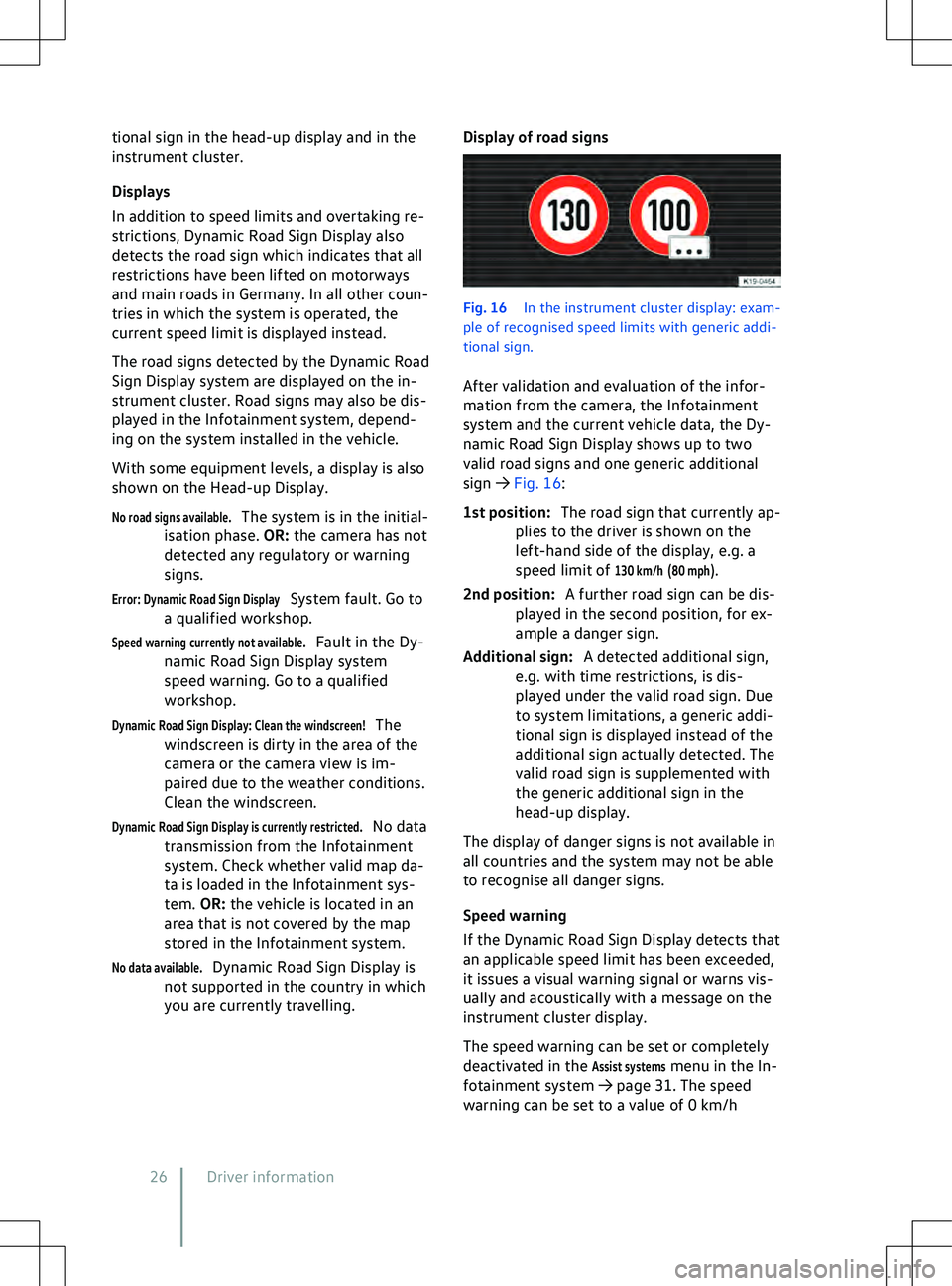
Display of road signs Fig. 16
In the instrument cluster display: e
xam-
ple of recognised speed limits with generic addi-
tional sign.
After validation and evaluation of the infor-
mation from the camera, the Infotainment
system and the current vehicle data, the Dy-
namic Road Sign Display shows up to two
valid road signs and one generic additional
sign
Page 207 of 417
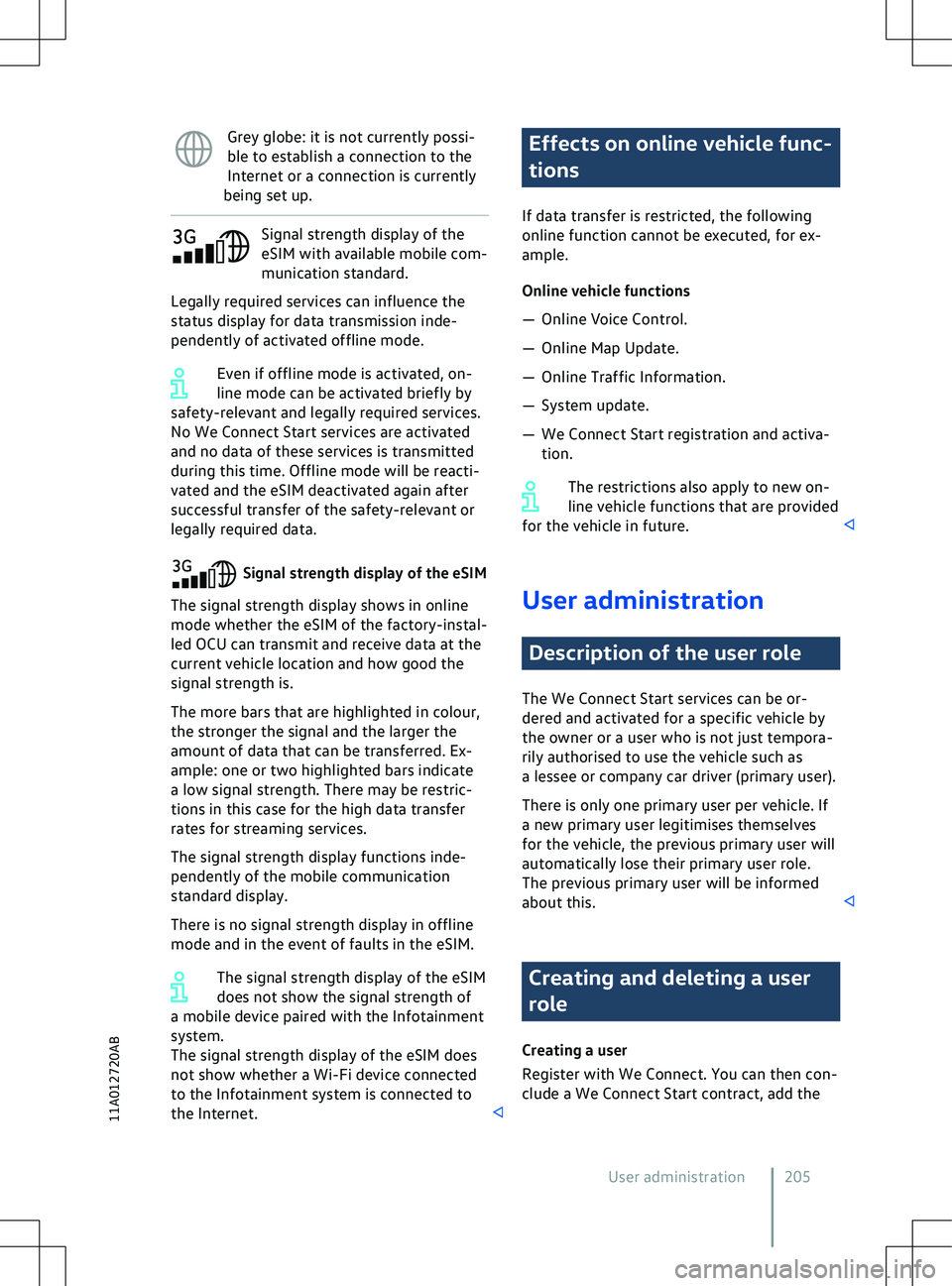
Grey globe: it is not currently possi-
ble to establish a connection to the
Internet or a connection is currently
being set up. Signal strength display of the
eSIM with a
vailable mobile com-
munication standard.
Legally required services can influence the
status display for data transmission inde-
pendently of activated offline mode.
Even if offline mode is activated, on-
line mode can be activated briefly by
safety-relevant and legally required services.
No We Connect Start services are activated
and no data of these services is transmitted
during this time. Offline mode will be reacti-
vated and the eSIM deactivated again after
successful transfer of the safety-relevant or
legally required data. Effects on online vehicle func-
tions
If data transf
er is restricted, the following
online function cannot be executed, for ex-
ample.
Online vehicle functions
Page 234 of 417
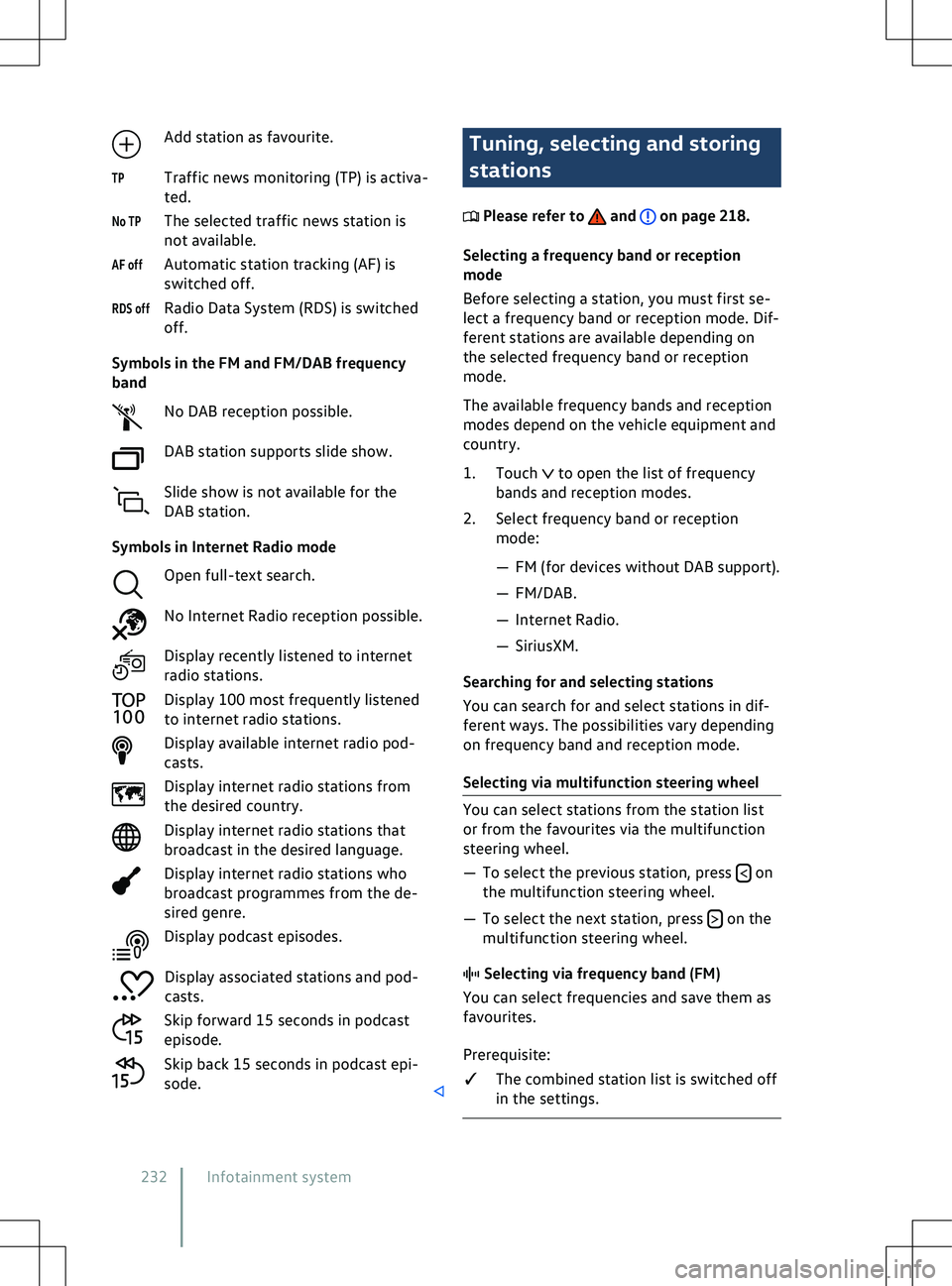
Add station as favourite.
Traffic news monitoring (TP) is activ a-
ted.
The selected traffic news station is
not available.
Automatic station tracking (AF) is
switched off.
Radio Data System (RDS) is switched
off.
Symbols in the FM and FM/DAB frequency
band No DAB reception possible.
DAB station supports slide show.
Slide show is not available for the
DAB station.
Symbols in Internet Radio mode Open full-text search.
No Internet Radio reception possible.
Display recently listened to internet
radio stations.
Display 100 most frequently listened
to internet radio stations.
Display available internet radio pod-
casts.
Display internet radio stations from
the desired country.
Display internet radio stations that
broadcast in the desired language.
Display internet radio stations who
broadcast programmes from the de-
sired genre.
Display podcast episodes.
Display associated stations and pod-
casts.
Skip forward 15 seconds in podcast
episode.
Skip back 15 seconds in podcast epi-
sode. Tuning, selecting and storing
stations
Please refer to and on page 218.
Selecting a frequency band or reception
mode
Bef
ore selecting a station, you must first se-
lect a frequency band or reception mode. Dif-
ferent stations are available depending on
the selected frequency band or reception
mode.
The available frequency bands and reception
modes depend on the vehicle equipment and
country.
1. Touch to open the list of frequency
bands and reception modes.
2.
Select frequency band or reception
mode:
Page 239 of 417
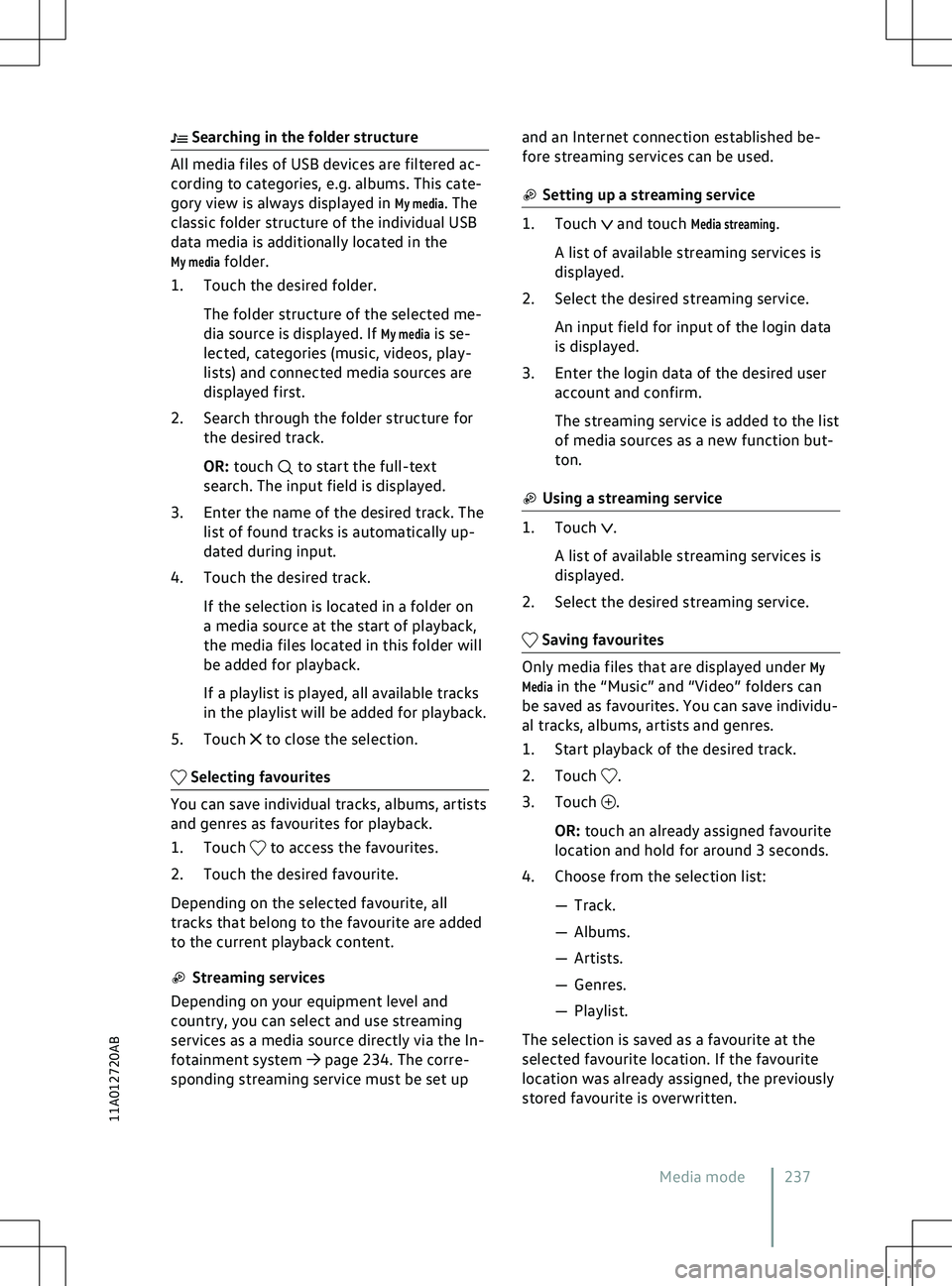
Searching in the folder structure
to start the full-text
search. The input field is displayed.
3.
Enter the name of the desired track. The
list of found tracks is automatically up-
dated during input.
4. Touch the desired track.
If the selection is located in a folder on
a media source at the start of playback,
the media files located in this folder will
be added for playback.
If a playlist is played, all available tracks
in the playlist will be added for playback.
5. Touch to close the selection.
to access the favourites.
2.
Touch the desired favourite.
Depending on the selected favourite, all
tracks that belong to the favourite are added
to the current playback content. and touch
Media streaming.
A list of available streaming services is
displayed.
2. Select the desired streaming service.
An input field for input of the login data
is displayed.
3. Enter the login data of the desired user account and confirm.
The streaming service is added to the list
of media sources as a new function but-
ton. .
A list of a
vailable streaming services is
displayed.
2. Select the desired streaming service. .
3.
Touch .
OR: touch an already assigned fa
vourite
location and hold for around 3 seconds.
4. Choose from the selection list:
Page 242 of 417
formation, to enable you to enter destina-
tions quickly and to optimise route guidance.
Deleting stored data
Basic functions Delete usage pattern.
2. Touch confirmation to delete. Navigation equipment and
symbols
Please refer to and on page 218 and
at the start of the chapter on page 238.
Na
vigation
The navigation functions depend on the
equipment level and country.
The function buttons and displays depend on
the settings and the current driving situation.
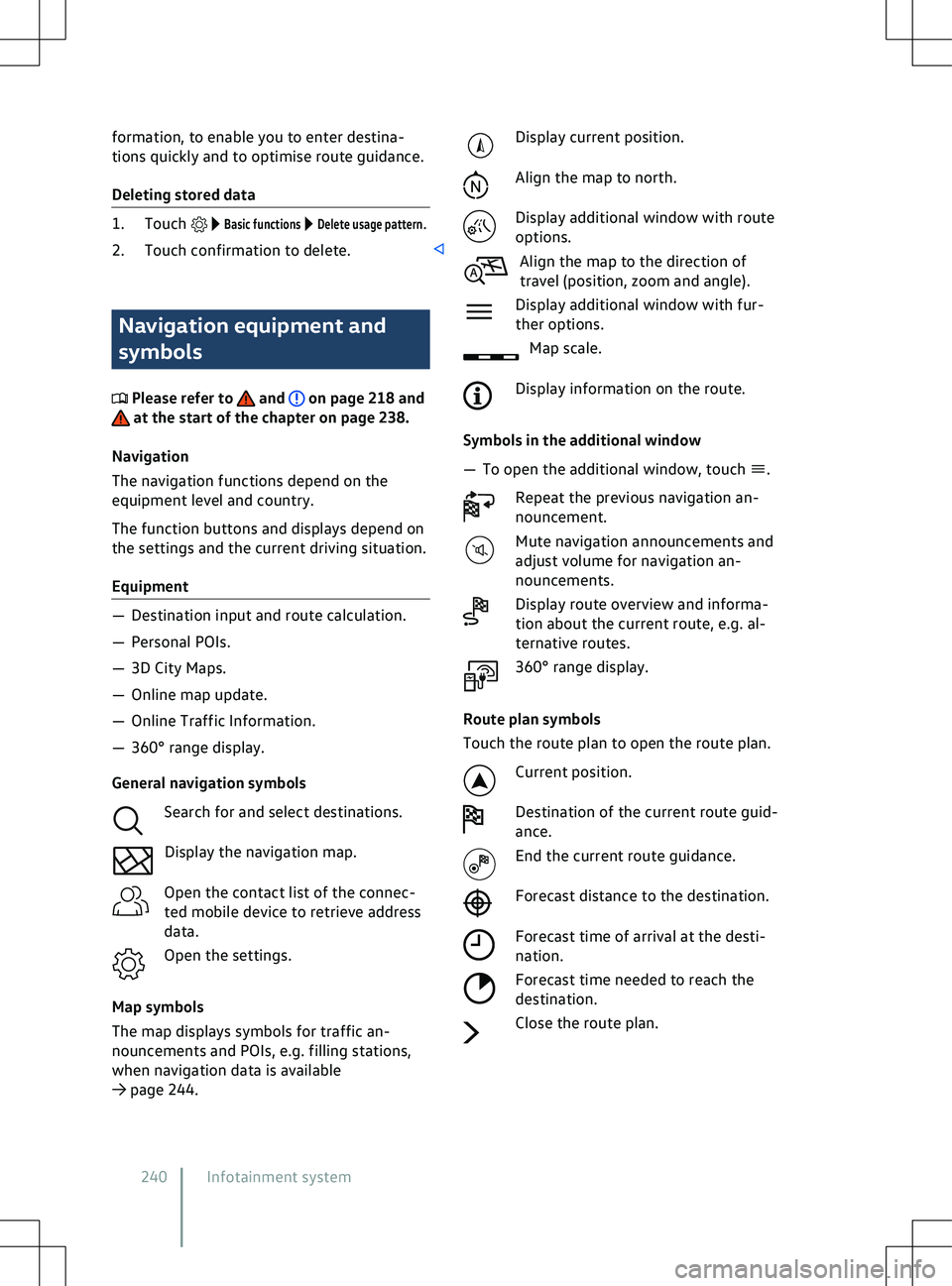
Equipment Display current position.
Align the map to north.
Display additional window with route
options.
Align the map to the direction of
tra
vel (position, zoom and angle).
Display additional window with fur-
ther options. Map scale.
Display information on the route.
Symbols in the additional window
Page 243 of 417
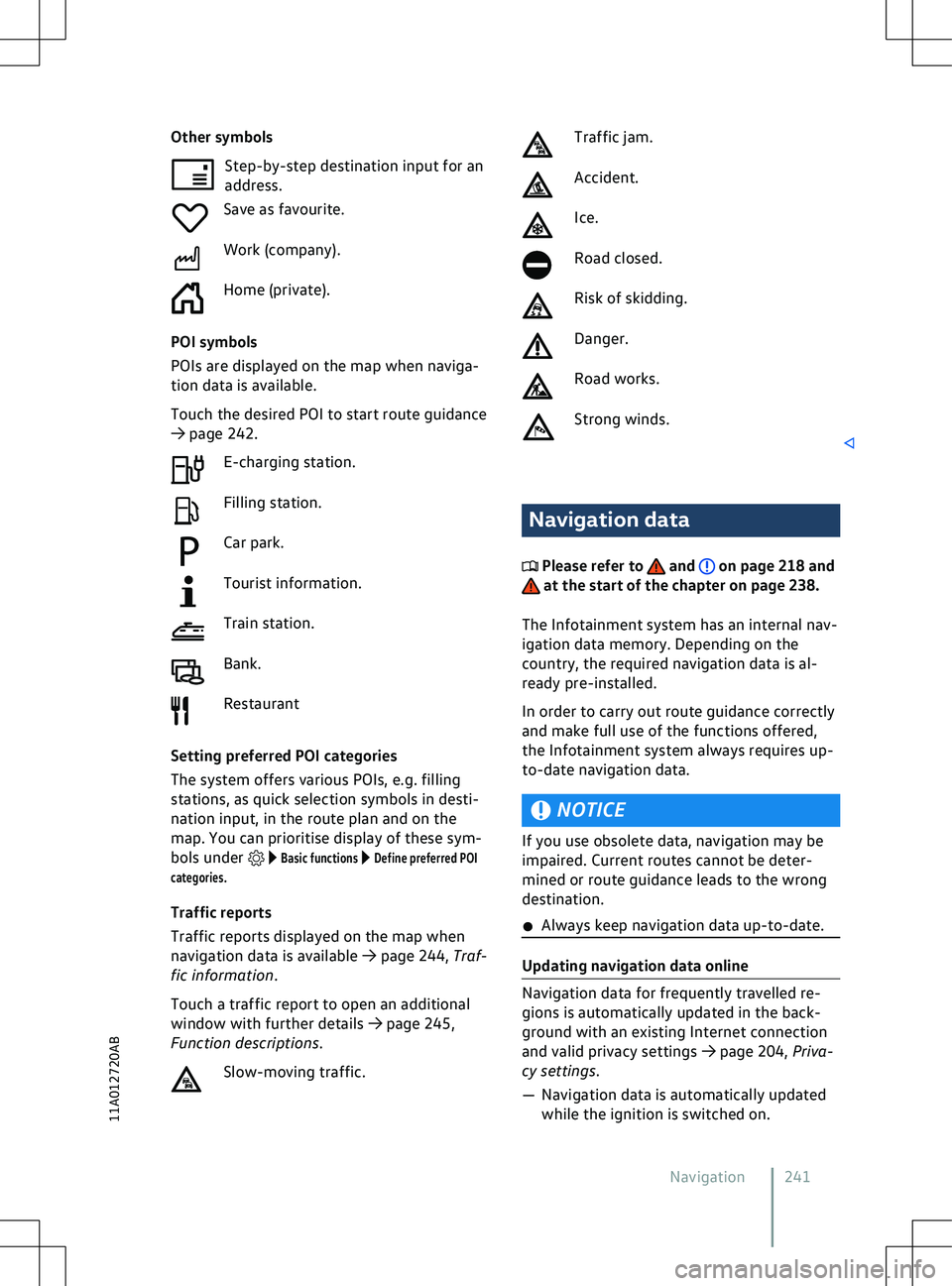
Other symbols
Step-by-step destination input f or an
address.
Save as favourite.
Work (company).
Home (private).
POI symbols
POIs are displayed on the map when naviga-
tion data is available.
Touch the desired POI to start route guidance
Page 248 of 417
A forecast arrival time will be displayed.
You can activ
ate or deactivate the function at
any time and also delete the stored data for
the function.
Activating and deactivating “Learn usage
pattern”
Basic functions to open the set-
tings for this function.
2. To activate the function, activate
Learn us-
age pattern.
3. To deactivate the function, deactivate
Learn usage pattern.
Deleting stored data
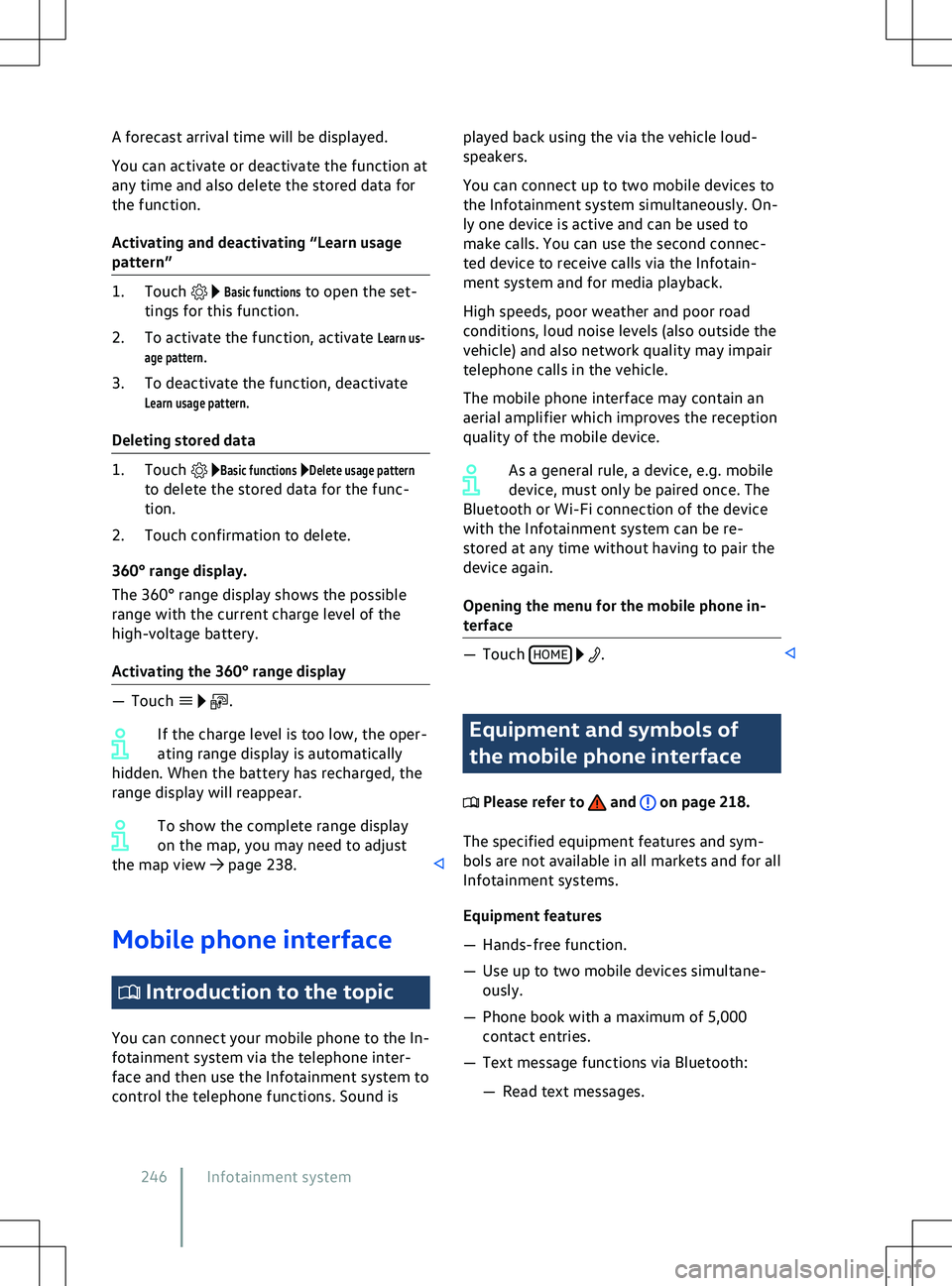
.
If the charge le
vel is too low, the oper-
ating range display is automatically
hidden. When the battery has recharged, the
range display will reappear.
To show the complete range display
on the map, you may need to adjust
the map view
Page 251 of 417

x
Carry out pairing only when the v ehicle
is stationary. When some mobile devices are paired,
a PIN is shown on the display of the
mobile de
vice. To finish the pairing proce-
dure, enter this PIN on the Infotainment sys-
tem.
Bluetooth pairing via NFC
NFC is not available in all countries and vehi-
cle models. Depending on the vehicle equip-
ment, NFC is not available in every vehicle
with a wireless charging function.
Prerequisites for one-off pairing:
�q NFC technology and a stowage compart-
ment with wireless charging function are
installed in the vehicle.
�q NFC is activated on the mobile device. 1. Touch
Select mobile telephone.
2. Unlock the mobile device.
3. Place the mobile device correctly on the stowage area for the wireless charging
function.
4. Continue and confirm Bluetooth pairing in accordance with the displays on the
mobile device and Infotainment system.
The mobile device is paired with the Infotain-
ment system.
The wireless charging function is deac-
tivated while the Infotainment system
is in the
Known mobile phones menu. The wireless
charging function will be reactivated when
you leave the menu.
Managing connections
Prerequisites:
�q The mobile device is paired and connec-
ted. 1. Touch
HOME
Mobile devices.
2. Touch the technology desired for the connection. . The mobile device with active
connection is marked.
2.
Touch the name of the desired mobile
device. Other mobile devices then auto-
matically have a passive connection.
User profiles
An individual user profile is automatically cre-
ated for every paired mobile device. Data
from the mobile device are stored in the user
profile, e.g. contact details. A maximum of
ten user profiles can be stored in the Info-
tainment system simultaneously.
Deleting a user profile .
The user profiles are located in the area
Select mobile telephone or Mobile devices.
Active
Passive
Mobile phone interface 24911A012720AB