2022 TOYOTA RAV4 audio
[x] Cancel search: audioPage 195 of 748

1954-2. Driving procedures
4
Driving
Modes can be changed by
pressing the engine switch with
brake pedal released. (The
mode changes each time the
switch is pressed.)1
OFF
*
The emergency flashers can be
used.
The multi-information display will
not be displayed.
2ACC
Some electrical components such
as the audio sys tem can be used.
“ACCESSORY” will be displayed
on the multi-information display.
3 ON
All electrical components can be
used.
“IGNITION ON” will be displayed on
the multi-information display.
*: If the shift lever is in a position
other than P when turning off the
engine, the engine switch will be
turned to ACC, not to OFF.
■Auto power off function
If the vehicle is left in ACC for more
than 20 minutes or ON (the engine
is not running) for more than an
hour with the shift lever in P, the
engine switch will automatically turn
to OFF. However, this function can-
not entirely prevent battery dis-
charge. Do not leave the vehicle
with the engine switch in ACC or ON
WARNING
■When parking
Exhaust gases include harmful
carbon monoxide (CO), which is
colorless and odorless. Observe
the following precautions.
Failure to do so may cause
exhaust gases to enter the vehicle
and may lead to an accident
caused by light-headedness, or
may lead to death or a serious
health hazard.
●If the vehicle is in a poorly venti-
lated area or a closed area,
such as a garage, stop the
engine.
●Do not leave the vehicle with
the engine running for a long
time. If such a situation cannot
be avoided, park the vehicle in
an open space and ensure that
exhaust fumes do not enter the
vehicle interior.
●Do not leave the engine running
in an area with snow build-up,
or where it is snowing. If snow-
banks build up around the vehi-
cle while the engine is running,
exhaust gases may collect and
enter the vehicle.
Changing engine switch
modes
Page 243 of 748

2434-5. Using the driving support systems
4
Driving
This function operates when all of
the following cond itions are met.
• Setting for “Sway Warning” in the
screen of the mu lti-information
display is set to “ON”. ( P.89)
• Vehicle speed is approximately 32 mph (50 km/h) or more.
• Width of traffic lane is approxi- mately 9.8 ft. ( 3 m) or more.
• No system malfunctions are detected. ( P.244)
●Lane centering function
This function oper ates when all of
the following cond itions are met.
• LTA is turned on.
• Setting for “Steering Assist” and
“Lane Center” in the screen of
the multi-informati on display is set
to “ON”. ( P.89)
• This function recognizes white (yellow) lane lines or the position
of a preceding vehicle (except
when the preceding vehicle is
small, such as a motorcycle).
• The dynamic radar cruise control
with full-speed range is operating
in vehicle-to-vehic le distance con-
trol mode.
• Width of traffic lane is approxi-
mately 10 to 13 ft. (3 to 4 m).
• Turn signal lever is not operated.
• Vehicle is not being driven around a sharp curve.
• No system malfunctions are detected. ( P.244)
• Vehicle does not accelerate or decelerate by a fixed amount or
more.
• Steering wheel is not operated with a steering force level suitable
for changing lanes.
• ABS, VSC, TRAC and PCS are not operating.
• TRAC or VSC is not turned off.
• Hands off steering wheel warning
is not displayed. ( P.244)
• The vehicle is being driven in the
center of a lane.
• Steering assist function is not operating.
■Temporary cancelation of func-
tions
●When operation conditions are no
longer met, a function may be
temporarily canceled. However,
when the operation conditions are
met again, operation of the func-
tion is automatically restored.
( P.242)
●If the operation conditions
( P.242) are no longer met while
the lane centering function is
operating, the buzzer may sound
to indicate that the function has
been temporarily canceled.
■Steering assist function/lane
centering function
●Depending on the vehicle speed,
lane departure situation, road con-
ditions, etc., the driver may not
feel the function is operating or
the function may not operate at
all.
●The steering control of the func-
tion is overridden by the driver’s
steering wheel operation.
●Do not attempt to test the opera-
tion of the steering assist function.
■Lane departure alert function
●The warning buzzer may be diffi-
cult to hear due to external noise,
audio playback, etc.
●If the edge of the course* is not
clear or straight, the lane depar-
ture alert function may not oper-
ate.
●Vehicles with BSM: It may not be
possible for the system to deter-
mine if there is a danger of a colli-
sion with a vehicl e in an adjacent
lane.
●Do not attempt to test the opera-
tion of the lane departure alert
function.
*: Boundary between asphalt and
the side of the road, such as
grass, soil, or a curb
Page 261 of 748

2614-5. Using the driving support systems
4
Driving
■Outside rear view mirror indica-
tors visibility
In strong sunlight, the outside rear
view mirror indicato r may be difficult
to see.
■Hearing the RCTA buzzer
The RCTA buzzer may be difficult to
hear over loud noises such as high
audio volume.
■When “Blind Spot Monitor
Unavailable” or “Rear Cross
Traffic Alert Unavailable” is
shown on the multi-information
display
The sensor voltage has become
abnormal, or water, snow, mud,
etc., may be built up in the vicinity of
the sensor area of the rear bumper. (
P.263)
Removing the water, snow, mud,
etc., from the vicini ty of the sensor
area should return it to normal.
Also, the sensor may not function
normally when used in extremely
hot or cold weather.
■When “Blind Spot Monitor Mal-
function Visit Your Dealer” or
“Rear Cross Traffic Alert Mal-
function Visit Your Dealer” is
shown on the multi-information
display
There may be a sensor malfunction
or misaligned. Have the vehicle
inspected at a Toyota dealer.
■Customization
Some functions can be customized.
( P.94)
■Certification for the Blind Spot Monitor
For vehicles sold in t he U.S.A., Hawaii, American Samoa, Guam, Saipan
and Puerto Rico
Page 270 of 748

2704-5. Using the driving support systems
*: If equipped
■Location and types of sen-
sorsFront corner sensors
Front center sensors
Rear corner sensors
Rear center sensors
■Display (Multi-information
display)
When the sensors detect an
object, such as a wall, a graphic is shown on the multi-informa-
tion display depending on the
position and distance to the
object.
Front corner sensor detection
Front center sensor detec-
tion
*1
Rear corner sensor detec-
tion
*2
Rear center sensor detec-
tion
*2
*1: Displayed when the shift lever is in a driving position
*2: Displayed when the shift lever is in R
■Display (Audio system
screen)
When the sensors detect an
object, such as a wall, a graphic
is shown on the navigation sys-
tem (if equipped) or multimedia
system (if equipped) screen
depending on the position and
distance to the object.
When the Toyota parking
assist monitor (if equipped) is
displayed
Intuitive parking
assist*
The distance from your
vehicle to objects, such as a
wall, when parallel parking
or maneuvering into a
garage is measured by the
sensors and communicated
via the multi-information
display, navigation system
or multimedia system
screen and a buzzer. Always
check the surrounding area
when using this system.
System components
A
B
C
D
A
B
C
D
Page 273 of 748

2734-5. Using the driving support systems
4
Driving
●Initialization may not have been
performed after a battery terminal
was disconnected and recon-
nected. Initialize the system.
( P.273)
If this message continues to be
displayed even after initialization,
have the vehicle inspected by
your Toyota dealer.
■If a battery terminal has been
disconnected and reconnected
The system needs to be initialized.
To initialize the system, drive the
vehicle straight ahead for 5 seconds
or more at a speed of approximately
22 mph (35 km/h) or more.
■Sensor detection information
●The sensor’s detection areas are
limited to the areas around the
vehicle’s front and rear bumpers.
●The following situations may occur
during use.
• Depending on the shape of the
object and other factors, the
detection distance may shorten,
or detection may be impossible.
• Detection may be impossible if static objects draw too close to the
sensor.
• There will be a short delay
between static object detection
and display (warning buzzer
sounds). Even at low speeds,
there is a possibilit y that the object
will come within 11. 9 in. (30 cm)
before the display is shown and
the warning buzzer sounds.
• It might be difficult to hear the
buzzer due to the volume of the
audio system or air flow noise of
the air conditioning system.
• It may be difficult to hear the sound of this system due to the
buzzers of other systems.
■Objects which the system may
not properly detect
The shape of the object may pre-
vent the sensor from detecting it.
Pay particular attention to the fol-
lowing objects:
●Wires, fences, ropes, etc.
●Cotton, snow and other materials
that absorb sound waves
●Sharply-angled objects
●Low objects
●Tall objects with upper sections
projecting outwards in the direc-
tion of your vehicle
People may not be detected if they
are wearing certain types of cloth-
ing.
■Situations in which the system
may not operate properly
Certain vehicle conditions and the
surrounding environment may affect
the ability of a sensor to correctly
detect objects. Part icular instances
where this may occur are listed
below.
●There is dirt, snow or ice on a sen-
sor. (Cleaning th e sensors will
resolve this problem.)
●A sensor is froz en. (Thawing the
area will resolve this problem.)
In especially cold weather, if a
sensor is frozen the sensor dis-
play may be displayed abnor-
mally, or objects, such as a wall,
may not be detected.
●When a sensor or the area around
a sensor is extremely hot or cold.
●On an extremely bumpy road, on
an incline, on gravel, or on grass.
●When vehicle horns, vehicle
detectors, motorcycle engines, air
brakes of large vehicles, the clear-
ance sonar of ot her vehicles or
other devices which produce ultra-
sonic waves are near the vehicle.
Page 313 of 748
3134-5. Using the driving support systems
4
Driving
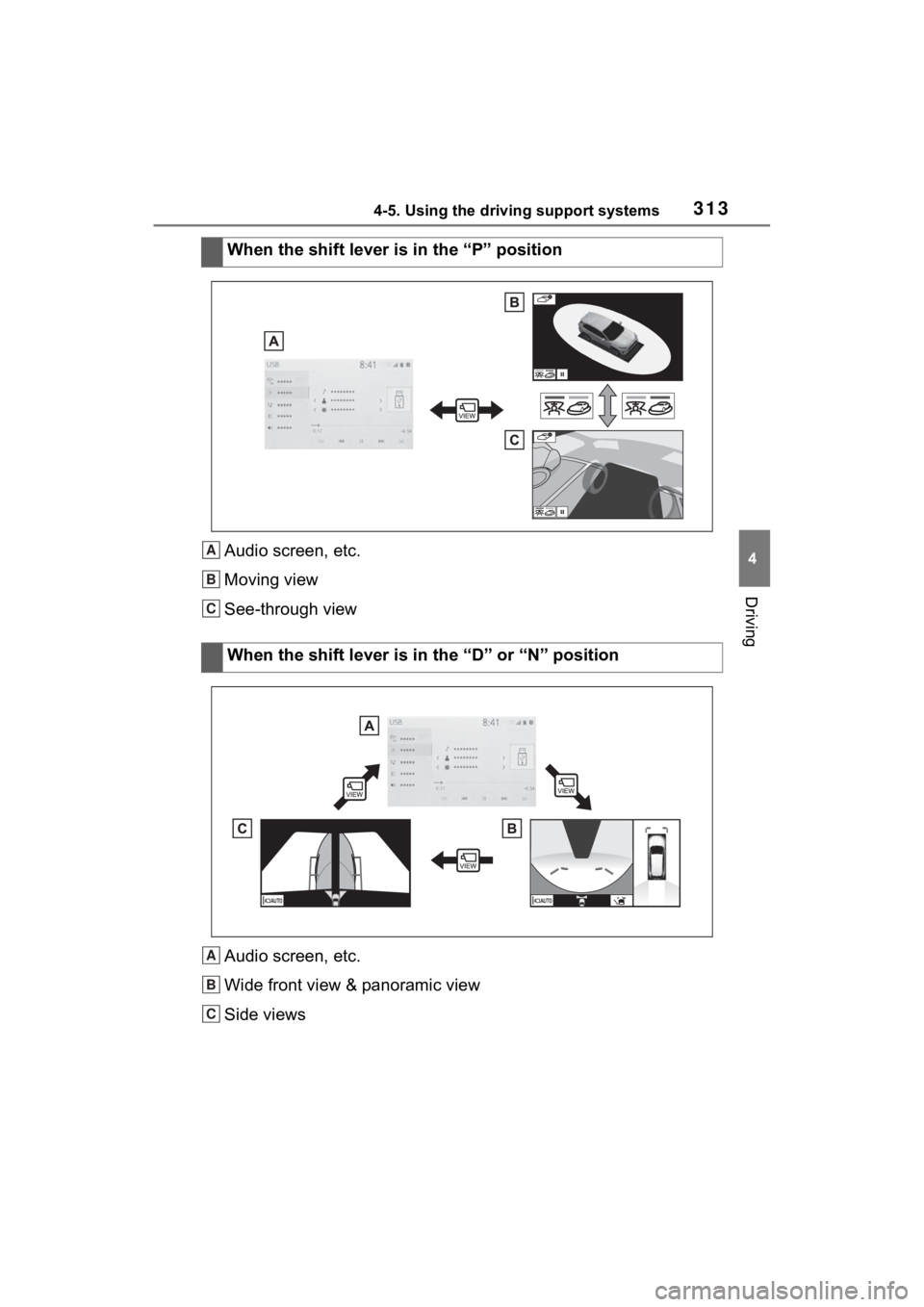
Audio screen, etc.
Moving view
See-through view
Audio screen, etc.
Wide front view & panoramic view
Side viewsWhen the shift lever is in the “P” position
When the shift lever is in the “D” or “N” positionA
B
C
A
B
C
Page 315 of 748
3154-5. Using the driving support systems
4
Driving
screen.
To resume rotation, select .
Body color setting switch
Select to display the body color set-
ting screen and change the color of
the vehicle displa yed on the pan-
oramic view monitor. ( P.328)
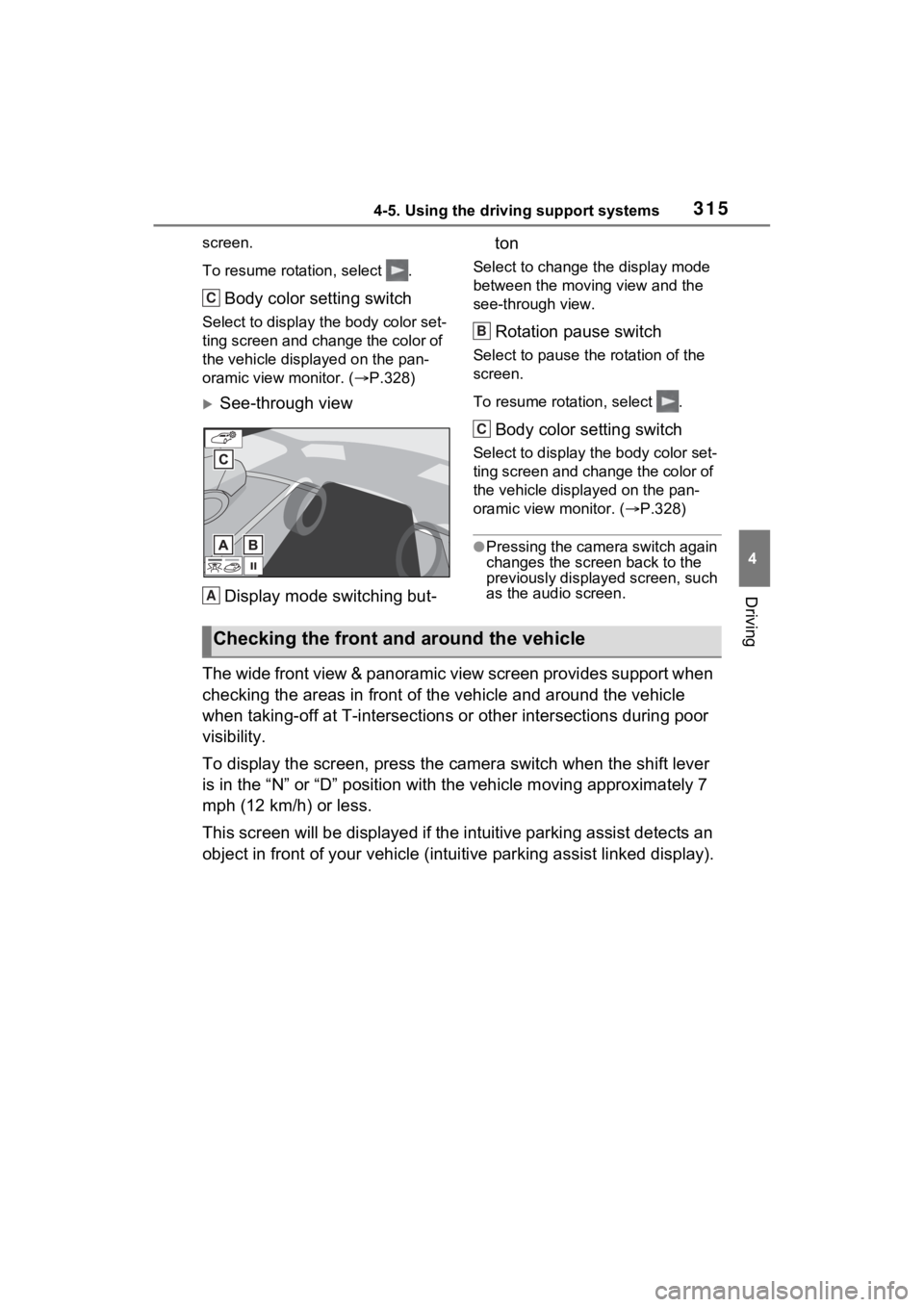
See-through view
Display mode switching but- ton
Select to change the display mode
between the moving view and the
see-through view.
Rotation pause switch
Select to pause th
e rotation of the
screen.
To resume rotation, select .
Body color setting switch
Select to display the body color set-
ting screen and change the color of
the vehicle displayed on the pan-
oramic view monitor. ( P.328)
●Pressing the camera switch again
changes the screen back to the
previously displayed screen, such
as the audio screen.
The wide front view & panoramic view screen provides support wh en
checking the areas in front of the vehicle and around the vehic le
when taking-off at T-intersections or other intersections durin g poor
visibility.
To display the screen, press the camera switch when the shift lever
is in the “N” or “D” position with the vehicle moving approxima tely 7
mph (12 km/h) or less.
This screen will be displayed if the intuitive parking assist d etects an
object in front of your vehicle (i ntuitive parking assist linked display).
C
A
B
C
Checking the front and around the vehicle
Page 316 of 748

3164-5. Using the driving support systems
Wide front view & panoramic viewDistance guide lines
Shows distance in front of the vehicle.
• Display points approximately 3 ft. (1 m) from the edge of the bumper.
Intuitive parking assist
When a sensor detects an obstacle, the direction of and the app roximate
distance to the obsta cle are displayed and the buzzer sounds.
Estimated course lines
Shows an estimated course when the steering wheel is turned.
• This line will be displayed when the steering wh eel is turned by 90° or
more from the cen ter (straight-line) position.
Guide line switching button
Select to change the guide line mode between the distance guide line
mode and the estimated course line mode. ( P.317)
Automatic display button
Select to turn automatic display mode on/off. The indicator on the button
illuminates during autom atic display mode. (P.317)
Parking Support Brake*
When the system determines that the possib ility of a frontal collision with a
detected object is high, a warning message is displayed.
*: If equipped
●Pressing the camera switch chan ges the screen to the side views screen
or previously displayed scre en, such as the audio screen.
●For details about the intuitive parking assist (P.270) and Parking Sup-
port Brake* function. ( P.278)
●The display position of the intuitive parking assist and the po sition of
obstacles displayed in the camera image do not match.
Screen display
A
B
C
D
E
F