2022 TOYOTA RAV4 display
[x] Cancel search: displayPage 457 of 748

4575-12. Voice command system operation
5
Audio
Recognizable voice commands
and their actions are shown
below.
Frequently used commands
are listed in the following
tables.
For devices that are not
installed to the vehicle, com-
mands relating to that device
may not be displayed on the
screen. Also, depending on
other conditions, such as
compatibility, some com-
mands may not be displayed
on the screen.
The functions available may
vary according to the system
installed.
Voice recognition language
can be changed. ( P.410)
When an Apple Car-
Play/Android Auto connec-
tion is established, some
commands will become
unavailable.
■Common
■Top menu
*: Vehicle must be parked
Command list
Command list overview
Command list
CommandAction
“Help”
Displays exam-
ples of some of
the available
commands
“Go back”Returns to the
previous screen
“Cancel”
Cancels the
voice command
system
“Start over”Returns to top
menu screen
“Pause”
Temporarily
pauses a voice
session until it is
resumed by
pressing the talk
switch again.
CommandAction
“Show com-
mand examples
for
Page 458 of 748
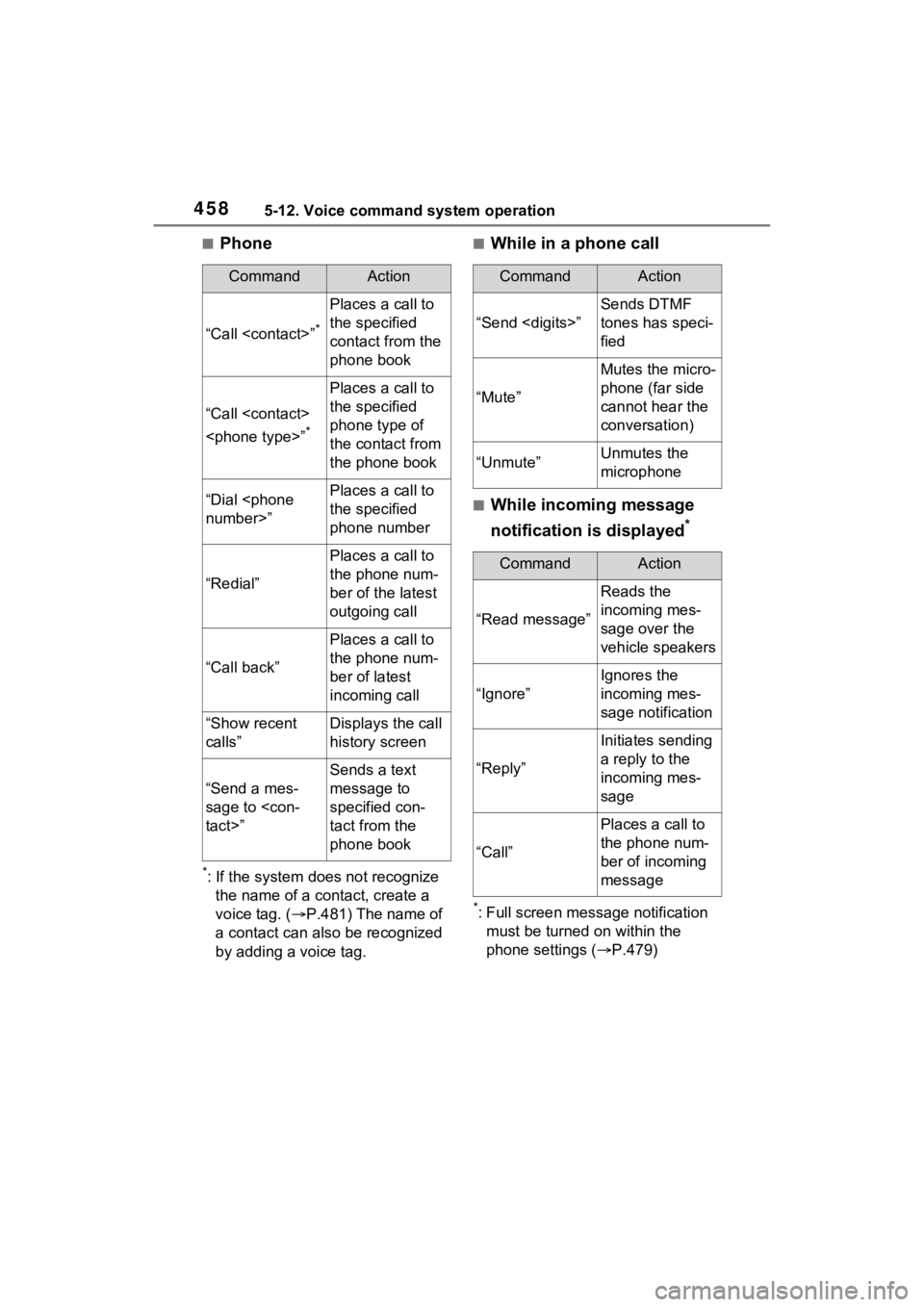
4585-12. Voice command system operation
■Phone
*: If the system does not recognize the name of a contact, create a
voice tag. ( P.481) The name of
a contact can also be recognized
by adding a voice tag.
■While in a phone call
■While incoming message
notification is displayed
*
*: Full screen message notification must be turned on within the
phone settings ( P.479)
CommandAction
“Call
Places a call to
the specified
contact from the
phone book
“Call
*
Places a call to
the specified
phone type of
the contact from
the phone book
“Dial
the specified
phone number
“Redial”
Places a call to
the phone num-
ber of the latest
outgoing call
“Call back”
Places a call to
the phone num-
ber of latest
incoming call
“Show recent
calls”Displays the call
history screen
“Send a mes-
sage to
Sends a text
message to
specified con-
tact from the
phone book
CommandAction
“Send
Sends DTMF
tones has speci-
fied
“Mute”
Mutes the micro-
phone (far side
cannot hear the
conversation)
“Unmute”Unmutes the
microphone
CommandAction
“Read message”
Reads the
incoming mes-
sage over the
vehicle speakers
“Ignore”
Ignores the
incoming mes-
sage notification
“Reply”
Initiates sending
a reply to the
incoming mes-
sage
“Call”
Places a call to
the phone num-
ber of incoming
message
Page 461 of 748

4615-13. Mobile Assistant operation
5
Audio
5-13.Mobile Assistant operation
*: This function is not made avail-able in some countries or areas.
Mobile Assist supports the Siri
Eyes Free Mode and Google
App. The available features and
functions may vary based on the
iOS/Android version installed on
the connected device. 1
Press and hold the phone
switch on the steering wheel
until Mobile Assistant screen
is displayed.
2 The Mobile Assistant can be
used only when the following
screen is displayed.
To cancel the Mobile Assis-
tant, select “Cancel” or press
and hold the talk switch on the
steering wheel.
To restart the Mobile Assis-
tant for additional commands,
press the talk switch on the
steering wheel.
• Mobile Assistant can only be
restarted after the system
responds to a voice command.
• After some phone and music commands, the Mobile Assistant
Mobile Assistant*
The Mobile Assistant func-
tion is a voice input assist
function. Mobile Assist sup-
ports the Siri Eyes Free
Mode and Google App.
(Google App can be used
only with the corresponding
device.) Instructions can be
spoken into the vehicle
microphone as if speaking a
command to the phone. The
content of the request is
then interpreted by the
phone and the result is out-
put from the vehicle speak-
ers. To operate the Mobile
Assistant, a compatible
device must be registered
and connected to this sys-
tem via Bluetooth
®.
( P.386)
When an Apple CarPlay
connection is established,
this function will be unavail-
able.
Connectable devices and
available functions
Mobile Assistant opera-
tion
Page 464 of 748

4645-14. Phone operation (Hands-free system for cellular phones)
●This system is not guaranteed to
operate with all Bluetooth®
devices.
●If your cellular phone does not
support Bluetooth®, this system
cannot function.
●In the following conditions, the
system may not function:
• The cellular phone is turned off.
• The current position is outside the
communication area.
• The cellular phone is not con-
nected.
• The cellular phone has a low bat- tery.
●Depending on the type of
Bluetooth® phone, some function
is not available.
●When using the hands-free sys-
tem or Bluetooth® audio and
Wi-Fi® Hotspot functions at the
same time, the following problems
may occur:
• The Bluetooth
® connection may
be cut.
• Noise may be heard on the
Bluetooth
® audio playback.
• A noise may be heard during phone calls.
●Bluetooth® uses the 2.4 GHz fre-
quency band. If both a Wi-Fi® con-
nection and Bluetooth®
connection are being used simul-
taneously, each connection may
be affected.
●If a Bluetooth® device is attempt-
ing to connect to the vehicle while
another device is connected as a
Bluetooth
® audio device or con-
nected using the hands-free sys-
tem or Wi-Fi
® Hotspot function,
the communication speed may
decrease or malfunctions may
occur, such as image distortion or
audio skipping. If a Bluetooth
®
device is connected to the system,
the interference it may cause will
be reduced. When carrying a
device with its Bluetooth
® connec-
tion enabled, make sure to regis-
ter it to the system and connect it
or disable its Bluetooth
® function.
●When a device is connected via
Bluetooth®, the Bluetooth® icon
on the status bar will be displayed
in blue. ( P.374)
Some basics
The hands-free system
enables calls to be made
and received without having
to take your hands off the
steering wheel.
This system supports
Bluetooth
®. Bluetooth® is a
wireless data system that
enables cellular phones to
be used without being con-
nected by a cable or placed
in a cradle.
The operating procedure of
the phone is explained here.
When an Apple CarPlay
connection is established,
phone functions will be per-
formed by Apple CarPlay
instead of the hands-free
system.
WARNING
●While driving, do not operate a
cellular phone.
Page 465 of 748

4655-14. Phone operation (Hands-free system for cellular phones)
5
Audio
To use the hands-free system
for cellular phones, it is neces-
sary to register a cellular phone
with the system. (P.386)
■Connecting a Bluetooth®
device
Registering an additional
device
1 Display the phone top
screen. ( P.463)
2 Select “Select Device”.
3 Select “Add Device”.
When another Bluetooth
®
device is connected, a confir-
mation screen will be dis-
played. To disconnect the
Bluetooth
® device, select
“Yes”.
4 Follow the steps in “Register-
ing a Bluetooth
® phone for
the first time” from step 5.
( P.386)
Selecting a registered device
1 Display the phone top
screen. ( P.463)
2 Select “Select Device”.
3 Select the desired device to
be connected.
4 Check that a confirmation
screen is displayed when the
connection is complete.
If an error message is dis-
played, follow the guidance
on the screen to try again.
■Bluetooth® phone condition
display
The condition of the Bluetooth
®
phone appears on the upper
right side of the screen.
WARNING
●Your audio unit is fitted with
Bluetooth® antennas. People
with implantable cardiac pace-
makers, cardiac resynchroniza-
tion therapy-pacemakers or
implantable cardioverter defibril-
lators should maintain a reason-
able distance between
themselves and the Bluetooth
®
antennas. The radio waves may
affect the operation of such
devices.
●Before using Bluetooth®
devices, users of any electrical
medical device other than
implantable cardiac pacemak-
ers, cardiac resynchronization
therapy-pacemakers or implant-
able cardioverter defibrillators
should consult the manufacturer
of the device for information
about its operation under the
influence of radio waves. Radio
waves could have unexpected
effects on the operation of such
medical devices.
NOTICE
●Do not leave your cellular phone
in the vehicle. T he temperature
inside may rise to a level that
could damage the phone.
Registering/Connecting a
Bluetooth® phone
Page 466 of 748

4665-14. Phone operation (Hands-free system for cellular phones)
(P.374)
■Steering switch
By pressing the phone switch, a
call can be received or ended
without taking your hands off the
steering wheel.
Phone switch
• If the switch is pressed during a call, the call will end.
• If the switch is pressed when an incoming call is r eceived, the call
will be answered.
• If the switch is pressed during a call when a separate incoming
call is waiting, the waiting call will
be answered.
• If the switch is pressed when an Apple CarPlay/Android Auto con-
nection is established, the Apple
CarPlay/Android Auto phone
application will be displayed on
the system screen.
Volume control switch
• Press the “+” side to increase the volume.
• Press the “-” side to decrease the volume.
■Microphone
The microphone is used when
talking on the phone.
●The other party’s voice will be
heard from the front speakers.
The audio/vis ual system will be
muted during phone calls or when
hands-free voice commands are
used.
●Talk alternately with the other
party on the phone. If both parties
speak at the same time, the other
party may not hear what has been
said. (This is not a malfunction.)
●Keep call volume down. Other-
wise, the other party’s voice may
be audible outside the vehicle and
voice echo may increase. When
talking on the phone, speak
clearly towards the microphone.
●The other party may not hear you
clearly when:
• Driving on an unpaved road.
(Making excessive traffic noise.)
• Driving at high speeds.
• The roof or windows are open.
• The air conditioning vents are pointed towards the microphone.
• The sound of the air conditioning fan is loud.
• There is a negative effect on
sound quality due to the phone
and/or network being used.
Using the phone
switch/microphone
A
B
Page 468 of 748

4685-14. Phone operation (Hands-free system for cellular phones)
1Display the phone top
screen. ( P.463)
2 Select the desired method to
call from.
■Calling methods from
phone screen
By call history ( P.468)
By favorites ( P.469)
By contacts ( P.469)
By keypad ( P.470)
By message ( P.477)
■Also the following lists are
available from each func-
tion’s screen
By voice command system
( P.455)
By home screen ( P.471)
Up to 30 of the latest call history
items (missed, incoming and
outgoing) can be selected.
1 Display the phone top
screen. ( P.463)
2 Select “History” and select
the desired contact.
If the contact which is not reg-
istered on the contact list is
selected, the name is dis-
played as “Unknown Con-
tact”. In this case, select the
number to make a call.
3 Check that the dialing screen
is displayed.
●The icons of call type are dis-
played.
: Missed call
: Incoming call
: Outgoing call
●When making a call to the same
number continuously, only the
most recent call is listed in call his-
tory.
●When a phone number registered
in the contact list is received, the
name is displayed.
●Number-withheld calls are also
memorized in the system.
Placing a call using
the Bluetooth® hands-
free system
After a Bluetooth® phone
has been registered, a call
can be made using the
hands-free system. There
are several methods by
which a call can be made, as
described below.
Calling methods on the
Bluetooth
® phone
By call history
Page 469 of 748

4695-14. Phone operation (Hands-free system for cellular phones)
5
Audio
●International phone calls may not
be made depending on the type of
Bluetooth
® phone you have.
●The list should group together
consecutive entries with the same
phone number and same call
type. For example, two calls from
John’s mobile would be displayed
as follows: John (2)
Calls can be made using regis-
tered contacts which can be
selected from a contact list.
( P.469)
1 Display the phone top
screen. ( P.463)
2 Select “Favorites” and select
the desired contact.
3 Select the desired number.
4 Check that the dialing screen
is displayed.
Calls can be made by using
contact data which is transferred
from a registered cellular phone.
( P.481)
Up to 5000 contacts (maximum
of 4 phone numbers, e-mail
addresses and addresses per
contact) can be registered in the
contact list.
1 Display the phone top
screen. ( P.463)
2 Select “Contacts” and select
the desired contact. 3
Select the desired number.
“Add Favorite”/“Remove Favorite”:
Select to register/remove the con-
tact in the favo rites list. (P.486)
“E-mail Addresses”: Select to dis-
play all registered e-mail addresses
for the contact.
“Addresses”: Select to display all
registered addresses for the con-
tact.
4 Check that the dialing screen
is displayed.
■For PBAP compatible
Bluetooth
® phones when
“Automatic Transfer” is set
to on ( P.481)
Contacts are transferred auto-
matically.
By favorites list
By contacts list
When the contact list is
empty