2022 TOYOTA COROLLA HATCHBACK change time
[x] Cancel search: change timePage 8 of 758

6
Please note that this manual
applies to all models and explains
all equipment, including options.
Therefore, you may find some
explanations for equipment not
installed on your vehicle.
All specifications provided in this
manual are current at the time of
printing. However, because of the
Toyota policy of continual product
improvement, we reserve the right
to make changes at any time with-
out notice.
Depending on specifications, the
vehicle shown in the illustrations
may differ from your vehicle in
terms of equipment.
Both genuine Toyota and a wide
variety of other spare parts and
accessories for Toyota vehicles are
currently available on the market.
Should it be determined that any of
the genuine Toyota parts or acces-
sories supplied with the vehicle
need to be replaced, Toyota recom-
mends that genuine Toyota parts or
accessories, be used to replace
them. Other parts or accessories of
matching quality can also be used.
Toyota cannot accept any liability or
guarantee spare parts and acces-
sories which are not genuine
Toyota products, nor for replace-
ment or installati on involving such
parts. In addition, damage or per-
formance problems resulting from
the use of non-genuine Toyota
spare parts or accessories may not
be covered under warranty.
The installation of an RF-transmit-
ter system in your vehicle could
affect electronic systems such as:
Multiport fuel injection sys-
tem/sequential multiport fuel
injection system
Toyota Safety Sense (if
equipped)
Cruise control system (if
equipped)
Anti-lock brake system
SRS airbag system
Seat belt pretensioner system
Be sure to check with any author-
ized Toyota retailer or Toyota
authorized repairer, or any reliable
repairer for precautionary meas-
ures or special instructions regard-
ing installation of an RF-transmitter
system.
Further information regarding fre-
quency bands, power levels,
antenna positions and installation
provisions for the installation of
For your infor mation
Main Owner’s Manual
Accessories, spare parts
and modification of your
To y o t a
Installation of an RF-trans-
mitter system
Page 93 of 758

91
2
2-1. Instrument cluster
Vehicle status information and indicators
panel lights can be adjusted sepa-
rately for when the tail lights are on
and off.
• To adjust the brightness, display the
instrument panel light control display
and press and hold the display
change button.
Distance until next engine oil
change
Displays the distance the vehicle can
be driven until an oil change is neces-
sary.
The distance until the next engine oil
change will also be displayed in the fol-
lowing situations:
• When the engine switch is turned to
ON.
• When a warning message indicating
that oil maintenance should be per-
formed soon or is required is dis-
played.
• Resetting: P. 4 7 4
■Adjusting the minute to “00”
1 Press or to select of
the multi-information display.
2 Press or to select “Clock
: 00”.
Press the to set the clock to
the beginning of the nearest hour.
e.g.
1:00 to 1:29 1:00
1:30 to 1:59 2:00
■Changing the clock
1 Press or to select of
the multi-information display.
2 Press or to select “Clock
: 00”.
3 Press and hold the .
4 Press or to select an
item to be changed.
5 Press or to change the
setting.
The following can be changed:
12-hour/24-hour format
Hour
Minute
■Clock adjustment
The clocks on the following can be
adjusted on the audio system
screen.
Multi-information display
Audio system screen
■Setting the clock to be
adjusted automatically by GPS
1 Press the “MENU” button.
2 Select “Setup” on the “Menu”
screen.
3 Select “General” on the “Setup”
screen.
4 Select “Clock”.
Adjusting the clock (vehi-
cles without navigation/mul-
timedia system)
Adjusting the clock (vehi-
cles with navigation/multi-
media system)
Page 99 of 758

97
2
2-1. Instrument cluster
Vehicle status information and indicators
change
Displays the distance the vehicle can
be driven until an oil change is neces-
sary.
The distance until the next engine oil
change will also be displayed in the fol-
lowing situations:
• When the engine switch is turned to
ON.
• When a warning message indicating
that oil maintenance should be per-
formed soon or is required is dis-
played.
• Resetting: P. 4 7 4
■Adjusting the minute to “00”
1 Press or to select of
the multi-information display.
2 Press or to select “Clock
: 00”.
Press the to set the clock to
the beginning of the nearest hour.
e.g.
1:00 to 1:29 1:00
1:30 to 1:59 2:00
■Changing the clock
1 Press or to select of
the multi-information display.
2 Press or to select “Clock
: 00”.
3 Press and hold the .
4 Press or to select an
item to be changed.
5 Press or to change the
setting.
The following can be changed:
12-hour/24-hour format
Hour
Minute
■Clock adjustment
The clocks on the following can be
adjusted on the audio system
screen.
Multi-information display
Audio system screen
■Setting the clock to be
adjusted automatically by GPS
1 Press the “MENU” button.
2 Select “Setup” on the “Menu”
screen.
3 Select “General” on the “Setup”
screen.
4 Select “Clock”.
5 Select “Auto adjust by GPS” to
set to on.
■Adjusting the clock manually
1 Press the “MENU” button.
2 Select “Setup” on the “Menu”
screen.
Adjusting the clock (vehi-
cles without navigation/mul-
timedia system)
Adjusting the clock (vehi-
cles with navigation/multi-
media system)
Page 102 of 758

1002-1. Instrument cluster
■Liquid crystal display
Small spots or light spots may appear
on the display. This phenomenon is characteristic of liq uid crystal displays,
and there is no problem continuing to
use the display.
The multi-informat ion display is
operated using the meter control
switches.
/ : Select menu icons
/ : Change displayed con-
tent, scroll up/down the screen
and move the cursor up/down
Press: Enter/Set
Press and hold: Reset/Display
customizable items
Return to the previous screen
Call sending/receiving and his-
tory display
Linked with the hands-free system,
sending or receiving call is displayed.
For details regarding the hands-free
system, refer to the “Navigation and
multimedia system Owner’s manual”.
■Display items
Speedometer display/Driving
range (4.2-inch display)
Fuel economy
Eco Driving Indicator/Driving
range (if equipped)
■Speedometer display/Driving
range (4.2-inch display)
Speedometer display
Driving information display
( P.100)
Driving suppor t system infor-
mation display (if equipped)
( P.103)
Audio system-linked display
(if equipped) ( P.103)
Vehicle information display
( P.103)
Settings display ( P.104)
Warning message display
( P.520)
WA R N I N G
■Caution for use while driving
●When operating the multi-informa-
tion display while driving, pay extra attention to the safety of the area
around the vehicle.
●Do not look continuously at the
multi-information display while driv-
ing as you may fail to see pedestri-
ans, objects on the road, etc. ahead of the vehicle.
■The information display at low temperatures
P.90, 96
Changing the meter display
Content of driving informa-
tion
Page 104 of 758
1022-1. Instrument cluster
be updated.
When refueling, turn the engine switch
off. If the vehicle is refueled without
turning the engine switch off, the dis-
play may not be updated.
The average fuel economy display
can be changed in . ( P.104)
Average fuel economy (after
start)
Displays the average fuel consumption
since engine start.
Average fuel economy (after
refuel)
Displays the average fuel consumption
since the vehicle was refueled.
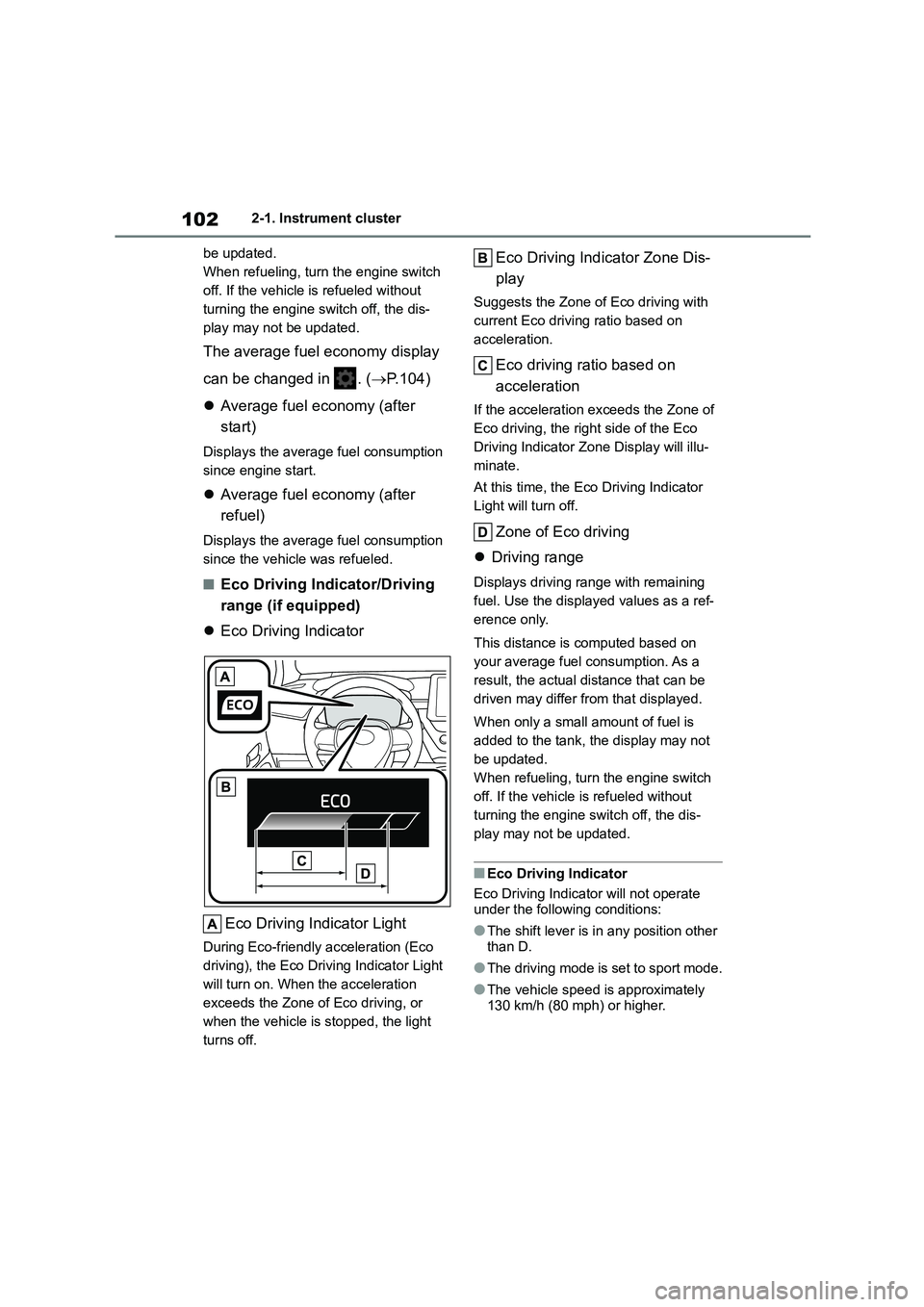
■Eco Driving Indicator/Driving
range (if equipped)
Eco Driving Indicator
Eco Driving Indicator Light
During Eco-friendly acceleration (Eco
driving), the Eco Driving Indicator Light
will turn on. When the acceleration
exceeds the Zone of Eco driving, or
when the vehicle is stopped, the light
turns off.
Eco Driving Indicator Zone Dis-
play
Suggests the Zone of Eco driving with
current Eco driving ratio based on
acceleration.
Eco driving ratio based on
acceleration
If the acceleration exceeds the Zone of
Eco driving, the right side of the Eco
Driving Indicator Zone Display will illu-
minate.
At this time, the Eco Driving Indicator
Light will turn off.
Zone of Eco driving
Driving range
Displays driving range with remaining
fuel. Use the displayed values as a ref-
erence only.
This distance is computed based on
your average fuel consumption. As a
result, the actual distance that can be
driven may differ from that displayed.
When only a small amount of fuel is
added to the tank, the display may not
be updated.
When refueling, turn the engine switch
off. If the vehicle is refueled without
turning the engine switch off, the dis-
play may not be updated.
■Eco Driving Indicator
Eco Driving Indicator will not operate
under the following conditions:
●The shift lever is in any position other
than D.
●The driving mode is set to sport mode.
●The vehicle speed is approximately 130 km/h (80 mph) or higher.
Page 106 of 758

1042-1. Instrument cluster
• Average vehicle speed: Displays the
average vehicle speed since the dis-
play was reset*
*: To reset, display the desired item and
press and hold the meter control
switch.
■Meter display settings that can
be changed
Clock setting (vehicles without
navigation/multimedia system)
P.91, 97
Language
Select to change the language dis-
played.
Units
Select to change the units of measure
displayed.
Speedometer display (7-inch dis-
play)
Select to set the display of the speed-
ometer to analog/digital/digital+ (if
equipped).
Eco Driving Indicator Light (if
equipped)
Select to enable/disable the Eco Driv-
ing Indicator Light.
• Fuel economy display
Select to change the average fuel con-
sumption display between after
start/after reset. ( P.101)
(if equipped)
Select to display/not display the audio
system linked display.
Select to change the displayed content
of the following:
• Drive information type
Select to change the drive information
type display between after start/after
reset.
• Drive information items
Select to set the first and second items
of the drive information display to any of
the following: average vehicle
speed/distance/elapsed time.
Pop-up display
Select to enable/disable pop-up dis-
plays for each relevant system.
Multi-information display off
(when analog/digital speedome-
ter is displayed)
Select to turn the multi-information dis-
play off.
To turn the multi-information display on
again, press any of the following meter
control sw itches
//// /.
Analog clock (when digital+
speedometer is displayed) (if
equipped)
Display the analog clock.
To turn the multi-information display on
again, press any of the following meter
control sw itches
//// /.
Default setting
Select to reset the meter display set-
tings to the default setting.
Settings display
Page 107 of 758

105
2
2-1. Instrument cluster
Vehicle status information and indicators
■Vehicle functions and settings
that can be changed
P. 5 7 7
■Suspension of the settings display
●Some settings cannot be changed
while driving. When changing set-
tings, park the vehicle in a safe place.
●If a warning message is displayed,
operation of the settings display will be suspended.
Stop & Start system operation
time (after start)/status notifica-
tion
Displays the current amount of time the
engine has been stopped by the opera-
tion of the Stop & Start system.
Also shows the status of the Stop &
Start system with a pop-up display.
( P.285)
Stop & Start system settings
The length of time of the Stop & Start
system will operate when the “A/C”
switch of the air co nditioning system is
on can be set to 2 different levels in
of the multi-information display.
( P.285)
WA R N I N G
■Cautions during setting up the
display
If the engine is running when chang- ing the display settings, ensure that
the vehicle is parked in a place with
adequate ventilation. In a closed area such as a garage, exhaust gases
including harmful carbon monoxide
(CO) may collect and enter the vehi- cle. This may lead to death or a seri-
ous health hazard.
NOTICE
■During setting up the display
To prevent battery discharge, ensure
that the engine is running while set-
ting up the display features.
Stop & Start system infor-
mation (if equipped)
Page 122 of 758

1203-2. Opening, closing and locking the doors
any authorized Toyota retailer or
Toyota authorized repairer, or any
reliable repairer.
*2: If equipped
■Key
Turning the key operates the doors
as follows:
Vehicles without a smart entry &
start system
1 Unlocks all the doors
Turn and hold to open the win-
dows*1and panoramic moon roof.*1, 2
2 Locks all the doors
Turn and hold to close the win-
dows*1and panoramic moon roof.*1, 2
*1: This setting must be customized at
any authorized Toyota retailer or
Toyota authorized repairer, or any
reliable repairer.
*2: If equipped
Vehicles with a smart entry &
start system
The doors can also be locked and
unlocked with the mechanical key.
( P.555)
■Switching the door unlock function
(vehicles with a smart entry & start
system)
It is possible to set which doors the entry
function unlocks using the wireless
remote control.
1 Turn the engine switch off.
2 When the indicator light on the key
surface is not on, press and hold
or (if equipped) for approxi-
mately 5 seconds while pressing and
holding .
The setting changes each time an oper-
ation is performed, as shown below. (When changing the setting continu-
ously, release the buttons, wait for at
least 5 seconds, and repeat step 2.)
For vehicles with an alarm: To prevent
unintended triggering of the alarm, unlock the doors using the wireless
remote control and open and close a
door once after the settings have been changed. (If a door is not opened within
Multi-information
display/BeepUnlocking function
(Left-hand drive vehicles)
(Right-hand drive vehicles)
Exterior: Beeps 3
times
Interior: Pings
once
Holding the
driver’s door han-
dle unlocks only
the driver’s door.
Holding the front
passenger’s door
handle unlocks all
the doors.
Exterior: Beeps
twice
Interior: Pings
once
Holding either front
door handle
unlocks all the
doors.