2022 TOYOTA COROLLA CROSS service
[x] Cancel search: servicePage 309 of 612
3095-3. Connectivity settings
5
Audio
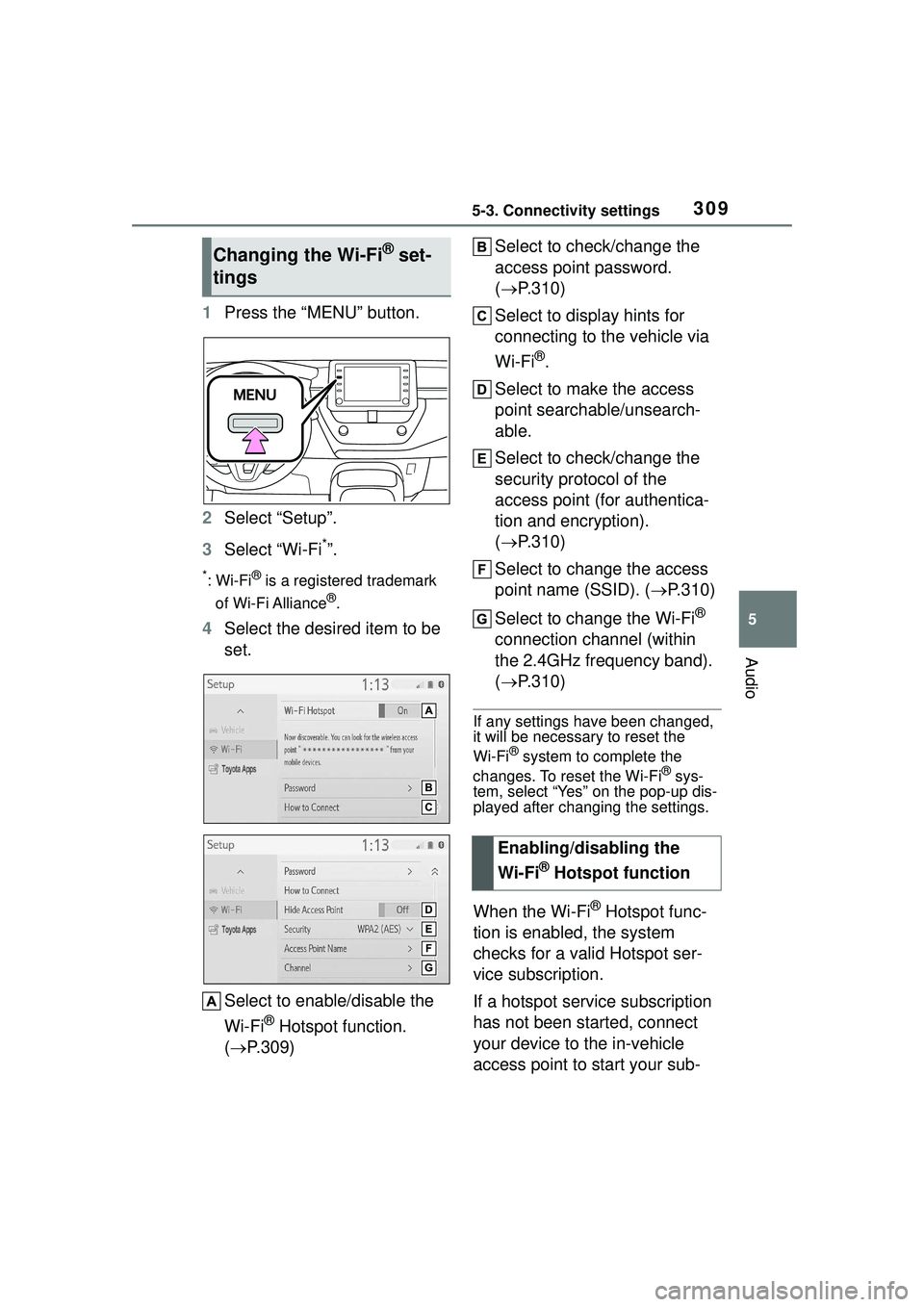
1Press the “MENU” button.
2 Select “Setup”.
3 Select “Wi-Fi
*”.
*:Wi-Fi® is a registered trademark
of Wi-Fi Alliance
®.
4 Select the desired item to be
set.
Select to enable/disable the
Wi-Fi
® Hotspot function.
( P.309) Select to check/change the
access point password.
(
P.310)
Select to display hints for
connecting to the vehicle via
Wi-Fi
®.
Select to make the access
point searchable/unsearch-
able.
Select to check/change the
security protocol of the
access point (for authentica-
tion and encryption).
( P.310)
Select to change the access
point name (SSID). ( P.310)
Select to change the Wi-Fi
®
connection channel (within
the 2.4GHz frequency band).
( P.310)
If any settings have been changed,
it will be necessary to reset the
Wi-Fi
® system to complete the
changes. To reset the Wi-Fi® sys-
tem, select “Yes” on the pop-up dis-
played after changing the settings.
When the Wi-Fi® Hotspot func-
tion is enabled, the system
checks for a valid Hotspot ser-
vice subscription.
If a hotspot service subscription
has not been started, connect
your device to the in-vehicle
access point to start your sub-
Changing the Wi-Fi® set-
tings
Enabling/disabling the
Wi-Fi
® Hotspot function
Page 314 of 612

3145-3. Connectivity settings
4Press the “MENU” button.
5 Select “Android Auto”.
6 Check that home screen of
Android Auto is displayed.
●When an Apple CarPlay/Android
Auto connection is established,
the function of some system but-
tons will change.
●When an Apple CarPlay/Android
Auto connection is established,
some system functi ons, such as
the following, will be replaced by
similar Apple CarPlay/Android
Auto functions or will become
unavailable:
• iPod (Audio Playback)
• Hands-free Phone
• USB audio/USB video
• Bluetooth
® audio
• Bluetooth® phone (Apple CarPlay
only)
• Toyota apps
●When an Apple CarPlay/Android
Auto connection is established,
voice command system (Siri/Goo-
gle Assistant) and map application
voice guidance volume can be
changed by selecting “Voice Vol-
ume” on the voice settings screen.
It cannot be changed by “POWER
VOLUME” knob on Audio control
panel. ( P.323)
●Apple CarPlay/Android Auto is an
application developed by Apple
Inc/Google LLC. Its functions and
services may be terminated or
changed without notice depending on the connected device’s opera-
tion system, hardware and soft-
ware, or due to changes in Apple
CarPlay/Android Auto specifica-
tions.
●For a list of the apps supported by
Apple CarPlay or Android Auto,
refer to their respective website.
●While using these functions, vehi-
cle and user information, such as
location and vehicle speed, will be
shared with the
respective appli-
cation publisher and the cellular
service provider.
●By downloading and using each
application, you agree to their
terms of use.
●Data for these fu nctions is trans-
mitted using the internet and may
incur charges.
For information about data trans-
mission fees, contact your cellular
service provider.
●Depending on the application, cer-
tain functions, such as music play-
back, may be restricted.
●As the applications for each func-
tion are provided by a third-party,
they may be subject to change or
discontinuation without notice.
For details, refer to the website of
the function.
●If the USB cable is disconnected,
operation of Apple Car-
Play/Android Auto will end.
At this time, sound output will stop
and change to the system screen.
●Use of the Apple CarPlay logo
means that a vehicle user inter-
face meets Apple performance
standards. Apple is not responsi-
ble for the operation of this vehicle
Page 333 of 612

3335-6. Radio operation
5
Audio
nal station
RBDS features are available
only when listening to an FM
station that broadcasts RBDS
information and the “FM Info”
function is on. ( P.332)
All SiriusXM se rvices, including
satellite radio and data services,
plus streaming services, require
a subscription, sold separately
or as a package by Sirius XM
Radio Inc. (or in Canada, Sirius
XM Canada Inc.), after any trial
subscription which may be
included with your vehicle pur-
chase or lease. To subscribe
after your trial subscription, call
1-877-447-0011 (U.S.A.) or
1-877-438-9677 (Canada).
■Important information
about your subscription
Your SiriusXM services will
automatically stop at the end of
your trial unless you decide to
subscribe. If you decide to con-
tinue service, the paid subscrip-
tion plan you choose will
automatically renew and you will
be charged the rate in effect at
that time and according to your
chosen payment method. Fees
and taxes apply. You may can-
cel at any time by calling
1-866-635-2349. See SiriusXM
Customer Agreement for com- plete terms at www.siri-
usxm.com (U.S.A.) or
www.siriusxm.ca
(Canada). All
fees and programming subject
to change. Traffic information
not available in all markets.
●About SiriusXM Services
• Most in-car trials today include
SiriusXM’s best package — All
Access. It includes every channel
available on your radio, plus
streaming.
●SiriusXM All Access Subscription
• Listen everywhere with All Access. You get every channel
available in your ride, plus you can
listen on the app and online — so
you can enjoy the best SiriusXM
has to offer, anywhere life takes
you. It’s the only package that
gives you all of our premium pro-
gramming, including Howard
Stern, every NFL, MLB
® and NBA
How to subscribe to Siri-
usXM Radio Services
NOTICE
●It is prohibited to copy, decom-
pile, disassemble, reverse engi-
neer, hack, manipulate, or
otherwise make available any
technology or so ftware incorpo-
rated in receivers compatible
with the SiriusXM Satellite
Radio System or that support
the SiriusXM website, the
streaming service or any of its
content. Furthermore, the
AMBE
® voice compression soft-
ware included in this product is
protected by intellectual prop-
erty rights including patent
rights, copyrights, and trade
secrets of Digital Voice Sys-
tems, Inc.
●Note: this applies to SiriusXM
Satellite Radio receivers only
and not SiriusXM Ready
devices.
Page 334 of 612

3345-6. Radio operation
game, every NASCAR® race,
NHL® games, 24/7 talk channels
dedicated to the biggest leagues,
and more. You get all kinds of
commercial-free mu sic, including
artist-dedicated channels and
more, plus sports, news, talk and
entertainment.
●Radio operation
• Look for the Sirius, XM, SiriusXM,
Band, SAT, AUX, Radio or Source
button and you’re in. If you can’t
hear us, it’s easy to get started:
U.S.A.:
Locate your Radio ID by turning to
Channel 0. If you don’t see your
number there, go to siri-
usxm.com/activationhelp to find it.
Visit siriusxm.com/refresh
or call
1-855-MYREFRESH (697-3373)
to send a refresh signal to your
radio.
Canada:
Locate your Radio ID by turning to
Channel 0.
Visit siriusxm.ca/refresh
to send a
refresh signal to your radio or call 1-888-539-7474 for service.
Each SiriusXM tuner is identified
with a unique radio ID. The radio
ID is required when activating
an SiriusXM service or when
reporting a problem.
If “Ch 000” is selected using
the “TUNE SCROLL” knob,
the ID code, which is 8 alpha-
numeric characters, will be
displayed. If another channel
is selected, the ID code will no
longer be displayed. The
channel (000) alternates
between displaying the radio
ID and the specific radio
code.
When problems occur with the SiriusXM tuner, a message will
appear on the screen. Referring to the table below to identify the
problem, take the suggested corrective action.
Displaying the radio ID
Refer to the table below to identify the problem and take
the suggested corrective action
MessageExplanation
“Check
Antenna”
The SiriusXM antenna is not connected. Check whether the
SiriusXM antenna cable is attached securely. Contact your
Toyota dealer for assistance.
A short circuit occurs in the antenna or the surrounding
antenna cable. Contact your Toyota dealer for assistance.
“No Signal”The SiriusXM signal is too weak at the current location. Wait
until your vehicle reaches a location with a stronger signal.
Page 336 of 612

3365-6. Radio operation
●Other applications can be acti-
vated while listening to internet
radio.
●Some parts of applications can be
adjusted using the switches on the
steering wheel.
●For additional information, refer to
https://www.toyota.com/
audio-multimedia or call
1-800-331-4331 in the United
States,
https://www.toyota.ca/connected
or call
1-888-869-6828 in Canada, and
http://www.toyotapr.com/
audio-multimedia or call
1-877-855-8377 in Puerto Rico.
1 Display the audio source
selection screen. ( P.327)
2 Select the desired application
screen button.
The internet radio application
screen is displayed.
Perform operations accord-
ing to the displayed applica-
tion screen.
For the instrument panel
operation method: P.327
If a compatible phone is already registered, it will be
connected automatically.
Internet radio
One of Toyota apps Connect
features is the ability to lis-
ten to internet radio. In
order to use this service, a
compatible phone and the
system needs to be set up.
For details:
P.403
Listening to internet radio
Page 377 of 612

3775-13. Phone operation (Hands-free system for cellular phones)
5
Audio
●A continuous tone signal is a char-
acter string that consists of num-
bers and the characters “p” or “w”.
(e.g. 056133w0123p#1)
●When the “p” pause tone is used,
the tone data up until the next
pause tone will be automatically
sent after 2 seconds have
elapsed. When the “w” pause tone
is used, the tone data up until the
next pause tone will be automati-
cally sent after a user operation is
performed.
●Release tones can be used when
automated operation of a phone
based service such as an answer-
ing machine or bank phone ser-
vice is desired. A phone number
with continuous tone signals can
be registered in the contact list.
●Tone data after a “w” pause tone
can be operated by voice com-
mand during a call.
1 Select “Transmit Volume”.
2 Select the desired level for
the transmit volume.
3 Select to display previ-
ous screen.
●The sound quality of the voice
heard from the other party’s
speaker may be negatively
impacted.
●“Transmit Volume” is dimmed
when mute is on.
When there are no calls on
hold during a call: “Hold” is
displayed. When selected, the current call is placed on hold.
When there is no current call,
but there is a call on hold:
“Activate” is displayed. When
selected, the system switches
to the call that was on hold.
When there is another call on
hold during a call: “Swap
Calls” is displayed. When
selected, the current call is
placed on hold, and the sys-
tem switches to the call that
was on hold.
This function may not be available
depending on the type of cellular
phone.
When a call is interrupted by a
third party while talking, the
incoming screen is displayed.
Select “Answer” or press the
switch on the steering wheel to
start talking with the other party.
To refuse to receive the call:
Select “Decline”.
Each time “Swap Calls” is
selected, the party who is on
hold will be switched.
This function may not be available
depending on the type of Bluetooth®
phone.
Transmit volume setting
Switching calls while a
call is in progress
Incoming call waiting
Page 396 of 612
3965-16. Connected Services Overview
5-16.Connected Services Overview
Audio Plus
Owners of this system should
refer to the “MULTIMEDIA
OWNER’S MANUAL”.
●Each function is available in the
following areas:
• Toyota apps is available in the
contiguous United States, Wash-
ington D.C., Alaska, Hawaii,
Puerto Rico and Canada.
• Toyota apps is not available in the United States Virgin Islands.
•Wi-Fi
® Hotspot is available in the
contiguous United States, Wash-
ington D.C.,Alaska and Hawaii.
•Wi-Fi
® Hotspot is not available in
Puerto Rico, Canada, and in the
United States Virgin Islands.
• Safety Connect features include:
Automatic Collision Notification,
Emergency Assistance, S.O.S,
Stolen Vehicle Location (available
in the contiguous United States,
Washington D.C., Hawaii, Alaska,
Puerto Rico and Canada) and
Enhanced Roadside Assistance
(available in the contiguous
United States, Washington D.C.,
Alaska, Puerto Rico and Canada).
• Safety Connect is not available in the United States Virgin Islands.
• Service Connect is available in the contiguous United States, Wash-
ington D.C., Alaska, Hawaii, the
United States Virgin Islands,
Puerto Rico and Canada.
●Connected services functionality
is dependent upon network recep-
tion level and signal strength.
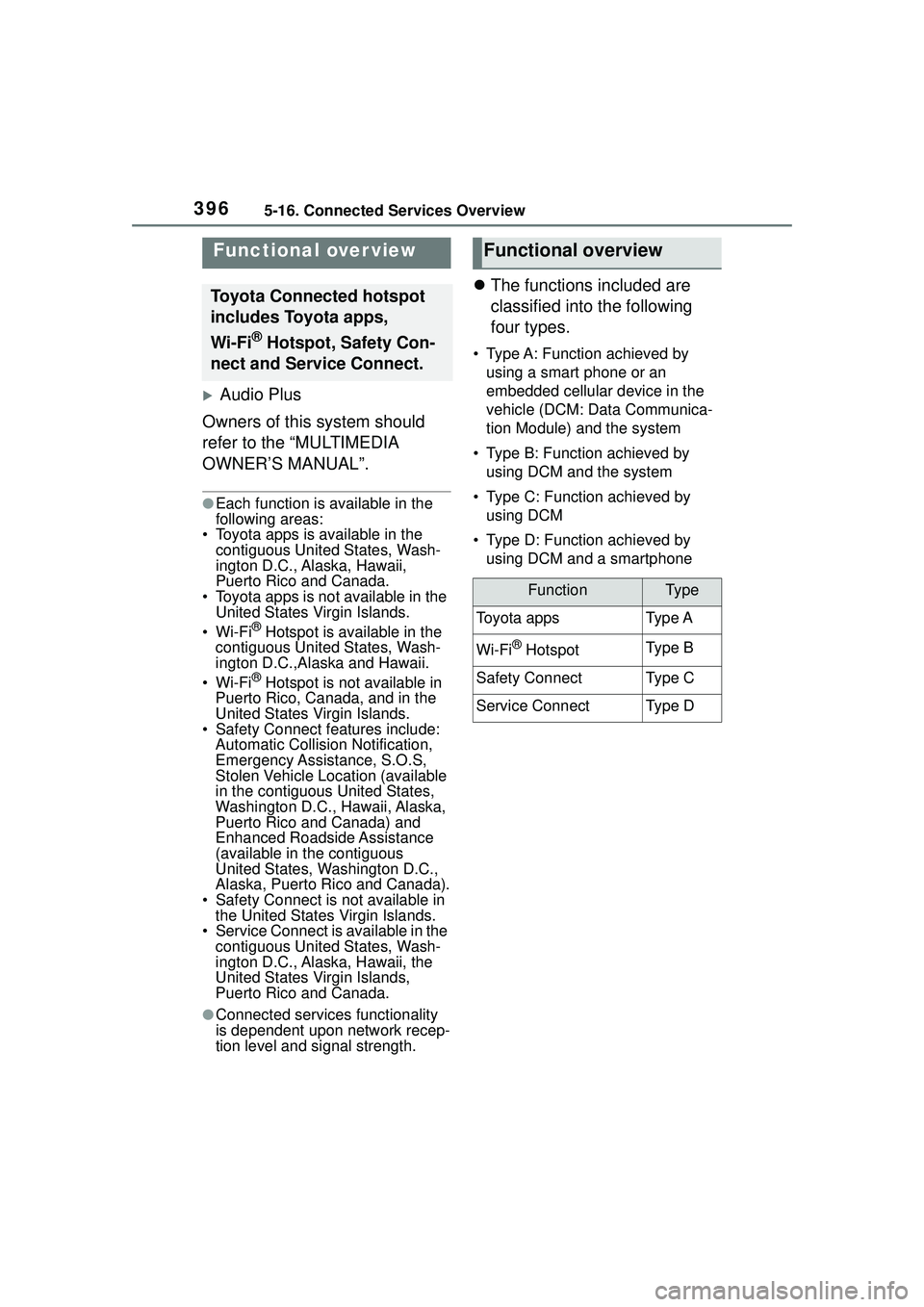
The functions included are
classified into the following
four types.
• Type A: Function achieved by
using a smart phone or an
embedded cellular device in the
vehicle (DCM: Data Communica-
tion Module) and the system
• Type B: Function achieved by using DCM and the system
• Type C: Function achieved by using DCM
• Type D: Function achieved by using DCM and a smartphone
Functional over view
Toyota Connected hotspot
includes Toyota apps,
Wi-Fi
® Hotspot, Safety Con-
nect and Service Connect.
Functional overview
FunctionTy p e
Toyota appsTy p e A
Wi-Fi® HotspotTy p e B
Safety ConnectTy p e C
Service ConnectTy p e D
Page 397 of 612

3975-16. Connected Services Overview
5
Audio
*: If equipped
Content provider
Type A: Function achieved by using a smar t
phone or DCM
*
Of the functions included with Connected Services, the Toyota
apps relies on the use of a smart phone or DCM.
Using a smart phone
• Toyota audio multimedia system enables applicable apps
installed on a smart phone to be displayed on and operated from
the screen via a Bluetooth
®.
Via DCM
• Toyota audio multimedia system enables applicable apps
installed on the system to be displayed on and operated from the
screen.
A few settings must be performed before Toyota apps can be
used. ( P.403)
By using a smart phone or DCM