2022 SUBARU ASCENT lane
[x] Cancel search: lanePage 4 of 148

REFUELING
FUEL FILLER LID............47
FUEL SPECIFICATIONS
AND CAPACITY..............47
PASSENGER/CARGO AREAS
ACCESSING THE THIRD-ROW . 48
EXITING THE THIRD-ROW.....48
FOLDING THE REAR SEATS...49
CHILD SAFETY LOCKS.......50
LATCH/ANCHOR............51
REAR SEAT REMINDER.......51
CARGO COVER.............52
SPARE TIRE................53
JACK AND TOOLS...........54
ENGINE COMPARTMENT
HOOD PROP................55
2.4 L ENGINE...............56
ADDITIONAL SPECIFICATIONS
NEW VEHICLE BREAK-IN......57
ENGINE OIL................57
ENGINE OIL CAPACITY.......57
ROOF RAIL CAPACITY.......58
TRAILER TOWING CAPACITY . . 58
TIRE PRESSURE MONITORING
SYSTEM (TPMS).............59
STARLINK OVERVIEW
OVERVIEW OF YOUR
MULTIMEDIA SYSTEM........61
BUTTONS..................61
TOUCHSCREEN.............63
STEERING WHEEL
CONTROLS.................64
VOICE RECOGNITION........64
STARLINK HOME
HOME SCREEN ICONS.......67
REARRANGING ICONS.......67
ADDING SHORTCUTS........68
DRIVER PROFILE
CREATING A DRIVER
PROFILE...................69
MULTIMEDIA
RADIO.....................71
MEDIA.....................72
PHONE
PAIRING A PHONE...........73
MAKING A CALL.............73
RECEIVING A CALL..........74
TEXT MESSAGES............75
APPS
SUBARU STARLINK®
IN-VEHICLE APPS...........76
SUBARU STARLINK®
MOBILE APP................78
MYSUBARU................79
MAPS (if equipped)
MAPS OVERVIEW............80
CREATING HOME AND
WORK PROFILES............80
STARLINK SAFETY AND
SECURITY
SAFETY AND SECURITY
OVERVIEW.................81
ENROLLMENT..............82
MYSUBARU INTEGRATION....82
SUBARU STARLINK
®
WI-FI HOTSPOT.............83
SETTINGS AND UPDATES
SETTINGS AND UPDATES
OVERVIEW.................84
SOUND....................85
PHONE....................85
MAPS/NAVIGATION..........86
CLOCK....................87
EYESIGHT
EYESIGHT®OVERVIEW.......90
OPERATION................91
FUNCTIONS................91
STEERING WHEEL
CONTROLS.................97
EYESIGHT
®ASSIST MONITOR
(EAM).....................99
LANE DEPARTURE WARNING
AND PRE-COLLISION BRAKING
SYSTEM OFF SWITCHES.....100
TABLE OF CONTENTS
2
Page 21 of 148

ADVANCED ADAPTIVE CRUISE CONTROL
1Adaptive Cruise Control On/Off
2Lane Keep Assist
3Increase Distance
4Decrease Distance
5Resume (RES)/Increase Speed and Set
(SET)/Decrease Speed
For more information on the Advanced
Adaptive Cruise Control switches, please refer
to page 97 in this Getting Started Guide or
“Advanced Adaptive Cruise Control” in your
EyeSight
®Owner’s Manual.
i/SET SWITCH
The “i/Set” switch allows you to cycle through
useful driving information in the Combination
Meter Display such as fuel consumption, driving
time, speed, and tire pressure. You can change
the information displayed using the up and
down arrows.
When the Menu Entering Screen is displayed,
pull and hold the “i/Set” switch to enter the
Menu Screen for the ability to modify a number
of settings.
For more information about the Combination Meter Display, please refer to
“Instruments and Controls” in your Owner’s Manual.
CONTROLS
19
Page 23 of 148

Illumination Brightness
When the light controls are on
(in the
,, or “AUTO”
position), and ambient light is low,
rotating the illumination
brightness dial on the instrument
panel upward will make the
instrument panel illumination
brighter. When the dial is fully
rotated upward (dots aligned),
the instrument panel illumination
stays at full brightness. Rotating
the dial downward dims the
instrument panel illumination.
When the ambient light is bright,
the illumination brightness is set
to the maximum regardless of the position of the control dial.
For more information, please refer to “Instruments and Controls” in your Owner’s
Manual.
Daytime Running Lights
The daytime running lights automatically turn on when the engine is running, the parking
brake is fully released, the select lever is out of the “P” position, and the light switch is set
to Off, “AUTO”, or “
”. Always turn on the headlights when it’s dark outside by rotating
the dial to the “
” or “AUTO” position.
TURN SIGNALS
Push fully up for the right turn signal and fully
down for the left turn signal. Your Subaru also
has a one-touch lane changer feature: push
slightly up and release to signal a right lane
change or push slightly down and release to
signal a left lane change.
Illumination Brightness Dial
CONTROLS
21
Page 26 of 148

OVERHEAD CONSOLE
1SOS Emergency
Assistance:Press the
“SOS” button to connect
with a SUBARU STARLINK
®
Customer Care Advisor.
(Subscription required.)
Press and hold the button for
about two seconds to cancel
the call.
For more information,
please refer to page 81 in
this Getting Started Guide or
"Introduction" in your
SUBARU STARLINK
®Safety
and Security Owner’s Manual.
2Enhanced Roadside Assistance:Press the “i” button to connect with a SUBARU
STARLINK
®Roadside Assistance Provider. (Subscription required.) Press and hold
the button for about two seconds to cancel the call.
For more information, please refer to page 81 in this Getting Started Guide or
"Introduction" in your SUBARU STARLINK®Safety and Security Owner’s Manual.
3Lane Departure Warning OFF switch:Press and hold this switch for two seconds to
turn off Lane Departure Warning and Lane Sway Warning functions. Press and hold
the switch again for two seconds to turn the functions back on.
For more information, please refer to page 100 in this Getting Started Guide or
"Lane Departure Warning" in your EyeSight®Owner’s Manual.
4Power Sunshade/Moonroof Switches:Operate these switches to open and close
the sunshade or tilt and slide the moonroof.
For more information, please refer to page 33 in this Getting Started Guide or
"Keys and Doors" in your Owner’s Manual.
5Pre-Collision Braking System OFF switch:Press and hold this switch for two
seconds to turn off the Pre-Collision Braking System (including Pre-Collision Brake
Assist) and Pre-Collision Throttle Management. Press and hold the switch again for
two seconds to turn the systems back on.
For more information, please refer to page 100 in this Getting Started Guide or
"Pre-Collision Braking System" in your EyeSight®Owner’s Manual.
CONTROLS
24
Page 88 of 148
MAPS/NAVIGATION
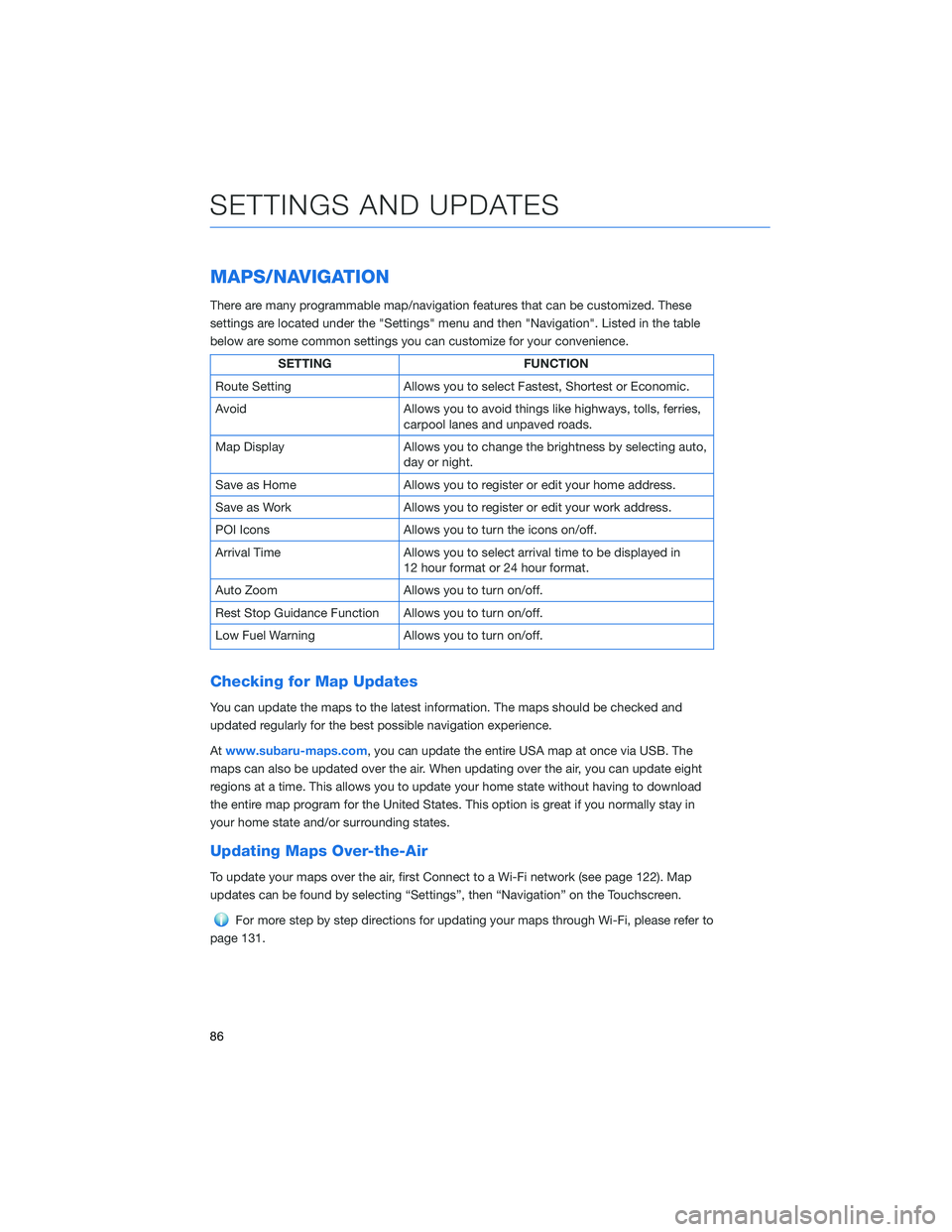
There are many programmable map/navigation features that can be customized. These
settings are located under the "Settings" menu and then "Navigation". Listed in the table
below are some common settings you can customize for your convenience.
SETTING FUNCTION
Route Setting Allows you to select Fastest, Shortest or Economic.
Avoid Allows you to avoid things like highways, tolls, ferries,
carpool lanes and unpaved roads.
Map Display Allows you to change the brightness by selecting auto,
day or night.
Save as Home Allows you to register or edit your home address.
Save as Work Allows you to register or edit your work address.
POI Icons Allows you to turn the icons on/off.
Arrival Time Allows you to select arrival time to be displayed in
12 hour format or 24 hour format.
Auto Zoom Allows you to turn on/off.
Rest Stop Guidance Function Allows you to turn on/off.
Low Fuel Warning Allows you to turn on/off.
Checking for Map Updates
You can update the maps to the latest information. The maps should be checked and
updated regularly for the best possible navigation experience.
Atwww.subaru-maps.com, you can update the entire USA map at once via USB. The
maps can also be updated over the air. When updating over the air, you can update eight
regions at a time. This allows you to update your home state without having to download
the entire map program for the United States. This option is great if you normally stay in
your home state and/or surrounding states.
Updating Maps Over-the-Air
To update your maps over the air, first Connect to a Wi-Fi network (see page 122). Map
updates can be found by selecting “Settings”, then “Navigation” on the Touchscreen.
For more step by step directions for updating your maps through Wi-Fi, please refer to
page 131.
SETTINGS AND UPDATES
86
Page 92 of 148

EYESIGHT®OVERVIEW
Your Subaru features a variety of safety
systems that are the culmination of everything
Subaru Engineers know about safety. These
systems are referred to as “Driver Assist
Technologies” and add confidence to every
trip you and your passengers take. Working
together, these systems provide enhanced
awareness, safety, and convenience in front,
to the sides, and behind your Subaru. Subaru
Driver Assist Technologies include:
• EyeSight
®Driver Assist Technology
• Rear-Vision Camera
• Pre-Collision Braking
• Front View Monitor
• Blind-Spot Detection (BSD)
• Rear Cross-Traffic Alert (RCTA)
• Reverse Automatic Braking (RAB)
• High Beam Assist (HBA)
• Lane Departure Prevention
• Steering Responsive Headlights (SRH)
EYESIGHT
90
Page 93 of 148
OPERATION
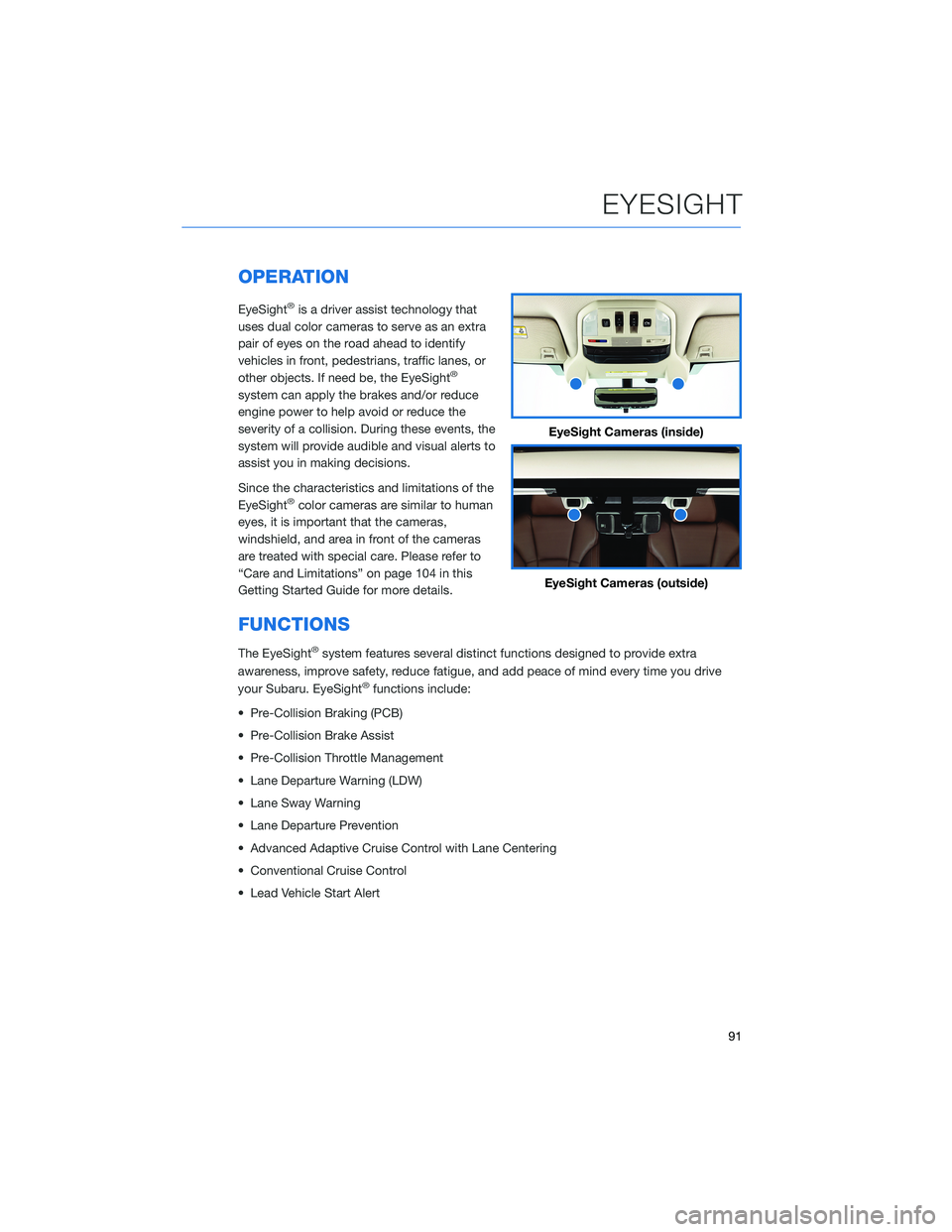
EyeSight®is a driver assist technology that
uses dual color cameras to serve as an extra
pair of eyes on the road ahead to identify
vehicles in front, pedestrians, traffic lanes, or
other objects. If need be, the EyeSight
®
system can apply the brakes and/or reduce
engine power to help avoid or reduce the
severity of a collision. During these events, the
system will provide audible and visual alerts to
assist you in making decisions.
Since the characteristics and limitations of the
EyeSight
®color cameras are similar to human
eyes, it is important that the cameras,
windshield, and area in front of the cameras
are treated with special care. Please refer to
“Care and Limitations” on page 104 in this
Getting Started Guide for more details.
FUNCTIONS
The EyeSight®system features several distinct functions designed to provide extra
awareness, improve safety, reduce fatigue, and add peace of mind every time you drive
your Subaru. EyeSight
®functions include:
• Pre-Collision Braking (PCB)
• Pre-Collision Brake Assist
• Pre-Collision Throttle Management
• Lane Departure Warning (LDW)
• Lane Sway Warning
• Lane Departure Prevention
• Advanced Adaptive Cruise Control with Lane Centering
• Conventional Cruise Control
• Lead Vehicle Start Alert
EyeSight Cameras (inside)
EyeSight Cameras (outside)
EYESIGHT
91
Page 95 of 148
Lane Departure Warning
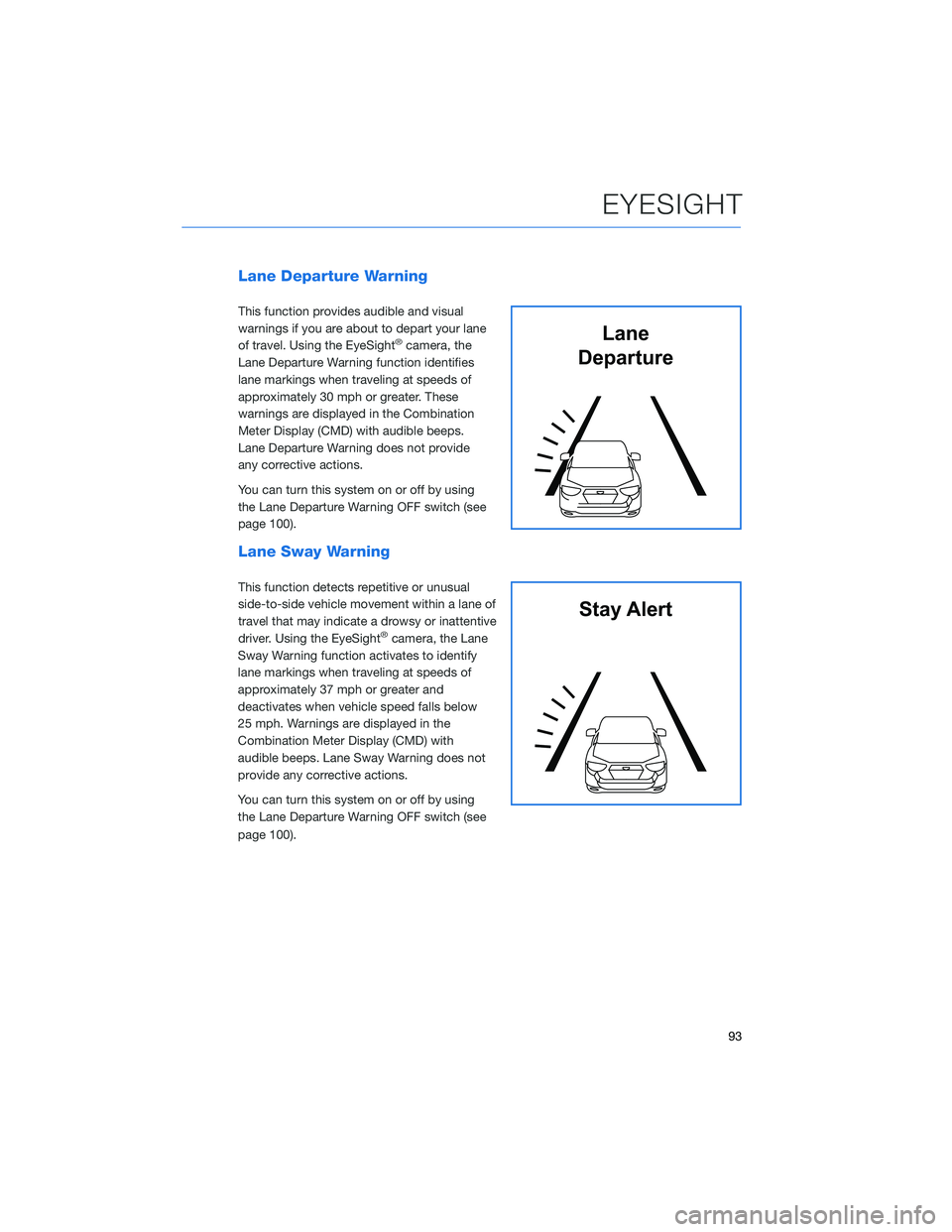
This function provides audible and visual
warnings if you are about to depart your lane
of travel. Using the EyeSight
®camera, the
Lane Departure Warning function identifies
lane markings when traveling at speeds of
approximately 30 mph or greater. These
warnings are displayed in the Combination
Meter Display (CMD) with audible beeps.
Lane Departure Warning does not provide
any corrective actions.
You can turn this system on or off by using
the Lane Departure Warning OFF switch (see
page 100).
Lane Sway Warning
This function detects repetitive or unusual
side-to-side vehicle movement within a lane of
travel that may indicate a drowsy or inattentive
driver. Using the EyeSight
®camera, the Lane
Sway Warning function activates to identify
lane markings when traveling at speeds of
approximately 37 mph or greater and
deactivates when vehicle speed falls below
25 mph. Warnings are displayed in the
Combination Meter Display (CMD) with
audible beeps. Lane Sway Warning does not
provide any corrective actions.
You can turn this system on or off by using
the Lane Departure Warning OFF switch (see
page 100).
Lane
Departure
Stay Alert
EYESIGHT
93