2022 SUBARU ASCENT lane
[x] Cancel search: lanePage 96 of 148
Lane Departure Prevention
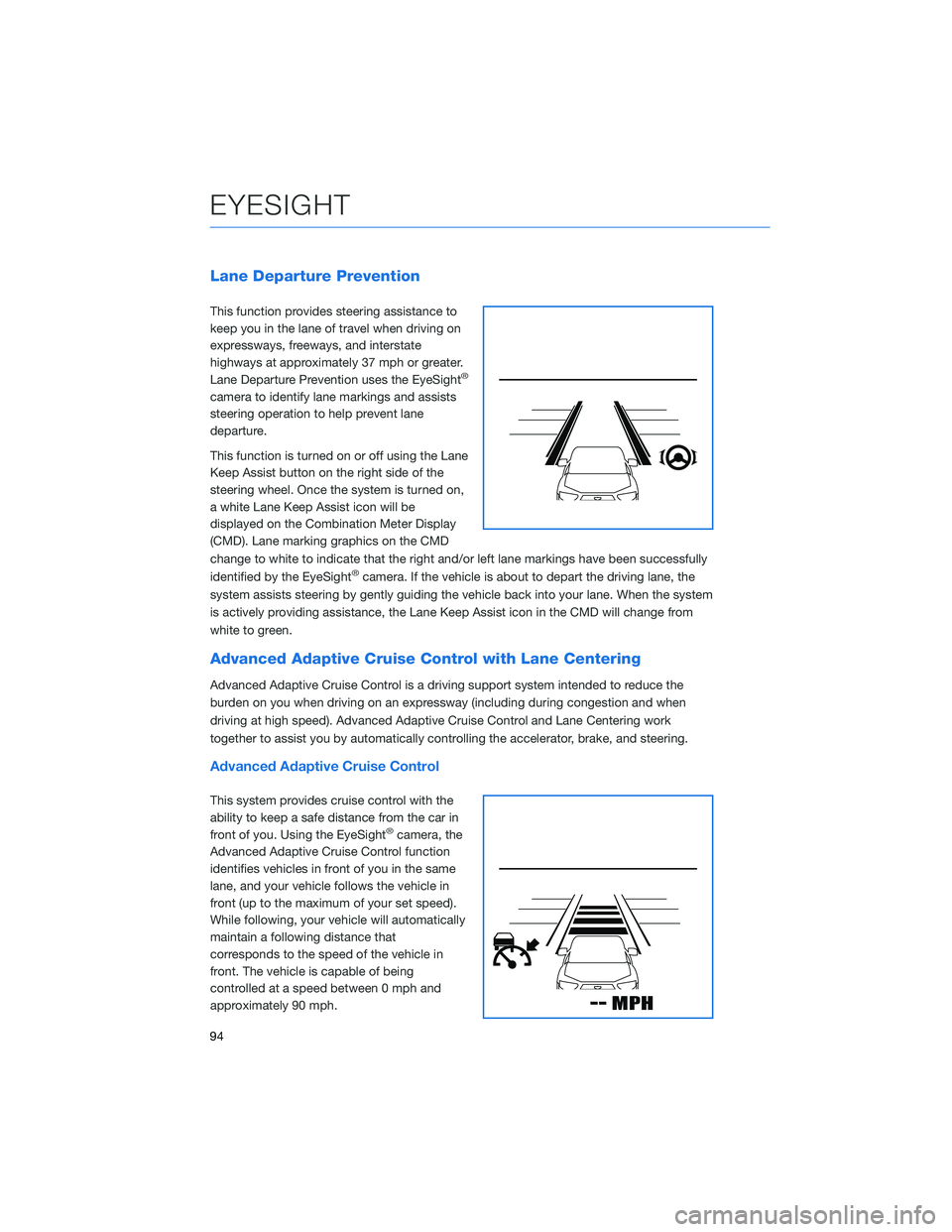
This function provides steering assistance to
keep you in the lane of travel when driving on
expressways, freeways, and interstate
highways at approximately 37 mph or greater.
Lane Departure Prevention uses the EyeSight
®
camera to identify lane markings and assists
steering operation to help prevent lane
departure.
This function is turned on or off using the Lane
Keep Assist button on the right side of the
steering wheel. Once the system is turned on,
a white Lane Keep Assist icon will be
displayed on the Combination Meter Display
(CMD). Lane marking graphics on the CMD
change to white to indicate that the right and/or left lane markings have been successfully
identified by the EyeSight
®camera. If the vehicle is about to depart the driving lane, the
system assists steering by gently guiding the vehicle back into your lane. When the system
is actively providing assistance, the Lane Keep Assist icon in the CMD will change from
white to green.
Advanced Adaptive Cruise Control with Lane Centering
Advanced Adaptive Cruise Control is a driving support system intended to reduce the
burden on you when driving on an expressway (including during congestion and when
driving at high speed). Advanced Adaptive Cruise Control and Lane Centering work
together to assist you by automatically controlling the accelerator, brake, and steering.
Advanced Adaptive Cruise Control
This system provides cruise control with the
ability to keep a safe distance from the car in
front of you. Using the EyeSight
®camera, the
Advanced Adaptive Cruise Control function
identifies vehicles in front of you in the same
lane, and your vehicle follows the vehicle in
front (up to the maximum of your set speed).
While following, your vehicle will automatically
maintain a following distance that
corresponds to the speed of the vehicle in
front. The vehicle is capable of being
controlled at a speed between 0 mph and
approximately 90 mph.
EYESIGHT
94
Page 97 of 148
You can turn the Advanced Adaptive Cruise Control on or off using the Adaptive Cruise
Control On/Off button on the right side of the steering wheel (see page 97). Once the
system is turned on, a white Adaptive Cruise Control icon will be displayed on the
Combination Meter Display (CMD). When all the operational conditions are met, “READY”
appears underneath the Adaptive Cruise Control icon.
To set Advanced Adaptive Cruise Control, push down the “SET/–” switch on the right side
of the steering wheel. The CMD will indicate a target speed and the icon will turn green.
This speed can be adjusted up or down using the “RES +/SET -” switch (see page 97).
When a vehicle in front of you is identified, a Lead Vehicle indicator will be displayed on the
Combination Meter Display (CMD) and/or Multi-Function Display (MFD). You can change
the desired following distance from the lead vehicle by pressing the “Increase Distance” or
“Decrease Distance” buttons (see page 97).
Lane Centering
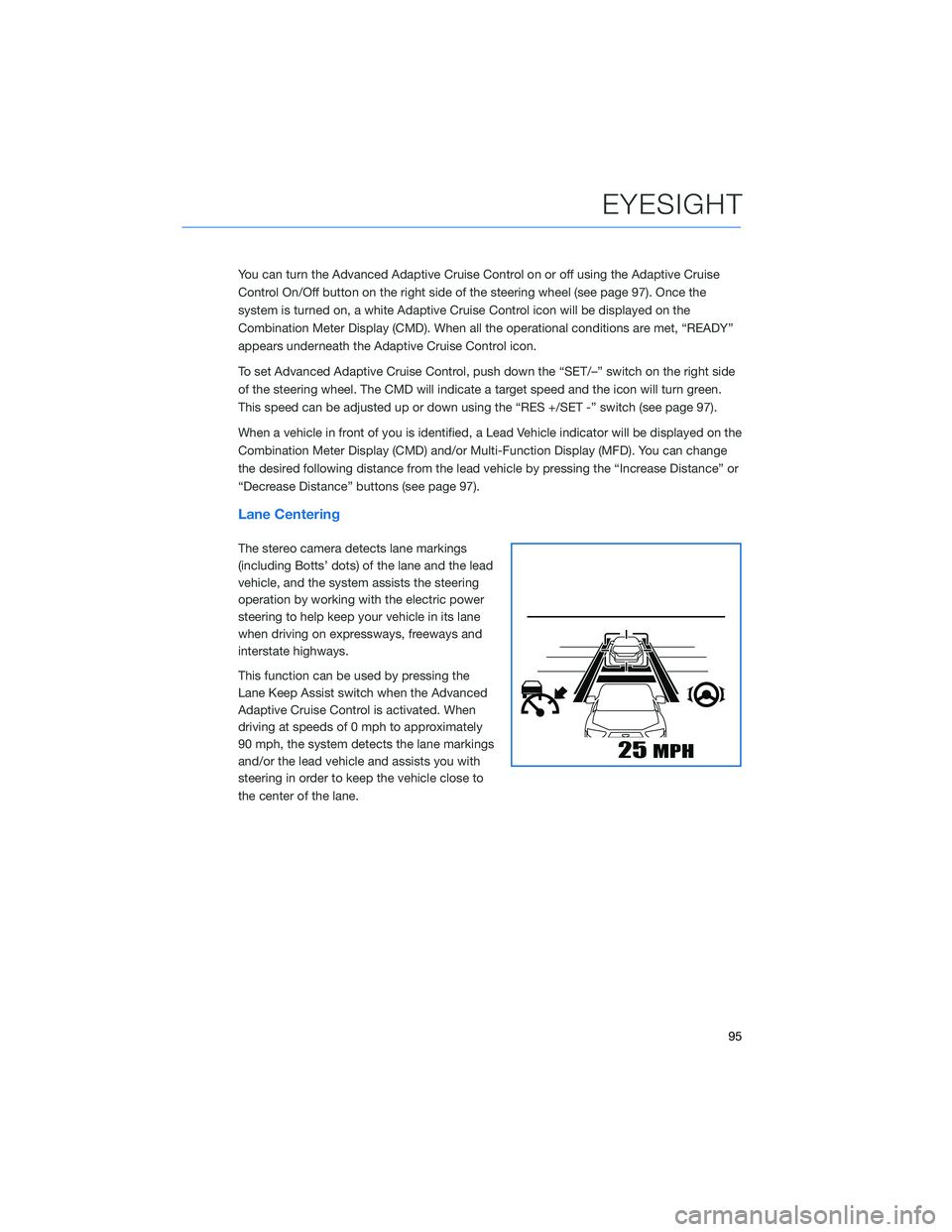
The stereo camera detects lane markings
(including Botts’ dots) of the lane and the lead
vehicle, and the system assists the steering
operation by working with the electric power
steering to help keep your vehicle in its lane
when driving on expressways, freeways and
interstate highways.
This function can be used by pressing the
Lane Keep Assist switch when the Advanced
Adaptive Cruise Control is activated. When
driving at speeds of 0 mph to approximately
90 mph, the system detects the lane markings
and/or the lead vehicle and assists you with
steering in order to keep the vehicle close to
the center of the lane.
EYESIGHT
95
Page 99 of 148
STEERING WHEEL CONTROLS
Advanced Adaptive Cruise Control
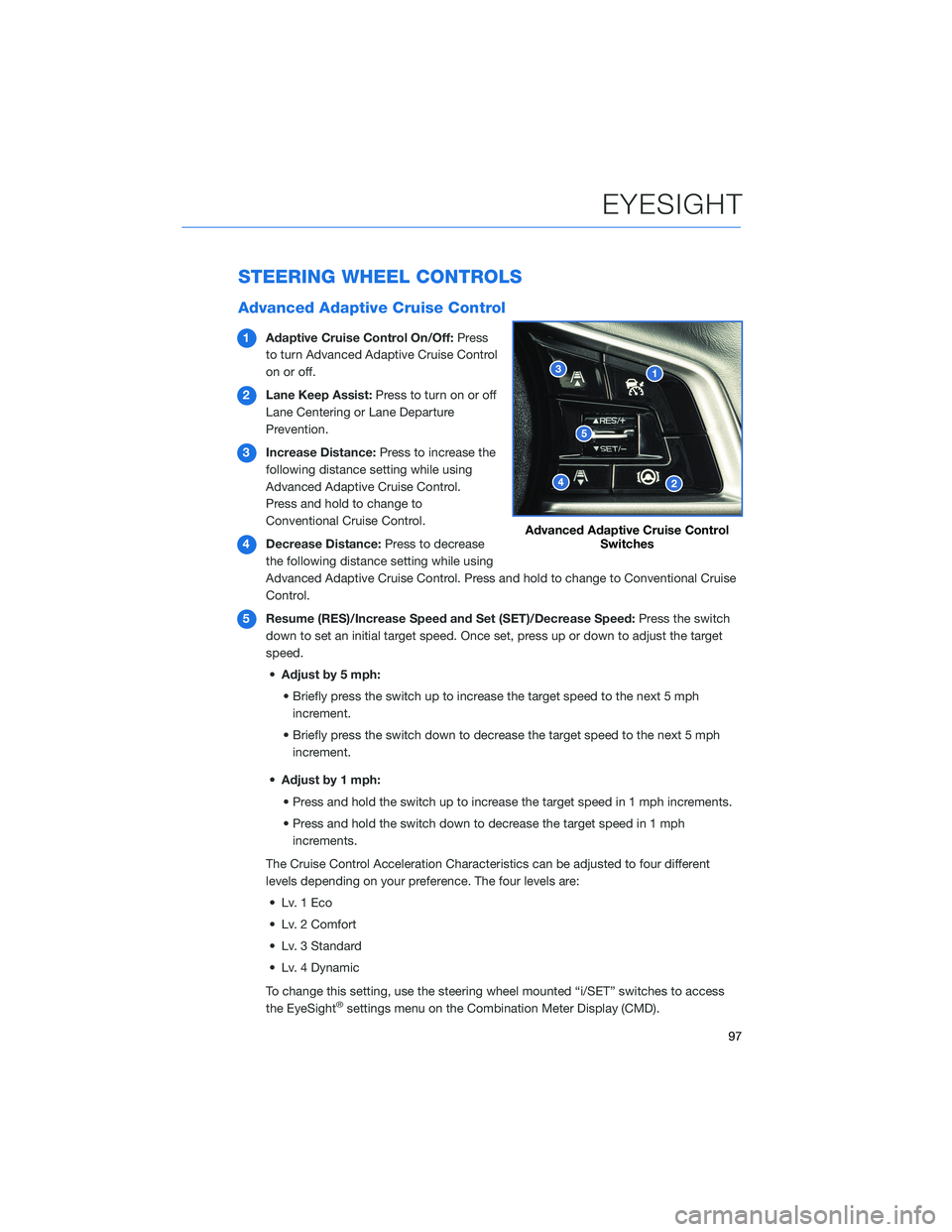
1Adaptive Cruise Control On/Off:Press
to turn Advanced Adaptive Cruise Control
on or off.
2Lane Keep Assist:Press to turn on or off
Lane Centering or Lane Departure
Prevention.
3Increase Distance:Press to increase the
following distance setting while using
Advanced Adaptive Cruise Control.
Press and hold to change to
Conventional Cruise Control.
4Decrease Distance:Press to decrease
the following distance setting while using
Advanced Adaptive Cruise Control. Press and hold to change to Conventional Cruise
Control.
5Resume (RES)/Increase Speed and Set (SET)/Decrease Speed:Press the switch
down to set an initial target speed. Once set, press up or down to adjust the target
speed.
•Adjust by 5 mph:
• Briefly press the switch up to increase the target speed to the next 5 mph
increment.
• Briefly press the switch down to decrease the target speed to the next 5 mph
increment.
•Adjust by 1 mph:
• Press and hold the switch up to increase the target speed in 1 mph increments.
• Press and hold the switch down to decrease the target speed in 1 mph
increments.
The Cruise Control Acceleration Characteristics can be adjusted to four different
levels depending on your preference. The four levels are:
• Lv. 1 Eco
• Lv. 2 Comfort
• Lv. 3 Standard
• Lv. 4 Dynamic
To change this setting, use the steering wheel mounted “i/SET” switches to access
the EyeSight
®settings menu on the Combination Meter Display (CMD).
Advanced Adaptive Cruise Control
Switches
EYESIGHT
97
Page 101 of 148
EYESIGHT®ASSIST MONITOR (EAM)
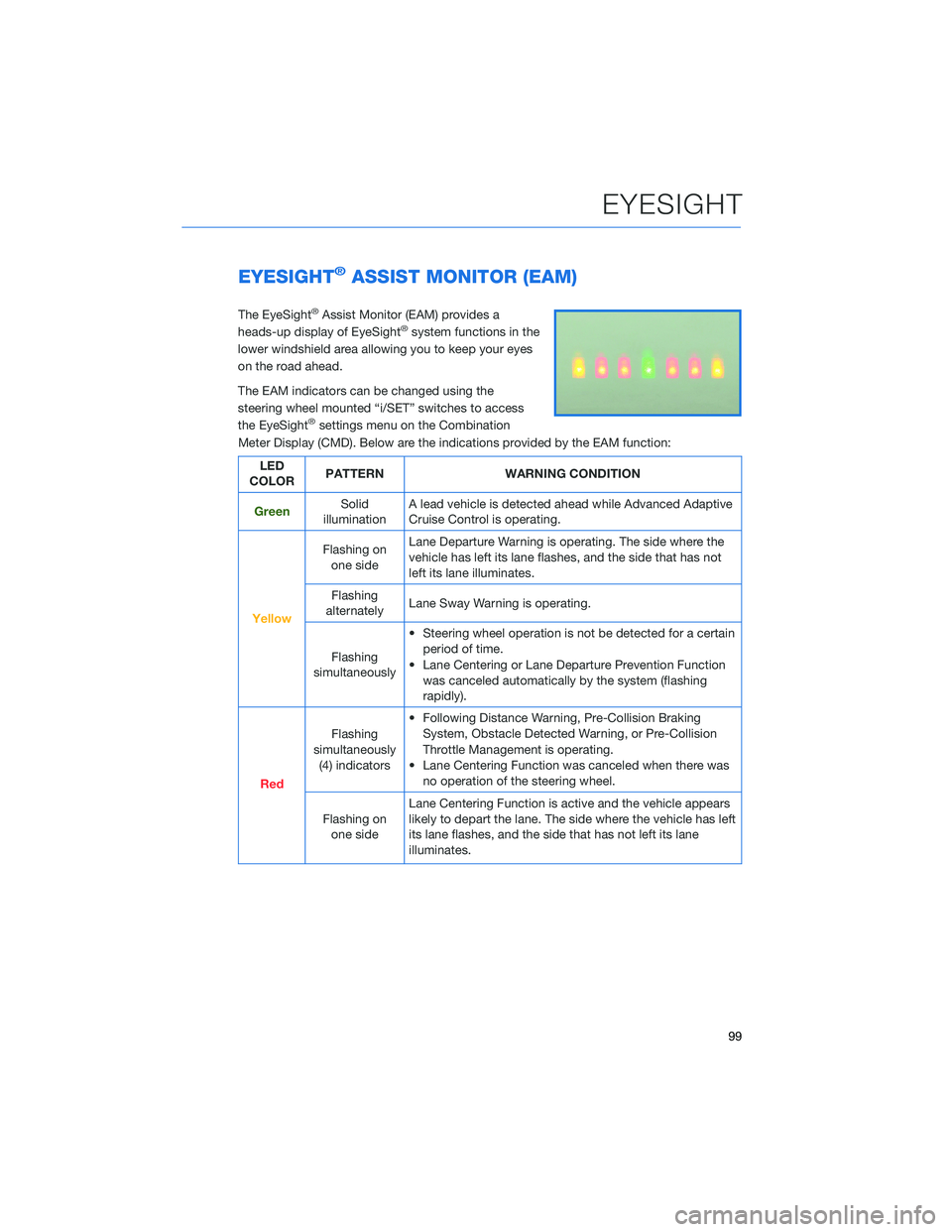
The EyeSight®Assist Monitor (EAM) provides a
heads-up display of EyeSight®system functions in the
lower windshield area allowing you to keep your eyes
on the road ahead.
The EAM indicators can be changed using the
steering wheel mounted “i/SET” switches to access
the EyeSight
®settings menu on the Combination
Meter Display (CMD). Below are the indications provided by the EAM function:
LED
COLORPATTERN WARNING CONDITION
GreenSolid
illuminationA lead vehicle is detected ahead while Advanced Adaptive
Cruise Control is operating.
Yellow
Flashing on
one sideLane Departure Warning is operating. The side where the
vehicle has left its lane flashes, and the side that has not
left its lane illuminates.
Flashing
alternatelyLane Sway Warning is operating.
Flashing
simultaneously• Steering wheel operation is not be detected for a certain
period of time.
• Lane Centering or Lane Departure Prevention Function
was canceled automatically by the system (flashing
rapidly).
Red
Flashing
simultaneously
(4) indicators• Following Distance Warning, Pre-Collision Braking
System, Obstacle Detected Warning, or Pre-Collision
Throttle Management is operating.
• Lane Centering Function was canceled when there was
no operation of the steering wheel.
Flashing on
one sideLane Centering Function is active and the vehicle appears
likely to depart the lane. The side where the vehicle has left
its lane flashes, and the side that has not left its lane
illuminates.
EYESIGHT
99
Page 102 of 148

LANE DEPARTURE WARNING AND PRE-COLLISION
BRAKING SYSTEM OFF SWITCHES
Lane Departure Warning OFF Switch
Press and hold this switch on the overhead console
for approximately two seconds to turn off the Lane
Departure Warning and Lane Sway Warning functions.
Press and hold the switch again for approximately two
seconds to turn the functions on.
When these functions are off, a yellow Lane Departure
Warning OFF indicator will be illuminated in the
Combination Meter. It may be helpful to turn these functions off when lane markings on the
road are inconsistent.
Pre-Collision Braking System OFF Switch
Press and hold this switch on the overhead console
for approximately two seconds to turn off the
Pre-Collision Braking, Pre-Collision Brake Assist, and
Pre-Collision Throttle Management functions. Press
and hold the switch again for approximately two
seconds to turn the functions on.
When these functions are off, a yellow Pre-Collision
Braking OFF indicator illuminates in the Combination Meter. It may be helpful to turn these
functions off when using a drive-through carwash.
EYESIGHT
100
Page 104 of 148
BLIND SPOT DETECTION (BSD) / REAR CROSS
TRAFFIC ALERT (RCTA)(if equipped)
This system uses radar sensors mounted behind the rear bumper on the left and right
sides that warn you if another vehicle is sensed in your blind spots. These functions
provide additional awareness when changing lanes or driving in reverse.
Blind Spot Detection (BSD)
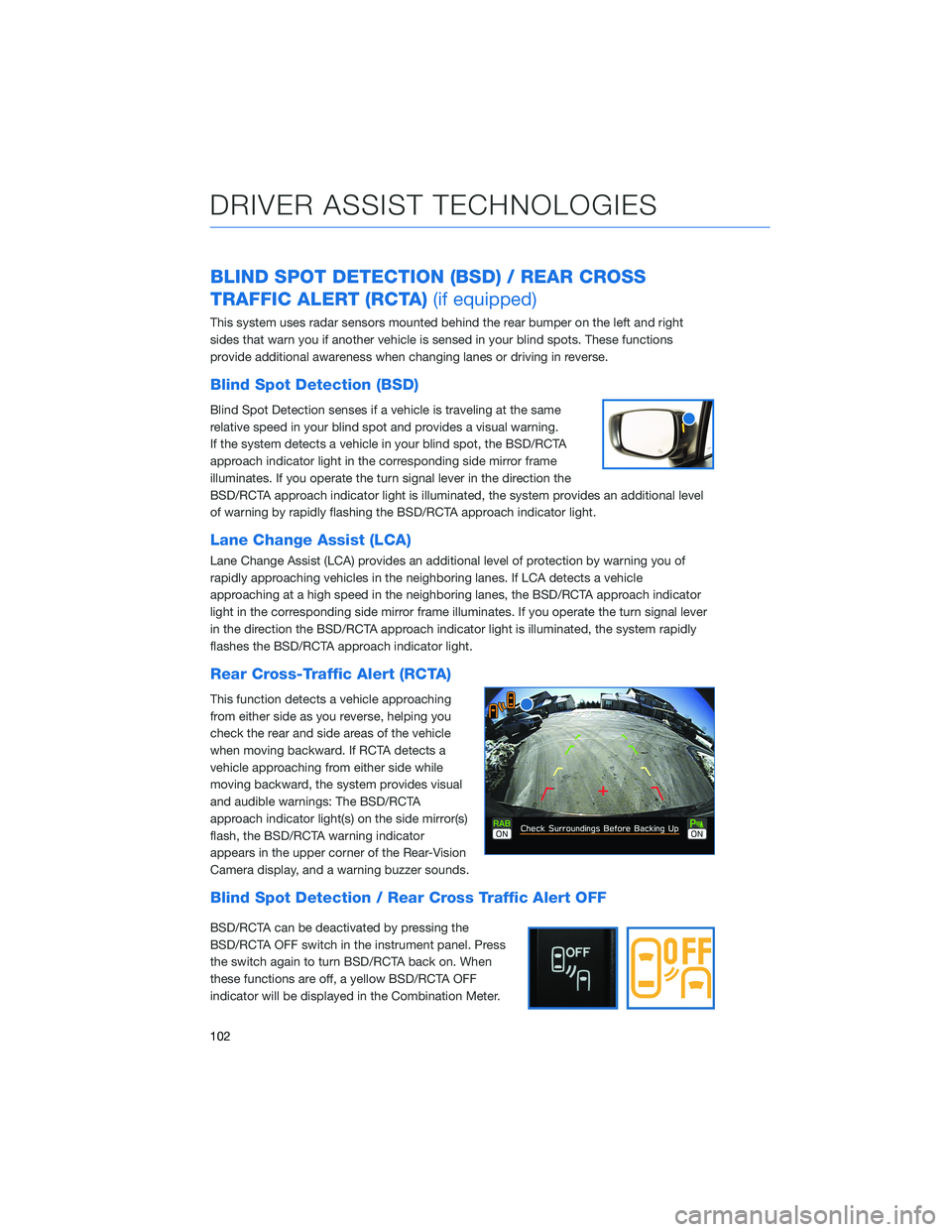
Blind Spot Detection senses if a vehicle is traveling at the same
relative speed in your blind spot and provides a visual warning.
If the system detects a vehicle in your blind spot, the BSD/RCTA
approach indicator light in the corresponding side mirror frame
illuminates. If you operate the turn signal lever in the direction the
BSD/RCTA approach indicator light is illuminated, the system provides an additional level
of warning by rapidly flashing the BSD/RCTA approach indicator light.
Lane Change Assist (LCA)
Lane Change Assist (LCA) provides an additional level of protection by warning you of
rapidly approaching vehicles in the neighboring lanes. If LCA detects a vehicle
approaching at a high speed in the neighboring lanes, the BSD/RCTA approach indicator
light in the corresponding side mirror frame illuminates. If you operate the turn signal lever
in the direction the BSD/RCTA approach indicator light is illuminated, the system rapidly
flashes the BSD/RCTA approach indicator light.
Rear Cross-Traffic Alert (RCTA)
This function detects a vehicle approaching
from either side as you reverse, helping you
check the rear and side areas of the vehicle
when moving backward. If RCTA detects a
vehicle approaching from either side while
moving backward, the system provides visual
and audible warnings: The BSD/RCTA
approach indicator light(s) on the side mirror(s)
flash, the BSD/RCTA warning indicator
appears in the upper corner of the Rear-Vision
Camera display, and a warning buzzer sounds.
Blind Spot Detection / Rear Cross Traffic Alert OFF
BSD/RCTA can be deactivated by pressing the
BSD/RCTA OFF switch in the instrument panel. Press
the switch again to turn BSD/RCTA back on. When
these functions are off, a yellow BSD/RCTA OFF
indicator will be displayed in the Combination Meter.
DRIVER ASSIST TECHNOLOGIES
102
Page 108 of 148

EYESIGHT®DISCLAIMER
EyeSight®is a driver assist technology which may not operate optimally under all driving
conditions. The driver is always responsible for safe and attentive driving. System
effectiveness depends on many factors such as vehicle maintenance, weather and road
conditions. See Owner’s Manual for complete details on system operations and limitations.
The Pre-Collision Braking system is designed to provide automatic braking that either
prevents a collision or reduces the severity of a frontal impact.
The Pre-Collision Throttle Management system is designed to reduce acceleration and
minimize the severity of certain frontal impacts.
Advanced Adaptive Cruise Control and Brake Light Recognition are designed to assist the
driver and are not substitutes for safe and attentive driving.
Lane Centering function operates only when used in conjunction with Advanced Adaptive
Cruise Control.
Lane Departure Prevention operates only when the lane markings are visible, and system
effectiveness depends on many factors.
Blind-Spot Detection, Lane Change Assist and Rear Cross Traffic Alert are systems
designed to assist the driver by monitoring the rear and side areas of the vehicle during a
lane change or reversing and are not a substitute for safe and attentive driving.
The Reverse Automatic Braking System is not a substitute for safe and attentive driving.
System effectiveness depends on many factors, such as vehicle maintenance, weather
and road conditions. Always exercise caution and use vehicle mirrors and the Rear-Vision
Camera when backing up. See Owner’s Manual for complete details on system operation
and limitations.
EYESIGHT DISCLAIMER
106
Page 130 of 148

Guidance Screen Icons
The Guidance Screen Icons are the common icons used for the navigation guidance:
ICON EXPLANATION ICON EXPLANATION
Turn left.Stay in the left lane.
Turn right.Stay in the right lane.
U-Turn Left.Straight ahead at the
intersection.
U-Turn right.Turn left at the T junction.
Keep left at the fork in the
road.Turn right at the T junction.
Keep right at the fork in the
road.Go left at the roundabout.
Turn left & sharp curve.You are half way to your
destination.
Turn right & sharp curve.You have arrived at your
destination.
Map Zoom
Once on the map screen, you can zoom in or
out by touching the “+” or “-” buttons on the
screen. You can also use two fingers on the
screen and move them apart to zoom in or
together to zoom out.
HOW TO APPENDIX
128