Page 93 of 148
OPERATION
EyeSight®is a driver assist technology that
uses dual color cameras to serve as an extra
pair of eyes on the road ahead to identify
vehicles in front, pedestrians, traffic lanes, or
other objects. If need be, the EyeSight
®
system can apply the brakes and/or reduce
engine power to help avoid or reduce the
severity of a collision. During these events, the
system will provide audible and visual alerts to
assist you in making decisions.
Since the characteristics and limitations of the
EyeSight
®color cameras are similar to human
eyes, it is important that the cameras,
windshield, and area in front of the cameras
are treated with special care. Please refer to
“Care and Limitations” on page 104 in this
Getting Started Guide for more details.
FUNCTIONS
The EyeSight®system features several distinct functions designed to provide extra
awareness, improve safety, reduce fatigue, and add peace of mind every time you drive
your Subaru. EyeSight
®functions include:
• Pre-Collision Braking (PCB)
• Pre-Collision Brake Assist
• Pre-Collision Throttle Management
• Lane Departure Warning (LDW)
• Lane Sway Warning
• Lane Departure Prevention
• Advanced Adaptive Cruise Control with Lane Centering
• Conventional Cruise Control
• Lead Vehicle Start Alert
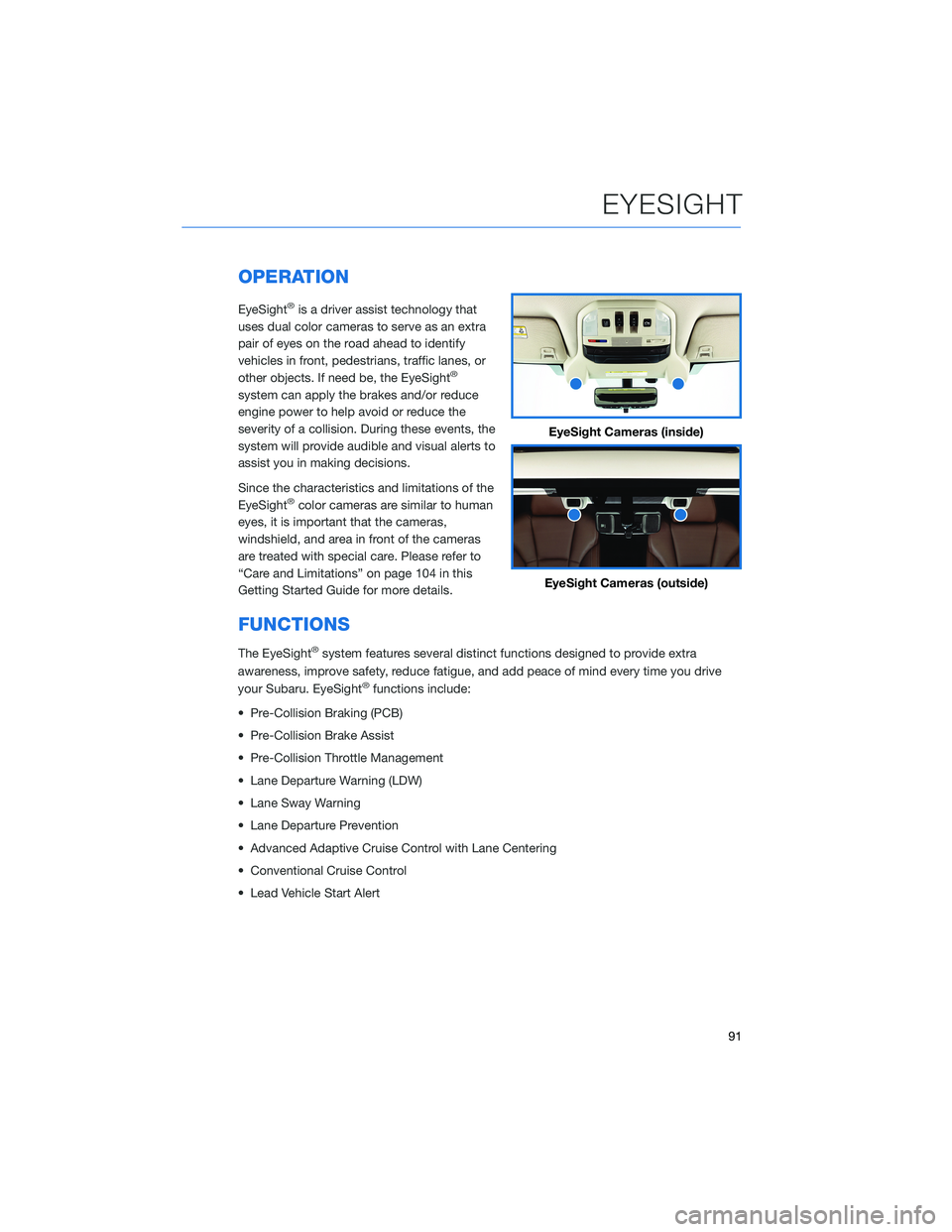
EyeSight Cameras (inside)
EyeSight Cameras (outside)
EYESIGHT
91
Page 106 of 148
STEREO CAMERA PRECAUTIONS
Your EyeSight®stereo cameras are precision components that must be kept free from
obstruction and contamination, such as fingerprints or cleaning solutions. When the
system detects that the stereo camera lenses are impaired, a malfunction indicator will be
displayed and EyeSight
®functions will not be available.
When you are in the vicinity of the EyeSight
®stereo cameras, always observe the following
precautions:
• Do not touch or attempt to clean the EyeSight
®camera lenses inside the vehicle. Extra
caution should be used when cleaning the inside of the windshield. Over-spray from
cleaning solutions may impair or even damage the camera lenses. Please inform others
who may attempt to clean the windshield, such as car wash staff, of this precaution.
• Electronic Toll Collection devices, such as EZPass
TM, must be installed in an area
that does not obstruct the stereo cameras' field of vision. See "Prohibited Area" on
page 105.
• Adjust the rearview mirror so it does not obstruct the stereo cameras' field of vision.
• Do not install any interior rearview mirror accessories, such as a wide-type mirror or
hanging objects. Only approved Genuine SUBARU accessories may be installed.
For more detailed information, please refer to your EyeSight
®Owner’s Manual.
WINDSHIELD GLASS AND DASHBOARD
Since the characteristics and limitations of the EyeSight®stereo cameras are similar to
human eyes, it is important that the area in front of the cameras be kept free from dirt,
scratches, cracks, fogging, or accessories mounted to the windshield, hood or dashboard.
Visual impairments or reflections can affect EyeSight
®system performance. Extra caution
should be taken when cleaning the windshield to prevent over-spray from cleaning
solutions.
The image in the following section outlines those areas that must be kept clean and free
from obstruction. Please refer to the Owner’s Manual for a complete listing of limitations.
CARE AND LIMITATIONS
104
Page 113 of 148
BLUETOOTH®PAIRING
Pairing an Android Device
1. Start by selecting “Settings” on the Home
screen.
2. Select the Phone menu, then select “Add
Device”.
3. This screen will be displayed when pairing
mode is in progress. The device name will
most likely be Subaru BT, but be sure to
make note of what name it is, so you can
find it on your phone.
HOW TO APPENDIX
111
Page 114 of 148
4. On your Android device, go to “Settings”. (It can be
found under apps.) Then select “Connected
Devices” or “Connections”.
5. Now select “Bluetooth”. This will show a screen to
“Pair New Device” or it will be showing the nearby
devices to add. Select “Subaru BT” if shown on the
list or “Pair New Device”.
HOW TO APPENDIX
112
Page 115 of 148
6. Now select "OK" to pair with Subaru BT and select
“Confirm” on the Touchscreen if the PIN matches
the phone.
7. Make sure to allow access to your contacts
and call history and select “Download” to
download the phonebook contacts.
8. If your phonebook or messages are not
appearing, press the “Phone” icon on the
home screen and then select “Change
Device” in the Overview menu.
HOW TO APPENDIX
113
Page 117 of 148
Pairing an iOS/Apple Device
1. Start by selecting “Settings” on the Home
screen.
2. In the “Phone” menu, select “Add Device”.
3. This screen will be displayed when pairing
mode is in progress. The device name will
most likely be Subaru BT, but be sure to
make note of what name it is, so you can
find it on your phone.
4. On your iOS/Apple device, select “Settings”.
The location on the Home screen will vary.
HOW TO APPENDIX
115
Page 119 of 148
7. Verify your iOS/Apple device PIN is correct and
select “Pair” on your phone and “Confirm” on the
Touchscreen.
8. Select “Allow” on the “Allow Contacts and
Favorites Sync?” screen, then select “Download”
to download the phonebook contacts.
HOW TO APPENDIX
117
Page 120 of 148
9. On your iOS/Apple device, SubaruBT should now
be listed under “Bluetooth Settings”. Select the
blue “i” next to the device name. Then ensure
“Show Notifications” and “Sync Contacts” are
enabled.
10. Your iOS/Apple device is now paired. It is
recommended that you restart your Subaru to
complete the process and ensure everything is
fully synced.
11. If your phonebook or messages are not
appearing, press the “Phone” icon on the
home screen and then select “Change
Device” in the Overview menu.
12. Select your phone and ensure
“Phonebook Download” is enabled.
HOW TO APPENDIX
118


