2022 RAM PROMASTER CITY key
[x] Cancel search: keyPage 60 of 260

58STARTING AND OPERATING
The following indicators should be used to ensure
that you have properly engaged the transmission
into the PARK position:
When shifting into PARK, push the lock button
on the gear selector and firmly move the gear
selector all the way forward until it stops and is
fully seated.
Look at the transmission gear position display
and verify that it indicates the PARK position.
With brake pedal released, verify that the gear
selector will not move out of PARK.
REVERSE (R)
This range is for moving the vehicle backward.
Shift into REVERSE only after the vehicle has come
to a complete stop.
NEUTRAL (N)
Use this range when the vehicle is standing for
prolonged periods with the engine running. Apply
the parking brake and shift the transmission into
PARK if you must exit the vehicle.
DRIVE (D)
This range should be used for most city and
highway driving. It provides the smoothest upshifts
and downshifts, and the best fuel economy. The
transmission automatically upshifts through all
forward gears.
When frequent transmission shifting occurs (such
as when operating the vehicle under heavy loading
conditions, in hilly terrain, traveling into strong
head winds, or while towing a heavy trailer), use
the Electronic Range Select (ERS) shift control to
select a lower gear range Úpage 59. Under these
conditions, using a lower gear range will improve
performance and extend transmission life by
reducing excessive shifting and heat buildup.
If the transmission temperature exceeds normal
operating limits, the transmission controller may
modify the transmission shift schedule, reduce
engine torque, and/or expand the range of torque
converter clutch engagement. This is done to
prevent transmission damage due to overheating.
Never leave children alone in a vehicle, or with
access to an unlocked vehicle. Allowing chil -
dren to be in a vehicle unattended is
dangerous for a number of reasons. A child or
others could be seriously or fatally injured.
Children should be warned not to touch the
parking brake, brake pedal or the transmis -
sion gear selector.
Do not leave the ignition key in or near the
vehicle (or in a location accessible to chil-
dren). A child could operate power windows,
other controls, or move the vehicle.
CAUTION!
Before moving the transmission gear selector
out of PARK, you must turn the ignition to the
ON/RUN position, and also press the brake
pedal. Otherwise, damage to the gear selector
could result.
DO NOT race the engine when shifting from
PARK or NEUTRAL into another gear range, as
this can damage the drivetrain.
WARNING!
WARNING!
Do not coast in NEUTRAL and never turn off the
ignition to coast down a hill. These are unsafe
practices that limit your response to changing
traffic or road conditions. You might lose control
of the vehicle and have a collision.
CAUTION!
Towing the vehicle, coasting, or driving for any
other reason with the transmission in NEUTRAL
can cause severe transmission damage.
For Recreational Towing Ú page 75.
For Towing A Disabled Vehicle Ú page 187.
22_VM_OM_EN_USC_t.book Page 58
Page 64 of 260

62STARTING AND OPERATING
Using Cruise Control On Hills
The transmission may downshift on hills to
maintain the vehicle set speed.
NOTE:The Cruise Control system maintains speed up and
down hills. A slight speed change on moderate hills
is normal. On steep hills, a greater speed loss or
gain may occur so it may be preferable to drive
without Cruise Control.
TO RESUME SPEED
To resume a previously set speed, push the RES (+)
button and release. Resume can be used at any
speed above 20 mph (32 km/h) up to the
maximum speed of 100 mph (160 km/h).
TO DEACTIVATE
A tap on the brake pedal, pushing the CAN button,
or normal brake pressure will deactivate the Cruise
Control system without erasing the set speed from
memory.
Pushing the on/off button or turning the ignition
switch off erases the set speed from memory.
PARKSENSE REAR PARK ASSIST —
IF EQUIPPED
The ParkSense system provides an audible
indication of the distance between the rear fascia/
bumper and a detected obstacle when backing up
(e.g. during a parking maneuver) Ú page 64.
The ParkSense system is automatically activated
when the transmission is placed into REVERSE. As
the distance from an obstacle behind the vehicle
decreases, the audible alert becomes more frequent.
Interaction With Trailer Towing
The ParkSense system is automatically
deactivated when a trailer equipped by Mopar® is
hitched to the vehicle. The system will be
automatically activated as soon as the trailer is
removed. If it does not happen, turning the key
ignition switch to STOP (OFF/LOCK) position and
then to AVV (START) again would be needed. If a
non-Mopar® trailer hitch is mounted, the sensor
deactivation cannot be guaranteed.
PARKSENSE REAR PARK ASSIST
S
ENSORS
The four ParkSense sensors, located in the rear
fascia/bumper, monitor the area behind the vehicle
that is within the sensors’ field of view. The sensors
can detect obstacles, in the horizontal direction,
from approximately 12 inches (30 cm) up to
55 inches (140 cm) from the center of the rear
fascia/bumper and up to 24 inches (60 cm) from
the corners of the rear fascia/bumper, depending on
the location, type and orientation of the obstacle.
ParkSense Rear Park Assist Sensors Locations
If several obstacles are detected, the ParkSense
system indicates the nearest obstacle.
The minimum height of a detectable obstacle
corresponds to the maximum height of an obstacle
that would clear the underside of the vehicle
during the parking maneuver.
WARNING!
Cruise Control can be dangerous where the
system cannot maintain a constant speed. Your
vehicle could go too fast for the conditions, and
you could lose control and have an accident. Do
not use Cruise Control in heavy traffic or on
roads that are winding, icy, snow-covered or
slippery.
22_VM_OM_EN_USC_t.book Page 62
Page 86 of 260

84MULTIMEDIA
Doors & Locks
Key Off/Engine Off Options
When the Doors & Locks button is pressed on the touchscreen, the system displays the options related to locking and unlocking the vehicle’s doors.
NOTE:Depending on the vehicle’s options, feature settings may vary.
Setting Name Description
Sound Horn With Lock This setting will sound the horn when the key fob’s Lock button is pushed. The
“Off” setting will not sound the horn. The “1st Press” setting will sound the
horn when the Lock button is pushed once. The “2nd Press” setting will sound
the horn when the Lock button is pushed twice.
Auto Door Locks This setting will allow you to change if the doors lock automatically when the
vehicle reaches 12 mph (20 km/h).
When the Key Off/Engine Off Options button is pressed on the touchscreen, the system displays the option related to vehicle shut off. These settings will only
activate when the ignition is set to OFF.
NOTE:Depending on the vehicle’s options, feature settings may vary.
Setting Name
Description
Radio Off Delay This setting will allow you to set the amount of time the radio remains on after
the vehicle has been turned off. The “0 min” setting will shut the radio off the
moment the vehicle is turned off. The “20 min” setting will leave the radio on
for 20 minutes after the vehicle has been turned off or until one of the doors
has been opened.
22_VM_OM_EN_USC_t.book Page 84
Page 102 of 260

100MULTIMEDIA
Voice Commands Media
Uconnect offers connections via USB and
Bluetooth®. Voice operation is only available for
connected USB devices.
Push the VR button . After the beep, say one of
the following commands and follow the prompts to
switch your media source or choose an artist.
“Change source to Bluetooth®”
“Change source to USB”
“Play artist Beethoven”; “ Play album Greatest
Hits”; “ Play song Moonlight Sonata”; “ Play genre
Classical”
Did You Know: Press the Browse button on the
touchscreen to see all of the music on your USB
device. Your Voice Command must match exactly
how the artist, album, song, and genre information
is displayed.
PHONE MODE
Overview
Uconnect Phone is a voice-activated, hands-free,
in-vehicle communications system. Uconnect
Phone allows you to dial a phone number with your
mobile phone. Uconnect Phone supports the following features:
Voice Activated Features
Hands-Free dialing via Voice (“Call John Smith
Mobile” or “Dial 248-555-1212”).
Hands-Free text-to-speech listening of your
incoming SMS messages.
Hands-Free Text Message Replying: Forward
one of 18 predefined SMS messages to
incoming calls/text messages.
Redialing last dialed numbers (“Redial”).
Calling back the last incoming call number (“Call
Back”).
Viewing call logs on screen (“Show Incoming
Calls,” “Show Outgoing Calls,” “Show Missed
Calls,” or “Show Recent Calls”).
Searching Contacts phone number (“Search for
John Smith Mobile”).
Screen Activated Features
Dialing via Keypad using touchscreen.
Viewing and Calling contacts from Phonebooks
displayed on the touchscreen.
Setting Favorite Contact phone numbers so they
are easily accessible on the Main Phone screen.
Viewing and Calling contacts from recent call
logs.
Reviewing your recent Incoming SMS
Messages.
Pairing up to 10 phones/audio devices for easy
access to connect to them quickly.
NOTE:Your phone must be capable of SMS messaging via
Bluetooth® for messaging features to work
properly.
Your mobile phone’s audio is transmitted through
your vehicle’s audio system; the system will
automatically mute your radio when using the
Uconnect Phone.
For Uconnect customer support:
US — visit UconnectPhone.com or call
877-855-8400
Canada — visit UconnectPhone.com or call
800-465-2001 (English)
800-387-9983 (French)
Visit UconnectPhone.com
Uconnect Phone allows you to transfer calls
between the system and your mobile phone as you
enter or exit your vehicle and enables you to mute
the system's microphone for private conversation.
22_VM_OM_EN_USC_t.book Page 100
Page 108 of 260
106MULTIMEDIA
Other phone call features include:
End Call
Hold/Unhold/Resume
Swap two active calls
KEY PAD NUMBER ENTRY
1. Press the Phone button on the faceplate.
2. Press the Dial/Keypad button on the touchscreen.
3. The Touch-Tone screen will be displayed.
4. Use the numbered buttons on the touchscreens to enter the number and press
“Dial/Call”.
RECENT CALLS
You may browse a list of the most recent of each of
the following call types:
All Calls
Incoming Calls or Calls Received
Outgoing Calls or Calls Made
Missed Calls
Calls without a reply
These can be accessed by pressing the Recent
Calls button on the phone main screen.
You can also push the VR button on your steering
wheel and perform the above operation. For
example, say “Show my incoming calls”.
ANSWER OR IGNORE AN INCOMING CALL —
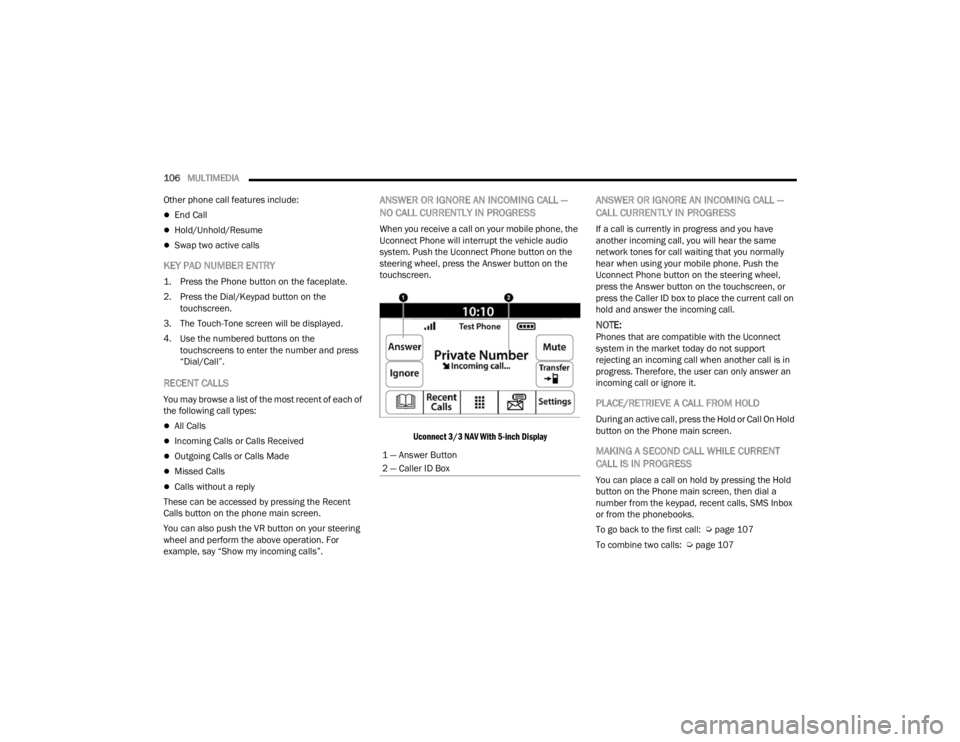
NO CALL CURRENTLY IN PROGRESS
When you receive a call on your mobile phone, the
Uconnect Phone will interrupt the vehicle audio
system. Push the Uconnect Phone button on the
steering wheel, press the Answer button on the
touchscreen.
Uconnect 3/3 NAV With 5-inch Display
ANSWER OR IGNORE AN INCOMING CALL —
CALL CURRENTLY IN PROGRESS
If a call is currently in progress and you have
another incoming call, you will hear the same
network tones for call waiting that you normally
hear when using your mobile phone. Push the
Uconnect Phone button on the steering wheel,
press the Answer button on the touchscreen, or
press the Caller ID box to place the current call on
hold and answer the incoming call.
NOTE:Phones that are compatible with the Uconnect
system in the market today do not support
rejecting an incoming call when another call is in
progress. Therefore, the user can only answer an
incoming call or ignore it.
PLACE/RETRIEVE A CALL FROM HOLD
During an active call, press the Hold or Call On Hold
button on the Phone main screen.
MAKING A SECOND CALL WHILE CURRENT
CALL IS IN PROGRESS
You can place a call on hold by pressing the Hold
button on the Phone main screen, then dial a
number from the keypad, recent calls, SMS Inbox
or from the phonebooks.
To go back to the first call: Ú page 107
To combine two calls: Ú page 107
1 — Answer Button
2 — Caller ID Box
22_VM_OM_EN_USC_t.book Page 106
Page 111 of 260

MULTIMEDIA109
NOTE:Only use the numbering listed in the provided
table. Otherwise, the system will not transpose the
message. Did You Know:
Your mobile phone must have the
full implementation of the Message Access Profile
(MAP) to take advantage of this feature. For details
about MAP, visit
UconnectPhone.com.
Apple® iPhone® iOS 5 or later supports reading
incoming text messages only. For further
information on how to enable this feature on your
Apple® iPhone®, refer to your iPhone® “User
Manual”.
Did You Know: Voice Text Reply is not compatible
with iPhone®, but if your vehicle is equipped with
Siri® Eyes Free, you can use your voice to send a
text message.
Siri® Eyes Free — If Equipped
When used with your Apple® iPhone® connected
to your vehicle, Siri lets you use your voice to send
text messages, select media, place phone calls
and much more. Siri uses your natural language to
understand what you mean and responds back to
confirm your requests. The system is designed to
keep your eyes on the road and your hands on the
wheel by letting Siri help you perform useful tasks. To enable Siri, push and hold, then release the
Uconnect Voice Recognition (VR) button on the
steering wheel. After you hear a double beep, you
can ask Siri to play podcasts and music, get
directions, read text messages, and many other
useful requests.
BLUETOOTH® COMMUNICATION LINK
Mobile phones may lose connection to the
Uconnect Phone. When this happens, the
connection can generally be re-established by
restarting the mobile phone. Your mobile phone is
recommended to remain in Bluetooth® ON mode.
POWER-UP
After switching the ignition key from OFF to either
the ON/RUN or ACC position, or after a language
change, you must wait at least 15 seconds prior to
using the system Ú
page 245.
PRE-DEFINED VOICE TEXT REPLY
RESPONSES
Yes. Stuck in
traffic. See you later.
No. Start without
me. I’ll be late.
Okay. Where are
you? I will be 5
25, 30, 45,
60> minutes late.
Call me.
Are you there
yet?
I’ll call you later. I need
directions. See you in 5
minutes.
I’m on my way.
Can’t talk right
now.
I’m lost. Thanks.
5
22_VM_OM_EN_USC_t.book Page 109
Page 112 of 260
110MULTIMEDIA
NAVIGATION MODE — IF EQUIPPED
OPERATING NAVIGATION MODE —
I
F EQUIPPED
Planning A Route
Using the search bar provides a wide range of ways
to find places and then navigate to them. You can
search for your destination in different ways:
A specific address
A partial address
A type of place
A zip code
A city to navigate to a city center
A Point of Interest (POI) near your current location
Latitude and longitude coordinates Using Search
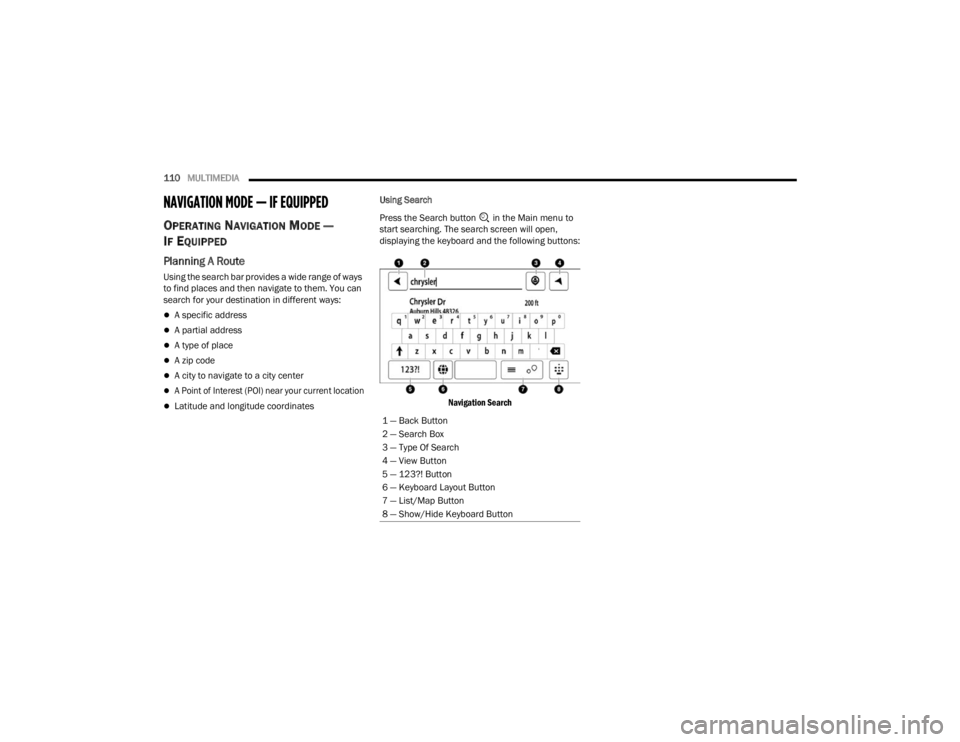
Press the Search button in the Main menu to
start searching. The search screen will open,
displaying the keyboard and the following buttons:
Navigation Search
1 — Back Button
2 — Search Box
3 — Type Of Search
4 — View Button
5 — 123?! Button
6 — Keyboard Layout Button
7 — List/Map Button
8 — Show/Hide Keyboard Button
22_VM_OM_EN_USC_t.book Page 110
Page 113 of 260

MULTIMEDIA111
Feature Description
Back Button Press the Back button to return to the previous screen.
Search Box Enter your search term in the search input box. As you type, matching
addresses and Points of Interest (POI) are shown.
Type Of Search Press this button to change the type of search to any of the following:
Whole Map: Select this option to search your current map with no limit to
the search radius. Your current location is the center of the search. The
results are ranked by exact match.
Near Me: Select this option to search with your current GPS location as the
search center. The results are ranked by distance.
In Town or City: Select this option to use a town or city as the center of your
search. Enter the town or city name using the keyboard on the touchscreen.
When you have selected the town or city from the results list, you can search
for an address or POI in that city.
Along Route: When a route has been planned, you can select this option to
search along your route for a specific type of location, such as a POI cate-
gory. When prompted, enter the type of location and then select it in the
right-hand column to carry out the search.
Near Destination: When a route has been planned, you can select this
option to use your destination as the center of your search.
Latitude Longitude: Select this option to enter a pair of latitude and longi
-
tude coordinates.
NOTE:By default, the current map is searched. Once you have used search, the last
search type you selected is used.
5
22_VM_OM_EN_USC_t.book Page 111