2022 RAM PROMASTER CITY key
[x] Cancel search: keyPage 114 of 260
112MULTIMEDIA
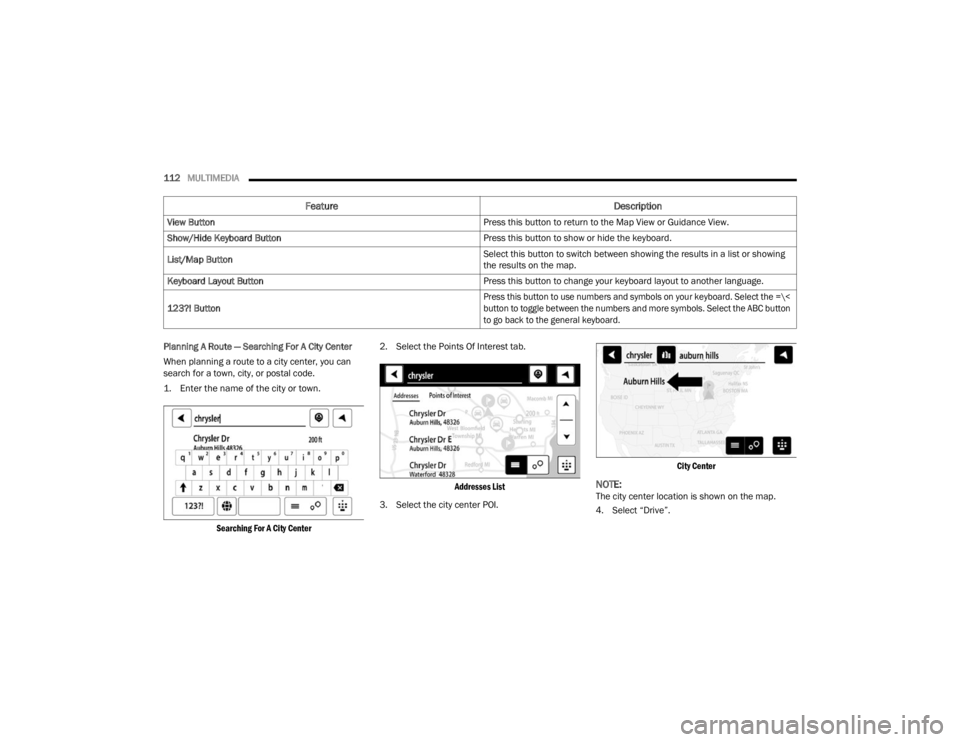
Planning A Route — Searching For A City Center
When planning a route to a city center, you can
search for a town, city, or postal code.
1. Enter the name of the city or town.
Searching For A City Center
2. Select the Points Of Interest tab.
Addresses List
3. Select the city center POI.
City Center
NOTE:The city center location is shown on the map.
4. Select “Drive”.
View Button
Press this button to return to the Map View or Guidance View.
Show/Hide Keyboard Button Press this button to show or hide the keyboard.
List/Map Button Select this button to switch between showing the results in a list or showing
the results on the map.
Keyboard Layout Button Press this button to change your keyboard layout to another language.
123?! Button
Press this button to use numbers and symbols on your keyboard. Select the =\<
button to toggle between the numbers and more symbols. Select the ABC button
to go back to the general keyboard.
Feature
Description
22_VM_OM_EN_USC_t.book Page 112
Page 115 of 260
MULTIMEDIA113
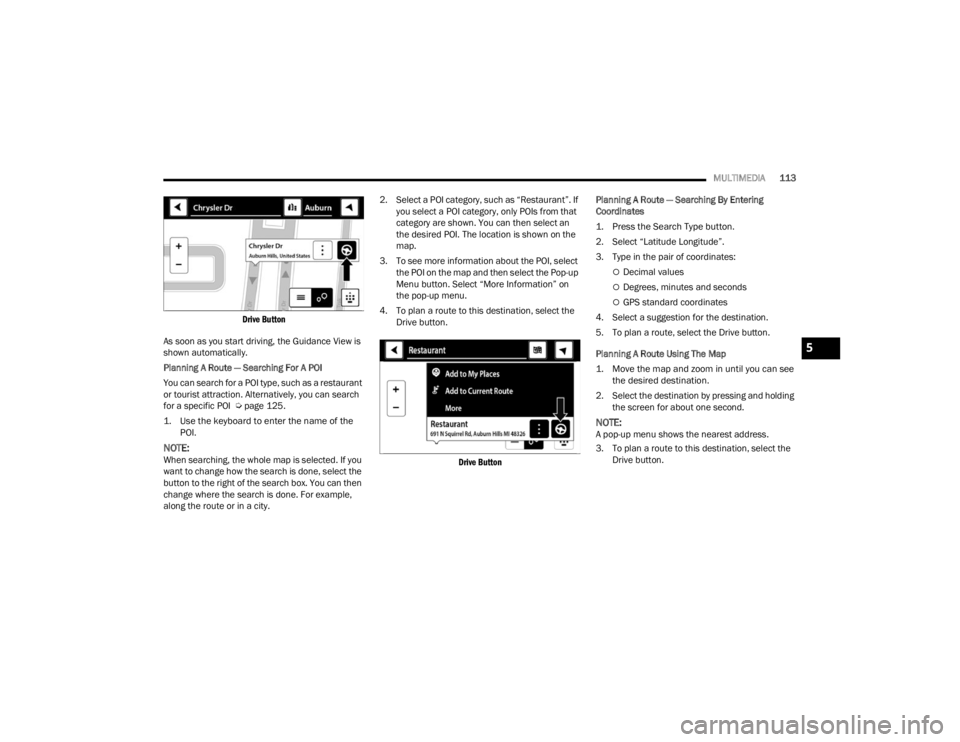
Drive Button
As soon as you start driving, the Guidance View is
shown automatically.
Planning A Route — Searching For A POI
You can search for a POI type, such as a restaurant
or tourist attraction. Alternatively, you can search
for a specific POI Ú page 125.
1. Use the keyboard to enter the name of the POI.
NOTE:When searching, the whole map is selected. If you
want to change how the search is done, select the
button to the right of the search box. You can then
change where the search is done. For example,
along the route or in a city. 2. Select a POI category, such as “Restaurant”. If
you select a POI category, only POIs from that
category are shown. You can then select an
the desired POI. The location is shown on the
map.
3. To see more information about the POI, select the POI on the map and then select the Pop-up
Menu button. Select “More Information” on
the pop-up menu.
4. To plan a route to this destination, select the Drive button.
Drive Button
Planning A Route — Searching By Entering
Coordinates
1. Press the Search Type button.
2. Select “Latitude Longitude”.
3. Type in the pair of coordinates:
Decimal values
Degrees, minutes and seconds
GPS standard coordinates
4. Select a suggestion for the destination.
5. To plan a route, select the Drive button.
Planning A Route Using The Map
1. Move the map and zoom in until you can see the desired destination.
2. Select the destination by pressing and holding the screen for about one second.
NOTE:A pop-up menu shows the nearest address.
3. To plan a route to this destination, select the Drive button.
5
22_VM_OM_EN_USC_t.book Page 113
Page 127 of 260

MULTIMEDIA125
Safety Warnings: You can change settings for
whether you want to be warned, never warned,
or warned only if you are speeding. The following
options are available:
When speeding: This warning is given when
you exceed the speed limit by more than
3 mph (5 km/h). When you are speeding,
the speed panel also turns red in the Guid -
ance View.
Driver Safety: Select this setting to make
some features locked while the vehicle is in
motion.
NOTE:This feature increases safety by minimizing driver
distraction. When driver safety is on, a message
tells you when the lock is enabled.
SYSTEM
Select this setting to reset all other settings.
Selecting “Reset” will delete all saved places and
settings and restore the standard settings. This
includes the language, voice settings, warning
settings, and theme.
NOTE:This is not a software update and will not affect the
version of the software application installed on
your Uconnect system.
Points Of Interest
ABOUT POINTS OF INTEREST
Points Of Interest (POI) are useful places on the
map.
Here are some examples:
Restaurants
Hotels
Museums
Parking lots
Gas stations
Emergency Services
USING POIS TO PLAN A ROUTE
When you plan a route, you can use a POI for the
destination or as a stop along the route. Using Search
1. Select “Search” on the Main Menu to begin a
search. The search screen will open,
displaying the keyboard. Enter the name of
your desired destination. Your search results
will be displayed in two lists. Addresses and
city matches are shown in the list called
“Addresses.” POIs, types of POIs, and Places
are shown in the list called “Points of
Interest.” You can also select a POI category
to only see POI search results from that
category.
2. Select the desired POI. The location will appear on the map. From here, you can save the POI
to “My Places,” use this POI as a starting point,
begin navigation to this destination, or view
more details about this POI. By pressing “More
Information,” you can view the phone number
and full address of the POI.
3. If a route is already planned, you can add the location to your current route. To plan a route
to this destination, press the Drive button on
the touchscreen.
NOTE:Your Navigation system will calculate a route, and
guidance to your destination will begin. Guidance
View will begin as soon as you start driving.
5
22_VM_OM_EN_USC_t.book Page 125
Page 129 of 260

MULTIMEDIA127
Adding A Location Using Search
1. In the Main Menu, press “Search”.
2. Enter the name or address of a location using the touchscreen keyboard.
3. Select the desired location, and then press “Show In Map”.
4. The Map View will show the location. Press the pop-up menu button.
5. Press “Add to My Places”.
6. The name of the location will appear in the edit screen. You can edit the name of the location
for easy recognition.
7. Press “Done” to save your location in the My Places list.
Setting Your Home Location
1. In the Main Menu, press “My Places”.
2. Press “Home” .
3. To select a location for home, do one of the following:
Zoom in on the map at the location you want
to select. Press and hold to select the loca -
tion, then press the home icon next to the
name of the location.
You can also search for a location using the
search function. Select “Set Home Loca -
tion.”
DELETING A LOCATION FROM MY PLACES
Deleting A Recent Destination From My Places
1. In the main menu, select “My Places”.
2. Press “Recent Destinations”.
3. Press “Edit List”.
4. Select the destination(s) you want to delete.
5. Press the Delete button.
Deleting A Location From My Places
1. In the main menu, select “My Places”.
2. Press “Edit List”.
3. Select the destination(s) you want to delete.
4. Press the Delete button.
Getting Help
Press the Help button in the Main menu or from
the Settings menu to see the following information:
About : Press this button to view information about
your Uconnect system. This information includes:
Serial number
Application version
Installed maps
Legal information, such as Copyright and
Licenses for EULA and Open Source
Important Safety Notices And Warnings
GLOBAL POSITIONING SYSTEM
The Global Positioning System (GPS) is a
satellite-based system that provides location and
timing information around the globe. GPS is
operated and controlled under the sole
responsibility of the Government of the United
States of America, which is responsible for its
availability and accuracy. Any changes in GPS
availability and accuracy, or in environmental
conditions, may impact the operation of this
Navigation system. TomTom® does not accept any
liability for the availability and accuracy of GPS.
USE WITH CARE
Use of TomTom® navigation while driving still
means that you need to drive with due care and
attention.
SAFETY SETTINGS
We recommend using the safety settings to make
your driving as safe as possible. These are some of
the options included in the safety settings:
Show safety reminders
Warn when driving faster than allowed
You can also drive more safely by using voice
commands to control navigation Ú page 123.
5
22_VM_OM_EN_USC_t.book Page 127
Page 138 of 260

136SAFETY
NOTE:
The TPMS is not intended to replace normal tire
care and maintenance or to provide warning of
a tire failure or condition.
The TPMS should not be used as a tire pressure
gauge while adjusting your tire pressure.
Driving on a significantly underinflated tire
causes the tire to overheat and can lead to tire
failure. Underinflation also reduces fuel effi -
ciency and tire tread life, and may affect the
vehicle’s handling and stopping ability.
The TPMS is not a substitute for proper tire
maintenance, and it is the driver’s responsibility
to maintain correct tire pressure using an accu -
rate tire pressure gauge, even if underinflation
has not reached the level to trigger illumination
of the TPMS Warning Light.
Seasonal temperature changes will affect tire
pressure, and the TPMS will monitor the actual
tire pressure in the tire Ú page 245.
Base System
This is the TPMS Warning Light located
in the instrument cluster.
The TPMS uses wireless technology with
wheel rim mounted electronic sensors
to monitor tire pressure levels. Sensors, mounted
to each wheel as part of the valve stem, transmit
tire pressure readings to the receiver module.
NOTE:It is particularly important for you to check the tire
pressure in all of the tires on your vehicle regularly
and to maintain the proper pressure.
The TPMS consists of the following components:
Receiver module
Four TPMS sensors
Tire Pressure Monitoring System Warning Light
Tire Pressure Monitoring System Low
Pressure Warnings
The Tire Pressure Monitoring System Warning Light
will illuminate in the instrument cluster, an audible
chime will be activated, and the “Check tire
pressure” text message will display when one or
more of the four active road tire pressures are low.
Should this occur, you should stop as soon as
possible, check the inflation pressure of each tire
on your vehicle, and inflate each tire to the
vehicle’s recommended cold placard pressure
value. The system will automatically update and
the TPMS Warning Light will extinguish once the
updated tire pressures have been received. The
vehicle may need to be driven for up to 20 minutes
above 15 mph (24 km/h) to receive this
information.
Check TPMS Warnings
The TPMS Warning Light will flash on and off for 75
seconds and remain on solid when a system fault
is detected, an audible chime will be activated and
a proper text message will be displayed. If the
ignition key is cycled, this sequence will repeat
providing the system fault still exists. The TPMS
Warning Light will turn off when the fault condition
no longer exists. A system fault can occur with any
of the following scenarios:
1. Jamming due to electronic devices or driving next to facilities emitting the same radio
frequencies as the TPMS sensors.
2. Installing some form of aftermarket window tinting that affects radio wave signals.
3. Snow or ice around the wheels or wheel housings.
4. Using tire chains on the vehicle.
5. Using wheels/tires not equipped with TPMS sensors.
NOTE:Your vehicle can be equipped with either a Tire
Service Kit, a compact spare tire or a regular size
spare tire (with or without original TPMS sensor).
22_VM_OM_EN_USC_t.book Page 136
Page 139 of 260

SAFETY137
1. Tire Service Kit (original tire sealant – if equipped): After fixing the punctured tire with
original tire sealant, the original situation will
be restored, so system will turn off the
warning light during the normal drive.
2. Compact Spare Tire (if equipped): The compact spare wheel is not equipped with a
TPMS sensor. So when mounted, during the
normal drive the system will turn on the
warning light (flashes for approximately 75
seconds then remains solid). This condition
persists until a wheel equipped with original
TPMS sensor has been mounted on the
vehicle.
3. Regular size spare tire (not equipped with TPMS sensor): When mounted, during the
normal drive the system will turn on the telltale
(flashes for approximately 75 seconds then
remains solid). This condition persists until a
wheel equipped with original TPMS sensor has
been mounted on the vehicle. Then the system
will be restored and the warning light will turn
off during the normal drive.
4. Regular size spare tire (equipped with TPMS sensor): When mounted, the warning light will
turn off during the normal drive.
5. In all the above cases, please check the replacement tire inflation pressure before
driving your vehicle. 6. In case of tire replacement, if the vehicle is
driven for short periods of time, then the
system can take a while to be restored.
NOTE:For a correct Tire Pressure Monitoring System
behavior, please wait for about 20 minutes in
key-off during each tire substitution.
OCCUPANT RESTRAINT SYSTEMS
Some of the most important safety features in your
vehicle are the restraint systems:
OCCUPANT RESTRAINT SYSTEMS
Seat Belt Systems
Supplemental Restraint Systems (SRS) Air Bags
Child Restraints
Some of the safety features described in this
section may be standard equipment on some
models, or may be optional equipment on others. If
you are not sure, ask an authorized dealer.
IMPORTANT SAFETY PRECAUTIONS
Please pay close attention to the information in
this section. It tells you how to use your restraint
system properly, to keep you and your passengers
as safe as possible. Here are some simple steps you can take to
minimize the risk of harm from a deploying air bag:
1. Children 12 years old and under should
always ride buckled up in the rear seat of a
vehicle with a rear seat.
2. A child who is not big enough to wear the vehicle seat belt properly must be secured in
the appropriate child restraint or
belt-positioning booster seat in a rear seating
position Ú page 166.
3. If a child from 2 to 12 years old (not in a rear-facing child restraint) must ride in the
front passenger seat, move the seat as far
back as possible and use the proper child
restraint Ú page 166.
4. Never allow children to slide the shoulder belt behind them or under their arm.
5. You should read the instructions provided with your child restraint to make sure that you are
using it properly.
6. All occupants should always wear their lap and shoulder belts properly.
7. The driver and front passenger seats should be moved back as far as practical to allow the
front air bags room to inflate.
6
22_VM_OM_EN_USC_t.book Page 137
Page 152 of 260

150SAFETY
NOTE:
Air bag covers may not be obvious in the interior
trim, but they will open during air bag deploy -
ment.
After any collision, the vehicle should be taken
to an authorized dealer immediately.
Enhanced Accident Response System
In the event of an impact, if the communication
network remains intact, and the power remains
intact, depending on the nature of the event, the
Occupant Restraint Controller (ORC) will determine
whether to have the Enhanced Accident Response
System perform the following functions:
Cut off fuel to the engine (if equipped)
Cut off battery power to the electric motor
(if equipped)
Flash hazard lights as long as the battery has
power
Turn on the interior lights, which remain on as
long as the battery has power or for 15 minutes
from the intervention of the Enhanced Accident
Response System
Unlock the power door locks
Your vehicle may also be designed to perform any
of these other functions in response to the
Enhanced Accident Response System:
Turn off the Fuel Filter Heater, Turn off the HVAC
Blower Motor, Close the HVAC Circulation Door
Cut off battery power to the:
Engine
Electric Motor (if equipped)
Electric Power Steering
Brake booster
Electric park brake
Automatic transmission gear selector
Horn
Front wiper
Headlamp washer pump (if equipped)
NOTE:After an accident, remember to cycle the ignition to
the STOP/OFF position and remove the key from
the ignition switch to avoid draining the battery.
Carefully check the vehicle for fuel leaks in the
engine compartment and on the ground near the
engine compartment and fuel tank before
resetting the system and starting the engine. If
there are no fuel leaks or damage to the vehicle
electrical devices (e.g. headlights) after an
accident, reset the system by following the
procedure described below. If you have any doubt,
contact an authorized dealer.
Enhanced Accident Response System
Reset Procedure
In order to reset the Enhanced Accident Response
System functions after an event, the ignition switch
must be changed from ignition AVV/START or
MAR/RUN to ignition STOP/OFF. Carefully check
the vehicle for fuel leaks in the engine
compartment and on the ground near the engine
compartment and fuel tank before resetting the
system and starting the engine. After an accident,
if the vehicle will not start after performing the
reset procedure, the vehicle must be towed to an
authorized dealer to be inspected and to have the
Enhanced Accident Response System reset.
WARNING!
Deployed air bags and seat belt pretensioners
cannot protect you in another collision. Have the
air bags, seat belt pretensioners, and the seat
belt retractor assemblies replaced by an
authorized dealer immediately. Also, have the
Occupant Restraint Controller System serviced
as well.
22_VM_OM_EN_USC_t.book Page 150
Page 171 of 260

SAFETY169
(Continued)
(Continued)
PERIODIC SAFETY CHECKS YOU SHOULD
M
AKE OUTSIDE THE VEHICLE
Tires
Examine tires for excessive tread wear and uneven
wear patterns. Check for stones, nails, glass, or
other objects lodged in the tread or sidewall.
Inspect the tread for cuts and cracks. Inspect
sidewalls for cuts, cracks, and bulges. Check the
lug nut/bold torque for tightness. Check the tires
(including spare) for proper cold inflation pressure.
WARNING!
An improperly attached, damaged, folded, or
stacked floor mat, or damaged floor mat
fasteners may cause your floor mat to interfere
with the accelerator, brake, or clutch pedals and
cause a loss of vehicle control. To prevent
SERIOUS INJURY or DEATH:
ALWAYS securely attach your floor
mat using the floor mat fasteners. DO
NOT install your floor mat upside down
or turn your floor mat over. Lightly pull
to confirm mat is secured using the floor mat
fasteners on a regular basis.
ALWAYS REMOVE THE EXISTING
FLOOR MAT FROM THE VEHICLE
before installing any other floor mat.
NEVER install or stack an additional
floor mat on top of an existing floor mat.
ONLY install floor mats designed to fit your
vehicle. NEVER install a floor mat that cannot
be properly attached and secured to your
vehicle. If a floor mat needs to be replaced,
only use a FCA approved floor mat for the
specific make, model, and year of your
vehicle.
ONLY use the driver’s side floor mat on the
driver’s side floor area. To check for interfer -
ence, with the vehicle properly parked with the
engine off, fully depress the accelerator, the
brake, and the clutch pedal (if present) to
check for interference. If your floor mat inter -
feres with the operation of any pedal, or is not
secure to the floor, remove the floor mat from
the vehicle and place the floor mat in your
trunk.
ONLY use the passenger’s side floor mat on
the passenger’s side floor area.
ALWAYS make sure objects cannot fall or slide
into the driver’s side floor area when the
vehicle is moving. Objects can become
trapped under accelerator, brake, or clutch
pedals and could cause a loss of vehicle
control.
NEVER place any objects under the floor mat
(e.g., towels, keys, etc.). These objects could
change the position of the floor mat and may
cause interference with the accelerator,
brake, or clutch pedals.
WARNING!
If the vehicle carpet has been removed and
re-installed, always properly attach carpet to
the floor and check the floor mat fasteners are
secure to the vehicle carpet. Fully depress
each pedal to check for interference with the
accelerator, brake, or clutch pedals then
re-install the floor mats.
It is recommended to only use mild soap and
water to clean your floor mats. After cleaning,
always check your floor mat has been properly
installed and is secured to your vehicle using
the floor mat fasteners by lightly pulling mat.
WARNING!
6
22_VM_OM_EN_USC_t.book Page 169