2022 RAM PROMASTER CITY reset
[x] Cancel search: resetPage 89 of 260
MULTIMEDIA87
Restore Settings
Clear Personal Data
When the Restore Settings button is pressed on the touchscreen, the system displays the option related to resetting the Uconnect system back to its factory
settings. This setting can clear personal data and reset selected settings from other menus.
NOTE:Depending on the vehicle’s options, feature settings may vary.
Setting Name Description
Restore Settings to Default This setting will return all the previously changed settings to their factory
default.
When the Clear Personal Data button is pressed on the touchscreen, a pop-up will display asking if you would like to clear all personal data from the system.
NOTE:Depending on the vehicle’s options, feature settings may vary.
Setting Name
Description
Clear Personal Data This setting will display a pop-up that provides the option to clear all personal
data from the system, including Bluetooth® devices and presets.
5
22_VM_OM_EN_USC_t.book Page 87
Page 93 of 260

MULTIMEDIA91
UCONNECT MODES
RADIO MODE
Operating Radio Mode
Uconnect 3/3 NAV With 5-inch Display Radio Mode
The radio is equipped with the following modes:
FM
AM
SiriusXM® Radio
Push the Radio button on the faceplate to enter
the Radio Mode. The different tuner modes, FM/
AM/SXM, can then be selected by pressing the
corresponding buttons on the touchscreen in the
Radio mode.
SWITCHING THE SYSTEM ON/OFF
The screen will switch on/off when the Volume &
On/Off button is pushed.
VOLUME/POWER
Rotate the Volume knob to adjust the volume.
When the audio system is turned on, the sound will
be set at the same volume level as last played.
Push the On/Off button to turn the system on or
off.
ENTER/BROWSE AND TUNE/SCROLL
CONTROL
Turn the rotary Tune/Scroll knob clockwise to
increase or counterclockwise to decrease the radio
station frequency.
SEEK FUNCTIONS
Seek Up And Seek Down
Press and release the Seek Up or Seek Down
button on the touchscreen to tune the radio to the
next available station or channel. If the radio
reaches the starting station after passing through
the entire band two times, the radio will stop at the
station where it began.
Fast Seek Up And Fast Seek Down
Press, hold, and then release the Seek Up or
Seek Down button on the touchscreen to
advance the radio through the available stations or
channels at a faster rate. The radio stops at the
next available station or channel when the button
on the touchscreen is released.
NOTE:
Pressing and holding either the Seek Up or
Seek Down button will scan the different
frequency bands at a slower rate.
1 — Preset Buttons
2 — All Presets Button
3 — Seek Down Button
4 — Radio Band Button (FM/AM/SXM)
5 — Direct Tune Button
6 — Info Button
7 — Audio Settings Button
8 — Seek Up Button
5
22_VM_OM_EN_USC_t.book Page 91
Page 94 of 260
92MULTIMEDIA
DIRECT TUNE
Press the Tune button located at the bottom of the
radio screen to directly tune to a desired radio
station or channel.
Press the available number button on the
touchscreen to begin selecting a desired station.
Once a number has been entered, any numbers
that are no longer possible (stations that cannot be
reached) will become deactivated/grayed out.
INFO
Press the Info button to display the current track
information. Press the X button to cancel this
feature.
SETTING THE PRESETS
The Presets are available for all Radio Modes, and
are activated by pressing any of the four Preset
buttons, located at the top of the screen.
When you are receiving a station that you wish to
commit into memory, press and hold the desired
numbered button for more that two seconds or
until you hear a confirmation beep.
The Radio stores up to 12 presets in each of the
Radio modes. Four presets are visible at the top of
the radio screen.
Pressing the All button on the radio home screen
will display all of the preset stations for that mode.
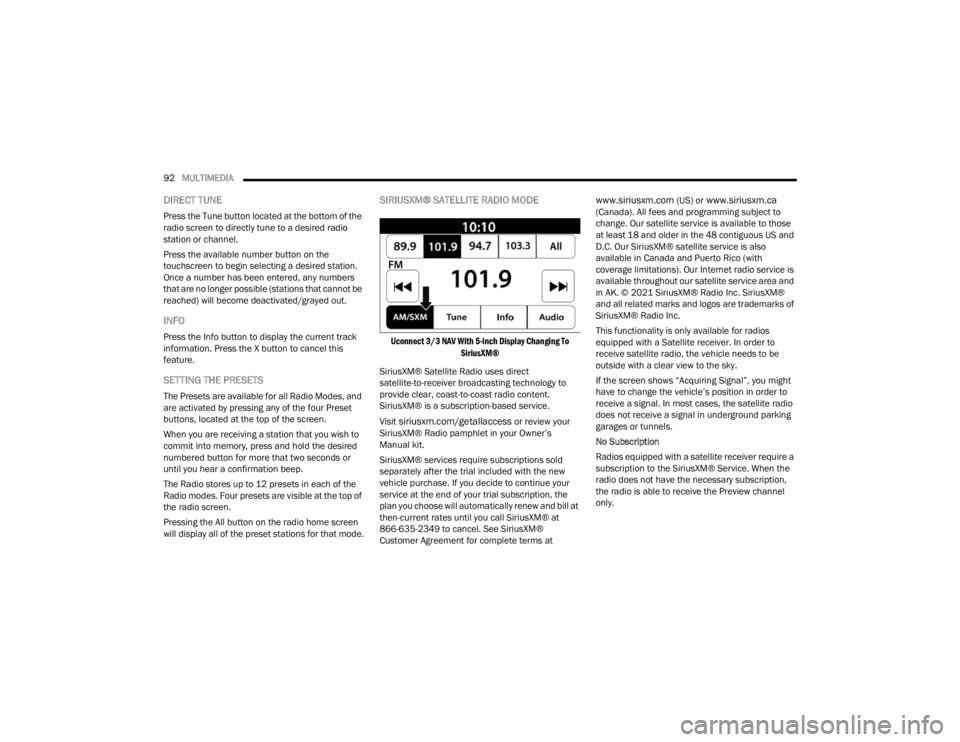
SIRIUSXM® SATELLITE RADIO MODE
Uconnect 3/3 NAV With 5-inch Display Changing To
SiriusXM®
SiriusXM® Satellite Radio uses direct
satellite-to-receiver broadcasting technology to
provide clear, coast-to-coast radio content.
SiriusXM® is a subscription-based service.
Visit
siriusxm.com/getallaccess or review your
SiriusXM® Radio pamphlet in your Owner’s
Manual kit.
SiriusXM® services require subscriptions sold
separately after the trial included with the new
vehicle purchase. If you decide to continue your
service at the end of your trial subscription, the
plan you choose will automatically renew and bill at
then-current rates until you call SiriusXM® at
866-635-2349 to cancel. See SiriusXM®
Customer Agreement for complete terms at
www.siriusxm.com (US) or www.siriusxm.ca
(Canada). All fees and programming subject to
change. Our satellite service is available to those
at least 18 and older in the 48 contiguous US and
D.C. Our SiriusXM® satellite service is also
available in Canada and Puerto Rico (with
coverage limitations). Our Internet radio service is
available throughout our satellite service area and
in AK. © 2021 SiriusXM® Radio Inc. SiriusXM®
and all related marks and logos are trademarks of
SiriusXM® Radio Inc.
This functionality is only available for radios
equipped with a Satellite receiver. In order to
receive satellite radio, the vehicle needs to be
outside with a clear view to the sky.
If the screen shows “Acquiring Signal”, you might
have to change the vehicle’s position in order to
receive a signal. In most cases, the satellite radio
does not receive a signal in underground parking
garages or tunnels.
No Subscription
Radios equipped with a satellite receiver require a
subscription to the SiriusXM® Service. When the
radio does not have the necessary subscription,
the radio is able to receive the Preview channel
only.
22_VM_OM_EN_USC_t.book Page 92
Page 95 of 260
MULTIMEDIA93
Acquiring SiriusXM® Subscription
To activate the SiriusXM® Satellite Radio
subscription, US visit
www.UconnectPhone.com
or call: 1-800-643-2112
Canada visit
www.UconnectPhone.com or call:
1-800-465-2001 (English)or 1-800-387-9983
(French)
NOTE:You will need to provide the SiriusXM® ID (RID)
located at the bottom of the Channel 0 screen.
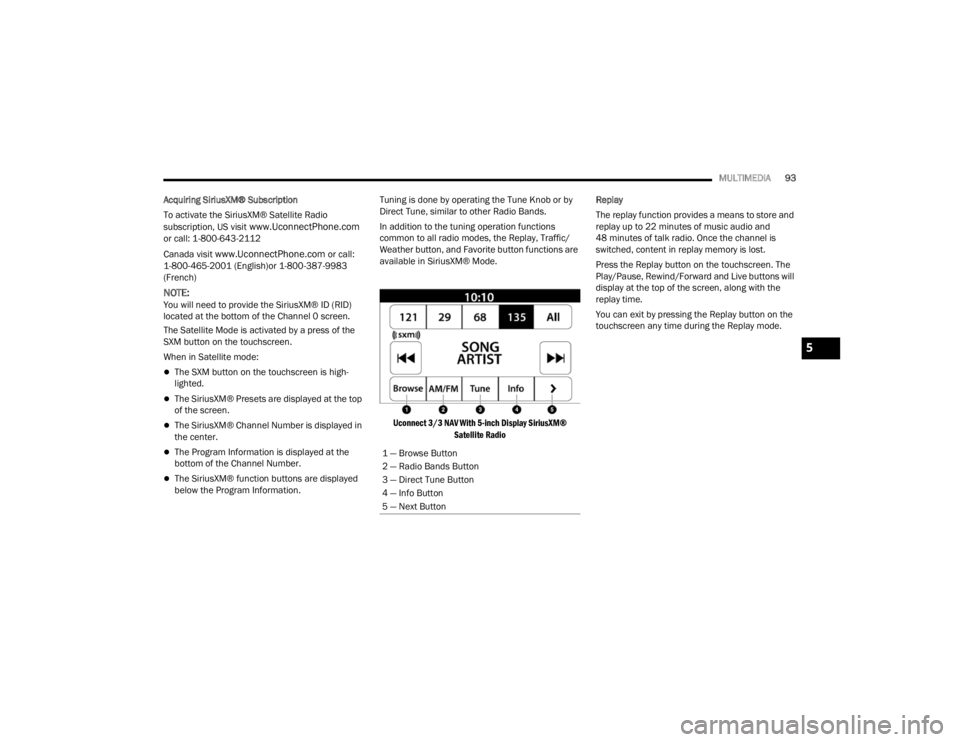
The Satellite Mode is activated by a press of the
SXM button on the touchscreen.
When in Satellite mode:
The SXM button on the touchscreen is high -
lighted.
The SiriusXM® Presets are displayed at the top
of the screen.
The SiriusXM® Channel Number is displayed in
the center.
The Program Information is displayed at the
bottom of the Channel Number.
The SiriusXM® function buttons are displayed
below the Program Information. Tuning is done by operating the Tune Knob or by
Direct Tune, similar to other Radio Bands.
In addition to the tuning operation functions
common to all radio modes, the Replay, Traffic/
Weather button, and Favorite button functions are
available in SiriusXM® Mode.
Uconnect 3/3 NAV With 5-inch Display SiriusXM® Satellite Radio
Replay
The replay function provides a means to store and
replay up to 22 minutes of music audio and
48 minutes of talk radio. Once the channel is
switched, content in replay memory is lost.
Press the Replay button on the touchscreen. The
Play/Pause, Rewind/Forward and Live buttons will
display at the top of the screen, along with the
replay time.
You can exit by pressing the Replay button on the
touchscreen any time during the Replay mode.
1 — Browse Button
2 — Radio Bands Button
3 — Direct Tune Button
4 — Info Button
5 — Next Button
5
22_VM_OM_EN_USC_t.book Page 93
Page 97 of 260
MULTIMEDIA95
Favorites
Press the Favorites button on the touchscreen to
activate the Favorites Menu, which will time out
within 20 seconds in absence of user interaction.
You can exit the Favorites Menu by a press of the X
button.
The Favorites feature enables you to set a favorite
artist or song that is currently playing. The radio
then uses this information to alert you when either
the favorite artist or song is being played at any
time by any of the SiriusXM® Channels.
The maximum number of favorites that can be
stored in the Radio is 50.
Favorite Artist: While the song is playing, to set a
favorite artist, press the Favorites button on the
touchscreen and then the Favorite Artist button on
the touchscreen.
Favorite Song: While the song is playing, to set a
favorite song, press the Favorites button on the
touchscreen and then the Favorite Song button on
the touchscreen. Browse In SXM
Press the Browse button on the touchscreen to
edit Presets, Favorites, Game Zone, and Jump
settings, along with providing the SiriusXM®
Channel List.
This screen contains many submenus. You can exit
a submenu to return to a parent menu by pressing
the Back arrow.
All
Press the All button on the Browse Screen. When
pressing the All button, the following categories
become available:
Channel List:
Press the Channel List to display
all the SiriusXM® Channel Numbers. You can
scroll the Channel List by pressing the Up and
Down arrows located on the right side of the
screen. Scrolling can also be done by operating
the TUNE/SCROLL knob.
Genre: Press the Genre button on the touch -
screen to display a list of Genres. You can select
any desired Genre by pressing the Genre List;
the radio tunes to a channel with the content in
the selected Genre. Favorites
Press the Favorites button on the Browse screen.
The Favorites menu provides a means to edit the
Favorites List and to configure the Alert Settings,
along with providing a list of Channels currently
airing any of the items in the Favorites List.
You can scroll the Favorites List by pressing the Up
and Down arrows located at the right side of the
screen. Scrolling can also be done by operating the
TUNE/SCROLL knob as well.
Remove Favorites
Press the Remove Favorites tab at the top of the
screen. Press the Delete All button on the
touchscreen to delete all of the Favorites or press
the Trash Can icon next to the Favorite to be
deleted.
Alert Settings
Press the Alert Settings tab at the top of the
Favorites screen. The Alert Settings menu allows
you to choose from a visual alert or audible and
visual alert when one of your favorites is airing on
any of the SiriusXM® channels.
5
22_VM_OM_EN_USC_t.book Page 95
Page 98 of 260
96MULTIMEDIA
Game Zone
Press the Game Zone button, located at the left of
the Browse screen. This feature provides you with
the ability to select teams, edit the selection, and
set alerts.
On-Air
Press the On-Air tab at the top of the screen. The
On-Air List provides a list of Channels currently
airing any of the items in the Selections List, and
pressing any of the items in the list tunes the radio
to that channel.
Add/Delete — If Equipped
Press the Add/Delete button on the touchscreen to
activate the League Scroll List. Press the chosen
league and a scroll list of all teams within the
league will appear, then you can select a team by
pressing the corresponding box. A check mark
appears for all teams that are chosen. Remove Selection/Trash Can Icon
Press the Remove Selection tab at the top of the
screen. Press the Delete All button on the
touchscreen to delete all of the selections or press
the Trash Can icon next to the selection to be
deleted.
Alert Settings
Press the Alert Setting tab at the top of the screen.
The Alert Settings menu allows you to choose from
“Alert me to on-air games upon start” or “Alert
upon score update” or both when one or more of
your selections is airing on any of the SiriusXM®
channels.
Tune Start
Tune Start begins playing the current song from
the beginning when you tune to a music channel
using one of the 12 presets. This feature occurs
the first time the preset is selected during that
current song.
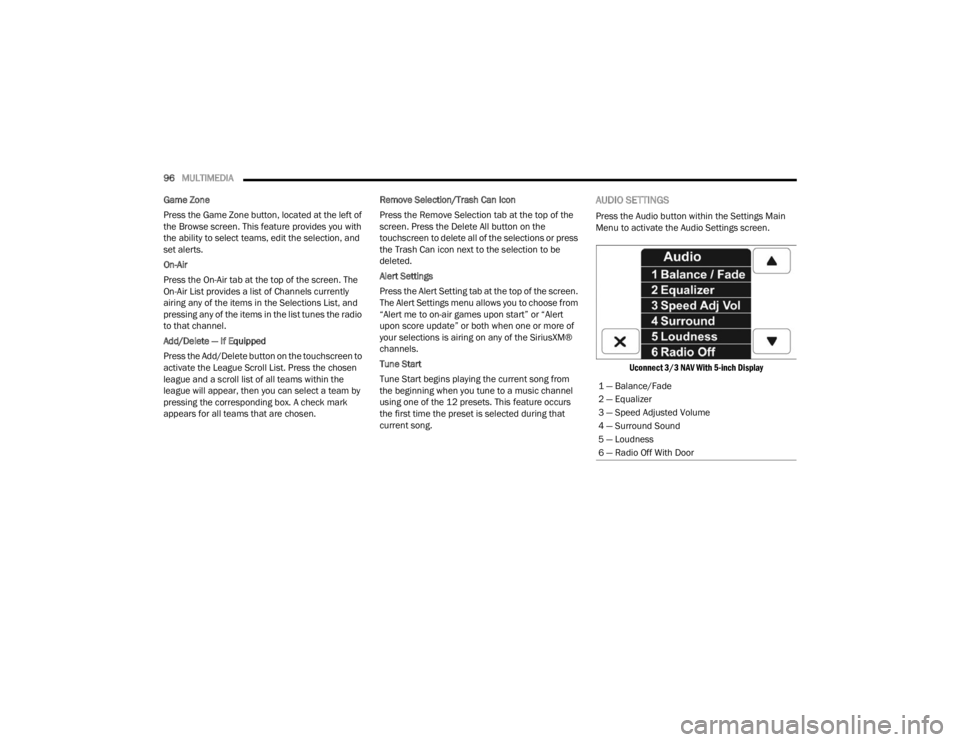
AUDIO SETTINGS
Press the Audio button within the Settings Main
Menu to activate the Audio Settings screen.
Uconnect 3/3 NAV With 5-inch Display
1 — Balance/Fade
2 — Equalizer
3 — Speed Adjusted Volume
4 — Surround Sound
5 — Loudness
6 — Radio Off With Door
22_VM_OM_EN_USC_t.book Page 96
Page 127 of 260

MULTIMEDIA125
Safety Warnings: You can change settings for
whether you want to be warned, never warned,
or warned only if you are speeding. The following
options are available:
When speeding: This warning is given when
you exceed the speed limit by more than
3 mph (5 km/h). When you are speeding,
the speed panel also turns red in the Guid -
ance View.
Driver Safety: Select this setting to make
some features locked while the vehicle is in
motion.
NOTE:This feature increases safety by minimizing driver
distraction. When driver safety is on, a message
tells you when the lock is enabled.
SYSTEM
Select this setting to reset all other settings.
Selecting “Reset” will delete all saved places and
settings and restore the standard settings. This
includes the language, voice settings, warning
settings, and theme.
NOTE:This is not a software update and will not affect the
version of the software application installed on
your Uconnect system.
Points Of Interest
ABOUT POINTS OF INTEREST
Points Of Interest (POI) are useful places on the
map.
Here are some examples:
Restaurants
Hotels
Museums
Parking lots
Gas stations
Emergency Services
USING POIS TO PLAN A ROUTE
When you plan a route, you can use a POI for the
destination or as a stop along the route. Using Search
1. Select “Search” on the Main Menu to begin a
search. The search screen will open,
displaying the keyboard. Enter the name of
your desired destination. Your search results
will be displayed in two lists. Addresses and
city matches are shown in the list called
“Addresses.” POIs, types of POIs, and Places
are shown in the list called “Points of
Interest.” You can also select a POI category
to only see POI search results from that
category.
2. Select the desired POI. The location will appear on the map. From here, you can save the POI
to “My Places,” use this POI as a starting point,
begin navigation to this destination, or view
more details about this POI. By pressing “More
Information,” you can view the phone number
and full address of the POI.
3. If a route is already planned, you can add the location to your current route. To plan a route
to this destination, press the Drive button on
the touchscreen.
NOTE:Your Navigation system will calculate a route, and
guidance to your destination will begin. Guidance
View will begin as soon as you start driving.
5
22_VM_OM_EN_USC_t.book Page 125
Page 130 of 260
128MULTIMEDIA
Copyright Notices
© 2021 TomTom®. All rights reserved. TomTom®
and the "two hands" logo are registered
trademarks of TomTom® N.V. or one of its
subsidiaries. Please see
www.tomtom.com/
en_us/legal/ for warranties and end user license
agreements applying to this product.
© 2021 TomTom®. All rights reserved. This
material is proprietary and the subject of copyright
protection and/or database rights protection and/
or other intellectual property rights owned by
TomTom® or its suppliers. The use of this material
is subject to the terms of a license agreement. Any
unauthorized copying or disclosure of this material
will lead to criminal and civil liabilities.
Data Source © 2021 TomTom® All rights reserved.
The software included in this product contains
copyrighted software that is licensed under the
GPL. A copy of that license can be viewed in the
License section. You can obtain the complete
corresponding source code from us for a period of
three years after our last shipment of this product.
For more information, visit
https://
www.tomtom.com/en_gb/opensource or
contact your local TomTom® customer support
team via
us.support.tomtom.com/app/
answers/list. Upon request, we will send you a CD
with the corresponding source code. Linotype, Frutiger and Univers are trademarks of
Linotype GmbH registered in the US Patent and
Trademark Office and may be registered in certain
other jurisdictions. MHei is a trademark of The
Monotype Corporation and may be registered in
certain jurisdictions.
STEERING WHEEL AUDIO CONTROLS —
IF EQUIPPED
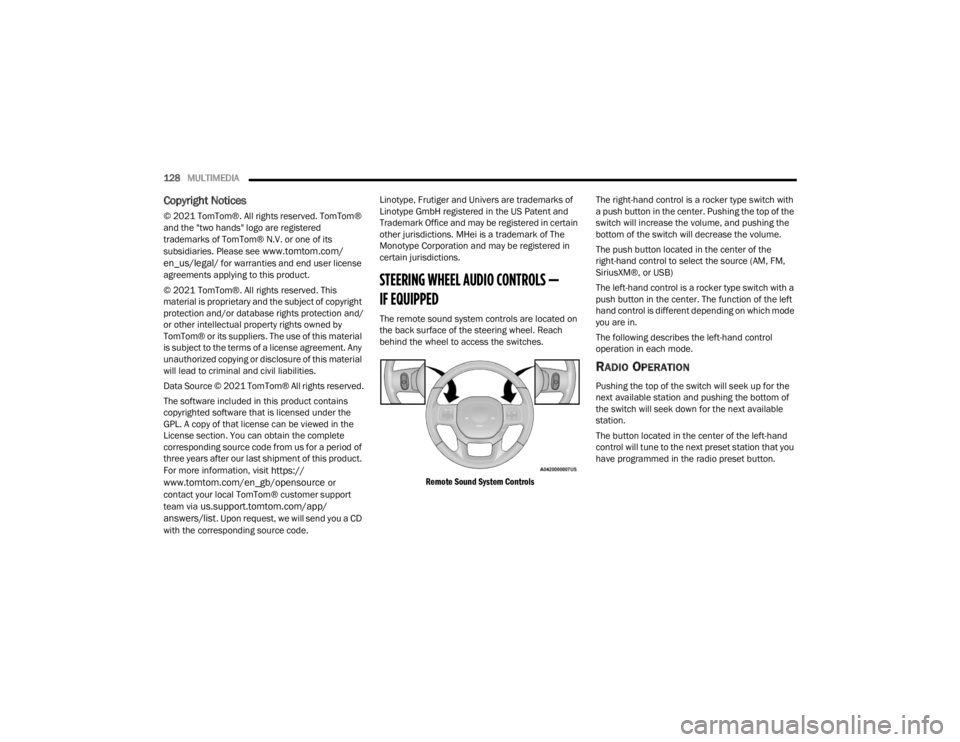
The remote sound system controls are located on
the back surface of the steering wheel. Reach
behind the wheel to access the switches.
Remote Sound System Controls
The right-hand control is a rocker type switch with
a push button in the center. Pushing the top of the
switch will increase the volume, and pushing the
bottom of the switch will decrease the volume.
The push button located in the center of the
right-hand control to select the source (AM, FM,
SiriusXM®, or USB)
The left-hand control is a rocker type switch with a
push button in the center. The function of the left
hand control is different depending on which mode
you are in.
The following describes the left-hand control
operation in each mode.
RADIO OPERATION
Pushing the top of the switch will seek up for the
next available station and pushing the bottom of
the switch will seek down for the next available
station.
The button located in the center of the left-hand
control will tune to the next preset station that you
have programmed in the radio preset button.
22_VM_OM_EN_USC_t.book Page 128