Page 18 of 260
16GETTING TO KNOW YOUR VEHICLE
NOTE:For emergency exit from the rear seats when the
Child-Protection Door Lock system is engaged,
manually raise the door lock knob to the unlocked
position, roll down the window, and open the door
using the outside door handle.
STEERING WHEEL
TILT/TELESCOPING STEERING COLUMN
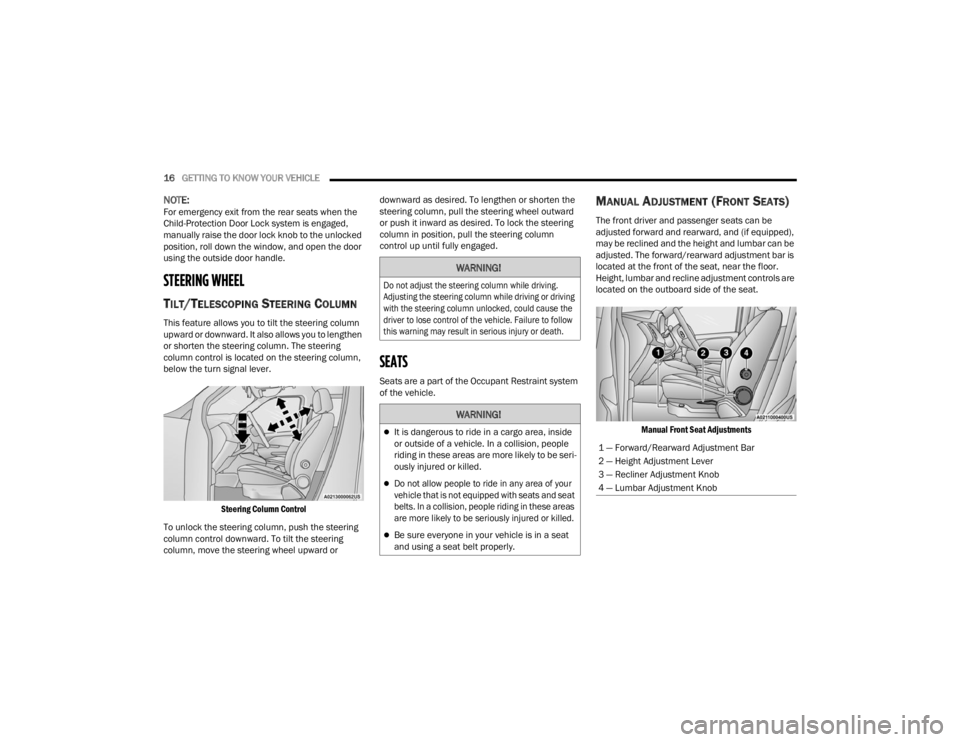
This feature allows you to tilt the steering column
upward or downward. It also allows you to lengthen
or shorten the steering column. The steering
column control is located on the steering column,
below the turn signal lever.
Steering Column Control
To unlock the steering column, push the steering
column control downward. To tilt the steering
column, move the steering wheel upward or downward as desired. To lengthen or shorten the
steering column, pull the steering wheel outward
or push it inward as desired. To lock the steering
column in position, pull the steering column
control up until fully engaged.
SEATS
Seats are a part of the Occupant Restraint system
of the vehicle.
MANUAL ADJUSTMENT (FRONT SEATS)
The front driver and passenger seats can be
adjusted forward and rearward, and (if equipped),
may be reclined and the height and lumbar can be
adjusted. The forward/rearward adjustment bar is
located at the front of the seat, near the floor.
Height, lumbar and recline adjustment controls are
located on the outboard side of the seat.
Manual Front Seat Adjustments
WARNING!
Do not adjust the steering column while driving.
Adjusting the steering column while driving or driving
with the steering column unlocked, could cause the
driver to lose control of the vehicle. Failure to follow
this warning may result in serious injury or death.
WARNING!
It is dangerous to ride in a cargo area, inside
or outside of a vehicle. In a collision, people
riding in these areas are more likely to be seri -
ously injured or killed.
Do not allow people to ride in any area of your
vehicle that is not equipped with seats and seat
belts. In a collision, people riding in these areas
are more likely to be seriously injured or killed.
Be sure everyone in your vehicle is in a seat
and using a seat belt properly.
1 — Forward/Rearward Adjustment Bar
2 — Height Adjustment Lever
3 — Recliner Adjustment Knob
4 — Lumbar Adjustment Knob
22_VM_OM_EN_USC_t.book Page 16
Page 35 of 260
GETTING TO KNOW YOUR VEHICLE33
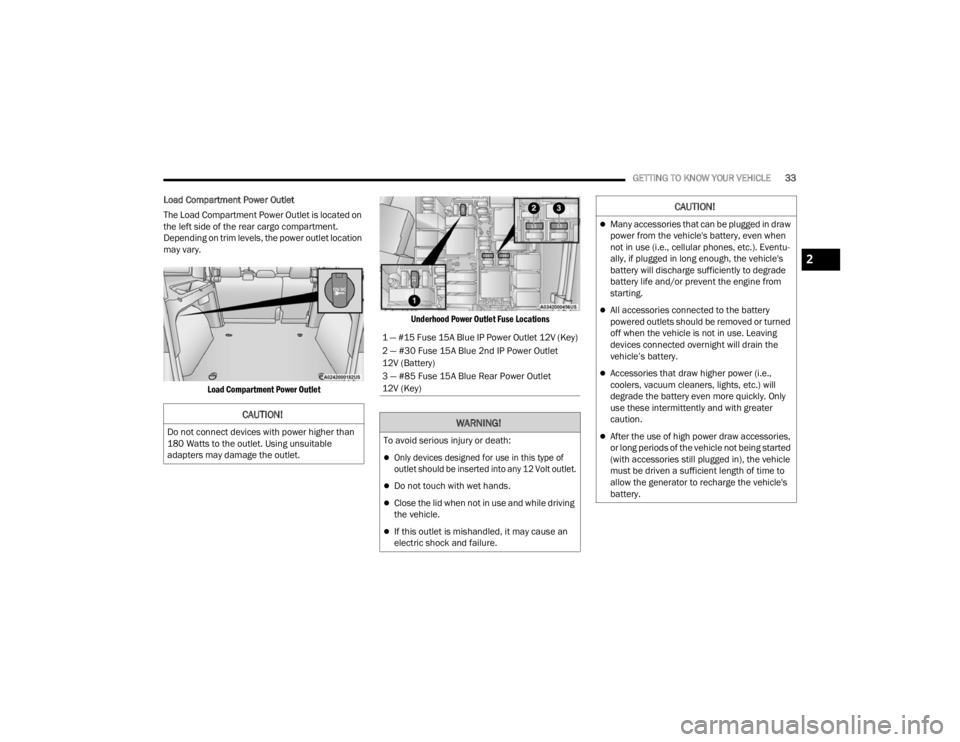
Load Compartment Power Outlet
The Load Compartment Power Outlet is located on
the left side of the rear cargo compartment.
Depending on trim levels, the power outlet location
may vary.
Load Compartment Power Outlet Underhood Power Outlet Fuse Locations
CAUTION!
Do not connect devices with power higher than
180 Watts to the outlet. Using unsuitable
adapters may damage the outlet.
1 — #15 Fuse 15A Blue IP Power Outlet 12V (Key)
2 — #30 Fuse 15A Blue 2nd IP Power Outlet
12V (Battery)
3 — #85 Fuse 15A Blue Rear Power Outlet
12V (Key)
WARNING!
To avoid serious injury or death:
Only devices designed for use in this type of
outlet should be inserted into any 12 Volt outlet.
Do not touch with wet hands.
Close the lid when not in use and while driving
the vehicle.
If this outlet is mishandled, it may cause an
electric shock and failure.
CAUTION!
Many accessories that can be plugged in draw
power from the vehicle's battery, even when
not in use (i.e., cellular phones, etc.). Eventu
-
ally, if plugged in long enough, the vehicle's
battery will discharge sufficiently to degrade
battery life and/or prevent the engine from
starting.
All accessories connected to the battery
powered outlets should be removed or turned
off when the vehicle is not in use. Leaving
devices connected overnight will drain the
vehicle’s battery.
Accessories that draw higher power (i.e.,
coolers, vacuum cleaners, lights, etc.) will
degrade the battery even more quickly. Only
use these intermittently and with greater
caution.
After the use of high power draw accessories,
or long periods of the vehicle not being started
(with accessories still plugged in), the vehicle
must be driven a sufficient length of time to
allow the generator to recharge the vehicle's
battery.
2
22_VM_OM_EN_USC_t.book Page 33
Page 84 of 260
82MULTIMEDIA
Voice
Clock & Date
When the Voice button is pressed on the touchscreen, the system displays the options related to the vehicle’s Voice Recognition feature.
NOTE:Depending on the vehicle’s options, feature settings may vary.
Setting Name Description
Voice Response Length This setting will change the response length for the Voice Recognition system.
When set to “Brief”, the system provides a shortened audio description. When
set to “Long”, the system provides the full audio description from the system.
Show Command List This setting will allow you to turn the Command List on or off. The “Always”
setting will always show the Command List. The “w/Help” setting will show the
Command List and provide a brief description of what the command does.
The “Never” setting will turn the Command List off.
When the Clock & Date button is pressed on the touchscreen, the system displays the different options related to the vehicle’s internal clock.
NOTE:Depending on the vehicle’s options, feature settings may vary.
Setting Name
Description
Sync Time This setting will sync the time to the system’s GPS receiver. The system will
control the time via GPS location.
Set Time & Format/Time Format This setting will allow you to set the time format (AM/PM). “Sync Time” must
be off for this setting to be available. The “12 h” setting will set the time to a
12-hour format. The “24 h” setting will set the time to a 24-hour format.
22_VM_OM_EN_USC_t.book Page 82
Page 122 of 260
120MULTIMEDIA
Feature Description
Switch View Button Select the Switch View button to change between the Map View and the
Guidance View.
Instruction Panel Press this button to view the following information:
The direction of your next turn
The distance to your next turn
Lane guidance at some intersections
Route Bar The Route Bar is shown when you have planned a route. The Route Bar
contains arrival information, such as the estimated time of arrival, the length
of drive time from your current location, and information about the next stop,
if you have stops on the route. The bottom of the Route Bar represents the
current location and shows the distance to the next stop on your route.
Current Location This symbol shows the current location. By pressing the icon, the location will
be saved.
Speed Panel Press the Speed Panel button to view the following information (if available):
The speed limit at your location
The name of the street you are driving on
NOTE:If you drive more than 3 mph (5 km/h) over the speed limit, the Speed Panel
turns red. If you drive less than 3 mph (5 km/h) over the speed limit, the Speed
Panel turns orange.
Main Menu Button Press the Main Menu button to show the main menu.
Zoom Button Press the zoom in + button to zoom in and the zoom out – button to zoom out.
22_VM_OM_EN_USC_t.book Page 120