Page 265 of 638
05
5-121
Auto dehumidify (if equipped)
To increase cabin air quality and reduce
windshield misting, recirculation mode
switches off automatically after about 5
to 30 minutes, depending on the outside
temperature, and the air intake will
change to fresh mode.
Turning Auto Dehumidify ON or OFF
Climate control system
To turn the Auto Dehumidify feature on
or off, select Face level (
) mode and
while holding down the A/C icon, press
the air intake control (
) button at
least five times within three seconds.
When Auto Dehumidify is turned on,
the air intake control button indicator
will blink 6 times. When turned off, the
indicator will blink 3 times.
Infotainment system
Auto Dehumidify can be turned on and
off by selecting ‘Setup → Vehicle Settings → Climate → Automatic Ventilation → Auto Dehumidify’ from the infotainment
system screen.
For detailed information, refer to the
separately supplied infotainment
system manual.
Recirculating air when washer
fluid is used
Recirculation mode automatically
activates to reduce any objectionable
scent of the washer fluid from entering
the cabin when the windshield washer is
used.
When it is shifted to the recirculation
mode, the unpleasant scent may flow
into the vehicle.
However, in cold weather to prevent
the windshield from fogging up, the
recirculation mode may not be selected.
Turning Activate upon Washer Fluid
Use ON or OFF
Climate control system
To turn the Activate upon Washer Fluid
Use feature on or off, select Floor level
(
) mode, and then press the air
intake control () button four times
within two seconds while pressing the
A/C icon.
When Activate upon Washer Fluid Use
ON is turned on, the air intake control
button indicator will blink 6 times. When
turned off, the indicator will blink 3
times.
Infotainment system
Activate upon Washer Fluid Use can be
turned on and off by selecting ‘Setup → Vehicle Settings → Climate → Recirculate Air → Activate upon Washer Fluid Use (or Interlocking washer fluid)’ from the
infotainment system screen.
For detailed information, refer to the
separately supplied infotainment
system manual.
Page 266 of 638
Convenient features
5-122
Sunroof inside air recirculation
(if equipped)
When the sunroof is opened, fresh
mode will be automatically selected.
At this time, if you press the air intake
control button, recirculation mode will
be selected but will change back to fresh
mode after 3 minutes. When the sunroof
is closed, the air intake position will
return to the original position that was
selected.
Automatic Controls for the
Driver Based on Climate Control
System Settings
The temperature of the driver’s seat
warmer, air ventilated seat and heated
steering wheel is automatically
controlled depending on the inside and
outside temperature of the vehicle when
the engine is running.
To use these features, it must be
enabled from the Settings menu in the
infotainment system screen. Select:
-Setup → Vehicle Settings → Seat → Heated/Ventilated Features → Heated/Ventilated Features → Auto. Controls That Use Climate Control Settings
For more details on Auto Comfort
Control, refer to “Seat Warmers” and
“Air ventilation seats” section in chapter
3 and “Heated Steering Wheel” section
in chapter 5.
Scheduled Ventilation Control
The Scheduled Ventilation Control
releases hot air in the vehicle to lower
cabin temperature before getting in the
vehicle.
Depending on the outside ambient
temperature, the blower is operated for 5
to 15 minutes while the vehicle is parked.
Turning Schedule Ventilation
Control On or Off
The Schedule Ventilation Control can be turned on and off by selecting ‘Setup → Vehicle Settings → Automatic Ventilation → Scheduled Ventilation Control’ from the infotainment system screen. Also, the
starting time can be set within 24 hours.
Schedule Ventilation Control operates
only once when the feature is set.
Page 276 of 638
Convenient features
5-132
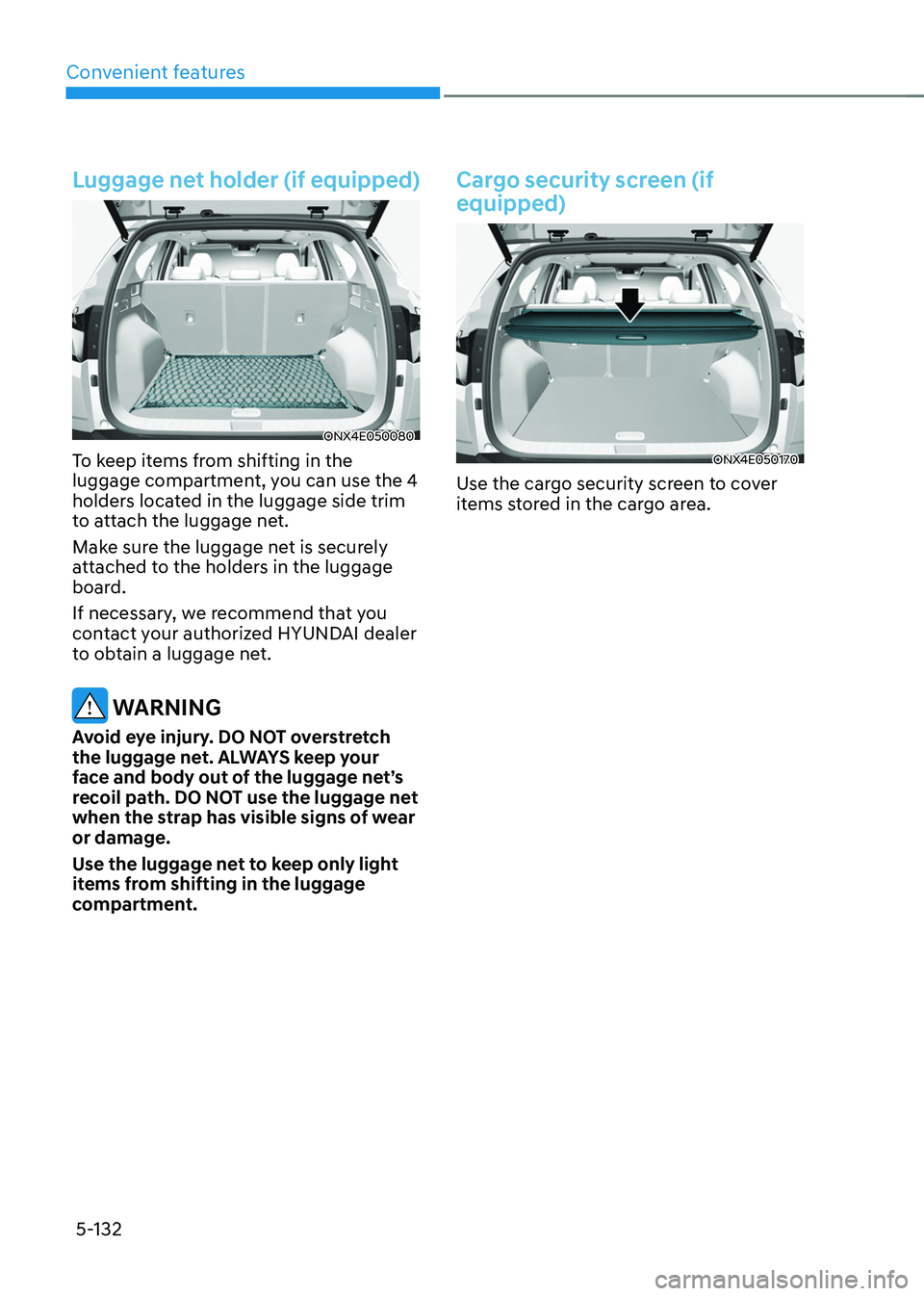
Luggage net holder (if equipped)
ONX4E050080
To keep items from shifting in the
luggage compartment, you can use the 4
holders located in the luggage side trim
to attach the luggage net.
Make sure the luggage net is securely
attached to the holders in the luggage
board.
If necessary, we recommend that you
contact your authorized HYUNDAI dealer
to obtain a luggage net.
WARNING
Avoid eye injury. DO NOT overstretch
the luggage net. ALWAYS keep your
face and body out of the luggage net’s
recoil path. DO NOT use the luggage net
when the strap has visible signs of wear
or damage.
Use the luggage net to keep only light
items from shifting in the luggage
compartment.
Cargo security screen (if
equipped)
ONX4E050170
Use the cargo security screen to cover
items stored in the cargo area.
Page 277 of 638
05
5-133
Using the cargo security screen
ONX4E050171
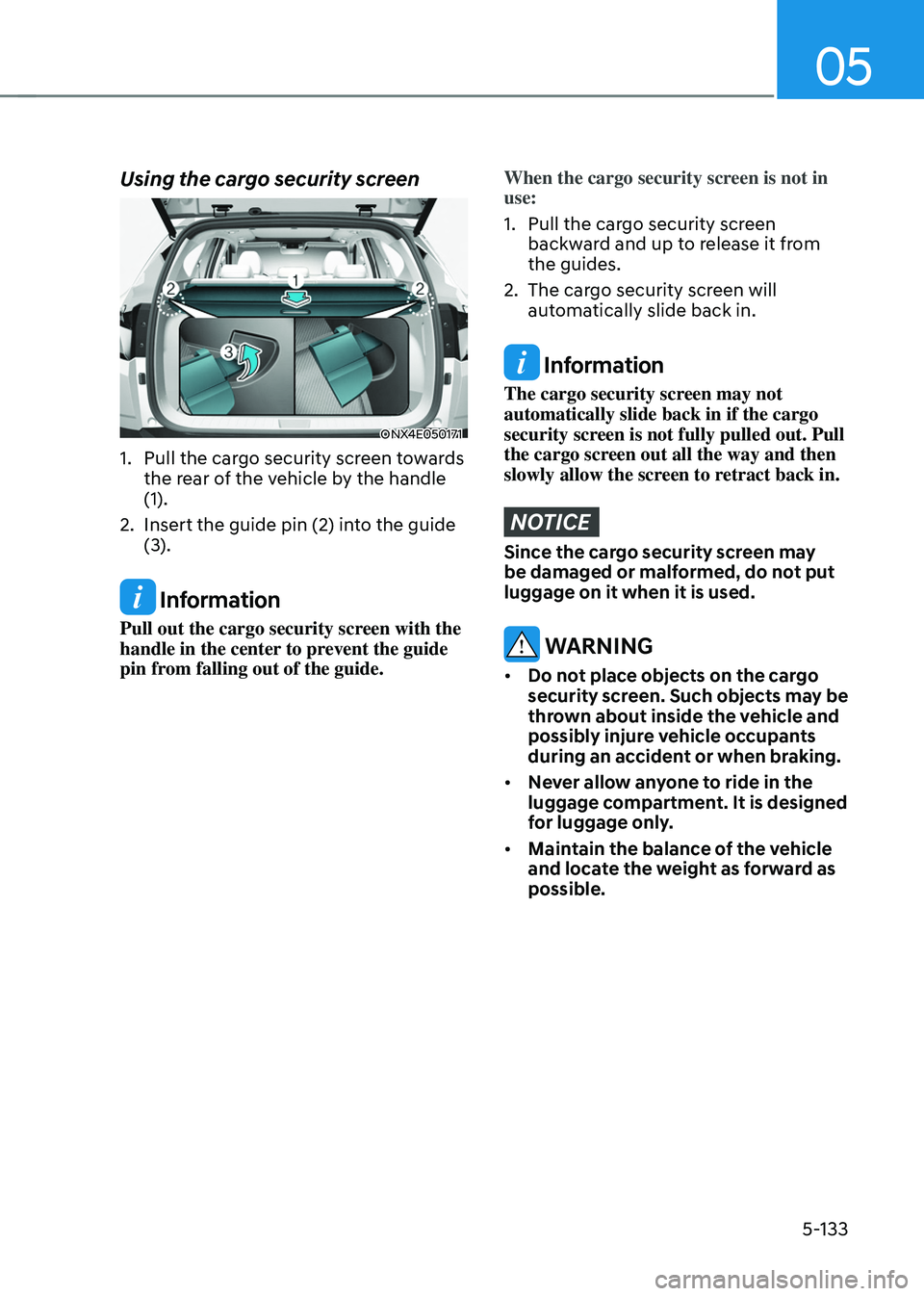
1. Pull the cargo security screen towards
the rear of the vehicle by the handle
(1).
2. Insert the guide pin (2) into the guide
(3).
Information
Pull out the cargo security screen with the
handle in the center to prevent the guide
pin from falling out of the guide.
When the cargo security screen is not in
use:
1. Pull the cargo security screen
backward and up to release it from
the guides.
2. The cargo security screen will
automatically slide back in.
Information
The cargo security screen may not
automatically slide back in if the cargo
security screen is not fully pulled out. Pull
the cargo screen out all the way and then
slowly allow the screen to retract back in.
NOTICE
Since the cargo security screen may
be damaged or malformed, do not put
luggage on it when it is used.
WARNING
• Do not place objects on the cargo
security screen. Such objects may be
thrown about inside the vehicle and
possibly injure vehicle occupants
during an accident or when braking.
• Never allow anyone to ride in the
luggage compartment. It is designed
for luggage only.
• Maintain the balance of the vehicle
and locate the weight as forward as
possible.
Page 278 of 638
Convenient features
5-134
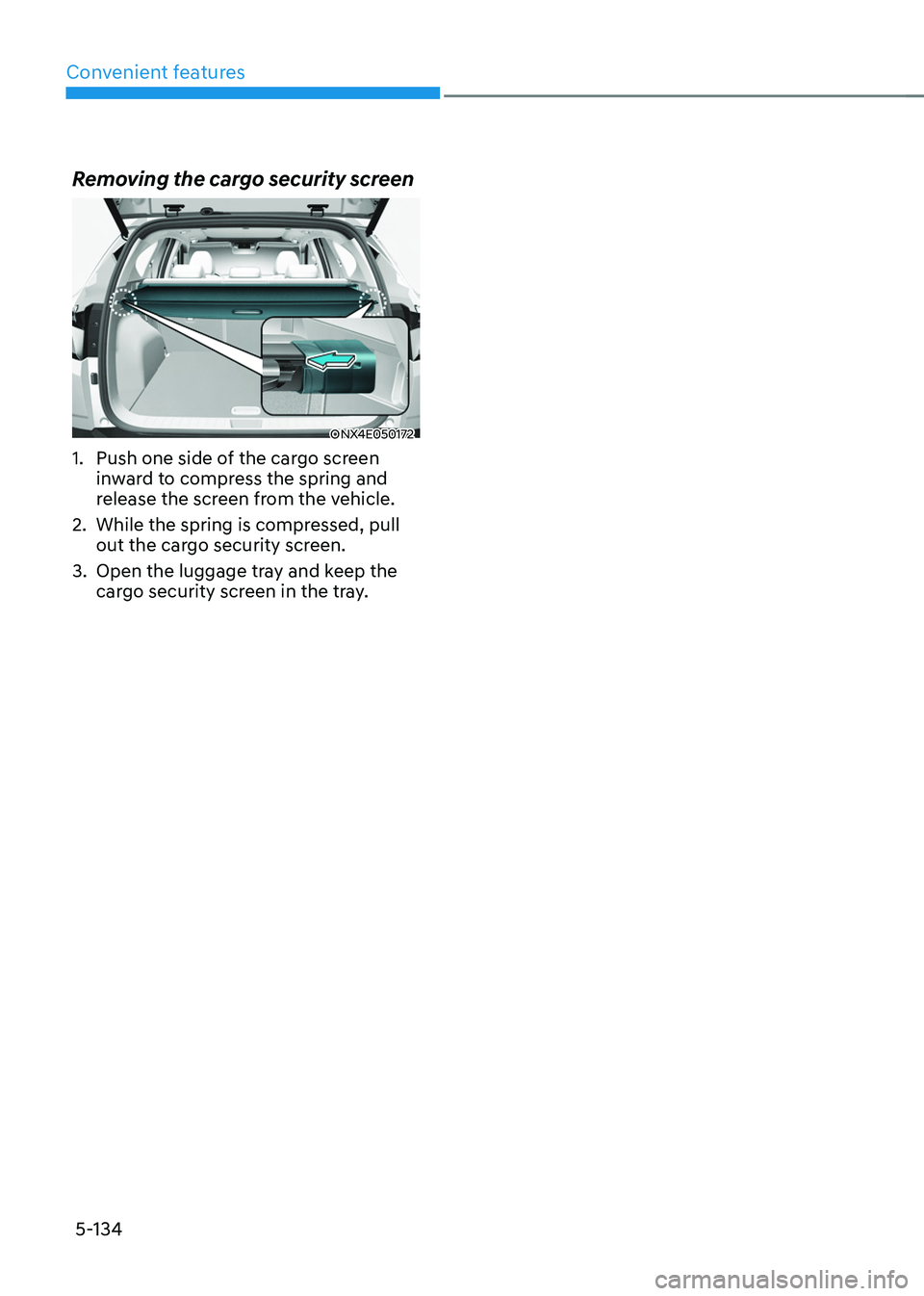
Removing the cargo security screen
ONX4E050172
1. Push one side of the cargo screen
inward to compress the spring and
release the screen from the vehicle.
2. While the spring is compressed, pull
out the cargo security screen.
3. Open the luggage tray and keep the
cargo security screen in the tray.
Page 476 of 638
07
7-113
Rear View Monitor Settings
Camera settings
OTM070210L
You can change Rear View Monitor ‘Display Contents’ or ‘Display Settings’ by touching the setup icon () on
the screen while Rear View Monitor is
operating, or selecting ‘Driver Assistance
→ Parking Safety → Camera Settings’ from the Settings menu while the engine is on.
• In the Display Contents, you can
change settings for ‘Rear View’, and in the Display Settings, you can change the screen’s ‘Brightness’ and ‘Contrast’.
Rear View Monitor Operation
Operating button
„„Type A
ONX4070040
„„Type B
ONX4E070102
Parking/View button
Press the Parking/View button (1) to turn
on Rear View Monitor.
Press the button again to turn off the
function.
Page 477 of 638
Driver assistance system
7-114
Rear view
Operating conditions
• Shift the gear to R (Reverse), the
image will appear on the screen.
• Press the Parking/View button (1)
while the gear is in P (Park), the image
will appear on the screen.
Off conditions
• The rear view cannot be turned off
when the gear is in R (Reverse).
• Press the Parking/View button (1)
again while the gear is in P (Park) with
the rear view on the screen, the rear
view will turn off.
• Shift the gear from R (Reverse) to P
(Park), the rear view will turn off.
Extended rear view function
The rear view will maintain showing on
the screen to help you when parking.
Operating conditions
Shift the gear from R (Reverse) to N
(Neutral) or D (Drive), the rear view will
appear on the screen.
Off conditions
• When vehicle speed is above 6 mph
(10 km/h), the rear view will turn off.
• Shift the gear to P (Park), the rear view
will turn off.
• If you press the Parking/View button,
the screen is off.
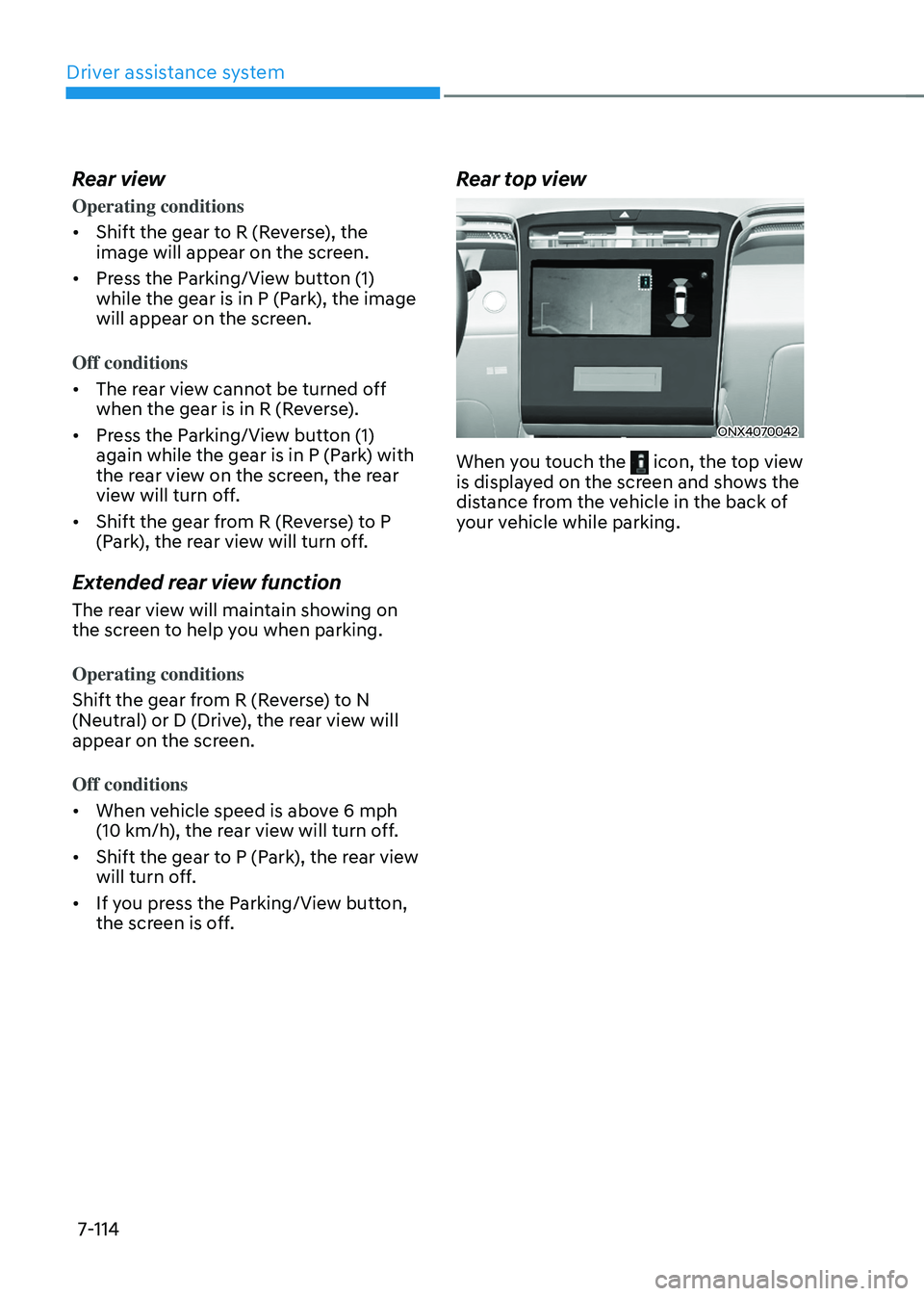
Rear top view
ONX4070042
When you touch the icon, the top view is displayed on the screen and shows the
distance from the vehicle in the back of
your vehicle while parking.
Page 478 of 638
07
7-115
Rear View Monitor Malfunction
and Limitations
Rear View Monitor malfunction
When Rear View Monitor is not working
properly, or the screen flickers, or the
camera image does not display normally,
have the vehicle inspected by an
authorized HYUNDAI dealer.
Limitations of Rear View Monitor
When the vehicle is stopped for a long
time in winter or when the vehicle is
parked in an indoor parking lot, the
exhaust fumes may temporarily blur the
image.
WARNING
• The rear view camera does not
cover the complete area behind the
vehicle. The driver should always
check the rear area directly through
the inside and side view mirror
before parking or backing up.
• The image shown on the screen may
differ from the actual distance of the
object. Make sure to directly check
the vehicle's surroundings for safety.
• Always keep the rear view camera
lens clean. If the lens is covered with
foreign material, it may adversely
affect camera performance and
Rear View Monitor may not operate
normally. However, do not use
chemical solvents such as strong
detergents containing high alkaline
or volatile organic solvents (gasoline,
acetone etc.). This may damage the
camera lens.