2022 HYUNDAI KONA RELEASE
[x] Cancel search: RELEASEPage 139 of 579
05
5-5
Panic button (if equipped)
Press and hold the Panic button (3) for
more than one second. The horn sounds
and hazard warning lights flash for about
30 seconds.
To cancel the panic mode, press any
button on the remote key.
Information
Start-up
For detailed information refer to “Key
Ignition Switch” in chapter 6.
NOTICE
To prevent damaging the remote key:
Keep the remote key away from
water or any liquid and fire. If
the inside of the remote key gets
damp (due to drinks or moisture),
or is heated, internal circuit may
malfunction, excluding the car from
the warranty.
Avoid dropping or throwing the
remote key.
Protect the remote key from extreme
temperatures.
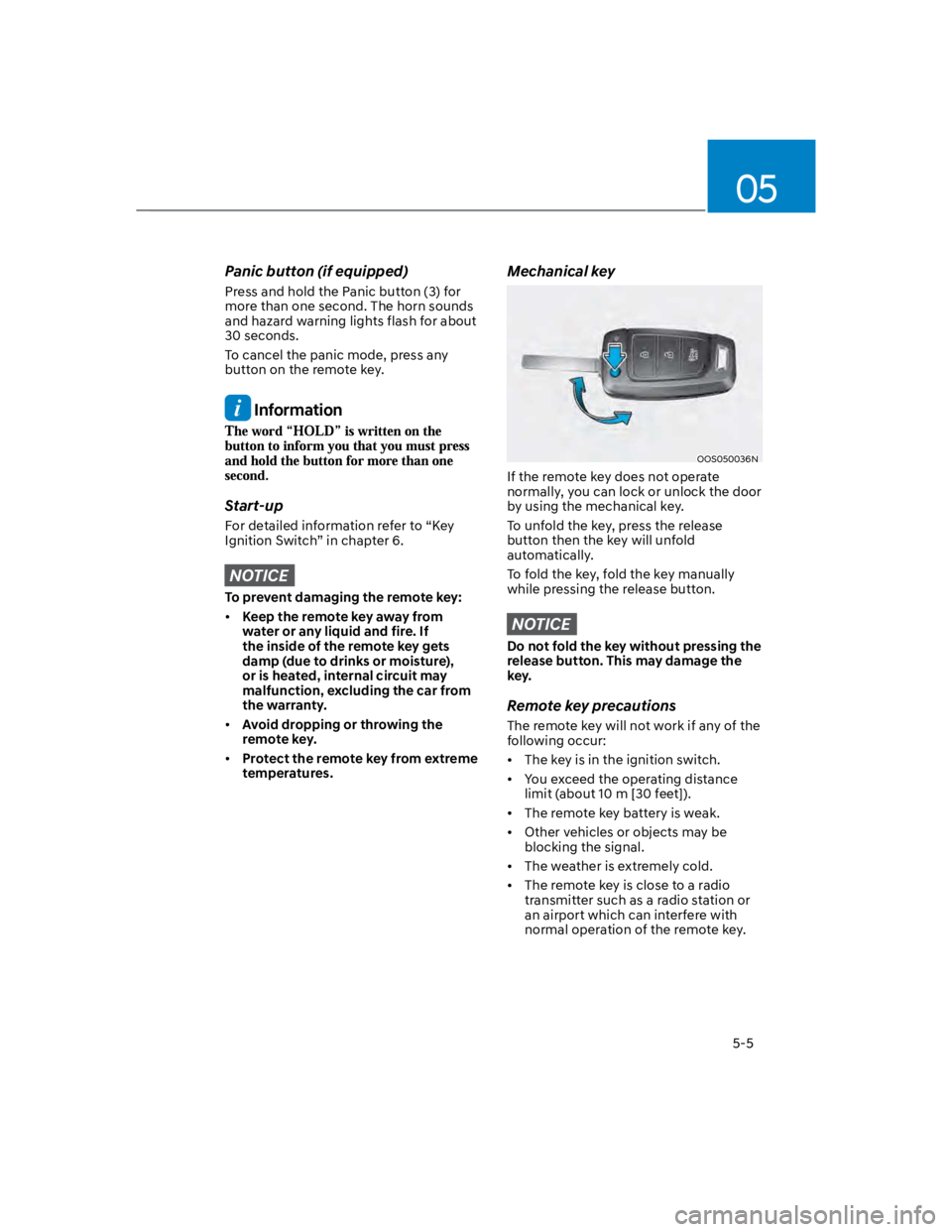
Mechanical key
OOS050036N
If the remote key does not operate
normally, you can lock or unlock the door
by using the mechanical key.
To unfold the key, press the release
button then the key will unfold
automatically.
To fold the key, fold the key manually
while pressing the release button.
NOTICE
Do not fold the key without pressing the
release button. This may damage the
key.
Remote key precautions
The remote key will not work if any of the
following occur:
The key is in the ignition switch.
You exceed the operating distance
limit (about 10 m [30 feet]).
The remote key battery is weak.
Other vehicles or objects may be
blocking the signal.
The weather is extremely cold.
The remote key is close to a radio
transmitter such as a radio station or
an airport which can interfere with
normal operation of the remote key.
Page 146 of 579
Convenient features
5-12
Mechanical key
If the Smart Key does not operate
normally, you can lock or unlock the
driver’s door by using the mechanical
key.
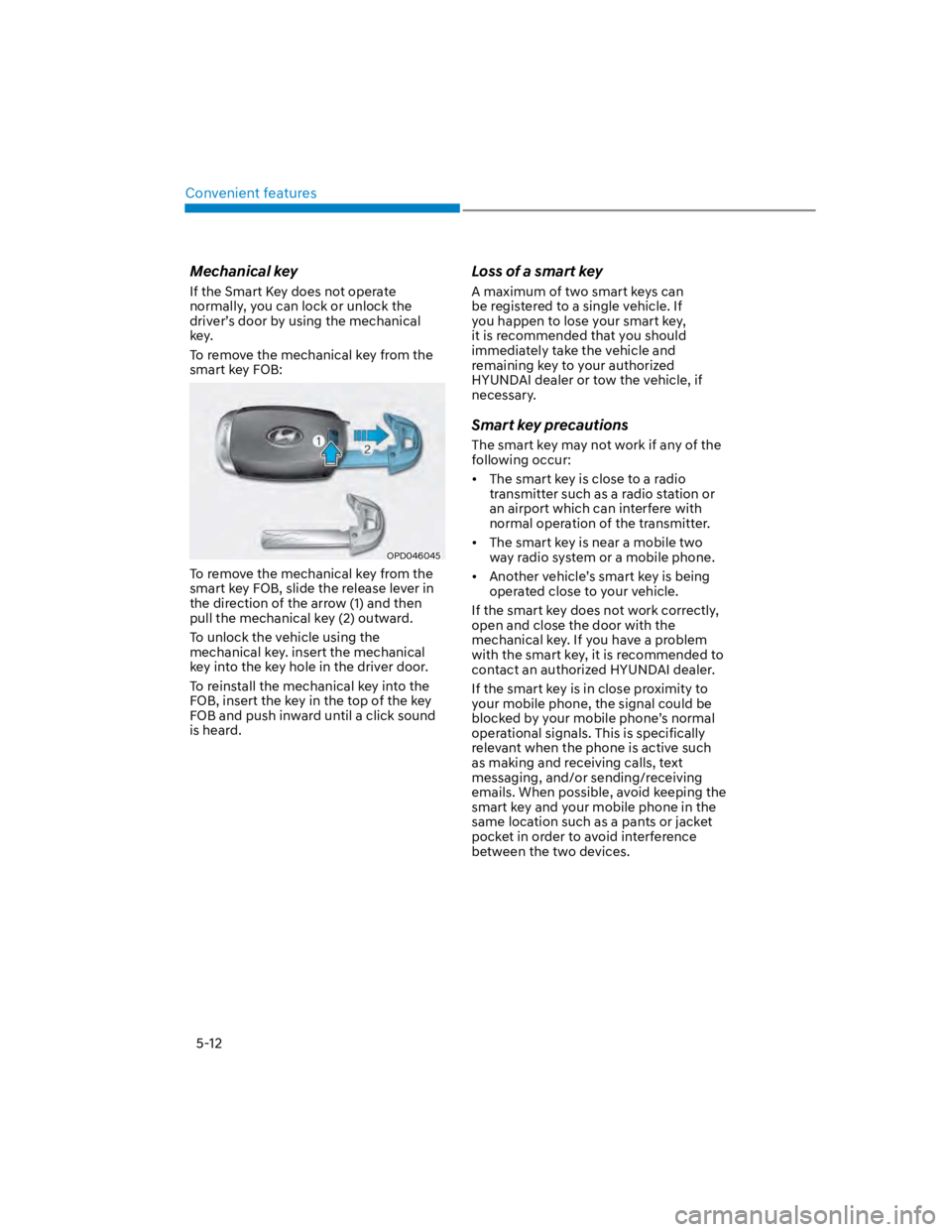
To remove the mechanical key from the
smart key FOB:
OPD046045
To remove the mechanical key from the
smart key FOB, slide the release lever in
the direction of the arrow (1) and then
pull the mechanical key (2) outward.
To unlock the vehicle using the
mechanical key. insert the mechanical
key into the key hole in the driver door.
To reinstall the mechanical key into the
FOB, insert the key in the top of the key
FOB and push inward until a click sound
is heard.
Loss of a smart key
A maximum of two smart keys can
be registered to a single vehicle. If
you happen to lose your smart key,
it is recommended that you should
immediately take the vehicle and
remaining key to your authorized
HYUNDAI dealer or tow the vehicle, if
necessary.
Smart key precautions
The smart key may not work if any of the
following occur:
The smart key is close to a radio
transmitter such as a radio station or
an airport which can interfere with
normal operation of the transmitter.
The smart key is near a mobile two
way radio system or a mobile phone.
Another vehicle’s smart key is being
operated close to your vehicle.
If the smart key does not work correctly,
open and close the door with the
mechanical key. If you have a problem
with the smart key, it is recommended to
contact an authorized HYUNDAI dealer.
If the smart key is in close proximity to
your mobile phone, the signal could be
blocked by your mobile phone’s normal
operational signals. This is specifically
relevant when the phone is active such
as making and receiving calls, text
messaging, and/or sending/receiving
emails. When possible, avoid keeping the
smart key and your mobile phone in the
same location such as a pants or jacket
pocket in order to avoid interference
between the two devices.
Page 152 of 579

Convenient features
5-18
You can manage multiple digital keys
from the Digital key app. From the list of
digital keys you own, select the vehicle
you want to make your priority vehicle.
For more information, please refer to
the ‘Tutorial’ on your Digital key app.
OOS050002K
[1] : Door handle authentication pad
You should contact your smartphone’s
NFC antenna(backside of phone) to door
handle authentication pad (1) marked
position near by the lock button) of
driver’s (or front passenger’s) outside
door for 2 seconds to lock or unlock the
doors. If the Two Press Unlock feature
is applied (press twice for unlocking),
driver’s seat door will be unlocked by
contacting the digital key (smartphone
key). In this state, if you contact one
more time within 4 seconds, all the doors
unlock. Please make sure the doors are
locked. If you do not open any of the
doors after unlocking, it automatically
re-lock after 30 seconds.
Note that you cannot lock your vehicle
when you contact NFC antenna in the
smartphone to the door handle pad if
any of the following occurs:
The Proximity / Smart Key is in the
vehicle.
The Engine Start/Stop button is in
ACC or ON position.
Any of the doors, hood and trunk is
opened.
If the smartphone digital key does not
work, please remove the smartphone
more than 4 inches (0.1 m) from the door
handle authentication pad and try it
again.
After unlock the door or start up the
vehicle with digital key, even though
the driver tries to lock the doors by the
central door lock switch, the door lock
will be once locked and immediately
released at the moment of door closed.
1. After placing your registered
smartphone onto the interior
authentication pad (wireless charger),
step on the brake and press the
Engine Start/Stop button.
2. After start-up, the digital key data
will be automatically updated. It
takes 5 to 20 seconds, after that,
the smartphone can be go into the
wireless charging mode automatically.
Once the engine started, you can
remove the smartphone from the pad.
Page 159 of 579
![HYUNDAI KONA 2022 Owners Manual 05
5-25
OOS050002K
[1] : Door handle authentication pad
You should contact digital key (card key)
to door handle authentication pad (1,
marked position near by the lock button)
of driver’s (or fr](/manual-img/35/41169/w960_41169-158.png "HYUNDAI KONA 2022 Owners Manual 05
5-25
OOS050002K
[1] : Door handle authentication pad
You should contact digital key (card key)
to door handle authentication pad (1,
marked position near by the lock button)
of driver’s (or fr")
05
5-25
OOS050002K
[1] : Door handle authentication pad
You should contact digital key (card key)
to door handle authentication pad (1,
marked position near by the lock button)
of driver’s (or front passenger’s) outside
door for 2 seconds to lock or unlock the
doors. If the Two Press Unlock feature
is applied (press twice for unlocking),
driver’s seat door will be unlocked by
contacting the digital key (card key). In
this state, if you contact one more time
within 4 seconds, all the doors unlock.
Inoperable condition
If you do not contact the digital key (card
key) to the center of the door handle
authentication pad accurately., it may
not work. In addition, if you overlap and
use the key with NFC-enabled cards such
as transportation card or credit card, it
does not work.
Note that if you try to lock your vehicle
with digital key (card key) in following
cases, the doors will not be locked and
chime will sound for 3 seconds.
The Smart Key is in the vehicle.
The Engine Start/Stop button is in
ACC or ON position.
Any of the doors, hood and trunk are
open
If the digital key (card key) does not
work, please detach the key around
4 inches (0.1 m) from the handle
authentication pad and retry to contact.
The card key may be damaged by the
impact. It would not work properly if
the key is damaged. You should buy a
new card and register again. Long-time
exposure to high temperature may cause
the card key to malfunction. Please be
careful not to expose the key to direct
sunlight or high temperature.
After unlock the door or start up the
vehicle with digital key, even though
the driver tries to lock the doors by the
central door lock switch, the door lock
will be once locked and immediately
released at the moment of door closed.
Page 171 of 579
05
5-37
Tilt / Telescopic steering
When adjusting the steering wheel to a
comfortable position, adjust the steering
wheel so that it points toward your chest,
not toward your face. Make sure you can
see the instrument cluster warning lights
and gauges. After adjusting, push the
steering wheel both up and down to be
certain it is locked in position.
Always adjust the position of the steering
wheel before driving.
WARNING
NEVER adjust the steering wheel while
driving. This may cause loss of vehicle
control resulting in an accident.
OOS047006
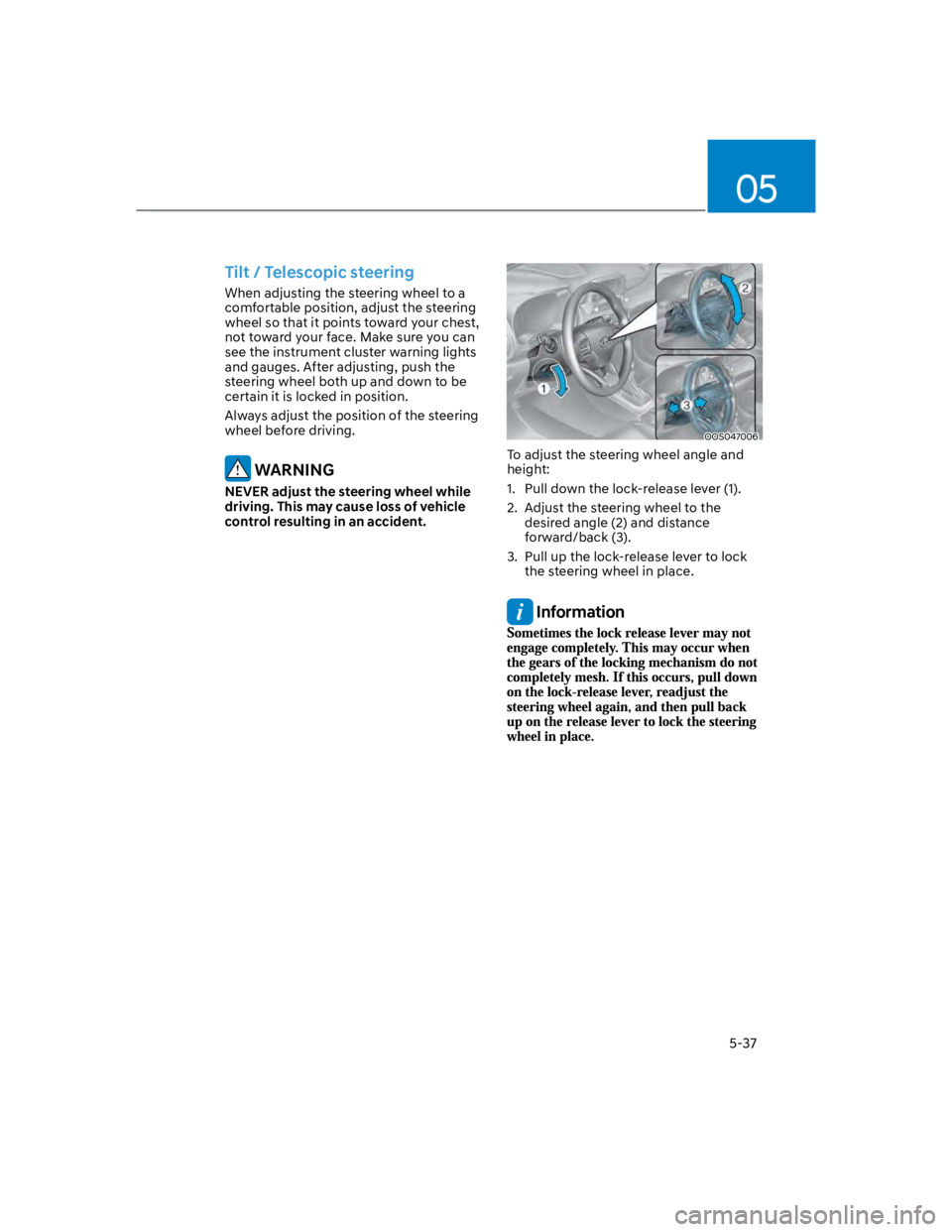
To adjust the steering wheel angle and
height:
1. Pull down the lock-release lever (1).
2. Adjust the steering wheel to the
desired angle (2) and distance
forward/back (3).
3. Pull up the lock-release lever to lock
the steering wheel in place.
Information
Page 176 of 579
Convenient features
5-42
The following steps show how to
program HomeLink. If you have any
questions or are having difficulty
programming your HomeLink buttons,
refer to the HomeLink website or call
the HomeLink customer support tollfree
number. Do this, before going back to
the dealer who sold you the car.
Visit the HomeLink website at: www.
homelink.com. Then at the top of the
page, choose your vehicle make. Then
watch the You Tube video, and/or
access additional website information.
If you choose to access the website
via your cell phone, scan the QR code.
Or, call HomeLink customer support
at 1-800-355-3515 (Please have the
vehicle make/model AND the opener
device make/model readily available.)
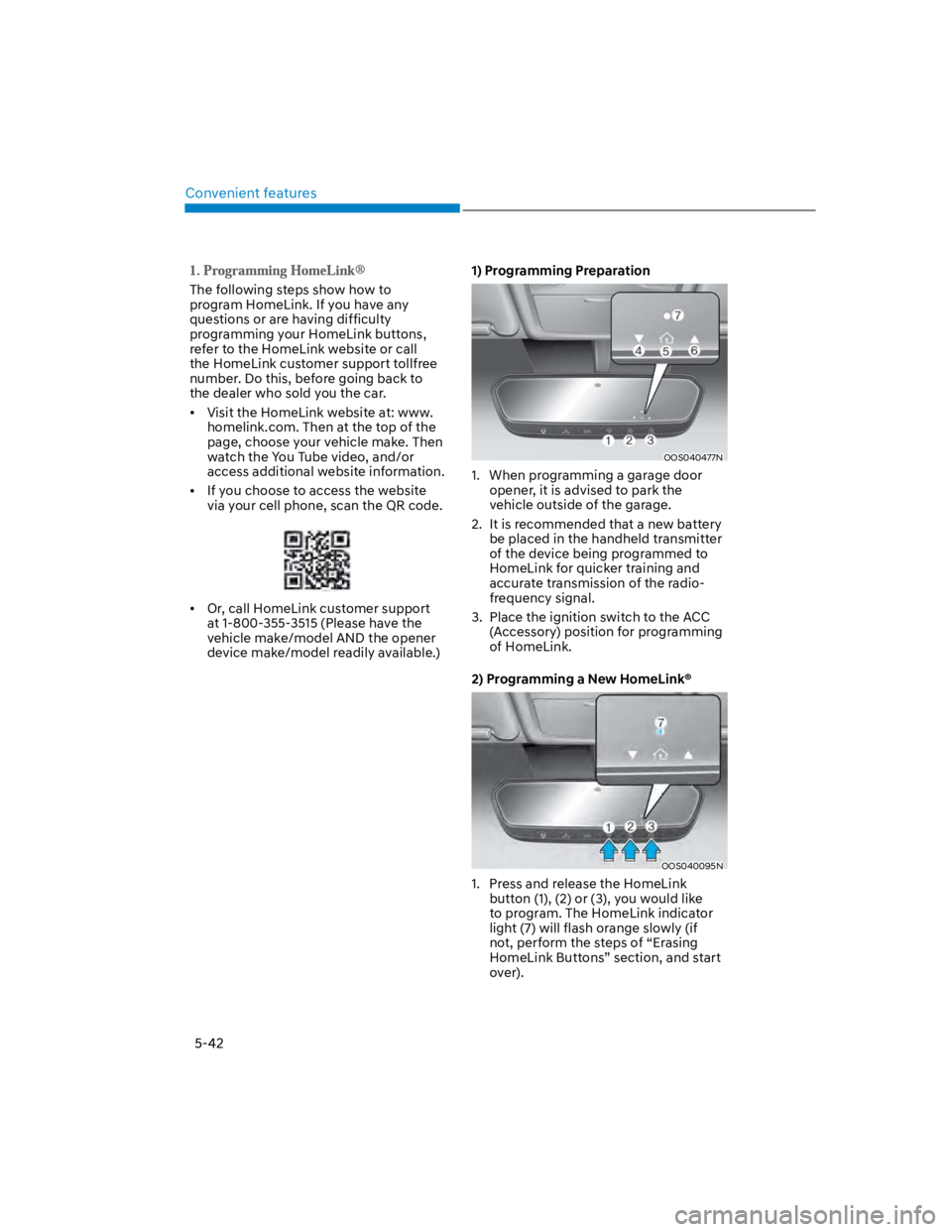
1) Programming Preparation
OOS040477N
1. When programming a garage door
opener, it is advised to park the
vehicle outside of the garage.
2. It is recommended that a new battery
be placed in the handheld transmitter
of the device being programmed to
HomeLink for quicker training and
accurate transmission of the radio-
frequency signal.
3. Place the ignition switch to the ACC
(Accessory) position for programming
of HomeLink.
2) Programming a New HomeLink®
OOS040095N
1. Press and release the HomeLink
button (1), (2) or (3), you would like
to program. The HomeLink indicator
light (7) will flash orange slowly (if
not, perform the steps of “Erasing
HomeLink Buttons” section, and start
over).
Page 177 of 579
05
5-43
OOS040476N
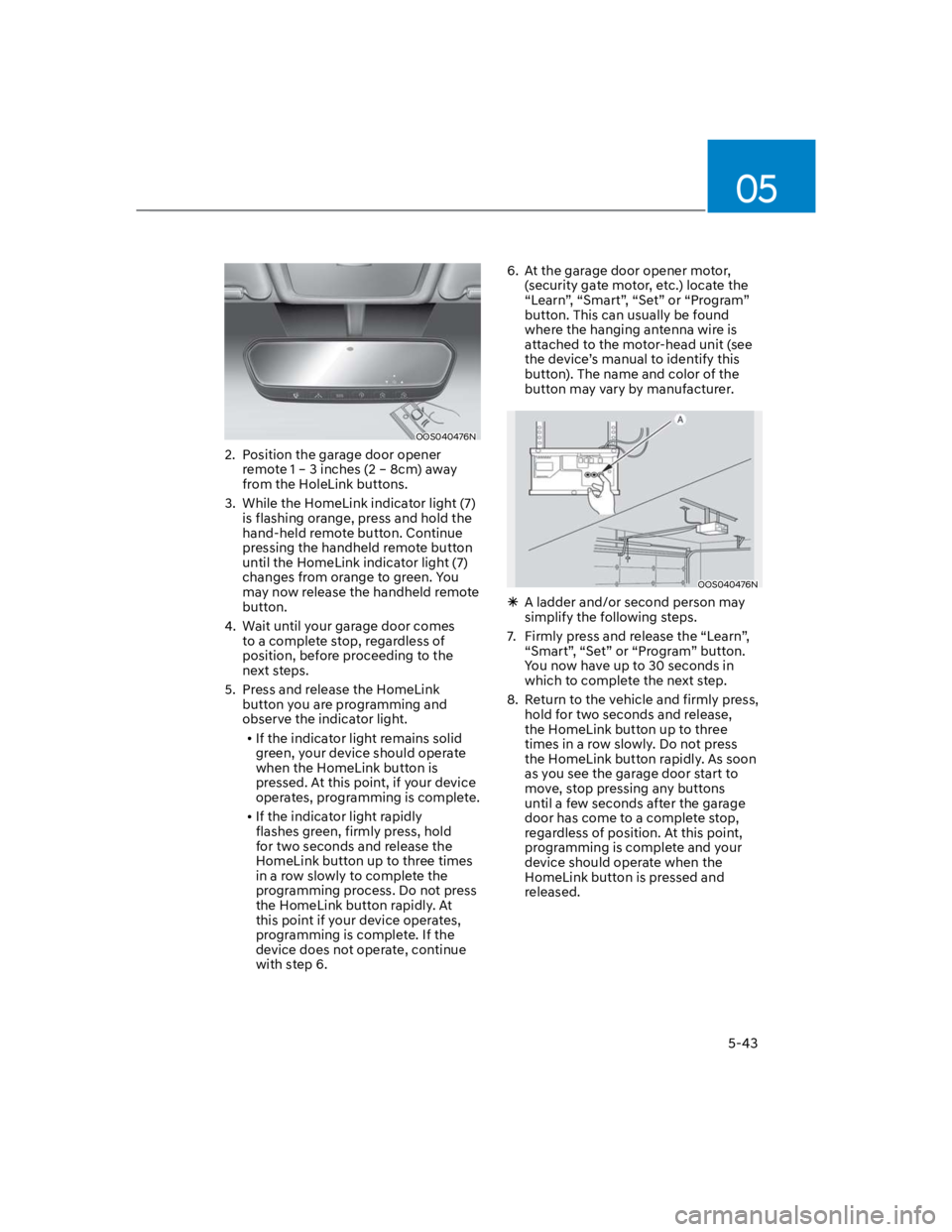
2. Position the garage door opener
remote 1 – 3 inches (2 – 8cm) away
from the HoleLink buttons.
3. While the HomeLink indicator light (7)
is flashing orange, press and hold the
hand-held remote button. Continue
pressing the handheld remote button
until the HomeLink indicator light (7)
changes from orange to green. You
may now release the handheld remote
button.
4. Wait until your garage door comes
to a complete stop, regardless of
position, before proceeding to the
next steps.
5. Press and release the HomeLink
button you are programming and
observe the indicator light.
If the indicator light remains solid
green, your device should operate
when the HomeLink button is
pressed. At this point, if your device
operates, programming is complete.
If the indicator light rapidly
flashes green, firmly press, hold
for two seconds and release the
HomeLink button up to three times
in a row slowly to complete the
programming process. Do not press
the HomeLink button rapidly. At
this point if your device operates,
programming is complete. If the
device does not operate, continue
with step 6.
6. At the garage door opener motor,
(security gate motor, etc.) locate the
“Learn”, “Smart”, “Set” or “Program”
button. This can usually be found
where the hanging antenna wire is
attached to the motor-head unit (see
the device’s manual to identify this
button). The name and color of the
button may vary by manufacturer.
OOS040476N
A ladder and/or second person may
simplify the following steps.
7. Firmly press and release the “Learn”,
“Smart”, “Set” or “Program” button.
You now have up to 30 seconds in
which to complete the next step.
8. Return to the vehicle and firmly press,
hold for two seconds and release,
the HomeLink button up to three
times in a row slowly. Do not press
the HomeLink button rapidly. As soon
as you see the garage door start to
move, stop pressing any buttons
until a few seconds after the garage
door has come to a complete stop,
regardless of position. At this point,
programming is complete and your
device should operate when the
HomeLink button is pressed and
released.
Page 178 of 579
Convenient features
5-44
3) Two-Way Communication
Programming (For select garage door
openers)
If your garage door opener has the
‘myQ’ logo on its side, your opener
likely has Two-Way Communication
capability. HomeLink has the capability
to establish Two-Way Communication
with your garage door opener. HomeLink
can receive and display “closing”
or “opening” status messages from
compatible garage door openers. At
any time, Home-Link can also recall
and display the last recorded status
communicated by the garage door
opener to indicate your garage door
being “closed” or “opened”.
To check if your garage door opener is
compatible with this feature, refer to
www.homelink.com/compatible/ Two-
way-Communication. If your garage
door opener has this functionality, AND
the Two-Way Communication indicators
(4), (6) in the mirror appear while the
garage door is opening/closing, then
no further steps are needed. Two-Way
Communication Programming is already
complete.
However, if your garage door opener
has this functionality, AND the Two-
Way Communication indicators (4), (6)
in the mirror DO NOT appear while the
garage door is opening/closing, use
the following instructions to enable this
functionality.
1. In your vehicle, press and hold the
programmed HomeLink button for 2
seconds, then release. Confirm that
the garage door is moving. AFTER it
stops, you will have one minute to
complete the following steps:
A ladder and/or second person may
simplify the following steps.
2. On your garage door opener in your
garage, locate the “Learn” button
(usually near where the hanging
antenna wire is attached to the garage
door opener). If there is difficulty
locating this button, reference the
device’s owner’s manual.
3. Press and release the “Learn” button.
4. A light on your garage door opener
may flash, and your Two-Way
Communication indicators (4), (6) in
your vehicle may flash, confirming
completion of the process.
5. Return to the vehicle and firmly
press and release the programmed
HomeLink button to activate
your garage door. The Two-Way
Communication indicators (4), (6)
flash in orange when the door is
moving. Do not make any additional
button presses until AFTER the garage
door has come to a complete stop.
6. Your Two-Way Communication
programming is now complete.
Information