2022 FORD F-150 ESP
[x] Cancel search: ESPPage 610 of 750
Using Seek
Press either button. The system
stops at the first station it finds
in that direction.
Using the Station List
1. Press Browse.
Note: Available on FM radio only.
2. Press a station.
SWITCHING THE DISPLAY ON
AND OFF
Audio Unit Press the button.
Touchscreen
To switch the display off:
1. Press
Settings on the touchscreen.
2. Press
Display Settings.
3. Press
Display Off.
Note: The display defaults to on each time
you switch your vehicle on.
To switch the display on, press anywhere
on the touchscreen.
DIGITAL RADIO
(IF EQUIPPED)
WHAT IS DIGITAL RADIO
HD Radio ™ technology is the digital
evolution of analog AM/FM radio.
For additional information, visit
www .HDR a dio . c om . HD Radio Technology is manufactured
under license from iBiquity Digital
Corporation and foreign patents. HD Radio
and the HD and HD Radio logos are
proprietary trademarks of DTS. The vehicle
manufacturer and DTS are not responsible
for the content sent using HD Radio
technology. Content may be changed,
added or deleted at any time at the station
owner's discretion.
HOW DOES DIGITAL RADIO WORK
Your system has a special receiver that
allows it to receive digital broadcasts in
addition to analog broadcasts.
HD1 signifies the main programming status
and is available in both analog and digital
broadcasts. Other multicast stations are
only available digitally and could contain
new or different content.
Note:
When the system first receives an
HD1 station, it plays the station in the analog
version until it verifies the station is an HD
Radio station. Then it shifts to the digital
version.
Note: There is an audio mute delay when
switching to an HD2 or HD3 station because
the system has to reacquire and decode the
digital signal.
DIGITAL RADIO LIMITATIONS
If you are outside the reception area, the
system could not work.
If you are on the fringe of the reception
area, the station could mute due to weak
signal strength.
Note: If you are listening to HD1, the system
changes back to the analog broadcast until
the digital broadcast is available again. If
you are listening to any other multicast
channels, the station mutes and stays
muted unless it is able to connect to the
digital signal again.
606
2022 F-150 (TFD) Canada/United States of America, enUSA, Edition date: 202109, First-Printing Audio System E272035
Page 618 of 750

CENTER DISPLAY
PRECAUTIONS
WARNING: Driving while distracted
can result in loss of vehicle control, crash
and injury. We strongly recommend that
you use extreme caution when using any
device that may take your focus off the
road. Your primary responsibility is the
safe operation of your vehicle. We
recommend against the use of any
hand-held device while driving and
encourage the use of voice-operated
systems when possible. Make sure you
are aware of all applicable local laws
that may affect the use of electronic
devices while driving.
CENTER DISPLAY
LIMITATIONS
Speed-restricted Features
For your safety, some features are not
available while the vehicle is in motion at
or above 5 mph (8 km/h). Settings that
are not critical while driving your vehicle
are shown as restricted on your display.
Some of these settings include:
• System updates.
• Personal profiles setup.
• Valet mode setup.
• Driver assistance settings.
Vehicle Settings
• MyKey setup.
• Door keypad code setup.
• Backup start passcode setup.
These restricted features become
available when your vehicle is no longer in
motion. STATUS BAR
The bar is on top of the display and
indicates the status of your vehicle's
features.
Audio System
Audio system muted.
Connected Device Cell phone microphone muted.
Phone call in progress.
Media player connected.
Cell phone network signal
strength.
Cell phone roaming.
Text message received.
Unread email message.
Automatic crash notification
system off.
Cell phone battery status.
Vehicle Data Wi-Fi available.
614
2022 F-150 (TFD) Canada/United States of America, enUSA, Edition date: 202109, First-Printing Center Display OverviewE353221 E353213 E353208 E335295 E353216 E335293 E353219
Page 624 of 750

PHONE PRECAUTIONS
WARNING: Driving while distracted
can result in loss of vehicle control, crash
and injury. We strongly recommend that
you use extreme caution when using any
device that may take your focus off the
road. Your primary responsibility is the
safe operation of your vehicle. We
recommend against the use of any
hand-held device while driving and
encourage the use of voice-operated
systems when possible. Make sure you
are aware of all applicable local laws
that may affect the use of electronic
devices while driving.
CONNECTING YOUR PHONE
Go to the settings menu on your device and
switch Bluetooth® on. Press the phone option on the
feature bar.
1. Press
Add Phone.
Note: A prompt alerts you to search for your
vehicle on your cell phone.
2. Select your vehicle on your cell phone.
Note: A number appears on your cell phone
and on the touchscreen.
3. Confirm the number on your cell phone
matches the number on the
touchscreen.
Note: The touchscreen indicates that you
have successfully paired your cell phone.
4. Download the phonebook from your cell phone when you are prompted.
Note: If you pair more than one cell phone,
use the phone settings on the center display
to specify the primary phone. You can
change this setting at any time. PHONE MENU
This menu becomes available after pairing
a phone.
Recent Call List
Display and select an entry from a list of
previous calls.
Contacts
Display a smart search form to look up your
contacts. Use the List button to
alphabetically sort your contacts.
Favorites
Display the list of favorite contacts that
are set up on your phone.
Messaging
Displays the list of text messages to read,
listen to, or respond to.
Email
Displays the list of emails to read, listen to,
or respond to.
Phone List
Display the list of paired or connected
devices that you can select.
Note:
Up to 12 devices can be stored.
Do Not Disturb
Reject incoming calls and switch ring tones
and alerts off.
Phone Keypad
Directly dial a number.
620
2022 F-150 (TFD) Canada/United States of America, enUSA, Edition date: 202109, First-Printing Phone
Page 629 of 750
CONNECTING A BLUETOOTH®
DEVICE
1. Make sure Bluetooth® is enabled on
your device.
2. Press
Settings on the touchscreen.
3. Press
Connectivity.
4. Press
Bluetooth.
5. Press
Add a Bluetooth Device.
Note: A prompt alerts you to search for your
vehicle on your device.
6. Select your vehicle on your device.
Note: A number appears on your device and
on the touchscreen.
7. Confirm that the number on your device matches the number on the
touchscreen.
Note: The touchscreen indicates that you
have successfully paired your device.
The Bluetooth® word mark and logos are
registered trademarks owned by Bluetooth
SIG, Inc.
and any use of such marks by
Ford Motor Company is under license.
Other trademarks and trade names are
those of their respective owners.
PLAYING MEDIA USING
BLUETOOTH® WARNING: Driving while distracted
can result in loss of vehicle control, crash
and injury. We strongly recommend that
you use extreme caution when using any
device that may take your focus off the
road. Your primary responsibility is the
safe operation of your vehicle. We
recommend against the use of any hand-held device while driving and
encourage the use of voice-operated
systems when possible. Make sure you
are aware of all applicable local laws
that may affect the use of electronic
devices while driving.
Connect your device. Press the audio button on the
feature bar.
Press
Sources.
Press the
Bluetooth® option.
Press to play a track. Press again
to pause the track.
Press to skip to the next track.
Press and hold to fast forward
through the track.
Press once to return to the
beginning of a track. Repeatedly
press to return to previous
tracks.
Press and hold to fast rewind through the
track.
625
2022 F-150 (TFD) Canada/United States of America, enUSA, Edition date: 202109, First-Printing Bluetooth®E100027
Page 630 of 750

APP PRECAUTIONS
WARNING: Driving while distracted
can result in loss of vehicle control, crash
and injury. We strongly recommend that
you use extreme caution when using any
device that may take your focus off the
road. Your primary responsibility is the
safe operation of your vehicle. We
recommend against the use of any
hand-held device while driving and
encourage the use of voice-operated
systems when possible. Make sure you
are aware of all applicable local laws
that may affect the use of electronic
devices while driving.
APP REQUIREMENTS
When you start an app through the system
for the first time, you could be asked to
grant certain permissions. You can review
and change the permissions that you have
granted at any time when your vehicle is
not moving. We recommend that you
check your data plan before using your
apps through the system. Using them
could result in additional charges. We also
recommend that you check the app
provider's terms and conditions and
privacy policy before using their app. Make
sure that you have an active account for
apps that you want to use through the
system. Some apps will work with no
setup. Others require you to configure
some personal settings before you can use
them.
ACCESSING APPS Select the apps option on the
feature bar. ENABLING APPS ON AN IOS
DEVICE Select the apps option on the
feature bar.
1. Select Mobile Apps Help.
2. Follow the instructions to pair and connect your device via Bluetooth® or
with a USB cable.
3. Start the apps on your device that you want to use.
4. Select the app that you want to use on
the touchscreen.
Note: Some apps may run through Apple
CarPlay if it is enabled.
Note: Closing an app on your device will
close it on the touchscreen.
Note: For troubleshooting assistance select
Mobile Apps List under Mobile Apps Help.
ENABLING APPS ON AN
ANDROID DEVICE Select the apps option on the
feature bar.
1. Select Mobile Apps Help.
2. Follow the instructions to pair and connect your device via Bluetooth® or
with a USB cable.
3. Start the apps on your device that you want to use.
4. Select Find Mobile Apps.
5. Select the app that you want to use on
the touchscreen.
Note: Some devices may lose the ability to
play music over USB when Mobile Apps are
enabled.
Note: Some apps may run through Android
Auto if it is enabled.
626
2022 F-150 (TFD) Canada/United States of America, enUSA, Edition date: 202109, First-Printing Apps
Page 640 of 750
WHAT ARE THE AUXILIARY
SWITCHES
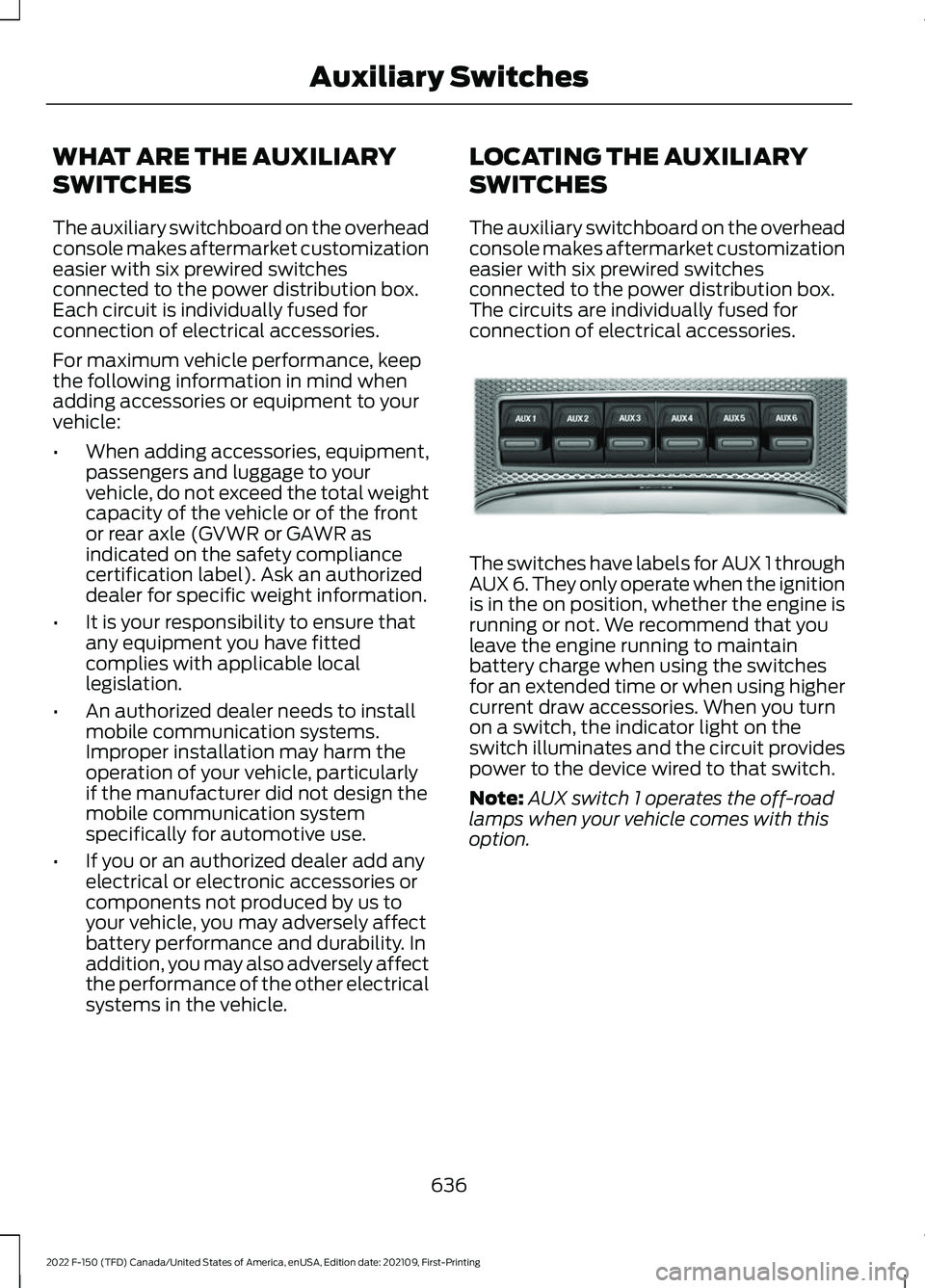
The auxiliary switchboard on the overhead
console makes aftermarket customization
easier with six prewired switches
connected to the power distribution box.
Each circuit is individually fused for
connection of electrical accessories.
For maximum vehicle performance, keep
the following information in mind when
adding accessories or equipment to your
vehicle:
•
When adding accessories, equipment,
passengers and luggage to your
vehicle, do not exceed the total weight
capacity of the vehicle or of the front
or rear axle (GVWR or GAWR as
indicated on the safety compliance
certification label). Ask an authorized
dealer for specific weight information.
• It is your responsibility to ensure that
any equipment you have fitted
complies with applicable local
legislation.
• An authorized dealer needs to install
mobile communication systems.
Improper installation may harm the
operation of your vehicle, particularly
if the manufacturer did not design the
mobile communication system
specifically for automotive use.
• If you or an authorized dealer add any
electrical or electronic accessories or
components not produced by us to
your vehicle, you may adversely affect
battery performance and durability. In
addition, you may also adversely affect
the performance of the other electrical
systems in the vehicle. LOCATING THE AUXILIARY
SWITCHES
The auxiliary switchboard on the overhead
console makes aftermarket customization
easier with six prewired switches
connected to the power distribution box.
The circuits are individually fused for
connection of electrical accessories.
The switches have labels for AUX 1 through
AUX 6. They only operate when the ignition
is in the on position, whether the engine is
running or not. We recommend that you
leave the engine running to maintain
battery charge when using the switches
for an extended time or when using higher
current draw accessories. When you turn
on a switch, the indicator light on the
switch illuminates and the circuit provides
power to the device wired to that switch.
Note:
AUX switch 1 operates the off-road
lamps when your vehicle comes with this
option.
636
2022 F-150 (TFD) Canada/United States of America, enUSA, Edition date: 202109, First-Printing Auxiliary SwitchesE220728
Page 646 of 750

GENERAL MAINTENANCE
INFORMATION
Why Maintain Your Vehicle?
Carefully following the maintenance
schedule helps protect against major repair
expenses resulting from neglect or
inadequate maintenance and may help to
increase the value of your vehicle when
you sell or trade it. Keep all receipts for
completed maintenance with your vehicle.
It is important that you have your vehicle
serviced at the proper times. These
intervals serve two purposes: first is to
maintain the reliability of your vehicle and
the second is to keep the cost of owning
your vehicle down.
It is your responsibility to have all
scheduled maintenance performed and to
make sure that the materials used meet
the specifications identified in this owner's
manual. See Capacities and
Specifications (page 558).
Failure to perform scheduled maintenance
and regularly inspect your vehicle may
result in vehicle damage not covered by
the vehicle Warranty.
Why Maintain Your Vehicle at Your
Dealership?
Our Genuine Replacement Parts
Dealerships stock our parts and our
authorized branded re-manufactured
replacement parts. These parts meet or
exceed our specifications. Parts installed
at your dealership carry a nationwide
24-month or unlimited mile (kilometer)
parts and labor limited warranty.
If you do not use our authorized parts they
may not meet our specifications and could
affect emissions compliance. Protecting Your Investment
Maintenance is an investment that pays
dividends in the form of improved
reliability, durability and resale value. To
maintain the proper performance of your
vehicle and its emission control systems,
make sure you have scheduled
maintenance performed at the designated
intervals.
Your vehicle comes with the Intelligent
Oil-Life Monitor system, a message
appears in the information display at the
proper oil change interval. This interval
may be up to one year or
10,000 mi
(16,000 km), hybrid vehicles could exceed
10,000 mi (16,000 km).
When the oil change message appears in
the information display, it is time for an oil
change. Make sure you perform the oil
change within two weeks or
500 mi
(800 km) of the message appearing. Make
sure to reset the Intelligent Oil-Life Monitor
after each oil change. See
Resetting the
Engine Oil Change Reminder (page 488).
If your information display resets
prematurely or becomes inoperative, you
should perform the oil change interval at
six months or
5,000 mi (8,000 km) from
your last oil change. Never exceed one year
or
10,000 mi (16,000 km) between oil
change intervals.
You can drive high performance vehicles
in such a way that may lead to higher oil
consumption including extended time at
high engine speeds, high loads, engine
braking, hard cornering maneuvers, track
and off-road usage. Under these
conditions, oil consumption of
approximately 1 quart per 500 miles (1 liter
per 800 km) is possible. Check the engine
oil level at every refueling and adjust to
maintain proper levels to avoid engine
damage.
642
2022 F-150 (TFD) Canada/United States of America, enUSA, Edition date: 202109, First-Printing Scheduled Maintenance
Page 654 of 750
Driver Training/EVOC
Replace engine oil and filter as indicated by the information
display and perform services listed in the extreme usage
scheduled maintenance chart.
As required
Inspect brake pads, rotors, calipers, hoses, and service as
required.
Inspect engine oil level.
Inspect vehicle every day
prior to starting training
Set tire pressure. Refer to driver door placard for cold tire
pressure information.
Inspect tire quality for wear.
Set wheel lug nut torque. The cold wheel lug nut torque
is 150 lb.ft (204 Nm). If wheels are torqued while they are
hot (after 15 minutes of EVOC driving), torque may be
checked to hot wheel lug nut torque of
70 lb.ft (95 Nm).
Proper functioning of safety devices (seat belts, no air bag
lights, etc.)
Front differential/axle fluid. Check front hub / bearing bolt
torque to 130 lb.ft (175 Nm).
25 hours of training use
Rear differential/axle fluid.
100 hours of training use
Change transmission and transfer case fluids.
Annually
Note: Follow base owner guide direction
for 1,000-mile vehicle break-in prior to using
vehicle for training purposes.
Note: Incorporate vehicle cool-down after
hard driving.
Note: Perform Training / EVOC service
according to the extreme usage scheduled
maintenance chart.
Note: Use police responder part numbers
for replacement parts. Engine Idle Hour Meter
Your vehicle may have an idle meter to
indicate how much time the vehicle has
been sitting in park (P) or neutral (N). The
meter is incorporated with the vehicle
odometer. Depressing the odometer-reset
button once displays the trip odometer
(miles [kilometers] following by a "T" for
trip odometer); depressing the
odometer-reset button a second time
displays the idle meter (hours following by
an "H" for hours). The idle meter only
accumulates time while the vehicle is in
park (P) or neutral (N). Displayed time is
cumulative for the vehicle and cannot be
reset to zero. Police vehicles often
650
2022 F-150 (TFD) Canada/United States of America, enUSA, Edition date: 202109, First-Printing Scheduled Maintenance