2022 FORD BRONCO SPORT android
[x] Cancel search: androidPage 367 of 494
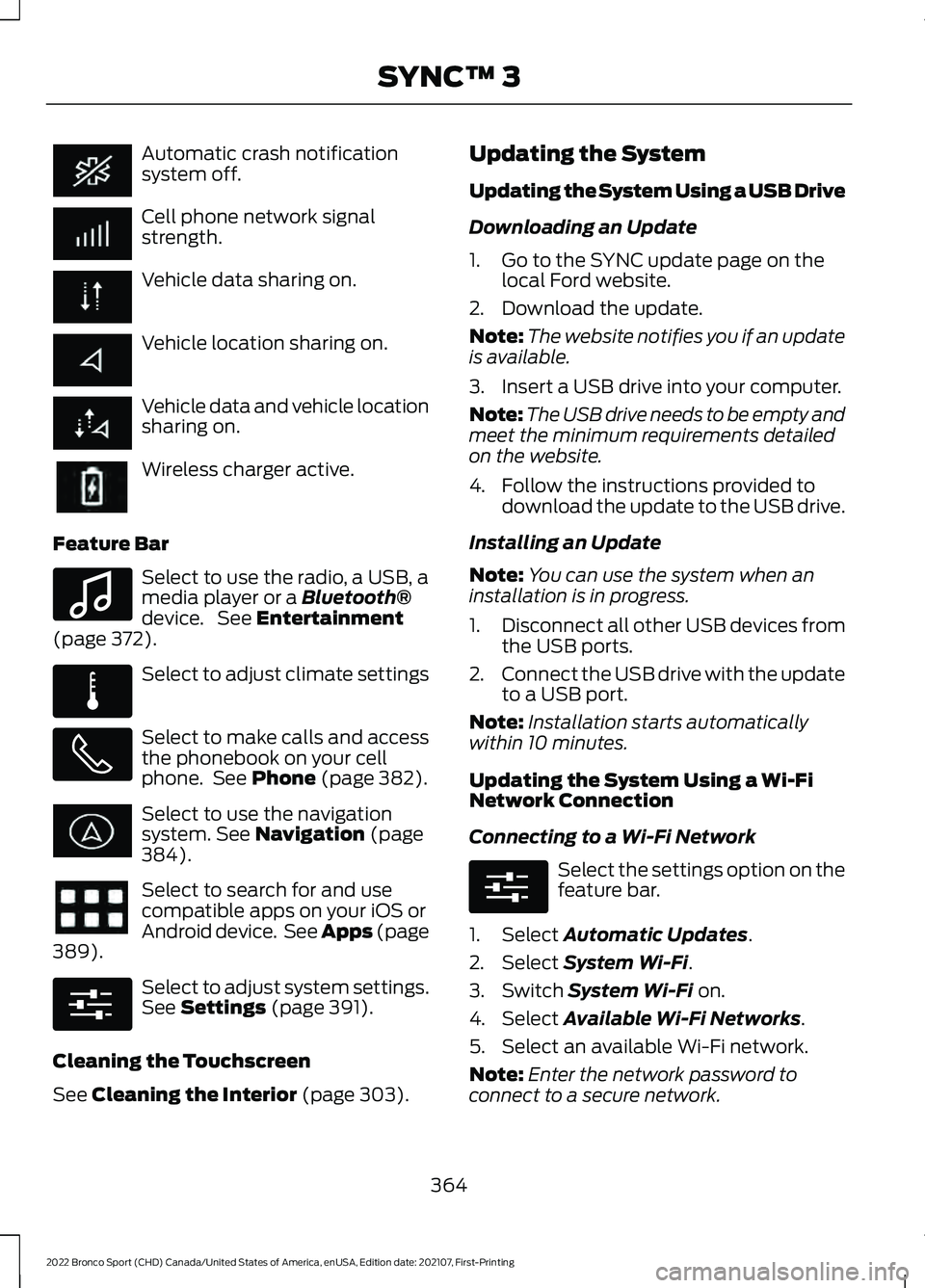
Automatic crash notification
system off.
Cell phone network signal
strength.
Vehicle data sharing on.
Vehicle location sharing on.
Vehicle data and vehicle location
sharing on.
Wireless charger active.
Feature Bar Select to use the radio, a USB, a
media player or a Bluetooth®
device. See Entertainment
(page 372). Select to adjust climate settings
Select to make calls and access
the phonebook on your cell
phone. See
Phone (page 382).
Select to use the navigation
system.
See Navigation (page
384). Select to search for and use
compatible apps on your iOS or
Android device. See Apps (page
389
). Select to adjust system settings.
See
Settings (page 391).
Cleaning the Touchscreen
See
Cleaning the Interior (page 303). Updating the System
Updating the System Using a USB Drive
Downloading an Update
1. Go to the SYNC update page on the
local Ford website.
2. Download the update.
Note: The website notifies you if an update
is available.
3. Insert a USB drive into your computer.
Note: The USB drive needs to be empty and
meet the minimum requirements detailed
on the website.
4. Follow the instructions provided to download the update to the USB drive.
Installing an Update
Note: You can use the system when an
installation is in progress.
1. Disconnect all other USB devices from
the USB ports.
2. Connect the USB drive with the update
to a USB port.
Note: Installation starts automatically
within 10 minutes.
Updating the System Using a Wi-Fi
Network Connection
Connecting to a Wi-Fi Network Select the settings option on the
feature bar.
1. Select
Automatic Updates.
2. Select
System Wi-Fi.
3. Switch
System Wi-Fi on.
4. Select
Available Wi-Fi Networks.
5. Select an available Wi-Fi network.
Note: Enter the network password to
connect to a secure network.
364
2022 Bronco Sport (CHD) Canada/United States of America, enUSA, Edition date: 202107, First-Printing SYNC™ 3 E100027 E283811 E280315 E280315
Page 386 of 494
Mute
Mute the microphone when in a call.
Phone Voice Assistant
Say a command to use the Google or Siri
voice assistant available on your
connected phone to access supported
features.
Text Messaging
Setting Text Message Notification
iOS
1. Go to the settings menu on your cell
phone. 2. Select Bluetooth®.
3. Select the information icon to the right
of your vehicle.
4. Switch text message notification on.
Android
1. Go to the settings menu on your cell phone.
2. Select
Bluetooth®.
3. Select the profiles option.
4. Select the phone profile.
5. Switch text message notification on.
Using Text Messaging Description
Menu Item
Hear the text message.
Hear It
View the text message.
View
Call the sender.
Call
Reply to the text message with a standard text message.
Reply
Apple CarPlay
(If Equipped)
1. Connect your device to a USB port.
2. Follow the instructions on the touchscreen.
Note: Certain features of the system are
not available when you are using Apple
CarPlay.
Switching Apple CarPlay Off Select the settings option on the
feature bar.
1. Select
Apple CarPlay Preferences.
2. Switch
Apple CarPlay off. Android Auto
(If Equipped)
1. Connect your device to a USB port.
2. Follow the instructions on the touchscreen.
Note: You might need to enable Android
Auto from the settings menu.
Note: Certain features of the system are
not available when you are using Android
Auto.
Switching Android Auto Off Select the settings option on the
feature bar.
1. Select
Android Auto.
383
2022 Bronco Sport (CHD) Canada/United States of America, enUSA, Edition date: 202107, First-Printing SYNC™ 3
Page 387 of 494
2. Switch Android Auto off.
NAVIGATION
(IF EQUIPPED)
Note: For more information, refer to our
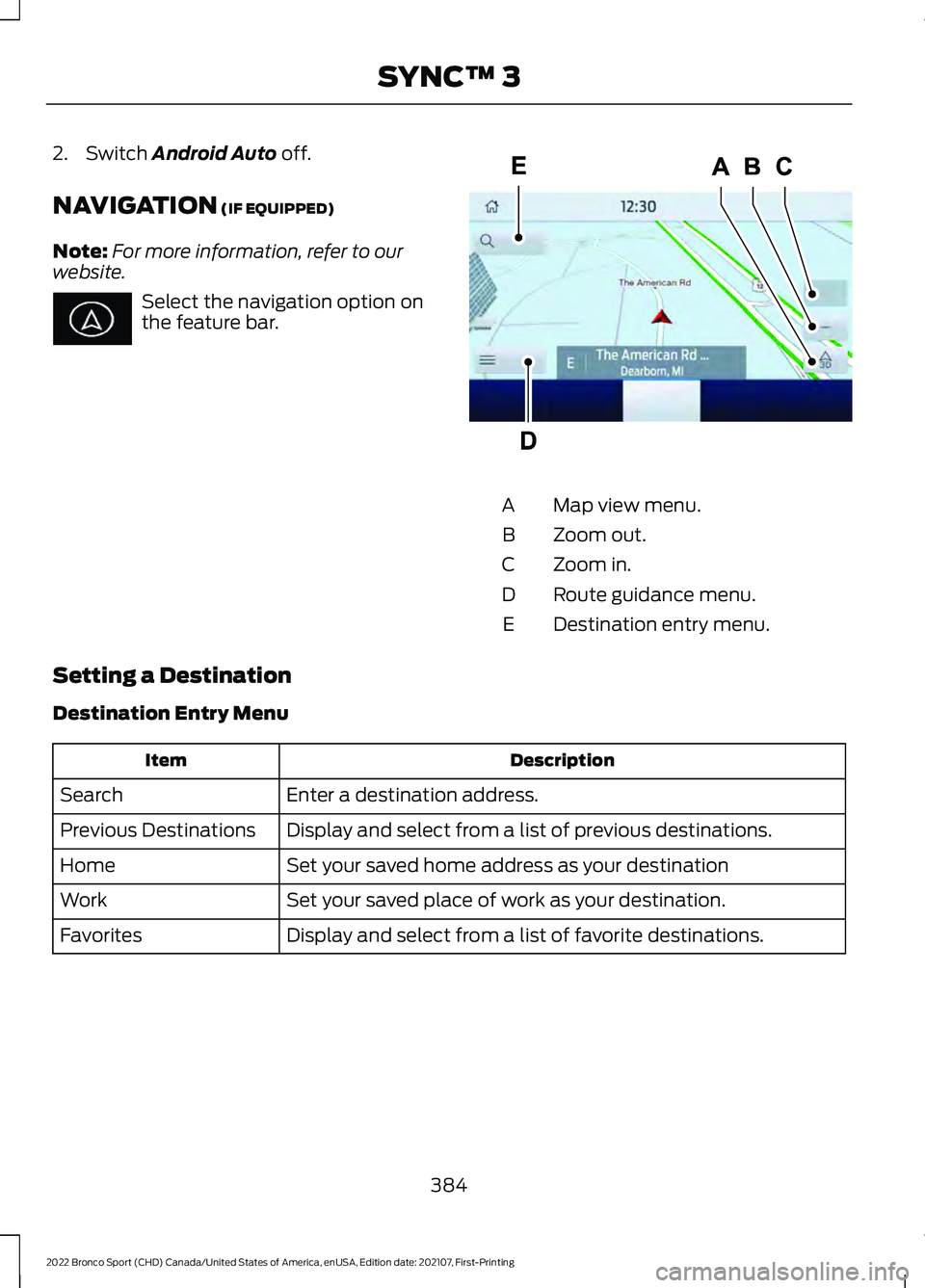
website. Select the navigation option on
the feature bar.
Map view menu.
A
Zoom out.
B
Zoom in.
C
Route guidance menu.
D
Destination entry menu.
E
Setting a Destination
Destination Entry Menu Description
Item
Enter a destination address.
Search
Display and select from a list of previous destinations.
Previous Destinations
Set your saved home address as your destination
Home
Set your saved place of work as your destination.
Work
Display and select from a list of favorite destinations.
Favorites
384
2022 Bronco Sport (CHD) Canada/United States of America, enUSA, Edition date: 202107, First-Printing SYNC™ 3 E297557
Page 393 of 494
Note:
If you close the apps on your device,
you will not be able to use them through the
system.
5. Select the app that you want to use on
the touchscreen.
Note: Connect your device to a USB port if
you want to use a navigation app. When
using a navigation app, keep your device
unlocked and the app open.
Using Apps on an Android Device Select the apps option on the
feature bar.
1. If your device is connected via USB, switch Android Auto off. See Phone
(page 382).
2. Pair your device. See Phone (page 382).
3. Start the apps on your device that you want to use through SYNC.
Note: If you close the apps on your device,
you will not be able to use them through the
system.
4. Select
Find Mobile Apps.
Note: The system searches and connects
to compatible apps that are running on your
device.
5. Select the app that you want to use on
the touchscreen.
Note: Mobile Apps on your device use the
USB port to establish a connection with
SYNC. Some devices may lose the ability to
play music over USB when Mobile Apps are
enabled.
Using Mobile Navigation on an
Android Device
1. Connect your device to a USB port.
2. Switch Android Auto off. See
Phone
(page 382).
3. Switch on
Enable Mobile Apps via
USB in the Mobile Apps Settings tile. 4. Select the apps option on the feature
bar.
5. Select the navigation app that you want to use on the touchscreen.
Note: When using a navigation app, keep
your device unlocked and the app open.
SiriusXM Traffic and Travel Link (If
Equipped) WARNING: Driving while distracted
can result in loss of vehicle control, crash
and injury. We strongly recommend that
you use extreme caution when using any
device that may take your focus off the
road. Your primary responsibility is the
safe operation of your vehicle. We
recommend against the use of any
hand-held device while driving and
encourage the use of voice-operated
systems when possible. Make sure you
are aware of all applicable local laws
that may affect the use of electronic
devices while driving.
Note: SiriusXM Traffic and Travel Link may
not be available in all markets.
Note: In order to use SiriusXM Traffic and
Travel Link, your vehicle must have
navigation.
Note: A paid subscription is required to
access and use these features. Go to
www.siriusxm.com/travellink for more
information.
Note: Visit www.siriusxm.com/traffic and
click on Coverage map and details for a
complete listing of all traffic areas covered
by SiriusXM Traffic and Travel Link.
Note: Neither Sirius nor Ford is responsible
for any errors or inaccuracies in the SiriusXM
Traffic and Travel Link services or its use in
vehicles.
390
2022 Bronco Sport (CHD) Canada/United States of America, enUSA, Edition date: 202107, First-Printing SYNC™ 3
Page 403 of 494
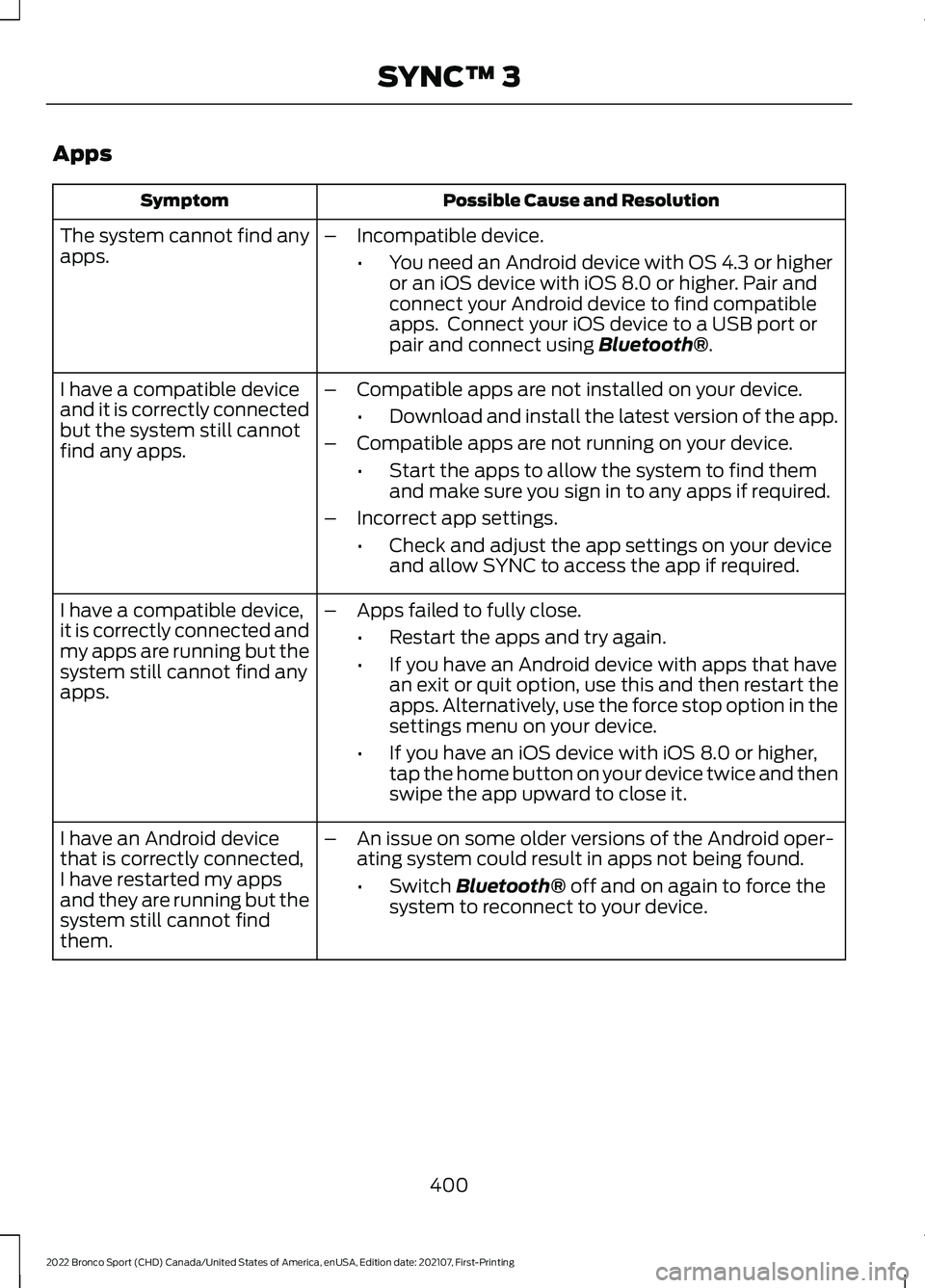
Apps
Possible Cause and Resolution
Symptom
The system cannot find any
apps. –
Incompatible device.
•You need an Android device with OS 4.3 or higher
or an iOS device with iOS 8.0 or higher. Pair and
connect your Android device to find compatible
apps. Connect your iOS device to a USB port or
pair and connect using Bluetooth®.
I have a compatible device
and it is correctly connected
but the system still cannot
find any apps. –
Compatible apps are not installed on your device.
•Download and install the latest version of the app.
– Compatible apps are not running on your device.
•Start the apps to allow the system to find them
and make sure you sign in to any apps if required.
– Incorrect app settings.
•Check and adjust the app settings on your device
and allow SYNC to access the app if required.
I have a compatible device,
it is correctly connected and
my apps are running but the
system still cannot find any
apps. –
Apps failed to fully close.
•Restart the apps and try again.
• If you have an Android device with apps that have
an exit or quit option, use this and then restart the
apps. Alternatively, use the force stop option in the
settings menu on your device.
• If you have an iOS device with iOS 8.0 or higher,
tap the home button on your device twice and then
swipe the app upward to close it.
I have an Android device
that is correctly connected,
I have restarted my apps
and they are running but the
system still cannot find
them. –
An issue on some older versions of the Android oper-
ating system could result in apps not being found.
•Switch
Bluetooth® off and on again to force the
system to reconnect to your device.
400
2022 Bronco Sport (CHD) Canada/United States of America, enUSA, Edition date: 202107, First-Printing SYNC™ 3
Page 404 of 494
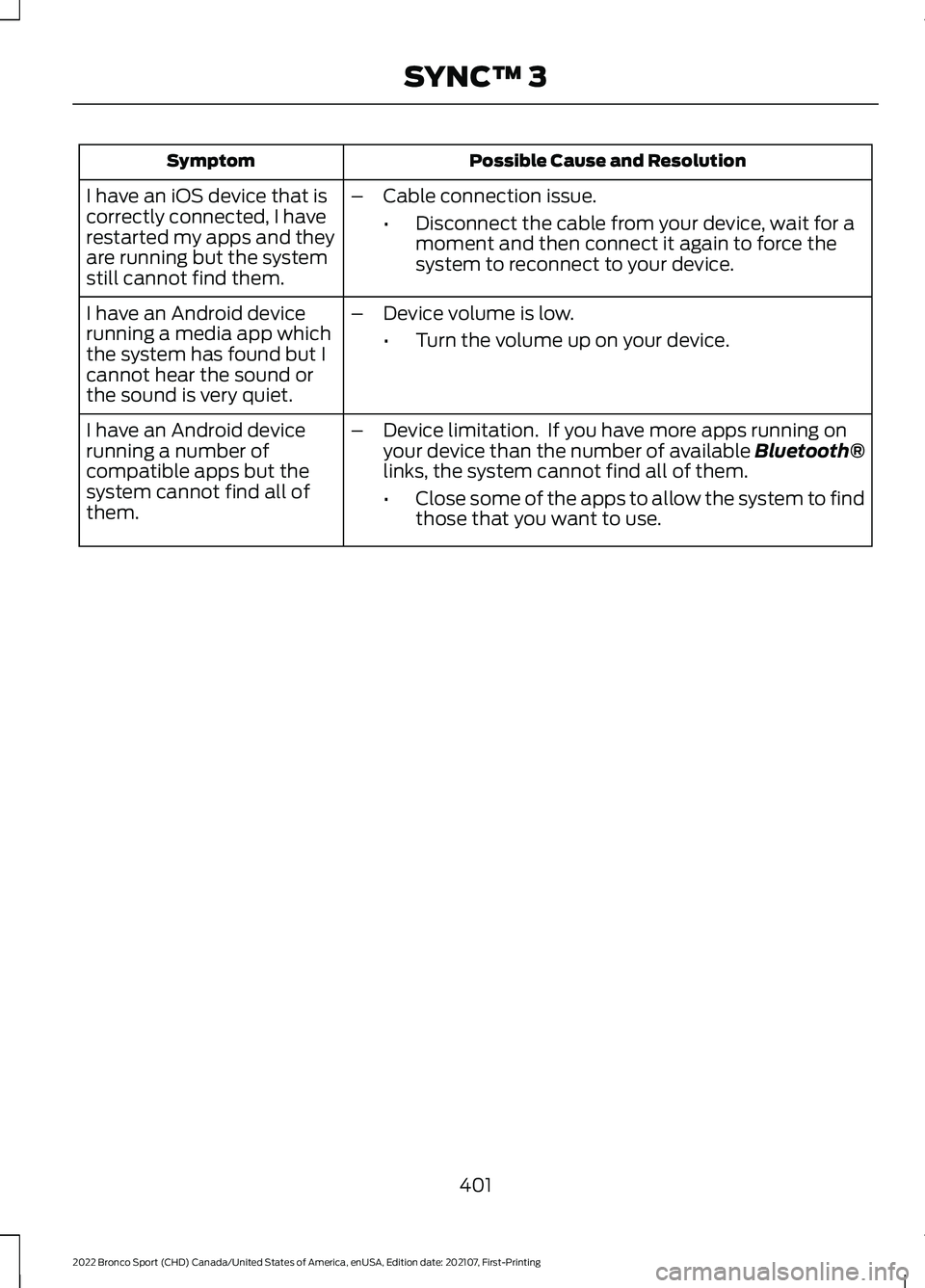
Possible Cause and Resolution
Symptom
I have an iOS device that is
correctly connected, I have
restarted my apps and they
are running but the system
still cannot find them. –
Cable connection issue.
•Disconnect the cable from your device, wait for a
moment and then connect it again to force the
system to reconnect to your device.
I have an Android device
running a media app which
the system has found but I
cannot hear the sound or
the sound is very quiet. –
Device volume is low.
•Turn the volume up on your device.
I have an Android device
running a number of
compatible apps but the
system cannot find all of
them. –
Device limitation. If you have more apps running on
your device than the number of available Bluetooth®
links, the system cannot find all of them.
•Close some of the apps to allow the system to find
those that you want to use.
401
2022 Bronco Sport (CHD) Canada/United States of America, enUSA, Edition date: 202107, First-Printing SYNC™ 3