Page 255 of 656
Continued253
uuAudio System Basic Operation uPlaying SiriusXM ® Radio
Features
Sample each channel on the selected mode for 10 seconds.
1. Select More.
2. Select Scan.
You can change a scan mode by the following procedure.
1. Select MENU .
2. Select SiriusXM Settings .
3. Select Scan Mode .
4. Select Channels or Favorites.
To turn off scan, select Stop.
■Scan1Scan
The favorites scan func tion is based on TuneScan
TM
technology of SiriusXM ®.
The “Featured Channels ” function is based on
Featured Favorites
TM technology of SiriusXM ®.
TuneScan
TM and Featured FavoritesTM are registered
trademarks of SiriusXM ® Radio, Inc.
22 ACURA TLX-31TGV6100.book 253 \b
Page 256 of 656
254
uuAudio System Basic Operation uPlaying SiriusXM ® Radio
Features
Change the SiriusXM ® settings.
1. Select MENU .
2. Select SiriusXM Settings .
3. Select an option.
• Tune Mode: Choose whether to group by category or channel number when
changing channels.
• Scan Mode: Select the scan mode from all channels or favorites.
• Tune Start: Start the currently playing song at the beginning when you switch to
a music channel favorite.
• Sports Notifi cation Setup: Set to receive sports alerts such as scores from your
favorite teams.
2 Live Sports Alert P. 248
•Traffic & Weather Setup: Set to receive traffic and weather information.
2Traffic and Weather Information P. 250
•Manage Program Alerts: Change settings for the alert function.
2Manage Program Alert P. 252
■SiriusXM Settings
22 ACURA TLX-31TGV6100.book 254 \b
Page 257 of 656
255
uuAudio System Basic Operation uPlaying an iPod
Continued
Features
Playing an iPod
Using your USB connector, connect the iP od to the USB port (2.5A), then select
the USB mode.
2 USB Ports P. 205
Repeat Icon
Select to repeat the
current song.
SOUND
Select to display the sound
settings.
Music Library
Select to display the music
search screen.
Skip/Seek Icons
Select or to
change songs.
Select and hold to move
rapidly within a song.
Shuffle Icon
Select to change a play mode
in album shuffle or shuffle all
songs.
VOL (Volume/Power) Knob
Push to turn the audio system on
and off. Turn to adjust the volume.
/ (Seek/Skip) Button
Press or to change songs.
Press and hold to move rapidly within
a song.
Play/Pause Icon
Album Art Current Song Information
Select to display the pl
ay list
screen.
22 ACURA TLX-31TGV6100.book 255 \b
Page 258 of 656
uuAudio System Basic Operation uPlaying an iPod
256
Features
1. Select Music Library.
2. Select a search catego ry (e.g., Artists,
Albums, etc.).
3. Continue making selections until you find
the song of your choice.
■How to Select a Song from the Music Search List1Playing an iPod
Available operating functi ons vary on models or
versions. Some functions ma y not be available on the
vehicle’s audio system.
If there is a problem, you may see an error message
on the audio/information screen. 2 iPod/USB Flash Drive P. 276
If you operate the musi c app on your iPhone/iPod
while the phone is connected to the audio system,
you may no longer be able to operate the same app
on the audio/information screen.
Reconnect the devi ce if necessary.
Select SEARCH LIST , then trace the letters and/or
numbers of the song on the A-zone touchpad. When
KEYBOARD is selected, the on-screen keyboard
appears.
22 ACURA TLX-31TGV6100.book 256 \b
Page 259 of 656
257
uuAudio System Basic Operation uPlaying an iPod
Features
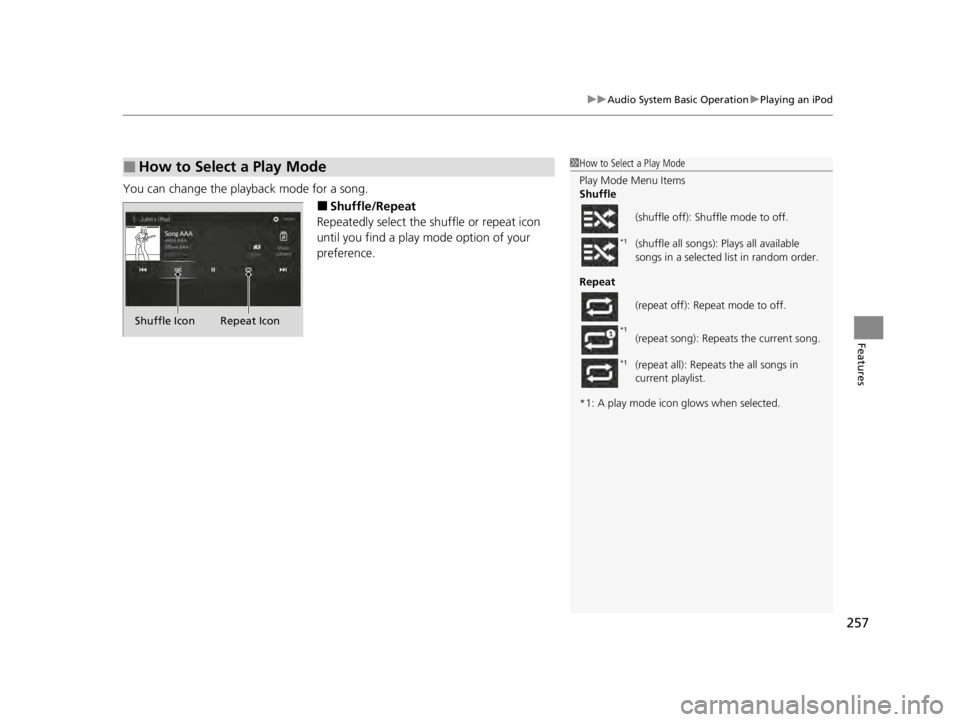
You can change the playback mode for a song.
■Shuffle/Repeat
Repeatedly select the shuffle or repeat icon
until you find a play mode option of your
preference.
■How to Select a Play Mode1 How to Select a Play Mode
Play Mode Menu Items
Shuffle
Repeat
*1: A play mode icon glows when selected. (shuffle off): Shuffle mode to off.
(shuffle all songs): Plays all available
songs in a selected list in random order.
(repeat off): Repeat mode to off.
(repeat song): Repeats the current song.
(repeat all): Repeats the all songs in
current playlist.
*1
*1
*1
Shuffle Icon Repeat Icon
22 ACURA TLX-31TGV6100.book 257 \b
Page 260 of 656

258
uuAudio System Basic Operation uPlaying a USB Flash Drive
Features
Playing a USB Flash Drive
Your audio system reads and plays audio file s on a USB flash drive in either format
of MP3, WMA, AAC*1, etc.
2 Playable audio file P. 281
Connect your USB flash drive to the USB port (2.5A), then select the USB mode.
2USB Ports P. 205
*1:Only AAC format files recorded with iTunes are playable on this unit.
Repeat Icon
Select to repeat the current
file.
SOUND
Select to display the sound
settings.
Music Library
Select to display the music
search screen.
Skip/Seek Icons
Select or to change
files.
Select and hold to move
rapidly within a file.
Random Icon
Select to play all files in the
current category in random
order.
VOL (Volume/Power) Knob
Push to turn the audio system on and
off. Turn to adjust the volume.
/ (Seek/Skip) Button
Press or to change files.
Press and hold to move rapidly
within a file.
Play/Pause Icon
Album Art Current File Information
Select to display the p l
ay
list screen.
22 ACURA TLX-31TGV6100.book 258 \b
Page 261 of 656
Continued259
uuAudio System Basic Operation uPlaying a USB Flash Drive
Features
1. Select Music Library .
2. Select a search catego ry (e.g., Artists,
Albums, etc.).
3. Continue making selections until you find
the file of your choice.
■How to Select a File from the Music Search List1Playing a USB Flash Drive
Use the recommended USB flash drives.
2 General Information on the Audio System
P. 279
WMA files protected by di gital rights management
(DRM) cannot be played.
The audio system skips to the next file.
If there is a problem, you may see an error message
on the audio/information screen. 2 iPod/USB Flash Drive P. 276
Select SEARCH or SEARCH LIST, then trace the
letters and/or numbers of the song on the A-zone
touchpad. When KEYBOARD is selected, the on-
screen keyboard appears.
22 ACURA TLX-31TGV6100.book 259 \b
Page 262 of 656
uuAudio System Basic Operation uPlaying a USB Flash Drive
260
Features
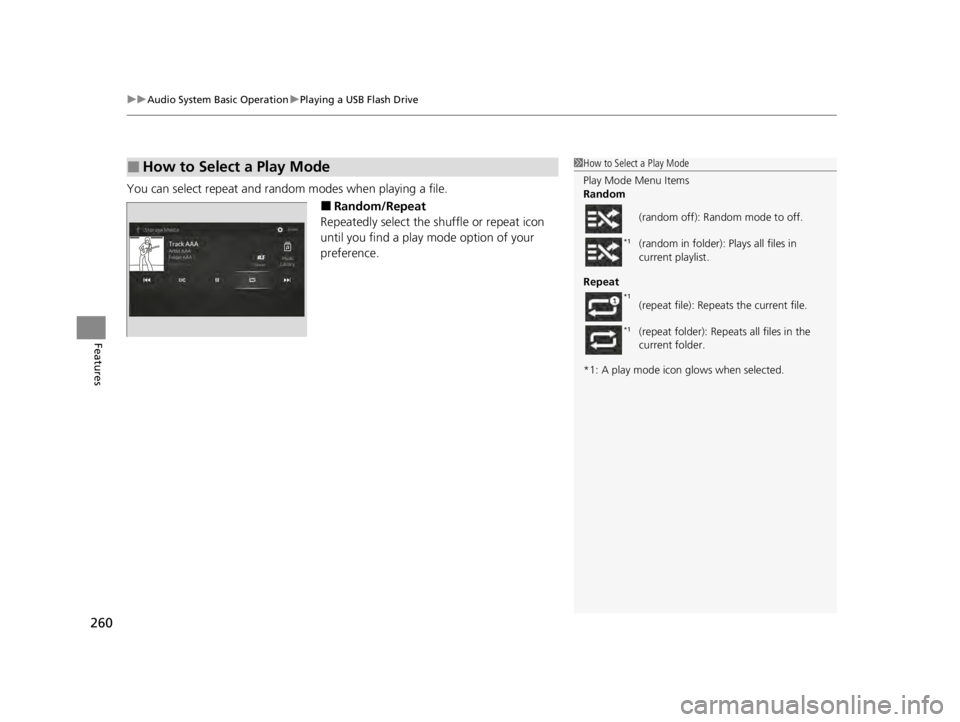
You can select repeat and random modes when playing a file.
■Random/Repeat
Repeatedly select the shuffle or repeat icon
until you find a play mode option of your
preference.
■How to Select a Play Mode1 How to Select a Play Mode
Play Mode Menu Items
Random
Repeat
*1: A play mode icon glows when selected. (random off): Random mode to off.
(random in folder): Plays all files in
current playlist.
(repeat file): Repeats the current file.
(repeat folder): Repeats all files in the
current folder.
*1
*1
*1
22 ACURA TLX-31TGV6100.book 260 \b