2021 VOLVO V90 CROSS COUNTRY carplay
[x] Cancel search: carplayPage 497 of 683
AUDIO, MEDIA AND INTERNET
}}
* Option/accessory.495
Settings for Apple ®
CarPlay ®
*
Settings for an iOS device connected through CarPlay 13
,14
.
Automatic start1. Tap Settings in the Top view.
2. Tap
CommunicationApple CarPlayand select the desired setting: Check the box - CarPlay will start auto- matically when the USB cable is con-nected.
Uncheck the box - CarPlay will not startautomatically when the USB cable isconnected.
A maximum of 20 iOS devices can be storedin the list, which may be worth noting if manypeople share the vehicle, e.g. in a car pool.When the list is full and a new device is con-nected, the oldest one will be deleted. To delete the list, the settings must be rest in the center display (factory reset).
System Volumes1. Tap Settings in the Top view. 2. Tap
SoundSystem Volumes to
change the settings for the following:
Voice Control
Navi Voice Guidance
Phone Ringtone
Related information
Apple ®
CarPlay ®
* (p. 492)
Using Apple ®
CarPlay ®
* (p. 493)
Resetting center display settings (p. 138)
Tips for using Apple ®
CarPlay ®
*
Here are some useful tips for when you use CarPlay ®
15
.
Update your iOS device with the latest version of the iOS operating system andensure that the apps have been updated.
In the event of a problem with CarPlay,unplug the iOS device from the USB portand then plug it in again. Otherwise, try toclose the app on the device that is notworking and then restart the app, or tryclosing all apps and restart your device.
If the apps do not appear when CarPlaystarts (black screen), try minimizing andexpanding the tile for CarPlay.
Using apps that are not compatible withCarPlay may sometimes cause the con-nection between the iOS device and thevehicle to be broken. Information aboutsupported apps and compatible devicescan be found on Apple's website. You canalso search for CarPlay in the App Store tofind information about apps that are com-patible with CarPlay in your market.
You can use Siri to write or dictate mes-sages or have them read aloud. Messagesare read aloud and dictated in the lan-guage selected in the Siri settings. When
13
Apple and CarPlay are registered trademarks of Apple Inc.
14 Availability may vary depending on market.
15 Availability may vary depending on market.
Page 498 of 683
||
AUDIO, MEDIA AND INTERNET
* Option/accessory.
496 you write/dictate messages, no text will be shown in the vehicle's center display,but the text will be shown in your iOSdevice. When using Siri, note that it is thephone's microphones that are used andthe quality therefore depends on thephone's location.
If the device is connected to the vehiclethrough Bluetooth, the connection will bebroken when CarPlay is used. ResumeInternet connection in the vehicle by teth-ering using the device's Wi-Fi hotspot.
Some of CarPlay's functions (such asvoice calls and messages) interrupt theuse of the vehicle's own functions andCarPlay will instead be automatically dis-played. If you do not wish this to happen,deselect display of the correspondingfunction in CarPlay under the phone'snotification settings.
CarPlay only works with iPhone 16
.
NOTE
Availability and functionality can vary depending on market.
Related information
Apple ®
CarPlay ®
* (p. 492)
Connecting the vehicle to the Internet via a phone (Wi-Fi) (p. 515)
Android Auto
*
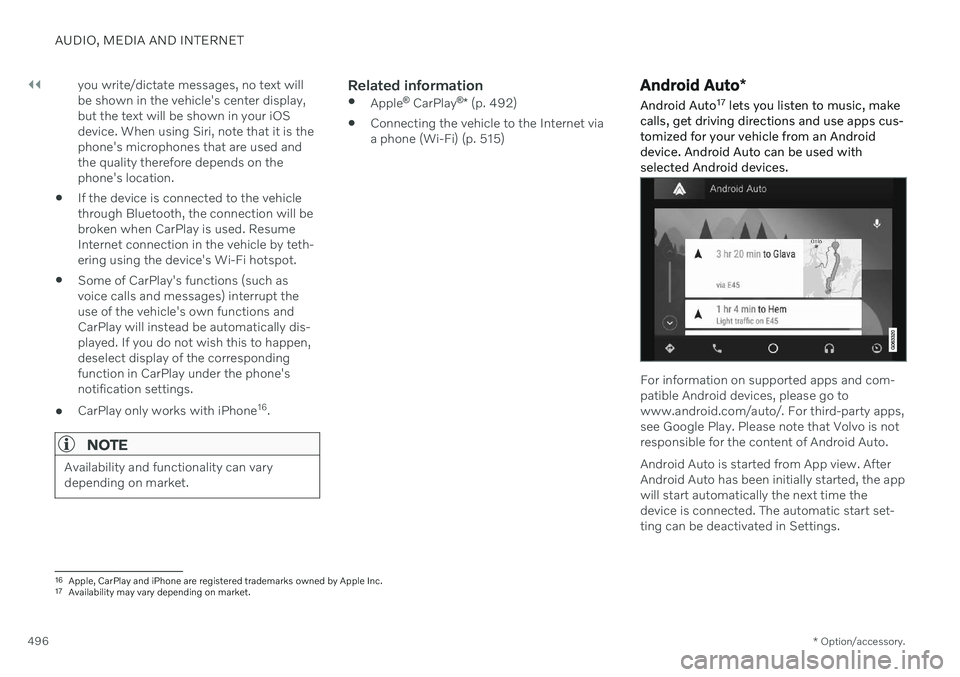
Android Auto 17
lets you listen to music, make
calls, get driving directions and use apps cus- tomized for your vehicle from an Androiddevice. Android Auto can be used withselected Android devices.
For information on supported apps and com- patible Android devices, please go towww.android.com/auto/. For third-party apps,see Google Play. Please note that Volvo is notresponsible for the content of Android Auto. Android Auto is started from App view. After Android Auto has been initially started, the appwill start automatically the next time thedevice is connected. The automatic start set-ting can be deactivated in Settings.
16 Apple, CarPlay and iPhone are registered trademarks owned by Apple Inc.
17 Availability may vary depending on market.
Page 516 of 683
AUDIO, MEDIA AND INTERNET
* Option/accessory.
514
Internet-connected vehicle *
When the vehicle is connected to the Inter- net, it is possible to use web radio and musicservices via apps, download software andcontact retailers from the vehicle.
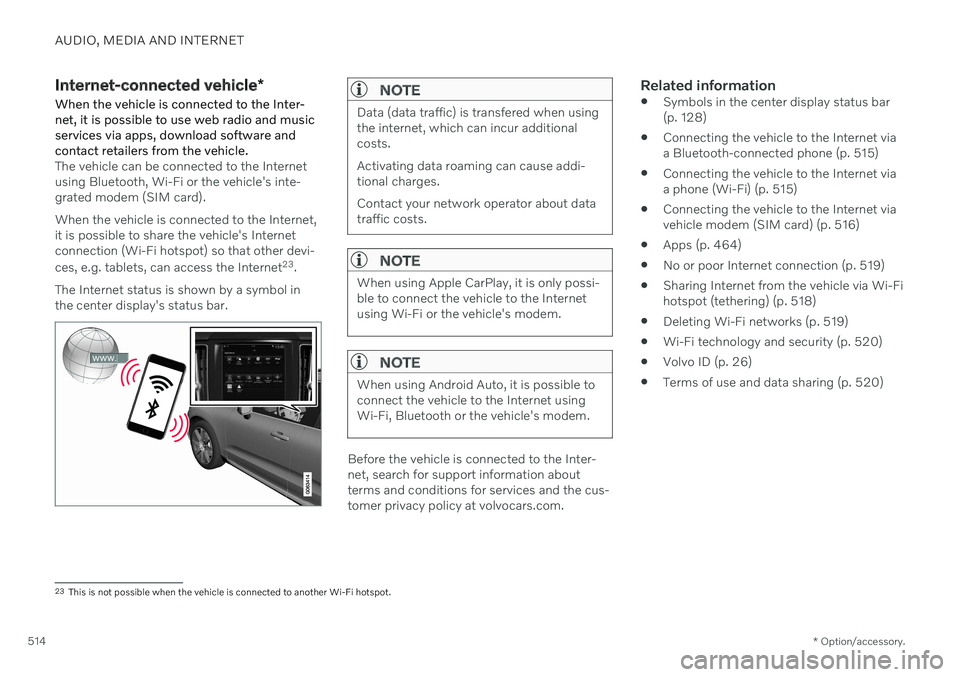
The vehicle can be connected to the Internet using Bluetooth, Wi-Fi or the vehicle's inte-grated modem (SIM card). When the vehicle is connected to the Internet, it is possible to share the vehicle's Internetconnection (Wi-Fi hotspot) so that other devi- ces, e.g. tablets, can access the Internet 23
.
The Internet status is shown by a symbol in the center display's status bar.
NOTE
Data (data traffic) is transfered when using the internet, which can incur additionalcosts. Activating data roaming can cause addi- tional charges. Contact your network operator about data traffic costs.
NOTE
When using Apple CarPlay, it is only possi- ble to connect the vehicle to the Internetusing Wi-Fi or the vehicle's modem.
NOTE
When using Android Auto, it is possible to connect the vehicle to the Internet usingWi-Fi, Bluetooth or the vehicle's modem.
Before the vehicle is connected to the Inter- net, search for support information aboutterms and conditions for services and the cus-tomer privacy policy at volvocars.com.
Related information
Symbols in the center display status bar(p. 128)
Connecting the vehicle to the Internet viaa Bluetooth-connected phone (p. 515)
Connecting the vehicle to the Internet viaa phone (Wi-Fi) (p. 515)
Connecting the vehicle to the Internet viavehicle modem (SIM card) (p. 516)
Apps (p. 464)
No or poor Internet connection (p. 519)
Sharing Internet from the vehicle via Wi-Fihotspot (tethering) (p. 518)
Deleting Wi-Fi networks (p. 519)
Wi-Fi technology and security (p. 520)
Volvo ID (p. 26)
Terms of use and data sharing (p. 520)
23
This is not possible when the vehicle is connected to another Wi-Fi hotspot.
Page 517 of 683
AUDIO, MEDIA AND INTERNET
}}
* Option/accessory.515
Connecting the vehicle to the Internet via a Bluetooth-connectedphone
Establish an Internet connection using
Bluetooth and tethering from a phone andget access to multiple connected services inyour vehicle.
1. To connect the vehicle to the Internet via a Bluetooth-connected phone, the phone must first be paired with the vehicle viaBluetooth.
2. Make sure that the phone supports Inter- net sharing (tethering) and that the func-tion is activated. In an iPhone, the functionis called "personal hotspot". In Androidphones, the function can have differentnames, but is often called "hotspot". ForiPhone phones, the "personal hotspot"menu page must also be open until theInternet connection has been made.
3. If the phone has been connected via Blue- tooth previously, tap
Settings in the cen-
ter display's Top view.
4. Tap
CommunicationBluetooth
Devices.
5. Mark the window for
Bluetooth Internet
connection under the heading Internet
connection. 6. If a different connection is being used,
confirm the connection change.
> Your vehicle is now connected to theInternet via your Bluetooth-connected phone.
NOTE
The cellular phone and network operator must support tethering (sharing of Internetconnection) and the subscription mustinclude data traffic.
NOTE
When using Apple CarPlay, it is only possi- ble to connect the vehicle to the Internetusing Wi-Fi or the vehicle's modem.
Related information
Internet-connected vehicle
* (p. 514)
Connecting the vehicle to the Internet via vehicle modem (SIM card) (p. 516)
Connecting a phone to the car via Blue-tooth for the first time (p. 500)
Connecting the vehicle to the Internet viaa phone (Wi-Fi) (p. 515)
Apple ®
CarPlay ®
* (p. 492)
No or poor Internet connection (p. 519)
Settings for Bluetooth devices (p. 507)
Connecting the vehicle to the Internet via a phone (Wi-Fi) Establish an Internet connection using Wi-Fi through Internet sharing (tethering) from aphone and get access to the connected servi-ces in your vehicle.
1. Make sure that the phone supports Inter-
net sharing (tethering) and that the func- tion is activated. In an iPhone, the functionis called "personal hotspot". In Androidphones, the function can have differentnames, but is often called "hotspot". ForiPhone phones, the "personal hotspot"menu page must also be open until theInternet connection has been made.
2. Tap
Settings in the Top view.
3. Proceed to
CommunicationWi-Fi.
4. Activate/deactivate by tapping to check/ uncheck the Wi-Fi box.
5. If a different connection is being used, confirm the connection change.
6. Tap the name of the network you would like to connect.
7. Enter the network password. > The vehicle will connect to the network.
Please note that certain cellular phones will disable Internet sharing (tethering) when theconnection to the vehicle has been broken,e.g. when the phone has been removed from
Page 665 of 683

INDEX
663
1, 2, 3 ...
4WD 419
A
ABSanti-lock brakes 403
AC (Air conditioning) 233
Accessories and extra equipment 36 installation 37
Accessory installation warning 37
Active Bending Lights 162
Adapting driving characteristics 419
Adaptive Cruise Control 294 activating 297
auto-brake 323
change cruise control functionality 301
controls 296
deactivate 298
display 296
limitations 300
passing 318
set time interval 322
standby mode 299
stored speed 321
switching target vehicles 320
Symbols and messages 302
troubleshooting 300
WARNING 319
Adjusting the steering wheel 203
Advanced Air Cleaner 212
Airbag 55 activation/deactivation 59
driver's side 56
passenger side 56, 59
Air bag, see Airbag 55
Air conditioning 233 Air conditioning, fluid volume and grade 659
Air distribution 212 air vents 212, 214
changing 213
defrosting 226
recirculation 225
table showing options 215
Air quality 209, 211 Advanced Air Cleaner 212
allergy and asthma 210
passenger compartment filter 212
Air recirculation 225
Alarm 274 deactivating 275
Alarm about slippery road conditions 284
Alarm on hazard warning flashers 284Allergy and asthma-inducing sub-
stances 210
All Wheel Drive, AWD 419
All Wheel Drive (AWD) 419
All Wheel Drive (four-wheel drive) 419
Android Auto 496, 497, 498Antenna location 265
Apple CarPlay 492, 493, 495
Approach lighting 166
Apps 464
Assistance at risk of collision 345 activating/deactivating 346
at risk of run-off 346
during collision risks from behind 348 during collision risks from oncoming
traffic 347
limitations 349
Symbols and messages 350
Audio and media 462 Audio system HD digital radio 473 SiriusXM ®
Satellite radio 474, 475,
477
Auto-climate 224
Auto hold 409
INDEX