Page 419 of 748

4195-5. Other settings
5
Audio
Select to change the driver set-
tings. ( P.420)
“Delete Personal Data”
Select to delete personal data.
( P.421)
“Software Update”
Select to update software versions.
For details, contact your Toyota
dealer.
“Software Update Setting”*2
Select to set software update set-
ting. ( P.421)
“Gracenote Database
Update”
Select to update Gracenote® data-
base versions. For details, contact
your Toyota dealer.
“Software Information”
Select to display the software infor-
mation. Notices related to third
party software used in this product
are enlisted. (This includes instruc-
tions for obtaining such software,
where applicable.)
“SW Sensitivity Level”
Select to change the capacitive
touch screen button sensitivity to 1
(low), 2 (medium), or 3 (high).
*1: This function is not made avail- able in some countries or areas.
*2: Vehicles equipped with DCM
1 Display the general settings
screen. ( P.418)
2 Select “Clock”. 3
Select the desired items to
be set.
Select to change the time
zone. ( P.419)
Select to set daylight saving
time on/off.
Select to set automatic
adjustment of the clock by
GPS on/off.
When set to off, the clock can
be manually adjusted.
( P.419)
Select to set the 24 hour time
format on/off.
When set to off, the clock is
displayed in 12 hour time for-
mat.
1 Select “Time Zone”.
2 Select the desired time zone.
When “Auto Adjust by GPS” is
turned off, the clock can be
manually adjusted.
1 Select “Auto Adjust by GPS”
to set to off.
Clock settings
Setting the time zone
Manual clock setting
A
B
C
D
Page 420 of 748

4205-5. Other settings
2Adjust the clock manually.
Select “+” to set the time for-
ward one hour and “-” to set
the time back one hour.
Select “+” to set the time for-
ward one minute and “-” to
set the time back one minute.
Select to round to the nearest
hour.
e.g.
1:00 to 1:29 1:00
1:30 to 1:59 2:00
*: This function is not made avail-
able in some countries or areas.
1 Display the general settings
screen. ( P.418)
2 Select “Projection Settings”.
3 Select the desired items to
be set. Select to turn Apple CarPlay
connection establishment
on/off.
Select to turn Android Auto
connection establishment
on/off.
●When the settings are changed
with a device connected to the
system via USB, disconnect the
device and connect it again to
enable the settings.
The driver settings feature will
allow the system to link some
preferences (such as audio pre-
sets, screen theme, language,
etc.) to a paired Bluetooth
®
phone.
1 Display the general settings
screen. ( P.418)
2 Select “Driver Setting”.
3 Select “Enable This Feature”.
1 Select “Manually Select
Linked Settings”.
Projection settings
*
A
B
C
'ULYHU�VHWWLQJV
0DQXDOO\�VHOHFW�OLQNHG�VHW�
WLQJV
A
B
Page 516 of 748
5166-1. Using the air conditioning system and defogger
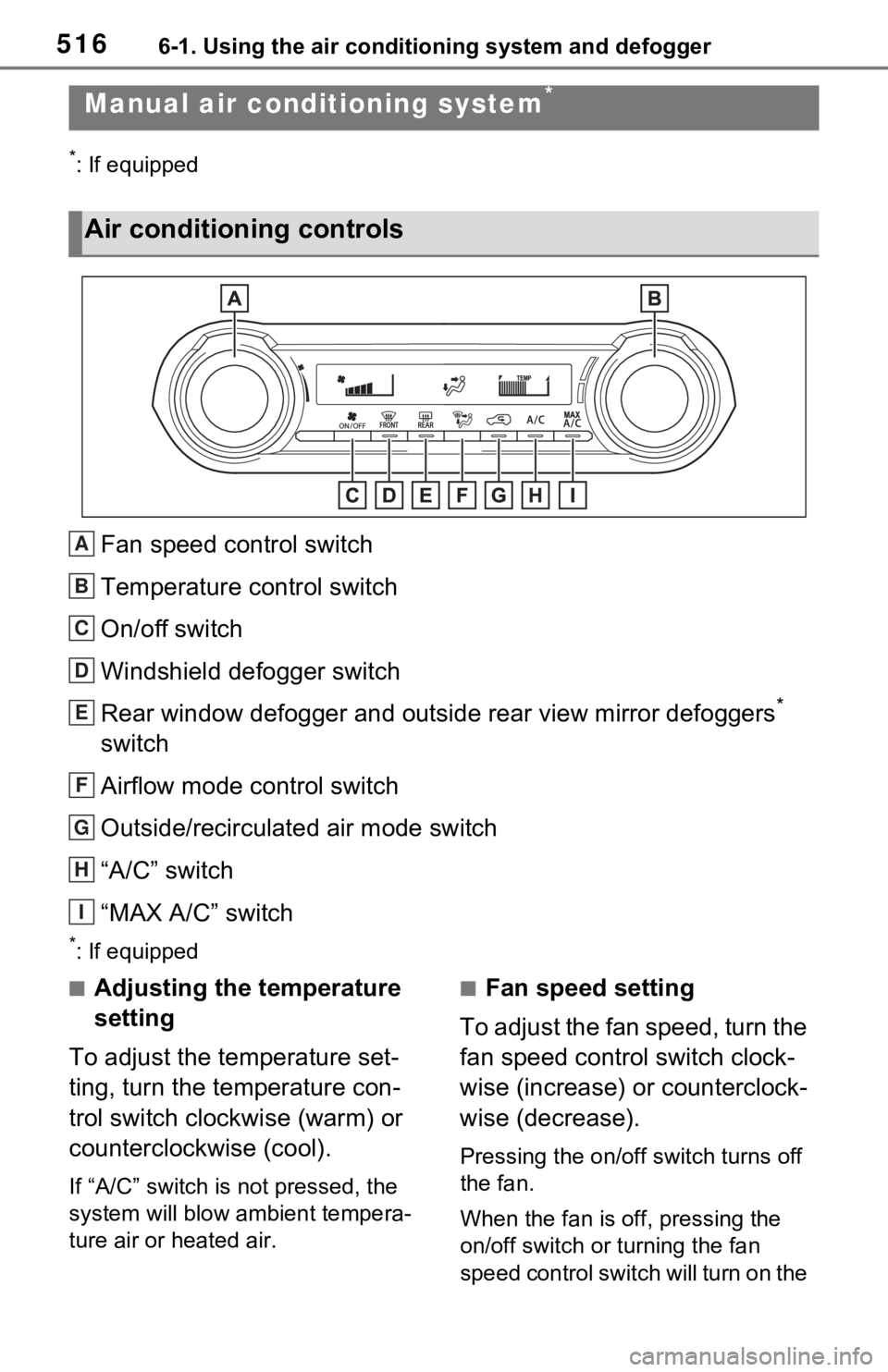
6-1.Using the air conditioning system and defogger
*: If equipped
Fan speed control switch
Temperature control switch
On/off switch
Windshield defogger switch
Rear window defogger and outside rear view mirror defoggers
*
switch
Airflow mode control switch
Outside/recirculated air mode switch
“A/C” switch
“MAX A/C” switch
*: If equipped
■Adjusting the temperature
setting
To adjust the temperature set-
ting, turn the temperature con-
trol switch clockwise (warm) or
counterclockwise (cool).
If “A/C” switch is not pressed, the
system will blow a mbient tempera-
ture air or heated air.
■Fan speed setting
To adjust the fan speed, turn the
fan speed control switch clock-
wise (increase) or counterclock-
wise (decrease).
Pressing the on/off switch turns off
the fan.
When the fan is off, pressing the
on/off switch or turning the fan
speed control switch will turn on the
Manual air condi tioning system*
Air conditioning controls
A
B
C
D
E
F
G
H
I
Page 522 of 748
5226-1. Using the air conditioning system and defogger
Automatic mode switch
Left-hand side temperature control knob
Right-hand side temperature control knob
“SYNC” switch
“OFF” switch
Windshield defogger switch
Rear window defogger and outside rear view mirror defoggers
switch
Eco air conditioning mode switch
Fan speed decrease switch
Fan speed increase switch
Airflow mode control switch
Outside/recirculated air mode switch
S-FLOW mode switch
“A/C” switch
■Adjusting the temperature
setting
Turn driver’s side temperature control dial clockwise to
increases the temperature and
turn the dial counterclockwise to
Automatic air co
nditioning system
Air outlets and fan speed are automatically adjusted accord-
ing to the temperature setting.
Air conditioning controls
A
B
C
D
E
F
G
H
I
J
K
L
M
N
Page 583 of 748

5837-3. Do-it-yourself maintenance
7
Maintenance and care
■Checking the engine oil
1 Park the vehicle on level
ground. After warming up the
engine and turning off the
engine, wait more than 5
minutes for the oil to drain
back into the bottom of the
engine.
2 Holding a rag under the end,
pull the dipstick out.
3 Wipe the dipstick clean.
4 Reinsert the dipstick fully.
5 Holding a rag under the end,
pull the dipstick out and
check the oil level.
Low
Normal
Excessive
The shape of the dipstick may differ
depending on the type of vehicle or
engine.
6Wipe the dipstick and reinsert
it fully.
■Checking the oil type and
preparing the items needed
Make sure to check the oil type
and prepare the items needed
before adding oil.
Engine oil selection
P.678
Oil quantity (Low Full)
1.6 qt. (1.5 L, 1.3 Imp. qt.)
Item
Clean funnel
■Adding engine oil
If the oil level is below or near
the low level mark, add engine
oil of the same type as that
already in the engine.
1 Remove the oil filler cap by
turning it counterclockwise.
2 Add engine oil slowly, check-
ing the dipstick.
3 Install the oil filler cap by
turning it clockwise.
■Engine oil consumption
A certain amount of engine oil will
be consumed while driving. In the
following situatio ns, oil consump-
A
B
C
Page 620 of 748

6207-3. Do-it-yourself maintenance
High mounted stoplight
License plate lights
Outer foot lights (if equipped)
■LED lights
The lights other than the following
lights each consist of a number of
LEDs. If any of the LEDs burn out,
take your vehicle to your Toyota
dealer to have the light replaced.
●Front turn signal lights
●Parking lights
●Front side marker lights
●Fog lights (if equipped)
●Rear turn signal lights
●Back-up lights
■Condensation build-up on the
inside of the lens
Temporary condensation build-up
on the inside of the light lens does
not indicate a malfunction. Contact
your Toyota dealer for more infor-
mation in the following situations:
●Large drops of water have built up
on the inside of the lens.
●Water has built up inside the light.
■Front turn signal/parking
lights
1 Turn the bulb base counter-
clockwise. 2
Remove the light bulb.
3 Install a new light bulb then
install the bulb base to the
light unit by inserting it and
turning the bulb base clock-
wise.
■Front side marker lights
1 Turn the bulb base counter-
clockwise.
Replacing light bulb
Page 621 of 748
6217-3. Do-it-yourself maintenance
7
Maintenance and care
2Remove the light bulb.
3 Install a new light bulb then
install the bulb base to the
light unit by inserting it and
turning the bulb base clock-
wise.
■Fog lights (if equipped)
1 To allow enough working
space, turn the steering
wheel. 2
Remove the screws.
3 Remove the screws and
clips, partly remove the
fender liner.
4 Unplug the connector
Page 622 of 748
6227-3. Do-it-yourself maintenance
5Turn the bulb base counter-
clockwise.
6 Set the new light bulb.
Align the 3 tabs on the light bulb
with the mounting, and insert. Turn
it clockwise to set.
7 Set the connector.
Shake the bulb base gently to
check that it is not loose, turn the
front fog lights on once and visually
confirm that no light is leaking
through the mounting.
8Reinstall the fender liner.
9 Reinstall the screws.
■Rear turn signal lights
1 Open the back door and
remove the cover.


