2021 PEUGEOT BOXER display
[x] Cancel search: displayPage 166 of 212
164
Audio system
To protect the system, do not use a USB hub.
The system builds playlists (in temporary
memory); this operation can take from a
few seconds to several minutes at the first
connection.
Reduce the number of non-music files and the
number of folders to reduce the waiting time.
The playlists are updated every time the ignition
is switched off or a USB memory stick is
connected. The lists are memorised: if they are
not modified, the subsequent loading time will
be shorter.
USB socket
Located on the central console, this
socket is used only to power and
recharge the connected portable device.
Auxiliary socket (AUX)
Connect the portable device (e.g. MP3
player) to the auxiliary jack socket using
an audio cable (not supplied).
First adjust the volume on the portable device
(to a high level). Then adjust the volume of the
audio system.
Controls are managed via the portable device.
The functions of the device connected to the
"AUX" socket are managed directly by this
device: it is therefore not possible to change the
track/folder/playlist or control the start/ending/
pausing of playback using the controls on the
control panel or the steering-mounted controls.
Do not leave the cable of the portable
device plugged into the "AUX" socket after
disconnecting it, in order to avoid possible noise
from the speakers.
Information and advice
The system supports USB Mass Storage
devices, BlackBerry® devices or Apple® players
via the USB sockets. The adapter cable is not
supplied.
Other devices, not recognised by the system
during connection, must be connected to
the auxiliary socket using a Jack cable (not
supplied).
It is advisable to restrict file names to 20
characters, without using special characters (e.g.
" " ? . ; ù) so as to avoid any reading or display
problems.
Only use USB memory sticks formatted to FAT
32 (File Allocation Table).
To protect the system, do not use a USB hub.
The system does not support the simultaneous connection of two identical
devices (two memory sticks or two
Apple
® players) but it is possible to connect
one memory stick and one Apple® player at
the same time.
It is recommended that you use genuine
Apple® USB cables to guarantee correct
operation.
Connecting Apple® players
Connect the Apple® player to the USB
socket using a suitable cable (not
supplied).
Play starts automatically.
Control is via the audio system.
The classifications available are those of the portable device connected (artists/
albums/types/tracks/playlists/audio books/
podcasts).
The default classification is sorting by artist.
To change the classification used, return to
the first level of the menu and then select the
desired classification (playlists for example)
and confirm to browse the tree to the desired
track.
The audio system software version may
not be compatible with the generation of
your Apple
® player.
Page 167 of 212
165
Audio system
11Telephone
Pairing a Bluetooth®
telephone
For safety reasons and because it
requires sustained attention by the driver,
the pairing of a Bluetooth
® mobile phone with
the hands-free kit of your audio system must
be done with the vehicle stationary.
Activate the Bluetooth
® function on the telephone
and ensure that it is "visible to all" (telephone
configuration).
Press the "Phone" button.
If no mobile phone has yet been paired
with the system, a special page is displayed in
the screen.
Select "Connect the telephone" to start
the pairing procedure and then search for
the name of the system on the mobile phone.
Using the telephone keypad, enter the PIN
displayed on the screen of the system or confirm
the PIN displayed on the mobile phone.
During pairing, a screen page is displayed
showing the progress of the
operation.
If the pairing procedure fails, we
recommend deactivating and then
reactivating the Bluetooth
® function on the
telephone.
* If your telephone i s fully compatible with the system.
Once the pairing procedure is complete, a
screen page with "Connection
successful" appears:
Confirm to display the menus.
In particular, the telephone menu provides
access to the following functions: " List. of
calls", "Contacts"*, "Num. keypad.".
Receiving a call
An incoming call is announced by a ring and a
display overlaid on the screen.
Press this button to accept the call.
Or press this steering-mounted button to
accept the call.
Ending a call
To refuse the call, press this steering- mounted button.
Making a call
Select "List of calls" to access the latest
dialled numbers.
Select "Contacts" to access your
contacts list, then navigate using the
knob.
To dial a number, use "Num. keypad" in the system.
Settings
System settings
Press the “MENU” button.
Select “System settings” then press to
view the list of settings and to activate or
deactivate the options:
–
"Reinitialise default value"
–
"20 min. delay to switch off "
–
“
Volume limit at start-up "
–
"Automatic"
Audio
Press the “MENU” button.
Select “Audio” then press to view the list
of settings and to activate or deactivate
the options:
–
"Treble"
–
“
Medium”
–
“
Bass ”
–
"Balance"
–
“
Volume adapted according to the speed ”
–
"Loudness"
The audio settings are different and independent for each audio source.
Page 168 of 212
166
Audio system
Voice commands
Information - Using the
system
Instead of touching the screen, you can
use your voice to control the system.
To ensure that voice commands are always recognised by the system, please
observe the following recommendations:
–
speak in a normal tone of voice,
–
before speaking, always wait for the "beep"
(acoustic signal),
–
the system is able to recognise the voice
commands provided, regardless of gender
,
tone and inflection of the voice of the speaker,
–
if possible, minimise the noise inside the
passenger compartment,
–
before issuing a voice command, ask any
other passengers to refrain from speaking.
Since the system recognises commands
regardless of who is speaking, when several
people are speaking simultaneously
, it
is possible for the system to recognise
commands that are different or additional to
what has been requested,
–
for optimal operation, you are advised to
close the windows and any sunroof present
(on versions/markets where fitted) to avoid
any external source of disturbance.
Steering-mounted controls
This button is used to activate the “Telephone” voice recognition mode that
allows you to make calls, view recent/received/
outgoing calls, display the directory, etc.
This button is used to activate the "Radio/ Media" voice recognition mode that allows
you to tune to a specific radio station or a
specific AM/FM radio frequency, play a track or
an album contained on a USB stick/iPod/MP3/
CD.
Quick voice interaction can be used if
these buttons are depressed during a
voice message from the system; it allows you
to directly say a voice command.
For example, if the system is in the middle
of saying a voice help message and if we
know the command to give the system, by
pressing these buttons, the voice message
is interrupted and it is possible to directly
say the desired voice command (so avoiding
having to listen to the complete voice help
message).
When the system is waiting for a voice
command from the user, pressing these
buttons closes the voice session.
Each time a button is pressed, a "beep"
(acoustic signal) is emitted and the
screen displays a screen page of suggestions
asking the user to say a command.
Global voice commands
These commands can be made from any screen page after
pressing the voice recognition or telephone
button located on the steering wheel, as long as
there is no telephone call in progress.
Help
Provide generic help to the user by offering
some available commands.
Cancel
Close the current voice sequence.
Repeat
Repeat the last spoken voice message to the
user.
Voice tutorial
Provide a detailed description to the user on how
to use the voice system.
"Telephone" voice
commands
If a telephone is connected to the system,
the following voice commands can be
made from any main screen page after pressing
the telephone button located on the steering
wheel, as long as there is no telephone call in
progress.
If no telephone is connected, a voice message
announces: "No telephone is connected.
Connect a telephone and try again” and the
voice session will be closed.
Page 171 of 212
169
Touch screen audio and telematics system
12Touch screen audio and telematics system
Multimedia audio system -
Bluetooth
® telephone - GPS
navigation
The system is protected in such a way
that it will only operate in your vehicle.
For safety reasons, the driver must only
carry out operations that require close
attention with the
vehicle stationary.
When the engine is switched off and to
prevent discharging of the battery, the
system switches off after activation of energy
economy mode.
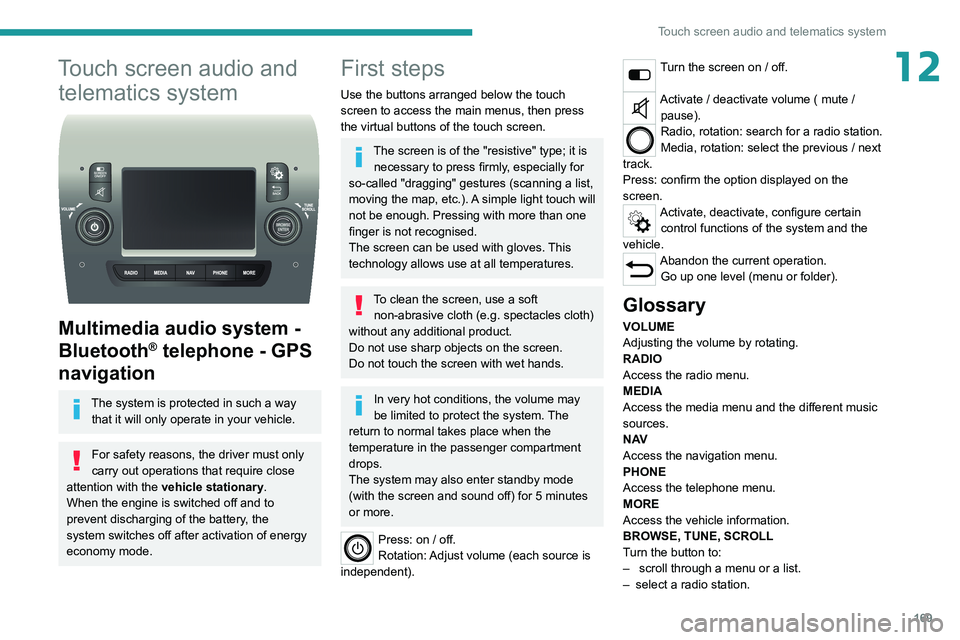
First steps
Use the buttons arranged below the touch
screen to access the main menus, then press
the virtual buttons of the touch screen.
The screen is of the "resistive" type; it is necessary to press firmly, especially for
so-called "dragging" gestures (scanning a list,
moving the map, etc.). A simple light touch will
not be enough. Pressing with more than one
finger is not recognised.
The screen can be used with gloves. This
technology allows use at all temperatures.
To clean the screen, use a soft non-abrasive cloth (e.g. spectacles cloth)
without any additional product.
Do not use sharp objects on the screen.
Do not touch the screen with wet hands.
In very hot conditions, the volume may
be limited to protect the system. The
return to normal takes place when the
temperature in the passenger compartment
drops.
The system may also enter standby mode
(with the screen and sound off) for 5 minutes
or more.
Press: on / off.
Rotation: Adjust volume (each source is
independent).
Turn the screen on / off.
Activate / deactivate volume ( mute / pause).
Radio, rotation: search for a radio station.
Media, rotation: select the previous / next
track.
Press: confirm the option displayed on the
screen.
Activate, deactivate, configure certain control functions of the system and the
vehicle.
Abandon the current operation. Go up one level (menu or folder).
Glossary
VOLUME
Adjusting the volume by rotating.
RADIO
Access the radio menu.
MEDIA
Access the media menu and the different music
sources.
N AV
Access the navigation menu.
PHONE
Access the telephone menu.
MORE
Access the vehicle information.
BROWSE, TUNE, SCROLL
Turn the button to:
–
scroll through a menu or a list.
–
select a radio station.
Page 172 of 212
170
Touch screen audio and telematics system
ENTER
Confirm an option displayed on the screen by
pressing.
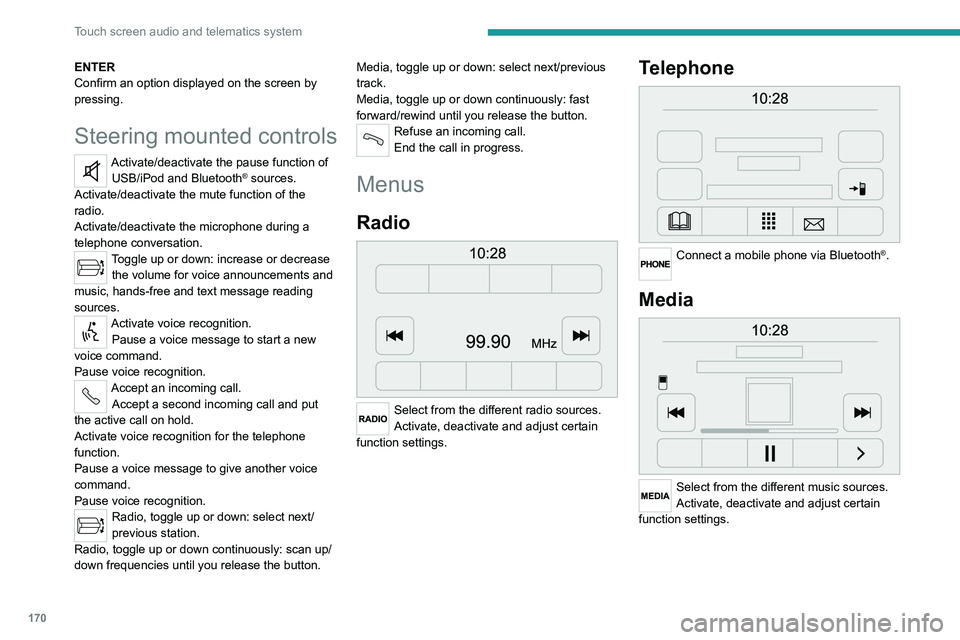
Steering mounted controls
Activate/deactivate the pause function of USB/iPod and Bluetooth® sources.
Activate/deactivate the mute function of the
radio.
Activate/deactivate the microphone during a
telephone conversation.
Toggle up or down: increase or decrease the volume for voice announcements and
music, hands-free and text message reading
sources.
Activate voice recognition. Pause a voice message to start a new
voice command.
Pause voice recognition.
Accept an incoming call. Accept a second incoming call and put
the active call on hold.
Activate voice recognition for the telephone
function.
Pause a voice message to give another voice
command.
Pause voice recognition.
Radio, toggle up or down: select next/
previous station.
Radio, toggle up or down continuously: scan up/
down frequencies until you release the button. Media, toggle up or down: select next/previous
track.
Media, toggle up or down continuously: fast
forward/rewind until you release the button.
Refuse an incoming call.
End the call in progress.
Menus
Radio
Select from the different radio sources.
Activate, deactivate and adjust certain
function settings.
Telephone
Connect a mobile phone via Bluetooth®.
Media
Select from the different music sources.
Activate, deactivate and adjust certain
function settings.
Page 173 of 212
171
Touch screen audio and telematics system
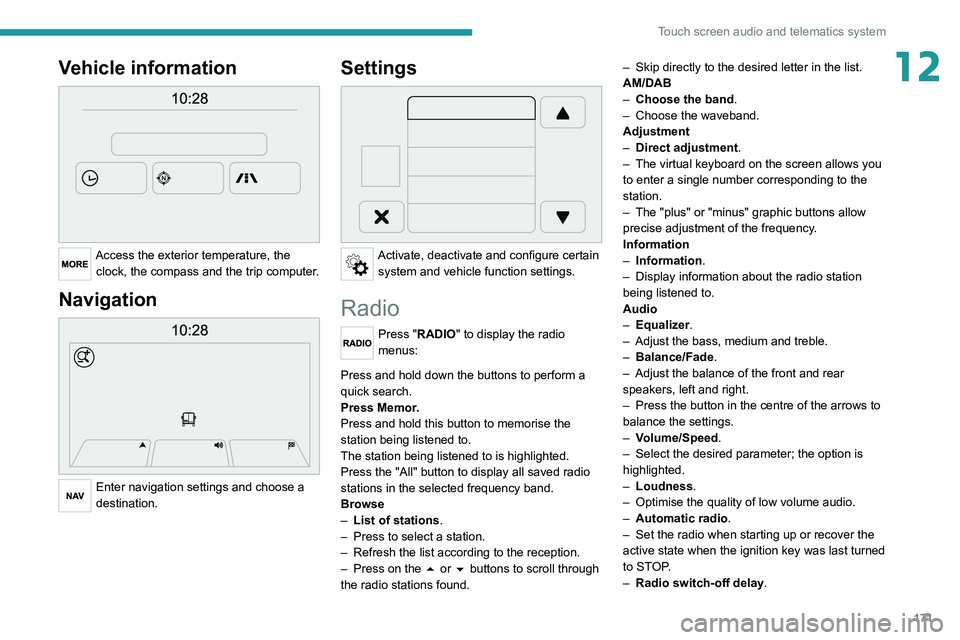
12Vehicle information
Access the exterior temperature, the clock, the compass and the trip computer.
Navigation
Enter navigation settings and choose a
destination.
Settings
Activate, deactivate and configure certain system and vehicle function settings.
Radio
Press "RADIO" to display the radio
menus:
Briefly press on the 9 or : buttons to perform an automatic search.
Press and hold down the buttons to perform a
quick search.
Press Memor.
Press and hold this button to memorise the
station being listened to.
The station being listened to is highlighted.
Press the "All" button to display all saved
radio
stations in the selected frequency band.
Browse
–
List of stations .
–
Press to select a station.
–
Refresh the list according to the reception.
–
Press on the
5 or 6 buttons to scroll through
the radio stations found. –
Skip directly to the desired letter in the list.
AM/DAB
–
Choose the band
.
–
Choose the waveband.
Adjustment
–
Direct adjustment
.
–
The virtual keyboard on the screen allows you
to enter a single number corresponding to the
station.
–
The "plus" or "minus" graphic buttons allow
precise adjustment of the frequency
.
Information
–
Information.
–
Display information about the radio station
being listened to.
Audio
–
Equalizer
.
–
Adjust the bass, medium and treble.
–
Balance/Fade
.
– Adjust the balance of the front and rear
speakers, left and right.
–
Press the button in the centre of the arrows to
balance the settings.
–
V
olume/Speed.
–
Select the desired parameter; the option is
highlighted.
–
Loudness
.
–
Optimise the quality of low volume audio.
–
Automatic radio
.
–
Set the radio when starting up or recover the
active state when the ignition key was last turned
to ST
OP.
–
Radio switch-off delay.
Page 174 of 212
172
Touch screen audio and telematics system
– Set the parameter.
– AUX vol. setting .
–
Set the parameters.
DAB (Digital Audio
Broadcasting) radio
Terrestrial Digital Radio
Digital radio
Digital radio provides higher quality
reception and also the graphical display
of current information on the radio station
being listened to.
The various "multiplexes/ensembles" offer
a choice of radio stations organised in
alphabetical order.
Press “RADIO” successively to display
the "DAB Radio".
Select the "Navigate" tab.
Select a list from the filters
offered: "All", "Types",
"Ensembles", then select a radio station.
Press the "Update" button to update the
list of "DAB Radio" stations received.
DAB/FM station tracking
"DAB" does not cover 100% of the
territory.
When the digital radio signal is poor, the
"AF"
(alternative frequency) option enables
you to continue listening to the same
station by automatically switching to the
corresponding
"FM" analogue station (if there
is one).
When the system switches to analogue
station, there is a delay of a few seconds
with sometimes a change in volume.
When the digital signal quality is restored, the
system automatically changes back to "DAB".
If the "DAB" station is not available, the
sound cuts out when the digital signal
quality becomes poor and the "AF"
alternative
frequency is crossed out.
Media
Press "MEDIA" to display the media
menus:
Briefly press on the 9 or : buttons to play the previous/next track.
Press and hold the buttons to fast-forward or
rewind the selected track.
Browse–
Browse by: Currently playing,
Artists,
Albums, Types, Songs, Playlists,
Audiobooks, Podcasts.
–
Browse and select the songs contained in the
active device.
–
The selection possibilities depend on the
device connected or the type of CD inserted.
Source
–
CD, AUX,
USB.
–
Select the desired audio source from those
available or insert a device intended for this
purpose; the system starts to play the sources
automatically
.
–
Bluetooth®.
–
Save a Bluetooth® audio device.
Information
–
Information.
–
V
iew the information about the track being
listened to.
Random
Press the button to play the songs on the CD,
USB, iPod or Bluetooth
® in random order.
Repeat
Press the button to activate this function.
Audio
–
Equalizer
.
–
Adjust the bass, medium and treble.
–
Balance/Fade
.
–
Adjust the balance of the front and rear
speakers, left and right.
–
Press the button in the centre of the arrows to
balance the settings.
–
V
olume/Speed.
Page 175 of 212
173
Touch screen audio and telematics system
12– Select the desired parameter; the option is
highlighted.
–
Loudness
.
–
Optimise the quality of low volume audio.
–
Automatic radio
.
–
Set the radio when starting up or recover the
active state when the ignition key was last turned
to ST
OP.
–
Radio switch-off delay .
–
Set the parameter
.
–
AUX vol. setting .
–
Set the parameters.
USB socket
Insert the USB memory stick or connect
the device to the USB socket in the
central storage space , provided for transferring
data to the system, using a suitable cable (not
supplied).
To protect the system, do not use a USB hub.
The system builds playlists (in temporary
memory); this operation can take from a
few seconds to several minutes at the first
connection.
Reduce the number of non-music files and the
number of folders to reduce the waiting time.
The playlists are updated every time the ignition
is switched off or a USB memory stick is
connected. The lists are memorised: if they are
not modified, the subsequent loading time will
be shorter.
USB socket
Located on the central console, this
socket is used only to power and
recharge the connected portable device.
Auxiliary socket (AUX)
Connect the portable device (e.g. MP3
player) to the auxiliary jack socket using
an audio cable (not supplied).
First adjust the volume on the portable device
(to a high level). Then adjust the volume of the
audio system.
Controls are managed via the portable device.
The functions of the device connected to the
"AUX" socket are managed directly by this
device: it is therefore not possible to change the
track/folder/playlist or control the start/ending/
pausing of playback using the controls on the
control panel or the steering-mounted controls.
Do not leave the cable of the portable
device plugged into the "AUX" socket after
disconnecting it, in order to avoid possible noise
from the speakers.
Selecting the source
Press on "MEDIA".
Select the "Source" tab to show the
rolling display of audio sources.
Select the source.
Use the play settings on the screen.
Press the "Rand." button and/or the
" Repeat" button to activate them, press again to
deactivate them.
Information and advice
The audio system will only play audio files with
".wav", ".wma" and ".mp3" file extensions, at bit
rates between 32 Kbps and 320 Kbps.
For audio files with ".aac", ".m4a", ".m4b" and
".mp4" file extensions, the supported sampling
rates are 8 - 96 kHz.
".m3u" and ".wpl" types are also supported.
The system does not manage devices with a
capacity greater than 64 GB.
It is advisable to restrict file names to 20
characters, without using special characters (e.g.
" " ? . ; ù) so as to avoid any reading or display
problems.
The system supports USB mass storage devices, BlackBerry® devices or Apple®
players via the USB sockets. The adapter
cable is not supplied.
Devices are managed using the audio system
controls.
Other devices, not recognised by the system
during connection, must be connected to
the auxiliary socket using a Jack cable (not
supplied).
Only use USB memory sticks formatted to FAT
32 (File Allocation Table).