2021 PEUGEOT BOXER ESP
[x] Cancel search: ESPPage 159 of 212
157
Special features
10Tipper truck
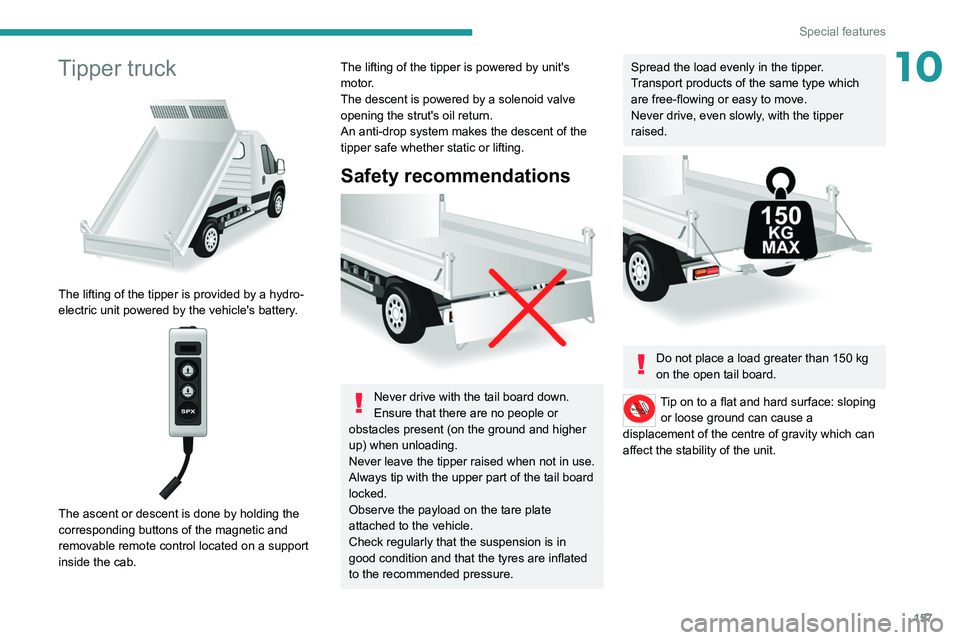
The lifting of the tipper is provided by a hydro-
electric unit powered by the vehicle's battery.
The ascent or descent is done by holding the
corresponding buttons of the magnetic and
removable remote control located on a support
inside the cab.
The lifting of the tipper is powered by unit's
motor.
The descent is powered by a solenoid valve
opening the strut's oil return.
An anti-drop system makes the descent of the
tipper safe whether static or lifting.
Safety recommendations
Never drive with the tail board down.
Ensure that there are no people or
obstacles present (on the ground and higher
up) when unloading.
Never leave the tipper raised when not in use.
Always tip with the upper part of the tail board
locked.
Observe the payload on the tare plate
attached to the vehicle.
Check regularly that the suspension is in
good condition and that the tyres are inflated
to the recommended pressure.
Spread the load evenly in the tipper.
Transport products of the same type which
are free-flowing or easy to move.
Never drive, even slowly, with the tipper
raised.
Do not place a load greater than 150 kg
on the open tail board.
Tip on to a flat and hard surface: sloping or loose ground can cause a
displacement of the centre of gravity which can
affect the stability of the unit.
Page 169 of 212
167
Audio system
11It is possible to replace the "Mobile
phone" tag with three other available
tags: "Home"; "Office"; "Other".
Call* > Henri Dupont
Dial the telephone number associated with the
contact Henri Dupont.
Call* > Henri Dupont > Mobile phone
Dial the telephone number with the mobile phone
tag associated with the contact Henri Dupont.
Call number > 0123456789
Call number 0123456789.
Redial
Call the number or contact of the last call made.
Call back
Call the number or contact of the last call
received.
Recent calls*
View the complete list of recent calls: outgoing,
missed and incoming.
Outgoing calls *
View the list of outgoing calls.
Missed calls*
View the list of missed calls.
Incoming calls *
View the list of incoming calls.
Directory *
View the directory of the connected telephone.
* This function is av ailable only if the telephone connected to the system supports downloading of contacts and recent calls and if the corresponding
download has been performed.
**
This function is a
vailable only if the telephone connected to the system supports the text message reading function.
***
It
is possible to replace "Magic" with any other FM station name received by the radio. Not all radio stations provide this service.
Search* > Henri Dupont
View Henri Dupont's contact information in the
directory with all of the numbers saved.
Search* > Henri Dupont > Mobile phone
View the telephone number with the mobile
phone tag associated with the contact Henri
Dupont.
View messages**
View the list of text messages received by the
connected telephone.
If the telephone allows the recording of
the "First Name" (Henri) and the
"Surname" (Dupont) in two separate fields,
perform the following voice commands:
–
"Call" > "Henri" > "Dupont" or "Call" >
"Dupont" > "Henri".
–
"Search" > "Henri" > "Dupont" or "Search"
> "Dupont" > "Henri".
"AM/FM radio” voice
commands
The following commands can be made from any main screen page after pressing
the voice recognition button located on the
steering wheel, as long as there is no telephone
call in progress. Tune to
> 105.5 > FM
Tune the radio to the 105.5 frequency of the FM
band.
Tune to > 940 > AM
Tune the radio to the 940 frequency of the AM
band.
Tune to *** > Magic > FM
Tune the radio to the station Magic.
"Media" voice commands
The following commands can be made from any main screen page after pressing
the voice recognition button located on the
steering wheel, as long as there is no telephone
call in progress.
Listen to track > "Track 1"
Play the track
“Track 1”.
Listen to album > "Album 1"
Play the songs of the album “Album 1”.
Listen to artist > "Artist 1"
Play the songs of the artist
“Artist 1”.
Listen to music style > "Jazz"
Play the songs of the music style “Jazz”.
Listen to playlist > "Playlist 1"
Play the songs of the playlist “Playlist1”.
Listen to podcast > "Radio 1"
Play the podcast
“Podcast 1”.
Listen to audio book > "Book 1"
Page 171 of 212
169
Touch screen audio and telematics system
12Touch screen audio and telematics system
Multimedia audio system -
Bluetooth
® telephone - GPS
navigation
The system is protected in such a way
that it will only operate in your vehicle.
For safety reasons, the driver must only
carry out operations that require close
attention with the
vehicle stationary.
When the engine is switched off and to
prevent discharging of the battery, the
system switches off after activation of energy
economy mode.
First steps
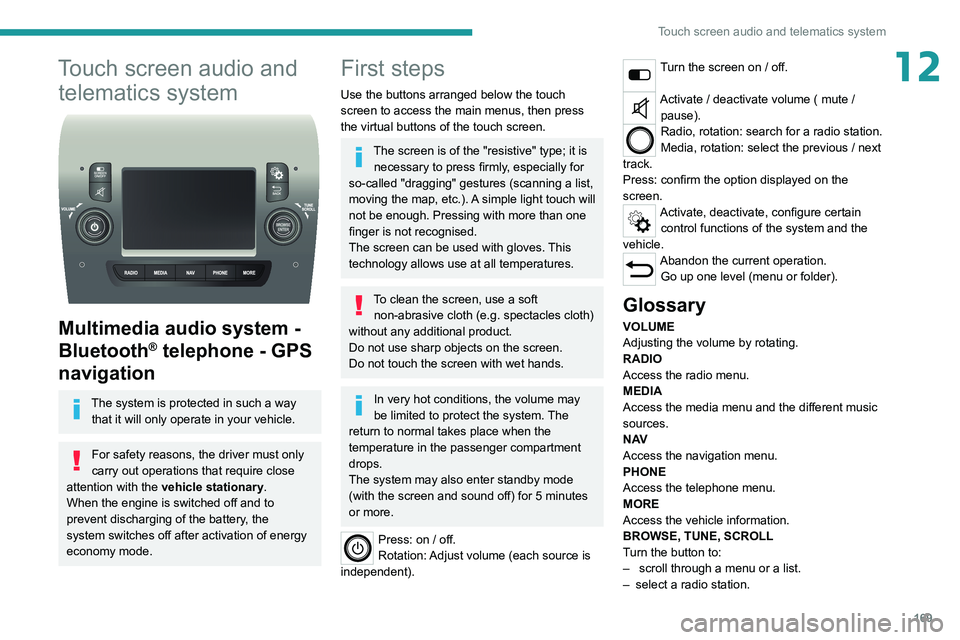
Use the buttons arranged below the touch
screen to access the main menus, then press
the virtual buttons of the touch screen.
The screen is of the "resistive" type; it is necessary to press firmly, especially for
so-called "dragging" gestures (scanning a list,
moving the map, etc.). A simple light touch will
not be enough. Pressing with more than one
finger is not recognised.
The screen can be used with gloves. This
technology allows use at all temperatures.
To clean the screen, use a soft non-abrasive cloth (e.g. spectacles cloth)
without any additional product.
Do not use sharp objects on the screen.
Do not touch the screen with wet hands.
In very hot conditions, the volume may
be limited to protect the system. The
return to normal takes place when the
temperature in the passenger compartment
drops.
The system may also enter standby mode
(with the screen and sound off) for 5 minutes
or more.
Press: on / off.
Rotation: Adjust volume (each source is
independent).
Turn the screen on / off.
Activate / deactivate volume ( mute / pause).
Radio, rotation: search for a radio station.
Media, rotation: select the previous / next
track.
Press: confirm the option displayed on the
screen.
Activate, deactivate, configure certain control functions of the system and the
vehicle.
Abandon the current operation. Go up one level (menu or folder).
Glossary
VOLUME
Adjusting the volume by rotating.
RADIO
Access the radio menu.
MEDIA
Access the media menu and the different music
sources.
N AV
Access the navigation menu.
PHONE
Access the telephone menu.
MORE
Access the vehicle information.
BROWSE, TUNE, SCROLL
Turn the button to:
–
scroll through a menu or a list.
–
select a radio station.
Page 173 of 212
171
Touch screen audio and telematics system
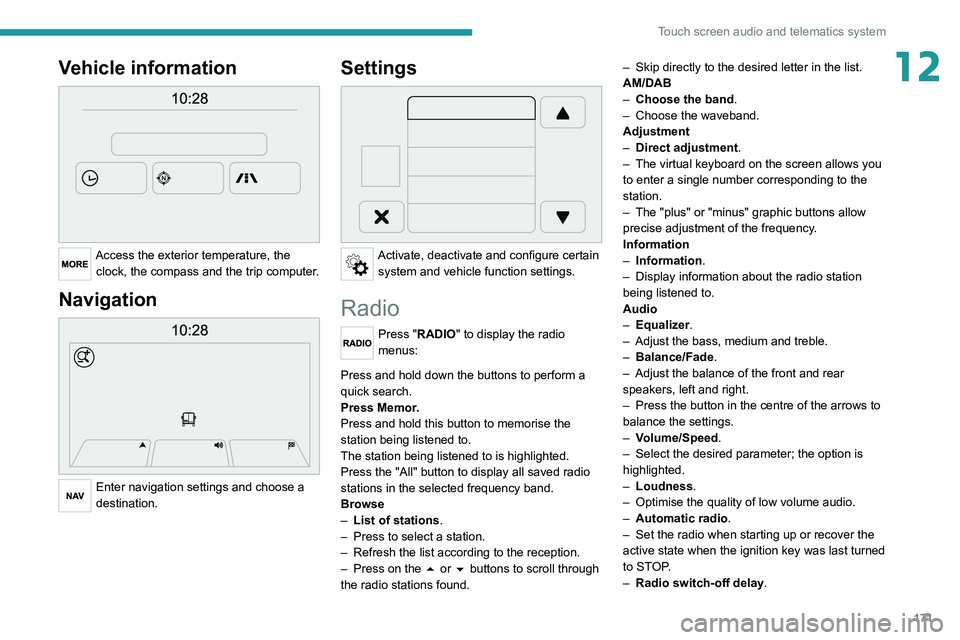
12Vehicle information
Access the exterior temperature, the clock, the compass and the trip computer.
Navigation
Enter navigation settings and choose a
destination.
Settings
Activate, deactivate and configure certain system and vehicle function settings.
Radio
Press "RADIO" to display the radio
menus:
Briefly press on the 9 or : buttons to perform an automatic search.
Press and hold down the buttons to perform a
quick search.
Press Memor.
Press and hold this button to memorise the
station being listened to.
The station being listened to is highlighted.
Press the "All" button to display all saved
radio
stations in the selected frequency band.
Browse
–
List of stations .
–
Press to select a station.
–
Refresh the list according to the reception.
–
Press on the
5 or 6 buttons to scroll through
the radio stations found. –
Skip directly to the desired letter in the list.
AM/DAB
–
Choose the band
.
–
Choose the waveband.
Adjustment
–
Direct adjustment
.
–
The virtual keyboard on the screen allows you
to enter a single number corresponding to the
station.
–
The "plus" or "minus" graphic buttons allow
precise adjustment of the frequency
.
Information
–
Information.
–
Display information about the radio station
being listened to.
Audio
–
Equalizer
.
–
Adjust the bass, medium and treble.
–
Balance/Fade
.
– Adjust the balance of the front and rear
speakers, left and right.
–
Press the button in the centre of the arrows to
balance the settings.
–
V
olume/Speed.
–
Select the desired parameter; the option is
highlighted.
–
Loudness
.
–
Optimise the quality of low volume audio.
–
Automatic radio
.
–
Set the radio when starting up or recover the
active state when the ignition key was last turned
to ST
OP.
–
Radio switch-off delay.
Page 174 of 212
172
Touch screen audio and telematics system
– Set the parameter.
– AUX vol. setting .
–
Set the parameters.
DAB (Digital Audio
Broadcasting) radio
Terrestrial Digital Radio
Digital radio
Digital radio provides higher quality
reception and also the graphical display
of current information on the radio station
being listened to.
The various "multiplexes/ensembles" offer
a choice of radio stations organised in
alphabetical order.
Press “RADIO” successively to display
the "DAB Radio".
Select the "Navigate" tab.
Select a list from the filters
offered: "All", "Types",
"Ensembles", then select a radio station.
Press the "Update" button to update the
list of "DAB Radio" stations received.
DAB/FM station tracking
"DAB" does not cover 100% of the
territory.
When the digital radio signal is poor, the
"AF"
(alternative frequency) option enables
you to continue listening to the same
station by automatically switching to the
corresponding
"FM" analogue station (if there
is one).
When the system switches to analogue
station, there is a delay of a few seconds
with sometimes a change in volume.
When the digital signal quality is restored, the
system automatically changes back to "DAB".
If the "DAB" station is not available, the
sound cuts out when the digital signal
quality becomes poor and the "AF"
alternative
frequency is crossed out.
Media
Press "MEDIA" to display the media
menus:
Briefly press on the 9 or : buttons to play the previous/next track.
Press and hold the buttons to fast-forward or
rewind the selected track.
Browse–
Browse by: Currently playing,
Artists,
Albums, Types, Songs, Playlists,
Audiobooks, Podcasts.
–
Browse and select the songs contained in the
active device.
–
The selection possibilities depend on the
device connected or the type of CD inserted.
Source
–
CD, AUX,
USB.
–
Select the desired audio source from those
available or insert a device intended for this
purpose; the system starts to play the sources
automatically
.
–
Bluetooth®.
–
Save a Bluetooth® audio device.
Information
–
Information.
–
V
iew the information about the track being
listened to.
Random
Press the button to play the songs on the CD,
USB, iPod or Bluetooth
® in random order.
Repeat
Press the button to activate this function.
Audio
–
Equalizer
.
–
Adjust the bass, medium and treble.
–
Balance/Fade
.
–
Adjust the balance of the front and rear
speakers, left and right.
–
Press the button in the centre of the arrows to
balance the settings.
–
V
olume/Speed.
Page 181 of 212
179
Touch screen audio and telematics system
12Press the "Contacts" button or the
"Recent calls" button.
Select the desired contact from the list offered to
start the call.
Vehicle information
Press "MORE" to display the vehicle
information menus:
Exterior temp.
Display the exterior temperature.
Clock
Display
the clock.
Compass
Display
the direction that you are travelling in.
Trip
–
Current info., T
rip A, Trip B.
Display the trip computer.
Press and hold the "Trip A" or "Trip B" button to
reset the trip concerned.
Settings
Press this button to display the settings
menus:
Display
–
Brightness
.
–
Set the brightness of the screen.
–
Display mode
.
–
Set the display mode.
–
Language
.
–
Choose the desired language.
–
Unit of measurement
. –
Set the display units for consumption,
distance
and temperature.
–
T
ouch screen beep.
–
Activate or deactivate the audible signal when
touching a button on the screen.
–
Display T
rip B.
–
Display
Trip B on the driver's screen.
Voice commands
–
V
oice response time.
–
Set the length of the voice system response.
–
Display list of commands
.
–
Display suggestions with the different options
during a voice session.
Clock and Date
–
T
ime setting and format.
–
Setting the time.
–
Display time mode
.
–
Activate or deactivate the display of the digital
clock on the status bar
.
–
Synchro time
.
–
Activate or deactivate the automatic time
display
.
– Date setting .
– Set the date.
Safety/Assistance
–
Reversing camera.
–
Display the reversing camera in reverse.
–
Camera delay.
–
Maintain the on-screen display of the
reversing camera for a maximum of 10 seconds
or up to 1
1 mph (18 km/h).
Lighting
–
Daytime running lamps
.–
Activate or deactivate the automatic
illumination of the headlamps when starting.
Doors & locking
–
Autoclose
.
–
Activate or deactivate the automatic locking of
the doors
when the vehicle is moving.
Audio
–
Equalizer
.
–
Adjust the bass, medium and treble.
–
Balance/Fade
.
–
Adjust the balance of the front and rear
speakers, left and right.
–
Press the button in the centre of the arrows to
balance the settings.
–
V
olume/Speed.
–
Select the desired parameter; the option is
highlighted.
–
Loudness
.
–
Optimise the quality of low volume audio.
–
Automatic radio
.
–
Set the radio when starting up or recover the
active state when the ignition key was last turned
to ST
OP.
– Radio switch-off delay.
–
Set the parameter
.
–
AUX vol. setting.
–
Set the parameters.
T
elephone/Bluetooth
®
– Connected tels.
– Start the Bluetooth® connection of the selected
mobile device.
–
Delete the selected mobile device.
Page 183 of 212
181
Touch screen audio and telematics system
12Provide generic help to the user by offering
some available commands.
Cancel
Close the current voice sequence.
Repeat
Repeat the last spoken voice message to the
user.
Voice tutorial
Provide a detailed description to the user on how
to use the voice system.
"Telephone" voice
commands
If a telephone is connected to the system,
the following voice commands can be
made from any main screen page after pressing
the telephone button located on the steering
wheel, as long as there is no telephone call in
progress.
If no telephone is connected, a voice message
announces: "No telephone is connected.
Connect a telephone and try again” and the
voice session will be closed.
It is possible to replace the "Mobile
phone" tag with three other available
tags: "Home"; "Office"; "Other".
Call* > Henri Dupont
* This function is av ailable only if the telephone connected to the system supports downloading of contacts and recent calls and if the corresponding
download has been performed.
**
This function is a
vailable only if the telephone connected to the system supports the text message reading function. Dial the telephone number associated with the
contact Henri Dupont.
Call* > Henri Dupont
> Mobile phone
Dial the telephone number with the mobile phone
tag associated with the contact Henri Dupont.
Call number > 0123456789
Call number 0123456789.
Redial
Call the number or contact of the last call made.
Call back
Call the number or contact of the last call
received.
Recent calls*
View the complete list of recent calls: outgoing,
missed and incoming.
Outgoing calls *
View the list of outgoing calls.
Missed calls*
View the list of missed calls.
Incoming calls *
View the list of incoming calls.
Directory *
View the directory of the connected telephone.
Search* > Henri Dupont
View Henri Dupont's contact information in the
directory with all of the numbers saved.
Search* > Henri Dupont > Mobile phone
View the telephone number with the mobile
phone tag associated with the contact Henri
Dupont.
View messages**
View the list of text messages received by the
connected telephone.
If the telephone allows the recording of
the "First Name" (Henri) and the
"Surname" (Dupont) in two separate fields,
perform the following voice commands:
–
"Call" > "Henri" > "Dupont" or "Call" >
"Dupont" > "Henri".
–
"Search" > "Henri" > "Dupont" or "Search"
> "Dupont" > "Henri".
"AM/FM/DAB radio" voice
commands
The following commands can be made
from any main screen page after pressing
the voice recognition button located on the
steering wheel, as long as there is no telephone
call in progress.
Tune to > 105.5 > FM
Tune the radio to the 105.5 frequency of the FM
band.
Tune to > 940 > AM
Page 189 of 212

187
Event data recorders
14Recording event data
Electronic control units are installed in your
vehicle. These control units process data
received from the vehicle's sensors, for example,
or data they generate themselves or exchange
with each other. Some of these control units are
required for the correct operation of your vehicle,
some others assist you while driving (driving or
manoeuvring aids), while others provide comfort
or infotainment functions.
The following contains general information about
how data is processed within the vehicle.
You will find additional information about the
specific data which is downloaded, stored
and transmitted to third parties and what it is
used for in your vehicle under the keyword
"Data protection". This information is directly
associated with the references for the functions
in question contained in the corresponding
vehicle handbook, or in the general terms and
conditions of sale.
This information is also available online.
Vehicle operating data
The control units process the data used for the
operation of the vehicle.
This data includes, for example:
–
Information about the state of the vehicle
(e.g.
speed, travel time, lateral acceleration,
wheel rotation rate, fastened seat belts display).
–
Environmental conditions (e.g.
temperature,
rain sensor, distance sensor). As a general rule, this data is temporary, is
not stored for longer than one operating cycle
and is only used within the vehicle itself. The
control units often record this data (including the
vehicle's key). This function allows either the
temporary or permanent storage of information
about the state of the vehicle, stresses on
components, servicing requirements, as well as
events and technical errors.
Depending on the vehicle's equipment level, the
data stored is as follows:
–
Operating state of system components
(e.g.
filling level, tyre pressures, battery charge
status).
–
Faults and malfunctions in important system
components (e.g.
lamps, brakes).
–
System reactions in specific driving situations
(e.g.
deployment of an airbag, triggering of
stability control and braking systems).
–
Information about events which have
damaged the vehicle.
–
For electric and rechargeable hybrid vehicles,
the traction battery charge level and the
estimated driving range.
In particular circumstances (e.g.
if the vehicle
has detected a malfunction), it may be necessary
to record data which would otherwise simply not
be stored.
When taking your vehicle in for servicing
(e.g.
repairs, maintenance), the stored operating
data may be read along with the vehicle's
identification number and used if necessary.
The personnel working for the servicing network (e.g.
garages, manufacturers) or third parties
(e.g. roadside assistance agents) may read
the vehicle's data. This also applies to work
carried out under warranty and quality assurance
measures.
This data is generally read via the OBD
(On-Board Diagnostics) port fitted by law to
the vehicle. It is used to report on the technical
state of the vehicle or its components and
facilitates the diagnosis of malfunctions, in
compliance with warranty obligations and for
quality improvement. This data, in particular the
information relating to stress on components,
technical events, operator errors and other
malfunctions, is sent to the Manufacturer, if
necessary, along with the vehicle's identification
number. The Manufacturer's liability may also be
engaged. The Manufacturer may also use the
operating data taken from the vehicle for product
recalls. This data may also be used to check the
customer's warranty and any claims made under
warranty.
Any malfunctions stored in the vehicle may be
reset by an after-sales service company during
servicing or repair work, or at your request.
Comfort and infotainment
functions
Comfort settings and personalised settings
may be saved in the vehicle and modified or
reinitialised at any time.