2021 NISSAN TITAN climate settings
[x] Cancel search: climate settingsPage 298 of 638
CAUTION
•
Always ensure that the batteries are
inserted with the positive and nega-
tive terminals in the correct direction
as shown in the battery compartment.
• Different types of batteries have dif-
ferent characteristics. Do not mix dif-
ferent types.
• Do not mix old and new batteries.
Mixing old and new batteries will
shorten battery life and/or cause
chemical leaks from the old
batteries.
• When batteries fail to function, re-
place them immediately.
• Keep the batteries out of the reach of
children. In case the batteries are ac-
cidentally swallowed, immediately
consult a doctor. Also, when dispos-
ing of used batteries, please comply
with governmental regulations or
environmental public institution
rules that apply in your country/area.
• Remove the batteries if the head-
phones are not used for a month or
longer.
GENERAL OPERATION
Navigating menus
When fully powered on, the Home screen
can be accessed at any time by pressing
the
button on the remote control, or
thebutton on the monitor.
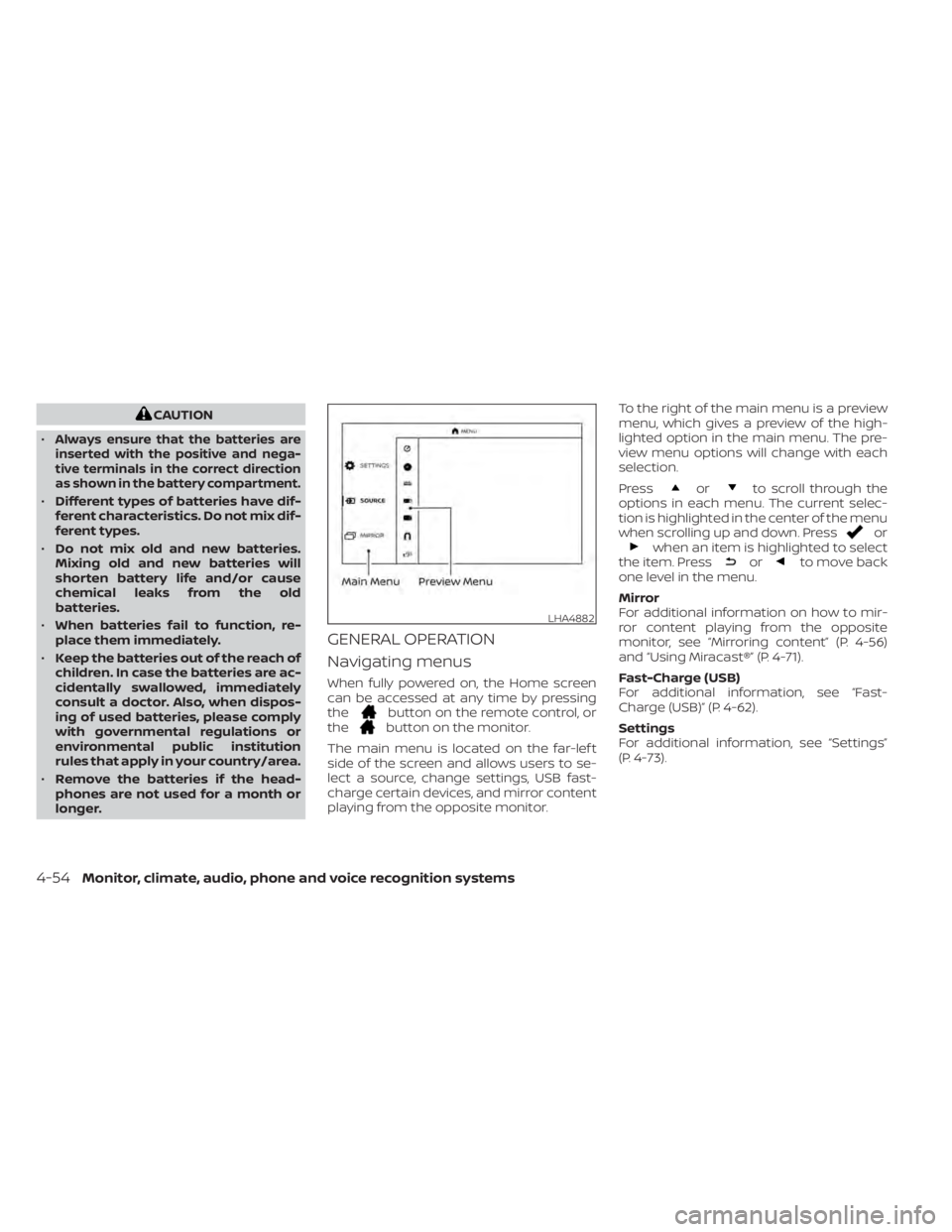
The main menu is located on the far-lef t
side of the screen and allows users to se-
lect a source, change settings, USB fast-
charge certain devices, and mirror content
playing from the opposite monitor. To the right of the main menu is a preview
menu, which gives a preview of the high-
lighted option in the main menu. The pre-
view menu options will change with each
selection.
Press
orto scroll through the
options in each menu. The current selec-
tion is highlighted in the center of the menu
when scrolling up and down. Press
orwhen an item is highlighted to select
the item. Pressorto move back
one level in the menu.
Mirror
For additional information on how to mir-
ror content playing from the opposite
monitor, see “Mirroring content” (P. 4-56)
and “Using Miracast®” (P. 4-71).
Fast-Charge (USB)
For additional information, see “Fast-
Charge (USB)” (P. 4-62).
Settings
For additional information, see “Settings”
(P. 4-73).
LHA4882
4-54Monitor, climate, audio, phone and voice recognition systems
Page 300 of 638
NOTE:
For hearing protection, there is a
maximum volume setting to limit the
audio output of the front panel 3.5mm
headphone output. Using the direc-
tional pad on the remote navigate to
“SETTINGS” then “AUDIO” then “HEAD-
PHONES” to adjust the maximum vol-
ume. Once set, the maximum volume
is limited to this setting.
Playing a disc
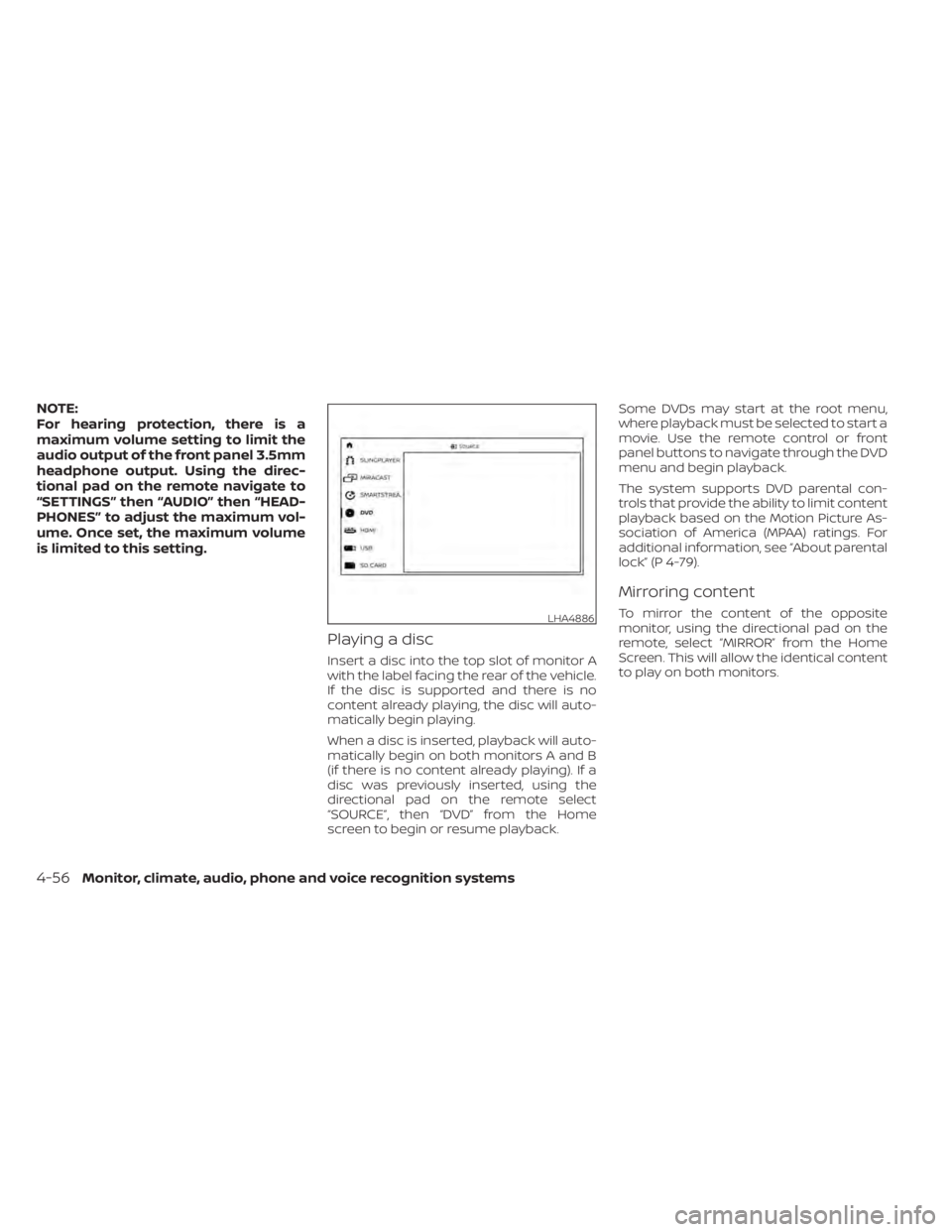
Insert a disc into the top slot of monitor A
with the label facing the rear of the vehicle.
If the disc is supported and there is no
content already playing, the disc will auto-
matically begin playing.
When a disc is inserted, playback will auto-
matically begin on both monitors A and B
(if there is no content already playing). If a
disc was previously inserted, using the
directional pad on the remote select
“SOURCE”, then “DVD” from the Home
screen to begin or resume playback.Some DVDs may start at the root menu,
where playback must be selected to start a
movie. Use the remote control or front
panel buttons to navigate through the DVD
menu and begin playback.
The system supports DVD parental con-
trols that provide the ability to limit content
playback based on the Motion Picture As-
sociation of America (MPAA) ratings. For
additional information, see “About parental
lock” (P 4-79).
Mirroring content
To mirror the content of the opposite
monitor, using the directional pad on the
remote, select “MIRROR” from the Home
Screen. This will allow the identical content
to play on both monitors.LHA4886
4-56Monitor, climate, audio, phone and voice recognition systems
Page 302 of 638
11.Repeat
Select once to repeat the entire DVD.
Select again to repeat the currently
playing chapter one time.
12. Eject
Select to eject the disc.
Context menu
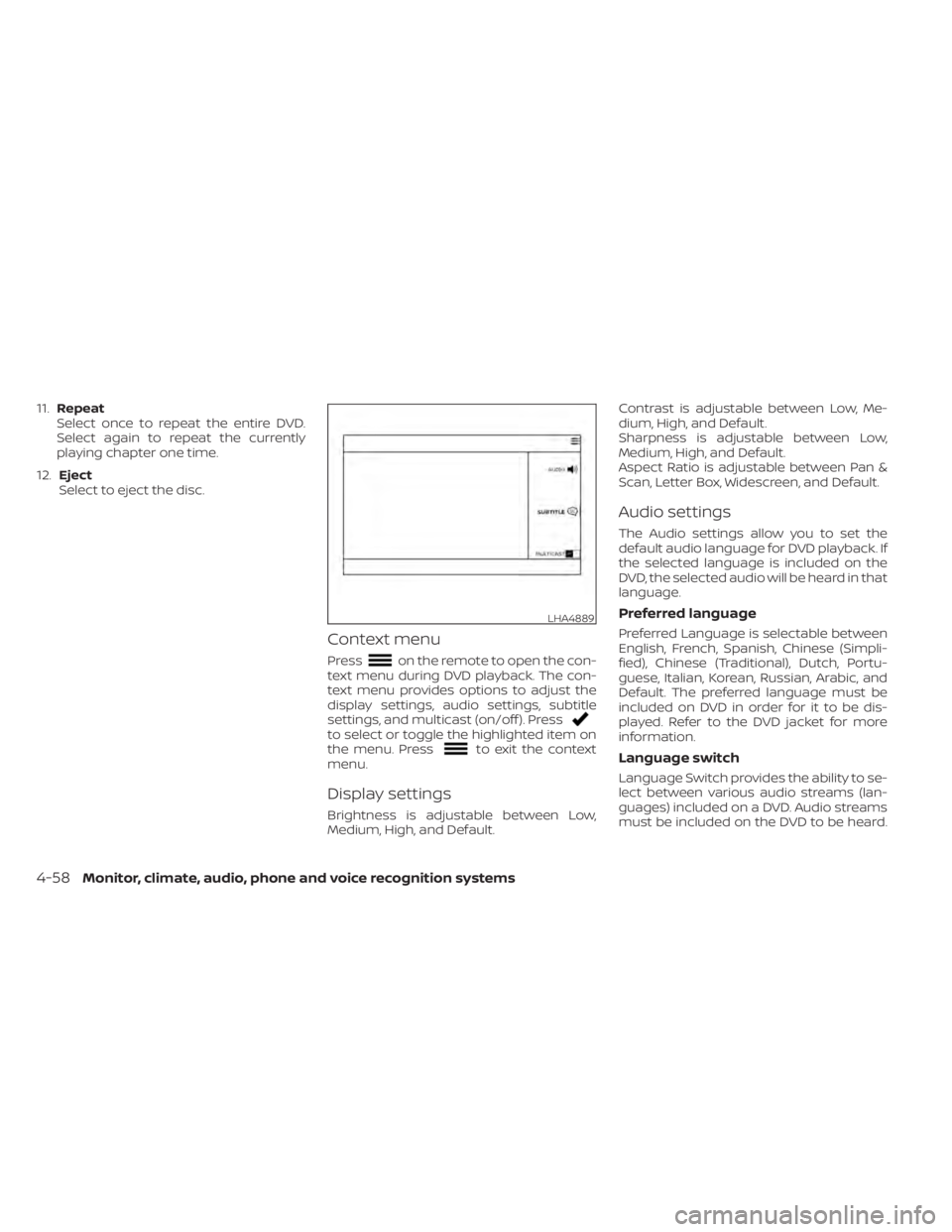
Presson the remote to open the con-
text menu during DVD playback. The con-
text menu provides options to adjust the
display settings, audio settings, subtitle
settings, and multicast (on/off ). Press
to select or toggle the highlighted item on
the menu. Pressto exit the context
menu.
Display settings
Brightness is adjustable between Low,
Medium, High, and Default. Contrast is adjustable between Low, Me-
dium, High, and Default.
Sharpness is adjustable between Low,
Medium, High, and Default.
Aspect Ratio is adjustable between Pan &
Scan, Letter Box, Widescreen, and Default.
Audio settings
The Audio settings allow you to set the
default audio language for DVD playback. If
the selected language is included on the
DVD, the selected audio will be heard in that
language.
Preferred language
Preferred Language is selectable between
English, French, Spanish, Chinese (Simpli-
fied), Chinese (Traditional), Dutch, Portu-
guese, Italian, Korean, Russian, Arabic, and
Default. The preferred language must be
included on DVD in order for it to be dis-
played. Refer to the DVD jacket for more
information.
Language switch
Language Switch provides the ability to se-
lect between various audio streams (lan-
guages) included on a DVD. Audio streams
must be included on the DVD to be heard.
LHA4889
4-58Monitor, climate, audio, phone and voice recognition systems
Page 303 of 638

Subtitle settings
The Subtitle settings allow you to set the
default subtitle language for DVD playback.
If the selected subtitle language is included
on the DVD, the selected subtitle audio will
be displayed during movie playback.
Subtitle switch
Subtitle Switch (Off/On) allows the subtitles
to be displayed during DVD playback.
Preferred Language
Preferred Language is selectable between
English, French, Spanish, Chinese (Simpli-
fied), Chinese (Traditional), Dutch, Portu-
guese, Italian, Korean, Russian, Arabic, and
Default. The preferred language must be
included on DVD in order for it to be dis-
played. Refer to the DVD jacket for more
information.
Language Switch
Language Switch provides the ability to se-
lect between the various subtitles included
on a DVD. Subtitles must be included on the
DVD to be seen during DVD playback.
Multicast
Multicast (Off/On) provides the ability to
watch a DVD over the built-in Wi-Fi network
using an application installed on a mobile
device. When turned on, the DVD content
will be "cast" over the network to allow us-
ers with multiple mobile devices to enjoy
the same movie. *Requires application to
be installed on the mobile device.
Bluetooth
Selecting “BLUETOOTH” allows the
Bluetooth® feature to be turned off/on, audio
source selection, and lip-sync adjustments.
For additional information, see “Bluetooth®
streaming” (P. 4-78) and “Lip-Sync adjust-
ment” (P. 4-78).
CD OPERATION
LHA4890
Monitor, climate, audio, phone and voice recognition systems4-59
Page 310 of 638

10.Next
Select to go to the next chapter.
11. Repeat
Select once to repeat the entire DVD.
Select again to repeat the currently
playing chapter one time.
Playing videos
Using the directional pad on the remote,
select “VIDEOS” to navigate the content.
When a media item is highlighted in Grid
mode, the preview image is enlarged and
surrounded by a white border. The video
title will be displayed in the information bar
at the bottom of the screen. Press
to
begin playback. When choosing a video
that has previously been started, a "Re-
sume" option is available.
Context menu
Presson the remote to open the con-
text menu during playback. The context
menu provides options to adjust the dis-
play settings, aspect settings, and
Bluetooth® settings. Press
to select or
toggle the highlighted item on the menu.
Press
to exit the context menu.
Display settings
Brightness is adjustable between Low,
Medium, High, and Default.
Contrast is adjustable between Low,
Medium, High, and Default.
Sharpness is adjustable between Low,
Medium, High, and Default.
Aspect is adjustable between Preserve,
Crop, and Stretch.
Bluetooth® settings
Selecting “BLUETOOTH” allows the
Bluetooth® feature to be turned off/on, audio
source selection, and lip-sync adjustments.
For additional information, see “Lip-Sync ad-
justments” (P. 4-78).
LHA4899
4-66Monitor, climate, audio, phone and voice recognition systems
Page 312 of 638
Sorting lets you arrange the photos by file-
name or date.
Page View allows the user to view photos in
Fullscreen, Grid, Overview, or Slideshow.
Set As Background sets the selected photo
as the home screen background.
Search prompts the user to input a file-
name or date to find a photo.
SLINGPLAYER®About Slingplayer®
A Slingbox® (sold separately) connects to
your home network and sits between your
cable or set-top box and your TV. When
accessed remotely, your Slingbox® slings
your content to the RSI system. To use
Slingplayer®, an external internet connec-
tion is required. For additional information,
see “Using Wi-Fi” (P. 4-74) to enable Client
Mode in the Wi-Fi Settings and allow the
system to connect to a Wi-Fi hotspot.
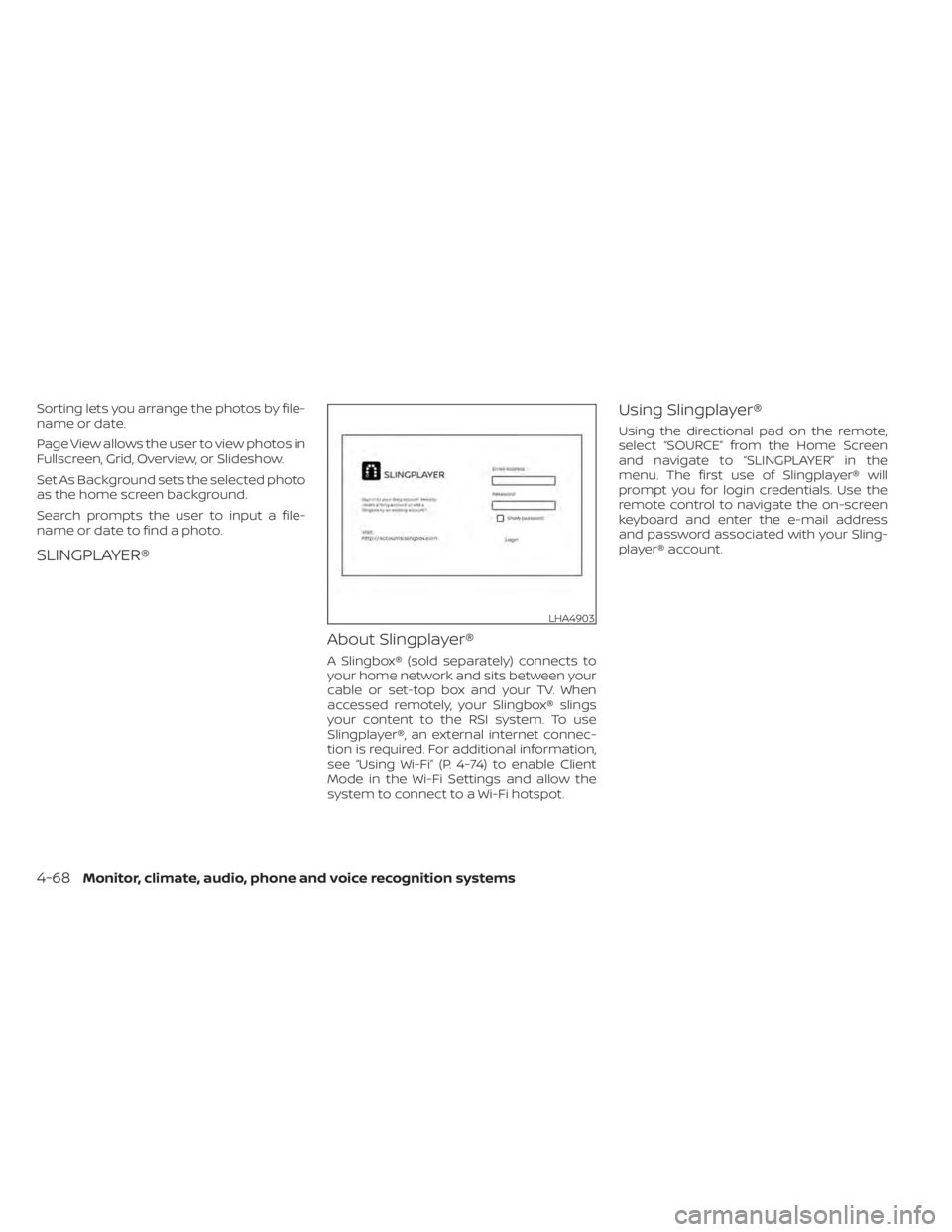
Using Slingplayer®
Using the directional pad on the remote,
select “SOURCE” from the Home Screen
and navigate to “SLINGPLAYER” in the
menu. The first use of Slingplayer® will
prompt you for login credentials. Use the
remote control to navigate the on-screen
keyboard and enter the e-mail address
and password associated with your Sling-
player® account.
LHA4903
4-68Monitor, climate, audio, phone and voice recognition systems
Page 313 of 638

Slingplayer® options
Once logged in, the main Slingplayer®
menu page is displayed with 3 options:
1. Select “DIRECTORY” to watch live televi-sion from a Slingbox®.
2. Select “SETTINGS” to change the set- tings of the Slingplayer® application.
3. Select “HELP” to display information on how to properly use the Slingplayer®
application.
Connect to a live video stream
Pressto access the navigational
menu that will display two sets of Menu
Control Bars. The upper Menu Control Bar
displays types of controls. Press
to
select the desired type of control. Press
to hide the menus and return to the
live stream.
Slingplayer® control options include:
• Main
•DVR
• Directional Pad • Number
• Miscellaneous
LHA4904LHA4905
Monitor, climate, audio, phone and voice recognition systems4-69
Page 316 of 638
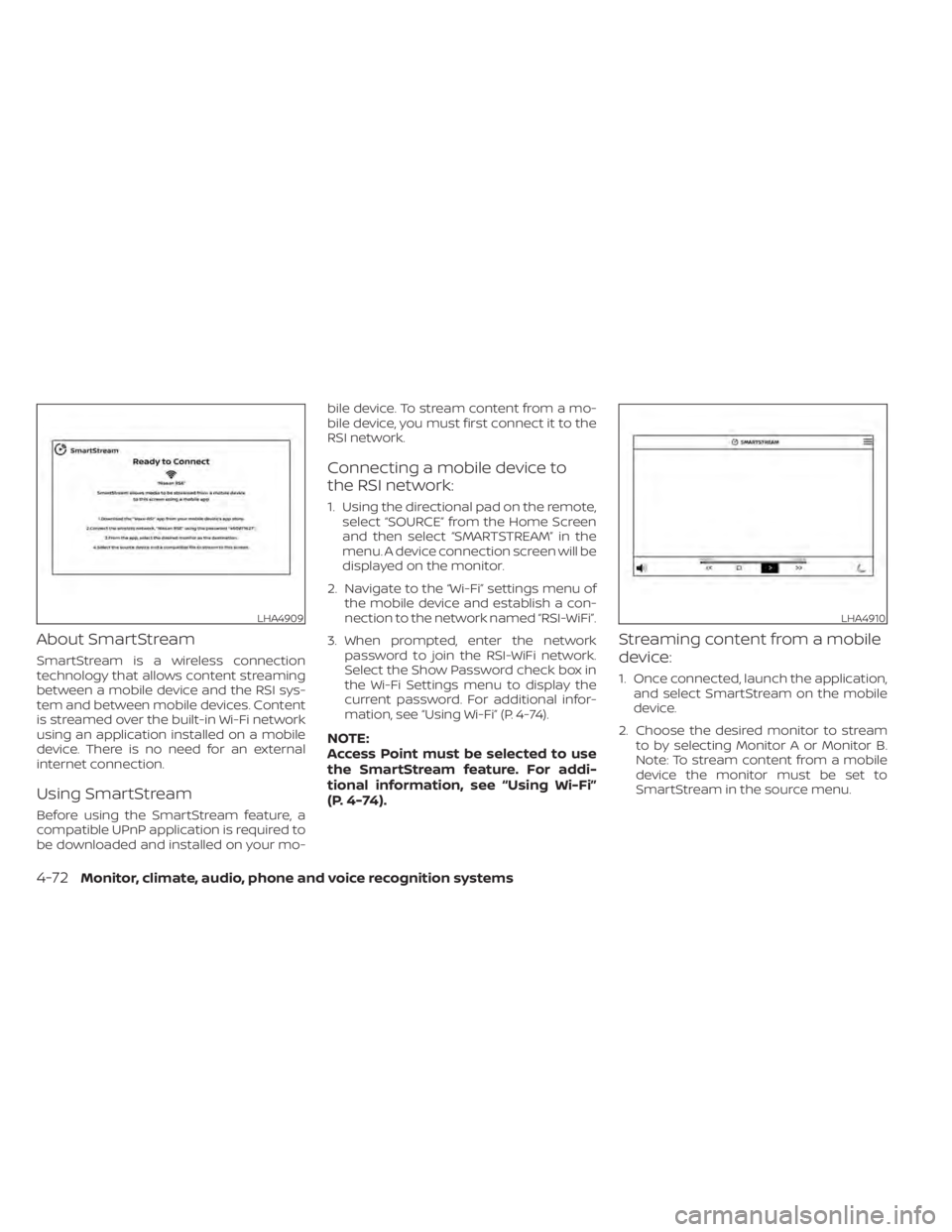
About SmartStream
SmartStream is a wireless connection
technology that allows content streaming
between a mobile device and the RSI sys-
tem and between mobile devices. Content
is streamed over the built-in Wi-Fi network
using an application installed on a mobile
device. There is no need for an external
internet connection.
Using SmartStream
Before using the SmartStream feature, a
compatible UPnP application is required to
be downloaded and installed on your mo-bile device. To stream content from a mo-
bile device, you must first connect it to the
RSI network.
Connecting a mobile device to
the RSI network:
1. Using the directional pad on the remote,
select “SOURCE” from the Home Screen
and then select “SMARTSTREAM” in the
menu. A device connection screen will be
displayed on the monitor.
2. Navigate to the “Wi-Fi” settings menu of the mobile device and establish a con-
nection to the network named “RSI-WiFi”.
3. When prompted, enter the network password to join the RSI-WiFi network.
Select the Show Password check box in
the Wi-Fi Settings menu to display the
current password. For additional infor-
mation, see “Using Wi-Fi” (P. 4-74).
NOTE:
Access Point must be selected to use
the SmartStream feature. For addi-
tional information, see “Using Wi-Fi”
(P. 4-74).
Streaming content from a mobile
device:
1. Once connected, launch the application,and select SmartStream on the mobile
device.
2. Choose the desired monitor to stream to by selecting Monitor A or Monitor B.
Note: To stream content from a mobile
device the monitor must be set to
SmartStream in the source menu.
LHA4909LHA4910
4-72Monitor, climate, audio, phone and voice recognition systems