2021 LINCOLN NAUTILUS audio
[x] Cancel search: audioPage 240 of 579

If your vehicle remains stationary for a few
seconds, the audible warning turns off. If your
vehicle moves backward the tone sounds
again.
Note:
When the parking aid system sounds
a tone, the audio system could reduce the
set volume.
FRONT PARKING AID (If Equipped)
What is the Front Parking Aid
Front parking sensors detect objects in front
of your vehicle.
Front Parking Aid Limitations
The front parking aid sensors are active
when your vehicle is in any position other
than park (P) and the vehicle speed is less
than 5 mph (8 km/h).
The sensor coverage area is up to
28 in
(70 cm) from the bumper. If your vehicle is in reverse (R), the front
parking aid detects objects when your
vehicle is moving at a low speed or an object
is moving toward your vehicle and provides
an audio warning, for example another
vehicle at a low speed. Once your vehicle
reaches a stop, the audio warning stops after
a few seconds. Visual indication is always
active in reverse (R).
If your vehicle is in any forward gear, the
front parking aid provides audible warnings
and visual indication when your vehicle is
moving at a speed of
5 mph (8 km/h) or
below and the system detects an object
within the detection zone. Once your vehicle
reaches a stop, the visual indication and
audio warning stops after a few seconds.
If your vehicle is in neutral (N), the front and
rear sensors provide visual indication only
when your vehicle is moving below a speed
of 5 mph (8 km/h) and obstacles are detected
inside the detection areas. Once your vehicle
stops, the visual indication and audio warning
stops after a few seconds. Locating the Front Parking Aid Sensors
The front parking aid sensors are in the front
bumper.
Front Parking Aid Audible Warnings
A warning tone sounds when there is an
object within
28 in (70 cm) from the front
bumper. As your vehicle moves closer to an
object, the rate of the tone increases.
The warning tone continuously sounds when
an object is
12 in (30 cm) or less from the
front bumper.
236
2021 Nautilus (CD9) Canada/United States of America, enUSA, Edition date: 202011, First-Printing Parking AidsE187330
Page 351 of 579

If you disconnect or replace the battery and
your vehicle has an automatic transmission,
it must relearn its adaptive strategy. Because
of this, the transmission may shift firmly when
first driven. This is normal operation while
the transmission fully updates its operation
to optimum shift feel.
Remove and Reinstall the Battery
To disconnect or remove the battery, do the
following:
1. Apply the parking brake and switch the
ignition off.
2. Switch all electrical equipment off, for example lights and radio.
3. Wait a minimum of two minutes before disconnecting the battery.
Note: The engine management system has
a power hold function and remains powered
for a period of time after you switch the
ignition off. This is to allow diagnostic and
adaptive tables to be stored. Disconnecting
the battery without waiting can cause
damage not covered by the vehicle
Warranty. 4. Disconnect the negative battery cable
terminal.
5. Disconnect the positive battery cable terminal.
6. Remove the battery securing clamp.
7. Remove the battery.
8. To install, reverse the removal procedure.
Note: Before reconnecting the battery, make
sure the ignition remains switched off.
Note: Make sure the battery cable terminals
are fully tightened.
Note: After cleaning or replacing the battery,
make sure you reinstall the battery cover or
shield.
If you disconnect or replace the vehicle
battery, you must reset the following
features:
• Window bounce-back. See Windows
(page 130).
• Clock Settings.
• Pre-set radio stations.
• Steering Angle Sensor. Note:
To calibrate the steering angle sensor,
drive the vehicle above
30 mph (50 km/h)
for a minimum of 1.2 mi (2 km). Make sure to
drive straight ahead for a minimum of 30
seconds. Several vehicle functions are
disabled and a warning light could appear
until the sensor is calibrated.
Battery Management System
The battery management system monitors
battery conditions and takes actions to
extend battery life. If excessive battery drain
is detected, the system temporarily disables
some of the following features:
• Heated rear window.
• Heated seats.
• Climate control.
• Heated steering wheel.
• Audio unit.
• Navigation system.
A message may appear in the information
display to alert you that battery protection
actions are active.
347
2021 Nautilus (CD9) Canada/United States of America, enUSA, Edition date: 202011, First-Printing Maintenance
Page 427 of 579

AUDIO SYSTEM PRECAUTIONS
WARNING: Driving while distracted
can result in loss of vehicle control, crash
and injury. We strongly recommend that
you use extreme caution when using any
device that may take your focus off the
road. Your primary responsibility is the safe
operation of your vehicle. We recommend
against the use of any hand-held device
while driving and encourage the use of
voice-operated systems when possible.
Make sure you are aware of all applicable
local laws that may affect the use of
electronic devices while driving.
Listening to loud audio for long periods of
time could damage your hearing.
SWITCHING THE AUDIO UNIT ON
AND OFF Press the button on the volume
control. SELECTING THE AUDIO SOURCE
Audio Unit Press the button to open the media
source menu.
You can press this multiple times to change
to the audio source or scroll through the
media sources.
Touchscreen
Press
Sources on the touchscreen to open
the media source menu.
PLAYING OR PAUSING THE AUDIO
SOURCE
Touchscreen Press to pause playback. Press
again to resume playback.
Note: Not all sources can be paused. ADJUSTING THE VOLUME
Turn to adjust the volume.
Some vehicles may be able to adjust the
volume using buttons on the steering wheel.
423
2021 Nautilus (CD9) Canada/United States of America, enUSA, Edition date: 202011, First-Printing Audio System E308143 E248939
Page 428 of 579

SWITCHING SHUFFLE MODE ON
AND OFF
Press the button on the
touchscreen to switch shuffle
mode on or off.
Note: Not all sources have shuffle mode.
SWITCHING REPEAT MODE ON
AND OFF Press the button on the
touchscreen to switch repeat mode
on or off.
Note: Not all sources have repeat mode.
SETTING A MEMORY PRESET
1. Select a station or channel.
2. Press and hold a memory preset button on the touchscreen.
Note: The audio mutes briefly while the
system saves the preset and returns once it
is stored. Note:
You can save presets from multiple
sources to the memory preset bar.
MUTING THE AUDIO Press the button on the steering
wheel to mute the audio.
Press to mute the signal. Press
again to restore the signal.
ADJUSTING THE SOUND
SETTINGS
Balance and Fade (If Equipped)
1. Press
Settings on the touchscreen.
2. Press
Sound Settings.
3. Press
Balance / Fade.
4. Press the arrows to adjust the settings.
Tone Settings
1. Press
Settings on the touchscreen.
2. Press
Sound Settings. 3. Press
Tone Settings.
4. Press the arrows or slider bar to adjust the settings.
Speed Compensated Volume
1. Press
Settings on the touchscreen.
2. Press
Sound Settings.
3. Press
Speed Compensated Volume.
4. Press a setting.
Occupancy Mode
(If Equipped)
1. Press
Settings on the touchscreen.
2. Press
Sound Settings.
3. Press
Occupancy Mode.
4. Press a setting.
Sound Mode
(If Equipped)
1. Press
Settings on the touchscreen.
2. Press
Sound Settings.
3. Press
Sound Mode.
4. Press a setting.
424
2021 Nautilus (CD9) Canada/United States of America, enUSA, Edition date: 202011, First-Printing Audio System
Page 429 of 579

SETTING THE CLOCK AND DATE
1. Press Settings on the touchscreen.
2. Press
Clock Settings.
3. Set the time.
Note: The
AM and PM options are not
available if 24-hour mode is on.
Switching Automatic Time Updates On
and Off
1. Press
Settings on the touchscreen.
2. Press
Clock Settings.
3. Switch
Automatic time zone update on
or off.
AM/FM RADIO
AM/FM Radio Limitations
The further you travel from an AM or FM
station, the weaker the signal and the weaker
the reception. Hills, mountains, tall buildings, bridges,
tunnels, freeway overpasses, parking
garages, dense tree foliage and
thunderstorms can interfere with the
reception.
When you pass a ground-based broadcast
repeating tower, a stronger signal may
overtake a weaker one and result in the
audio system muting.
Selecting a Radio Station
Manually Selecting a Radio Station Turn to search through the radio frequency
band.
Using Direct Tune
1. Press
Direct Tune to open the number
pad.
2. Enter the station you prefer.
425
2021 Nautilus (CD9) Canada/United States of America, enUSA, Edition date: 202011, First-Printing Audio SystemE270235
Page 430 of 579

Note:
You can only enter a valid station for
the audio source you are currently listening
to.
Using Seek Press either button. The system
stops at the first station it finds in
that direction.
Using the Station List
1. Press Browse.
Note: Available on FM radio only.
2. Press a station.
SWITCHING THE DISPLAY ON AND
OFF
Audio Unit Press the button. Touchscreen
To switch the display off:
1. Press
Settings on the touchscreen.
2. Press
Display Settings.
3. Press
Display Off.
Note: The display defaults to on each time
you switch your vehicle on.
To switch the display on, press anywhere on
the touchscreen.
DIGITAL RADIO
What Is Digital Radio
HD Radio ™ technology is the digital evolution
of analog AM/FM radio.
For additional information, visit
www .HDR adio . com .HD Radio Technology is manufactured under
license from iBiquity Digital Corporation and
foreign patents. HD Radio and the HD and
HD Radio logos are proprietary trademarks
of DTS. The vehicle manufacturer and DTS
are not responsible for the content sent using
HD Radio technology. Content may be
changed, added or deleted at any time at
the station owner's discretion.
How Does Digital Radio Work
Your system has a special receiver that
allows it to receive digital broadcasts in
addition to analog broadcasts.
HD1 signifies the main programming status
and is available in both analog and digital
broadcasts. Other multicast stations are only
available digitally and could contain new or
different content.
Note:
When the system first receives an HD1
station, it plays the station in the analog
version until it verifies the station is an HD
Radio station. Then it shifts to the digital
version.
426
2021 Nautilus (CD9) Canada/United States of America, enUSA, Edition date: 202011, First-Printing Audio System E272035
Page 431 of 579
Note:
There is an audio mute delay when
switching to an HD2 or HD3 station because
the system has to reacquire and decode the
digital signal.
Digital Radio Limitations
If you are outside the reception area, the
system could not work.
If you are on the fringe of the reception area,
the station could mute due to weak signal
strength.
Note: If you are listening to HD1, the system
changes back to the analog broadcast until
the digital broadcast is available again. If
you are listening to any other multicast
channels, the station mutes and stays muted
unless it is able to connect to the digital
signal again.
Depending on the station quality, you could
hear a slight sound change when the station
changes between analog and digital audio.
You cannot access a saved HD station if your
vehicle is outside the station ’s reception
area. Switching Digital Radio Reception On
and Off
1. Press Settings on the touchscreen.
2. Press
Radio Settings.
3. Switch
AM HD Radio or FM HD Radio
on or off.
Digital Radio Indicators
HD Radio Indicator
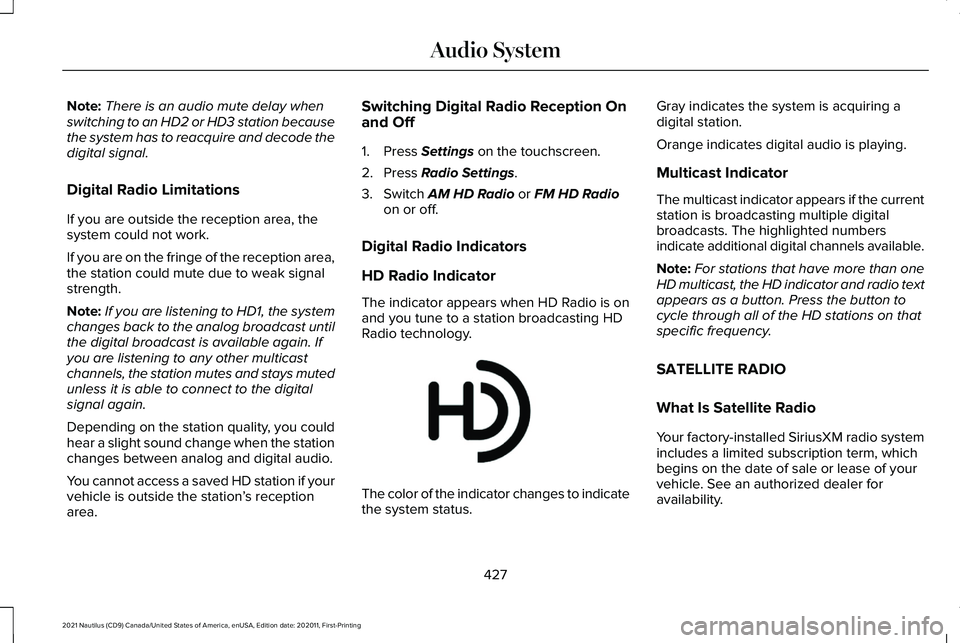
The indicator appears when HD Radio is on
and you tune to a station broadcasting HD
Radio technology. The color of the indicator changes to indicate
the system status.Gray indicates the system is acquiring a
digital station.
Orange indicates digital audio is playing.
Multicast Indicator
The multicast indicator appears if the current
station is broadcasting multiple digital
broadcasts. The highlighted numbers
indicate additional digital channels available.
Note:
For stations that have more than one
HD multicast, the HD indicator and radio text
appears as a button. Press the button to
cycle through all of the HD stations on that
specific frequency.
SATELLITE RADIO
What Is Satellite Radio
Your factory-installed SiriusXM radio system
includes a limited subscription term, which
begins on the date of sale or lease of your
vehicle. See an authorized dealer for
availability.
427
2021 Nautilus (CD9) Canada/United States of America, enUSA, Edition date: 202011, First-Printing Audio SystemE142616
Page 432 of 579

For additional information about extended
subscription terms, visit www
.Sirius XM. com
in the United States, www .Sirius XM. ca in
Canada, or call SiriusXM at 1-888-539-7474.
Note: SiriusXM reserves the unrestricted
right to change, rearrange, add or delete
programming including canceling, moving
or adding particular channels, and its prices,
at any time, with or without notice to you.
Neither SiriusXM and its affiliates nor Ford
Motor Company and its affiliates will be
liable to you or any third party for any such
modification, suspension or termination.
Satellite Radio Limitations
For optimal reception performance, keep the
antenna clear of snow and ice build-up and
keep luggage and other material as far away
from the antenna as possible.
Hills, mountains, tall buildings, bridges,
tunnels, freeway overpasses, parking
garages, dense tree foliage and
thunderstorms can interfere with your
reception. When you pass a ground-based
broadcast-repeating tower, a stronger signal
may overtake a weaker one and could result
in the audio system muting. Your display
could show an error message to indicate the
interference.
Locating the Satellite Radio
Identification Number
1. Select SiriusXM as the audio source.
2. Tune to channel 0.
Selecting a Channel
Manually Selecting a Channel
Press the button to find the
previous or next available satellite
radio station.
Using Direct Tune
1. Press
Direct Tune to open the number
pad. 2. Enter the channel you prefer.
Using Seek Press either button.
Using the Channel List
1. Press
Browse.
2. Select a channel.
Satellite Radio Settings
Subscription
Your subscription status is displayed. You
can subscribe or manage your subscription
directly from the touchscreen.
Listener Add/Switch
You can create up to five listener profiles per
SiriusXM account. Each listener profile can
be personalized with a name and profile
image.
428
2021 Nautilus (CD9) Canada/United States of America, enUSA, Edition date: 202011, First-Printing Audio SystemE328569 E328570