2021 KIA TELLURIDE change
[x] Cancel search: changePage 128 of 300
6-2
Connecting a Bluetooth device
Bluetooth is a short-range wireless networking technology. The Bluetooth communication
function allows you to exchange data by connecting a Bluetooth device to another
neighboring Bluetooth device without a cable connection. With this function, you can use
different types of devices more efficiently.
To make a phone call or play audio from a Bluetooth device, check the following first:
\225For a device that is not registered to the system, > see "
Registering a device."
\225 A registered device will automatically connect to the system when you bring it near
the system. If it does not automatically connect,
> see "
Connecting a registered device ",
" Disconnecting a registered device."
\335Warning
\225 Driving while distracted can result in a loss of vehicle control that may lead to an accident,
severe bodily injury, or death. The driver's primary responsibility is the safe and legal
operation of the vehicle, and the use of any vehicle systems, including the \
touch screen
and steering wheel controls, which take the driver's eyes, attention, and focus away from
the safe operation of the vehicle, or which are not permissible by law, should never be
used during the operation of the vehicle.
\225Park the vehicle at a safe place before connecting a Bluetooth device to the system. It
may take the driver attention off the road and cause a traffic accident which can result in
damages, injuries, and/or death.
0000
A
The Bluetooth connection function supports only the hands-free and audio related
functions. Connect your mobile phone, MP3 player, or device that supports the hands-
free or audio function.
0000
A
For more information on Bluetooth-enabled devices and their functional compatibility,
visit the KIA Motors America website (https://www.kia.com).
Registering a device
To connect a Bluetooth device to the system, first add the device to the list of Bluetooth
devices on the system.
1 On the All Menus screen, press Setup >
Device Connections >
Bluetooth >
Bluetooth Connections >
Add New.
0000
A
To register a device for the first time, press the Call button on the steering wheel or by
pressing Phone on the All Menus screen.
Page 133 of 300
6-7
0000
A
The download may not work in some phone models.
0000
A
You can download up to 50 call records for each list.
0000
A
Call durations do not appear on the system screen.
0000
A
You cannot download call records when the download is prohibited by the phone. Some
phone models may require approval for a download. When a successful download is not
made, check the phone screen or its settings.
0000
A
When call records are newly downloaded, the previous records are removed.
0000
A
Learn more about receiving calls while using a Bluetooth connection.
> See "Accepting an
incoming call over Bluetooth."
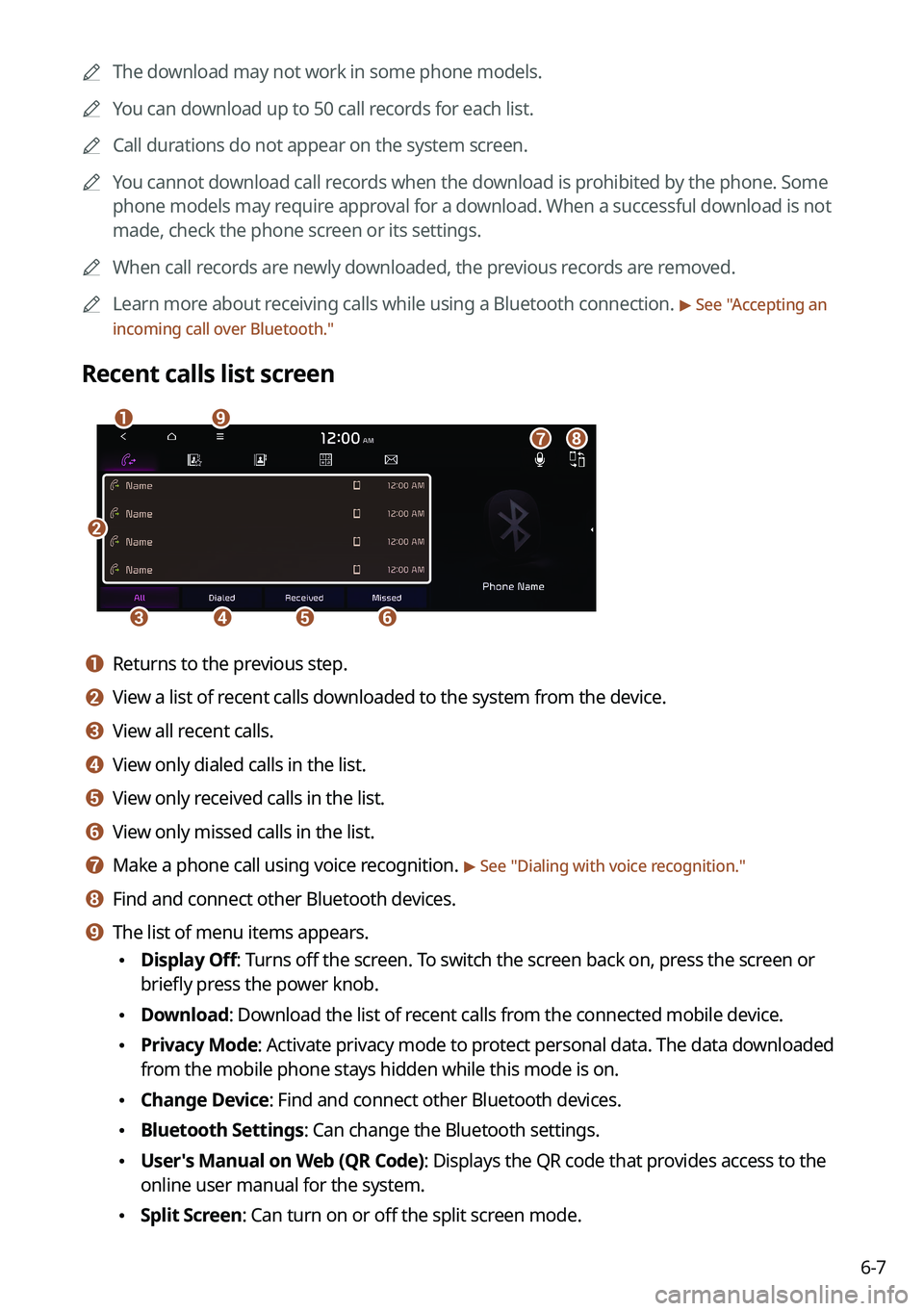
Recent calls list screen
\037
\036\035\034\033
\032\031\030\027
a a Returns to the previous step.
b b View a list of recent calls downloaded to the system from the device.
c c View all recent calls.
d d View only dialed calls in the list.
e e View only received calls in the list.
f f View only missed calls in the list.
g g Make a phone call using voice recognition. > See " Dialing with voice recognition."
h h Find and connect other Bluetooth devices.
i i The list of menu items appears.
\225 Display Off: Turns off the screen. To switch the screen back on, press the screen or
briefly press the power knob.
\225Download: Download the list of recent calls from the connected mobile device.
\225Privacy Mode: Activate privacy mode to protect personal data. The data downloaded
from the mobile phone stays hidden while this mode is on.
\225Change Device: Find and connect other Bluetooth devices.
\225Bluetooth Settings: Can change the Bluetooth settings.
\225User's Manual on Web (QR Code): Displays the QR code that provides access to the
online user manual for the system.
\225Split Screen: Can turn on or off the split screen mode.
Page 135 of 300
6-9
5 Choose a contact from the list.
The system dials the selected contact.
0000
A
You can add up to 10 favorite contacts for each device.
0000
A
When another mobile phone is connected, the screen does not display the contacts from
the previous phone, but they are kept in the system until the phone is deleted from the
list.
0000
A
Learn more about receiving calls while using a Bluetooth connection.
> See "Accepting an
incoming call over Bluetooth."
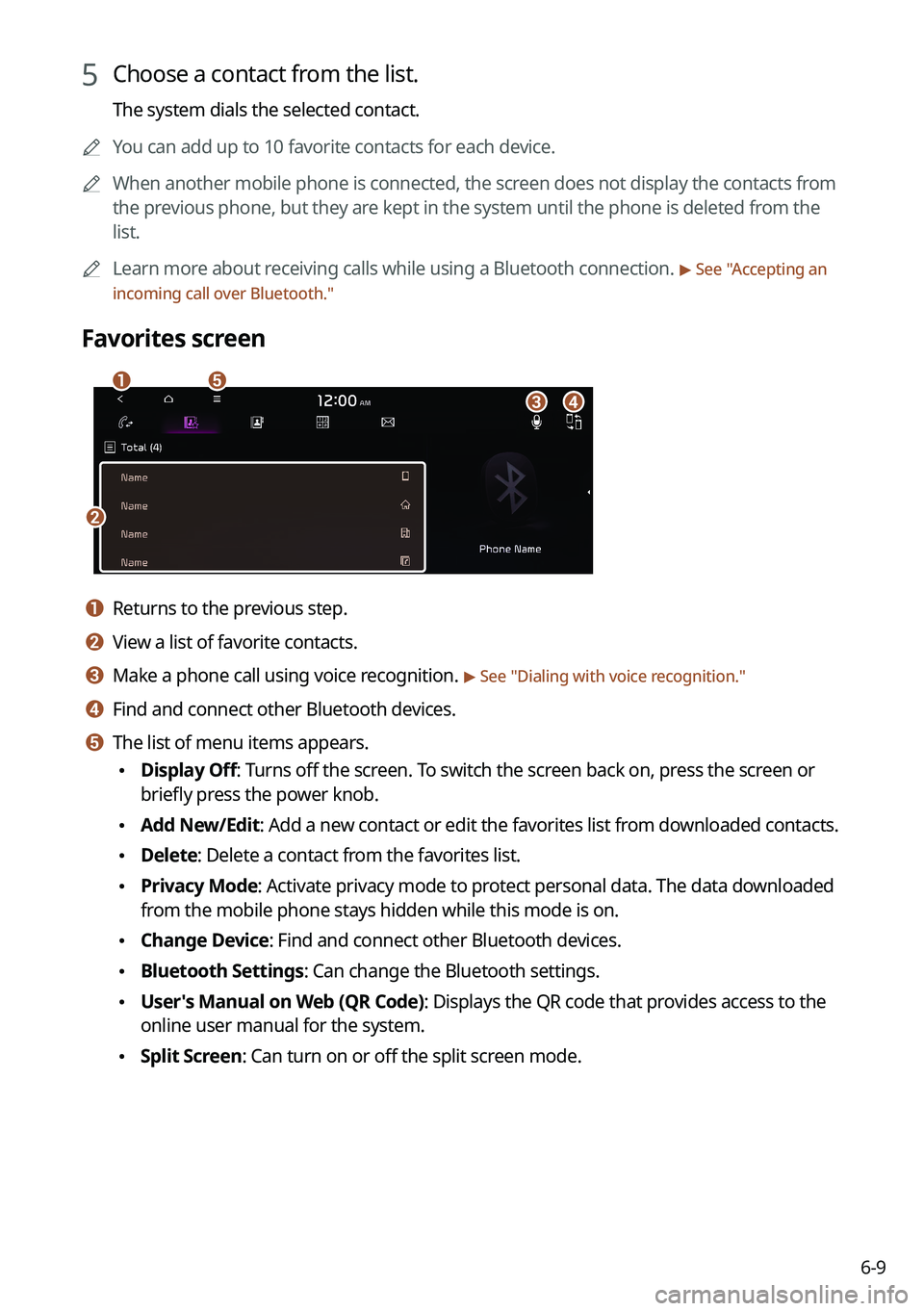
Favorites screen
\037
\036
\035\034\033
a a Returns to the previous step.
b b View a list of favorite contacts.
c c Make a phone call using voice recognition. > See " Dialing with voice recognition."
d d Find and connect other Bluetooth devices.
e e The list of menu items appears.
\225 Display Off: Turns off the screen. To switch the screen back on, press the screen or
briefly press the power knob.
\225Add New/Edit: Add a new contact or edit the favorites list from downloaded contacts.
\225Delete: Delete a contact from the favorites list.
\225Privacy Mode: Activate privacy mode to protect personal data. The data downloaded
from the mobile phone stays hidden while this mode is on.
\225Change Device: Find and connect other Bluetooth devices.
\225Bluetooth Settings: Can change the Bluetooth settings.
\225User's Manual on Web (QR Code): Displays the QR code that provides access to the
online user manual for the system.
\225Split Screen: Can turn on or off the split screen mode.
Page 137 of 300

6-11
0000
A
When another mobile phone is connected, the screen does not display the contacts
downloaded from the previous phone, but they are kept in the system until the phone is
deleted from the list.
0000
A
Learn more about receiving calls while using a Bluetooth connection.
> See "Accepting an
incoming call over Bluetooth."
Contacts list screen
\037
\036
\035
\034
\033
\032
\031
a a Returns to the previous step.
b b Enter a contact's name or phone number to search the list. You can also search for a
contact by pressing
and saying the contact's name or phone number.
c c View a list of contacts downloaded to the system from the device.
d d Use the index to quickly find the contact you are looking for.
e e Make a phone call using voice recognition. > See " Dialing with voice recognition."
f f Find and connect other Bluetooth devices.
g g The list of menu items appears.
\225 Display Off: Turns off the screen. To switch the screen back on, press the screen or
briefly press the power knob.
\225Download: Download the list of contacts from the connected mobile device.
\225Search: Search contacts by entering a name or a phone number.
\225Privacy Mode: Activate privacy mode to protect personal data. The data downloaded
from the mobile phone stays hidden while this mode is on.
\225Change Device: Find and connect other Bluetooth devices.
\225Bluetooth Settings: Can change the Bluetooth settings.
\225User's Manual on Web (QR Code): Displays the QR code that provides access to the
online user manual for the system.
\225Split Screen: Can turn on or off the split screen mode.
Page 139 of 300

6-13
Dial pad screen
\037
\036\035\034
\033
\032
\031
\030
a a Returns to the previous step.
b b Use the dial pad to enter phone numbers.
c c Delete an entered number.
d d Can configure the Bluetooth connection settings.
e e Press to dial the number you entered.0000
A
If you have recent calls stored on your system, you can use the following feature
before entering a phone number.
000DPressing this button will display the most recently dialed numbers in the field.
000DPress and hold this button to automatically call the most recently dialed number.
f f Make a phone call using voice recognition. > See "
Dialing with voice recognition."
g g Find and connect other Bluetooth devices.
h h The list of menu items appears.
\225 Display Off: Turns off the screen. To switch the screen back on, press the screen or
briefly press the power knob.
\225Privacy Mode: Activate privacy mode to protect personal data. The data downloaded
from the mobile phone stays hidden while this mode is on.
\225Change Device: Find and connect other Bluetooth devices.
\225Bluetooth Settings: Can change the Bluetooth settings.
\225User's Manual on Web (QR Code): Displays the QR code that provides access to the
online user manual for the system.
\225Split Screen: Can turn on or off the split screen mode.
Page 144 of 300
6-18
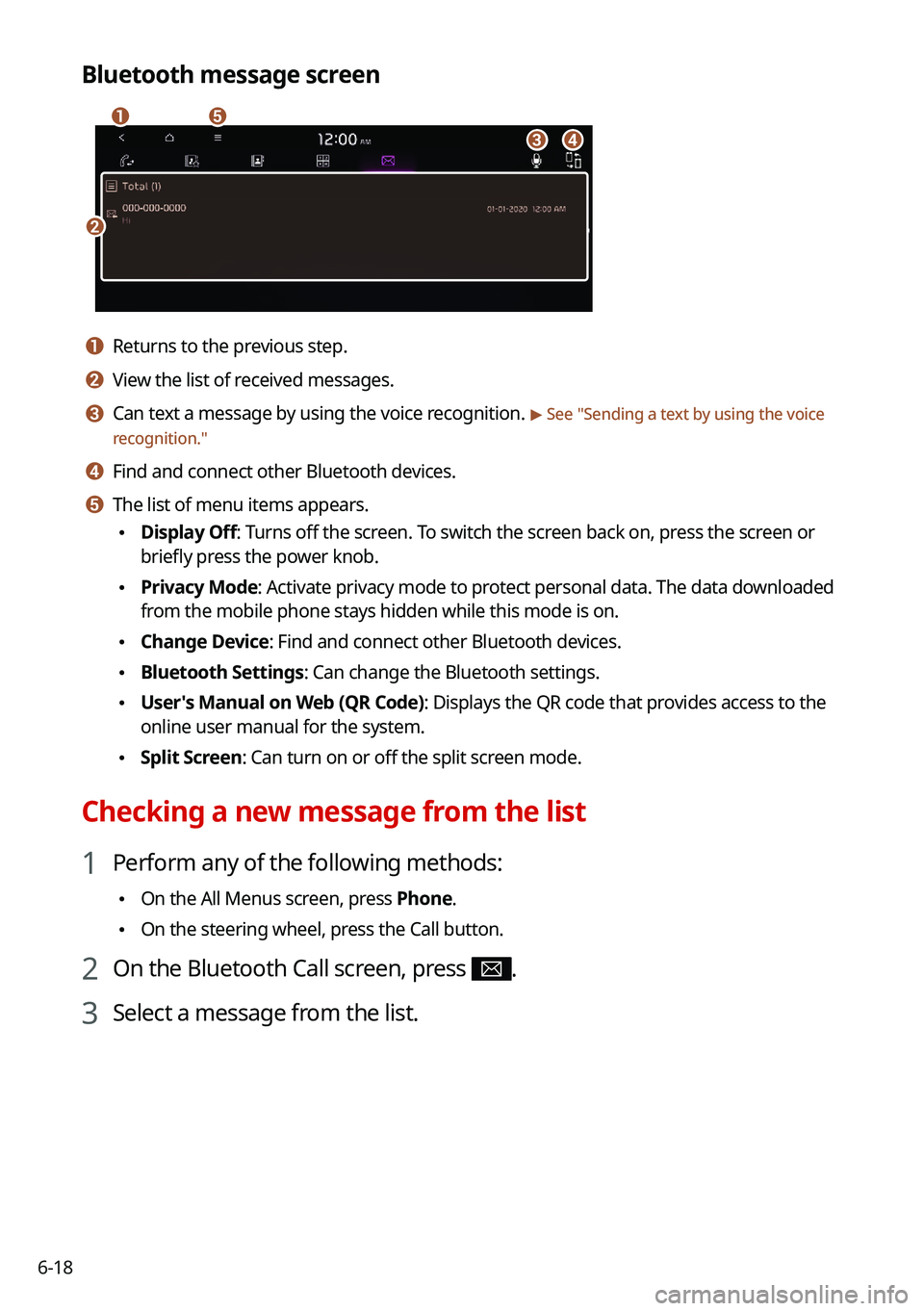
Bluetooth message screen
\037
\036
\035
\034
\033
a a Returns to the previous step.
b b View the list of received messages.
c c Can text a message by using the voice recognition. > See "Sending a text by using the voice
recognition."
d d Find and connect other Bluetooth devices.
e e The list of menu items appears.
\225 Display Off: Turns off the screen. To switch the screen back on, press the screen or
briefly press the power knob.
\225Privacy Mode: Activate privacy mode to protect personal data. The data downloaded
from the mobile phone stays hidden while this mode is on.
\225Change Device: Find and connect other Bluetooth devices.
\225Bluetooth Settings: Can change the Bluetooth settings.
\225User's Manual on Web (QR Code): Displays the QR code that provides access to the
online user manual for the system.
\225Split Screen: Can turn on or off the split screen mode.
Checking a new message from the list
1 Perform any of the following methods:
\225On the All Menus screen, press Phone.
\225On the steering wheel, press the Call button.
2 On the Bluetooth Call screen, press .
3 Select a message from the list.
Page 152 of 300
7-6
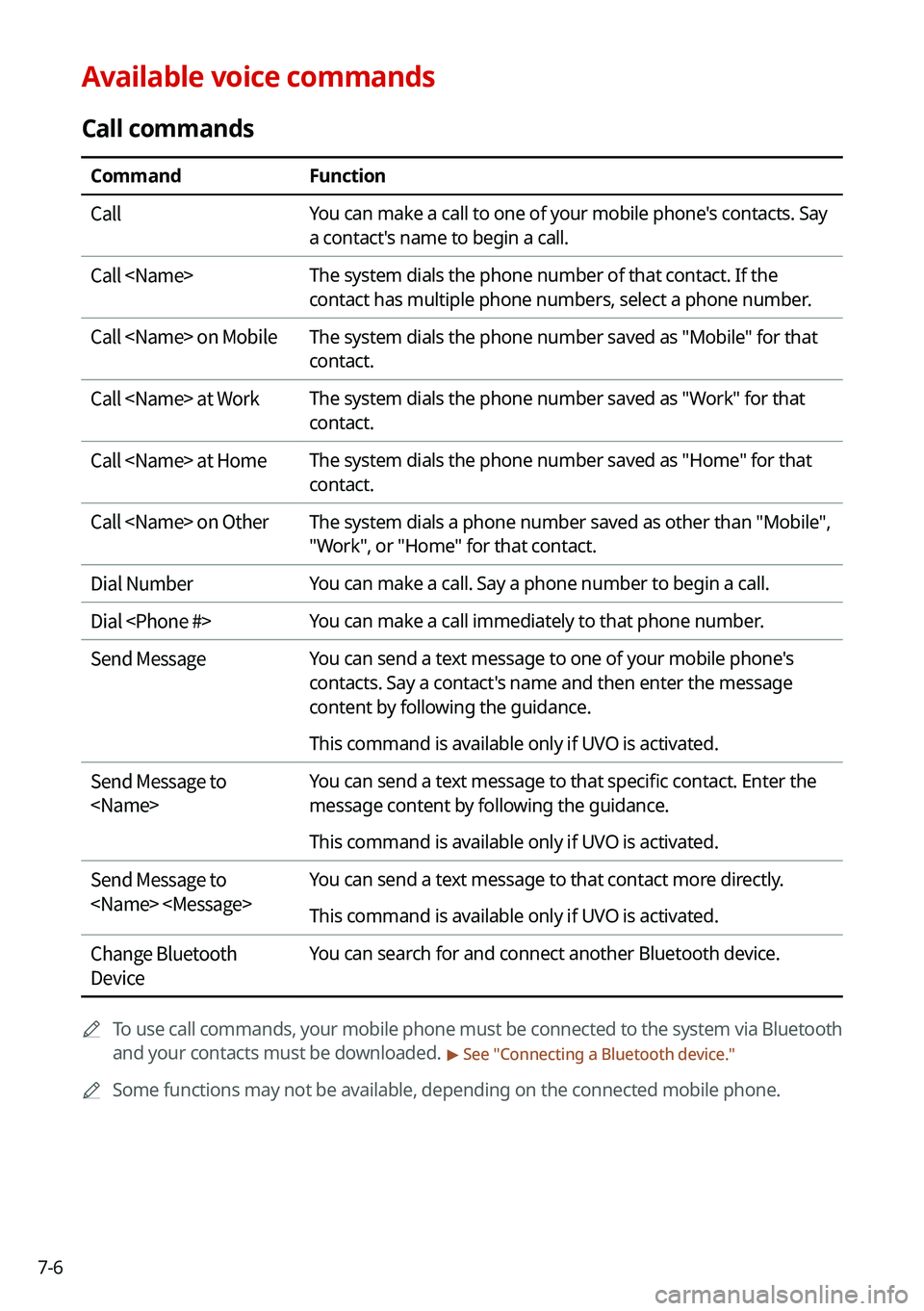
Available voice commands
Call commands
CommandFunction
Call You can make a call to one of your mobile phone's contacts. Say
a contact's name to begin a call.
Call
contact has multiple phone numbers, select a phone number.
Call
contact.
Call
contact.
Call
contact.
Call
"Work", or "Home" for that contact.
Dial Number You can make a call. Say a phone number to begin a call.
Dial
Send Message You can send a text message to one of your mobile phone's
contacts. Say a contact's name and then enter the message
content by following the guidance.
This command is available only if UVO is activated.
Send Message to
message content by following the guidance.
This command is available only if UVO is activated.
Send Message to
This command is available only if UVO is activated.
Change Bluetooth
Device You can search for and connect another Bluetooth device.
0000
A
To use call commands, your mobile phone must be connected to the system via Bluetooth
and your contacts must be downloaded.
> See "Connecting a Bluetooth device."
0000
A
Some functions may not be available, depending on the connected mobile p\
hone.
Page 153 of 300
7-7
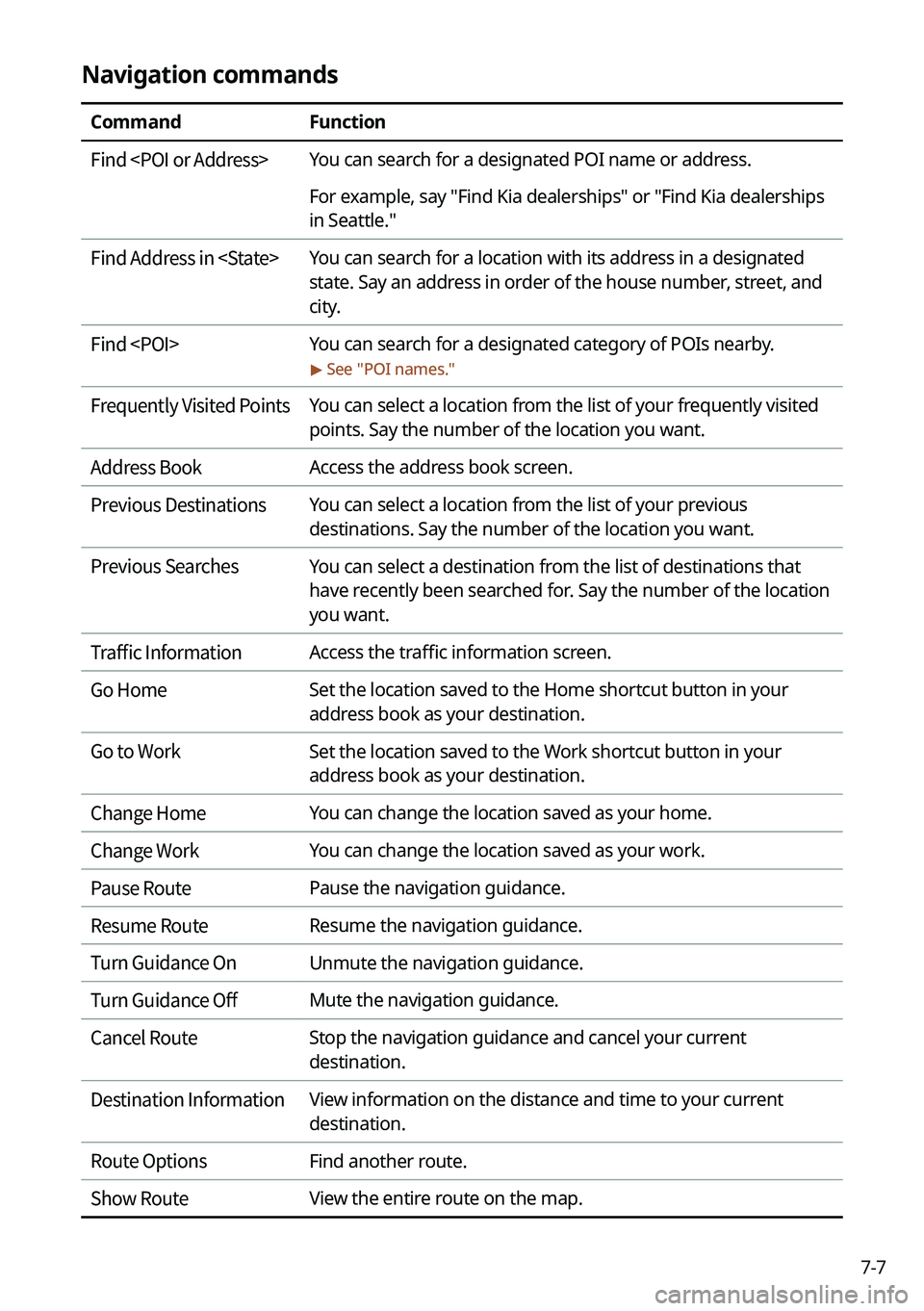
Navigation commands
CommandFunction
Find
For example, say "Find Kia dealerships" or "Find Kia dealerships
in Seattle."
Find Address in
state. Say an address in order of the house number, street, and
city.
Find
> See "
POI names."
Frequently Visited Points You can select a location from the list of your frequently visited
points. Say the number of the location you want.
Address Book Access the address book screen.
Previous Destinations You can select a location from the list of your previous
destinations. Say the number of the location you want.
Previous Searches You can select a destination from the list of destinations that
have recently been searched for. Say the number of the location
you want.
Traffic Information Access the traffic information screen.
Go Home Set the location saved to the Home shortcut button in your
address book as your destination.
Go to Work Set the location saved to the Work shortcut button in your
address book as your destination.
Change Home You can change the location saved as your home.
Change Work You can change the location saved as your work.
Pause Route Pause the navigation guidance.
Resume Route Resume the navigation guidance.
Turn Guidance On Unmute the navigation guidance.
Turn Guidance Off Mute the navigation guidance.
Cancel Route Stop the navigation guidance and cancel your current
destination.
Destination Information View information on the distance and time to your current
destination.
Route Options Find another route.
Show Route View the entire route on the map.