Page 160 of 300

7-14
Travel
POI name
Airports
HotelsAmericas Best Value Inn
AmericInn
Andaz
Ascend Collection
Baymont Inn & Suites
Best Western
Cambria Suites
Canadas Best Value Inn
Candlewood Suites
Clarion Hotel
Comfort INN
Comfort Suites
CONRAD
Country Inn & Suites by Carlson
COURTYARD by Marriott
Crowne Plaza
Days Inn
DELTA
Doubletree
Econo Lodge
Embassy Suites
Grand Residences by Marriott
Hampton Inn
Hawthorn Suites
Hilton
Hilton Garden Inn
Hilton Grand Vacations
Holiday Inn
Holiday Inn Express Hotel & Suites
POI name
Midas
Mobil
Napa
O'Reilly Auto Parts
PETRO-CANADA
Sears Auto Center
Shell
TEXACO
AAMCO Transmissions
ACDelco
Big O Tires
CARQUEST
Meineke Car Care Center
Monro Muffler Brake & Service
Napa Autocare Center
Pep Boys
Quick Lane
Safelite AutoGlass
Tires Plus
Valvoline Instant Oil Change
Roadside Assistance
Auto Parts
Car Washes
Automobile Dealerships
Motorcycle Dealerships
EV Charging Stations ChargePoint
EVgo
Blink
SemaConnect
Greenlots
Electrify America
FLO
Kia Auto Service
Page 166 of 300
7-20
Services
POI name
Hospitals
Medical Services
Physicians
Tax Services
Attorneys
Funeral Homes
Hair & Beauty
Cleaning & Laundry
Social Services
Communication
Dentists
Photography
Tailors & Alterations
Movers
Nursing Homes
Optical
Personal Services
Repair Services
Veterinary Hospitals
Shipping Centers0000
A
Available POI names may change when
the system is updated.
Community
POI name
Police Stations
Post Offices
Libraries
Schools
Fire Departments
Convention Centers
Churches
Synagogues
City Halls
Civic Centers
Court Houses
Government Offices
Waste & Sanitary
Utilities
Business Facilities
Kia
Page 172 of 300
8-2
UVO service
UVO provides connected car services, such as roadside assistance and emergency rescue, via
the latest IT and communication technologies.
When you have subscribed to UVO, you can use the UVO service by using the [
]
buttons. You can also access other useful features using the UVO menu on your system.
0000
A
You must be an active UVO subscriber or within the initial free trial period to receive UVO
services, including Auto Crash Notifications.
0000
A
Depending on the conditions such as vehicle type, system type, and the s\
ubscribed
service package, available services may differ.
0000
A
Some services may incur additional charges.
0000
A
Services may be modified, added, or deleted by changes in the company's policies.
Service restrictions
UVO services are provided via the mobile communication network. Accordingly, the
service may be restricted depending on the mobile communication network condition.
Use the network signal strength icon (
) at the top of the screen to check the mobile
communication status.
0000
A
It is recommended to use the service when the number of signal bars in the icon\
is 4 or
more.
0000
A
Depending on the network signal status, access to UVO may be restricted in the following
locations:
000DInside a building or tunnel
000DMountain or forest area
000DRoad close to a cliff
000DArea densely populated with tall buildings
000DRoad under expressway or multi-level road
000DCommunication shadow area according to the service provider's network coverage
policy
Page 179 of 300
8-9
Route guidance service (if equipped)
Use a more convenient, accurate route guidance service through the UVO route guidance
service.
Finding the route to the destination by manual entry
You can enjoy fast and accurate route guidance based on real-time traffic data and
forecasting traffic information collected by the UVO Center.
Using the UVO quick route guidance
You can use the quick navigation service based on real-time traffic information analyzed by
the UVO Center.
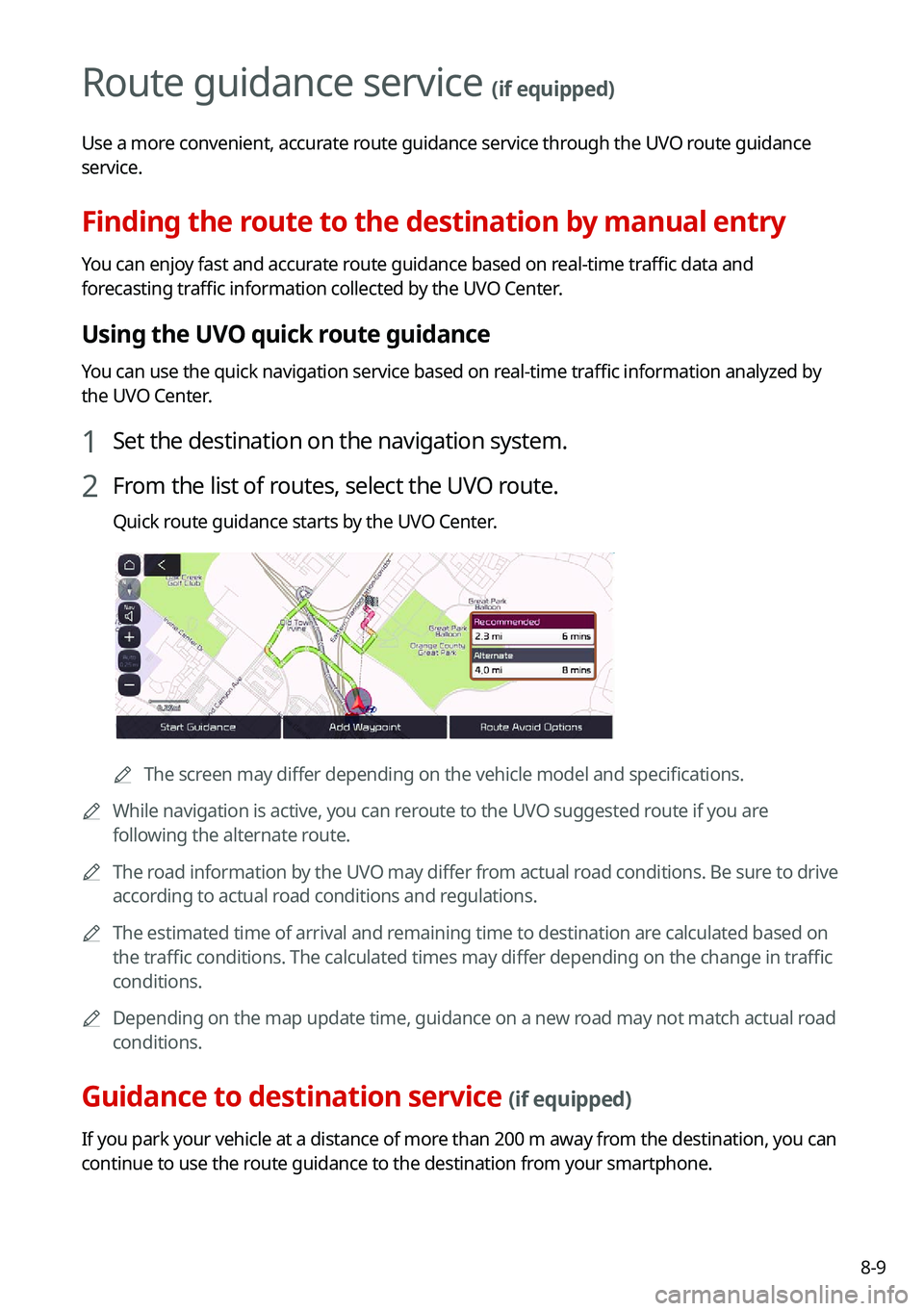
1 Set the destination on the navigation system.
2 From the list of routes, select the UVO route.
Quick route guidance starts by the UVO Center.
0000AThe screen may differ depending on the vehicle model and specifications.
0000
A
While navigation is active, you can reroute to the UVO suggested route if you are
following the alternate route.
0000
A
The road information by the UVO may differ from actual road conditions. Be sure to drive
according to actual road conditions and regulations.
0000
A
The estimated time of arrival and remaining time to destination are calculated based on
the traffic conditions. The calculated times may differ depending on the change in traffic
conditions.
0000
A
Depending on the map update time, guidance on a new road may not match actual road
conditions.
Guidance to destination service (if equipped)
If you park your vehicle at a distance of more than 200 m away from the destination, you can
continue to use the route guidance to the destination from your smartphone.
Page 183 of 300
9-3
Configuring the vehicle settings (Type1)
(if equipped)
You can configure the functions for driving and related environments.
\335Warning
Make sure you stop the vehicle before changing settings to ensure safety.0000
A
Vehicle settings can be changed only when the vehicle is on.
0000
A
Available settings may differ depending on the vehicle model and specifications.
0000
A
Depending on the climate control system, some functions may not be supported.
1 On the All Menus screen, press Setup >
Vehicle.
The vehicle settings screen appears.
2 Configure the settings required:
0000
A
Press Menu >
Search for Settings or press and enter a keyword to search for a
setting item. You can also search for a setting item by voice.
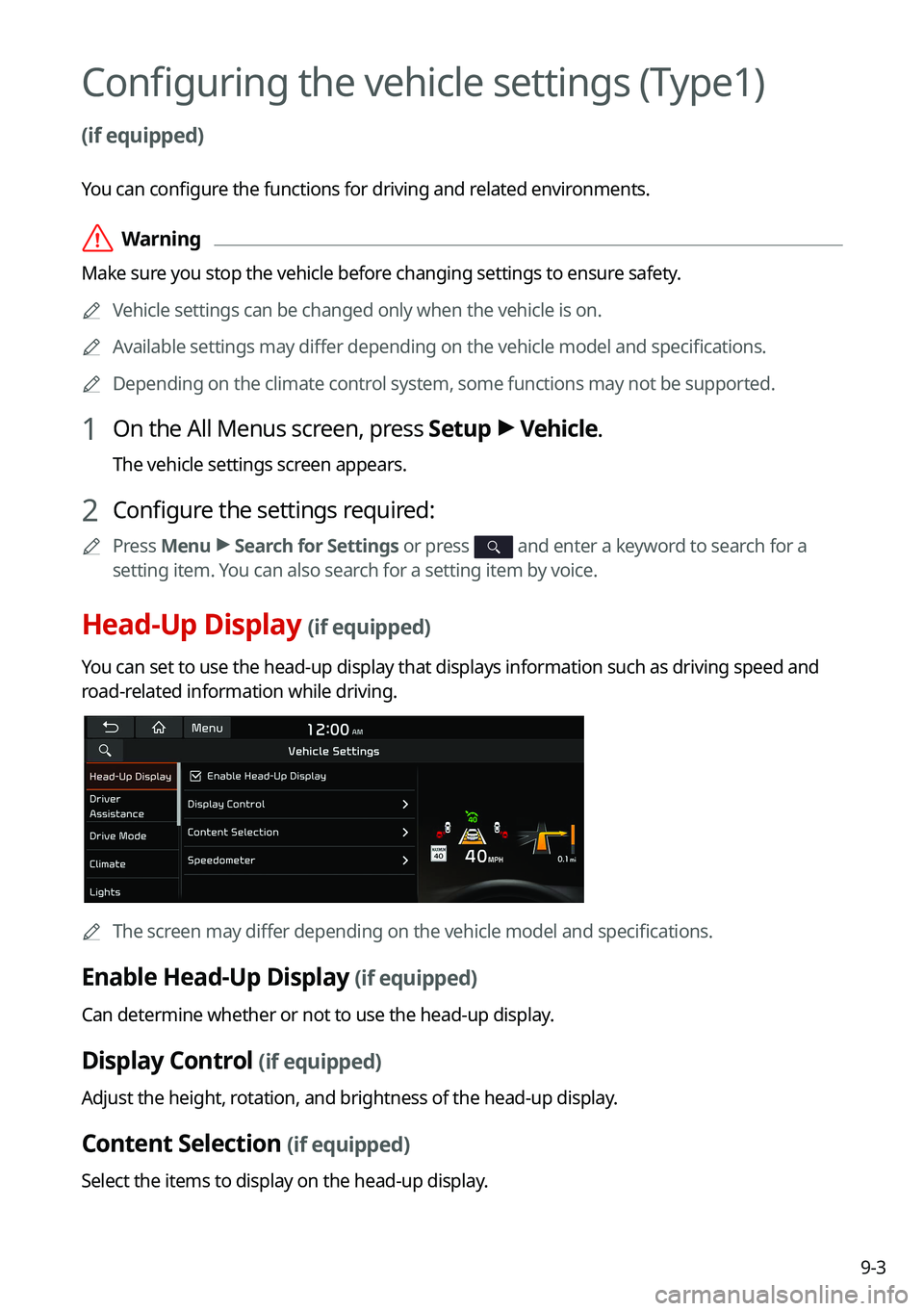
Head-Up Display (if equipped)
You can set to use the head-up display that displays information such as \
driving speed and
road-related information while driving.
0000
A
The screen may differ depending on the vehicle model and specifications.
Enable Head-Up Display (if equipped)
Can determine whether or not to use the head-up display.
Display Control (if equipped)
Adjust the height, rotation, and brightness of the head-up display.
Content Selection (if equipped)
Select the items to display on the head-up display.
Page 188 of 300

9-8
\335Warning
\225Even though the vehicle is equipped the parking safety system, be sure to check any
obstacles in the rear while driving. Relying solely on the driving assist system may cause\
an accident. Accordingly, be sure to control the vehicle by your judgment.
\225When the sensors cannot detect any obstacles due to the detection limit,\
it may cause an
accident. Be sure to always check the surroundings while parking.
Drive Mode (if equipped)
You can change the vehicle settings for driving conditions.
Option A
Option B (EV only)
0000
A
The screen may differ depending on the vehicle model and specifications.
ECO (EV only)
This is a drive mode for increasing the vehicle's fuel efficiency. You can change the climate
control mode, the active coast energy regeneration level, and speed limit settings.
NORMAL (EV only)
This is a drive mode focused on the driver and passenger's comfort. You can change the
climate control mode and the active coast energy regeneration level.
Page 189 of 300
9-9
SPORT (EV only)
This drive mode enables a more dynamic driving performance. You can change the climate
control mode and the active coast energy regeneration level.
Drive Mode Change Alert (if equipped)
You can set how to display the notification message when the drive mode is changed.
\225Detailed Alert: Displays a detailed notification message along with the vehicle image
when the drive mode is changed.
\225Simple Alert: Displays the notification at the top or on the split screen when the drive
mode is changed.
\225Off: When the drive mode changes, no notification is provided.
Reset ECO/NORMAL/SPORT (EV only)
You can reset the drive mode settings to the default values.
0000
A
The display may differ depending on the vehicle model and specifications.
0000
A
See how to improve ECO potential by pressing the Help button from an EV(Electric
Vehicle). In most cases, a vehicle can travel a longer distance when its ECO potential score
is higher (EV only).
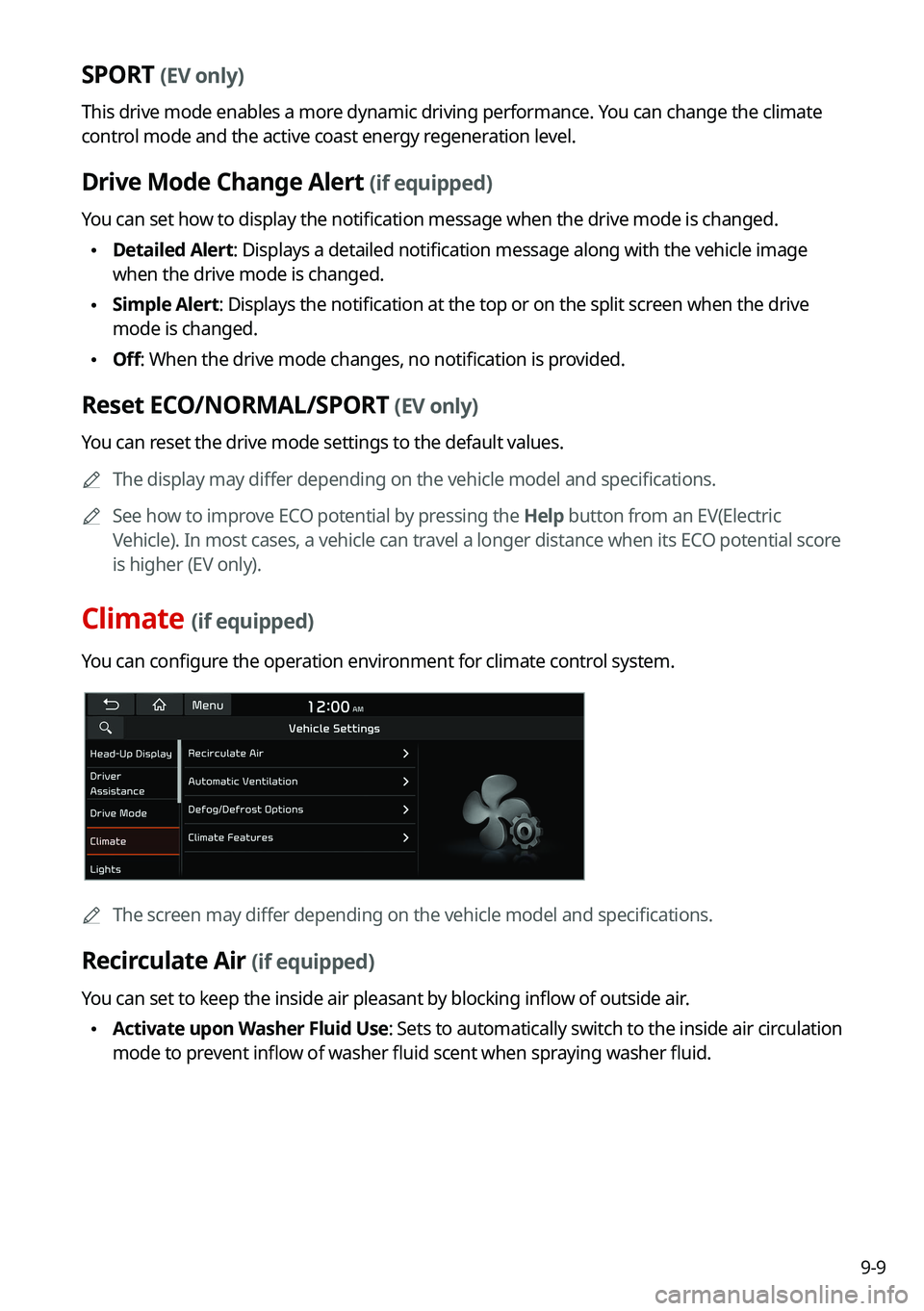
Climate (if equipped)
You can configure the operation environment for climate control system.
0000
A
The screen may differ depending on the vehicle model and specifications.
Recirculate Air (if equipped)
You can set to keep the inside air pleasant by blocking inflow of outside air.
\225Activate upon Washer Fluid Use
: Sets to automatically switch to the inside air circulation
mode to prevent inflow of washer fluid scent when spraying washer fluid.
Page 190 of 300
9-10
Automatic Ventilation (if equipped)
You can set to prevent condensation inside and keep inside air pleasant using this feature.
\225Auto Dehumidify: Once the inside air circulation mode has been used for a long time, it
is switched to the outside air inflow mode to prevent condensation.
Defog/Defrost Options (if equipped)
You can set to enable the defogger to secure driver visibility.
\225Auto Defog: When the sensor detects fog on the windshield, the automatic ventilati\
on is
run for defogging.
Climate Features (if equipped)
You can set or change the settings for the climate system.
\225Rear Climate Controls: Used to move to the climate control screen for the rear seat. You
can check or set the climate status for the rear seat.
0000
A
For more information about controlling the rear-seat climate control system:
> see "Using the rear-seat climate control system (if equipped)"
Lights (if equipped)
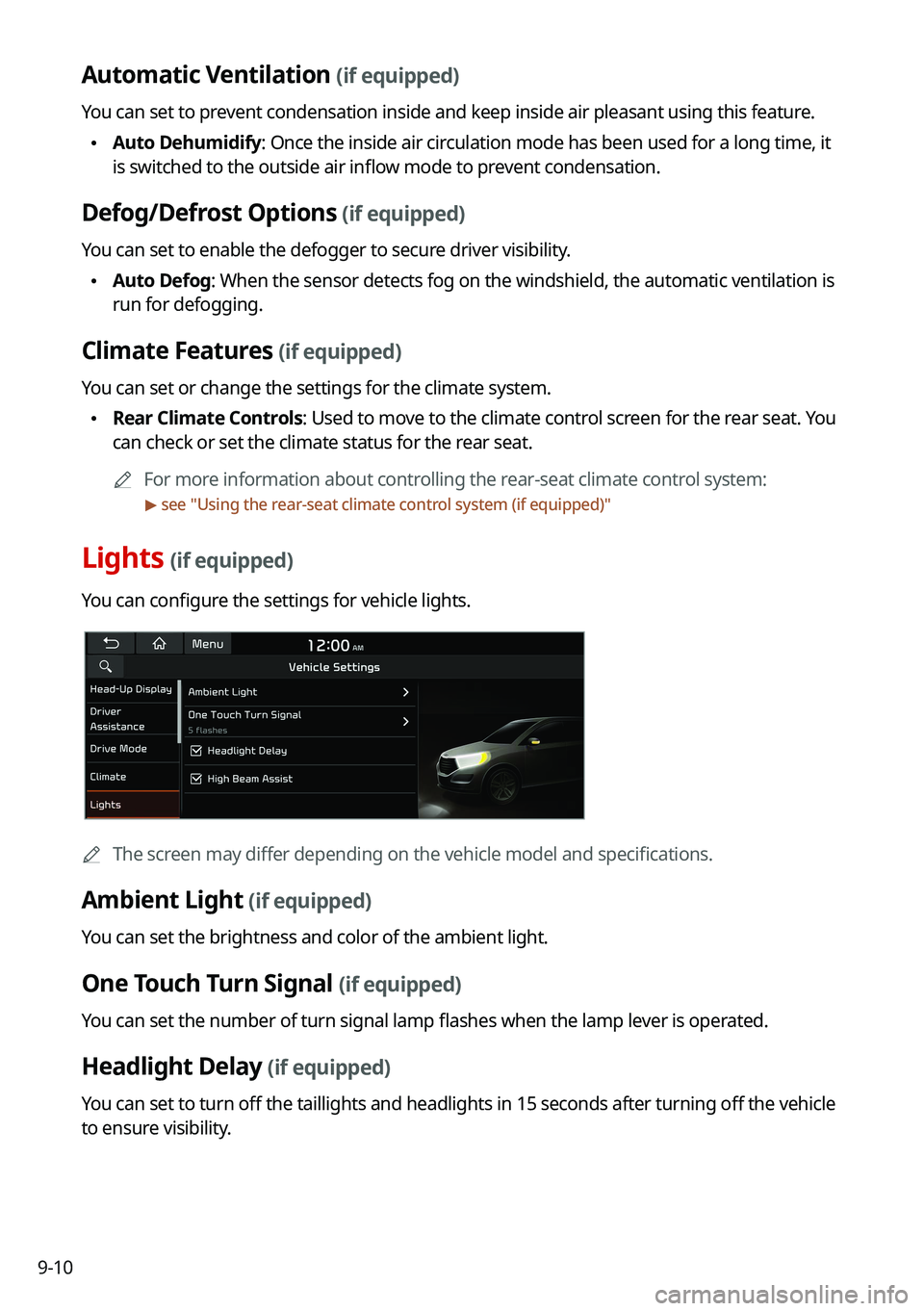
You can configure the settings for vehicle lights.
0000
A
The screen may differ depending on the vehicle model and specifications.
Ambient Light (if equipped)
You can set the brightness and color of the ambient light.
One Touch Turn Signal (if equipped)
You can set the number of turn signal lamp flashes when the lamp lever is operated.
Headlight Delay (if equipped)
You can set to turn off the taillights and headlights in 15 seconds after turning off the vehicle
to ensure visibility.
