Page 2 of 211
Be sure to read this User’s Manual before using the product to ensure safety and usability.
To access the online manual for Car Infotainment System, scan the
QR code.
Page 3 of 211

1
3 Touch the URL for User’s Manual on Web from the
smartphone display.
The online user’s manual of the system appears in the
Internet browser application on the smartphone.
0000ADepending on how you scan the QR code, the online manual
may open without touching the URL.
0000
A
With a camera application of your iPhone or Android
smartphone, the QR code can also be scanned. Depending
on the Android smartphone model, the QR code scanning
may not be supported for the provided application. For more
details, see the smartphone’s manual.
0000
A
Without scanning the QR code, you can directly enter the URL
address to see User’s Manual on Web. (http://webmanual.kia.
com/STD_GEN5_WIDE/AVNT/USA/English/index.html)
Reading the manual on web
with the QR code
You can access the online user’s manual of the system by scanning
the QR code with your smartphone.
\335Warning
Pull over the vehicle to a safe area and scan the QR code. To ensure
your safety, the system does not provide QR codes while driving.
1 Scan the QR code by using any of the following
methods:
\225On the All Menus screen, touch Setup >
General >
System
Info >
User's Manual on Web (QR Code).
\225
Or scan the QR code in the Quick Reference Guide.
2 Scan the QR code after installing the QR code
reader application from App Store (
) or Google
Play Store (
).
Page 11 of 211
1
[This guide covers specifications for all vehicle models, including optional specifications, and is based on the latest version of system
software.
[The design and specification of the system may change without prior notice for performance improvement.
[In order to improve the product performance, the functions and services in this manual are subject to change without notice. In case of
software update, the screens in this manual may differ from actual ones on the product.
[For more information about the functions and services updated for performance i\
mprovement, access the online user's manual.
[Functions and services in this manual may differ from those in the actual vehicle. For more details, refer to the owner’s manual or brochure
of your vehicle.
[Your system is not compatible with the system software and map data for regions outside of the country of purchase.
Car Infotainment System
User’s Manual
Page 12 of 211
2
Available materials for operation
Quick
Reference
Guide
Provided in the format of a booklet. It provides brief information of the system,
including basic controls and main functions.
User's
Manual on
Web
To see the information while using the system, touch Menu >
User’s Manual on Web
(QR Code). By scanning the QR code with your smartphone, you can access the onlin\
e
user's manual.
Page 13 of 211
3
Symbols in this User’s Manual
Warning
Indicates very important information directly related to user safety. Failure to follow
instructions may cause serious injury.
Caution
Indicates important information directly related to user safety. Failure to follow
instructions may cause minor injury or vehicle damage or breakdown.
NoteIndicates helpful information for operation of the product.
If equipped
Indicates descriptions for optional features, which may not be available on your specific
vehicle depending on the model or trim level.
This guide covers specifications for all vehicle models, including optional specifications.
It may include descriptions for features that are not equipped in your vehicle or are
unavailable for your vehicle model.
Page 24 of 211
1-4
Turning the system on or off
The following explains how to turn on or off the system. Before
using the system, be sure to read the user's manual for safe and
convenient manipulation.
Turning on the system
1 Turn on the vehicle.
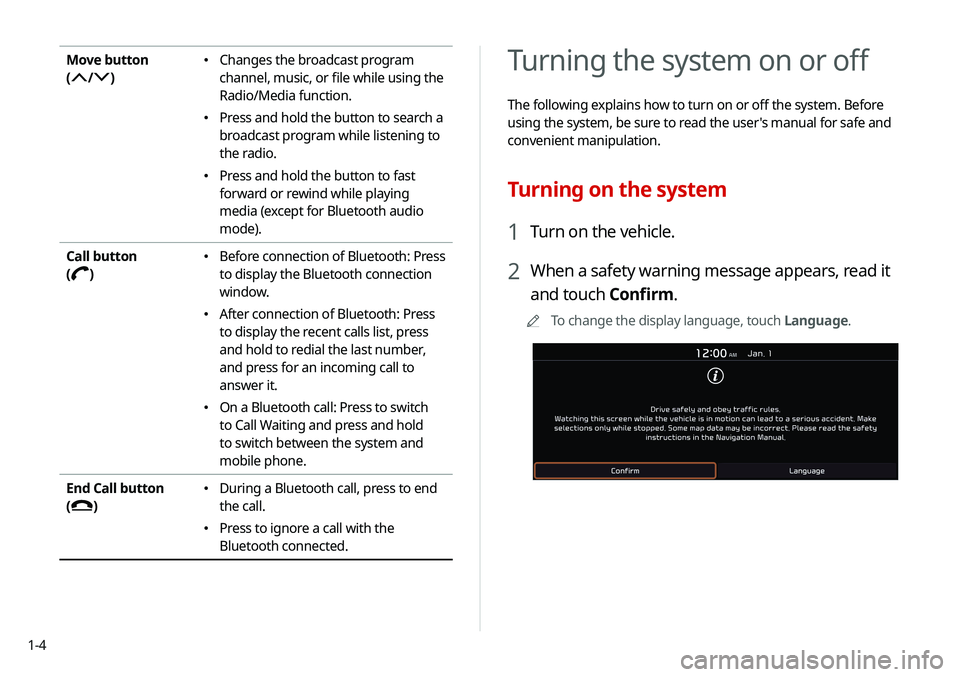
2 When a safety warning message appears, read it
and touch Confirm.
0000
A
To change the display language, touch Language.
Move button
(
/)
\225Changes the broadcast program
channel, music, or file while using the
Radio/Media function.
\225Press and hold the button to search a
broadcast program while listening to
the radio.
\225Press and hold the button to fast
forward or rewind while playing
media (except for Bluetooth audio
mode).
Call button
(
)
\225 Before connection of Bluetooth: Press
to display the Bluetooth connection
window.
\225After connection of Bluetooth: Press
to display the recent calls list, press
and hold to redial the last number,
and press for an incoming call to
answer it.
\225On a Bluetooth call: Press to switch
to Call Waiting and press and hold
to switch between the system and
mobile phone.
End Call button
(
)
\225 During a Bluetooth call, press to end
the call.
\225Press to ignore a call with the
Bluetooth connected.
Page 30 of 211
1-10
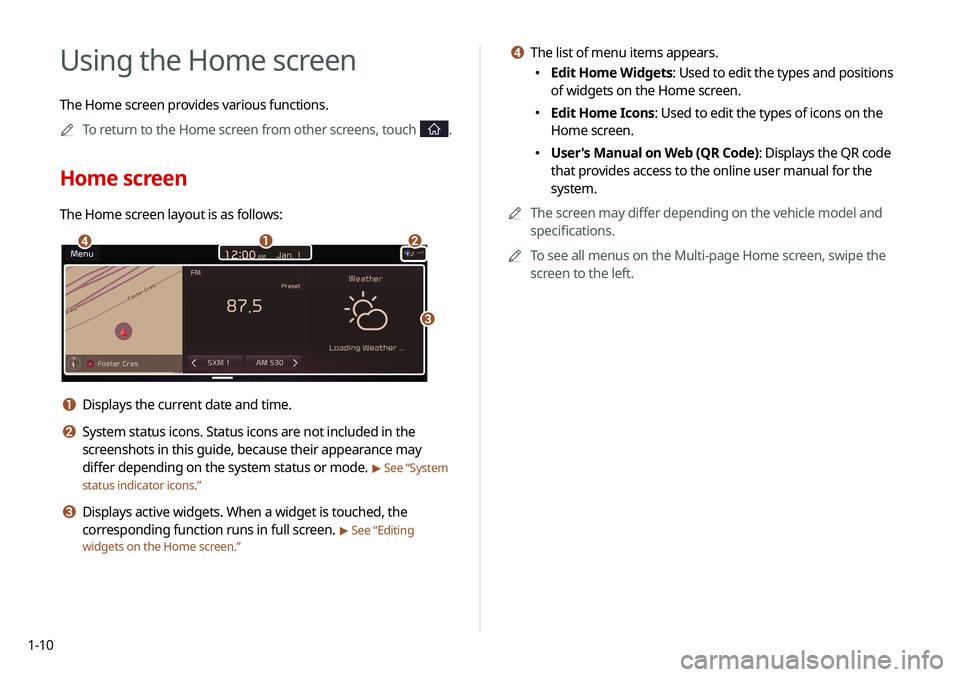
d The list of menu items appears.
\225Edit Home Widgets: Used to edit the types and positions
of widgets on the Home screen.
\225Edit Home Icons: Used to edit the types of icons on the
Home screen.
\225User's Manual on Web (QR Code): Displays the QR code
that provides access to the online user manual for the
system.
0000
A
The screen may differ depending on the vehicle model and
specifications.
0000
A
To see all menus on the Multi-page Home screen, swipe the
screen to the left.
Using the Home screen
The Home screen provides various functions.
0000
A
To return to the Home screen from other screens, touch
.
Home screen
The Home screen layout is as follows:
\037\036
\035
\034
a Displays the current date and time.
b System status icons. Status icons are not included in the
screenshots in this guide, because their appearance may
differ depending on the system status or mode.
> See “System
status indicator icons.”
c Displays active widgets. When a widget is touched, the
corresponding function runs in full screen.
> See “Editing
widgets on the Home screen.”
Page 42 of 211
2-8
Using the HD Radio Data
You can access an array of information with HD radio data such
as HD Radio™.0000
A
HD radio data are available only in metropolitan areas.
1 On the All Menus screen, touch HD Radio Data.
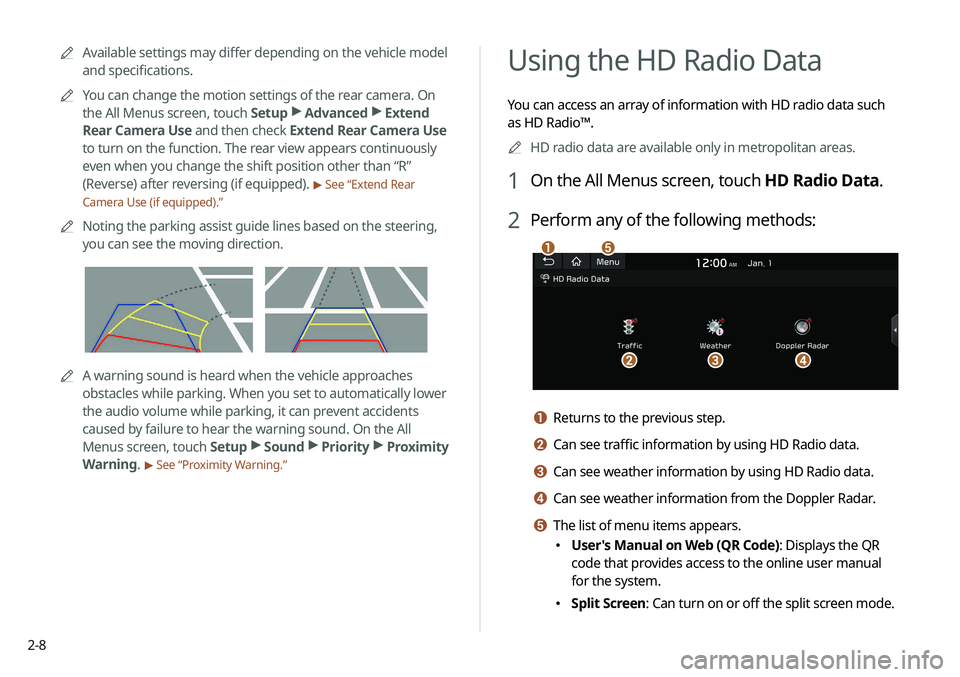
2 Perform any of the following methods:
\037
\036\035\034
\033
a Returns to the previous step.
b Can see traffic information by using HD Radio data.
c Can see weather information by using HD Radio data.
d Can see weather information from the Doppler Radar.
e The list of menu items appears.
\225User's Manual on Web (QR Code): Displays the QR
code that provides access to the online user manual
for the system.
\225Split Screen: Can turn on or off the split screen mode.
0000
A
Available settings may differ depending on the vehicle model
and specifications.
0000
A
You can change the motion settings of the rear camera. On
the All Menus screen, touch Setup >
Advanced >
Extend
Rear Camera Use and then check Extend Rear Camera Use
to turn on the function. The rear view appears continuously
even when you change the shift position other than “R”
(Reverse) after reversing (if equipped).
> See “Extend Rear
Camera Use (if equipped).”
0000
A
Noting the parking assist guide lines based on the steering,
you can see the moving direction.
0000AA warning sound is heard when the vehicle approaches
obstacles while parking. When you set to automatically lower
the audio volume while parking, it can prevent accidents
caused by failure to hear the warning sound. On the All
Menus screen, touch Setup >
Sound >
Priority >
Proximity
Warning.
> See “Proximity Warning.”


