Page 106 of 211
6-4
Connecting a registered device
To use a Bluetooth device, first connect a registered Bluetooth
device to the system.0000
A
You can add one Bluetooth hands-free kit or up to two
Bluetooth audio devices.
1 On the All Menus screen, touch Setup >
Device
Connections >
Bluetooth >
Bluetooth
Connections.
0000
A
After the access request is approved, it may take a while
until the Bluetooth connection is completed. As soon as the
Bluetooth connection is completed, the Bluetooth connection
indicator icon appears at the top of the screen.
0000
A
Access to data can be enabled or disabled by using the
Bluetooth Settings menu on the mobile phone. For more
details, refer to the mobile phone’s user manual.
0000
A
You cannot register another device while operating a
Bluetooth device.
0000
A
In order not to use the automatic Bluetooth connection, turn
off the Bluetooth function on the device.
0000
A
You can add Bluetooth devices up to 6.
Page 107 of 211
6-5
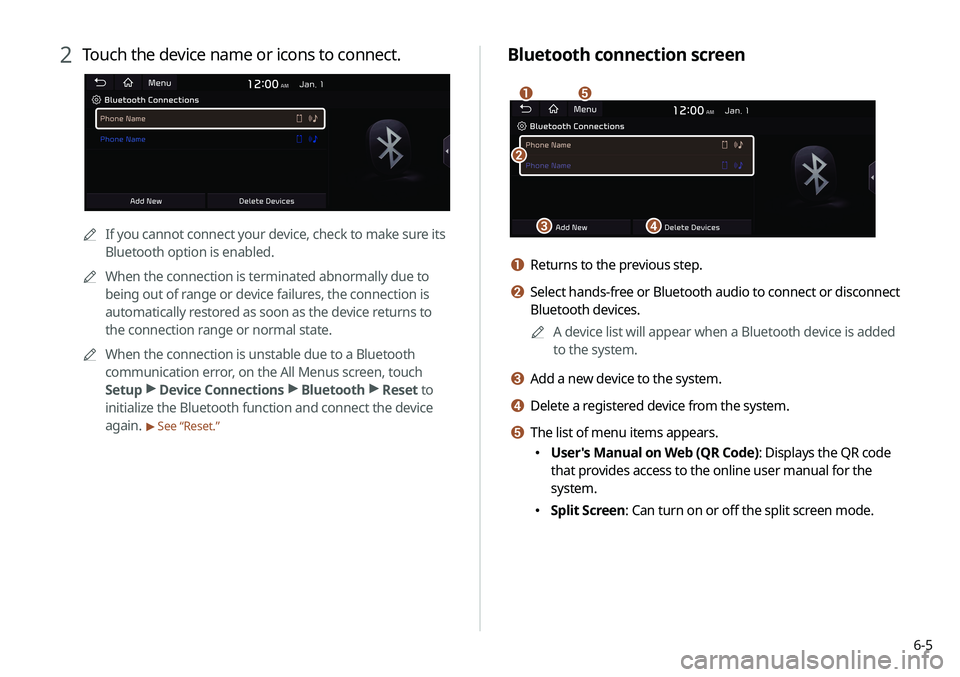
Bluetooth connection screen
\037
\036
\035
\034
\033
a Returns to the previous step.
b Select hands-free or Bluetooth audio to connect or disconnect
Bluetooth devices.0000
A
A device list will appear when a Bluetooth device is added
to the system.
c Add a new device to the system.
d Delete a registered device from the system.
e The list of menu items appears.
\225User's Manual on Web (QR Code): Displays the QR code
that provides access to the online user manual for the
system.
\225Split Screen: Can turn on or off the split screen mode.
2 Touch the device name or icons to connect.
0000A If you cannot connect your device, check to make sure its
Bluetooth option is enabled.
0000
A
When the connection is terminated abnormally due to
being out of range or device failures, the connection is
automatically restored as soon as the device returns to
the connection range or normal state.
0000
A
When the connection is unstable due to a Bluetooth
communication error, on the All Menus screen, touch
Setup >
Device Connections >
Bluetooth >
Reset to
initialize the Bluetooth function and connect the device
again.
> See “Reset.”
Page 110 of 211
6-8
Dialing from the favorites list
Make a list of frequently used phone numbers to call them quickly
in the future.
When you connect your mobile device and system over
Bluetooth, your contacts stored on the device will be downloaded
to the system, and you can add frequently used phone numbers
to the favorites list. Call your favorite contacts quickly and easily
by selecting them from the list.
1 Perform any of the following methods:
\225On the All Menus screen, touch Phone.
\225On the steering wheel, press the [] button.
2 On the Bluetooth Call screen, touch .
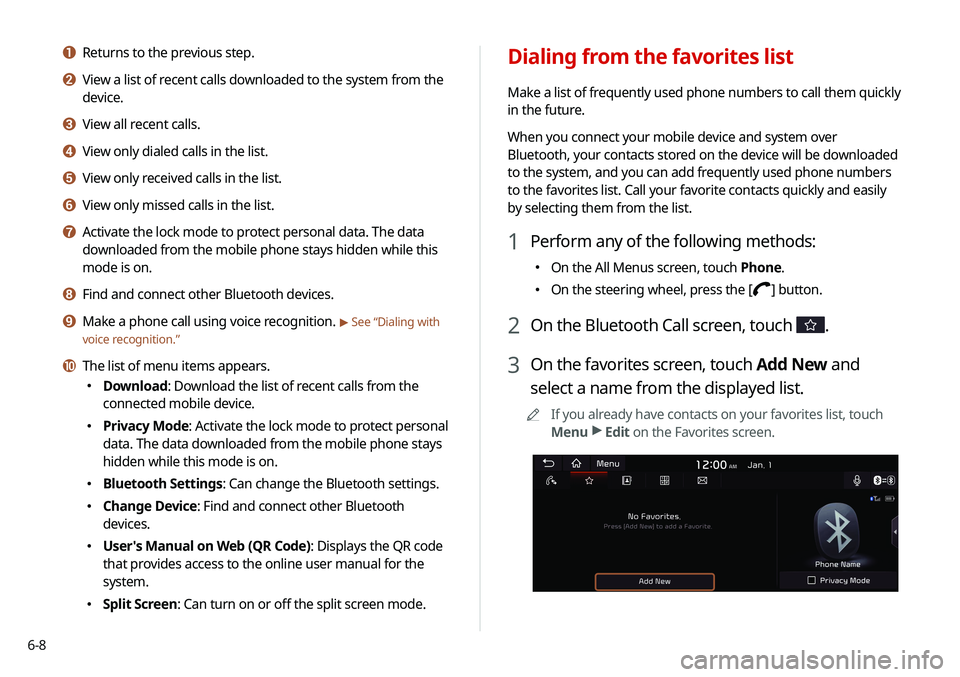
3 On the favorites screen, touch Add New and
select a name from the displayed list.
0000
A
If you already have contacts on your favorites list, touch
Menu >
Edit on the Favorites screen.
a Returns to the previous step.
b View a list of recent calls downloaded to the system from the
device.
c View all recent calls.
d View only dialed calls in the list.
e View only received calls in the list.
f View only missed calls in the list.
g Activate the lock mode to protect personal data. The data
downloaded from the mobile phone stays hidden while this
mode is on.
h Find and connect other Bluetooth devices.
i Make a phone call using voice recognition. > See “Dialing with
voice recognition.”
j The list of menu items appears.
\225 Download: Download the list of recent calls from the
connected mobile device.
\225Privacy Mode: Activate the lock mode to protect personal
data. The data downloaded from the mobile phone stays
hidden while this mode is on.
\225Bluetooth Settings: Can change the Bluetooth settings.
\225Change Device: Find and connect other Bluetooth
devices.
\225User's Manual on Web (QR Code): Displays the QR code
that provides access to the online user manual for the
system.
\225Split Screen: Can turn on or off the split screen mode.
Page 112 of 211
6-10
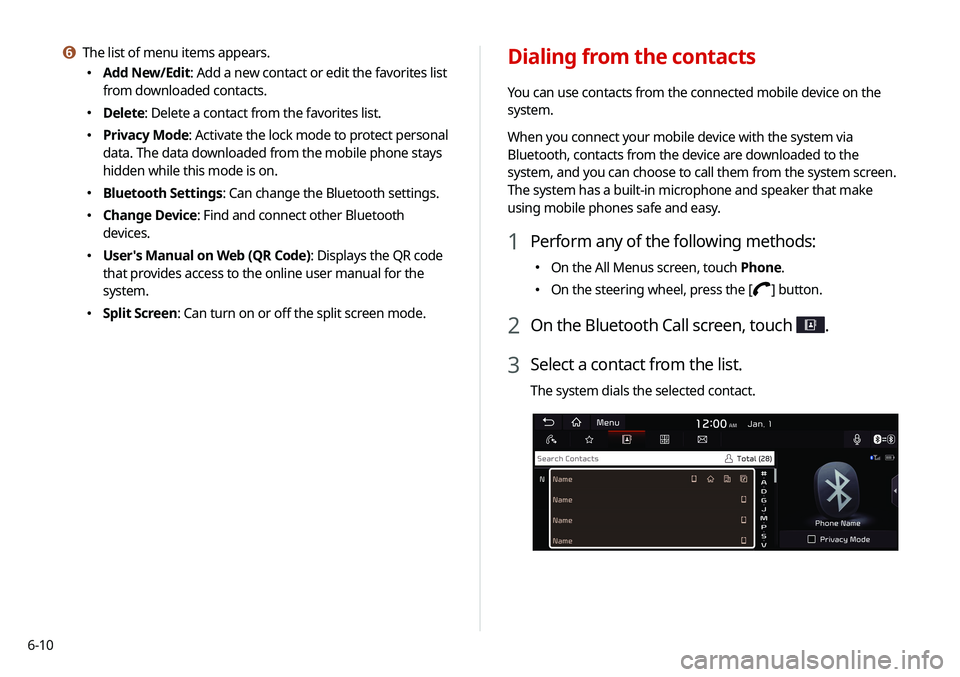
Dialing from the contacts
You can use contacts from the connected mobile device on the
system.
When you connect your mobile device with the system via
Bluetooth, contacts from the device are downloaded to the
system, and you can choose to call them from the system screen.
The system has a built-in microphone and speaker that make
using mobile phones safe and easy.
1 Perform any of the following methods:
\225On the All Menus screen, touch Phone.
\225On the steering wheel, press the [] button.
2 On the Bluetooth Call screen, touch .
3 Select a contact from the list.
The system dials the selected contact.
f The list of menu items appears.
\225
Add New/Edit: Add a new contact or edit the favorites list
from downloaded contacts.
\225Delete: Delete a contact from the favorites list.
\225Privacy Mode: Activate the lock mode to protect personal
data. The data downloaded from the mobile phone stays
hidden while this mode is on.
\225Bluetooth Settings: Can change the Bluetooth settings.
\225Change Device: Find and connect other Bluetooth
devices.
\225User's Manual on Web (QR Code): Displays the QR code
that provides access to the online user manual for the
system.
\225Split Screen: Can turn on or off the split screen mode.
Page 114 of 211

6-12
Using the dial pad
Enter a phone number using the dial pad to make a call.
When you connect your mobile device to the system via
Bluetooth, you can enter and dial a phone number from the
system screen, without interacting with the device. The system
has a built-in microphone and speaker that make using mobile
phones safe and easy.
\335Warning
Do not manually dial a call while driving. Distraction by the use
of a mobile phone may cause you not to recognize traffic flow
around and not to cope with unexpected situations. As a result, a
traffic accident may occur.
1 Perform any of the following methods:
\225On the All Menus screen, touch Phone.
\225On the steering wheel, press the [] button.
2 On the Bluetooth Call screen, touch .
f Find and connect other Bluetooth devices.
g Make a phone call using voice recognition. > See “Dialing with
voice recognition.”
h The list of menu items appears.
\225 Download: Download the list of contacts from the
connected mobile device.
\225Search: Search contacts by entering a name or a phone
number.
\225Privacy Mode: Activate the lock mode to protect personal
data. The data downloaded from the mobile phone stays
hidden while this mode is on.
\225Bluetooth Settings: Can change the Bluetooth settings.
\225Change Device: Find and connect other Bluetooth
devices.
\225User's Manual on Web (QR Code): Displays the QR code
that provides access to the online user manual for the
system.
\225Split Screen: Can turn on or off the split screen mode.
Page 116 of 211
6-14
Dialing with voice recognition
When you connect your mobile device to the system via
Bluetooth, contacts from the device are downloaded to the
system, and you can choose to call them using voice recognition.0000
A
To call using voice recognition, there must be contacts stored
on the system.
1 Perform any of the following methods:
\225On the All Menus screen, touch Phone.
\225On the steering wheel, press the [] button.
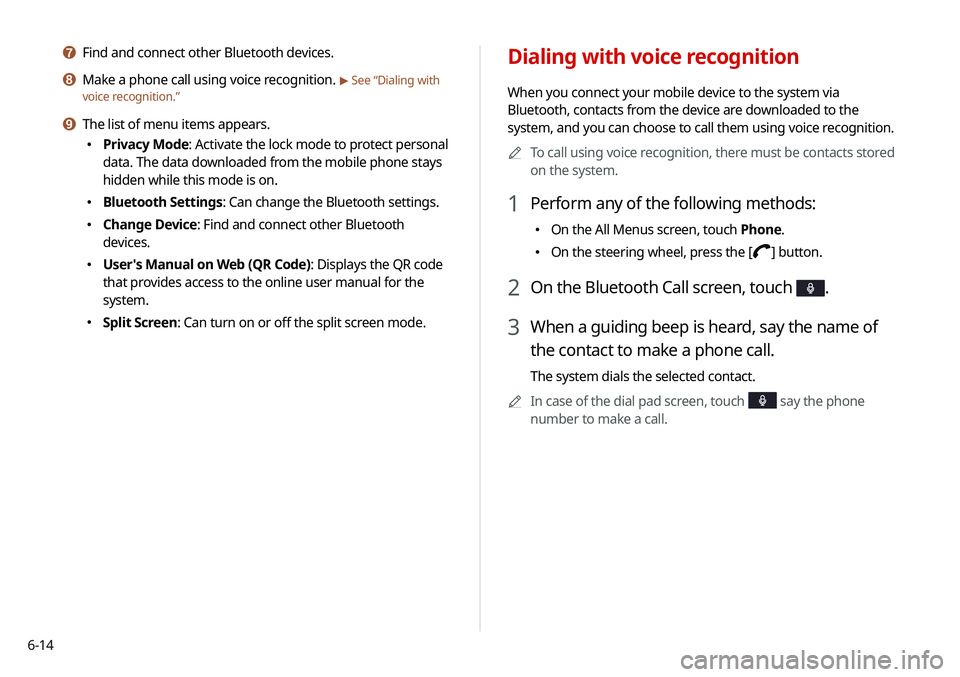
2 On the Bluetooth Call screen, touch .
3 When a guiding beep is heard, say the name of
the contact to make a phone call.
The system dials the selected contact.
0000
A
In case of the dial pad screen, touch
say the phone
number to make a call.
g Find and connect other Bluetooth devices.
h Make a phone call using voice recognition. > See “Dialing with
voice recognition.”
i The list of menu items appears.
\225 Privacy Mode: Activate the lock mode to protect personal
data. The data downloaded from the mobile phone stays
hidden while this mode is on.
\225Bluetooth Settings: Can change the Bluetooth settings.
\225Change Device: Find and connect other Bluetooth
devices.
\225User's Manual on Web (QR Code): Displays the QR code
that provides access to the online user manual for the
system.
\225Split Screen: Can turn on or off the split screen mode.
Page 120 of 211
6-18
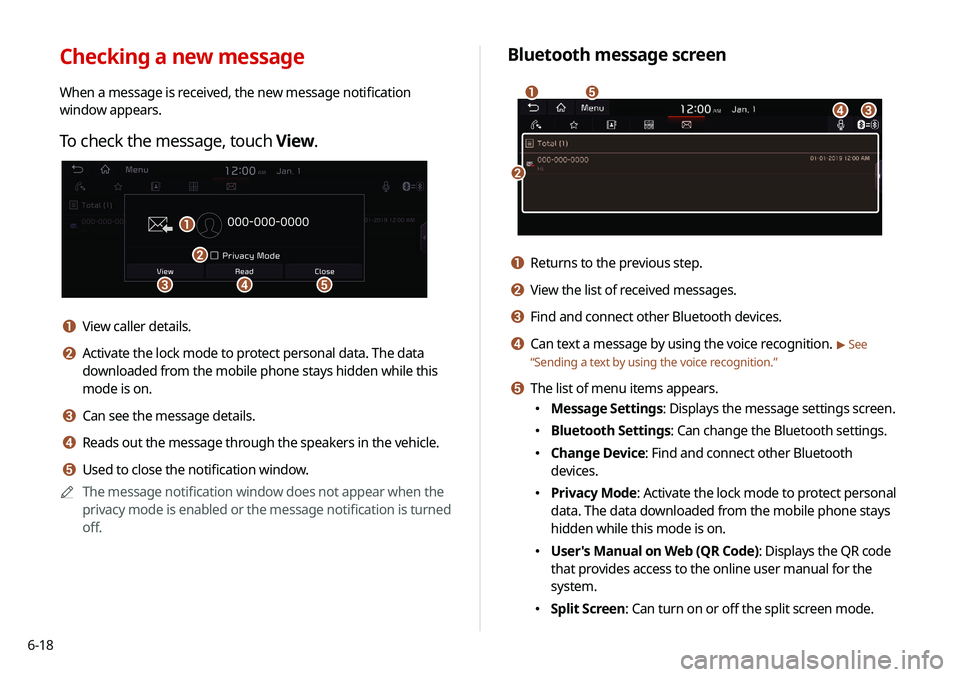
Bluetooth message screen
\037
\036
\035
\034
\033
a Returns to the previous step.
b View the list of received messages.
c Find and connect other Bluetooth devices.
d Can text a message by using the voice recognition. > See
“ Sending a text by using the voice recognition.”
e The list of menu items appears.
\225
Message Settings: Displays the message settings screen.
\225Bluetooth Settings: Can change the Bluetooth settings.
\225Change Device: Find and connect other Bluetooth
devices.
\225Privacy Mode: Activate the lock mode to protect personal
data. The data downloaded from the mobile phone stays
hidden while this mode is on.
\225User's Manual on Web (QR Code): Displays the QR code
that provides access to the online user manual for the
system.
\225Split Screen: Can turn on or off the split screen mode.
Checking a new message
When a message is received, the new message notification
window appears.
To check the message, touch View.
\037\036
\035
\034
\033
a View caller details.
b Activate the lock mode to protect personal data. The data
downloaded from the mobile phone stays hidden while this
mode is on.
c Can see the message details.
d Reads out the message through the speakers in the vehicle.
e Used to close the notification window.
0000
A
The message notification window does not appear when the
privacy mode is enabled or the message notification is turned
off.
Page 132 of 211
7-10
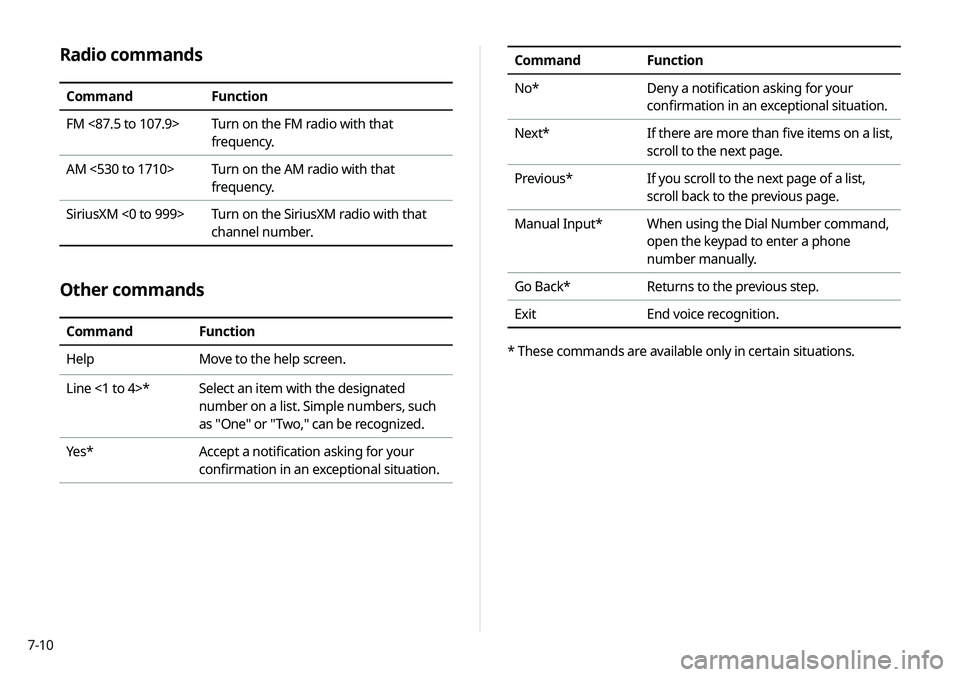
Radio commands
CommandFunction
FM <87.5 to 107.9> Turn on the FM radio with that
frequency.
AM <530 to 1710> Turn on the AM radio with that
frequency.
SiriusXM <0 to 999> Turn on the SiriusXM radio with that
channel number.
Other commands
CommandFunction
Help Move to the help screen.
Line <1 to 4>* Select an item with the designated
number on a list. Simple numbers, such
as "One" or "Two," can be recognized.
Yes * Accept a notification asking for your
confirmation in an exceptional situation.
Command Function
No* Deny a notification asking for your
confirmation in an exceptional situation.
Next* If there are more than five items on a list,
scroll to the next page.
Previous* If you scroll to the next page of a list,
scroll back to the previous page.
Manual Input* When using the Dial Number command,
open the keypad to enter a phone
number manually.
Go Back* Returns to the previous step.
Exit End voice recognition.
* These commands are available only in certain situations.
