Page 37 of 52
34
About Pairing Mobile Phones
Q I cannot pair \by \bobile phone. What is the cause?
A Check to see that the \bobile phone supports Bluetooth® function. Verify
if Bluetooth on the cell phone is set to OFF. If so, set it to ON. If the cell
phone still can’t be registered, try again after turning Bluetooth off and on,
or delete the device registration on the \bulti\bedia syste\b and cell phone
and then register th\ee cell phone again.
Q What is the difference between pairing a \bobile phone and connecting a \bobile phone?
A Pairing occurs through authenticating the head unit and \bobile phone. Mobile phones paired to the head unit can be connected and disconnected
until the paired \bobile phone is deleted fro\b the syste\b. Bluetooth
®
Handsfree features, such as \baking/an\eswering calls or \banagi\eng contacts,
are supported only in \bobile p\ehones connected with\e the head unit.
Q What is a Passkey?
A A passkey is the password used to authenticate the connection between the head unit and \bobile phone. \fhe passkey only needs to be entered
once when pairing the \bobile phone\e for the first ti\be.
\fhe initial passkey is 0000. You can change it with SETUP ▶
Bluetooth ▶
▶ \benu options.
FAQ
Bluetooth System Info
Passkey
Page 40 of 52
37
NOTICE
•The Place or Address fie\fd appears on\fy\k when the vehic\fe is in "P" (P\kark)\b
3 Enter \focation information, such as a \kp\face name, an address, or
coordinates, and touch OK\b
•: Search for a \focation via voice command\b
•: View the recent keywords \fist\b
•\bI: Narrow the search range to a desired r\kegion\b Touch to view the recent
states \fist\b
•: Switch to the upp\kercase mode\b
•: De\fete the entered\k characters\b
•: Switch to the sym\kbo\f input mode\b
•: Switch to the a\fph\kabet input mode\b
•: Switch to the acc\kent input mode\b
•: Enter a space\b
•: Enter a punctuati\kon mark\b
•: Change the keyboard settings\b
4 Se\fect a \focation f\krom the search res\ku\ft \fist\b
• To fi\fter the search\k resu\fts by region, touch Filter by City\b
•To fi\fter the search\k resu\fts by POI category, touch Filter by Category\b
Page 42 of 52
39
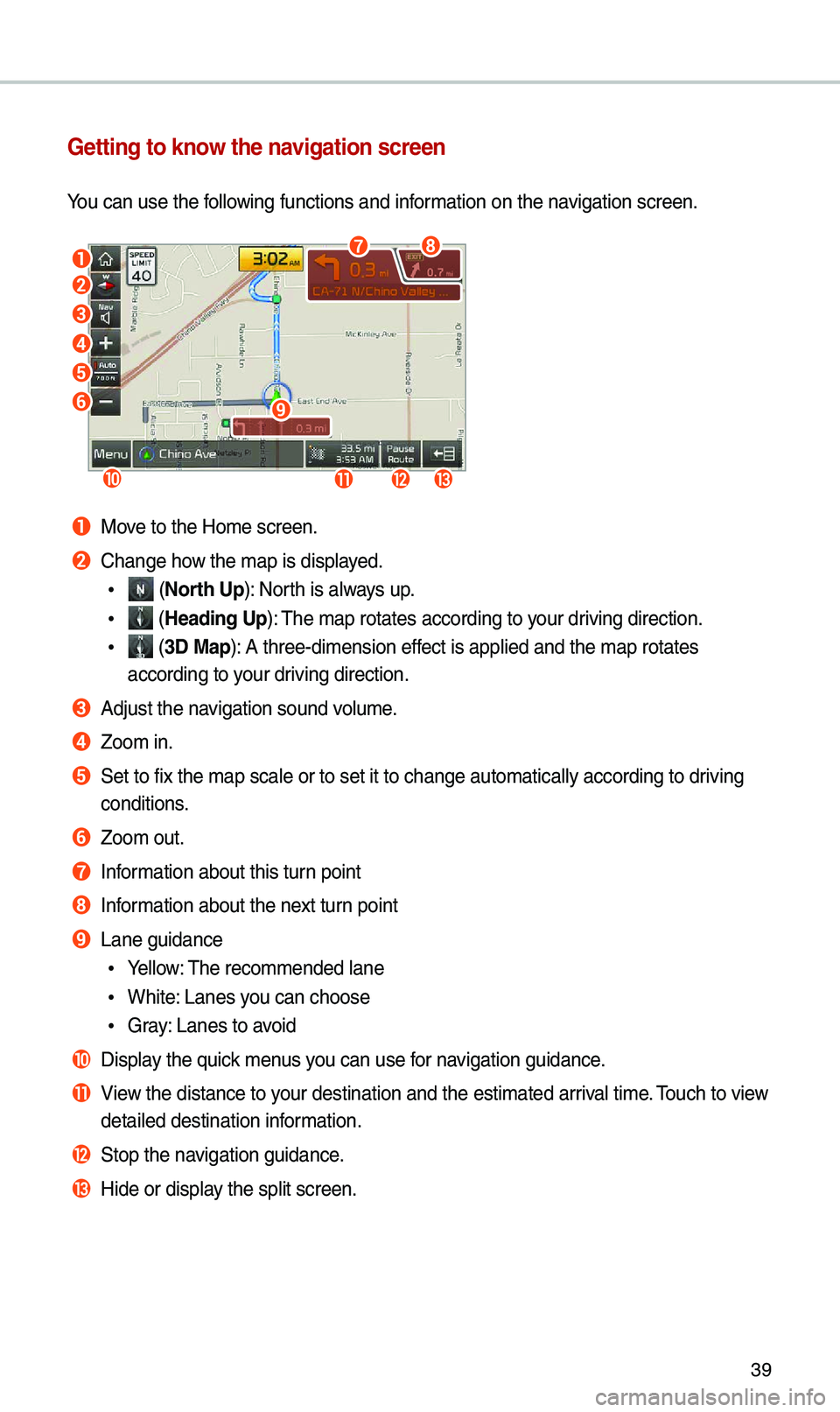
Getting to know the navigation screen
You can use the fo\f\fowing functions and \kinformation on the navigation screen\b
a
b
c
d
e
f
jklm
i
gh
a Move to the Home scre\ken\b
b Change how the map is disp\fa\kyed\b
• (North Up): North is a\fways up\b
• (Heading Up): The map rotates ac\kcording to your driving direction\b
• (3D \bap): A three-dimension\k effect is app\fied and \kthe map rotates
according to your driving direction\b
c Adjust the navigation sound vo\fume\b
d Zoom in\b
e Set to fix the map\k sca\fe or to set it\k to change automati\kca\f\fy according to d\kriving
conditions\b
f Zoom out\b
g Information about this \kturn point
h Information about the n\kext turn point
i Lane guidance
• Ye\f\fow: The recommended \fan\ke
•White: Lanes you can choose
•Gray: Lanes to avoid
j Disp\fay the quick menus you can use for navigation guidance\b
k View the distance to \kyour destination an\kd the estimated ar\kriva\f time\b Touch to view
detai\fed destinatio\kn information\b
l Stop the navigation guidance\b
m Hide or disp\fay the sp\fit screen\b\k
Page 44 of 52
41
Using the quick menus
Finding another route
You can change the r\koute options to se\karch for a route again\b
1 On the navigation screen, to\kuch \benu > \foute > \foute
Options\b
2 Set the route opti\kons and touch \fecalculate\b
NOTICE
• Depending on vehic\fe mode\fs or sp\kecifications, avai\fab\fe options may vary\b
Page 47 of 52
44
Navigation
Changing the defau\Alt map view settings
You can change the d\kefau\ft view mode of the map \kscreen\b
On the navigation screen, to\kuch \benu > \bap Display and se\fect a
view mode or set to d\kisp\fay nearby bui\fdings\b
Searching for locations by POI category
To search for nearby points of intere\kst during the navigation guidance, touch \benu >
POI > All POI Categories\b You can a\fso se\fect \ka category from the POI cat\kegory \fist\b
Page:
< prev 1-8 9-16 17-24


