2021 HYUNDAI TUCSON HYBRID Wireless
[x] Cancel search: WirelessPage 34 of 630

2-5
02
1. Instrument cluster ..................................4-4
2. Driver’s front air bag .............................3-46
3. Engine Start/Stop button .......................6-8
4. Infotainment system ..Infotainment manual
5. Hazard warning lamp switch .................8-2
6. climate control system .........................5-96
7. Air ventilation seat ................................3-20
8. Seat warmer ..........................................3-18
9. Heated steering wheel ........................5-42
10. Parking Safety button .........................7-136
11. Parking/View button ...........................7-112
12. Transmission shift button .....................6-13
13. EPB (Electronic Parking Brake) switch ..6-22
14. Auto Hold switch .................................6-26
15. Drive mode button ..............................6-48
16. Passenger’s front air bag .....................3-46
17. Glove box ..............................................5-116
18. USB port ...............................................5-128
19. Power outlet ..........................................5-118
20. USB charger ..........................................5-119
21. Wireless charging system pad ............5-120
22. DBC (Downhill Brake Control) button .6-36
The actual shape may differ from the illustration.
ONX4H010005N
INSTRUMENT PANEL OVERVIEW (I)
Page 150 of 630
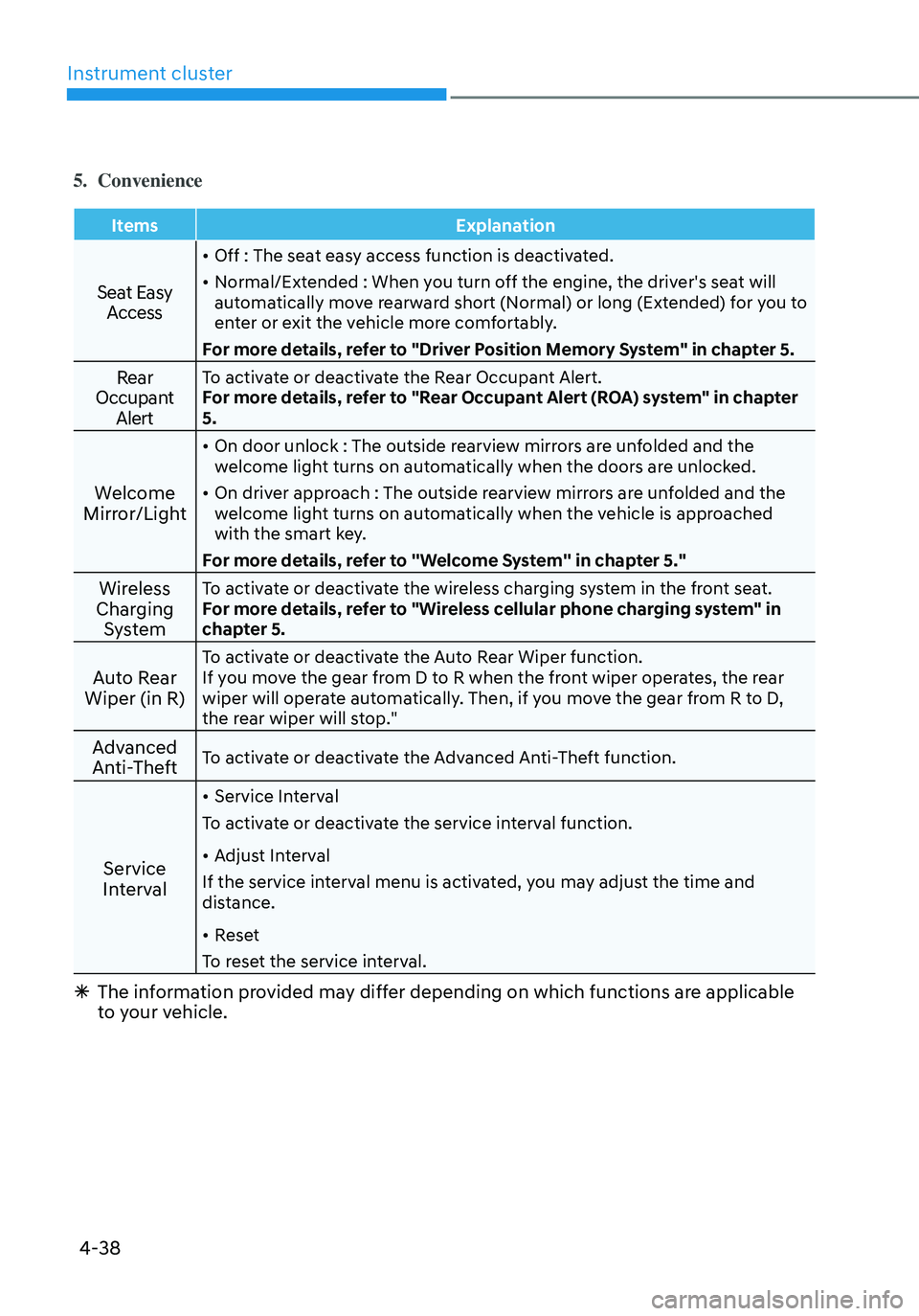
Instrument cluster
4-38
5. Convenience
ItemsExplanation
Seat Easy
Access
• Off : The seat easy access function is deactivated.
• Normal/Extended : When you turn off the engine, the driver's seat will
automatically move rearward short (Normal) or long (Extended) for you to
enter or exit the vehicle more comfortably.
For more details, refer to "Driver Position Memory System" in chapter 5.
Rear
Occupant AlertTo activate or deactivate the Rear Occupant Alert.
For more details, refer to "Rear Occupant Alert (ROA) system" in chapter
5.
Welcome
Mirror/Light
• On door unlock : The outside rearview mirrors are unfolded and the
welcome light turns on automatically when the doors are unlocked.
• On driver approach : The outside rearview mirrors are unfolded and the
welcome light turns on automatically when the vehicle is approached
with the smart key.
For more details, refer to ''Welcome System'' in chapter 5."
Wireless
Charging SystemTo activate or deactivate the wireless charging system in the front seat.
For more details, refer to "Wireless cellular phone charging system" in
chapter 5.
Auto Rear
Wiper (in R)To activate or deactivate the Auto Rear Wiper function.
If you move the gear from D to R when the front wiper operates, the rear
wiper will operate automatically. Then, if you move the gear from R to D,
the rear wiper will stop."
Advanced
Anti-TheftTo activate or deactivate the Advanced Anti-Theft function.
Service
Interval
• Service Interval
To activate or deactivate the service interval function.
• Adjust Interval
If the service interval menu is activated, you may adjust the time and
distance.
• Reset
To reset the service interval.
à The information provided may differ depending on which functions are applicable
to your vehicle.
Page 160 of 630

Interior features ........................................................................\
......................5-117Cup holder ........................................................................\
......................................... 5-117
Sun visor ........................................................................\
............................................. 5-
118
Power outlet
........................................................................\
...................................... 5-
118
USB charger
........................................................................\
....................................... 5-
119
Wireless smart phone charging system
.................................................................. 5-
120
Clock
........................................................................\
.................................................. 5-
123
Coat hook
........................................................................\
........................................... 5-
123
Floor mat anchor(s)
........................................................................\
.......................... 5-
124
Luggage net holder
........................................................................\
.......................... 5-
124
Cargo security screen
........................................................................\
....................... 5-
125
Exterior features ........................................................................\
.....................5-127Roof side rails ........................................................................\
.................................... 5-127
Infotainment system ........................................................................\
..............5-128USB Port ........................................................................\
............................................ 5-128
An tenna ........................................................................\
..................................... ........5-128
Steering wheel remote controls
........................................................................\
...... 5-128
In
fotainment system
........................................................................\
........................ 5-
129
Voice recognition
........................................................................\
............................. 5-
129
Bluetooth® Wireless Technology
........................................................................\
..... 5-130
5. Convenient features
5
Page 174 of 630
05
5-17
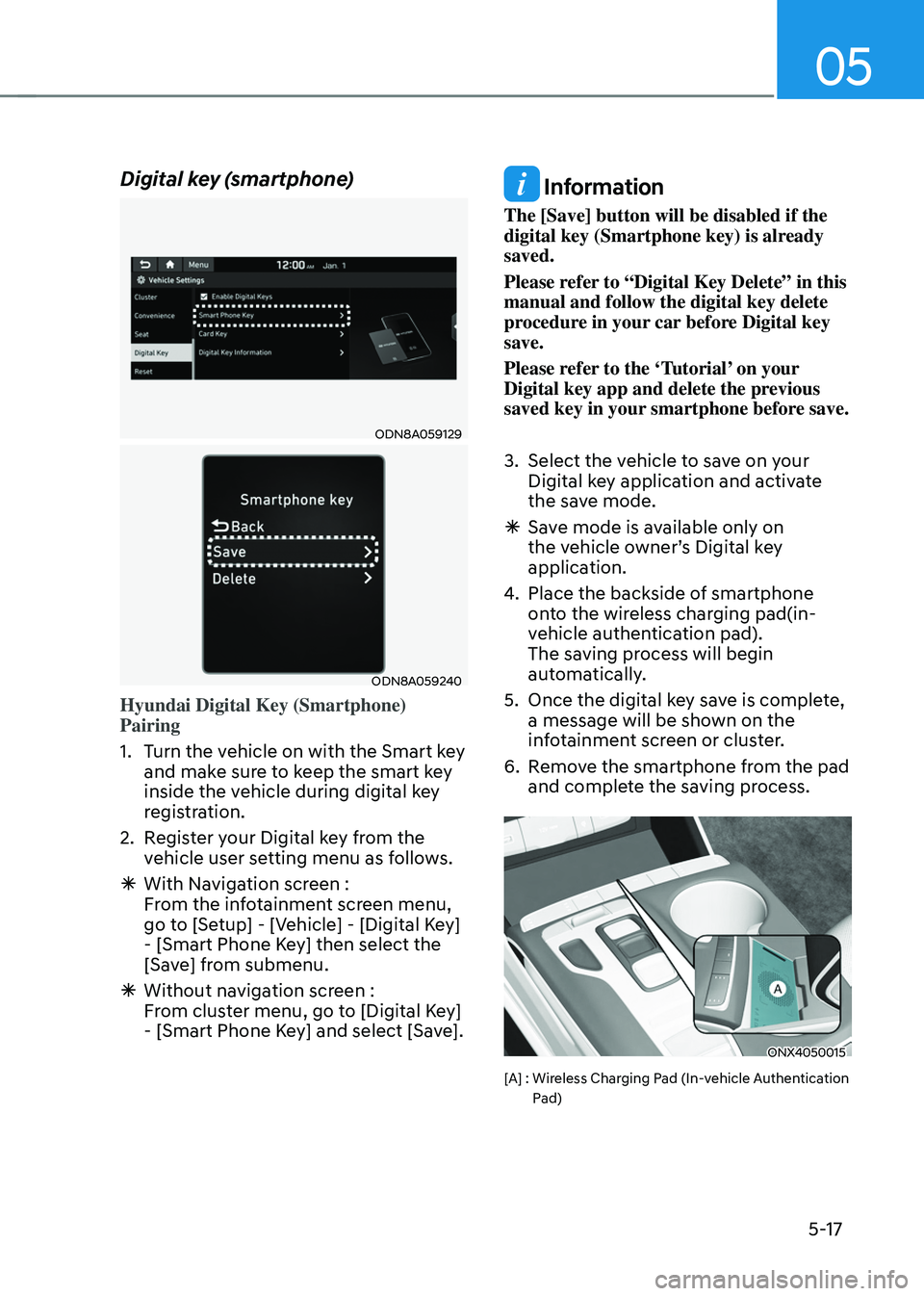
Digital key (smartphone)
ODN8A059129
ODN8A059240
Hyundai Digital Key (Smartphone)
Pairing
1.
Turn the v
ehicle on with the Smart key
and make sure to keep the smart key
inside the vehicle during digital key
registration.
2.
Regis
ter your Digital key from the
vehicle user setting menu as follows.
à With Naviga
tion screen :
From the infotainment screen menu,
go to [Setup] - [Vehicle] - [Digital Key]
- [Smart Phone Key] then select the
[Save] from submenu.
à Without naviga
tion screen :
From cluster menu, go to [Digital Key]
- [Smart Phone Key] and select [Save].
Information
The [Save] button will be disabled if the
digital key (Smartphone key) is already
saved.
Please refer to “Digital Key Delete” in this
manual and follow the digital key delete
procedure in your car before Digital key
save.
Please refer to the ‘Tutorial’ on your
Digital key app and delete the previous
saved key in your smartphone before save.
3.
Select the vehicle t
o save on your
Digital key application and activate
the save mode.
à Sav
e mode is available only on
the vehicle owner’s Digital key
application.
4.
Place the backside o
f smartphone
onto the wireless charging pad(in-
vehicle authentication pad).
The saving process will begin
automatically.
5.
Once the digital ke
y save is complete,
a message will be shown on the
infotainment screen or cluster.
6.
Remo
ve the smartphone from the pad
and complete the saving process.
ONX4050015
[A] : Wireless Charging Pad (In-vehicle Authentication
P
ad)
Page 177 of 630

Convenient features
5-20
Start-up with Digital Key
1.
Aft
er placing your registered
smartphone onto the authentication
pad (same location as the wireless
charging pad), step on the brake and
press the Engine Start/Stop button.
2.
Aft
er start-up, the digital key data
will be automatically updated. It
takes 5 to 20 seconds, after that,
the smartphone can be go into the
wireless charging mode automatically.
Once the engine started, you can
remove the smartphone from the pad.
ONX4050015
[A] : Wireless Charging Pad (In-vehicle Authentication
P
ad)
Information
After reconnecting the vehicle battery
power supply or charging the battery, it
may take time to operate due to remote
renewal of security information. In this
case, when you lock or unlock the doors
using your smartphone Digital Key, it
may take a little longer for the vehicle to
authenticate. Hold your smartphone near
the NFC door handle sensor for a few
seconds or until you hear the door locks
actuate.
Note that if your vehicle is parked in an
area where cell coverage is weak, the
smartphone Digital Key can still be used on
for a limited number of times to unlock and
start your vehicle.
After starting your vehicle, it is
recommended to leave your smartphone
on the wireless charging pad until cell
phone service is stronger and digital key
authentication can occur.
Once authentication is complete, the
wireless charger will turn on (wireless
charging LED will illuminate).
CAUTION
The engine can be turned on if the
registered smartphone or card key is
placed on the interior authentication
pad (wireless charger). Do not leave
children unattended in the vehicle
when using the smartphone Digital Key.
Serious injury or death can occur.
Do not leave anyone in the vehicle
without knowledge of the Digital Key
system when using the smartphone
Digital Key. Always have the registered
digital key (smartphone) or card key
with you to prevent vehicle theft when
leaving the vehicle.
For more information, refer to the
Engine Start/Stop button in chapter 6.
Page 179 of 630

Convenient features
5-22
Remote Start with Digital Key
• Using the Hyundai Digital Key app
on your phone, press the Door Lock
button and then press the Remote
Start button (buttons must be pressed
within about 4 seconds). If all the
doors of your vehicle are closed
(including the hood and the liftgate),
the engine will be automatically
started.
Note that when the remote start
feature is activated, the hazard
warning lights will blink two times
and a chime will sound before engine
startup. Also note the following:
• The climate control system will come
on using the same settings from when
you last used the vehicle
• To turn off the engine, press the
Remote Engine Stop button within the
Hyundai Digital Key app.
• The engine will remain running for
approximately 10 minutes, and then
engine will automatically shut OFF.
• To keep the engine running, access
the vehicle and place the smartphone
on the wireless charging pad
(authentication pad) while the engine
is still in remote engine-ON mode.
For more information, refer to the Engine
Start/Stop button in chapter 6. Vehicle information Display
The digital key application displays
the vehicle information such as
driving or door conditions through the
communication with the vehicle.
•
How to check : Select the vehicle
what you want to check and touch
the vehicle image, then vehicle
information display page will be
shown.
• Contents : accumulated odometer,
latest fuel economy, driving range,
fuel remaining, tire pressure, doors
lock/unlock status and last data
updated time.
ÃNo
te that displayed vehicle data may
be slightly different from the current
vehicle condition
à For mor
e information, please refer to
the ‘Tutorial’ on your Digital key app.
Page 180 of 630
05
5-23
Smartphone change/App deletion
If you change your smartphone or delete
the Hyundai Digital Key App, please refer
to the following to set up your Digital
Key:
Smartphone Change/ Reset
If you change or reset the smartphone,
the registered digital key in your previous
smartphone may not be used. Please
refer to following procedure to use the
digital key.
1.
Install the digital k
ey application and
log in.
2.
If you ar
e the owner, retry the Digital
key save process.
3.
If you ar
e the sharer, need to re-share
the key from owner.
App delete & reinstall/ Delete App data
You can re-download the digital key
from server in these cases as follow
procedure.
1.
Reins
tall the application and log in.
2.
Input the PIN number for user
v
erification.
3.
If PIN is correct, digital k
ey data
will be re-downloaded to your
smartphone and you can use it
without any further registration or
sharing.
Smartphone operability with Digital Key
The digital key application may not
be available to old type smartphones.
Please check the available smartphone
models with your dealer. NFC antenna
position on the smartphone can be
confirmed on each smartphone’s manual
or contact to customer service center of
the smartphone manufacture. CAUTION
• Do not leave the registered digital
key (smartphone) and card key in
your vehicle. Please carry around
your keys all the times.
• If you happen to lose your digital
key (smartphone) or card key
registered as a main user’s key, you
should immediately delete the key
on the vehicle’s key menu. For more
information, refer to the Digital Key
Deletion in this chapter.
• If you registered your digital key
(smartphone) or card key in the
vehicle, a message appears on the
instrument cluster and let you know
the key is registered.
(Message: Digital key(s) active.)
• If you buy a used vehicle, you should
confirm the message and delete the
registered smartphone key and card
key. In this case, you should carry
your smart key.
• If you keep place the NFC card
of the digital key on the interior
authentication pad (wireless
charger) while driving, it may cause a
malfunction of the NFC card.
• You should remove your NFC card
of the digital key on the interior
authentication pad after turning on
the engine.
• Hyundai digital key app may not
work properly when the NFC or
Bluetooth communication between
smartphone and car is not good.
• If the remote control operation
is executed where the mobile
connection is weak, Bluetooth
connection is poor due to lots of
Bluetooth devices or there is an
object such as metal or concrete, it
might be delayed or the operable
distance might decrease. Especially,
you should not cover the smartphone
with your hand or place other
devices which can cause frequency
interference. It may result in poor
performance.
Page 181 of 630
Convenient features
5-24
• If the remote control function is not
activated, please use NFC function to
lock or unlock the doors
• You should be careful not to
press the remote control button
on the digital key (smartphone)
accidentally.
• If the digital key (smartphone) is
discharged or defective or you
cannot use the digital key since the
vehicle battery is discharged, use the
inside door lock button to lock all of
the doors.
CAUTION
• Hyundai digital key app on the
smartphone and card key may not
work if any of the following occurs:
-Hyundai digital ke
y app on the
smartphone is deleted. (Required
to reinstall the app)
- Ac
count log in information of
Hyundai digital key app is expired.
(Required to re-log in)
- When you try t
o log in to another
smartphone instead of the
registered smartphone with same
user account.
- Smartphone roo
ting or app
hacking is detected.
- Smartphone batt
ery or the vehicle
battery is discharged.
- Smartphone’
s screen is off or
locked.
- NFC or Blue
tooth is turned off on
the smartphone settings.
- Smartphone’
s mobile network
setting is off or airplane mode is
activated.
- A credit car
d is overlapped in the
back of your smartphone or metal
or thick case is used.
- Use the car
d key with insert it
into the wallet or card holder or
overlapping with other cards.
- If y
ou use a smart phone cover that
uses wireless communication or is
made of metal, the digital key NFC
function may not work properly.
Remove the smart phone cover
before using the digital key NFC
function.
• The vehicle may not be controlled by
the smartphone if any of the following
occurs:
- Basic and necessary functions o f
the smartphone manufacturer are
operating. (General call, urgent
call, audio or NFC payment)
- Wireless earphone is oper
ating.
(General call, urgent call or audio)
- The digital ke
y app function such
as basic setting or app launching
is limited by prior policy according
to the manufacturer while using a
smartphone produced by domestic
and foreign manufactures.
à If y
ou change the smartphone
number, you should modify the user
account information on the HYUNDAI
customer web site to use the digital
key app.
à If the v
ehicle owner changes
the smartphone device, the new
smartphone should be registered in
the car after deleting the registered
digital key(smartphone).
à If a shar
er changes or reset the
smartphone, the key should be re-
shared from owner.
à Some of the old smartphone ma
y
not work properly. Please check the
available smartphone models with
your dealer.
à NFC an
tenna position on the
smartphone can be confirmed
on each smartphone’s manual or
contact to customer service center
of the smartphone manufacture.