2021 HONDA INSIGHT pairing
[x] Cancel search: pairingPage 206 of 687

204
uuOperating the Switches Around the Steering Wheel uAuto High-Beam
Controls
Auto High-Beam
The front sensor camera detects the light sources ahead of the vehicle such as the
lights of a preceding or oncoming vehicle, or street lights. When you are driving at
night, the system automatically switches the headlights between low beam and high
beam depending on the situation.
When all of the following conditions have been met, the auto high-beam indicator
comes on and the auto high-beam is activated. •The power mode is in ON.
• The light switch is in AUTO.
• The lever is in the low beam position.
• The headlights have been automatically
activated.
• It is dark outside the vehicle.
If the auto high-beam indicator does not co me on even when all the conditions have
been met, carry out the following procedure and the indicator will come on.
• Pull the lever toward you for flashing the high beams then release it while driving.1Auto High-Beam
The auto high-beam system does not always operate
in every situation. This syst em is just for assisting the
driver. Always observe your surroundings and switch
the headlights between high beam and low beam
manually if necessary.
If you find the timing of beam changes inconvenient
for driving, change the headlight beams manually.
The range and the distance at which the camera can
recognize varies de pending on conditions
surrounding your vehicle.
Regarding the handling of the camera mounted to
the inside of the windshiel d, refer to the following.
2 Front Sensor Camera P. 536
For the auto high-beam to work properly:
•Do not place an object that reflects light on the
dashboard.
•Keep the windshield around the camera clean.
•When cleaning the windshield, be careful not to
apply the windshield cleans er to the camera lens.
•Do not attach an object, sticker or film to the area
around the camera.
•Do not touch the camera lens.
If the camera receives a st rong impact, or repairing of
the area near the camera is required, consult a dealer.
■How to Use the Auto High-Beam
Front Sensor Camera
Auto High-Beam
Indicator
Light Switch
21 INSIGHT-31TXM6200.book 204 ページ 2020年2月5日 水曜日 午前10時0分
Page 336 of 687

334
uuAudio System Basic Operation uAndroid Auto
Features
Android Auto
When you connect an Android phone to the audio system via the USB port, Android
Auto is automatically initia ted. When connected via Android Auto, you can use the
audio/information screen to access the Phone, Google Maps (Navigation), Google
Play Music, and Google Now functions. Wh en you first use Android Auto, a tutorial
will appear on the screen.
We recommend that you complete this tuto rial while safely parked before using
Android Auto.
2 USB Port(s) P. 241
2 Auto Pairing Connection P. 336
1Android Auto
To use Android Auto, you need to download the
Android Auto app from Google Play to your
smartphone.
Only Android 5.0 (Lollipop) or later versions are
compatible with Android Auto.
Bluetooth A2DP cannot be used with Android Auto
phone.
Park in a safe place befo re connecting your Android
phone to Android Auto and when launching any
compatible apps.
To use Android Auto, connect the USB cable to the
USB port.
2 USB Port(s) P. 241
When your Android phone is connected to Android
Auto, it is not possible to use the Bluetooth® Audio.
However, other previously paired phones can stream
audio via Bluetooth ® while Android Auto is
connected. 2 Phone Setup P. 425
21 INSIGHT-31TXM6200.book 334 ページ 2020年2月5日 水曜日 午前10時0分
Page 338 of 687
uuAudio System Basic Operation uAndroid Auto
336
Features
d Music and audio
Play Google Play Music and music apps that are compatible with Android Auto.
To switch between music apps, press this icon.
e Go back to the Home Screen.
f Voice
Operate Android Auto with your voice.
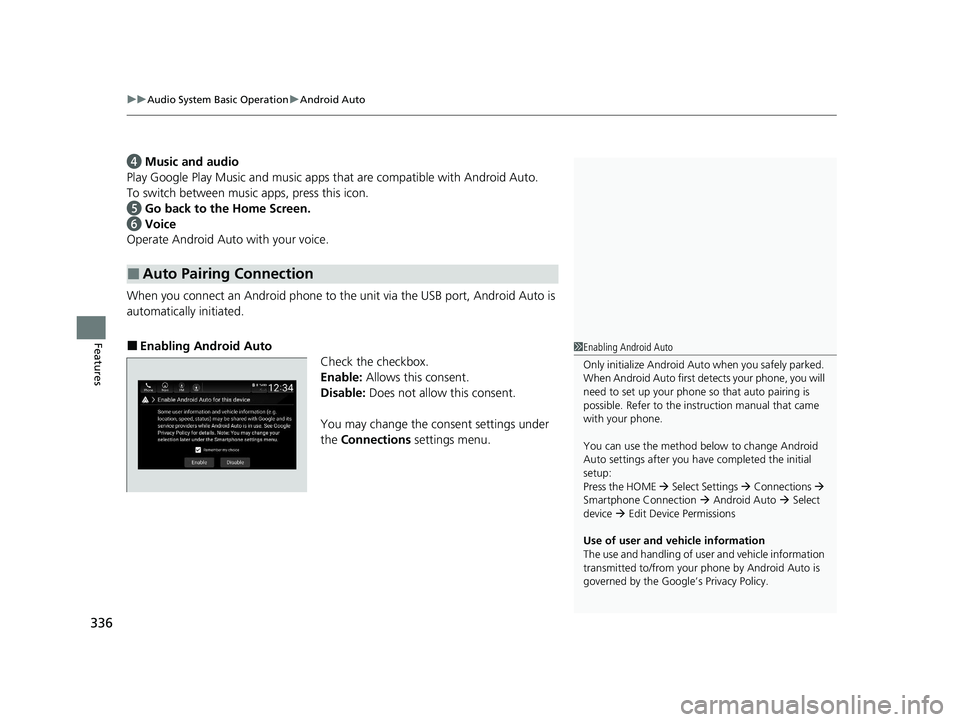
When you connect an Android phone to the unit via the USB port, Android Auto is
automatically initiated.
■Enabling Android Auto Check the checkbox.
Enable: Allows this consent.
Disable: Does not allo w this consent.
You may change the consent settings under
the Connections settings menu.
■Auto Pairing Connection
1Enabling Android Auto
Only initialize Android Auto when you safely parked.
When Android Auto first detects your phone, you will
need to set up your phone so that auto pairing is
possible. Refer to the inst ruction manual that came
with your phone.
You can use the method below to change Android
Auto settings after you have completed the initial
setup:
Press the HOME Select Settings Connections
Smartphone Connection Android Auto Select
device Edit Device Permissions
Use of user and vehicle information
The use and handling of user and vehicle information
transmitted to/from your phone by Android Auto is
governed by the Google’s Privacy Policy.
21 INSIGHT-31TXM6200.book 336 ページ 2020年2月5日 水曜日 午前10時0分
Page 397 of 687

395Continued
Features
Bluetooth® HandsFreeLink ®
Bluetooth® HandsFreeLink ® (HFL) allows you to place and receive phone calls using
your vehicle's audio system, without handling your cell phone.
Using HFL
(Pick-up) button: Press to go directly to the pho ne screen or to answer an
incoming call.
(Hang-up/back) button: Press to end a call or to cancel a command.
(Talk) button: Press to call a number with a stored voice tag.
(Phone) button: Press to go directly to the phone screen.
Selector knob: Rotate to select an item on the screen, then press .
■HFL Buttons
1Bluetooth ® HandsFreeLink ®
Place your phone where y ou can get good reception.
To use HFL, you need a Bluetooth-compatible cell
phone. For a list of compatible phones, pairing
procedures, and special fe ature capabilities, visit
automobiles.honda.com /handsfreelink/, or call 1-
888-528-7876.
Voice control tips
•Aim the vents away from the ceiling and close the
windows, as noise coming from them may interfere
with the microphone.
•Press and release the button when you want to
call a number using a st ored voice tag. Speak
clearly and naturally after a beep.
•If the microphone picks up vo ices other than yours,
the command may be misinterpreted.
•To change the volume level, use the audio system’s
volume knob or the remote audio controls on the
steering wheel.
State or local laws may pr ohibit the operation of
handheld electronic devices while operating a vehicle.
If you receive a call while using the audio system, the
system resumes its operati on after ending the call.
Up to 20 speed dial entries can be stored. If there is
no entry in the system, Speed Dial is disabled. 2 Speed Dial P. 411
Up to 20 call histories can be stored. If there is no call
history, Call History is disabled.
Models with color audio
(Talk) Button
Volume up Microphone
(Hang-up/Back) Button
(Pick-up) Button
Volume down Selector Knob
(Phone) Button
21 INSIGHT-31TXM6200.book 395 ページ 2020年2月5日 水曜日 午前10時0分
Page 403 of 687

Continued401
uuBluetooth ® HandsFreeLink ®u HFL Menus
Features
■To pair a cell phone (No phone has
been paired to the system)
1. Press the button or the button.
2. Rotate to select Yes, then press .
3. Rotate to select Add New Device,
then press .
4. Press to select OK.
5. Make sure your phone is in search or
discoverable mode.
u HFL automatically searches for a
Bluetooth ® device.
6. When your phone appears on the list, select
it by pressing .
u If your phone doesn’t appear, select
Phone Not Found? and search for
Bluetooth ® devices using your phone.
From your phone, select
HandsFreeLink ®.
7. The system gives you a pairing code on the
audio/information screen.
u Confirm if the pairing code on the screen
and your phone match.
This may vary by phone.
8. A notification appears on the screen if
pairing is successful.
■Phone Setup1Phone Setup
Your Bluetooth -compatible phone must be paired to
HFL before you can make and receive hands-free
calls.
Phone Pairing Tips:
•You cannot pair your phone while the vehicle is
moving.
•Up to six phones can be paired.
•Your phone’s battery may dr ain faster when it is
paired to HFL.
•If your phone is not ready for pairing or not found
by the system within 30 seconds, the system will
time out and return to idle.
Once you have paired a phone, you can see it
displayed on the screen with one or two icons on the
right side.
These icons indicate the following: : The phone can be used with HFL.
: The phone is compatible with Bluetooth® Audio.
21 INSIGHT-31TXM6200.book 401 ページ 2020年2月5日 水曜日 午前10時0分
Page 405 of 687

403
uuBluetooth ® HandsFreeLink ®u HFL Menus
Continued
Features
6. When your phone appears on the list, select
it by pressing .
u If your phone does not appear, select
Phone Not Found? and search for
Bluetooth ® devices using your phone.
From your phone, select
HandsFreeLink ®.
7. The system gives you a pairing code on the
audio/information screen.
u Confirm if the pairing code on the screen
and your phone match.
This may vary by a phone.
21 INSIGHT-31TXM6200.book 403 ページ 2020年2月5日 水曜日 午前10時0分
Page 407 of 687

405
uuBluetooth ® HandsFreeLink ®u HFL Menus
Continued
Features
■To change the pairing code setting
1. Press the button or the button.
2. Rotate to select Phone Setup, then
press .
3. Rotate to select Bluetooth Setup, then
press .
4. Rotate to select Pass-Key, then press
.
5. Input a new pairing code, then press .
21 INSIGHT-31TXM6200.book 405 ページ 2020年2月5日 水曜日 午前10時0分
Page 411 of 687

409
uuBluetooth ® HandsFreeLink ®u HFL Menus
Continued
Features
Pairing codes, paired phones, all stored vo ice tags, all speed dial entries, all call
history data, and all imported phonebook data are erased. 1.Press the button or the button.
2. Rotate to select Phone Setup, then
press .
3. Rotate to select System Clear, then
press .
4. Rotate to select Yes, then press .
5. A confirmation message appears on the
screen. Rotate to select Yes, then press
.
6. A notification appears on the screen. Press
.
■To Clear the System
21 INSIGHT-31TXM6200.book 409 ページ 2020年2月5日 水曜日 午前10時0分