Page 323 of 659
321
uuAudio System Basic Operation uAndroid Auto
Continued
Features
Android Auto
When you connect an Android phone to the audio system via the front USB port or
wirelessly*, Android Auto is automatically initiated. When connected via Android
Auto, you can use the audio/information screen to access the Phone, Google Maps
(Navigation), Google Play Music, and Google Now functions. When you first use
Android Auto, a tutorial will appear on the screen.
We recommend that you complete this tuto rial while safely parked before using
Android Auto.
2 USB Ports P. 247
2 Auto Pairing Connection P. 323
1Android Auto
To use Android Auto, you need to download the
Android Auto app from Google Play to your
smartphone.
Only Android 5.0 (Lollipop) or later versions are
compatible with Android Auto.
Bluetooth A2DP cannot be used while your phone is
connected to Android Auto.
Park in a safe place befo re connecting your Android
phone to Android Auto and when launching any
compatible apps.
To directly access the Android Auto phone function,
press Phone on the home screen.
2 Auto Pairing Connection P. 323
When your Android phone is connected to Android
Auto, it is not possible to use the Bluetooth® Audio.
However, other previously paired phones can stream
audio via Bluetooth ® while Android Auto is
connected. 2 Phone Setup P. 380
Apple CarPlay and Android Auto cannot run at the
same time.
* Not available on all models
Page 325 of 659
323
uuAudio System Basic Operation uAndroid Auto
Continued
Features
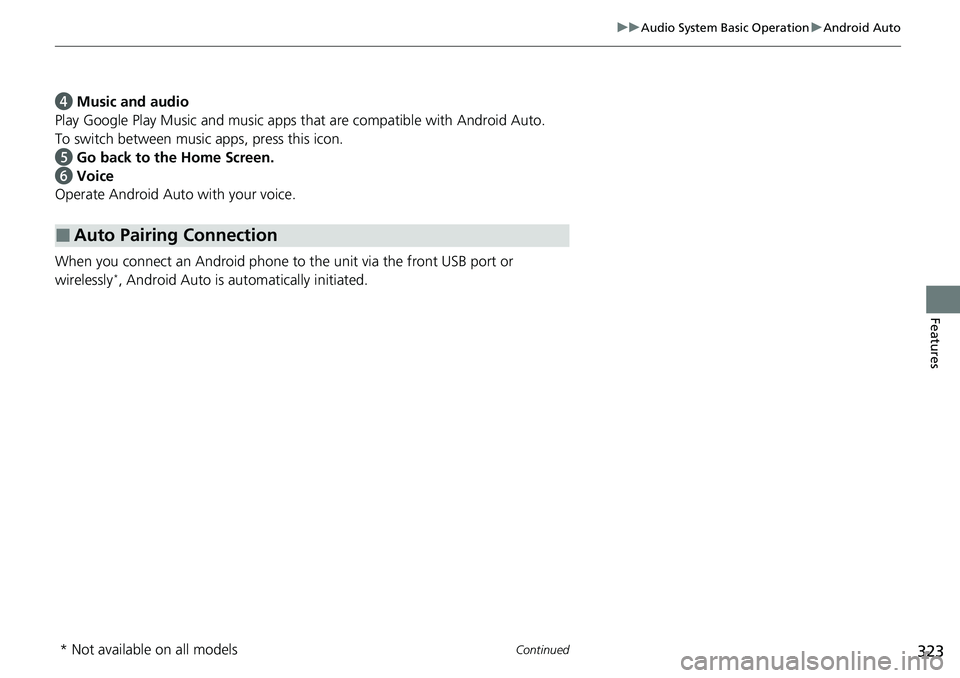
d Music and audio
Play Google Play Music an d music apps that are compatible with Android Auto.
To switch between music apps, press this icon.
e Go back to the Home Screen.
f Voice
Operate Android Auto with your voice.
When you connect an Android phone to the unit via the front USB port or
wirelessly
*, Android Auto is automatically initiated.
■Auto Pairing Connection
* Not available on all models
Page 326 of 659
uuAudio System Basic Operation uAndroid Auto
324
Features
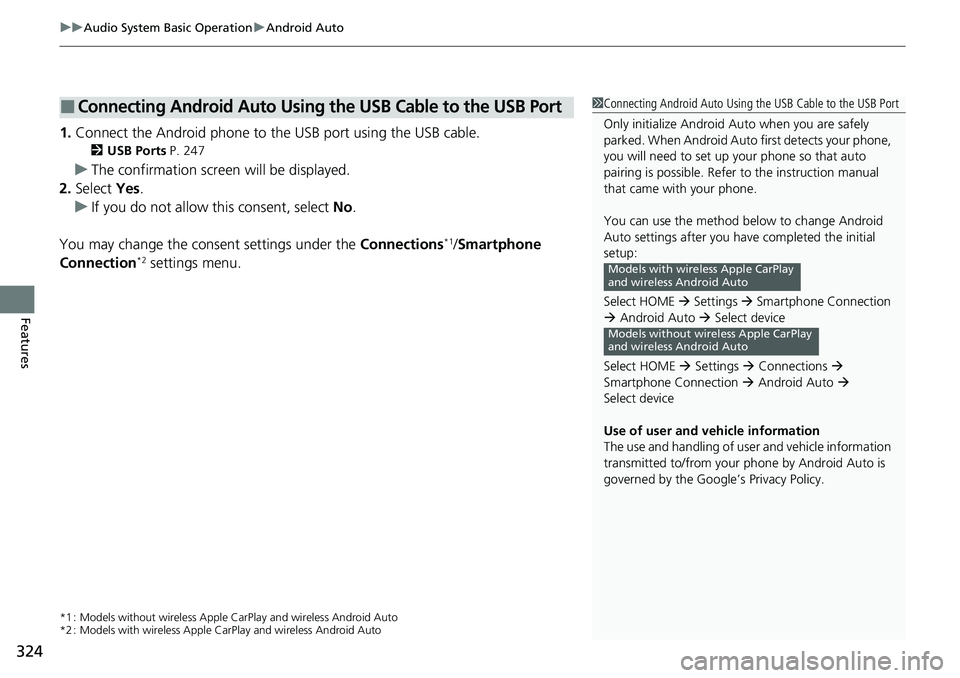
1. Connect the Android phone to the USB port using the USB cable.
2 USB Ports P. 247
uThe confirmation screen will be displayed.
2. Select Yes.
u If you do not allow this consent, select No.
You may change the consent settings under the Connections
*1/Smartphone
Connection*2 settings menu.
*1 : Models without wireless Apple Ca rPlay and wireless Android Auto
*2 : Models with wireless Apple Ca rPlay and wireless Android Auto
■Connecting Android Auto Using the USB Cable to the USB Port1Connecting Android Auto Using the USB Cable to the USB Port
Only initialize Android Auto when you are safely
parked. When Android Auto first detects your phone,
you will need to set up your phone so that auto
pairing is possibl e. Refer to the instruction manual
that came with your phone.
You can use the method below to change Android
Auto settings after you ha ve completed the initial
setup:
Select HOME Settings Smartphone Connection
Android Auto Select device
Select HOME Settings Connections
Smartphone Connection Android Auto
Select device
Use of user and vehicle information
The use and handling of user and vehicle information
transmitted to/from your phone by Android Auto is
governed by the Google’s Privacy Policy.
Models with wire less Apple CarPlay
and wireless Android Auto
Models without wireless Apple CarPlay
and wireless Android Auto
Page 377 of 659
375Continued
Features
Bluetooth® HandsFreeLink ®
Bluetooth® HandsFreeLink ® (HFL) allows you to place and receive phone calls using
your vehicle’s audio system, without handling your cell phone.
Using HFL
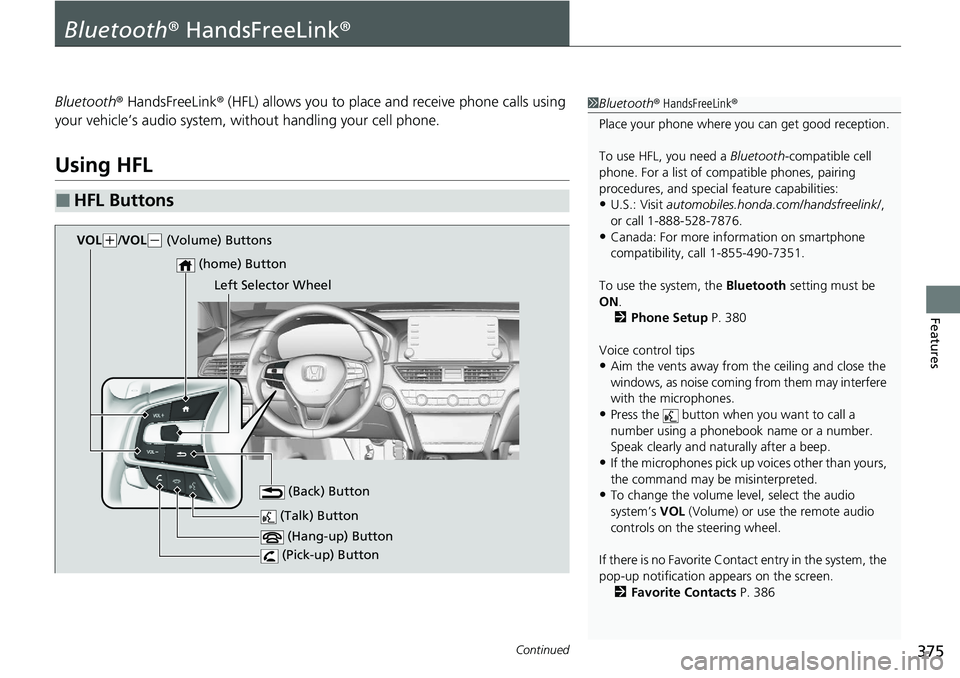
■HFL Buttons
1 Bluetooth ® HandsFreeLink ®
Place your phone where y ou can get good reception.
To use HFL, you need a Bluetooth-compatible cell
phone. For a list of compatible phones, pairing
procedures, and special feature capabilities:
•U.S.: Visit automobiles.honda.com /handsfreelink/,
or call 1-888-528-7876.
•Canada: For more info rmation on smartphone
compatibility, call 1-855-490-7351.
To use the system, the Bluetooth setting must be
ON .
2 Phone Setup P. 380
Voice control tips
•Aim the vents away from the ceiling and close the
windows, as noise coming from them may interfere
with the microphones.
•Press the button when you want to call a
number using a phonebook name or a number.
Speak clearly and naturally after a beep.
•If the microphones pick up vo ices other than yours,
the command may be misinterpreted.
•To change the volume level, select the audio
system’s VOL (Volume) or use the remote audio
controls on the steering wheel.
If there is no Favorite Contact entry in the system, the
pop-up notification appears on the screen. 2 Favorite Contacts P. 386
(Talk) Button
(Hang-up) Button
(Pick-up) Button
(Back) Button
(home) Button
VOL(+/ VOL(- (Volume) Buttons
Left Selector Wheel
Page 383 of 659
Continued381
uuBluetooth ® HandsFreeLink ®u HFL Menus
Features
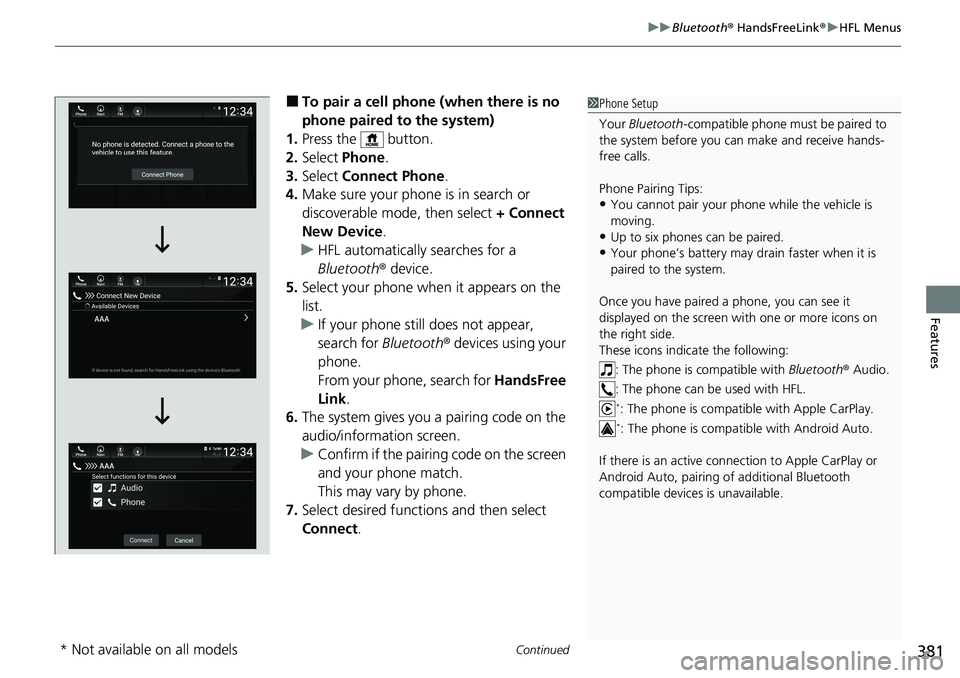
■To pair a cell phone (when there is no
phone paired to the system)
1. Press the button.
2. Select Phone .
3. Select Connect Phone .
4. Make sure your phone is in search or
discoverable mode, then select + Connect
New Device .
u HFL automatically searches for a
Bluetooth ® device.
5. Select your phone when it appears on the
list.
u If your phone still does not appear,
search for Bluetooth® devices using your
phone.
From your phone, search for HandsFree
Link .
6. The system gives you a pairing code on the
audio/information screen.
u Confirm if the pairing code on the screen
and your phone match.
This may vary by phone.
7. Select desired functions and then select
Connect .1Phone Setup
Your Bluetooth -compatible phone must be paired to
the system before you ca n make and receive hands-
free calls.
Phone Pairing Tips:
•You cannot pair your phone while the vehicle is
moving.
•Up to six phones can be paired.
•Your phone’s battery may dr ain faster when it is
paired to the system.
Once you have paired a phone, you can see it
displayed on the screen with one or more icons on
the right side.
These icons indicate the following: : The phone is compatible with Bluetooth® Audio.
: The phone can be used with HFL.
*: The phone is compatible with Apple CarPlay.*: The phone is compatible with Android Auto.
If there is an active connection to Appl e CarPlay or
Android Auto, pairing of additional Bluetooth
compatible devices is unavailable.
* Not available on all models