Page 5 of 298
5
Table of contents
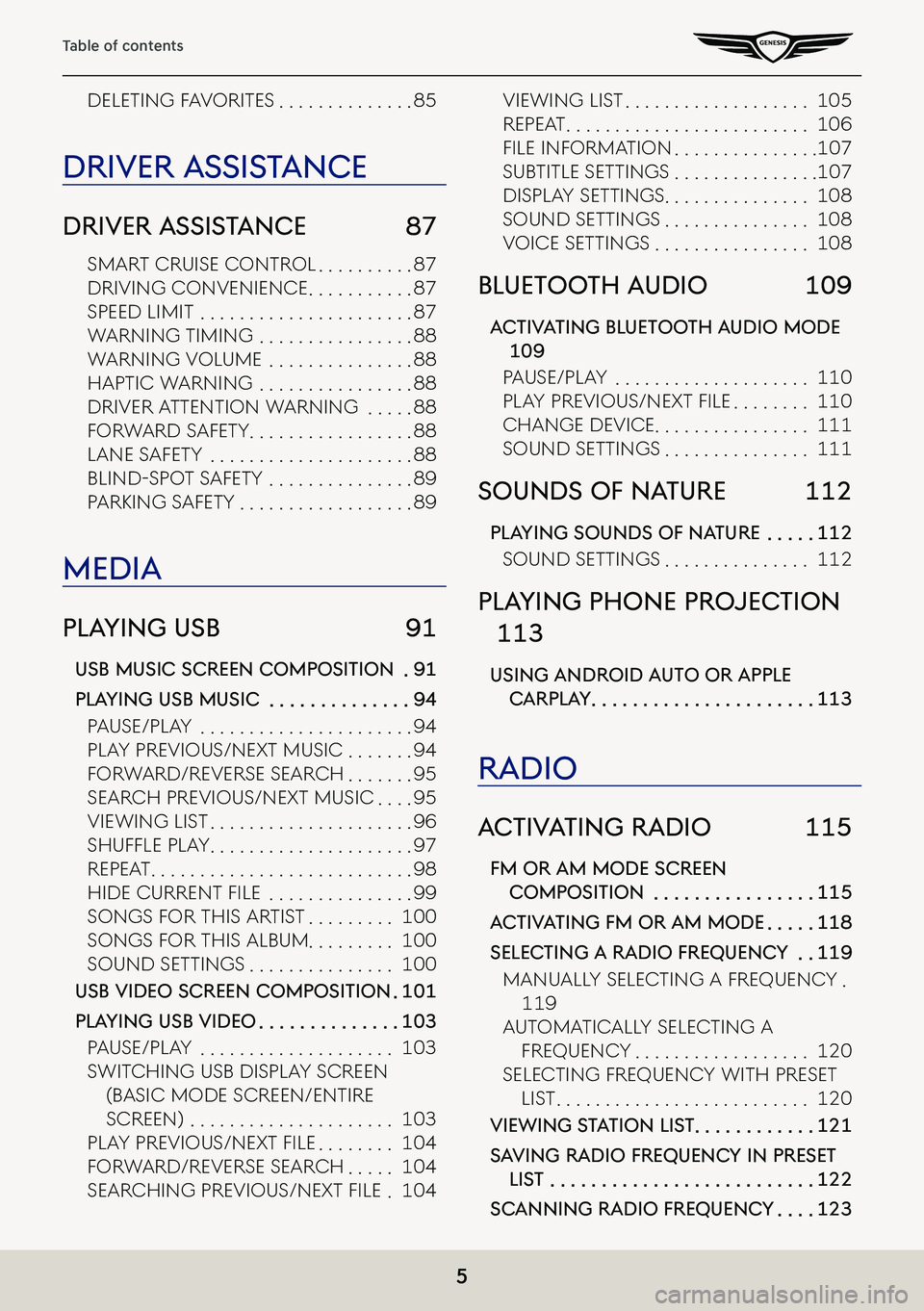
deleting FaVoRites . . . . . . . . . . . . . .85
driVer a ssisTance
driVer a ssisTance 87
sMaRt CRuise ContRol . . . . . . . . . .87
dRiVing ConVenienCe . . . . . . . . . . .87
speed liMit . . . . . . . . . . . . . . . . . . . . . .87
WaRning tiMing . . . . . . . . . . . . . . . .88
WaRning VoluMe . . . . . . . . . . . . . . .88
haptiC WaRning . . . . . . . . . . . . . . . .88
dRiVeR a ttention WaRning . . . . .88
FoRWaRd saFety . . . . . . . . . . . . . . . . .88
lane s aFety . . . . . . . . . . . . . . . . . . . . .88
Blind-spot saFety . . . . . . . . . . . . . . .89
paRking s aFety . . . . . . . . . . . . . . . . . .89
media
plaYing usb 91
usb music screen composiTion .91
plaYing usb music . . . . . . . . . . . . . .94
pause/play . . . . . . . . . . . . . . . . . . . . . .94
play pRe Vious/next MusiC . . . . . . .94
FoRWaRd/Re VeRse seaRCh . . . . . . .95
seaRCh pRe Vious/next MusiC . . . .95
VieWing list . . . . . . . . . . . . . . . . . . . . .96
ShufflE Play . . . . . . . . . . . . . . . . . . . . .97
Repeat . . . . . . . . . . . . . . . . . . . . . . . . . . .98
hidE currEnt filE . . . . . . . . . . . . . . .99
songs F oR this aR tist . . . . . . . . .100
songs FoR this alBuM . . . . . . . . . 100
sound settings . . . . . . . . . . . . . . .100
usb Video screen composiTion .101
plaYing usb Video . . . . . . . . . . . . . .103
pause/play . . . . . . . . . . . . . . . . . . . .103
sWit Ching usB display sCReen
(BasiC Mode sCReen/entiRe
sCReen) . . . . . . . . . . . . . . . . . . . . .103
Play PrE viouS/nExt filE . . . . . . . .104
FoRWaRd/Re VeRse seaRCh . . . . .104
SEarching PrE viouS/nExt filE .104
VieWing list . . . . . . . . . . . . . . . . . . .105
Repeat . . . . . . . . . . . . . . . . . . . . . . . . .106
filE information . . . . . . . . . . . . . . .107
suB title settings . . . . . . . . . . . . . . .107
display settings . . . . . . . . . . . . . . .108
sound settings . . . . . . . . . . . . . . .108
VoiCe settings . . . . . . . . . . . . . . . .108
blueToo Th audio 109
ac TiV aTing blueToo Th audio mode
109
pause/play . . . . . . . . . . . . . . . . . . . .110
Play PrE viouS/nExt filE . . . . . . . .110
Change de ViCe . . . . . . . . . . . . . . . .111
sound settings . . . . . . . . . . . . . . .111
sounds of na Ture 112
plaYing sounds of na Ture . . . . .112
sound settings . . . . . . . . . . . . . . .112
plaYing phone projec Tion
113
using android auTo or apple
carpla Y . . . . . . . . . . . . . . . . . . . . . .113
radio
ac TiV aTing radio 115
fm or am mode screen
composiTion . . . . . . . . . . . . . . . .115
ac TiV aTing fm or am mode . . . . .118
selec Ting a radio frequenc Y . .119
Manually seleCting a FRequenC y .
119
autoMatiC ally seleCting a
FRequenC y . . . . . . . . . . . . . . . . . .120
seleCting FRequenC y With pReset
list . . . . . . . . . . . . . . . . . . . . . . . . . .120
Viewing sTaTion lis T . . . . . . . . . . . .121
sa Ving radio frequenc Y in preseT
lisT . . . . . . . . . . . . . . . . . . . . . . . . . .122
scanning radio frequenc Y . . . .123
Page 39 of 298
39
Activating Navigation
ediTing faV oriTe
1. Press [Menu] > [Destination] > [Address Book] > [Favorite Places] > [Menu] > [Edit] on the
map screen.
2. Select an item to edit. (Ex: Home)
3. Select and edit a desired item.
䠐[Display Icon on Map]: Sets a symbol to specify on the map screen.
䠐[Favorites]: Selects a desired favorite.
4. Press [Save].
Page 42 of 298
42
Activating Navigation
ediTing regisTered mY places
1. Press [Menu] > [Destination] > [Address Book] on the map screen.
2. Press [My places] on address book screen.
3. Press [Menu] > [Edit].
4. Select an item to edit.
5. Select and edit a desired item.
䠐[Name]: After editing the name, press [OK].
䠐[Display Icon on Map]: Sets a symbol to specify on the map screen.
䠐[Favorites]: Changes the address book.
6. Press [Save].
Page 46 of 298
![GENESIS G80 2021 Premium Navigation Manual 46
Activating Navigation
exporTing address booK To usb memor Y
This feature is used to export address book to a USB memory.
1. Connect a USB memory to the USB port.
2. Press [Setup] > [Navigation] > [](/manual-img/46/35613/w960_35613-45.png "GENESIS G80 2021 Premium Navigation Manual 46
Activating Navigation
exporTing address booK To usb memor Y
This feature is used to export address book to a USB memory.
1. Connect a USB memory to the USB port.
2. Press [Setup] > [Navigation] > [")
46
Activating Navigation
exporTing address booK To usb memor Y
This feature is used to export address book to a USB memory.
1. Connect a USB memory to the USB port.
2. Press [Setup] > [Navigation] > [Others] > [User Data] > [Export Address Book/Previous
Destinations to USB Device] on the home screen.
3. Press [Yes].
,noTe
䠐The data amount to import from a USB memory is limited based on the number of
registered locations supported by the navigation device.
䠐If the data saved in the USB memory uses different coordinates from the ones used in
the current system, the coordinates of registered locations may change.
䠐Import feature may change previously saved registered locations as well as favorites in
the navigation device.
䠐Use after checking if the import feature has been normally performed is recommended.
䠐Import/Export feature may not be supported depending on the USB memory format
type.
䠐FAT16, FAT32, ex FAT and NTFS are supported.
䠐Some USB memories may not be supported due to compatibility issues.
Page 82 of 298
82
Fuel Prices
fuel prices
finding gaS Station
1. Press [HD Radio Data] > [Fuel Prices] on the home screen. The fuel prices list is displayed
on the screen.
䠐[All]: Displays all gas stations.
䠐[Brand]: Displays gas stations by brand.
䠐[Fuel Type]: Displays gas stations by fuel type.
䠐[Favorites]: Moves to the favorites menu.
2. Press [Go].
,no Te
䠐Within 50 miles, a maximum of 250 items can be displayed.
䠐Press [Update], to display the added fuel prices list.
Page 84 of 298
84
Fuel Prices
fa V oriTes
If the gas station has been already stored in the Favorites, it can be easily recalled.
First of all, add the gas station in the Favorites.
1. Press [Favorites] in fuel prices list.
2. Press [Go].
adding To f aV oriTes
A maximum of 10 items can be added.
1. Press [Favorites] > [Menu] > [Add Favorite] in fuel prices list.
2. Enter the desired gas station.
3. Select the desired item.
Page 85 of 298
85
Fuel Prices
deleTing faV oriTes
1. Press [Favorites] > [Menu] > [Delete] in fuel prices list.
2. Select the item you want to delete and press [Delete] > [Yes].
䠐[Mark all]: Marks all items.
䠐[Unmark all]: Unmarks all items.
䠐[Cancel]: Exits delete screen.
Page 117 of 298
117
Activating Radio
k Display Off
Turns off the screen.
Band
Selects the desired radio band by pressing [FM], [AM] or [SiriusXM].
HD Radio
Sets HD radio for better sound quality.
Enter Station/Channel
Enters station or channel manually.
Station/Channel List
Moves to station/channel list screen.
More Features (SXM only)
Offers featured favorites and shows subscription status information.
Radio Noise Control (FM only)
Selects the radio noise control option for better sound.
Show Radio Text
Shows station information.
Scan FM/AM/SXM Channels
Each channel of good reception is received for 5 seconds.
Save as Preset
Saves the current frequency/channel in a desired preset list.
Delete Presets
Delete frequency/channel saved in preset list.
Program Guide (SXM only)
Offers program information.
Sound settings
Moves to sound setting screen.
Web manual
Displays the QR code for the manual of corresponding function.
Split screen
Displays split screen selection menu.
![GENESIS G80 2021 Premium Navigation Manual 39
Activating Navigation
ediTing faV oriTe
1. Press [Menu] > [Destination] > [Address Book] > [Favorite Places] > [Menu] > [Edit] on the
map screen.
2. Select an item to edit. (Ex: Home)
3. Select an](/manual-img/46/35613/w960_35613-38.png "GENESIS G80 2021 Premium Navigation Manual 39
Activating Navigation
ediTing faV oriTe
1. Press [Menu] > [Destination] > [Address Book] > [Favorite Places] > [Menu] > [Edit] on the
map screen.
2. Select an item to edit. (Ex: Home)
3. Select an")
![GENESIS G80 2021 Premium Navigation Manual 42
Activating Navigation
ediTing regisTered mY places
1. Press [Menu] > [Destination] > [Address Book] on the map screen.
2. Press [My places] on address book screen.
3. Press [Menu] > [Edit].
4. Sele](/manual-img/46/35613/w960_35613-41.png "GENESIS G80 2021 Premium Navigation Manual 42
Activating Navigation
ediTing regisTered mY places
1. Press [Menu] > [Destination] > [Address Book] on the map screen.
2. Press [My places] on address book screen.
3. Press [Menu] > [Edit].
4. Sele")
![GENESIS G80 2021 Premium Navigation Manual 82
Fuel Prices
fuel prices
finding gaS Station
1. Press [HD Radio Data] > [Fuel Prices] on the home screen. The fuel prices list is displayed
on the screen.
䠐[All]: Displays all gas stations.
䠐](/manual-img/46/35613/w960_35613-81.png "GENESIS G80 2021 Premium Navigation Manual 82
Fuel Prices
fuel prices
finding gaS Station
1. Press [HD Radio Data] > [Fuel Prices] on the home screen. The fuel prices list is displayed
on the screen.
䠐[All]: Displays all gas stations.
䠐")
![GENESIS G80 2021 Premium Navigation Manual 84
Fuel Prices
fa V oriTes
If the gas station has been already stored in the Favorites, it can be easily recalled.
First of all, add the gas station in the Favorites.
1. Press [Favorites] in fuel pric](/manual-img/46/35613/w960_35613-83.png "GENESIS G80 2021 Premium Navigation Manual 84
Fuel Prices
fa V oriTes
If the gas station has been already stored in the Favorites, it can be easily recalled.
First of all, add the gas station in the Favorites.
1. Press [Favorites] in fuel pric")
![GENESIS G80 2021 Premium Navigation Manual 85
Fuel Prices
deleTing faV oriTes
1. Press [Favorites] > [Menu] > [Delete] in fuel prices list.
2. Select the item you want to delete and press [Delete] > [Yes].
䠐[Mark all]: Marks all items.
䠐](/manual-img/46/35613/w960_35613-84.png "GENESIS G80 2021 Premium Navigation Manual 85
Fuel Prices
deleTing faV oriTes
1. Press [Favorites] > [Menu] > [Delete] in fuel prices list.
2. Select the item you want to delete and press [Delete] > [Yes].
䠐[Mark all]: Marks all items.
䠐")
![GENESIS G80 2021 Premium Navigation Manual 117
Activating Radio
k Display Off
Turns off the screen.
Band
Selects the desired radio band by pressing [FM], [AM] or [SiriusXM].
HD Radio
Sets HD radio for better sound quality.
Enter Station/Channe](/manual-img/46/35613/w960_35613-116.png "GENESIS G80 2021 Premium Navigation Manual 117
Activating Radio
k Display Off
Turns off the screen.
Band
Selects the desired radio band by pressing [FM], [AM] or [SiriusXM].
HD Radio
Sets HD radio for better sound quality.
Enter Station/Channe")