2021 DODGE DURANGO audio
[x] Cancel search: audioPage 168 of 340
166MULTIMEDIA
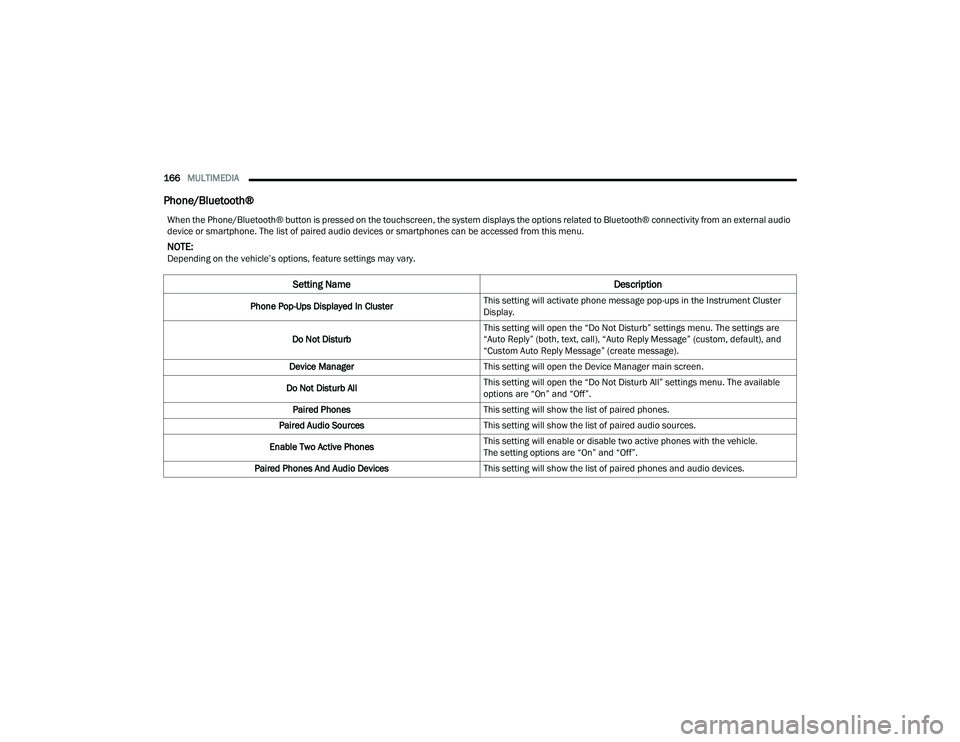
Phone/Bluetooth®
When the Phone/Bluetooth® button is pressed on the touchscreen, the system displays the options related to Bluetooth® connectivity from an external audio
device or smartphone. The list of paired audio devices or smartphones can be accessed from this menu.
NOTE:Depending on the vehicle’s options, feature settings may vary.
Setting Name Description
Phone Pop-Ups Displayed In ClusterThis setting will activate phone message pop-ups in the Instrument Cluster
Display.
Do Not Disturb This setting will open the “Do Not Disturb” settings menu. The settings are
“Auto Reply” (both, text, call), “Auto Reply Message” (custom, default), and
“Custom Auto Reply Message” (create message).
Device Manager This setting will open the Device Manager main screen.
Do Not Disturb All This setting will open the “Do Not Disturb All” settings menu. The available
options are “On” and “Off”.
Paired Phones This setting will show the list of paired phones.
Paired Audio Sources This setting will show the list of paired audio sources.
Enable Two Active Phones This setting will enable or disable two active phones with the vehicle.
The setting options are “On” and “Off”.
Paired Phones And Audio Devices This setting will show the list of paired phones and audio devices.
21_WD_OM_EN_USC_t.book Page 166
Page 169 of 340

MULTIMEDIA167
Voice
Navigation
When the Voice button is pressed on the touchscreen, the system displays the options related to the vehicle’s Voice Recognition feature.
NOTE:Depending on the vehicle’s options, feature settings may vary.
Setting Name Description
Voice OptionsThis setting will change the voice type during a Voice Recognition session.
The available options are “Male” and “Female”.
Voice Response Length This setting will change the response length for the Voice Recognition system.
The “Brief” setting provides a shortened audio description from the system.
The “Detailed” setting provides the full audio description from the system.
Show Command List This setting will allow you to turn the Command List on or off. The “Always”
setting will always show the Command List. The “With Help” setting will show
the Command List and provide a brief description of what the command does.
The “Never” setting will turn the Command List off.
Wake Up Word This setting will change the system’s “Wake Up” word. The available options
are “Hey Uconnect” and “Hey Dodge”.
Voice Barge-in This setting will turn the Voice Barge-in function on or off.
When the Navigation button is pressed on the touchscreen, the system displays options related to the vehicle’s built-in Navigation system. These settings can
change which icons display on the map, how “time to arrival is calculated”, and route types.
For more information on Navigation and settings, refer to the Uconnect Owner’s Manual Supplement.
5
21_WD_OM_EN_USC_t.book Page 167
Page 176 of 340

174MULTIMEDIA
Audio
When the Audio button is pressed on the touchscreen, the system displays options related to the vehicle’s sound system. These settings can change the audio
location within the vehicle, adjust the bass or treble levels, and auto-play settings from an audio device or smartphone.
NOTE:Depending on the vehicle’s options, feature settings may vary.
Setting Name Description
Balance/FadeThis setting will adjust audio levels from specific speakers in the front/back
and left/right of the vehicle. The Speaker icon can be moved to set audio
location.
Equalizer This setting will adjust the “Bass”, “Mid”, and “Treble” ranges of the audio.
Speed Adjusted Volume This setting will adjust audio volume as speeds increase. At a higher setting,
the volume will increase more as the vehicle speeds up. The available settings
are “Off”, “1”, “2”, and “3”.
Surround Sound This setting will turn the Surround Sound system on or off.
AUX Volume Offset This setting will tune the audio levels from a device connected through the
AUX port. The available settings are “+” and “-”.
Auto Play This setting will automatically begin playing audio from a connected device.
Auto On Radio This setting will turn the radio on with vehicle start and recall the last known
radio state. The available options are “On”, “Off”, and “Last Recall”.
Volume Adjustment This setting will let you adjust the volume levels for “Media”, “Phone”,
“Navigation”, and “VR” (Voice Recognition).
21_WD_OM_EN_USC_t.book Page 174
Page 180 of 340

178MULTIMEDIA
STEERING WHEEL AUDIO CONTROLS
The Remote Sound System controls are located on
the rear surface of the steering wheel. Reach
behind the wheel to access the switches.
Steering Wheel Audio Controls
The right-hand control is a rocker-type switch with
a push button in the center and controls the
volume and mode of the sound system. Pushing
the top of the rocker switch increases the volume,
and pushing the bottom of the rocker switch
decreases the volume.
Pushing the center button makes the radio
switch between the various modes available
(AM/FM/SXM or Media, etc.)
The left-hand control is a rocker-type switch with a
push button in the center. The function of the
left-hand control is different depending on which
mode you are in. The following describes the left-hand control
operation in each mode.RADIO OPERATION
Pushing the top of the switch will “Seek” up for the
next listenable station, and pushing the bottom of
the switch will “Seek” down for the next listenable
station.
The button located in the center of the left-hand
control will tune to the next preset station that you
have programmed in the radio preset button.
MEDIA MODE
Pushing the top of the switch once goes to the next
track on the selected media (AUX/USB/
Bluetooth®). Pushing the bottom of the switch
once goes to the beginning of the current track, or
to the beginning of the previous track if it is within
eight seconds after the current track begins to
play.
UCONNECT REAR SEAT ENTERTAINMENT
(RSE) SYSTEM — IF EQUIPPED
Your Rear Seat Entertainment (RSE) System plays
your favorite CDs, DVDs or Blu-ray™ Discs. You can
also listen to audio over the wireless headphones,
or plug and play a variety of video games or audio
devices.
GETTING STARTED
Lift the LCD screen located in the rear of the
front seats.
RSE System Screen
Place the ignition in the ON/RUN or ACC
position.
If equipped with a Blu-ray™ disc player, the icon
will be present on the player.
Turn on the Rear Seat Entertainment system
by pushing the power button on the remote
control.
21_WD_OM_EN_USC_t.book Page 178
Page 183 of 340

MULTIMEDIA181
8. Cabin Audio Mode Press this button to change the cabin audio to
the rear entertainment source currently shown
on the Rear Media Control screen.
Press the Media button on the touchscreen,
and then press the Rear Media button on the
touchscreen.
Press the OK button on the touchscreen to
begin playing the Blu-ray™ disc.
Using The Remote Control
Select an audio channel (Channel 1 or
Channel 2), and then press the source key.
Using the Up and Down arrows, highlight “Disc”
from the menu and press the OK button.
Press the pop-up/menu key to navigate the disc
menu and options.
Using The Remote Control
1. Push the SOURCE button on the Remote Control.
2. While looking at Channel 1 or 2, highlight “Disc” by either pushing Up/Down/Left/Right
buttons, then push ENTER/OK.
Select Disc Mode On The Rear Seat Entertainment Screen
Using The Touchscreen Radio Controls
1. Press the Media button on the Uconnect
system touchscreen.
2. Press the Rear Media button to display the Rear Media Control Screen.
Rear Media Control Screen
3. Press the 1 or 2 button on the touchscreen,
then the Select Source button on the
touchscreen. Press the Disc button on the
touchscreen in the Media column. To exit,
press the X at the top right of the screen.
Rear Seat Entertainment Source Screen
NOTE:Pressing the screen on the radio while a DVD or
Blu-ray™ Disc is playing brings up the basic remote
control functions for DVD play such as scene
selection, Play, Pause, FF, RW, and Stop. Pressing
the X in the upper corner will turn OFF the remote
control screen functions.
5
21_WD_OM_EN_USC_t.book Page 181
Page 184 of 340

182MULTIMEDIA
PLAY VIDEO GAMES
Connect the video game console to the Audio/
Video RCA/HDMI input jacks located on the side of
each seat.
Audio/Video RCA/HDMI Jacks (AUX/HDMI Jacks)
on the side of each seat enable the monitor to
display video directly from a video camera, connect
video games for display on the screen, or play
music directly from an MP3 player.
Audio/Video RCA/HDMI Input Jacks
When connecting an external source to the AUX/
HDMI input, be sure to follow the standard color
coding for the audio/video jacks:
1. Right audio in (red)
2. Left audio in (white)
3. Video in (yellow)
4. HDMI Input
NOTE:Certain high-end video game consoles may exceed
the power limit of the vehicle's power inverter.
IMPORTANT NOTES FOR DUAL VIDEO
S
CREEN SYSTEM
The Rear Seat Entertainment system is able to
transmit two channels of stereo audio and video
simultaneously.
The Blu-ray™ Disc Player can play CDs, DVDs,
and Blu-ray™ Discs.
Selecting a video source on Channel 1, the
video source will display on Channel 1 and can
be heard on Channel 1.
Selecting a video source on Channel 2, the
video source will display on Channel 2 and can
be heard on Channel 2.
Audio can be heard through the headphones
even when the screen(s) are closed.
21_WD_OM_EN_USC_t.book Page 182
Page 185 of 340

MULTIMEDIA183
BLU-RAY™ DISC PLAYER REMOTE
C
ONTROL
Blu-ray™ Player Remote Control
Controls And Indicators
1. — Turns the screen and wireless
headphone transmitter for the selected
Channel on or off. To hear audio while the
screen is closed, push the Power button to
turn the headphone transmitter on.
2. — Push to navigate menus.
3. OK — Push to select the highlighted option in a menu.
4. — Push to navigate menus.
5. — Push to navigate menus.
6. BACK — Push to exit out of menus or return to source selection screen.
7. — Mutes headphone audio.
8. — Push and hold to fast rewind through the current audio track or video chapter.
9. — Stops disc play.
10. — Push to navigate chapters or titles.
11. — When a button is pushed, the current channel or channel button is illuminated
momentarily. 12. SOURCE — Push to enter Source Selection
screen.
13. Channel/Screen Selector Switch — Indicates which channel is being controlled by the
remote control. When the selector switch is in
the Channel 1 position, the remote controls
the functionality of headphone Channel 1 (left
screen). When the selector switch is in the
Channel 2 position, the remote controls the
functionality of headphone Channel 2 (right
screen).
14. — Push to navigate menus.
15. SETUP — Push to access the screen settings menu.
16. — Push and hold to fast forward through the current audio track or video chapter.
17. — Begin/resume or pause disc play.
18. Four Colored Buttons — Push to access Blu-ray™ Disc features.
19. POPUP/MENU — Push to bring up repeat and shuffle options, the Blu-ray™ Disc pop-up
menu, the DVD title menu, or to access disc
menus.
5
21_WD_OM_EN_USC_t.book Page 183
Page 186 of 340

184MULTIMEDIA
HEADPHONES OPERATION
The headphones receive two separate channels of
audio using an infrared transmitter from the video
screen.
If no audio is heard after increasing the volume
control, verify that the screen is turned on, the
channel is not muted, and the headphone channel
selector switch is on the desired channel. If audio
is still not heard, check that the batteries are
charged.
Rear Seat Entertainment Headphones
CONTROLS
The headphone power indicator and controls are
located on the right ear cup.
NOTE:The rear video system must be turned on before
sound can be heard from the headphones. To
conserve battery life, the headphones will auto -
matically turn off approximately three minutes
after the rear video system is turned off.
Changing the Audio Mode for Headphones
1. Ensure the Remote Control channel/screen selector switch is in the same position as the
headphones selector switch.
NOTE:
When both the headphone and the remote
control channel selector switches are on
Channel 1, the Remote is controlling
Channel 1 and the headphones are tuned
to the audio on Channel 1.
When both the headphone and the remote
control channel selector switches are on
Channel 2, the Remote is controlling
Channel 2 and the headphones are tuned
to the audio on Channel 2.
2. Push the SOURCE button on the remote control. 3. Pushing the SOURCE button will advance to
the next mode.
4. When the Mode Selection menu appears on screen, use the cursor buttons on the remote
control to navigate to the available modes and
push the OK button to select the new mode.
5. To cancel out of the Mode Selection menu, push the BACK button on the remote control.
REPLACING THE HEADPHONE
B
ATTERIES
Each set of headphones requires two AAA batteries
for operation. To replace the batteries:
1. Locate the battery compartment on the left
ear cup of the headphones, and then slide the
battery cover downward.
2. Replace the batteries, making sure to orient them according to the polarity diagram shown.
3. Replace the battery compartment cover.
ACCESSIBILITY — IF EQUIPPED
Accessibility is a feature of the DVD/Blu-ray™
system that announces a function prior to
performing the action Ú page 159.
1 — Power Button
2 — Volume Control
3 — Channel Selection Switch
21_WD_OM_EN_USC_t.book Page 184