2021 CHRYSLER VOYAGER ets
[x] Cancel search: etsPage 166 of 348
164MULTIMEDIA
FAVORITES
Press the Favorites button on the touchscreen to
activate the favorites menu, which will time out
within 20 seconds in absence of user interaction.
You can exit the Favorites Menu by a press of the X
button.
The favorites feature enables you to set a favorite
artist or song that is currently playing. The radio
then uses this information to alert you when either
the favorite artist or song is being played at any
time by any of the SiriusXM® Channels.
The maximum number of favorites that can be
stored in the Radio is 50.
Favorite Artist: While the song is playing, to set a
favorite artist, press the Favorites button on the
touchscreen and then the Favorite Artist button on
the touchscreen.
Favorite Song: While the song is playing, to set a
favorite song, press the Favorites button on the
touchscreen and then the Favorite Song button on
the touchscreen.
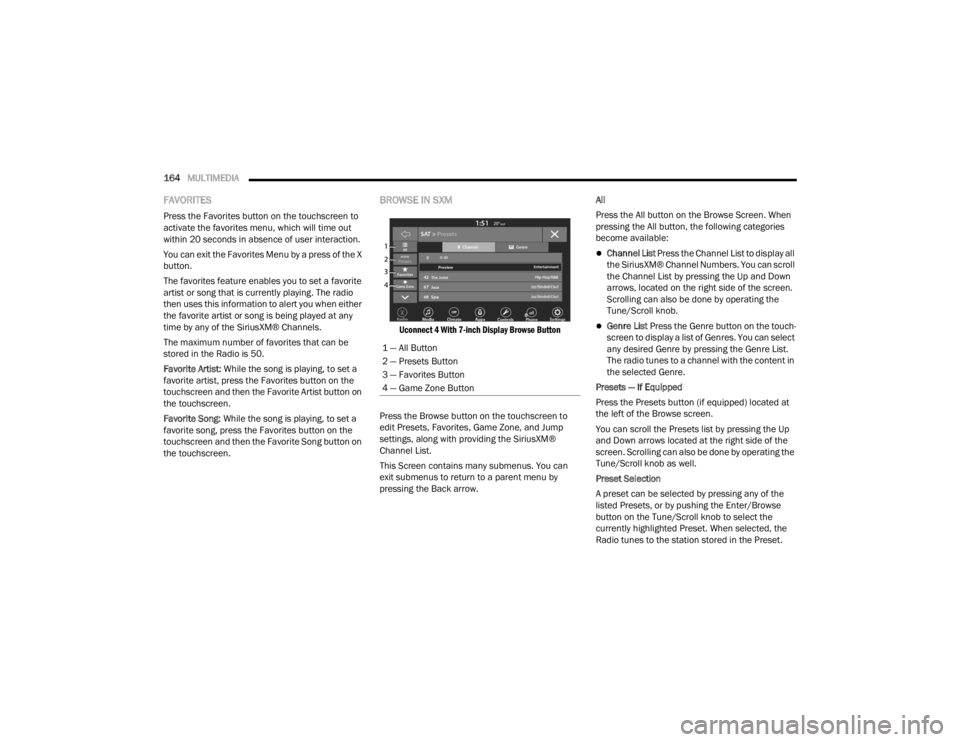
BROWSE IN SXM
Uconnect 4 With 7-inch Display Browse Button
Press the Browse button on the touchscreen to
edit Presets, Favorites, Game Zone, and Jump
settings, along with providing the SiriusXM®
Channel List.
This Screen contains many submenus. You can
exit submenus to return to a parent menu by
pressing the Back arrow. All
Press the All button on the Browse Screen. When
pressing the All button, the following categories
become available:
Channel List
Press the Channel List to display all
the SiriusXM® Channel Numbers. You can scroll
the Channel List by pressing the Up and Down
arrows, located on the right side of the screen.
Scrolling can also be done by operating the
Tune/Scroll knob.
Genre List Press the Genre button on the touch -
screen to display a list of Genres. You can select
any desired Genre by pressing the Genre List.
The radio tunes to a channel with the content in
the selected Genre.
Presets — If Equipped
Press the Presets button (if equipped) located at
the left of the Browse screen.
You can scroll the Presets list by pressing the Up
and Down arrows located at the right side of the
screen. Scrolling can also be done by operating the
Tune/Scroll knob as well.
Preset Selection
A preset can be selected by pressing any of the
listed Presets, or by pushing the Enter/Browse
button on the Tune/Scroll knob to select the
currently highlighted Preset. When selected, the
Radio tunes to the station stored in the Preset.
1 — All Button
2 — Presets Button
3 — Favorites Button
4 — Game Zone Button
21_RUV_OM_EN_USC_t.book Page 164
Page 167 of 348
MULTIMEDIA165
Deleting A Preset
A preset can be deleted in the Presets Browse
screen by pressing the Trash Can icon for the
corresponding preset.
Favorites
Press the Favorites button on the Browse screen.
The Favorites menu provides a means to edit the
Favorites list and to configure the Alert Settings,
along with providing a list of Channels currently
airing any of the items in the Favorites list.
You can scroll the Favorites list by pressing the Up
and Down arrows located at the right side of the
screen. Scrolling can also be done by operating the
Tune/Scroll knob as well.
Remove Favorites
Press the Remove Favorites tab at the top of the
screen. Press the Delete All button on the
touchscreen to delete all of the Favorites or press
the Trash Can icon next to the Favorite to be
deleted.
Alert Settings
Press the Alert Settings tab at the top of the
Favorites screen. The Alert Settings menu allows
you to choose from a visual alert or audible and
visual alert when one of your favorites is airing on
any of the SiriusXM® channels. Game Zone
Press the Game Zone button, located at the left of
the Browse screen. This feature provides you with
the ability to select teams, edit the selection, and
set alerts.
On-Air
Press the On-Air tab at the top of the screen. The
On-Air list provides a list of Channels currently
airing any of the items in the Selections list, and
pressing any of the items in the list tunes the radio
to that channel.
Select Team — If Equipped
Press the Select Team button on the touchscreen
to activate the League Scroll list. Press the chosen
league and a scroll list of all teams within the
league will appear, then you can select a team by
pressing the corresponding box. A check mark
appears for all teams that are chosen.
Remove Selection/Trash Can Icon
Press the Remove Selection tab at the top of the
screen. Press the Delete All button on the
touchscreen to delete all of the selections or press
the Trash Can icon next to the selection to be
deleted.
Alert Settings
Press the Alert Setting tab at the top of the screen.
The Alert Settings menu allows you to choose from
“Alert me to on-air games upon start” or “Alert
upon score update” or both when one or more of
your selections is airing on any of the SiriusXM®
channels.
Tune Start
Tune Start begins playing the current song from
the beginning when you tune to a music channel
using one of the 12 presets. This feature occurs
the first time the preset is selected during that
current song.
5
21_RUV_OM_EN_USC_t.book Page 165
Page 168 of 348
166MULTIMEDIA
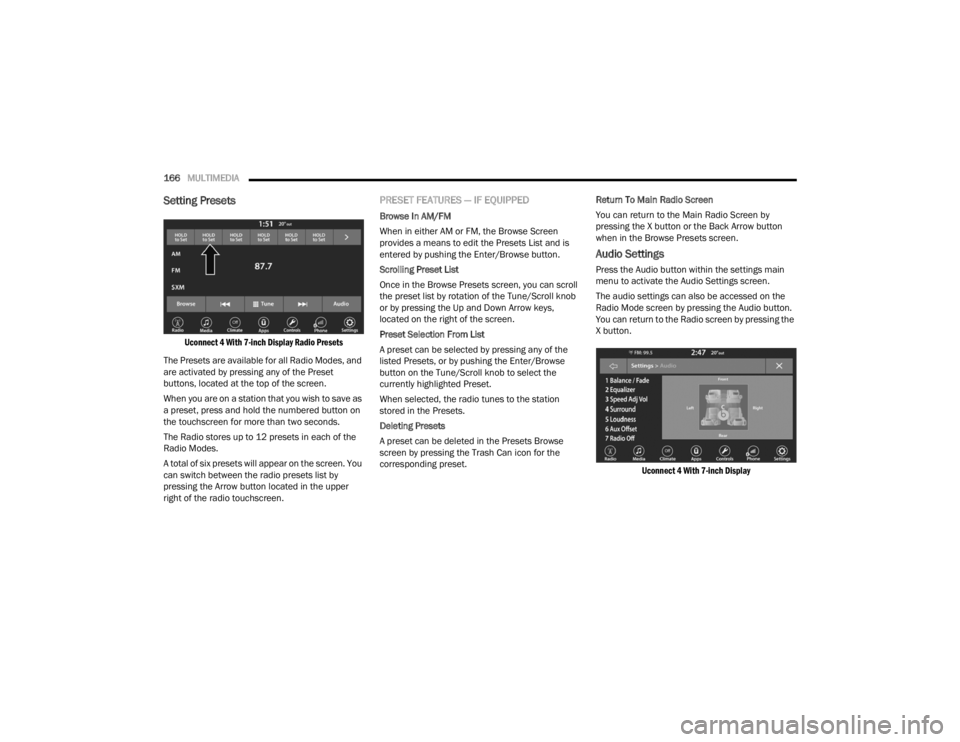
Setting Presets
Uconnect 4 With 7-inch Display Radio Presets
The Presets are available for all Radio Modes, and
are activated by pressing any of the Preset
buttons, located at the top of the screen.
When you are on a station that you wish to save as
a preset, press and hold the numbered button on
the touchscreen for more than two seconds.
The Radio stores up to 12 presets in each of the
Radio Modes.
A total of six presets will appear on the screen. You
can switch between the radio presets list by
pressing the Arrow button located in the upper
right of the radio touchscreen.
PRESET FEATURES — IF EQUIPPED
Browse In AM/FM
When in either AM or FM, the Browse Screen
provides a means to edit the Presets List and is
entered by pushing the Enter/Browse button.
Scrolling Preset List
Once in the Browse Presets screen, you can scroll
the preset list by rotation of the Tune/Scroll knob
or by pressing the Up and Down Arrow keys,
located on the right of the screen.
Preset Selection From List
A preset can be selected by pressing any of the
listed Presets, or by pushing the Enter/Browse
button on the Tune/Scroll knob to select the
currently highlighted Preset.
When selected, the radio tunes to the station
stored in the Presets.
Deleting Presets
A preset can be deleted in the Presets Browse
screen by pressing the Trash Can icon for the
corresponding preset. Return To Main Radio Screen
You can return to the Main Radio Screen by
pressing the X button or the Back Arrow button
when in the Browse Presets screen.
Audio Settings
Press the Audio button within the settings main
menu to activate the Audio Settings screen.
The audio settings can also be accessed on the
Radio Mode screen by pressing the Audio button.
You can return to the Radio screen by pressing the
X button.
Uconnect 4 With 7-inch Display
21_RUV_OM_EN_USC_t.book Page 166
Page 182 of 348

180MULTIMEDIA
Push the Phone button and wait for the beep to
say a command. See some examples below:
“ Call John Smith”
“Dial 123 456 7890”
“Redial ” (call previous outgoing phone number)
“Call back ” (call previously answered incoming
phone number)
Did You Know: When providing a Voice Command,
push the Phone button and say “ Call”, then
pronounce the name exactly as it appears in your
phonebook. When a contact has multiple phone
numbers, you can say “ Call John Smith work ”.
Voice Text Reply — If Equipped
Uconnect can announce incoming text messages.
Push the VR button or Phone button and
say:
1. “
Listen
” to have the system read an incoming
text message. (Must have compatible mobile
phone paired to Uconnect system.)
2. “ Reply ” after an incoming text message has
been read.
Listen to the Uconnect prompts. After the
beep, repeat one of the predefined messages
and follow the system prompts.
NOTE:Only use the numbering listed in the provided
table. Otherwise, the system will not transpose the
message. Did You Know:
Your mobile phone must have the
full implementation of the Message Access Profile
(MAP) to take advantage of this feature. For details
about MAP, visit
UconnectPhone.com.
Apple® iPhone® iOS 6 or later supports reading
incoming text messages only. For further
information on how to enable this feature on your
Apple® iPhone®, refer to your iPhone’s® “User
Manual”.
Did You Know: Voice Text Reply is not compatible
with iPhone®, but if your vehicle is equipped with
Siri® Eyes Free, you can use your voice to send a
text message.
Siri® Eyes Free — If Equipped
When used with your Apple® iPhone® connected
to your vehicle via Bluetooth®, Siri lets you use
your voice to send text messages, select media,
place phone calls and much more. Siri uses your
natural language to understand what you mean
and responds back to confirm your requests. The
system is designed to keep your eyes on the road
and your hands on the wheel by letting Siri help you
perform useful tasks.
To enable Siri, push and hold, then release the
Uconnect Voice Recognition (VR) button on the
steering wheel. After you hear a double beep, you
can ask Siri to play podcasts and music, get
directions, read text messages, and many other
useful requests.
PRE-DEFINED VOICE TEXT REPLY
RESPONSES
Yes. Stuck in
traffic. See you later.
No. Start without
me. I’ll be late.
Okay. Where are
you? I will be 5
25, 30, 45,
60> minutes late.
Call me.
Are you there
yet?
I’ll call you later. I need
directions. See you in 5
minutes.
I’m on my way.
Can’t talk right
now.
I’m lost. Thanks.
21_RUV_OM_EN_USC_t.book Page 180
Page 206 of 348

204SAFETY
(Continued)
BeltAlert Warning Sequence
The BeltAlert warning sequence is activated when
the vehicle is moving above a specified vehicle
speed range and the driver or outboard front seat
passenger is unbuckled (if equipped with outboard
front passenger seat BeltAlert) (the outboard front
passenger seat BeltAlert is not active when the
outboard front passenger seat is unoccupied). The
BeltAlert warning sequence starts by blinking the
Seat Belt Reminder Light and sounding an
intermittent chime. Once the BeltAlert warning
sequence has completed, the Seat Belt Reminder
Light will remain on until the seat belts are
buckled. The BeltAlert warning sequence may
repeat based on vehicle speed until the driver and
occupied outboard front seat passenger seat belts
are buckled. The driver should instruct all
occupants to buckle their seat belts.
Change Of Status
If the driver or outboard front seat passenger
(if equipped with outboard front passenger seat
BeltAlert) unbuckles their seat belt while the
vehicle is traveling, the BeltAlert warning sequence
will begin until the seat belts are buckled again.
The outboard front passenger seat BeltAlert is not
active when the outboard front passenger seat is
unoccupied. BeltAlert may be triggered when an
animal or other items are placed on the outboard
front passenger seat or when the seat is folded flat
(if equipped). It is recommended that pets be
restrained in the rear seat (if equipped) in pet
harnesses or pet carriers that are secured by seat
belts, and cargo is properly stowed.
BeltAlert can be activated or deactivated by an
authorized dealer. FCA US LLC does not
recommend deactivating BeltAlert.
NOTE:If BeltAlert has been deactivated and the driver or
outboard front seat passenger (if equipped with
outboard front passenger seat BeltAlert) is
unbuckled the Seat Belt Reminder Light will turn
on and remain on until the driver and outboard
front seat passenger seat belts are buckled.
Lap/Shoulder Belts
All seating positions in your vehicle are equipped
with lap/shoulder belts.
The seat belt webbing retractor will lock only during
very sudden stops or collisions. This feature allows
the shoulder part of the seat belt to move freely
with you under normal conditions. However, in a
collision the seat belt will lock and reduce your risk
of striking the inside of the vehicle or being thrown
out of the vehicle.
WARNING!
Relying on the air bags alone could lead to
more severe injuries in a collision. The air
bags work with your seat belt to restrain you
properly. In some collisions, the air bags won’t
deploy at all. Always wear your seat belt even
though you have air bags.
In a collision, you and your passengers can
suffer much greater injuries if you are not
properly buckled up. You can strike the inte
-
rior of your vehicle or other passengers, or you
can be thrown out of the vehicle. Always be
sure you and others in your vehicle are
buckled up properly.
It is dangerous to ride in a cargo area, inside
or outside of a vehicle. In a collision, people
riding in these areas are more likely to be seri -
ously injured or killed.
21_RUV_OM_EN_USC_t.book Page 204
Page 227 of 348
SAFETY225
The EDR is designed to record data related to
vehicle dynamics and safety systems for a short
period of time, typically 30 seconds or less.
The EDR in this vehicle is designed to record such
data as:
How various systems in your vehicle were oper -
ating;
Whether or not the driver and passenger safety
belts were buckled/fastened;
How far (if at all) the driver was depressing the
accelerator and/or brake pedal; and,
How fast the vehicle was traveling.
These data can help provide a better
understanding of the circumstances in which
crashes and injuries occur.
NOTE:EDR data are recorded by your vehicle only if a
non-trivial crash situation occurs; no data are
recorded by the EDR under normal driving condi -
tions and no personal data (e.g., name, gender,
age, and crash location) are recorded. However,
other parties, such as law enforcement, could
combine the EDR data with the type of personally
identifying data routinely acquired during a crash
investigation. To read data recorded by an EDR, special
equipment is required, and access to the vehicle or
the EDR is needed. In addition to the vehicle
manufacturer, other parties, such as law
enforcement, that have the special equipment,
can read the information if they have access to the
vehicle or the EDR.
CHILD RESTRAINTS
Everyone in your vehicle needs to be buckled up at
all times, including babies and children. Every
state in the United States, and every Canadian
province, requires that small children ride in
proper restraint systems. This is the law, and you
can be prosecuted for ignoring it.
Children 12 years or younger should ride properly
buckled up in a rear seat, if available. According to
crash statistics, children are safer when properly
restrained in the rear seats rather than in the front.
There are different sizes and types of restraints for
children from newborn size to the child almost
large enough for an adult safety belt. Always check
the child seat Owner’s Manual to make sure you
have the correct seat for your child. Carefully read
and follow all the instructions and warnings in the
child restraint Owner’s Manual and on all the
labels attached to the child restraint.
Before buying any restraint system, make sure that
it has a label certifying that it meets all applicable
Safety Standards. You should also make sure that
you can install it in the vehicle where you will use it.
NOTE:
For additional information, refer tohttp://www.nhtsa.gov/parents-and-care
-
givers or call: 1–888–327–4236
Canadian residents should refer to Transport
Canada’s website for additional information:
http://www.tc.gc.ca/en/services/road/
child-car-seat-safety.html
WARNING!
In a collision, an unrestrained child can become
a projectile inside the vehicle. The force required
to hold even an infant on your lap could become
so great that you could not hold the child, no
matter how strong you are. The child and others
could be badly injured or killed. Any child riding
in your vehicle should be in a proper restraint for
the child’s size.
6
21_RUV_OM_EN_USC_t.book Page 225
Page 231 of 348
SAFETY229
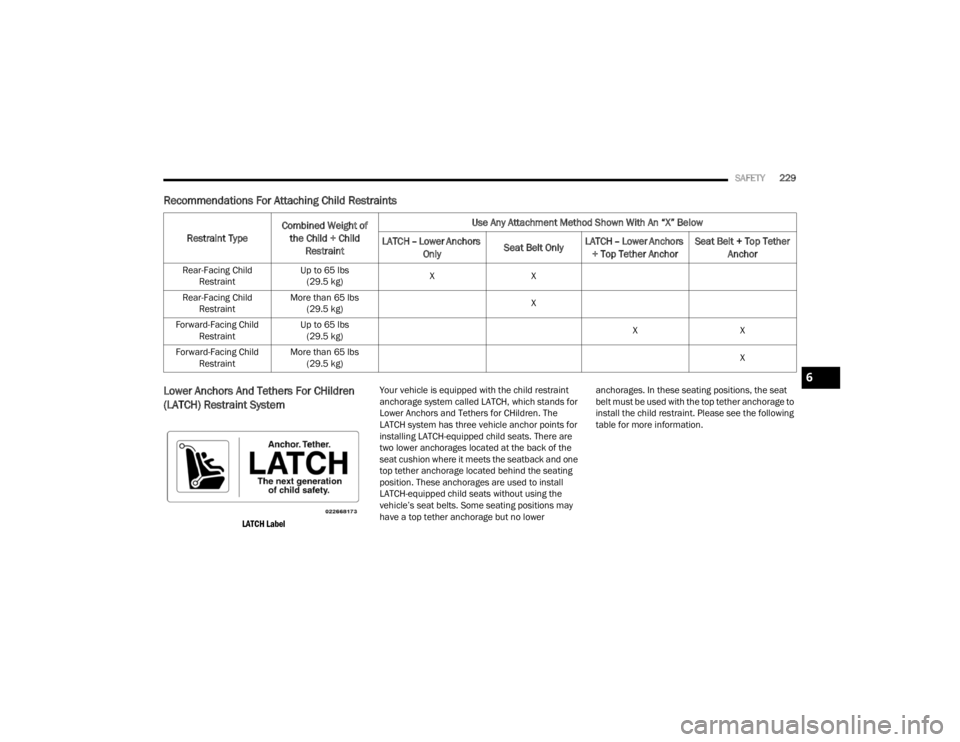
Recommendations For Attaching Child Restraints
Lower Anchors And Tethers For CHildren
(LATCH) Restraint System
LATCH Label
Your vehicle is equipped with the child restraint
anchorage system called LATCH, which stands for
Lower Anchors and Tethers for CHildren. The
LATCH system has three vehicle anchor points for
installing LATCH-equipped child seats. There are
two lower anchorages located at the back of the
seat cushion where it meets the seatback and one
top tether anchorage located behind the seating
position. These anchorages are used to install
LATCH-equipped child seats without using the
vehicle’s seat belts. Some seating positions may
have a top tether anchorage but no lower
anchorages. In these seating positions, the seat
belt must be used with the top tether anchorage to
install the child restraint. Please see the following
table for more information.
Restraint Type
Combined Weight of
the Child + Child Restraint Use Any Attachment Method Shown With An “X” Below
LATCH – Lower Anchors Only Seat Belt Only LATCH – Lower Anchors
+ Top Tether Anchor Seat Belt + Top Tether
Anchor
Rear-Facing Child Restraint Up to 65 lbs
(29.5 kg) X
X
Rear-Facing Child Restraint More than 65 lbs
(29.5 kg) X
Forward-Facing Child Restraint Up to 65 lbs
(29.5 kg) X
X
Forward-Facing Child Restraint More than 65 lbs
(29.5 kg) X
6
21_RUV_OM_EN_USC_t.book Page 229
Page 234 of 348

232SAFETY
Car Seat With Head Restraint Folded
Locating The LATCH Anchorages
The lower anchorages are round bars
that are found at the rear of the seat
cushion where it meets the seatback,
below the anchorage symbols on the
seatback. They are just visible when you lean into
the rear seat to install the child restraint. You will
easily feel them if you run your finger along the gap
between the seatback and seat cushion.
LATCH Anchorages (Second Row Anchorages Shown) 7 Passenger Stow ‘n Go Seating LATCH Anchorages (Second Row Anchorages Shown)
8 Passenger Seating
LATCH Anchorages
(Second Row Bench Anchorages Shown) 7 Passenger Bench Seating
WARNING!
Always make sure the head restraint is in its
upright position when the seat is to be used by
an occupant who is not in a child restraint.
Sitting in a seat with the head restraint in its
lowered position could result in serious injury or
death in a collision.
1 — Folded Headrest
2 — Child Restraint
21_RUV_OM_EN_USC_t.book Page 232