2021 CHEVROLET TRAVERSE display screen
[x] Cancel search: display screenPage 169 of 369

Chevrolet Traverse Owner Manual (GMNA-Localizing-U.S./Canada/Mexico-
14637844) - 2021 - CRC - 3/26/21
168 Infotainment System
Updates
If equipped, the vehicle can download and
install select software updates over a
wireless connection. The system will prompt
for certain updates to be downloaded and
installed. There is also an option to check
for updates manually.
To manually check for updates, touch
Settings on the Home Page and select the
System tab. Go to the Vehicle Software
section and touch Updates. Follow the
on-screen prompts. The steps to check for,
download, and install updates may vary by
vehicle.
The vehicle can be used normally during the
software download. Once the download is
complete, there may be a prompt to accept
the installation of the update upon the next
ignition cycle or the next time the vehicle is
shifted into P (Park). For most updates, the
vehicle will be disabled and cannot be driven
during the installation. The system will
deliver messages indicating success or error
during and after the download and
installation processes.
Downloading Over-the-Air vehicle software
updates requires Internet connectivity, which
can be accessed through the vehicle’s
built-in 4G LTE connection, if equipped andactive. If required, data plans are provided
by a third party. Optionally, a secure Wi-Fi
hotspot such as a compatible mobile device
hotspot, home hotspot, or public hotspot
can be used. Applicable data rates may
apply.
To connect the infotainment system to a
secured mobile device hotspot, home
hotspot, or public hotspot, touch Settings on
the Home Page, select the System tab,
followed by Wi-Fi Networks. Select the
appropriate Wi-Fi network, and follow the
on-screen prompts. Download speeds
may vary.
On most compatible mobile devices,
activation of the Wi-Fi hotspot is in the
Settings menu under Mobile Network
Sharing, Personal Hotspot, Mobile Hotspot,
or similar.
Availability of Over-the-Air software updates
varies by vehicle and country. Features are
subject to change. For more information on
this feature, see my.chevrolet.com/learn.
Preferences
Touch the controls on the infotainment
display to disable or enable the download of
new updates in the background.
About
Touch to view the infotainment system
software information.
Running Applications
Touch to see a complete list of applications
that are currently running on the
infotainment system.
Return to Factory Settings
Touch and the following may display:
.Reset Vehicle Settings: Resets all vehicle
settings for the current user.
Touch Reset or Cancel.
.Erase Settings and Personal Data: Erases
app data settings, user profiles, and
personal data including navigation and
mobile device data.
Touch Erase or Cancel.
.Clear Default Applications: Resets
preferred applications that have been set
to open when selecting a function. No
application data will be lost.
Touch Clear or Cancel.
Page 185 of 369
Chevrolet Traverse Owner Manual (GMNA-Localizing-U.S./Canada/Mexico-
14637844) - 2021 - CRC - 3/26/21
184 Climate Controls
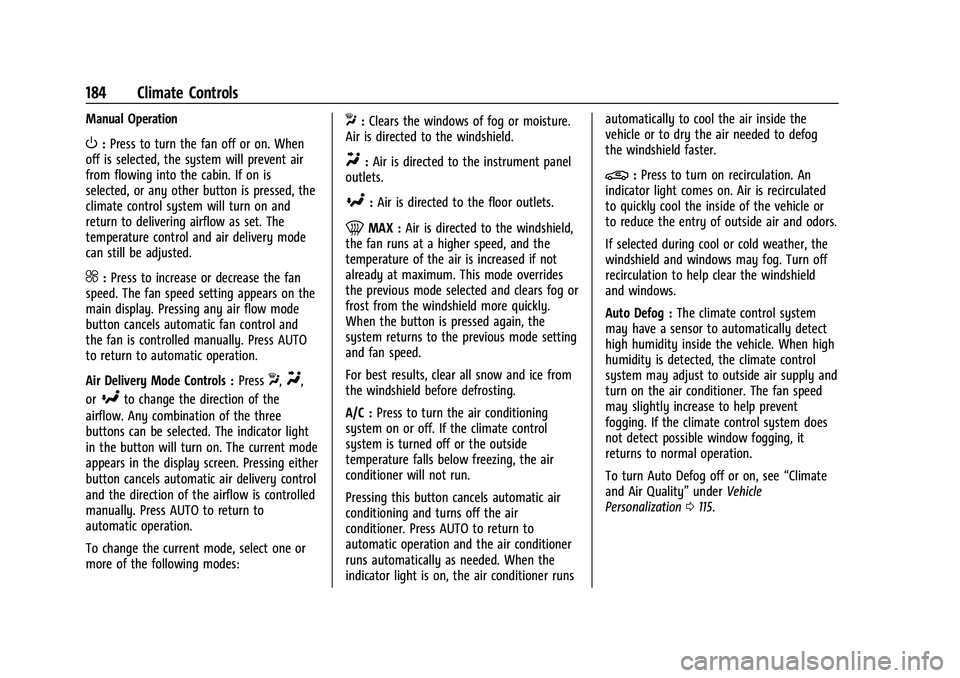
Manual Operation
O:Press to turn the fan off or on. When
off is selected, the system will prevent air
from flowing into the cabin. If on is
selected, or any other button is pressed, the
climate control system will turn on and
return to delivering airflow as set. The
temperature control and air delivery mode
can still be adjusted.
^: Press to increase or decrease the fan
speed. The fan speed setting appears on the
main display. Pressing any air flow mode
button cancels automatic fan control and
the fan is controlled manually. Press AUTO
to return to automatic operation.
Air Delivery Mode Controls : Press
X,Y,
or
[to change the direction of the
airflow. Any combination of the three
buttons can be selected. The indicator light
in the button will turn on. The current mode
appears in the display screen. Pressing either
button cancels automatic air delivery control
and the direction of the airflow is controlled
manually. Press AUTO to return to
automatic operation.
To change the current mode, select one or
more of the following modes:
X: Clears the windows of fog or moisture.
Air is directed to the windshield.
Y: Air is directed to the instrument panel
outlets.
[: Air is directed to the floor outlets.
0MAX : Air is directed to the windshield,
the fan runs at a higher speed, and the
temperature of the air is increased if not
already at maximum. This mode overrides
the previous mode selected and clears fog or
frost from the windshield more quickly.
When the button is pressed again, the
system returns to the previous mode setting
and fan speed.
For best results, clear all snow and ice from
the windshield before defrosting.
A/C : Press to turn the air conditioning
system on or off. If the climate control
system is turned off or the outside
temperature falls below freezing, the air
conditioner will not run.
Pressing this button cancels automatic air
conditioning and turns off the air
conditioner. Press AUTO to return to
automatic operation and the air conditioner
runs automatically as needed. When the
indicator light is on, the air conditioner runs automatically to cool the air inside the
vehicle or to dry the air needed to defog
the windshield faster.
@:
Press to turn on recirculation. An
indicator light comes on. Air is recirculated
to quickly cool the inside of the vehicle or
to reduce the entry of outside air and odors.
If selected during cool or cold weather, the
windshield and windows may fog. Turn off
recirculation to help clear the windshield
and windows.
Auto Defog : The climate control system
may have a sensor to automatically detect
high humidity inside the vehicle. When high
humidity is detected, the climate control
system may adjust to outside air supply and
turn on the air conditioner. The fan speed
may slightly increase to help prevent
fogging. If the climate control system does
not detect possible window fogging, it
returns to normal operation.
To turn Auto Defog off or on, see “Climate
and Air Quality” underVehicle
Personalization 0115.
Page 229 of 369

Chevrolet Traverse Owner Manual (GMNA-Localizing-U.S./Canada/Mexico-
14637844) - 2021 - CRC - 3/26/21
228 Driving and Operating
Cleaning
Depending on vehicle options, keep these
areas of the vehicle clean to ensure the best
driver assistance feature performance. Driver
Information Center (DIC) messages may
display when the systems are unavailable or
blocked.
.Front and rear bumpers and the area
below the bumpers
.Front grille and headlamps
.Front camera lens in the front grille or
near the front emblem
.Front side and rear side panels
.Outside of the windshield in front of the
rearview mirrors
.Side camera lens on the bottom of the
outside mirrors
.Rear side corner bumpers
.Rear Vision Camera above the license
plateRadio Frequency
This vehicle may be equipped with driver
assistance systems that operate using radio
frequency. See
Radio Frequency Statement
0 346.
Assistance Systems for Parking or
Backing
If equipped, the Rear Vision Camera (RVC),
Rear Park Assist (RPA), Surround Vision, and
Rear Cross Traffic Alert (RCTA) may help the
driver park or avoid objects. Always check
around the vehicle when parking or backing.
Rear Vision Camera (RVC)
When the vehicle is shifted into R (Reverse),
the RVC displays an image of the area
behind the vehicle in the infotainment
display. The previous screen displays when
the vehicle is shifted out of R (Reverse) after
a short delay. To return to the previous
screen sooner, press Home or Back on the
infotainment system, shift into P (Park),
or reach a vehicle speed of approximately
12 km/h (8 mph) while in D (Drive).
Page 230 of 369

Chevrolet Traverse Owner Manual (GMNA-Localizing-U.S./Canada/Mexico-
14637844) - 2021 - CRC - 3/26/21
Driving and Operating 229
1. View Displayed by the Camera
1. View Displayed by the Camera
2. Corners of the Rear Bumper
Displayed images may be farther or closer
than they appear. The area displayed is
limited and objects that are close to either
corner of the bumper or under the bumper
do not display.
A warning triangle may display to show
that RPA or RCTA has detected an object.
This triangle changes from amber to red and
increases in size the closer the object.
{Warning
The camera(s) do not display children,
pedestrians, bicyclists, crossing traffic,
animals, or any other object outside of
the cameras’field of view, below the
bumper, or under the vehicle. Shown
distances may be different from actual
distances. Do not drive or park the
vehicle using only these camera(s).
Always check behind and around the
vehicle before driving. Failure to use
proper care may result in injury, death,
or vehicle damage.
Surround Vision
If equipped, Surround Vision shows an
image of the area surrounding the vehicle,
along with the front or rear camera views on the infotainment display. The front
camera is in the grille or near the front
emblem, the side cameras are on the
bottom of the outside mirrors, and the rear
camera is above the license plate.
The Surround Vision system can be accessed
by selecting CAMERA in the infotainment
display or when the vehicle is shifted into
R (Reverse). To return to the previous screen
sooner, press any button on the
infotainment system, shift into P (Park),
or reach a vehicle speed of approximately
12 km/h (8 mph).
{Warning
The Surround Vision cameras have blind
spots and will not display all objects near
the corners of the vehicle. Folding outside
mirrors that are out of position may not
display surround view correctly. Always
check around the vehicle when parking or
backing.
Page 296 of 369

Chevrolet Traverse Owner Manual (GMNA-Localizing-U.S./Canada/Mexico-
14637844) - 2021 - CRC - 3/26/21
Vehicle Care 295
while the turn signal lamp is still flashing,
briefly press the center of the valve stem.
When the recommended pressure is reached,
the horn sounds once.
If the turn signal lamp does not flash within
15 seconds after starting to inflate the tire,
the tire fill alert has not been activated or is
not working.
If the hazard warning flashers are on, the
tire fill alert visual feedback will not work
properly.
The TPMS will not activate the tire fill alert
properly under the following conditions:
.There is interference from an external
device or transmitter.
.The air pressure from the inflation device
is not sufficient to inflate the tire.
.There is a malfunction in the TPMS.
.There is a malfunction in the horn or turn
signal lamps.
.The identification code of the TPMS
sensor is not registered to the system.
.The battery of the TPMS sensor is low.If the tire fill alert does not operate due to
TPMS interference, move the vehicle about
1 m (3 ft) back or forward and try again.
If the tire fill alert feature is not working,
use a tire pressure gauge.
TPMS Sensor Matching Process
Each TPMS sensor has a unique
identification code. The identification code
needs to be matched to a new tire/wheel
position after rotating the vehicle’s tires or
replacing one or more of the TPMS sensors.
The TPMS sensor matching process should
also be performed after replacing a spare
tire with a road tire containing the TPMS
sensor. The malfunction light and the DIC
message should go off at the next ignition
cycle. The sensors are matched to the tire/
wheel positions, using a TPMS relearn tool,
in the following order: driver side front tire,
passenger side front tire, passenger side rear
tire, and driver side rear. See your dealer for
service or to purchase a relearn tool.
A TPMS relearn tool can also be purchased.
See Tire Pressure Monitor Sensor Activation
Tool at www.gmtoolsandequipment.com or
call 1-800-GM TOOLS (1-800-468-6657). There are two minutes to match the first
tire/wheel position, and five minutes overall
to match all four tire/wheel positions. If it
takes longer, the matching process stops
and must be restarted.
The TPMS sensor matching process is:
1. Set the parking brake.
2. Place the vehicle in Service Mode. See Ignition Positions 0201.
3. Make sure the Tire Pressure info page option is turned on. The info pages on
the DIC can be turned on and off
through the Options menu. See Driver
Information Center (DIC) 0111.
4. Use the DIC controls on the right side of the steering wheel to scroll to the Tire
Pressure screen under the DIC info page.
5. Press and hold
Vin the center of the
DIC controls.
The horn sounds twice to signal the
receiver is in relearn mode and the TIRE
LEARNING ACTIVE message displays on
the DIC screen.
6. Start with the driver side front tire.
7. Place the relearn tool against the tire sidewall, near the valve stem. Then press
the button to activate the TPMS sensor.
Page 297 of 369

Chevrolet Traverse Owner Manual (GMNA-Localizing-U.S./Canada/Mexico-
14637844) - 2021 - CRC - 3/26/21
296 Vehicle Care
A horn chirp confirms that the sensor
identification code has been matched to
this tire and wheel position.
8. Proceed to the passenger side front tire, and repeat the procedure in Step 7.
9. Proceed to the passenger side rear tire, and repeat the procedure in Step 7.
10. Proceed to the driver side rear tire, and repeat the procedure in Step 7. The horn
sounds two times to indicate the sensor
identification code has been matched to
the driver side rear tire, and the TPMS
sensor matching process is no longer
active. The TIRE LEARNING ACTIVE
message on the DIC display screen
goes off.
11. Turn the vehicle off.
12. Set all four tires to the recommended air pressure level as indicated on the Tire
and Loading Information label.
Tire Inspection
We recommend that the tires, including
the spare tire, if the vehicle has one, be
inspected for signs of wear or damage
at least once a month. Replace the tire if:
.The indicators at three or more
places around the tire can be seen.
.There is cord or fabric showing
through the tire's rubber.
.The tread or sidewall is cracked, cut,
or snagged deep enough to show
cord or fabric.
.The tire has a bump, bulge, or split.
.The tire has a puncture, cut, or other
damage that cannot be repaired well
because of the size or location of the
damage.
Tire Rotation
Tires should be rotated every 12 000 km
(7,500 mi). See
Maintenance Schedule
0 323.
Tires are rotated to achieve a more
uniform wear for all tires. The first
rotation is the most important. Anytime unusual wear is noticed,
rotate the tires as soon as possible,
check for proper tire inflation pressure,
and check for damaged tires or wheels.
If the unusual wear continues after
the rotation, check the wheel
alignment. See
When It Is Time for New
Tires 0297 and
Wheel Replacement 0301.
Use this rotation pattern when rotating
the tires.
Do not include the compact spare tire
in the tire rotation.
Page 355 of 369

Chevrolet Traverse Owner Manual (GMNA-Localizing-U.S./Canada/Mexico-
14637844) - 2021 - CRC - 3/26/21
354 Connected Services
Connected Services
Connected Services
Navigation . . . . . . . . . . . . . . . . . . . . . . . . . . . . 354
Connections . . . . . . . . . . . . . . . . . . . . . . . . . . . 355
Diagnostics . . . . . . . . . . . . . . . . . . . . . . . . . . . . 356
Connected Services
Navigation
Navigation requires a specific OnStar or
connected service plan.
Press
Qto receive Turn-by-Turn directions
or have them sent to the vehicle’s
navigation screen, if equipped.
Turn-by-Turn Navigation
1. PressQto connect to an Advisor.
2. Request directions to be downloaded to the vehicle.
3. Follow the voice-guided commands.
Using Voice Commands During a
Planned Route
Functionality of the Voice Command button,
if equipped, may vary by vehicle and region.
For some vehicles, press
=to open the
OnStar app on the infotainment display. For
other vehicles press
=as follows.
Cancel Route 1. Press
=. System responds: “OnStar
ready,” then a tone. 2. Say
“Cancel route.” System responds:
“Do you want to cancel directions?”
3. Say “Yes.”System responds: “OK, request
completed, thank you, goodbye.”
Route Preview
1. Press
=. System responds: “OnStar
ready,” then a tone.
2. Say “Route preview.” System responds
with the next three maneuvers.
Repeat
1. Press
=. System responds: “OnStar
ready,” then a tone.
2. Say “Repeat.” System responds with the
last direction given, then responds with
“OnStar ready,” then a tone.
Get My Destination
1. Press
=. System responds: “OnStar
ready,” then a tone.
2. Say “Get my destination.” System
responds with the address and distance
to the destination, then responds with
“OnStar ready,” then a tone.
Send Destination to Vehicle
Directions can be sent to the vehicle’s
navigation screen, if equipped.
Page 356 of 369

Chevrolet Traverse Owner Manual (GMNA-Localizing-U.S./Canada/Mexico-
14637844) - 2021 - CRC - 3/26/21
Connected Services 355
PressQ, then ask the Advisor to download
directions to the vehicle’s navigation system,
if equipped. After the call ends, the
navigation screen will provide prompts to
begin driving directions. Routes that are sent
to the navigation screen can only be
canceled through the navigation system.
See www.onstar.com (U.S.) or www.onstar.ca
(Canada).
Connections
The following services help with staying
connected.
For coverage maps, see www.onstar.com
(U.S.) or www.onstar.ca (Canada).
Ensuring Security
.Change the default passwords for the
Wi-Fi hotspot and myChevrolet mobile
application. Make these passwords
different from each other and use a
combination of letters and numbers to
increase the security.
.Change the default name of the SSID
(Service Set Identifier). This is your
network’s name that is visible to other
wireless devices. Choose a unique name
and avoid family names or vehicle
descriptions. Wi-Fi Hotspot (If Equipped)
The vehicle may have a built-in Wi-Fi
hotspot that provides access to the Internet
and web content at 4G LTE speed. Up to
seven mobile devices can be connected.
A data plan is required. Use the in-vehicle
controls only when it is safe to do so.
1. To retrieve Wi-Fi hotspot information, press
=to open the OnStar app on the
infotainment display, then select Wi-Fi
Hotspot. On some vehicles, touch Wi-Fi
or Wi-Fi Settings on the screen.
2. The Wi-Fi settings will display the Wi-Fi hotspot name (SSID), password, and on
some vehicles, the connection type (no
Internet connection, 3G, 4G, 4G LTE), and
signal quality (poor, good, excellent).
3. To change the SSID or password, press
Qor call 1-888-4ONSTAR to connect
with an Advisor. On some vehicles, the
SSID and password can be changed in
the Wi-Fi Hotspot menu.
After initial set-up, your vehicle’s Wi-Fi
hotspot will connect automatically to your
mobile devices. Manage data usage by
turning Wi-Fi on or off on your mobile
device, using the myChevrolet mobile app, or by contacting an OnStar Advisor. On
some vehicles, Wi-Fi can also be managed
from the Wi-Fi Hotspot menu.
MyChevrolet Mobile App (If Available)
Download the myChevrolet mobile app to
compatible Apple and Android smartphones.
Chevrolet users can access the following
services from a smartphone:
.Remotely start/stop the vehicle,
if factory-equipped.
.Lock/unlock doors, if equipped with
automatic locks.
.Activate the horn and lamps.
.Check the vehicle’s fuel level, oil life,
or tire pressure, if factory-equipped with
the Tire Pressure Monitor System.
.Send destinations to the vehicle.
.Locate the vehicle on a map (U.S.
market only).
.Turn the vehicle's Wi-Fi hotspot on/off,
manage settings, and monitor data
consumption, if equipped.
.Locate a dealer and schedule service.
.Request roadside assistance.
.Set a parking reminder with pin drop,
take a photo, make a note, and set a
timer.