2021 CHEVROLET EXPRESS CARGO ECO mode
[x] Cancel search: ECO modePage 109 of 296

Chevrolet Express Owner Manual (GMNA-Localizing-U.S./Canada/Mexico-
14583525) - 2021 - CRC - 12/9/20
108 Infotainment System
To exit music navigator mode, press the
softkey below the Back tab to return to
normal MP3 playback.
CD Player Messages
CHECK DISC :If this message displays and/or
the CD ejects, it could be for one of the
following reasons:
.It is very hot. When the temperature
returns to normal, the CD should play.
.The road is very rough. When the road
becomes smoother, the CD should play.
.The CD is dirty, scratched, wet,
or upside down.
.The air is very humid. If so, wait about an
hour and try again.
.There was a problem while burning
the CD.
.The label is caught in the CD player.
If the CD is not playing correctly, for any
other reason, try a known good CD.
If any error occurs repeatedly or if an error
cannot be corrected, contact your dealer.
If the radio displays an error message, write
it down and provide it to your dealer when
reporting the problem.
Auxiliary Devices
Using the Auxiliary Input Jack
Radios with an auxiliary input jack on the
lower right side can connect to an external
audio device such as an iPod, MP3 player,
or CD player for use as another source for
audio listening. This input jack is not an
audio output; do not plug headphones into
the front auxiliary input jack.
Drivers are encouraged to set up any
auxiliary device while the vehicle is in
P (Park). See Defensive Driving 0126 for
more information on driver distraction.
To use a portable audio player, connect a
3.5 mm (1/8 in) cable to the radio's front
auxiliary input jack. When a device is
connected, press the radio CD/AUX button
to begin playing audio from the device over
the vehicle speakers.
For optimal sound quality, increase the
portable audio device's volume to the
loudest level.
It is always best to power the portable
audio device through its own battery while
playing.
O: Turn clockwise or counterclockwise to
increase or decrease the volume of the
portable player. Additional volume
adjustments might have to be made from
the portable device if the volume is not loud
or soft enough.
BAND : If equipped, press to listen to the
radio when a portable audio device is
playing. The portable audio device continues
playing.
CD/AUX : If equipped, press to play a CD
when a portable audio device is playing.
Press again and the system begins playing
audio from the connected portable audio
player. If a portable audio player is not
connected, “No Input Device Found” displays.
SRCE : If equipped, press to listen to the
radio when a portable audio device is
playing. The portable audio device continues
playing.
Press to play a CD when a portable audio
device is playing. Press again and the
system begins playing audio from the
connected portable audio player. If a
portable audio player is not connected, “No
Input Device Found” displays.
Page 111 of 296

Chevrolet Express Owner Manual (GMNA-Localizing-U.S./Canada/Mexico-
14583525) - 2021 - CRC - 12/9/20
110 Infotainment System
GM logo may appear on the iPod, and iPod
appears on the infotainment display. The
iPod music appears on the infotainment
display and begins playing.
The iPod charges while it is connected to
the vehicle if the ignition is on or in ACC/
ACCESSORY. When the vehicle is turned off,
the iPod automatically powers off and will
not charge or draw power from the vehicle's
battery.
If you have an older iPod model that is not
supported, it can still be used by connecting
it to the auxiliary input jack using a
standard 3.5 mm (1/8 in) stereo cable. See
“Using the Auxiliary Input Jack”previously in
this section.
Using the Radio to Control a USB
Storage Device or iPod
The radio can control a USB storage device
or an iPod using the radio buttons and
knobs, and can display song information on
the infotainment display.
f: Turn to select files.
©SEEK : Press to go to the start of the
track, if more than 10 seconds have played.
Press and hold or press multiple times to
continue moving backward through tracks.
¨SEEK : Press to go to the next track. Press
and hold or press multiple times to continue
moving forward through tracks.
sREV : Press and hold to reverse playback
quickly. Sound is heard at a reduced volume.
Release
sREV to resume playing. The
elapsed time of the file displays.
\FWD : Press and hold to advance
playback quickly. Sound is heard at a
reduced volume. Release
\FWD to resume
playing. The elapsed time of the file
displays.
4: Press to display additional information
about the selected track.
Using Softkeys to Control a USB Storage
Device or iPod
The five softkeys below the infotainment
display are used to control the functions
listed below.
To use the softkeys:
1. Press the first or fifth softkey below the infotainment display to display the
functions listed below, or press the
softkey below the function if it is
currently displayed. 2. Press the softkey below the tab with the
function on it to use that function.
j:Press the softkey belowjto pause the
track. The tab appears raised when pause is
being used. Press the softkey below
jagain
to resume playback.
Back : Press the softkey below the Back tab
to go back to the main display screen on an
iPod, or the root directory on a USB storage
device.
c: Press the softkey belowcto view
the contents of the current folder on the
USB drive. To browse and select files:
1. Press the softkey below
c.
2. Turn
fto scroll through the list of
folders.
3. Press
fto select the desired folder.
If there is more then one folder, repeat
Steps 1 and 2 until the desired folder is
reached.
4. Turn
fto scroll through the files in the
selected folder.
5. Press
fto select the desired file to be
played.
Page 112 of 296

Chevrolet Express Owner Manual (GMNA-Localizing-U.S./Canada/Mexico-
14583525) - 2021 - CRC - 12/9/20
Infotainment System 111
To skip through large lists, the five softkeys
can be used to navigate in the following
order:
.First softkey, first item in the list.
.Second softkey, 1% through the list each
time the softkey is pressed.
.Third softkey, 5% through the list each
time the softkey is pressed.
.Fourth softkey, 10% through the list each
time the softkey is pressed.
.Fifth softkey, end of the list.
h:Press the softkey belowhto
view and select a file on an iPod, using the
iPod's menu system. Files are sorted by:
.Playlists
.Artists
.Albums
.Genres
.Songs
.Composers
To select files:
1. Press the softkey below
h.
2. Turn
fto scroll through the list of
menus.
3. Press
fto select the desired menu. 4. Turn
fto scroll through the folders or
files in the selected menu.
5. Press
fto select the desired file to be
played.
To skip through large lists, the five softkeys
can be used to navigate in the following
order:
.First softkey, first item in the list.
.Second softkey, 1% through the list each
time the softkey is pressed.
.Third softkey, 5% through the list each
time the softkey is pressed.
.Fourth softkey, 10% through the list each
time the softkey is pressed.
.Fifth softkey, end of the list.
Repeat Functionality
To use Repeat:
Press the softkey below
"or'to
select between Repeat All and Repeat Track.
": Press the softkey below"to repeat
all tracks. The tab appears lowered when
Repeat All is being used. This is the default
mode when a USB storage device or iPod is
first connected.
': Press the softkey below'to
repeat one track. The tab appears raised
when Repeat Track is being used.
Shuffle Functionality
To use Shuffle:
Press the softkey below
>,2,C,
or
=to select between Shuffle Off,
Shuffle All Songs/Shuffle Songs, Shuffle
Album, or Shuffle Folder.
>: Press the softkey below2to turn
shuffle off. This is the default mode when a
USB storage device or iPod is first
connected.
2: Press the softkey below=orCto shuffle all songs on the USB
storage device or iPod.
C: Press the softkey below>to
shuffle all songs in the current album on
an iPod.
=: Press the softkey below>to
shuffle all songs in the current folder on a
USB storage device.
Page 113 of 296

Chevrolet Express Owner Manual (GMNA-Localizing-U.S./Canada/Mexico-
14583525) - 2021 - CRC - 12/9/20
112 Infotainment System
OnStar System
OnStar with 4G LTE
If equipped with OnStar 4G LTE, up to seven
devices, such as smartphones, tablets, and
laptops, can be connected to high-speed
Internet through the vehicle’s built-in Wi-Fi
hotspot.
Call 1-888-4-ONSTAR (1-888-466-7827) to
connect to an OnStar Advisor for assistance.
See www.onstar.com for a detailed
instruction guide, vehicle availability, details,
and system limitations. Services and apps
vary by make, model, year, carrier,
availability, and conditions. 4G LTE service is
available in select markets. 4G LTE
performance is based on industry averages
and vehicle systems design. Some services
require a data plan.
Phone
Bluetooth
For vehicles equipped with Bluetooth
capability, the system can interact with
many cell phones, allowing:
.Placement and receipt of calls in a
hands-free mode.
.Sharing of the cell phone’s address book
or contact list with the vehicle.
To minimize driver distraction, before
driving, and with the vehicle parked:
.Become familiar with the features of the
cell phone. Organize the phone book and
contact lists clearly and delete duplicate
or rarely used entries. If possible,
program speed dial or other shortcuts.
.Review the controls and operation of the
infotainment system.
.Pair cell phone(s) to the vehicle. The
system may not work with all cell
phones. See “Pairing”in this section for
more information.
.If the cell phone has voice dialing
capability, learn to use that feature to
access the address book or contact list.
See “Voice Pass-Thru” in this section for
more information.
.See “Storing and Deleting Phone
Numbers” in this section for more
information.
{Warning
When using a cell phone, it can be
distracting to look too long or too often
at the screen of the phone or the
infotainment system. Taking your eyes
off the road too long or too often could
cause a crash resulting in injury or death.
Focus your attention on driving.
A Bluetooth system can use a
Bluetooth-capable cell phone with a
Hands-Free Profile to make and receive
phone calls. The system can be used while
the ignition is on or in ACC/ACCESSORY. The
range of the Bluetooth system can be up to
9.1 m (30 ft). Not all phones support all
functions, and not all phones work with the
in-vehicle Bluetooth system. See
www.gm.com/bluetooth for more
information on compatible phones in U.S.
and Canada only.
Page 124 of 296

Chevrolet Express Owner Manual (GMNA-Localizing-U.S./Canada/Mexico-
14583525) - 2021 - CRC - 12/9/20
Climate Controls 123
Rear Climate Control Panel
1. Fan Control
2. Air Delivery Mode Control
3. Temperature Control
For vehicles with a rear climate control
panel, it is located overhead behind the
driver and front passenger, centered in front
of the second row. To adjust the rear
climate control panel settings by a rear seat
passenger, the front climate control panel
fan knob must be in the AUX position. The
fan speed, air delivery mode, and
temperature can then be adjusted. AUX :
Turn the fan knob on the front
climate control panel to AUX to let rear seat
passengers use the control panel in the rear
seating area. This disables the front control
panel. To return control to the front panel,
move the fan knob out of AUX.
9: Turns the system off.
9:Turn clockwise or counterclockwise to
increase or decrease the fan speed in the
rear seating area. Temperature Control :
Turn clockwise or
counterclockwise to increase or decrease the
temperature in the rear seating area.
The air conditioning system on the main
climate control panel must be turned on to
direct cooled air to the rear of the vehicle.
If it is not on, then the temperature in the
rear of the vehicle remains at cabin
temperature.
Air Delivery Mode Control : Turn clockwise
or counterclockwise to change the direction
of the airflow in the rear seating area.
To change the current mode, select one of
the following:
H: Air is directed to the upper outlets,
with some directed to the floor outlets.
2: Air is directed to the floor outlets.
Be sure to keep the area under the front
seats clear of any objects so that the air
inside of the vehicle can circulate effectively.
For information on how to use the main
climate control system, see Climate Control
Systems 0119. For information on
ventilation, see Air Vents0124.
Page 126 of 296

Chevrolet Express Owner Manual (GMNA-Localizing-U.S./Canada/Mexico-
14583525) - 2021 - CRC - 12/9/20
Driving and Operating 125
Driving and Operating
Driving Information
Driving for Better Fuel Economy . . . . . . . 126
Distracted Driving . . . . . . . . . . . . . . . . . . . . . 126
Defensive Driving . . . . . . . . . . . . . . . . . . . . . . 126
Impaired Driving . . . . . . . . . . . . . . . . . . . . . . . 127
Control of a Vehicle . . . . . . . . . . . . . . . . . . . . 127
Braking . . . . . . . . . . . . . . . . . . . . . . . . . . . . . . . . 127
Steering . . . . . . . . . . . . . . . . . . . . . . . . . . . . . . . 127
Off-Road Recovery . . . . . . . . . . . . . . . . . . . . . 128
Loss of Control . . . . . . . . . . . . . . . . . . . . . . . . 128
Driving on Wet Roads . . . . . . . . . . . . . . . . . 129
Hill and Mountain Roads . . . . . . . . . . . . . . 130
Winter Driving . . . . . . . . . . . . . . . . . . . . . . . . . 130
If the Vehicle Is Stuck . . . . . . . . . . . . . . . . . . 131
Vehicle Load Limits . . . . . . . . . . . . . . . . . . . . 132
Starting and Operating
New Vehicle Break-In . . . . . . . . . . . . . . . . . . 135
Ignition Positions . . . . . . . . . . . . . . . . . . . . . . 135
Starting the Engine . . . . . . . . . . . . . . . . . . . . 137
Fast Idle System . . . . . . . . . . . . . . . . . . . . . . . 138
Retained Accessory Power (RAP) . . . . . . . 138
Engine Coolant Heater . . . . . . . . . . . . . . . . . 139
Shifting Into Park . . . . . . . . . . . . . . . . . . . . . 140
Shifting out of Park . . . . . . . . . . . . . . . . . . . . 141
Parking over Things That Burn . . . . . . . . . 141
Engine Exhaust
Engine Exhaust . . . . . . . . . . . . . . . . . . . . . . . . 141
Running the Vehicle While Parked . . . . . 142
Automatic Transmission
Automatic Transmission . . . . . . . . . . . . . . . 142
Manual Mode . . . . . . . . . . . . . . . . . . . . . . . . . 144
Tow/Haul Mode . . . . . . . . . . . . . . . . . . . . . . . 145
Brakes
Antilock Brake System (ABS) . . . . . . . . . . 146
Parking Brake . . . . . . . . . . . . . . . . . . . . . . . . . 146
Brake Assist . . . . . . . . . . . . . . . . . . . . . . . . . . . 147
Hill Start Assist (HSA) . . . . . . . . . . . . . . . . . . 147
Ride Control Systems
Traction Control/Electronic StabilityControl . . . . . . . . . . . . . . . . . . . . . . . . . . . . . . 147
Locking Rear Axle . . . . . . . . . . . . . . . . . . . . . . 148
Cruise Control
Cruise Control . . . . . . . . . . . . . . . . . . . . . . . . . 149
Driver Assistance Systems
Driver Assistance Systems . . . . . . . . . . . . . 150
Rear Vision Camera (RVC) . . . . . . . . . . . . . . 152
Park Assist . . . . . . . . . . . . . . . . . . . . . . . . . . . . . 153
Forward Collision Alert (FCA) System . . . . . . . . . . . . . . . . . . . . . . . . . . . . . . 154
Side Blind Zone Alert (SBZA) . . . . . . . . . . . 155
Lane Departure Warning (LDW) . . . . . . . . 157
Fuel
Top Tier Fuel . . . . . . . . . . . . . . . . . . . . . . . . . . . 157
Recommended Fuel . . . . . . . . . . . . . . . . . . . . 158
Prohibited Fuels . . . . . . . . . . . . . . . . . . . . . . . 158
Fuels in Foreign Countries . . . . . . . . . . . . . 158
Fuel Additives . . . . . . . . . . . . . . . . . . . . . . . . . 158
Filling the Tank . . . . . . . . . . . . . . . . . . . . . . . . 158
Filling a Portable Fuel Container . . . . . . . 160
Trailer Towing
General Towing Information . . . . . . . . . . . 160
Driving Characteristics and Towing Tips . . . . . . . . . . . . . . . . . . . . . . . . . 160
Trailer Towing . . . . . . . . . . . . . . . . . . . . . . . . . 164
Towing Equipment . . . . . . . . . . . . . . . . . . . . . 172
Trailer Sway Control (TSC) . . . . . . . . . . . . . 175
Conversions and Add-Ons
Add-On Electrical Equipment . . . . . . . . . . . 176
Page 145 of 296

Chevrolet Express Owner Manual (GMNA-Localizing-U.S./Canada/Mexico-
14583525) - 2021 - CRC - 12/9/20
144 Driving and Operating
constantly makes adjustments to improve
vehicle performance according to how the
vehicle is being used, such as with a heavy
load or when the temperature changes.
During this adaptive shift control process,
shifting might feel different as the
transmission determines the best settings.
The shift quality of a new vehicle may not
be ideal because the adaptive shift control
process may not have determined the best
settings for a particular shift or condition.
Shift quality will improve with continued
driving.
When temperatures are very cold, the
transmission's gear shifting could be
delayed, providing more stable shifts until
the engine warms up. Shifts could be more
noticeable with a cold transmission. This
difference in shifting is normal.
M :This position lets drivers select the
range of gears appropriate for current
driving conditions. If the vehicle has this
feature, see “Range Selection Mode” under
Manual Mode 0144.
1 : This position reduces vehicle speed
without using the brakes. You can use it for
major/severe downgrades where the vehicle
would otherwise accelerate due to steepness
of grade. When you shift to 1 (First) it provides the lowest gear appropriate to
current road speed and continues to
downshift as the vehicle slows, eventually
downshifting to 1 (First) gear. The
transmission can be held in 1 (First) gear
using Range Selection Mode or the shift
lever. See
“Range Selection Mode” under
Manual Mode 0144.
Caution
Spinning the tires or holding the vehicle
in one place on a hill using only the
accelerator pedal may damage the
transmission. The repair will not be
covered by the vehicle warranty. If the
vehicle is stuck, do not spin the tires.
When stopping on a hill, use the brakes
to hold the vehicle in place.
Normal Mode Grade Braking
This mode is enabled when the vehicle is
started, but is not enabled in Range
Selection Mode. It assists in maintaining
desired vehicle speeds when driving on
downhill grades by using the engine and
transmission to slow the vehicle. The first
time the system activates for each ignition
key cycle. To disable or enable Normal Mode Grade
Braking within the current ignition key cycle,
press and hold the Tow/Haul button for
three seconds.
For other forms of grade braking, see
Tow/
Haul Mode 0145 and
Cruise Control 0149.
Manual Mode
Range Selection Mode
If equipped, Range Selection Mode helps
control the vehicle's transmission and vehicle
speed while driving downhill or towing a
trailer by letting you select a desired range
of gears.
To use this feature:
1. Move the shift lever to M (Manual Mode).
2. Press the +/− buttons on the shift lever
to select the desired range of gears for
current driving conditions.
Page 146 of 296
Chevrolet Express Owner Manual (GMNA-Localizing-U.S./Canada/Mexico-
14583525) - 2021 - CRC - 12/9/20
Driving and Operating 145
When M (Manual Mode) is selected, the
transmission will downshift and a number
displays in the Driver Information
Center (DIC) next to the M indicating the
current gear.
This number is the highest gear that can be
used. However, the vehicle can automatically
shift to lower gears as it adjusts to driving
conditions. This means that all gears below
that number are available. When 5 (Fifth) is
selected, 1 (First) through 5 (Fifth) gears are
automatically shifted by the vehicle, but
6 (Sixth) cannot be used until the +/−
button on the shift lever is used to change
to the gear.
Grade Braking is not available when Range
Selection Mode is active. SeeTow/Haul
Mode 0145.
While using Range Selection Mode, cruise
control and the Tow/Haul Mode can
be used.
Caution
Spinning the tires or holding the vehicle
in one place on a hill using only the
accelerator pedal may damage the
transmission. The repair will not be
(Continued)
Caution (Continued)
covered by the vehicle warranty. If the
vehicle is stuck, do not spin the tires.
When stopping on a hill, use the brakes
to hold the vehicle in place.
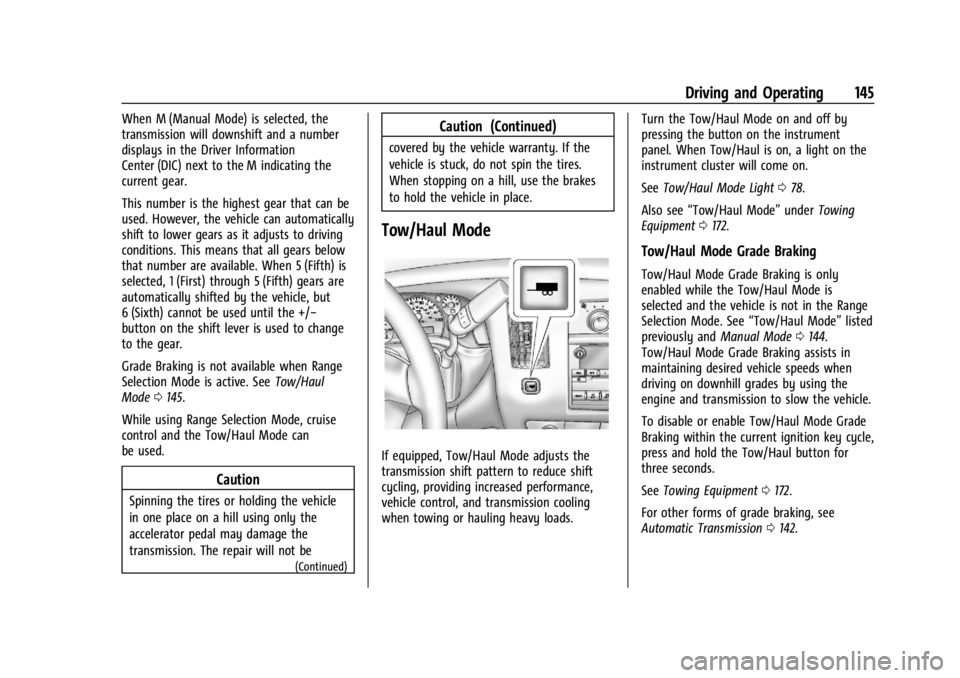
Tow/Haul Mode
If equipped, Tow/Haul Mode adjusts the
transmission shift pattern to reduce shift
cycling, providing increased performance,
vehicle control, and transmission cooling
when towing or hauling heavy loads. Turn the Tow/Haul Mode on and off by
pressing the button on the instrument
panel. When Tow/Haul is on, a light on the
instrument cluster will come on.
See
Tow/Haul Mode Light 078.
Also see “Tow/Haul Mode” underTowing
Equipment 0172.
Tow/Haul Mode Grade Braking
Tow/Haul Mode Grade Braking is only
enabled while the Tow/Haul Mode is
selected and the vehicle is not in the Range
Selection Mode. See “Tow/Haul Mode”listed
previously and Manual Mode0144.
Tow/Haul Mode Grade Braking assists in
maintaining desired vehicle speeds when
driving on downhill grades by using the
engine and transmission to slow the vehicle.
To disable or enable Tow/Haul Mode Grade
Braking within the current ignition key cycle,
press and hold the Tow/Haul button for
three seconds.
See Towing Equipment 0172.
For other forms of grade braking, see
Automatic Transmission 0142.