2021 BUICK ENCORE turn radio on
[x] Cancel search: turn radio onPage 111 of 313

Buick Encore Owner Manual (GMNA-Localizing-U.S./Canada-14607636) -
2021 - CRC - 8/18/20
110 Infotainment System
Touch a category name to display a list of
stations for that category. Selecting a
station from the list will tune the radio to
that station and return the display to Now
Playing.
EQ :If equipped with a Bose sound system,
the Equalizer settings are selected through
the tone settings menu. Touch the left or
right arrows to cycle through the EQ
options. The available choices are Manual
and Talk.
Auto Volume (If Equipped) : This feature
adjusts the volume based on vehicle speed.
The options are Off, Low, Medium - Low,
Medium, Medium - High, or High. Press
q
BACK orSBACK on the center stack or
touch the Back icon on the infotainment
display to go back to the previous menu.
Bose AudioPilot Noise Compensation
Technology (If Equipped) : This feature
adjusts the volume based on the noise in
the vehicle and speed. When turned on,
AudioPilot detects noise and vehicle speed
to continuously adjust the audio signal so
that music will sound the same at a set
volume level. This feature is most effective
at lower radio volume settings where
background noise can affect how well the
music is being played. See www.boseautomotive.com. This feature can
be turned on or off. Press
qBACK orS
BACK on the center stack or touch the Back
icon on the infotainment display to go back
to the previous menu.
HD Radio (If Equipped) :
For AM, FM, and
SXM (if equipped), touch to turn HD Radio
(if equipped) reception on or off. Touch the
Back icon on the infotainment display to go
back to the previous menu.
Update Station List : For AM, FM, and SXM
(if equipped), touch to update the station
list. Touch the Back icon on the
infotainment display to go back to the
previous menu.
Finding a Station
Seeking a Station
Press
g,7ord,6on the center stack
to search for the previous or next strongest
station.
Tuning a Station
Touch the TUNE icon on the infotainment
display to switch to Direct Tune. Touch the
left or right arrow to manually search for a
station. Direct Tune
Access Direct Tune by touching TUNE on the
infotainment display to bring up the keypad.
Navigate up and down through all
frequencies or directly enter a station using
the keypad. When a new station is entered,
the information about that station displays
on the right side. This information will
update with each new valid frequency
tuned.
The keypad will gray out entries that do not
contribute to a valid frequency and will
automatically place a decimal point within
the frequency number.
A valid station will automatically tune to
the new frequency but not close the Direct
Tune window. Touch the Back icon on the
infotainment display or touch Exit to close
the Direct Tune window.
The tune arrows on the right side of the
Direct Tune display tunes through the
complete station list one station step at a
time per touch. A touch and hold advances
10 frequency steps per second.
Touch (X) to delete one number at a time.
Touch and hold (X) to delete all numbers.
Page 113 of 313

Buick Encore Owner Manual (GMNA-Localizing-U.S./Canada-14607636) -
2021 - CRC - 8/18/20
112 Infotainment System
HD Radio Technology
If equipped, HD Radio is a free service with
features such as digital quality sound, more
stations available on a single frequency such
as HD2 and HD3, and display information
such as artist and song title.
From the Now Playing display, touch the HD
Radio icon to turn HD on or off.
Station Access
To access HD Radio stations:1. Tune the radio to the station. If HD Radio is turned on and the station is
broadcasting in HD Radio, the radio will
automatically tune to the HD version of
the current channel (HD1) after several
seconds. The radio will also display icons
representing additional channels (HD2,
...HD8), that may be available. When the
radio successfully tunes to a HD station,
the HD logo will display and digital
audio will play.
2. Touch
7or6on the infotainment
display to tune to the previous or next
HD Radio station.
There may be a delay before the station
starts playing. The HD Radio station number is indicated
next to the HD logo.
HD Radio stations can be saved as favorites.
For a list of all stations, see
www.hdradio.com.
HD Radio Troubleshooting
Digital Audio Delay :
Wait for the signal to
process. This can take several seconds.
Volume Change, Audio Skip, Echo, Digital
Audio Lost : Station signal strength may be
weak, the station is out of range, or the
station may be out of alignment. Verify
proper reception on another station.
If the HD Radio signal loses reception while
listening to HD1, the radio will go back to
the analog version of the radio station.
If the HD Radio signal loses reception while
listening to stations HD2 to HD8, the radio
mutes until the signal can be recovered or
until the station is changed.
HD Radio reception can be disabled if driving
in a weak signal area. Touch HD Radio On/
Off to toggle HD Radio reception on and off.
Satellite Radio
SiriusXM Satellite Radio Service (If
Equipped)
Vehicles with a valid SiriusXM satellite radio
subscription can receive SiriusXM
programming.
SiriusXM satellite radio has a wide variety of
programming and commercial-free music,
coast to coast, and in digital-quality sound.
See www.siriusxm.com or call
1-888-601-6296 in the U.S. In Canada, see
www.siriusxm.ca or call 1-877-438-9677.
When SiriusXM is active, the channel name,
number, category name, song title, and
artist show on the infotainment display.
SiriusXM Menu
SiriusXM has a menu to adjust different
features.
Touching Menu in the infotainment display
may show the following:
Tone Settings : Touch + or–to adjust the
tone settings. See AM-FM Radio (8 Inch
Screen) 0109.
Page 114 of 313

Buick Encore Owner Manual (GMNA-Localizing-U.S./Canada-14607636) -
2021 - CRC - 8/18/20
Infotainment System 113
TuneSelect :For SiriusXM only, this feature
allows for an alert to be set for artists or
songs that are played on any channel. Touch
Manage Tune Select to turn the alerts On
and Off or manage the saved selection of
Artists or Songs. To unselect an alert, touch
the Song or Artist. To delete an alert, touch
–. Touch the Back icon on the infotainment
display to go back to the previous menu.
Auto Volume (If Equipped) : This feature
adjusts the volume based on the vehicle
speed. See AM-FM Radio (8 Inch Screen)
0 109.
Bose AudioPilot Noise Compensation
Technology (If Equipped) : This feature
adjusts the volume based on the noise in
the vehicle and speed. See AM-FM Radio (8
Inch Screen) 0109.
Radio Reception
Unplug electronic devices from the accessory
power outlets if there is interference or
static in the radio.
FM
FM signals only reach about 16 to 65 km (10
to 40 mi). Although the radio has a built-in
electronic circuit that automatically works to reduce interference, some static can occur,
especially around tall buildings or hills,
causing the sound to fade in and out.
AM
The range for most AM stations is greater
than for FM, especially at night. The longer
range can cause station frequencies to
interfere with each other. Static can also
occur when things like storms and power
lines interfere with radio reception. When
this happens, try reducing the treble on the
radio.
SiriusXM Satellite Radio Service
If equipped, SiriusXM Satellite Radio Service
provides digital radio reception. Tall
buildings or hills can interfere with satellite
radio signals, causing the sound to fade in
and out. In addition, traveling or standing
under heavy foliage, bridges, garages,
or tunnels may cause loss of the SiriusXM
signal for a period of time.
Cell Phone Usage
Cell phone usage, such as making or
receiving phone calls, charging, or just
having the phone on may cause static
interference in the radio. Unplug the phone
or turn it off if this happens.
Multi-Band Antenna
The roof antenna is for SiriusXM Satellite
Radio, OnStar, GPS (Global Positioning
System), and AM-FM. Keep clear of
obstructions for clear reception. If the
vehicle has a sunroof, and it is open,
reception can also be affected.
Audio Players
Avoiding Untrusted Media Devices
When using media devices such as SD cards,
USB devices, and mobile devices, consider
the source. Untrusted media devices could
contain files that affect system operation or
performance. Avoid use if the content or
origin cannot be trusted.
USB Port (8 Inch Screen)
Audio stored on a USB device may be
listened to.
The vehicle may be equipped with two USB
ports inside the center console storage.
These ports are for data and charging.
Page 121 of 313

Buick Encore Owner Manual (GMNA-Localizing-U.S./Canada-14607636) -
2021 - CRC - 8/18/20
120 Infotainment System
There is no need to memorize specific
command words. Direct commands might be
more clearly understood by the system. An
example of a direct command would be“Call
555-1212.” Examples of these direct
commands are displayed on most of the
screens while a voice session is active.
If “Phone” or“Phone Commands,” is stated,
the system understands that a phone call is
requested and will respond with questions
until enough details are gathered.
If the phone number has been saved with a
name and a place, the direct command
should include both, for example “Call David
Smith at work.”
Using Voice Recognition for List Options
When a list is displayed, a voice prompt will
ask to confirm or select an option from that
list. A selection can be made by manually
selecting the item, or by speaking the line
number for the item to select.
When a screen contains a list, there may be
options that are available but not displayed.
The list on a voice recognition screen
functions the same as a list on other
screens. Scrolling or flinging can be used to
help display other entries from the list. Manually scrolling or paging the list on a
screen during a voice recognition session
suspends the current voice recognition event
and plays the prompt
“Make your selection
from the list using the manual controls,
press
qBACK orSBACK on the center
stack, or touch the Back icon on the
infotainment display to try again.”
If manual selection takes more than
15 seconds, the session terminates and
prompts that it has timed out. The screen
returns to the screen where voice
recognition was initiated.
The Back Command
Say “Back,” press
qBACK orSBACK on
the center stack, or touch the Back icon on
the infotainment display to go to the
previous menu.
If in voice recognition, and “Back”is stated
all the way through to the initial display,
then “Back” is stated one more time, the
voice recognition session will cancel.
Help
Say “Help” on any voice recognition menu
and the help prompt for the display is
played. Additionally, a pop-up displays a
text version of the help prompt. Depending on how voice recognition was initiated, the
Help pop-up will either display on the
instrument cluster or the infotainment
display. Touch Dismiss to make the pop-up
go away.
Pressing
gon the steering wheel controls
while the help prompt is playing will
terminate the prompt and a beep will be
heard. Doing this will stop the help prompt
so that a voice command can be used.
Voice Recognition for the Radio
All audio screens have a voice recognition
icon (
g) to launch audio voice recognition.
If the voice icon is touched in a radio
display, the voice commands for radio and
media features are available.
“Switch to AM” :Switch bands to AM and
tune to the last AM radio station.
“Switch to FM” :Switch bands to FM and
tune to the last FM radio station.
“Switch to SXM” :Switch bands to SiriusXM
and tune to the last SiriusXM channel.
“Tune to
the radio station whose frequency is
identified in the command (like “nine fifty”).
Page 130 of 313

Buick Encore Owner Manual (GMNA-Localizing-U.S./Canada-14607636) -
2021 - CRC - 8/18/20
Infotainment System 129
Features are subject to change. For further
information on how to set up Android Auto
and Apple CarPlay in the vehicle, see
my.buick.com.
Android Auto is provided by Google and is
subject to Google’s terms and privacy policy.
Apple CarPlay is provided by Apple and is
subject to Apple’s terms and privacy policy.
Data plan rates apply. For Android Auto
support see https://support.google.com/
androidauto. For Apple CarPlay support see
www.apple.com/ios/carplay/. Apple or
Google may change or suspend availability
at any time. Android Auto, Android, Google,
Google Play, and other marks are
trademarks of Google Inc.; Apple CarPlay is a
trademark of Apple Inc.
Settings
Settings (8 Inch Screen)
The Settings Menu allows adjustment of
different vehicle and radio features. The
menu may contain the following:
Time and Date
To set the time or date:1. Select Settings from the Home Page, then select Time and Date. 2. Select the desired function.
To set the time or date, touch
«orªto
change the hour, minutes, AM, PM, day,
month, or year.
To change the 12-24 Hr setting, touch
12-24 Hr.
To turn Auto Set on and off, touch Auto Set.
If auto timing is set, the time displayed on
the clock may not update immediately when
driving into a new time zone.
Auto set requires an active OnStar or
connected service plan.
Press
SBACK on the center stack to go to
the last menu and save the changes or
{
to return to the Home Page.
Language
This will set the display language in the
radio, instrument cluster, and voice
recognition. Touch Language and select the
appropriate language. Press
SBACK on the
center stack or touch the Back icon on the
infotainment display to go back to the
previous menu.
Valet Mode
If equipped, this will lock the infotainment
system and steering wheel controls. It may
also limit top speed, power, and access to
vehicle storage locations (if equipped).
To enable valet mode:
1. Enter a four-digit code on the keypad.
2. Touch Enter to go to the confirmation screen.
3. Re-enter the four-digit code.
Touch Lock or Unlock to lock or unlock the
system. Press
SBACK on the center stack
or touch the Back icon on the infotainment
display to go back to the previous menu.
Radio
Touch to display the Radio Menu and the
following may display:
.Manage Favorites: Touch to highlight a
favorite to edit. Touch Rename to rename
the favorite or Delete to delete it. Touch
and hold the station to drag it to a new
location. Touch Done to go back to the
previous menu.
.Number of Favorites Shown: Touch to set
the number of favorites to display. Select
Auto, 5, 10, 15, 20, 25, 30, 35, 40, 45, 50,
Page 131 of 313

Buick Encore Owner Manual (GMNA-Localizing-U.S./Canada-14607636) -
2021 - CRC - 8/18/20
130 Infotainment System
55, or 60. Auto will adjust the number of
favorite locations that can be seen. Press
SBACK on the center stack or touch the
Back icon on the infotainment display to
go back to the previous menu.
.Audible Touch Feedback: This allows
Audible Touch Feedback to be turned on
or off. Select Off or On.
.Tone Settings: Touch + or −to adjust
Bass, Midrange, Treble, or Surround. See
AM-FM Radio (8 Inch Screen) 0109.
.Audio Volume (If Equipped): This feature
adjusts the volume based on the vehicle
speed.
Press
SBACK on the center stack or
touch the Back icon on the infotainment
display to go back to the previous menu.
.Bose AudioPilot noise compensation
technology (If Equipped): This feature
adjusts the volume based on the noise in
the vehicle and speed. See AM-FM Radio
(8 Inch Screen) 0109.
.Maximum Startup Volume: This feature
sets the maximum startup volume. If the
vehicle is started and the volume is
greater than this level, the volume is
adjusted to this level. To set the
maximum startup volume, touch + or −to
increase or decrease. Press
SBACK on the center stack or
touch the Back icon on the infotainment
display to go back to the previous menu.
Vehicle Settings
See Vehicle Personalization (8 Inch Screen)
0 89 or
Vehicle Personalization (7 Inch Screen) 094.
Bluetooth
From the Bluetooth option, the following
may be displayed:
.Pair New Device: Touch to add a new
device.
.Device Management: Touch to connect to
a different phone source, disconnect a
phone, or delete a phone.
.Ringtones: Touch to change the ring tone
for the specific phone. The phone does
not need to be connected to change the
ring tone.
.Voice Mail Numbers: This feature displays
the voice mail number for all connected
phones. The voice mail number may be
changed by touching Edit, typing in the
new number, and touching Save.
Press
SBACK on the center stack or
touch the Back icon on the infotainment
display to go back to the previous menu.
.Text Message Alerts: This feature will turn
text message alerts on or off. Press Text
Message Alerts and then select Off or On.
Press
SBACK on the center stack or
touch the Back icon on the infotainment
display to go back to the previous menu.
See Text Messaging (8 Inch Screen) 0127.
Voice
From the Voice option, the following may
be displayed:
.Confidence Threshold: Select Confirm
More or Confirm Less for the system to
confirm more or less before acting on a
command.
.Prompt Length: Select Short or Long for
shorter or longer voice prompts.
Press
SBACK on the center stack or
touch the Back icon on the infotainment
display to go to the previous menu.
.Audio Feedback Speed: Touch Slow,
Medium, or Fast for feedback speed.
Press
SBACK on the center stack or
touch the Back icon on the infotainment
display to go back to the previous menu.
.Display “What Can I Say?” Tips: This
feature gives voice command tips.
Select Off or On.
Page 132 of 313

Buick Encore Owner Manual (GMNA-Localizing-U.S./Canada-14607636) -
2021 - CRC - 8/18/20
Infotainment System 131
Display
From the Display icon, the following may be
displayed:
.Mode: Touch Auto, Day, or Night to
adjust the display.
Press
SBACK on the center stack or
touch the Back icon on the infotainment
display to go to the previous menu.
.Calibrate Touchscreen: Touch to calibrate
the infotainment display and follow the
prompts.
Press
SBACK on the center stack or
touch the Back icon on the infotainment
display to go back to the previous menu.
.Turn Off Display: Touch to turn the
display off. Touch anywhere on the
display area or press any center stack
control again to turn the display on.
Rear Camera
Touch to display the Rear Camera menu. See
Rear Vision Camera (RVC) 0190.
Return to Factory Settings
Select Return to Factory Settings and the
following list may display:
.Restore Vehicle Settings: Restores factory
vehicle personalization settings. Touch
Restore Vehicle Settings. Touch Cancel or
Restore. If Restore is touched, a
confirmation pop-up will appear indicating
the vehicle settings have been restored.
.Clear All Private Data: If available, use to
erase personal private data before loaning
or selling the vehicle. Touch Clear All
Private Data. Touch Cancel or Delete.
If Delete is touched, a confirmation
pop-up will appear indicating all private
data has been cleared from the system.
.Restore Radio Settings: Restores factory
radio settings. Touch Restore Radio
Settings. Touch Cancel or Restore.
If Restore is touched, a confirmation
pop-up will appear indicating the radio
settings have been restored.
Press
SBACK on the center stack or touch
the Back icon on the infotainment display to
go back to the main settings menu.
Over-the-Air Software Updates
If equipped, the infotainment system can
download and install software updates over
a wireless connection. The system will
prompt for certain updates to be
downloaded and installed. There is also an
option to check for updates manually.
To manually check for updates, touch
SETTINGS on the Home Page, followed by
Software Information, and then System
Update. Follow the on-screen prompts. Steps
for downloading and installing updates may
vary by vehicle.
Downloading Over-the-Air software updates
requires Internet connectivity, which can be
accessed through the vehicle’s built-in 4G
LTE connection, if equipped and active.
If required, data plans are provided by a
third party. Optionally, a secured Wi-Fi
hotspot such as a compatible mobile device
hotspot, a home hotspot, or a public hotspot
can be used. Applicable data rates may
apply.
To connect the infotainment system to a
secured mobile device hotspot, home
hotspot, or public hotspot, touch SETTINGS
on the Home Page, followed by Wi-Fi, and
then Manage Wi-Fi Networks. Select the
Page 139 of 313
Buick Encore Owner Manual (GMNA-Localizing-U.S./Canada-14607636) -
2021 - CRC - 8/18/20
138 Infotainment System
Overview (7 Inch Screen)
Infotainment System
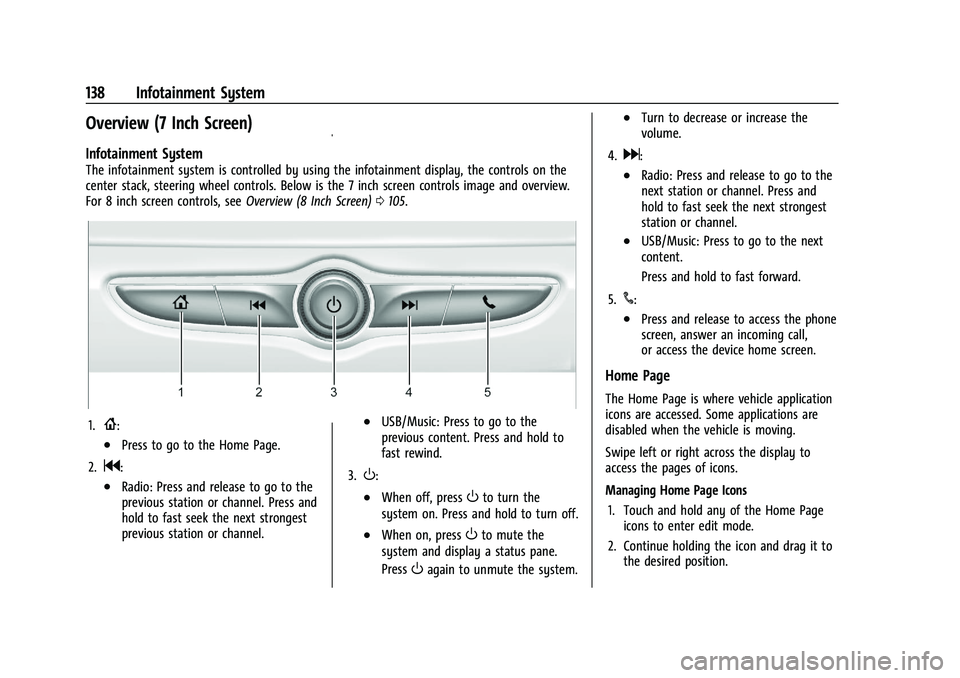
The infotainment system is controlled by using the infotainment display, the controls on the
center stack, steering wheel controls. Below is the 7 inch screen controls image and overview.
For 8 inch screen controls, seeOverview (8 Inch Screen)0105.
1.{:
.Press to go to the Home Page.
2.
g:
.Radio: Press and release to go to the
previous station or channel. Press and
hold to fast seek the next strongest
previous station or channel.
.USB/Music: Press to go to the
previous content. Press and hold to
fast rewind.
3.
O:
.When off, pressOto turn the
system on. Press and hold to turn off.
.When on, pressOto mute the
system and display a status pane.
Press
Oagain to unmute the system.
.Turn to decrease or increase the
volume.
4.
d:
.Radio: Press and release to go to the
next station or channel. Press and
hold to fast seek the next strongest
station or channel.
.USB/Music: Press to go to the next
content.
Press and hold to fast forward.
5.
#:
.Press and release to access the phone
screen, answer an incoming call,
or access the device home screen.
Home Page
The Home Page is where vehicle application
icons are accessed. Some applications are
disabled when the vehicle is moving.
Swipe left or right across the display to
access the pages of icons.
Managing Home Page Icons 1. Touch and hold any of the Home Page icons to enter edit mode.
2. Continue holding the icon and drag it to the desired position.